Offer bank payments and a card surcharge
The Payment Collection settings decide how customers can pay you online: whether your payment links offer a bank transfer (ACH) next to card, whether card payments carry a surcharge, which processor takes new links and saved cards, and how long a new link stays payable. They apply to payment links, to cards you charge from a sales order, and to invoices your buyers pay on the customer portal.
Before you begin
- Connect at least one card processor: Stripe or Authorize.net. Until one is connected, the page says so and offers Connect Stripe and Connect Authorize.net.
- To change these settings, your role needs access to Settings.
- Bank transfers through Stripe work for USD orders and US bank accounts only.
- Card surcharging has legal rules of its own. Read Card surcharge rules before you turn it on.
Steps
-
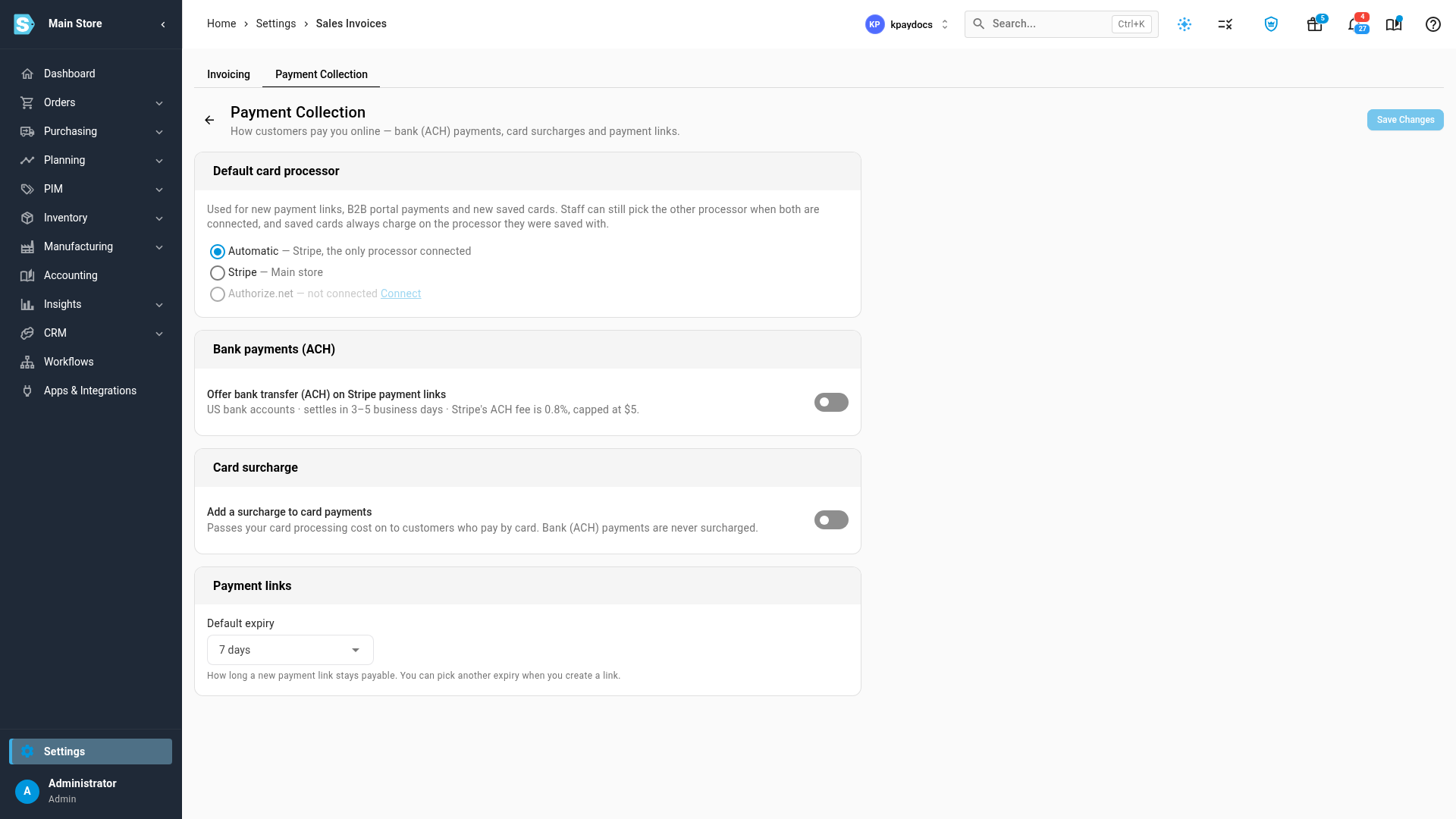
Go to Settings → General → Invoicing, and open the Payment Collection tab.
-
Under Default card processor, check which processor takes new payment links, portal payments and newly saved cards. Automatic uses the one you've connected. If you connect both Stripe and Authorize.net, choose Stripe or Authorize.net here.
-
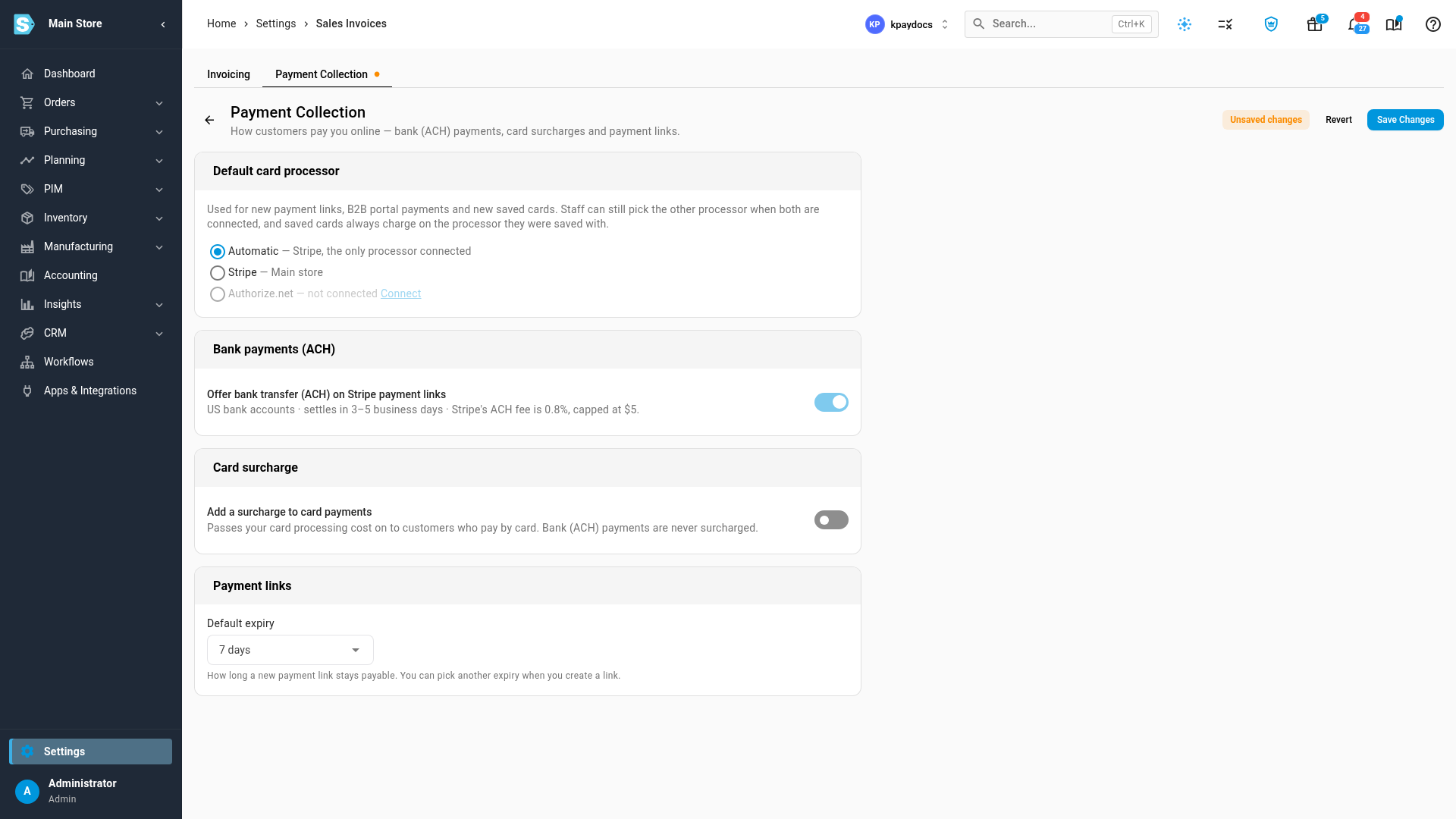
To let customers pay from a US bank account, turn on Offer bank transfer (ACH) on Stripe payment links under Bank payments (ACH).
-
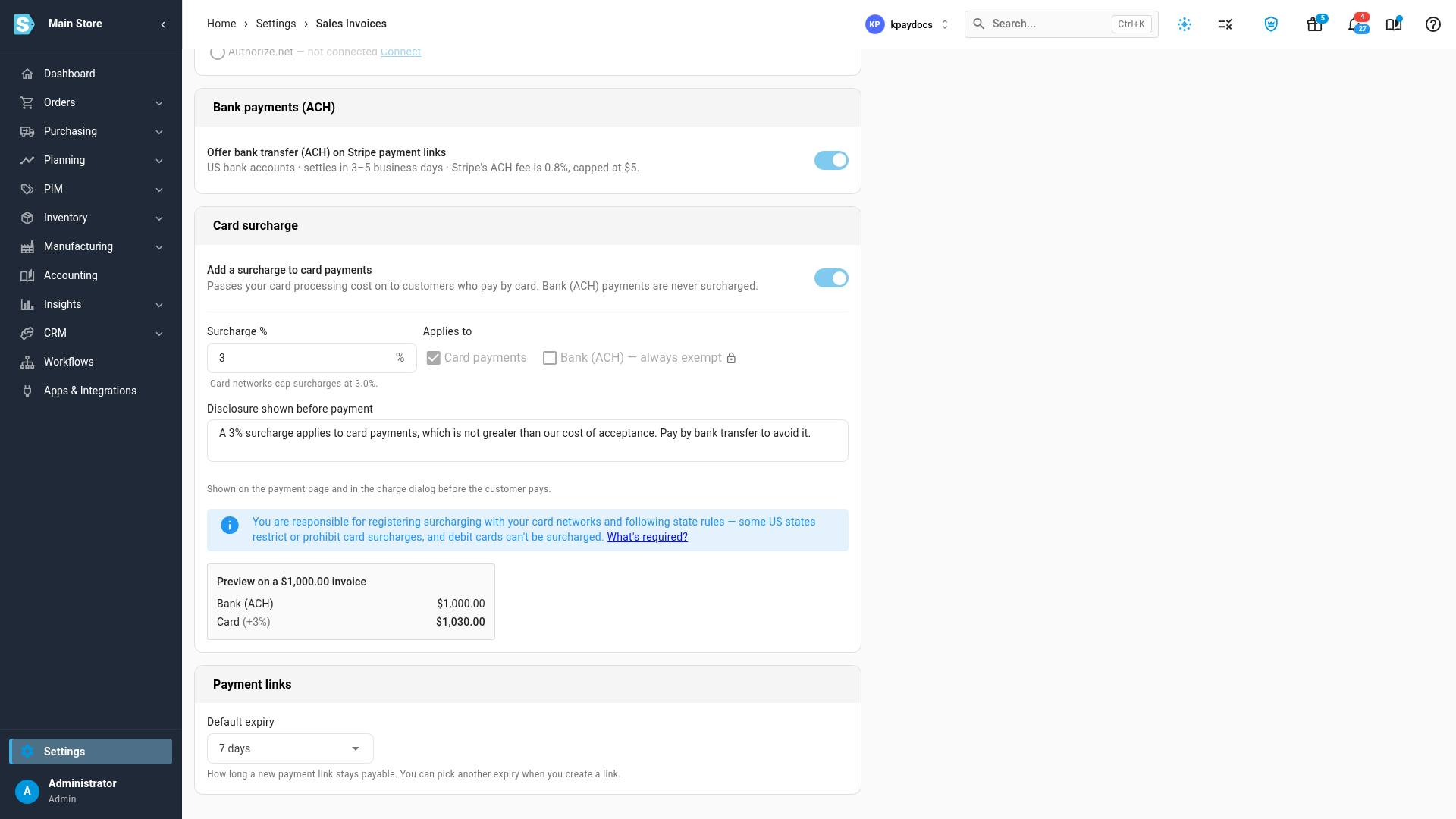
To pass your card processing cost on to customers who pay by card, turn on Add a surcharge to card payments under Card surcharge.
-
In Surcharge %, enter the percentage. It starts at 3, the most card networks allow.
-
Check the text in Disclosure shown before payment, and change it if it doesn't suit your business. Customers see it before they pay.
-
Under Payment links, choose a Default expiry for new links: 1, 3, 7, 14 or 30 days.
-
Click Save Changes.
What you'll see: Payment collection settings saved. New payment links offer Card and Bank transfer (ACH) — no fee, and the card price includes the surcharge. Links you created before you saved keep the ways to pay they were created with.
Bank payments (ACH)
With bank payments on, your customer can pay a Stripe payment link from a US bank account instead of a card:
- A bank payment settles in 3 to 5 business days. Until it does, the link shows Processing and the order isn't marked paid. When it settles, the payment is recorded on the order.
- Stripe charges 0.8% for a bank payment, capped at $5.
- Bank payments are never surcharged.
- Bank transfer is only offered on orders in USD. On an order in another currency, the option is greyed out in the link dialog.
Authorize.net has its own bank option, eCheck, which you turn on for each Authorize.net account in its Payment settings, not here.
Card surcharge
With the surcharge on:
- Payment links show both prices. The customer chooses Pay by bank (ACH) with no fee, or Pay by card with the surcharge, and sees the disclosure before paying.
- Charge Card on File on a sales order adds a Card fee line to the charge and shows the total before you confirm. You can untick the fee for a single charge. You can't add a surcharge when the setting is off.
- The customer portal adds the surcharge when a buyer pays order invoices by card through Authorize.net. Placing an order with Pay by card now at checkout never adds it.
The surcharge is recorded on the sales order as a separate Card Surcharge line, so the order total, the invoice and the payment all match.
Card surcharge rules
The page shows the rules that apply to you, under the disclosure:
- You're responsible for registering surcharging with your card networks and following state rules. Some US states restrict or prohibit card surcharges.
- Debit cards can't be surcharged.
- The surcharge can't be more than 3%, and you need a disclosure while it's on.
- Bank (ACH) payments are always exempt, and the setting can't be changed.
SKU.io doesn't register you with the card networks.
Fields on this page
| Field | What it does |
|---|---|
| Default card processor | Automatic, Stripe or Authorize.net. Used for new payment links, B2B portal payments and new saved cards. Staff can still pick the other processor when both are connected, and a saved card always charges on the processor it was saved with |
| Offer bank transfer (ACH) on Stripe payment links | Adds Bank transfer (ACH) — no fee to new Stripe payment links. Off by default |
| Add a surcharge to card payments | Turns the card surcharge on. Off by default |
| Surcharge % | The surcharge on card payments, above 0 and up to 3.0 |
| Applies to | Card payments, always on, and Bank (ACH) — always exempt |
| Disclosure shown before payment | Up to 1,000 characters, shown on the payment page and in the charge dialog. Required while the surcharge is on |
| Preview on a $1,000.00 invoice | What a customer pays by bank and by card |
| Default expiry | How long a new payment link stays payable. You can choose a different expiry for each link |
Next steps
- Collect payment with a Stripe payment link
- Save a customer's card and charge it
- Post Stripe payouts to your ledger
Video transcript
Payment Collection decides how customers can pay your payment links online. To find it, open Settings at the very bottom of the menu on the left, and then choose the General group of settings. In that group, click Invoicing, which opens the settings for all of your sales invoices. Switch to the Payment Collection tab, at the top of the page, next to Invoicing. The first card shows which processor takes new payment links and saved cards. Automatic picks whichever one you have connected. If you connect both Stripe and Authorize.net, choose your default here. To let customers pay from a US bank account, turn on bank transfer under Bank payments. These transfers settle in three to five business days, and they're never surcharged. To pass your processing cost on, turn on Add a surcharge to card payments. Set the percentage, up to the three percent the card networks allow. Only card payments carry it, and bank payments are always exempt. Customers see the disclosure before they pay, so check that its wording suits your business. Surcharging has rules of its own, which the note below explains. The preview shows what a customer pays on a one thousand dollar invoice. Under Payment links, set how long a new link stays payable. When you're done, click Save Changes, at the top right of the page, to keep everything you changed. New payment links now offer both ways to pay, with the surcharge on card payments.