Track deliveries with 17TRACK
17TRACK follows your packages with the carriers and reports each one's delivery status back to SKU.io. Once it's connected, every shipment with a tracking number shows whether it's in transit, out for delivery, delivered, or stuck, along with the carrier's full scan history.
Before you begin
- You need your own 17TRACK account and its API key. In 17TRACK, go to Settings → API Key. The free tier includes 100 trackings a month.
- You can connect one 17TRACK account.
- A shipment is tracked once it has a tracking number.
Connect 17TRACK
-
Go to Apps & Integrations, choose 17TRACK under Delivery Tracking, and click Connect 17TRACK.
-
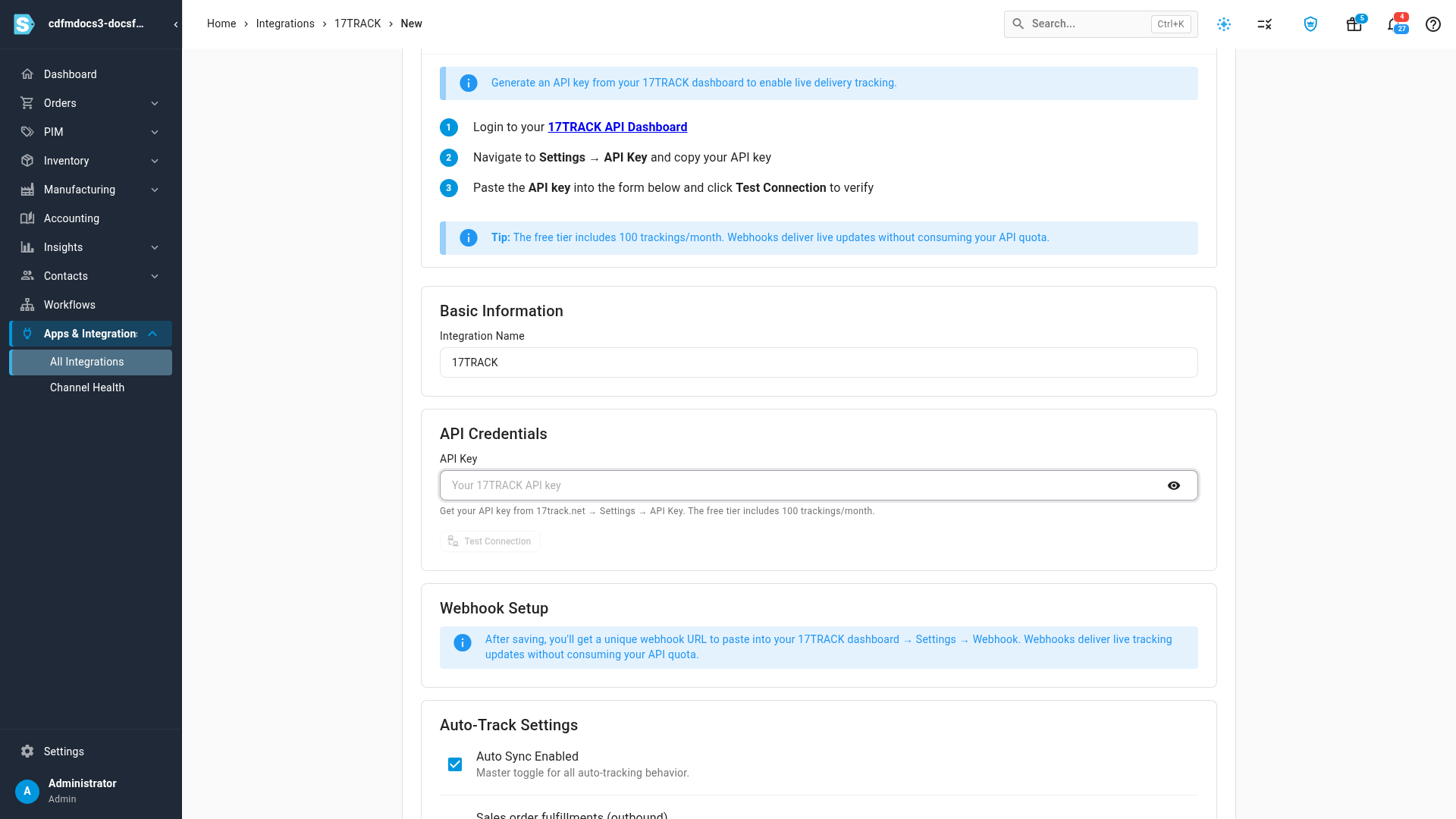
Under Integration Name, keep 17TRACK or type your own name.
-
Paste your key into API Key, then click Test Connection. A successful test confirms the key works.
-
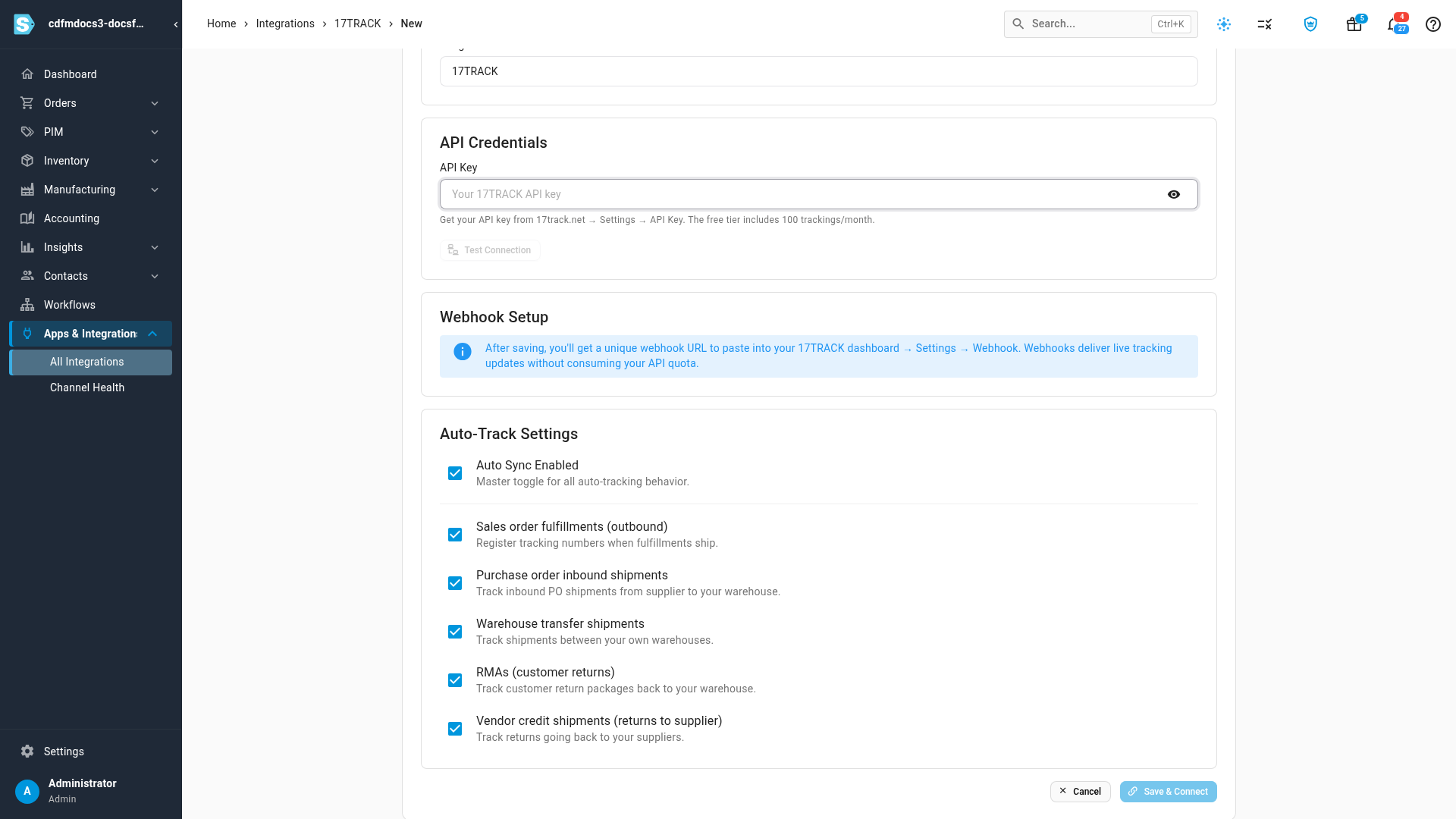
Under Auto-Track Settings, choose which shipments are tracked automatically. Auto Sync Enabled turns all automatic tracking on or off; below it, each kind of shipment has its own box: customer shipments (sales order fulfillments), purchase order inbound shipments, warehouse transfer shipments, returns (RMAs), and vendor credit shipments.
-
Click Save & Connect.
-
Open the connection's Settings tab and copy the Webhook URL. In 17TRACK, go to Settings → Webhook, paste it, and save. With the webhook in place, carrier updates arrive within minutes and don't use your API quota. Without it, SKU.io checks for updates every 6 hours.
From now on, each new tracking number on the shipments you chose is sent to 17TRACK automatically.
See every tracked shipment
Open Apps & Integrations → 17TRACK. The connection has these tabs:
| Tab | What it shows |
|---|---|
| Dashboard | Your 17TRACK quota, counts of shipments in transit, delivered, and with exceptions, a status breakdown, and your top carriers with their average transit time. |
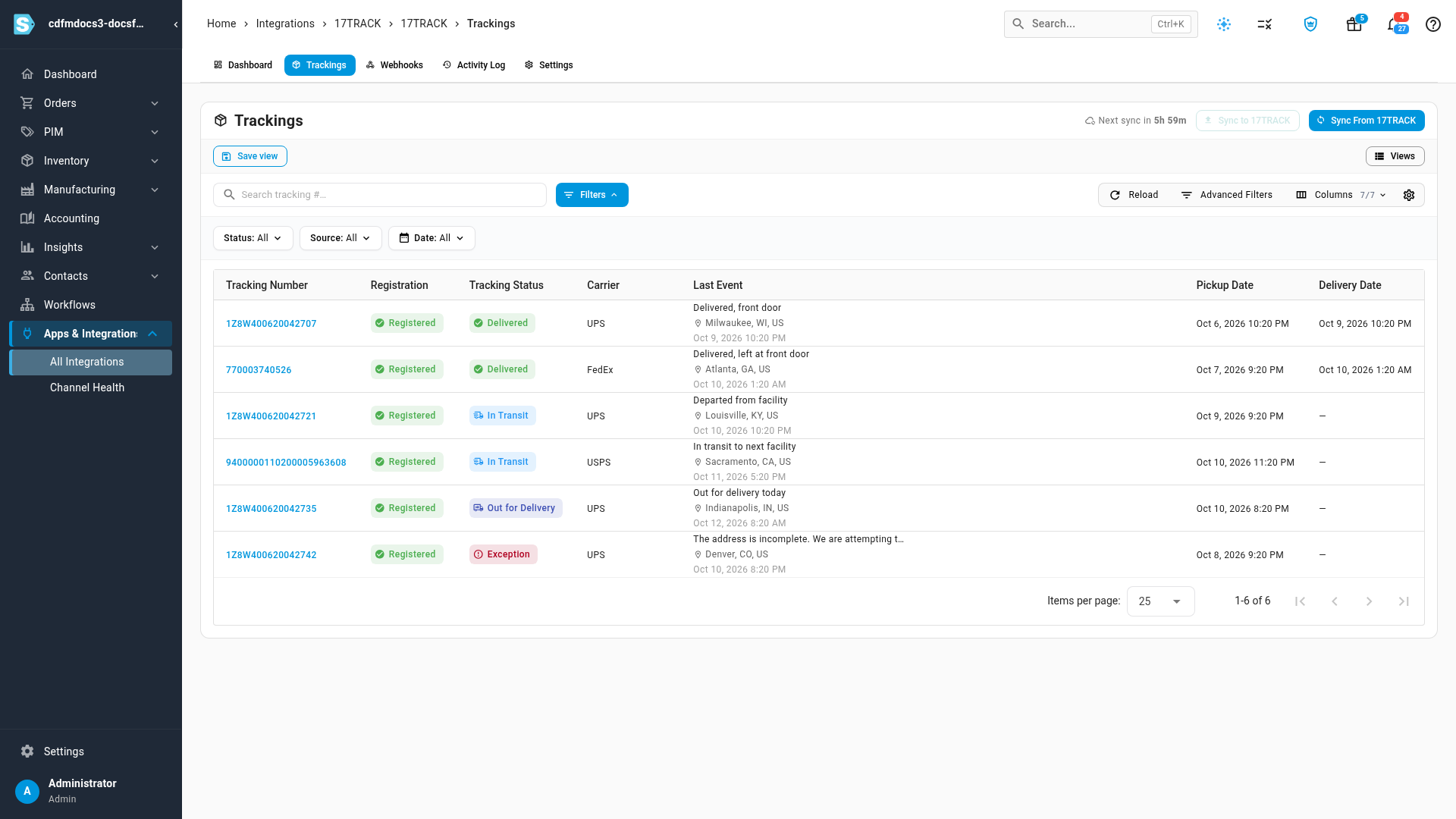
| Trackings | Every tracked shipment, with its Registration, Tracking Status, Carrier, Last Event (the latest scan, its place, and time), Pickup Date, and Delivery Date. Search by tracking number, or filter by Status, Source, and Date. Sync From 17TRACK fetches the latest updates now; Next sync in shows when the next automatic check runs. |
| Webhooks | Each update 17TRACK has sent. |
| Activity Log | Every change to the connection. |
| Settings | The webhook URL, which shipments are tracked automatically, which sales channels are tracked, what happens on delivery, and quota alerts. |
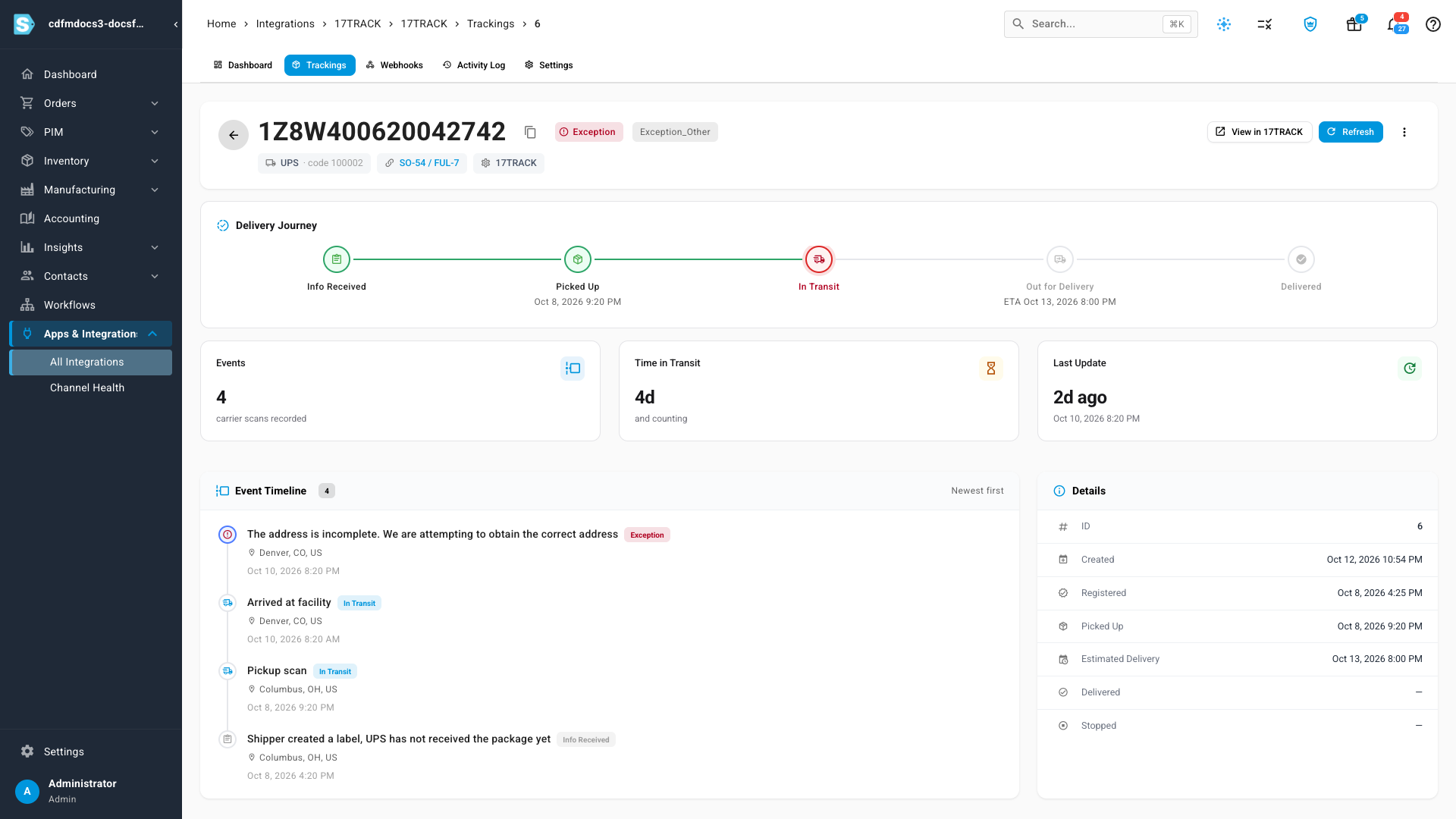
Click a tracking number to open its page. The timeline lists every carrier scan, newest first, with where and when it happened.
See delivery status where you work
You don't have to open 17TRACK to follow a delivery. Wherever a shipment's tracking number appears, a delivery status chip appears next to it:
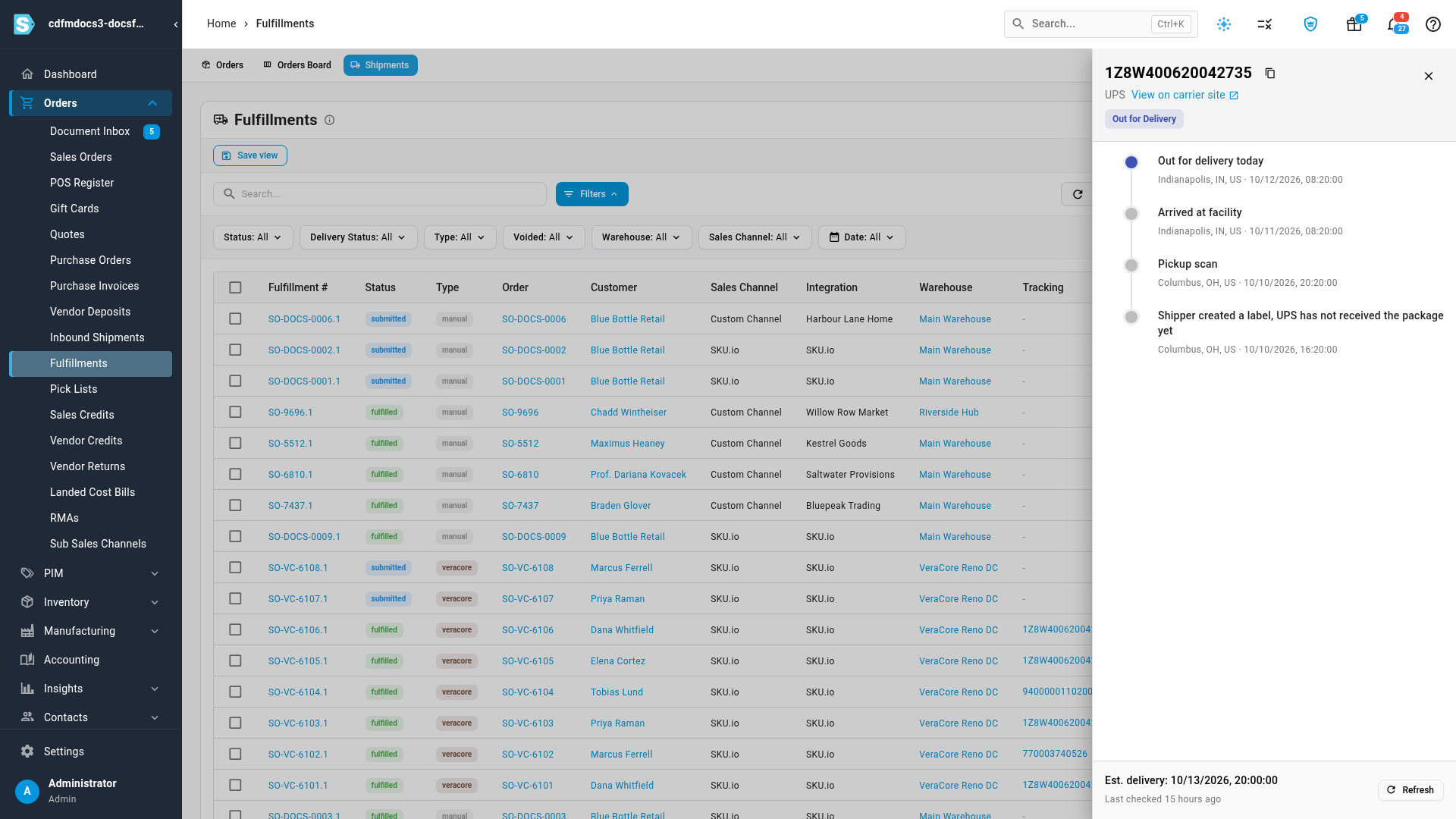
- Orders → Fulfillments → Shipments: the Delivery column, with a Delivery Status filter.
- Inbound shipments, warehouse transfers, returns (RMAs), and vendor credit shipments: next to the tracking number.
Click a status chip to open the carrier timeline beside the list, with the estimated delivery date and a link to the carrier's own tracking page.
Delivery statuses
| Status | Meaning |
|---|---|
| Pending | Sent to 17TRACK, waiting for the carrier's first scan. |
| Info Received | The carrier has the label details but not the package yet. |
| In Transit | The carrier has the package and it's on its way. |
| Out for Delivery | On the vehicle for delivery today. |
| Available for Pickup | Waiting at a pickup point. |
| Delivered | The carrier confirmed delivery. |
| Delivery Failure | A delivery attempt failed. |
| Exception | Something went wrong in transit, such as an incomplete address. |
| Expired | No new scans for 30 days, so 17TRACK stopped tracking it. |
| Not Found | The carrier doesn't recognize the tracking number. |
Choose what tracks and what happens on delivery
On the connection's Settings tab:
- General → Auto-Track by Entity Type: the same switches as when you connected.
- Channels: choose which sales channels, and sub-channels such as a marketplace's own fulfillment, track their shipments automatically. Leaving out the ones the marketplace ships itself saves 17TRACK credits. You can still track any shipment by hand from its page.
- Delivery Side Effects:
- Auto-mark Vendor Credit Shipments Delivered sets a vendor credit shipment to Delivered when the carrier confirms delivery.
- Inbound Shipment Arrival Alert alerts your admins when an inbound shipment is delivered, as a prompt to start receiving. The shipment's own status still changes only when you receive it.
- RMA Arrival Alert alerts your admins when a customer return is delivered.
- Quota Alert Threshold: alerts your admins when your 17TRACK quota use passes this percentage. A second, high-priority alert always fires when the quota runs out.
If SKU.io can't reach 17TRACK with your key, the Dashboard says Quota information unavailable — check your API key instead of showing your quota.
Next steps
- Track shipments: the Shipments list, where the Delivery column lives.
- Track inbound shipments: follow supplier shipments to your warehouse.
- How apps and integrations work
Video transcript
17TRACK watches your packages with each carrier, and SKU.io shows their delivery status. Connecting takes one form. Paste the API key from your 17TRACK account into this field. Click Test Connection to check that the key works before you connect. Below that, choose which kinds of shipment are tracked automatically. Customer shipments, inbound shipments, transfers, returns, and vendor credit shipments each have their own switch. Once you're connected, every new tracking number on those shipments is sent to 17TRACK. After you connect, the Trackings tab lists every tracked shipment. Each row shows the carrier, the tracking status, and the latest carrier scan with its place and time. The status chips make the shipments that need you stand out, like this exception. Click a tracking number to open its page. The timeline lists every carrier scan, newest first, with where and when it happened, so you can see exactly where a package stopped. Your shipments list shows the same delivery status. Open Orders in the sidebar, and then choose Fulfillments from the menu below Orders. Click Shipments at the top of the page, and the list switches to your individual shipments. The Delivery column shows each shipment's live status, like Out for Delivery, and you can filter by Delivery Status. Click a status to open the same carrier timeline, right beside the list. It shows every scan, the estimated delivery date, and a link to the carrier's own tracking page.