Let portal buyers pay by card
When you take card payments, your buyers can pay on the customer portal themselves: they pay open invoices from the Invoices page, by a saved card, a new card or eCheck, and they can pay for a new order by card at checkout. Each payment is recorded on the invoice and its order in SKU.io.
Before you begin
- Connect a card processor, and make it your Default card processor (or leave it on Automatic) in Payment Collection. Paying invoices works with Stripe or Authorize.net. Paying at checkout, saving cards on the portal, eCheck and the card surcharge need Authorize.net, with Card entry showing Ready.
- For eCheck, turn on Offer eCheck (ACH) in the Authorize.net account's Payment settings.
- Paying at checkout is controlled by the portal settings for all dealers, under Checkout payments: Allow pay by card (on by default) and Require card for customers without terms.
- The buyer needs portal access. See Invite buyers to the portal.
Pay invoices
These are the steps your buyer follows on the portal:
-
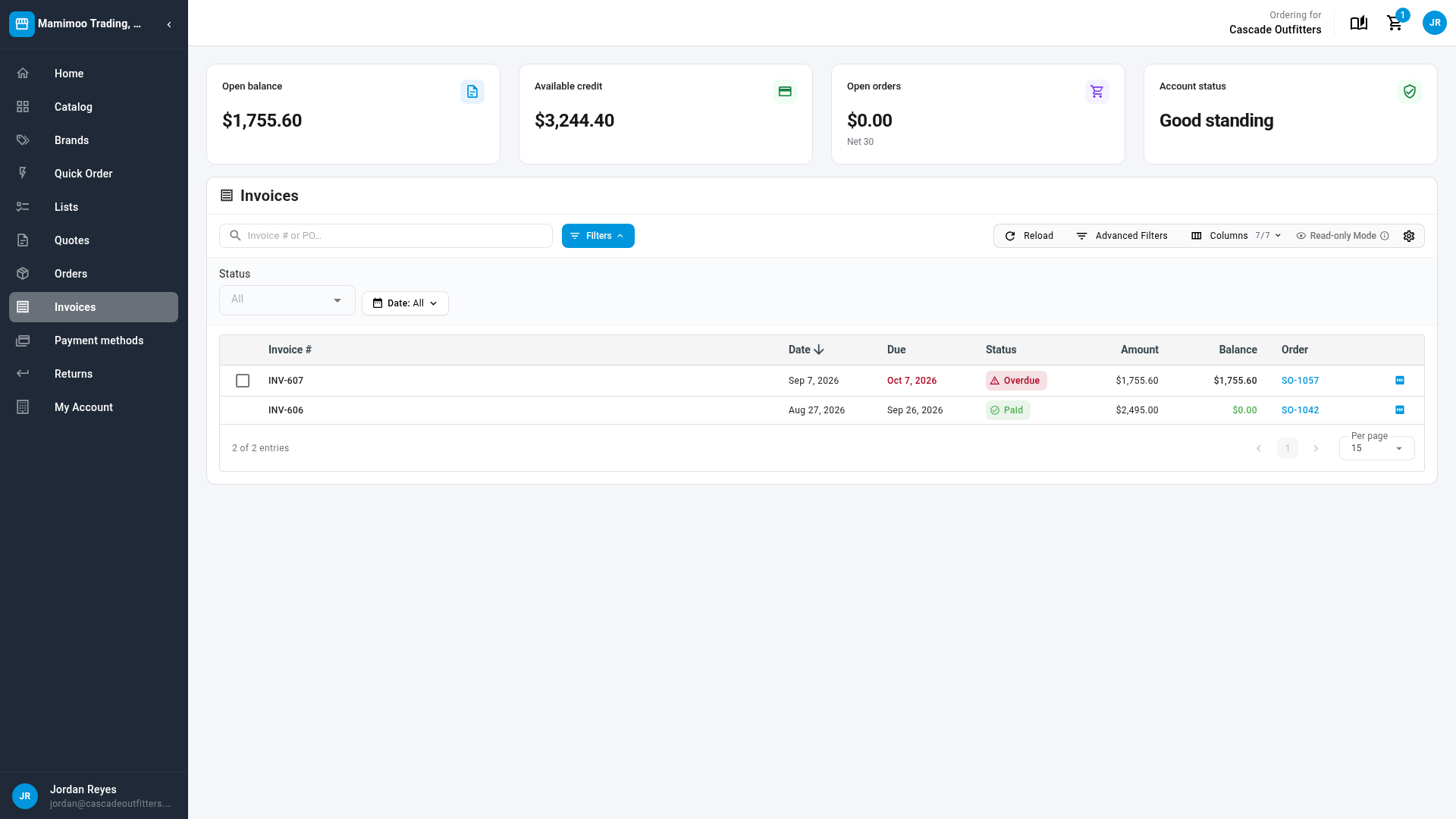
Open Invoices. Each open invoice has a box to tick.
-
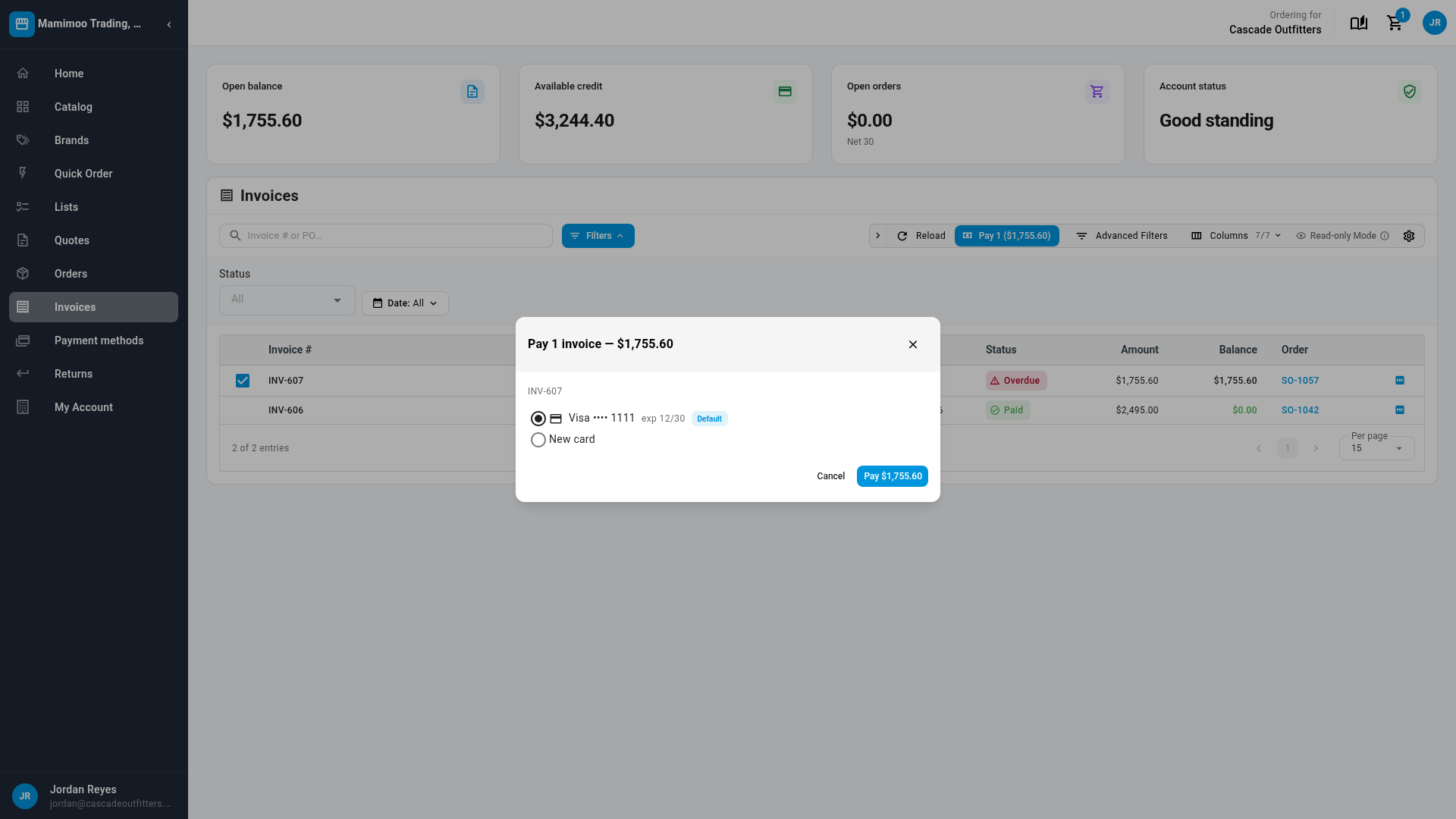
Tick the invoices to pay, and click Pay, which shows how many and the total.
-
In the payment sheet, choose a saved card, New card, or Bank account (eCheck).
-
For a new card, enter it in Authorize.net's secure form. To keep it, tick Save this card for future payments, which records the buyer's consent.
-
Click Pay.
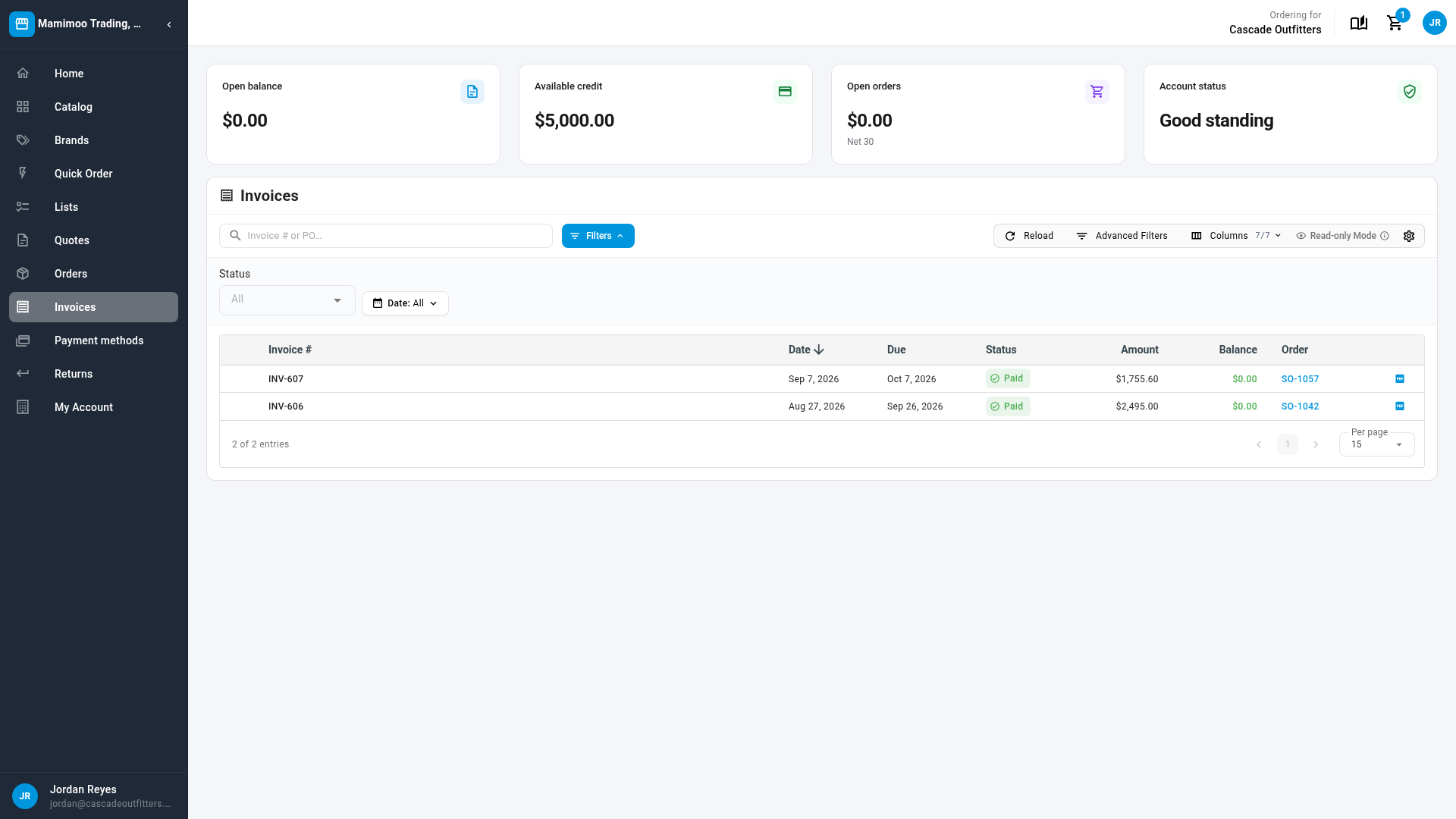
What they'll see: Paid …, and each invoice shows Paid. In SKU.io, the payment is recorded on each invoice and its order. An eCheck payment shows Payment processing until it clears, usually in 3 to 5 business days.
With a card surcharge on, the sheet shows the invoices' total plus the card surcharge before the buyer pays. The surcharge applies to Authorize.net card payments of order invoices only, never to eCheck.
If online payment isn't available, the Invoices page says so, and asks buyers to contact you or pay on their account terms.
Pay by card at checkout
-
With products in the cart, the buyer opens Checkout.
-
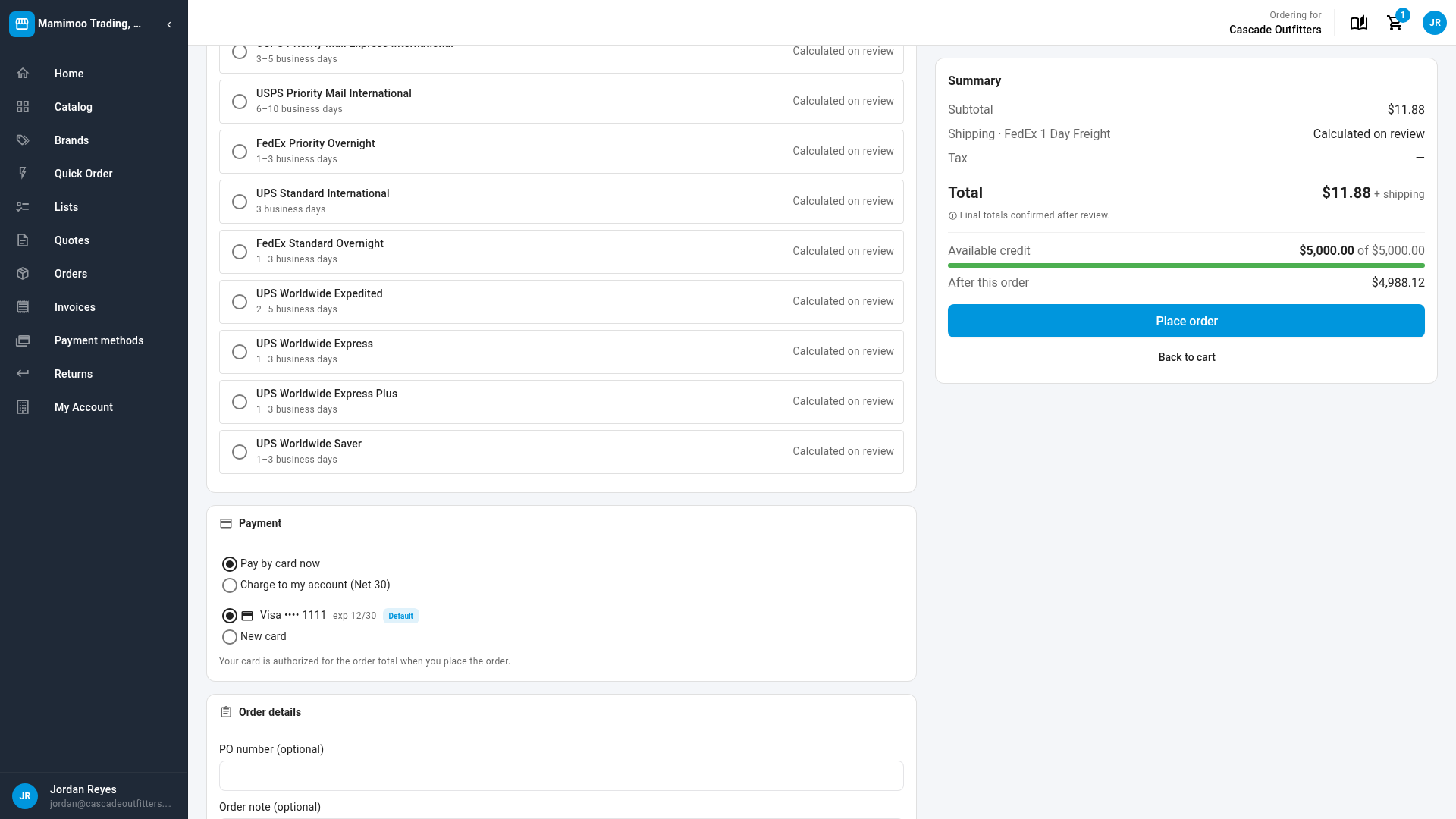
Under Payment, they choose Pay by card now. Buyers with payment terms can choose Charge to my account instead. When Require card for customers without terms is on, a buyer with no payment terms must pay by card, and the account option is hidden.
-
They choose a saved card or New card, and click Place order.
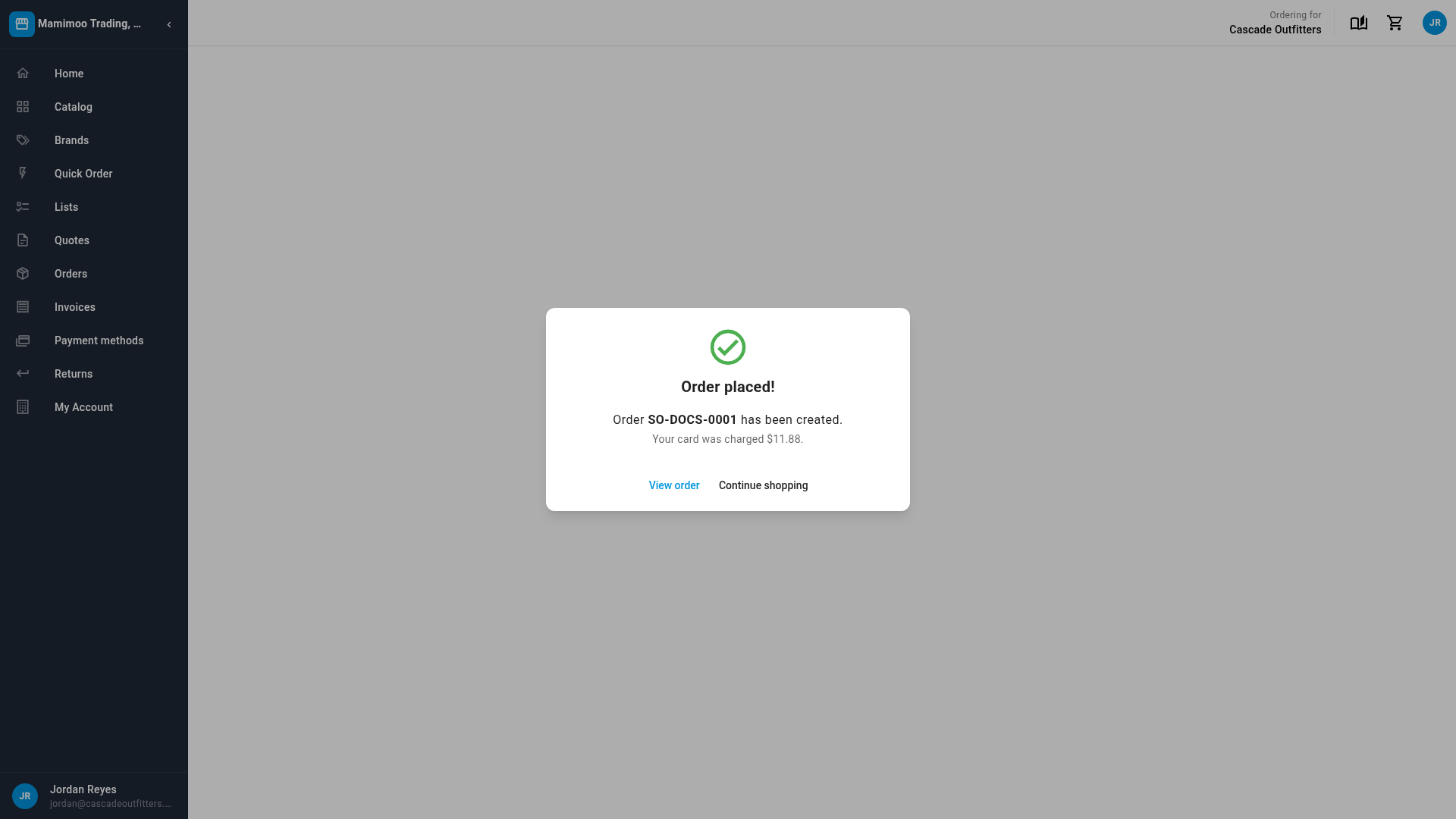
What they'll see: Order placed!, the new order's number, and what the card was charged. The card is authorized for the order total before the order is created, so a declined card never leaves an unpaid order behind. If the order can't be created, the authorization is released and the card isn't charged.
Whether the card is charged straight away or held until the order is fully fulfilled follows the Authorize.net account's When to capture card payments setting. Checkout never adds a card surcharge.
Saved cards on the portal
On the portal's Payment methods page, buyers see the cards saved on their account, add a card with Add card, choose a default and remove cards. With Stripe as your processor, buyers can't save cards themselves: the page asks them to have you save one, which you do on the customer's Credits & Wallet page. See Save a customer's card and charge it.
Next steps
Video transcript
With Authorize.net connected, your portal buyers can pay their invoices online. This is the buyer's Invoices page. Unpaid invoices have a box to tick, and settled invoices are marked Paid. The buyer ticks the invoices to pay, and clicks the Pay button that appears with the total. The payment sheet offers their saved cards, a new card, and eCheck when you've turned it on. With the saved card selected, the buyer clicks Pay. The invoice shows Paid straight away, and the payment is recorded on its order for you. Buyers can also pay for a new order by card when they check out. With products in the cart, they open Checkout, and choose Pay by card now under Payment. Buyers on terms can still charge the order to their account instead. They pick a saved card or a new one. Then they click Place order. The card is authorized before the order is created, so a declined card never leaves an unpaid order behind. The confirmation shows the new order and what the card was charged.