Turn on competition monitoring
When other sellers also sell a brand on Amazon, the brand wants to know how many there are, whether more are arriving, and what share of the market you're winning. Competition monitoring adds that to the brand's reports. Turn it on per brand, on each Amazon channel.
When to turn it on
- Leave it off if you own the brand or you're its only seller. The extra columns would only ever show you.
- Turn it on when other sellers carry the same products, so the brand can see the competition and your share of it.
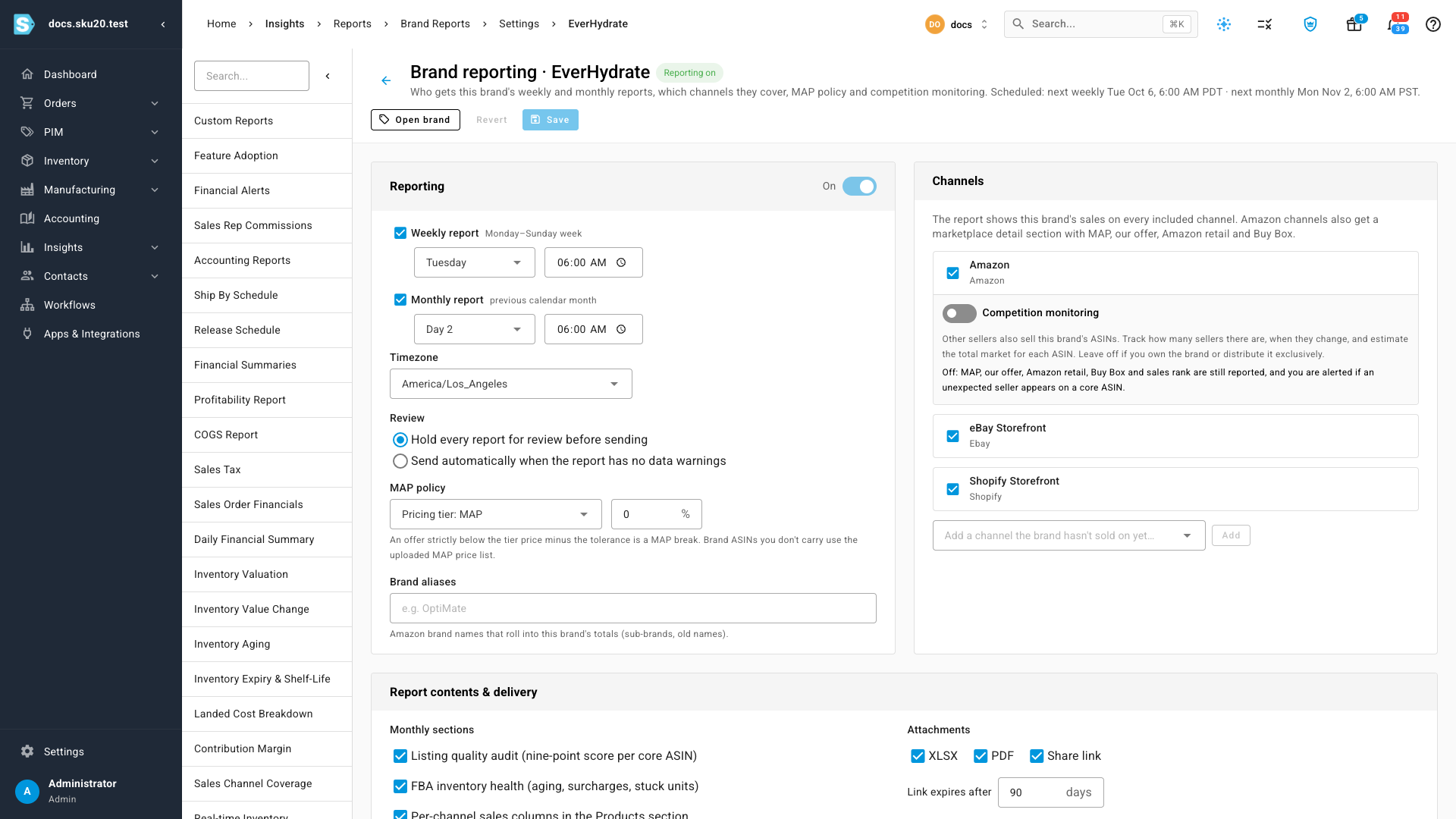
Every brand you report on gets MAP breaks, whether you and Amazon have an offer, the Buy Box holder and daily sales rank, whatever this setting is. With it off, SKU.io also alerts you when an unexpected seller appears on a core product, because on an exclusive brand that's exactly what you need to know. See Brand alerts.
What it adds
| Added to the report | Details |
|---|---|
| Sellers and FBA counts | How many distinct sellers have an offer, and how many sell through FBA or Prime. |
| Seller count history | Whether more sellers arrived during the period, which raises the Seller count change flag. |
| Exact offer totals | Amazon shows the first 20 offers. SKU.io fetches the full total for busy listings, shown as N offers. 20+ appears only when no full total was found that day. |
| Mkt units (Est.), Mkt $ (Est.) and %Sh | The estimated total units and sales on each listing across every seller, and your share. See How market estimates work. |
| Offer changes | A timeline of offer changes in the offer evidence drawer. |
History starts the day you turn monitoring on. Earlier periods show no counts unless you connect Keepa (see below).
Turn it on
-
Open the brand's reporting settings: go to Insights → Reports → Brand Reports, click Managed brands, and click the brand.
-
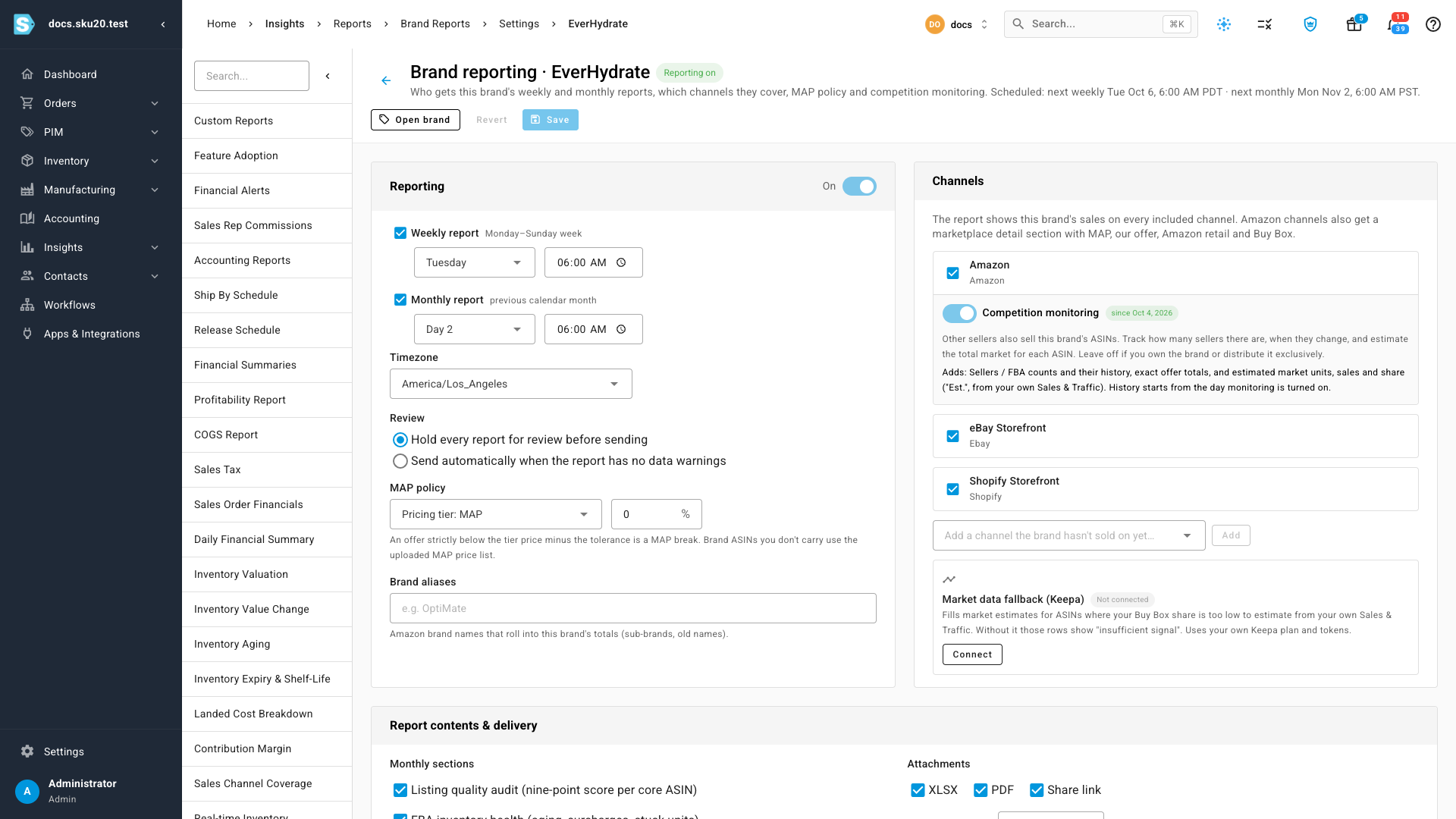
In the Channels card, find the Amazon channel and turn on Competition monitoring.
-
Click Save.
A since chip with today's date appears beside the switch, and Market data fallback (Keepa) appears below the channel.
When SKU.io suggests it
If SKU.io has seen other sellers on at least 30% of a brand's core ASINs in the last 14 days, the Amazon channel shows a suggestion such as "Other sellers were seen on 6 of 9 core ASINs in the last 14 days — turn on competition monitoring?" Click Turn on, then Save. Your own offers and Amazon retail don't count as other sellers. SKU.io never turns monitoring on for you.
Turn it off
Turn the switch off and click Save. The seller and market columns disappear from new reports, but the history already collected is kept, so turning it back on later doesn't start from nothing.
Fill gaps with Keepa (optional)
SKU.io estimates the market from your own Amazon data, which only works where you win a fair share of the Buy Box. For listings where it can't, the report shows insufficient signal. If you have a Keepa account, SKU.io can use it to fill those gaps, and to pull up to 13 months of rank, offer count and price history when you first turn monitoring on.
- With competition monitoring on, find Market data fallback (Keepa) in the Channels card and click Connect.
- Paste your key under Keepa API key and click Check & connect. SKU.io checks the key with Keepa before saving it. It's stored encrypted and never shown again.
- Use Test to see how many Keepa tokens you have left, Replace key to change it, or Disconnect to stop using Keepa.
Keepa calls use your own Keepa plan and tokens. A Keepa error never stops a report from being built.
Next steps
Video transcript
Competition monitoring is set per brand, on each marketplace channel. Managed brands lists every brand you report on, and whether competition is watched. Open the brand you want to monitor. Its Channels card has a switch for each marketplace. Leave it off if you own the brand, or you are its only seller. Turn it on when other sellers carry the same products. With it off, you still get MAP, Buy Box and sales rank. You are also alerted if a new seller appears on a core product. Now switch competition monitoring on. Then click Save, at the top of the page, to keep the change. A chip beside the switch shows the day monitoring started. From today, reports add seller and FBA counts with their history. They also estimate the total market for each product.