Send a brand report
Once you've reviewed a report, you send it to the brand from the report itself. SKU.io emails it to the brand's report recipients, attaches what you choose, and keeps a record of exactly what went to whom.
Before you begin
- The report should be reviewed. See Review a brand report.
- You need the Brand Reports → Send permission. Approving a report that's still In review, or changing its summary while you send, also needs Manage. Without Manage you can send a report someone else approved, but not change it.
- The brand needs at least one contact with the Report Recipient role. See Set up brand reporting.
Send the report
-
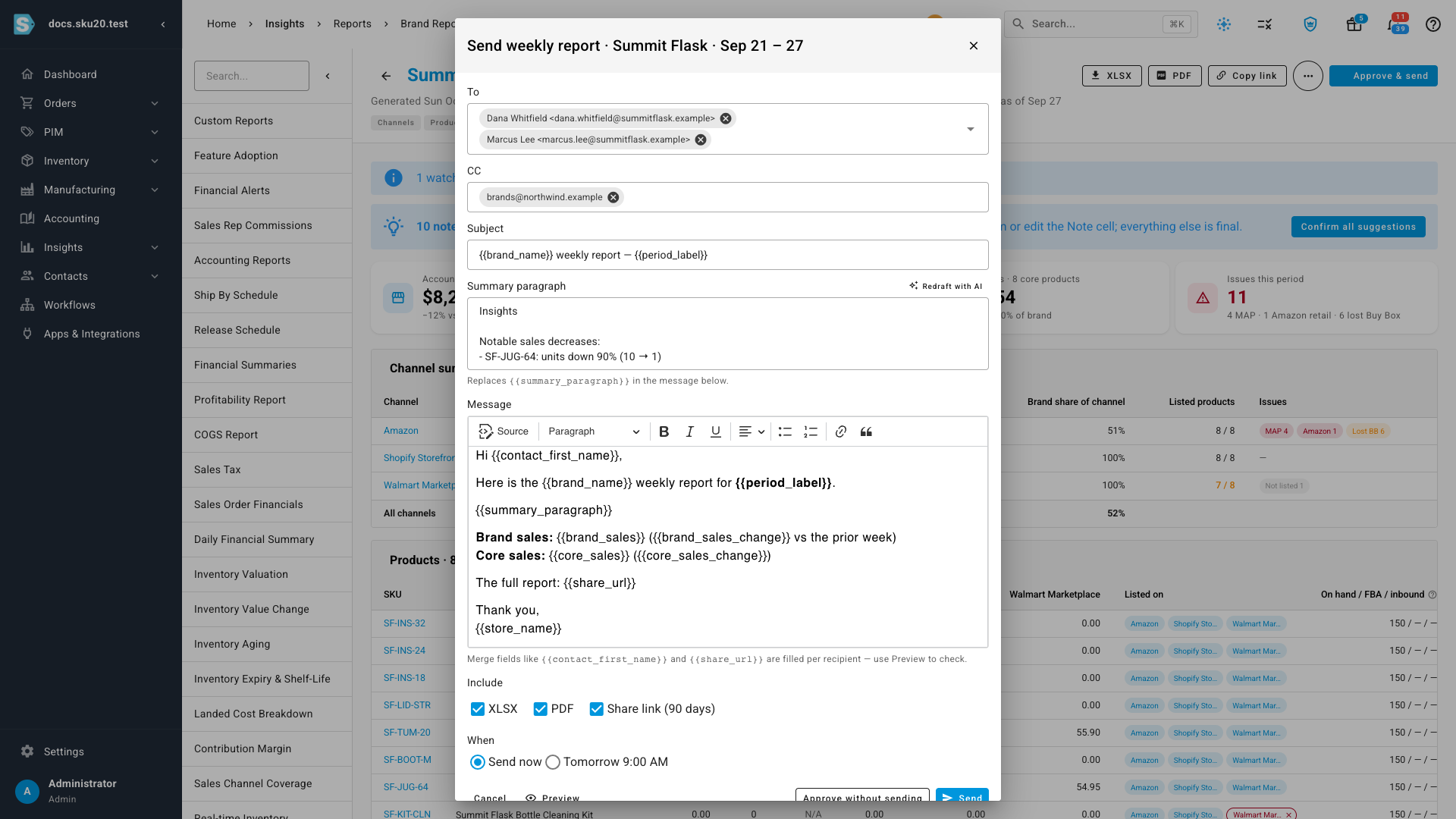
Open the report and click Approve & send.
-
Check To. It's filled with the brand's report recipients. Remove anyone who shouldn't get this one, or type another address.
If the brand has no report recipients, the dialog says so. Add one on the brand, or type an address.
-
Check CC. It's filled with the brand's Always CC addresses.
-
Edit the Subject if you want to. Text in double braces, such as
{{brand_name}}, is a merge field that SKU.io fills in. -
Under Summary paragraph, write the paragraph that opens the email, or click Redraft with AI to draft one from the notes you confirmed. It replaces
{{summary_paragraph}}in the message. -
Edit the Message if you want to. Merge fields such as
{{contact_first_name}}and{{share_url}}are filled in for each recipient. Click Preview to check how it reads. -
Under Include, choose the attachments: XLSX, PDF and a Share link.
-
Under When, choose Send now, or Tomorrow 9:00 AM to schedule it.
-
Click Send.
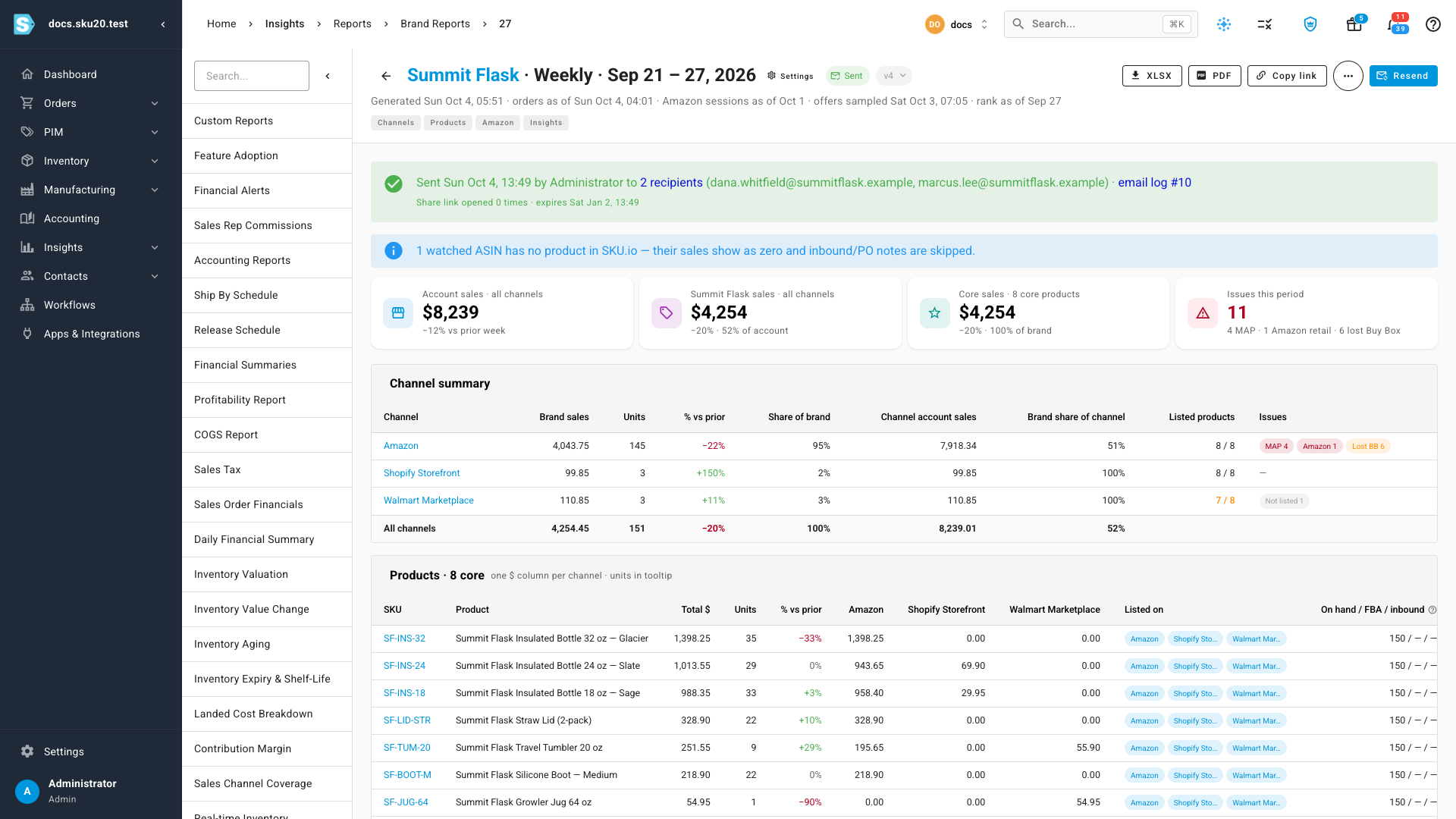
The report shows Sending while the emails go out, then Sent. The header lists who received it, any address that failed, a link to the email log, and how many times the share link has been opened.
To approve the report without sending it, click Approve without sending instead. It stays Approved until you, or someone with send permission, sends it.
What a sent report means
- A sent report is frozen. The brand's copy, the attachments, and the share link keep showing exactly what was sent, even if you later change the brand's settings, edit a note, or the data changes.
- To send corrected figures, Regenerate the report. That creates a new version to review and send; the version the brand already has stays as it was.
If a send doesn't reach everyone
| Status | What happened | What to do |
|---|---|---|
| Partially sent | At least one recipient's email failed. | Click Resend. It sends to the failed addresses only, unless you change the recipients. |
| Failed | No email went out. | Check the addresses and the email log, then send again. |
A scheduled send that fails is retried every 15 minutes, up to three attempts. After that it waits for you, and a Brand Report Send Failed alert tells you. If a send is interrupted partway, SKU.io finishes it later, so a recipient may occasionally get the report twice rather than not at all.
Turning reporting off for a brand cancels its scheduled sends. The reports stay Approved, so you can still send one by hand.
Change the default email
The subject and message start from the weekly and monthly brand report email templates. To change them for every brand, edit those templates under Settings → Email Templates.
Next steps
Video transcript
Once you've reviewed a report, it's ready for the brand. Click Approve and send, at the top right of the report. The dialog opens with everything filled in from the brand's settings. The report goes to the brand's contacts with the Report recipient role. Add a CC, or change the subject and the message. Merge fields fill in each recipient's name and the report's numbers. Choose what to attach: the spreadsheet, the PDF, and a share link. Choose Send now, then click Send. SKU.io emails each recipient in turn, with the attachments you chose. That takes a few seconds. The status changes to Sent, and the header lists who received the report. A sent report is frozen, so later edits never change what the brand saw.