Work the brand reports list
The Brand Reports list is where every report lands: the ones waiting for your review, the ones scheduled to send, and the history of everything you've sent each brand.
Before you begin
- You need the Brand Reports → Index permission to see the list, and Manage to approve, skip or generate reports.
- At least one brand must be set up for reporting. If none are, the list offers Set up a managed brand instead. See Set up brand reporting.
Open the list
Go to Insights → Reports, then click Brand Reports.
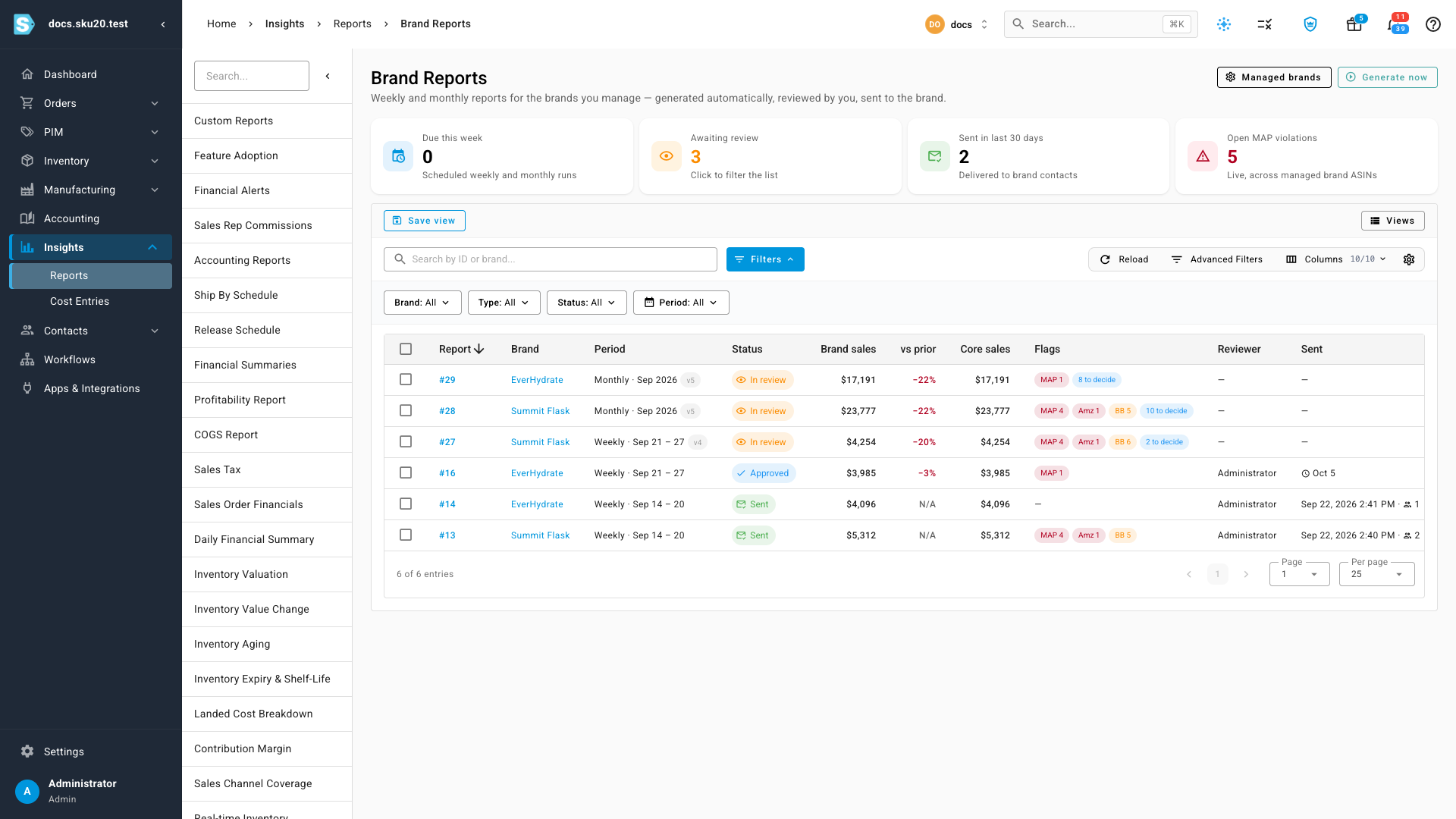
The cards across the top answer the questions you usually open the list with:
| Card | Shows |
|---|---|
| Due this week | Weekly and monthly reports scheduled to be built this week. |
| Awaiting review | Reports in review. Click it to filter the list to them. |
| Sent in last 30 days | Reports delivered to brand contacts in the last 30 days. |
| Open MAP violations | Watched ASINs with a seller below MAP right now, across every managed brand. |
Read the list
Each row is one report: one brand, one week or month.
| Column | Shows |
|---|---|
| Report | The report's number. Click it to open the report. |
| Brand | The brand. Click it to open the brand. |
| Period | Weekly or Monthly, and the dates covered. A v2 chip means the report has been regenerated; v2 pending means the brand received an earlier version and this one hasn't been sent yet. |
| Status | Where the report is in its life; see Report statuses, notes, and flags. |
| Brand sales, vs prior, Core sales | The report's headline totals. |
| Flags | Counts of MAP breaks, Amazon retail offers and lost Buy Boxes, plus how many notes still need a decision. |
| Reviewer | Who approved the report. |
| Sent | When it was sent and to how many recipients, or when it's scheduled to send. |
Only the latest version of each report is listed. Earlier versions stay available from the version menu on the report itself.
Filter and search
- Use Brand, Type (weekly or monthly), Status and Period above the table. Period filters on the dates a report covers.
- Search by report number or brand name.
- Use Advanced Filters for anything else, and Save view to keep a filtered list you use often.
Build a report now
Reports are built on each brand's schedule, but you can build one for any past week or month, for example a brand's first report or a period you skipped.
-
Click Generate now.
-
Choose the Brand.
-
Choose Weekly or Monthly under Period.
-
Pick the Week starting date (a Monday) or the Month.
The dialog shows the dates the report will cover. Weeks run Monday to Sunday in the brand's timezone; months are calendar months.
-
Click Generate.
The report builds in the background and appears in the job tray as Brand report with the brand and period. When it's done, it opens in review.
Generating a period that already has a report creates a new version and supersedes the older one if it hasn't been sent. A report the brand already received is never replaced.
Act on several reports
Tick the reports, or choose All Filtered, then:
- Approve approves every selected report that is in review.
- Skip skips them with a reason you enter. A skipped report is never sent.
Reports that aren't in a state that allows the action are left as they are, and the result says which.
Right-click any row for View Report, View Brand and Brand Reporting Settings (each opens in a new tab), Download XLSX or PDF, Copy Share Link, Approve, Skip and Regenerate. An action that isn't available for that report is disabled, and its tooltip says why.