Review a brand report
Before a report goes to a brand, you check it: are the numbers what you expect, does every row have the right explanation, and is anything the brand will ask about backed by evidence? SKU.io does most of the work: it suggests a note for every row from what it can see. Reviewing is mostly confirming those notes and fixing the few that need your judgement.
Before you begin
- You need the Brand Reports → Manage permission to edit notes and approve. With only Index, you can read reports but not change them.
- The report must be In review. Reports for brands set to send automatically skip review unless they have a data warning.
Open the report
- Go to Insights → Reports, then click Brand Reports.
- Click a report that is In review. The Awaiting review card filters the list to them.
Read the header
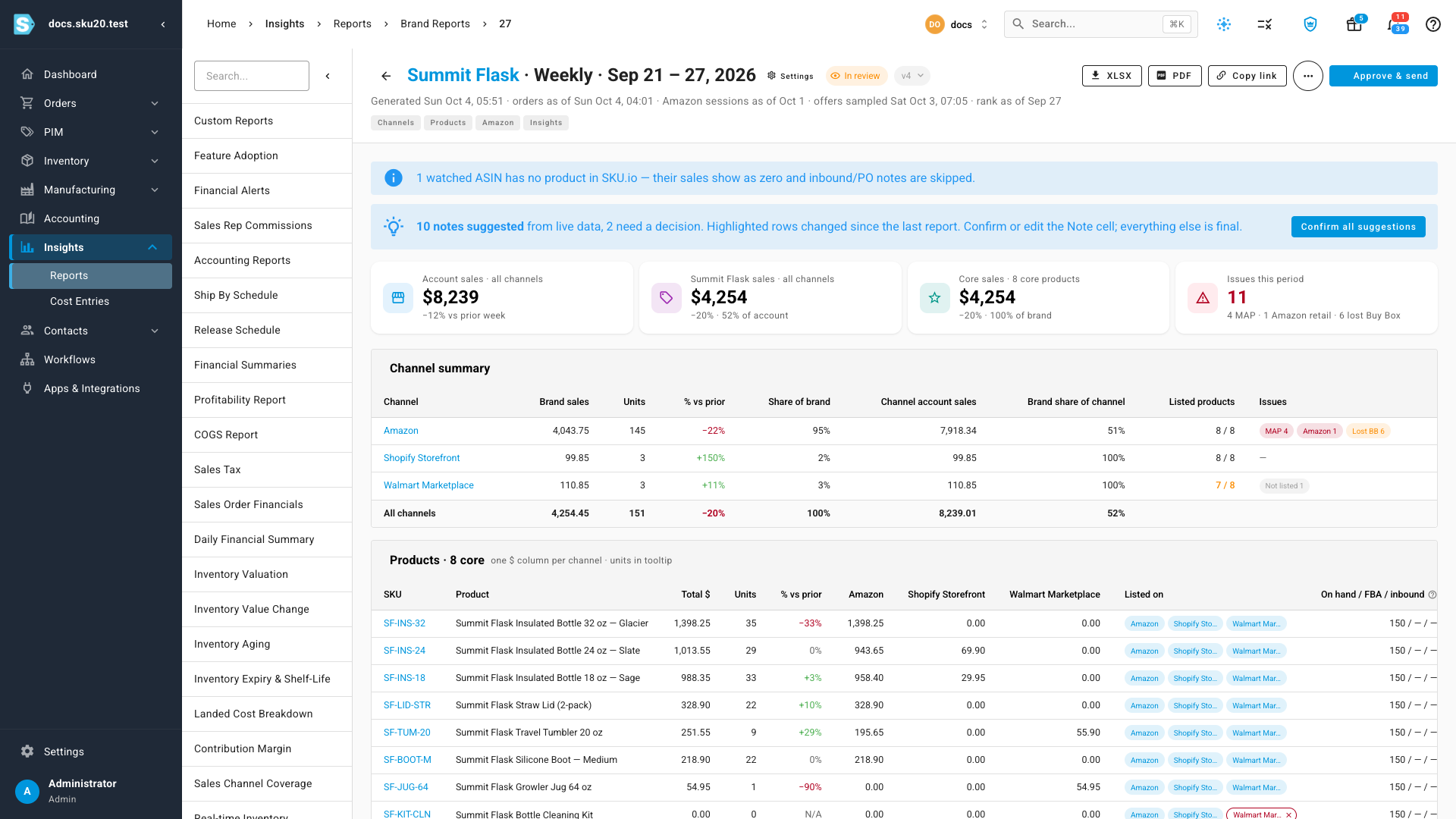
The header shows the brand, the period, the report's status and its version. Under it, a line shows when the report was built and how fresh each source was: orders, Amazon sessions, offers and sales rank. If a source is behind, a banner says so (see Warnings below).
Along the top-right are XLSX, PDF, Copy link and Approve & send. The ⋯ menu holds Regenerate, Skip this report and Revoke share link.
The chips under the header jump to each section: Channels, Products, Amazon, Insights, and on monthly reports Listing quality and FBA health.
Check the totals and channels
The four cards compare the period with the prior one:
- Account sales: everything you sold, every brand, every channel.
- Brand sales: this brand, every channel, with its share of your account.
- Core sales: the brand's core products, with their share of the brand.
- Issues this period: MAP breaks, Amazon retail offers and lost Buy Boxes.
Channel summary splits the brand's sales by channel, with each channel's share of the brand and the brand's share of the channel. Listed products shows how many core products are listed on each channel; an orange count means some aren't.
Products lists each core product with a sales column per channel. Listed on shows a chip per channel; a red chip with a cross means the product isn't listed there.
Check the Amazon section
The Amazon section is where competition shows. A chip beside its title says whether Competition monitoring is on for the channel.
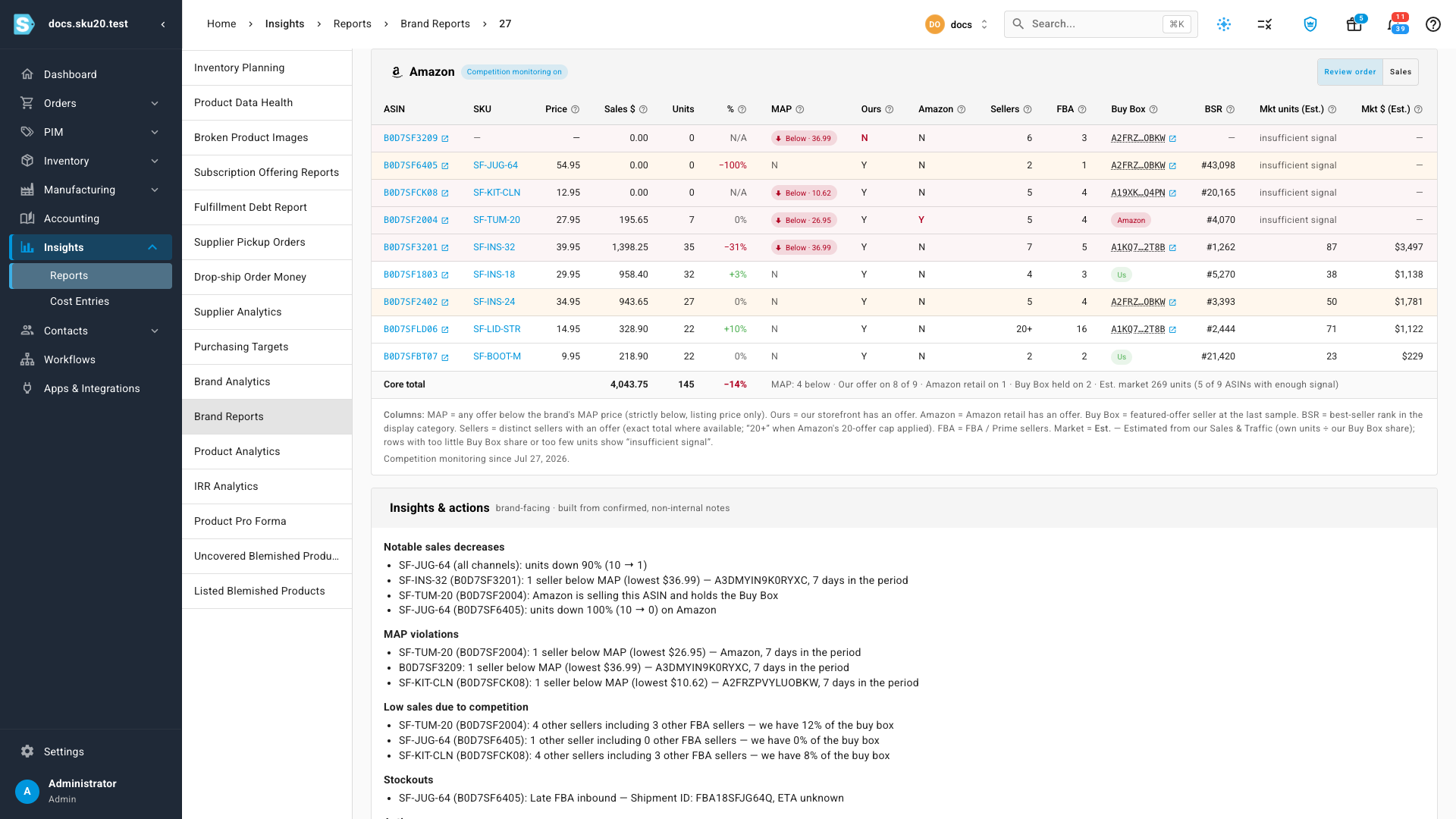
- MAP shows Below and the lowest price when a seller was below MAP during the period. A dash means the brand has no MAP policy; no data means there were no samples.
- Ours and Amazon show whether you and Amazon retail have an offer.
- Buy Box shows who held the featured offer at the last sample: Us, Amazon, or another seller's ID, which links to their storefront.
- BSR is the Amazon best-seller rank.
- With competition monitoring on, Sellers, FBA and the estimated market columns appear too. See How market estimates work.
Rows are sorted by Review order: the rows most likely to need attention come first, such as zero sales, low share and big unit swings. Switch to Sales to sort by sales. Flags shows why each row was raised; see Report statuses, notes, and flags.
Every column is explained in Brand report columns.
Confirm or change a note
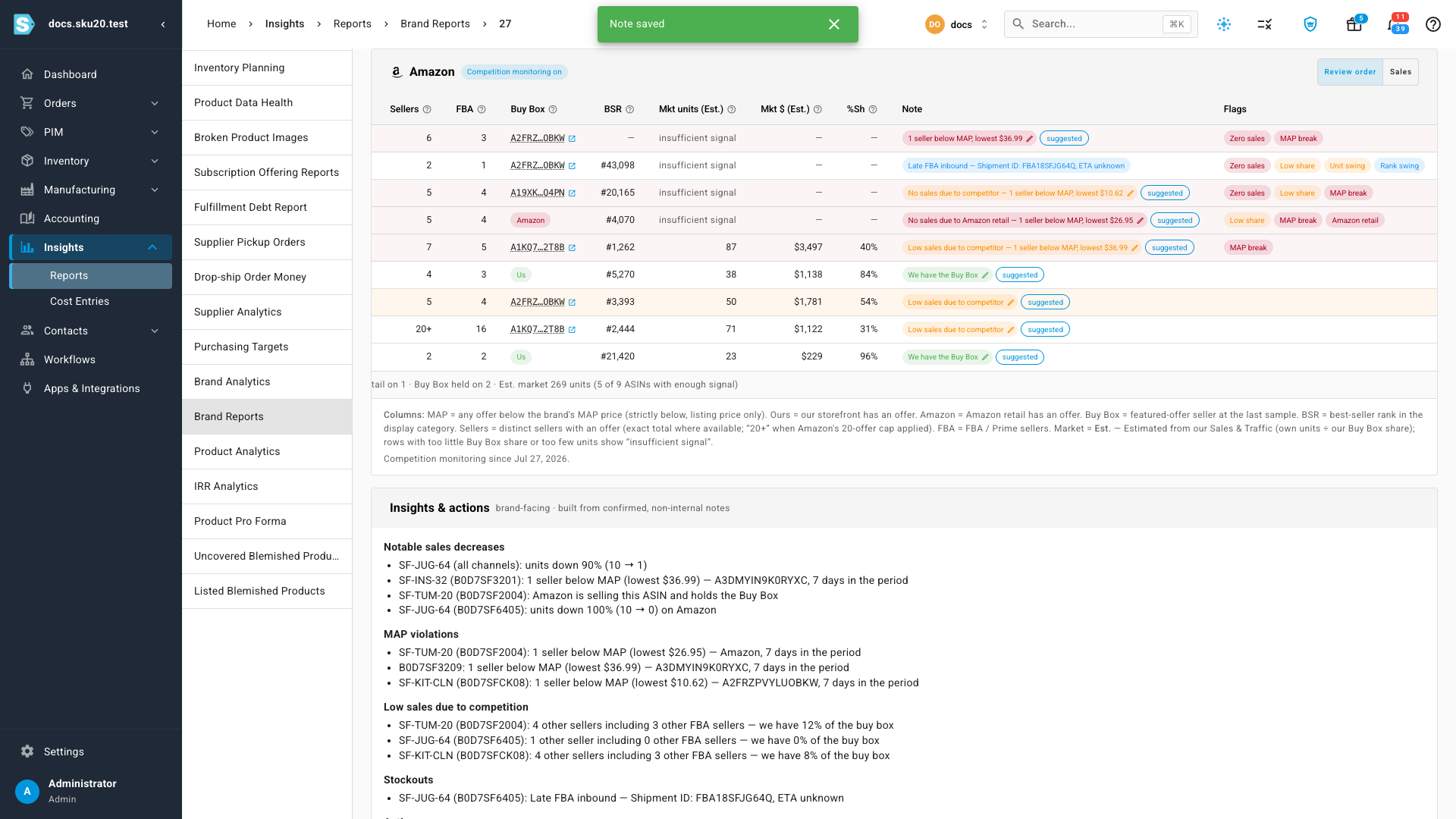
Every row has a note explaining it to the brand. A note marked suggested came from SKU.io; highlighted rows changed since the last report and need a decision.
-
Click the note.
The note editor shows the suggested reason first, and Why "…" was suggested with the facts behind it, such as the inbound shipment and its ETA, the seller below MAP, or the days the product was in stock.
-
Keep the reason, or choose another. Other… lets you write your own; No note leaves the row blank.
-
Edit the Text shown to the brand if you want to (up to 500 characters).
-
To use this reason for the product in every future report until you change it, tick Remember this reason for this ASIN in future reports.
-
To keep the note for yourself, tick Internal only. Internal notes never reach the brand. Some reasons, such as a duplicate ASIN waiting on a merge case, are internal by default.
-
Click Save note.
Check the evidence behind a MAP break
-
Click the row's MAP cell, or its Buy Box cell.
The offer evidence drawer opens. It shows:
- MAP: the MAP price, how many sellers are below it, the lowest violating price, and since when.
- Current offers: every seller's price, how they ship, Prime, and who holds the Buy Box. Your offer is marked Us; Amazon retail is marked Amazon.
- Buy Box holders: who held the Buy Box during the period, as a share of the samples.
- Sales rank: the last 90 days.
- Offer changes: each change to the listing's offers during the period, with competition monitoring on.
-
Click Evidence PDF to download a timestamped record you can send to the brand, or Open on Amazon to see the listing.
-
Press Esc or click outside the drawer to close it.
Read the insights
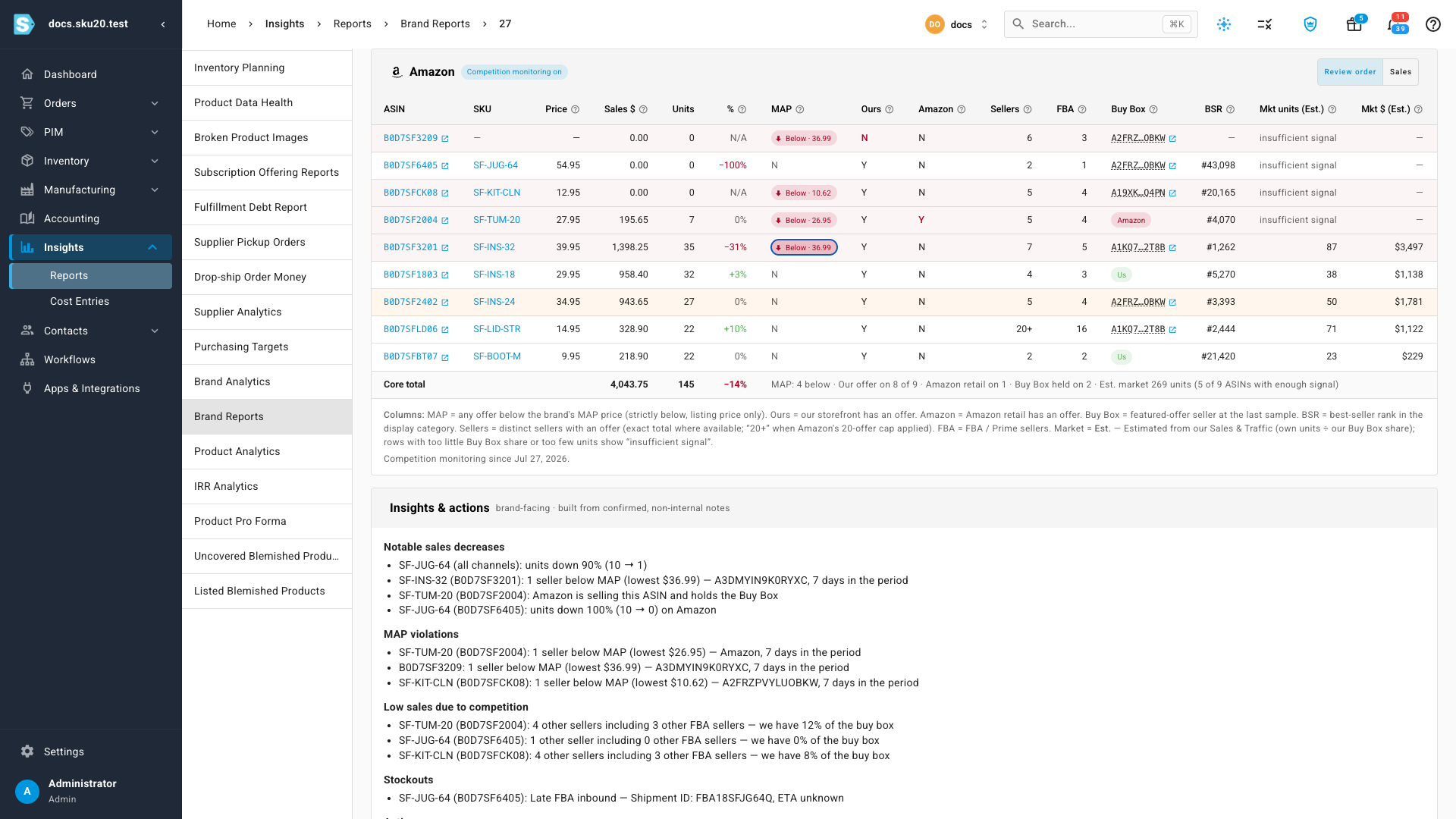
Insights & actions is the summary the brand reads. It's built only from notes you've confirmed and that aren't internal:
- Notable sales decreases: big unit drops, Amazon retail selling the product, and MAP breaks on products whose sales fell.
- MAP violations: MAP breaks on products whose sales held up.
- Low sales due to competition: products where your share is below what the number of sellers suggests.
- Stockouts: late inbound shipments, backorders and stock-outs.
- Actions: what you recommend the brand does about it.
Confirm all the suggestions
When every row looks right, click Confirm all suggestions in the banner. Every remaining suggested note is confirmed as it stands, and the report is ready to send. See Send a brand report.
Warnings
| Banner | What to do |
|---|---|
| Sessions not yet available for the last days of the period | Amazon's traffic data lags a day or two. Sales aren't affected; sessions and page views fill in as they arrive. |
| Offer data is more than 24 hours old | Click Retry sweep to sample the listings again. When it finishes, click Regenerate with fresh offers. |
| A watched ASIN has no product in SKU.io | Expected for brand ASINs you don't carry. Their sales show as zero and inbound or purchase order notes are skipped. |
| First report for this brand | There's no earlier report to compare notes with, so every suggested note needs a decision. Sales still compare with the prior period. |
| Monthly totals don't match | Check for orders imported or edited after the month ended, then regenerate. |
Regenerate or skip a report
- Regenerate (in the ⋯ menu) builds a new version with the latest data, for example after a late import. The new version supersedes any unsent older one; a version already sent is never changed. You can't regenerate while a report is sending.
- Skip this report (also in the ⋯ menu) marks the report as not going to the brand, with a reason you enter. A skipped report is never sent.
Next steps
Video transcript
Brand reports live under Insights, alongside the rest of your reports. Open Reports, then scroll down to Brand Reports. Each row is one weekly or monthly report for one brand. Reports waiting for you show In review, and the Awaiting review card counts them. Open a report that is in review. The line under the title shows how fresh each source is, from orders to offers. The totals compare account, brand and core sales with the prior period. The channel summary then splits the brand's sales by channel. The Amazon section is where competition shows. The MAP column flags any seller priced below your MAP. Ours and Amazon show whether you and Amazon have an offer. Sellers, FBA and the Buy Box come from sampling the listing every hour. Notes explain each row to the brand, and most are suggested for you from live data. Open a note to see why it was suggested. Here, an inbound shipment is still on its way. Keep the reason, or pick another one. When the wording is right, save the note. To check a price break, click the Below chip in its row. The drawer shows the MAP price, every current offer, and who held the Buy Box. You can download this evidence as a PDF for the brand. The Insights section turns your confirmed notes into the summary the brand reads. When every row looks right, confirm all the suggestions. The report is now ready to send.