Take quote requests without an account
Some buyers won't create an account just to ask for a price. A government department placing one order, or a business buying from you for the first time, wants to send a list and get a quote back. Turn on quote requests and the Customer Portal gets a public Request a quote page: anyone with the link can pick products from your catalog and send their details, without signing up.
Each request lands in Orders → Quotes as a draft quote, already priced from your pricing rules. The buyer sees no prices until you send the quote, so you can sharpen the price first. When you send it, the buyer gets the quote email with a View & respond button, and can accept, decline or ask you a question online, still without an account.
Before you begin
- Decide what guests can pick from. The request page shows the catalog marked Default catalog, or every product on the portal when no catalog is the default. See Restrict what buyers see with portal catalogs.
- Decide who hears about new requests. They go to the same people as new applications: the New application alerts recipients in the portal settings, or everyone who can manage the portal when none are set.
Turn on quote requests
-
Go to Contacts → Customers, click the Portal tab, then Portal settings (all dealers).
-
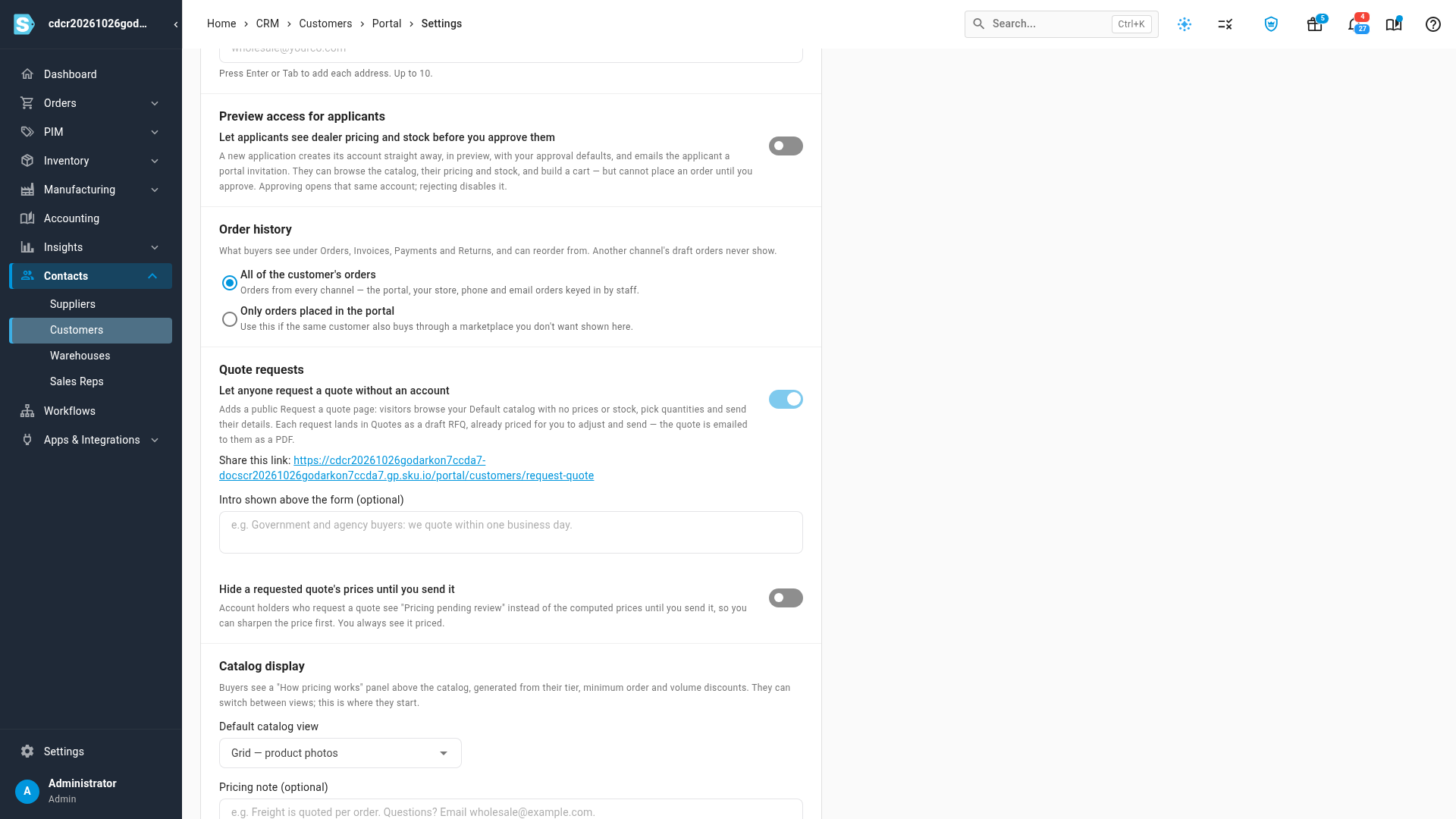
Under Quote requests, turn on Let anyone request a quote without an account.
-
Copy the link shown next to Share this link, and put it on your website or send it to the buyer.
-
Optionally, add an Intro shown above the form, such as when to expect your reply.
-
Click Save Changes.
Your portal's sign-in page also shows Request a quote without an account while this is on.
What the buyer does
These are the steps your buyer follows on the Request a quote page.
-
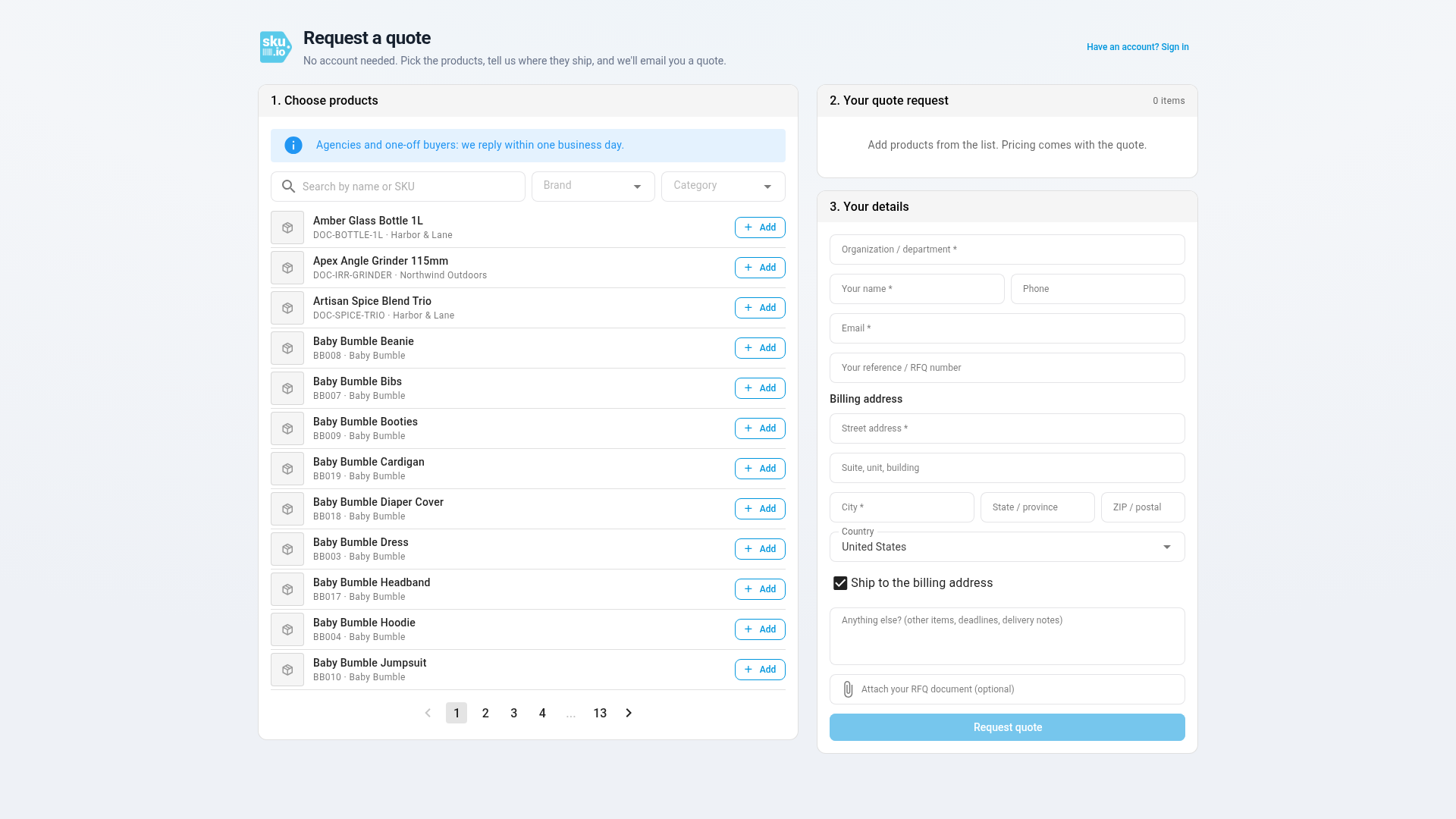
Search for a product, and click Add next to it. Repeat for each product.
-
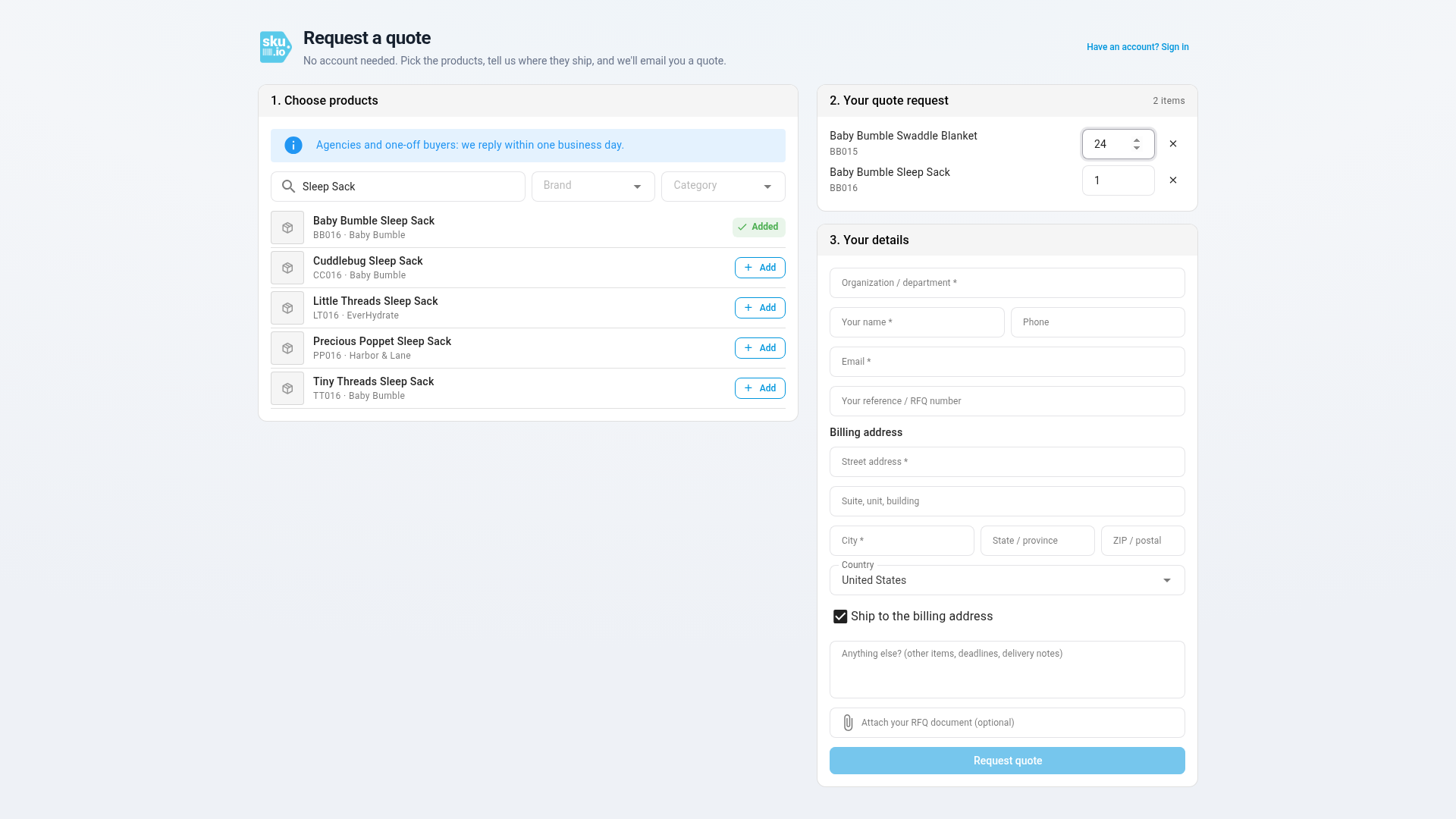
Under Your quote request, set the quantity for each product.
-
Under Your details, enter the Organization / department, their name, Email and billing address. Your reference / RFQ number is optional. Untick Ship to the billing address to add a separate shipping address.
-
Optionally, add a note in Anything else? (other items, deadlines, delivery notes) or attach their own request document in Attach your RFQ document (optional) (PDF or image, up to 20 MB).
-
Click Request quote.
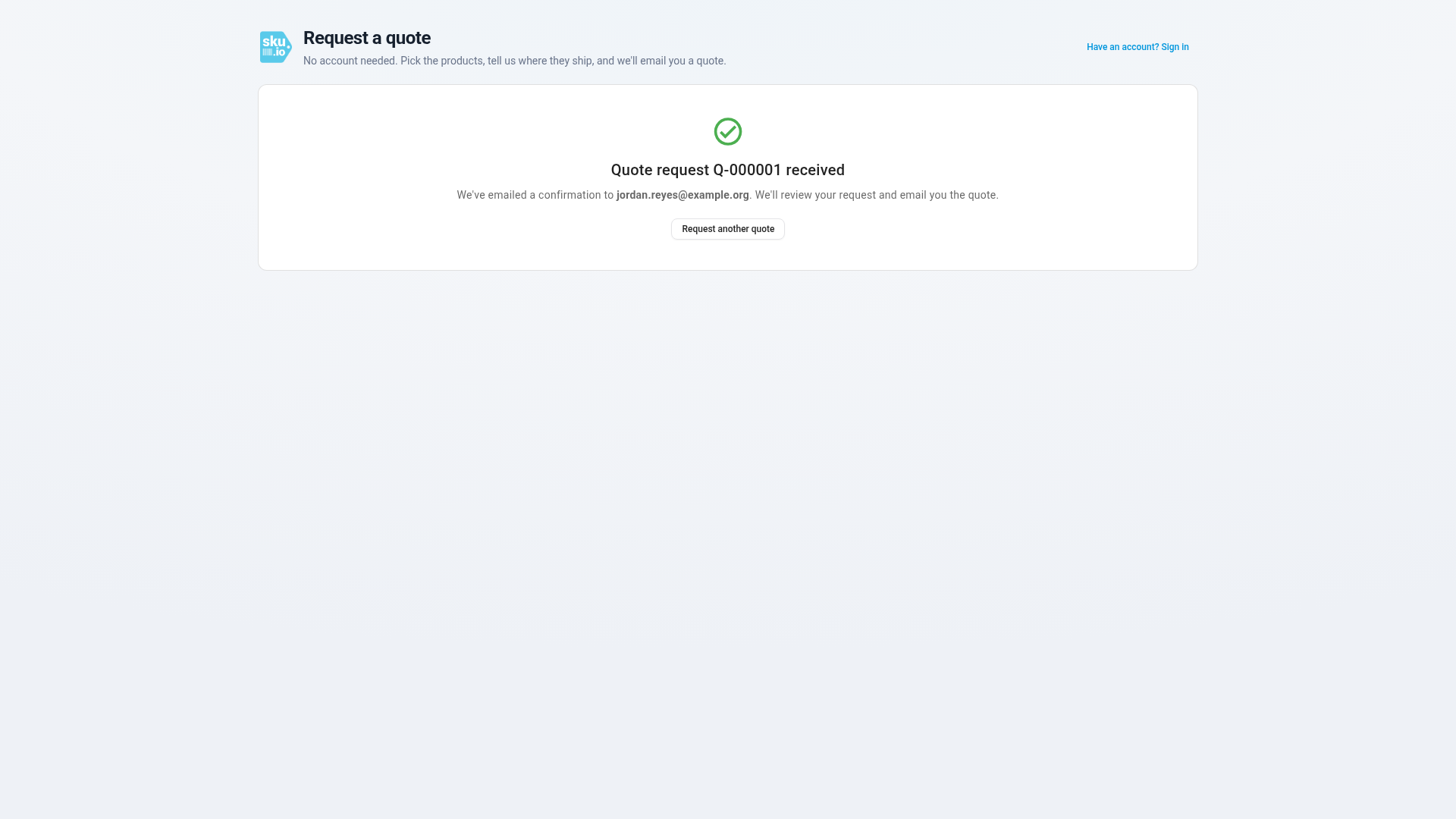
They see Quote request Q-… received on screen, and get an email titled We received your quote request Q-… that lists what they asked for. Neither one shows a price. Request another quote starts a new request.
When the buyer can't send a request
- Request quote stays greyed out until the request is complete. Its tooltip says what's missing: Add at least one product, Fill in your organization, name and email, Fill in the billing street address and city, Fill in the shipping street address and city, or Every quantity must be at least 1. A request needs at least one product from the catalog, so a buyer can't send only a note. Products the buyer can't find can go in the note, alongside one they did find.
- If you turn quote requests off, the page says Quote requests without an account aren't available. and offers Apply for an account.
- One connection can send at most five requests a minute. Past that, the request is refused, and the buyer can try again a minute later.
- If none of the products can be quoted any more, the page says "None of the requested items could be matched to a product in the catalog."
Review and send the quote
-
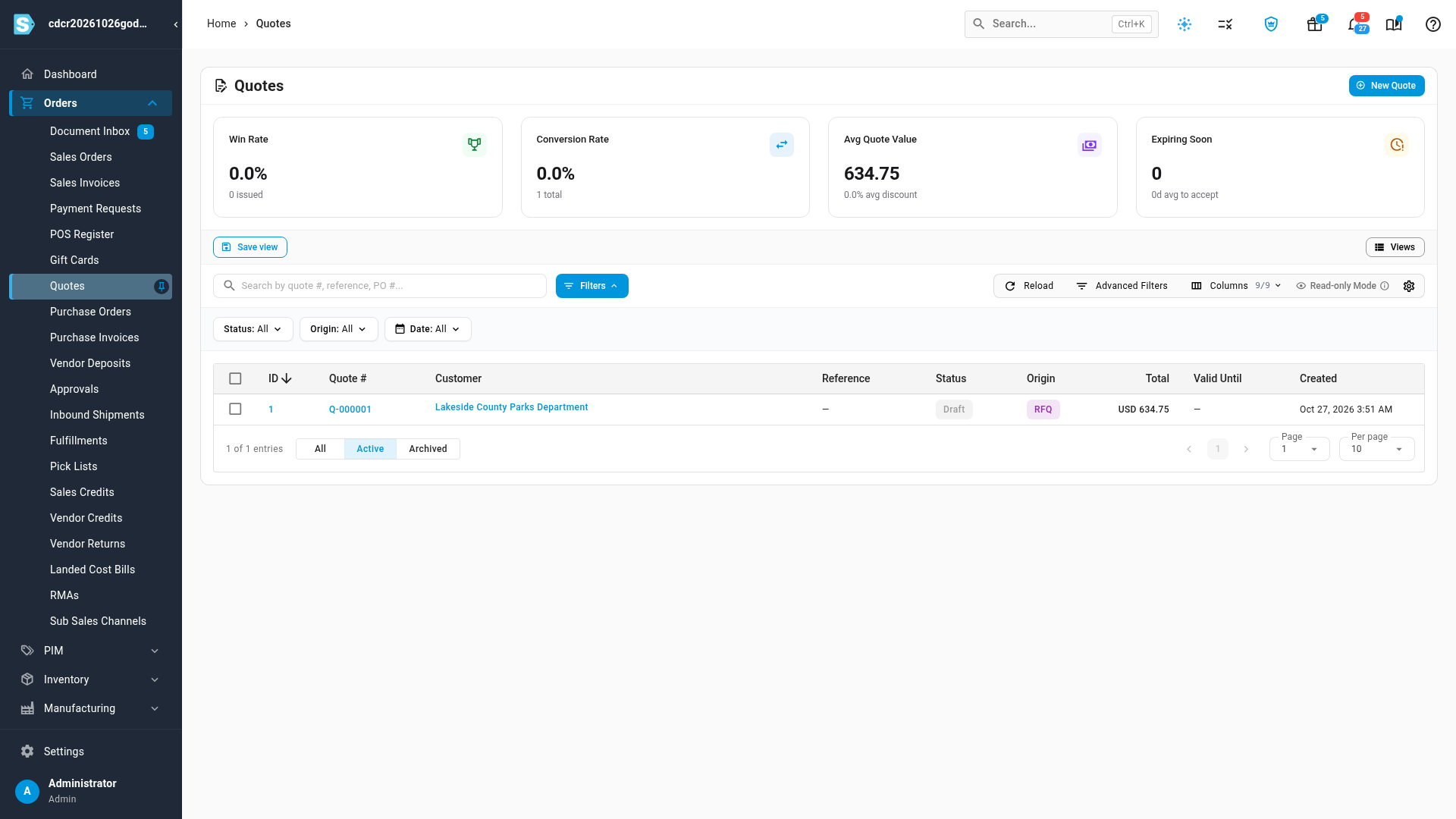
Go to Orders → Quotes. The request is a Draft quote whose origin is RFQ, under the buyer's organization name.
-
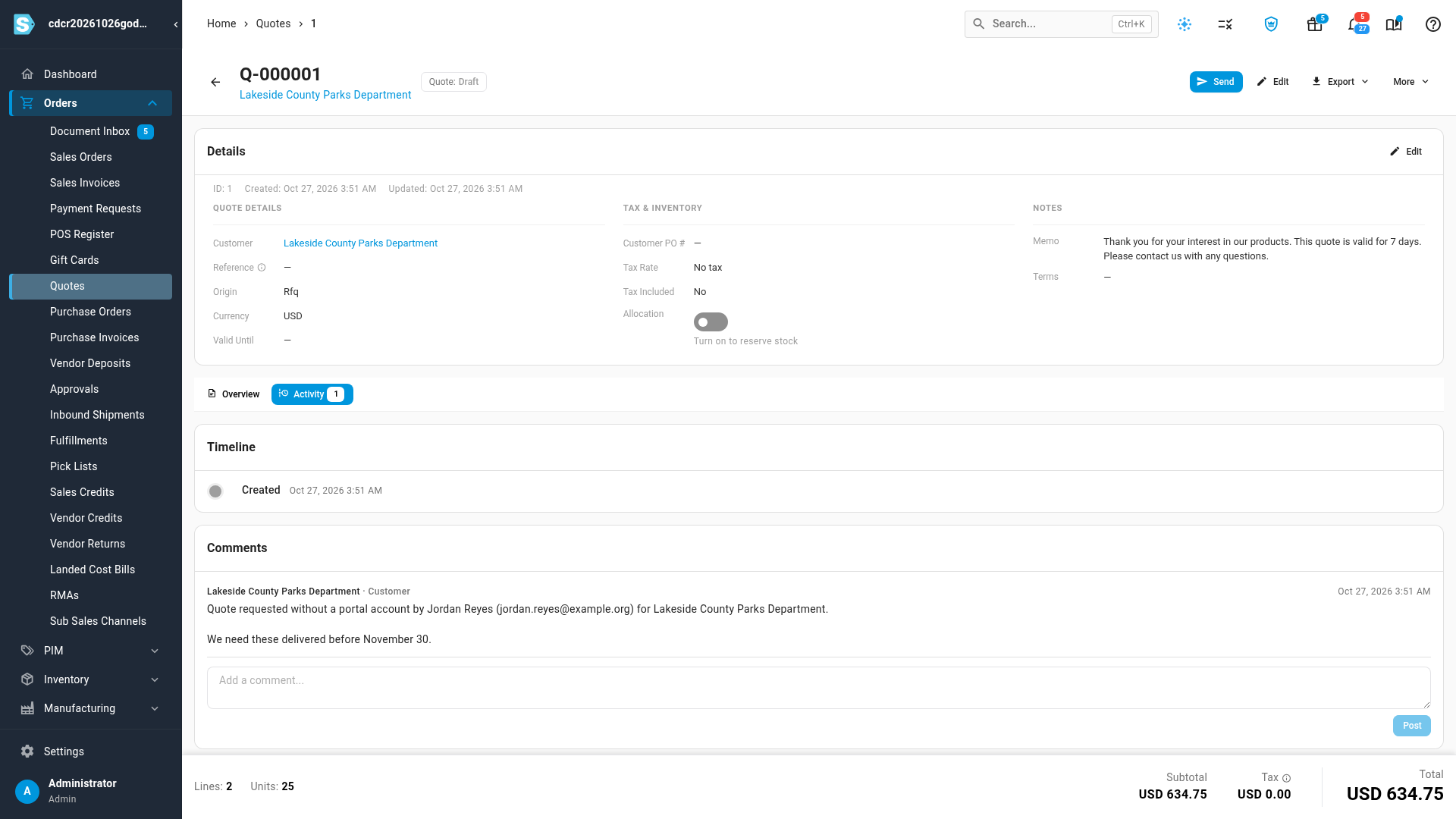
Open it. Each line is already priced from your pricing rules, so there is nothing to key in. The buyer's reference is in Customer PO #.
-
Click the Activity tab. The first comment says who asked, with their email, phone and organization, followed by the buyer's note. If they attached a file, click the paperclip under it to download it.
-
Adjust prices or discounts if you want to.
-
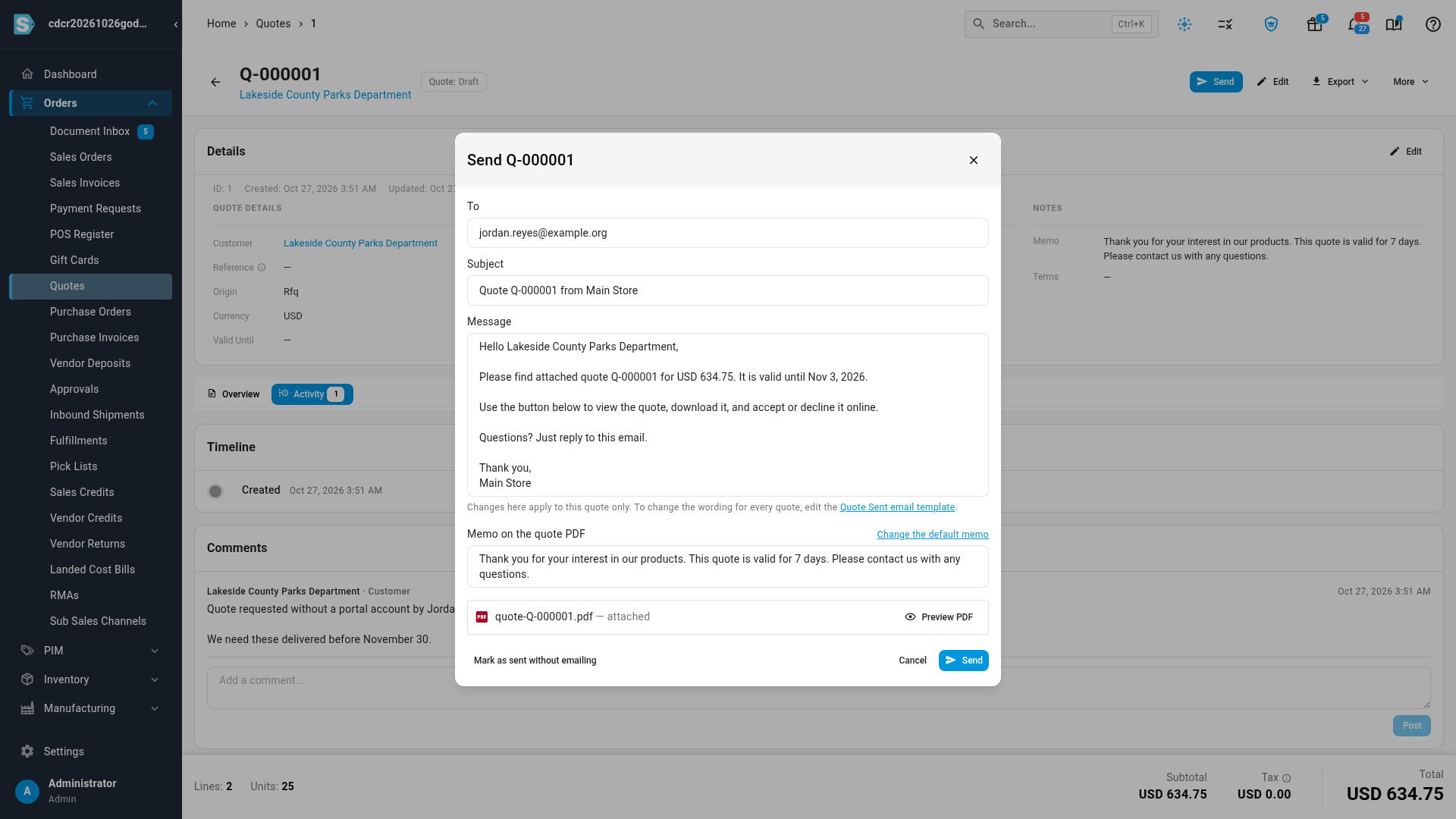
Click Send, check the email, and click Send again. The buyer gets the quote email with a View & respond button. It opens a page where they can accept and sign, decline, or ask you a question, without an account. The quote PDF is attached unless your Quote Sent email template turns it off. From here it works like any other quote. See Create and send a quote and See how your customer answers a quote.
To find requests that are still waiting, and to be alerted before one goes unanswered too long, see Answer requests for quote.
Who the request is filed under
- A request is filed under a customer with the organization's name and the buyer's email, billing and shipping address. The buyer is added to that customer as a Purchasing contact.
- When the same email asks again, the new request is filed under that same customer.
- A request is never filed under a customer that already has a portal account, even if the email matches. Its buyers can request quotes from their own portal.
- The customer isn't added to the portal. To give the buyer a login later, see Invite buyers to the Customer Portal.
Hide prices on your account holders' requests
Buyers with a portal login request quotes from a product's page in the portal. Normally they see the computed prices on their request right away. To price it yourself first, turn on Hide a requested quote's prices until you send it under Quote requests. Their request then reads Pricing pending review until you send it. You always see it priced. See Quotes in the customer portal.
Next steps
- Answer requests for quote
- Create and send a quote
- See how your customer answers a quote
- Approve a discounted quote
- How the Customer Portal works
Video transcript
Some buyers won't create an account just to ask for a price. You can let them ask for a quote without an account. In Contacts, open Customers, then the Portal tab, and choose Portal settings. This page holds the defaults that every dealer starts with, from backorders to quote requests.
Scroll down to Quote requests. Turn on Let anyone request a quote without an account. As soon as it's on, a link to share appears below the switch.
This is the link you share, on your website or in an email. You can add a short intro for the form, such as when to expect your reply. Then scroll down, and save your settings. A message at the bottom of the screen confirms the save, and from that moment the link is ready for your buyers.
Visitors to the link see your catalog, with no prices and no stock levels. Your intro sits at the top.
The buyer searches for what they need, and clicks Add. Their request builds up on the right of the page, where they can set the quantity they need of each product they've added.
Next, they fill in their organization, their own name and email, and a billing address. The order can ship there, or to another address.
They can add a note for you, or attach a document of their own, such as an RFQ. When everything is filled in, they click Request quote.
They see a quote number, and get the same confirmation by email. Neither shows a price.
Back in SKU.io, open the Orders menu, then choose Quotes. The request is waiting here, under the buyer's organization. Its origin is RFQ, and it starts as a draft.
Open the quote. Every line is already priced from your pricing rules, so there are no prices to key in. On the Activity tab, you can read who asked for the quote, how to reach them, and the note that came with their request.
Adjust the prices if you want to, then click Send. Check the email and its PDF attachment, then send the quote.