Order for your dealers as a sales rep
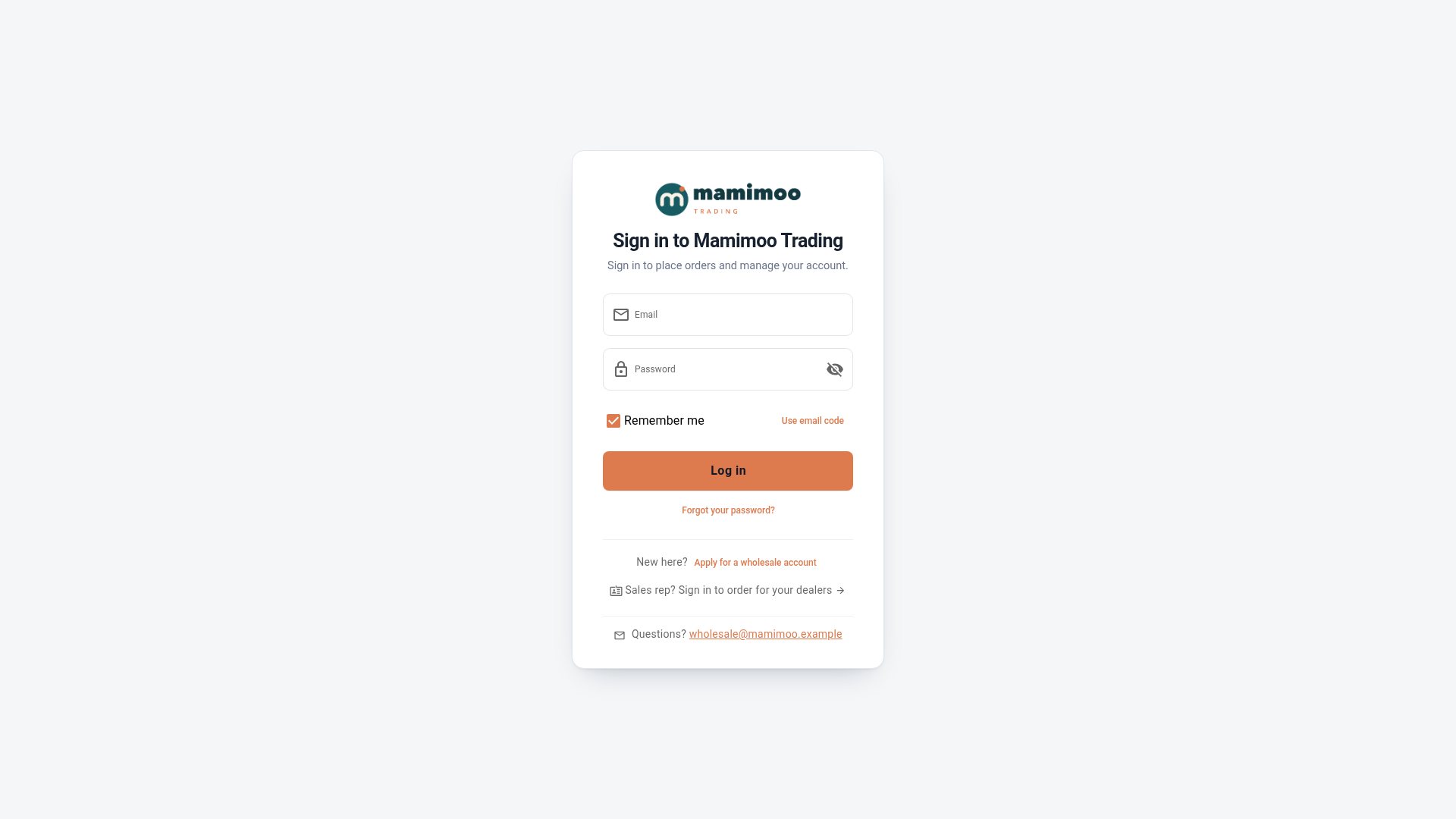
Sales reps on the road can start from the same place their dealers do: the Customer Portal sign-in page. Sign in with your SKU login, pick one of your dealers, and you're in that dealer's portal, ordering at their prices. When you're done, switch to the next dealer without signing in again.
It's the same order session as placing a portal order for a customer from their customer record. Only the way in is different.
Before you begin
- Your role needs the Order for dealers in the customer portal permission
(
portal.order_for_dealers) and permission to create sales orders. The Sales rep and Sales manager roles include it, and so does any role that can manage the portal. An admin can add it to another role under its Customer portal permissions. - If your user is linked to a sales rep and can't see every customer, you see only the dealers assigned to you. Otherwise you see every active portal dealer.
- A dealer must be active on the portal, with at least one active buyer, to appear in your list.
Pick a dealer
-
Open your portal's sign-in page.
-
Under the sign-in form, click Sales rep? Sign in to order for your dealers.
-
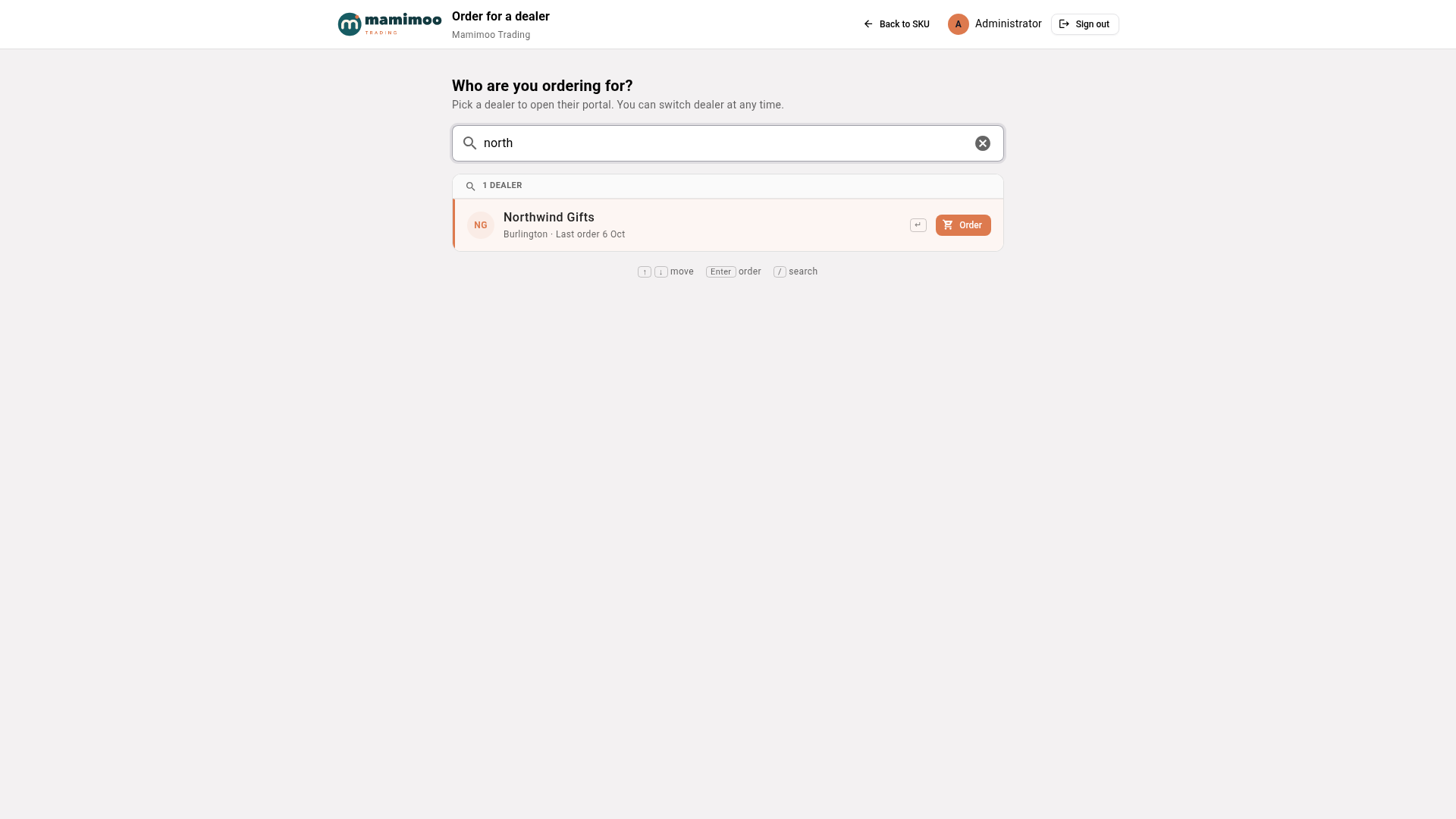
Sign in with your SKU login if you aren't already. You land on Order for a dealer.
-
Search for the dealer by name, company, email or city. Dealers you ordered for recently are listed under Recent.
-
Click Order next to the dealer. You can also move through the list with the arrow keys and press Enter.
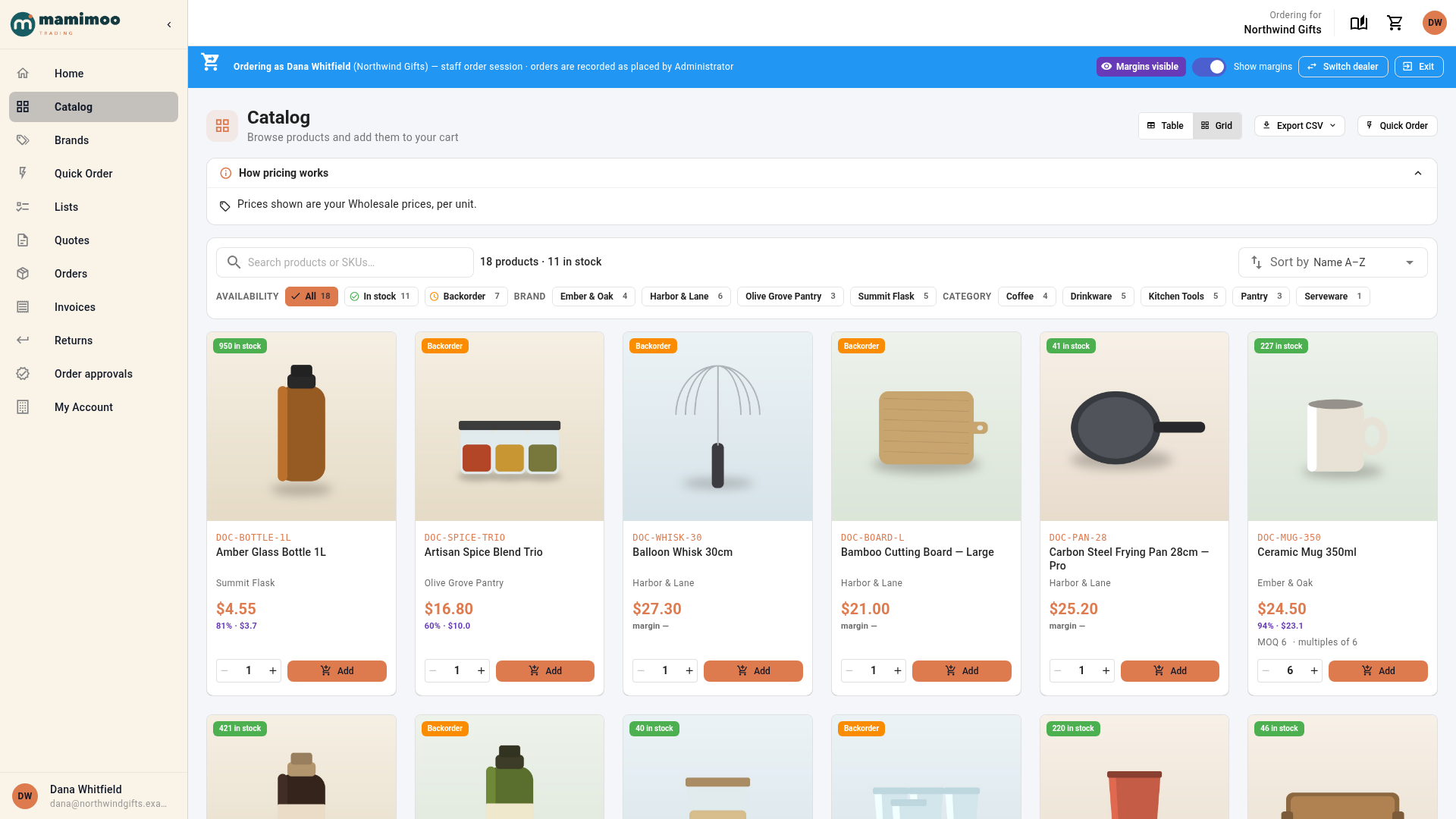
The dealer's portal opens in the same tab, showing their catalog, prices and delivery addresses. The blue banner at the top names the dealer and the buyer you're ordering as, and says the session is a staff order session, recorded as placed by you.
Place the order
Add products to the cart and check out as the dealer would. The order is recorded as placed by you on the dealer's behalf, and credited to you as their sales rep. You can also leave the cart for the dealer to finish: the next time you open the picker, the dealer's row shows how many items are in their cart.
Switch dealer or finish
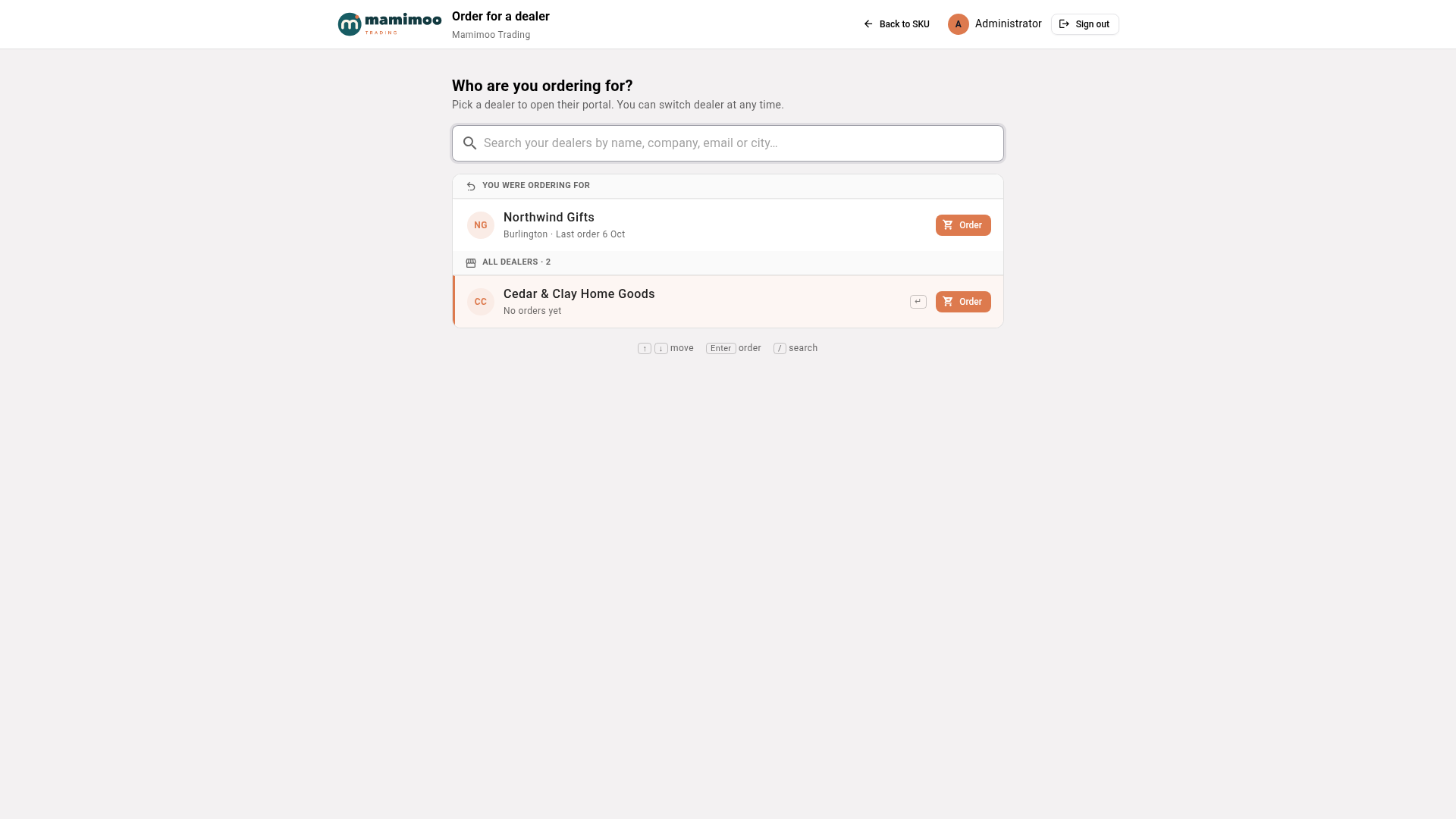
- Click Switch dealer in the banner to go back to your dealer list. The dealer you just left is at the top, under You were ordering for. Pick the next dealer.
- Click Exit when you're done. You return to your dealer list, where the dealers you ordered for recently are listed under Recent.
- Sign out on the dealer list signs you out of SKU and ends any dealer sessions you left open.
A session ends by itself after an hour without activity. If a dealer is reassigned to another rep while you're ordering for them, you can no longer place orders for them.
Hide the sales rep link
The link shows on the sign-in page by default. To hide it, go to CRM → Customers, click Portal, then Appearance, and under Sign-in page turn off Show the sales rep sign-in link.
Next steps
- Place a portal order for a customer from the customer's record instead.
- Manage sales reps to assign dealers to reps.
Video transcript
Sales reps start on the portal sign-in page, the same one their dealers use. Under the form, click the link for sales reps. Sign in with your usual login if you aren't already, and you land on the dealers you can order for. Search by name, company, email or city. Then click Order next to the dealer you want. The dealer's portal opens in the same tab, with their catalog and their prices. The blue banner at the top shows which dealer and buyer you're ordering as. Add products and check out as usual. The order is recorded as placed by you. To order for someone else, click Switch dealer. The dealer you just left stays at the top, under You were ordering for. Click Order next to the next dealer. Their portal opens, and the banner now names the new dealer. When you're done, click Exit at the right-hand end of the banner. You're back on your dealer list. Dealers you ordered for recently are listed first, under Recent.