Send reorder reminders to wholesale customers
A reorder reminder is a short email that tells a wholesale customer it's time to restock. It lists what they ordered last time and links straight to that order in your B2B portal, where one click on Reorder fills their cart. You choose when each customer is reminded. SKU.io prepares the email as a draft on that date, and a rep reviews it and clicks Send. Nothing goes out on its own unless you turn on automatic sending.
Before you begin
- Reorder reminders are part of the CRM module, a paid add-on. See The CRM module.
- To see reminders, your role needs the Customers View permission (
customers.index). To choose a customer's timing, it also needs Customers Edit (customers.update). Reps only see reminders for the customers they're allowed to see. - The customer needs an email address, and must not have opted out of email.
- For the email to link to an order, the customer needs an active portal login. Without one, the email asks them to reply with their order instead.
- Customers on an active standing order are never reminded. Their orders already come on their own.
Choose when a customer is reminded
Every customer starts with reminders off. Turn them on one customer at a time from the customer page, or for many at once from Missing orders.
For one customer
-
Go to CRM → Customers and open the customer.
-
On the Overview tab, find the Reorder reminders card.
-
Turn on Remind this customer to reorder.
-
Choose when to remind them:
Option When the reminder is prepared Good for Their usual rhythm A few days before they're due, based on the average time between their orders. Customers who order regularly. Needs orders on at least 3 different days. Days after their last order A set number of days after each order. A new order restarts the count. Customers on a fixed restock cycle. Weekly On a weekday, every week or every few weeks. Customers who order on a set day. Monthly On a day of the month. Short months use their last day. Monthly buyers. -
For Their usual rhythm, set Remind them to how many days before they're due. The other options ask for their own number of days, weekday or day of the month.
-
Optional: in Send to, enter a different address, such as the customer's buyer. Leave it empty to use the customer's email.
-
Optional: set Pause until if the customer is closed for a while (for example, for the season). No reminders are prepared before that date.
-
Click Save. The card shows the next reminder date, or why there isn't one yet (for example, "Waiting for their first order.").
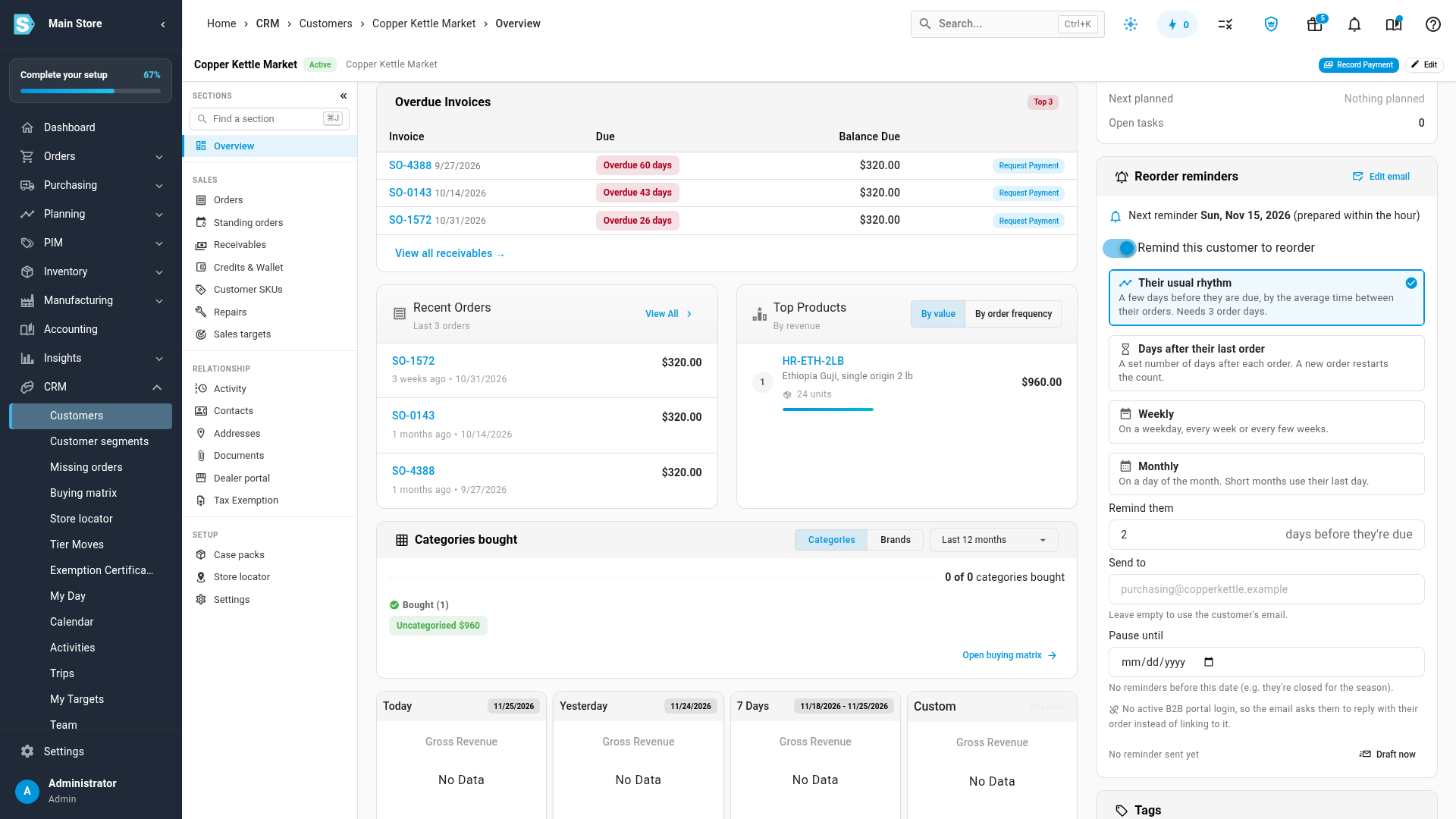
To send one now instead of waiting, click Draft now on the card. The draft opens on the Reminders tab.
For many customers at once
-
Go to CRM → Missing orders.
-
Tick the customers you want to remind. Filter by Sales rep first to work one rep's book.
-
In the bar above the list, click Set reorder reminder.
-
Choose the timing as above and click Save for (the button shows how many customers you selected). Nothing is sent now. Each customer's own Send to address and pause date are kept.
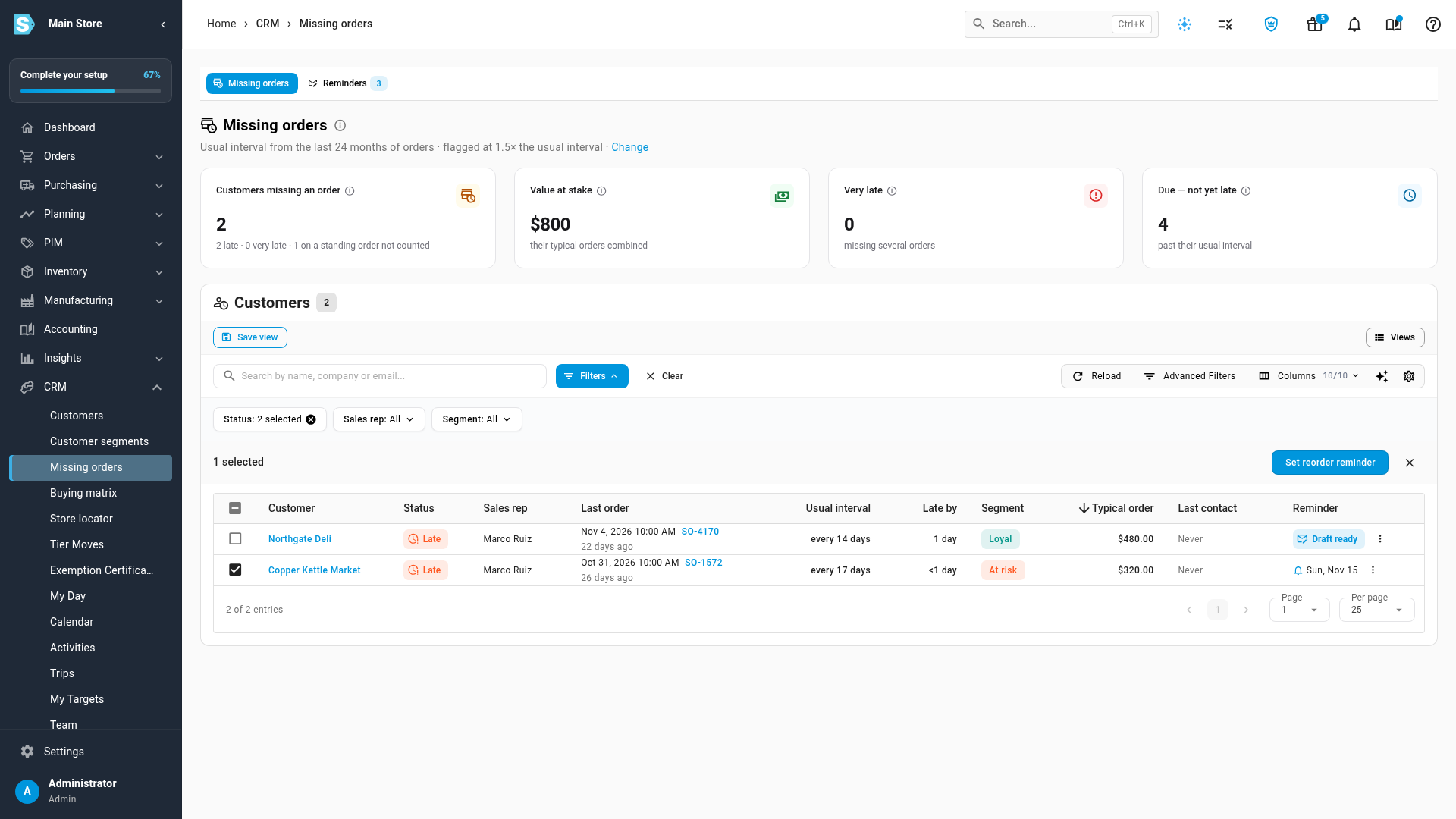
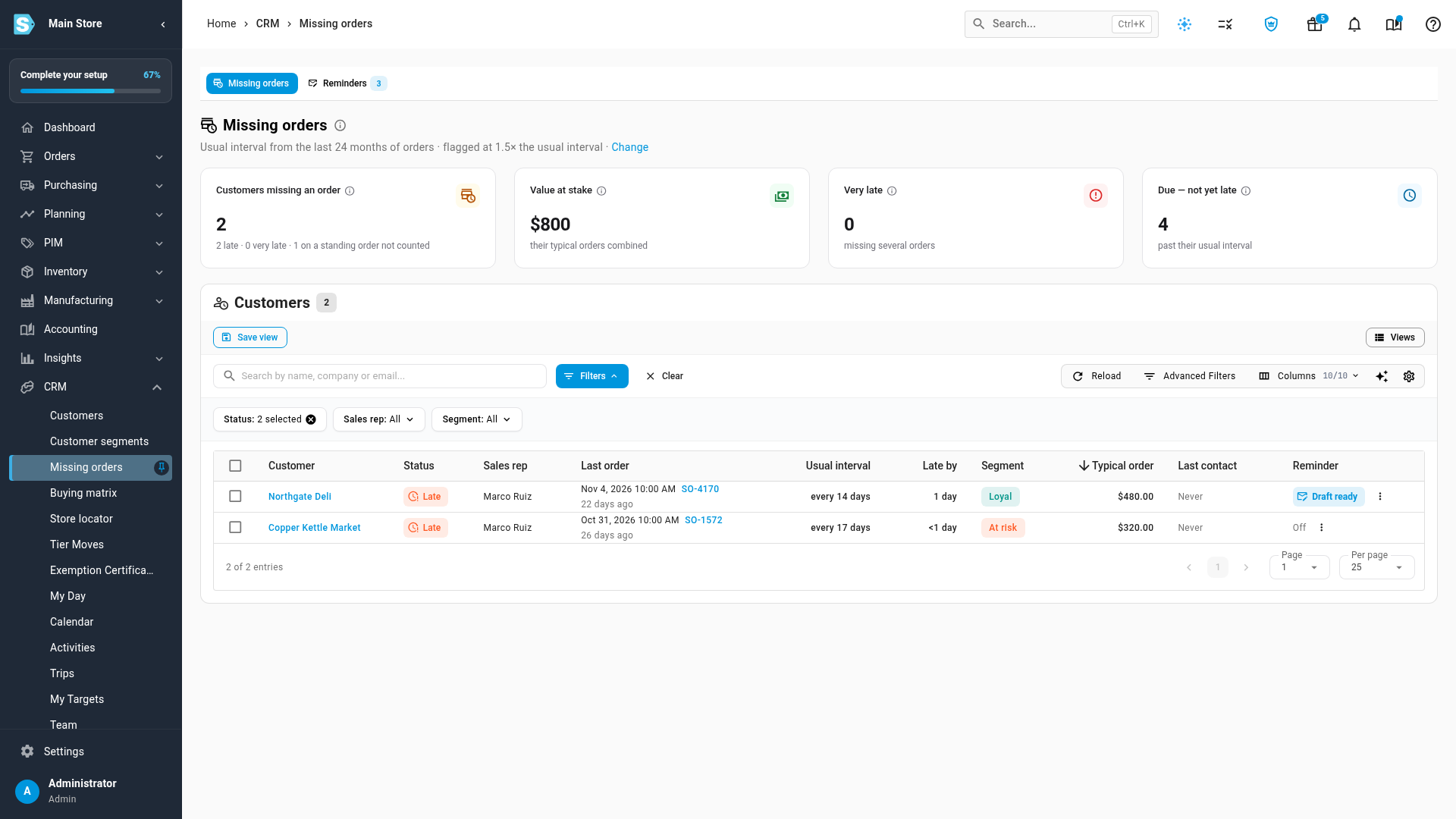
The Reminder column on Missing orders shows each customer's timing. When a draft is waiting, it shows Draft ready. Click it to review that draft.
Review and send the drafts
SKU.io checks every hour for customers whose reminder date has come, and prepares a draft for each one.
-
Go to CRM → Missing orders and click the Reminders tab. It lists the drafts waiting for review, soonest due first. A draft whose customer has ordered since it was prepared shows Ordered since next to its status.
-
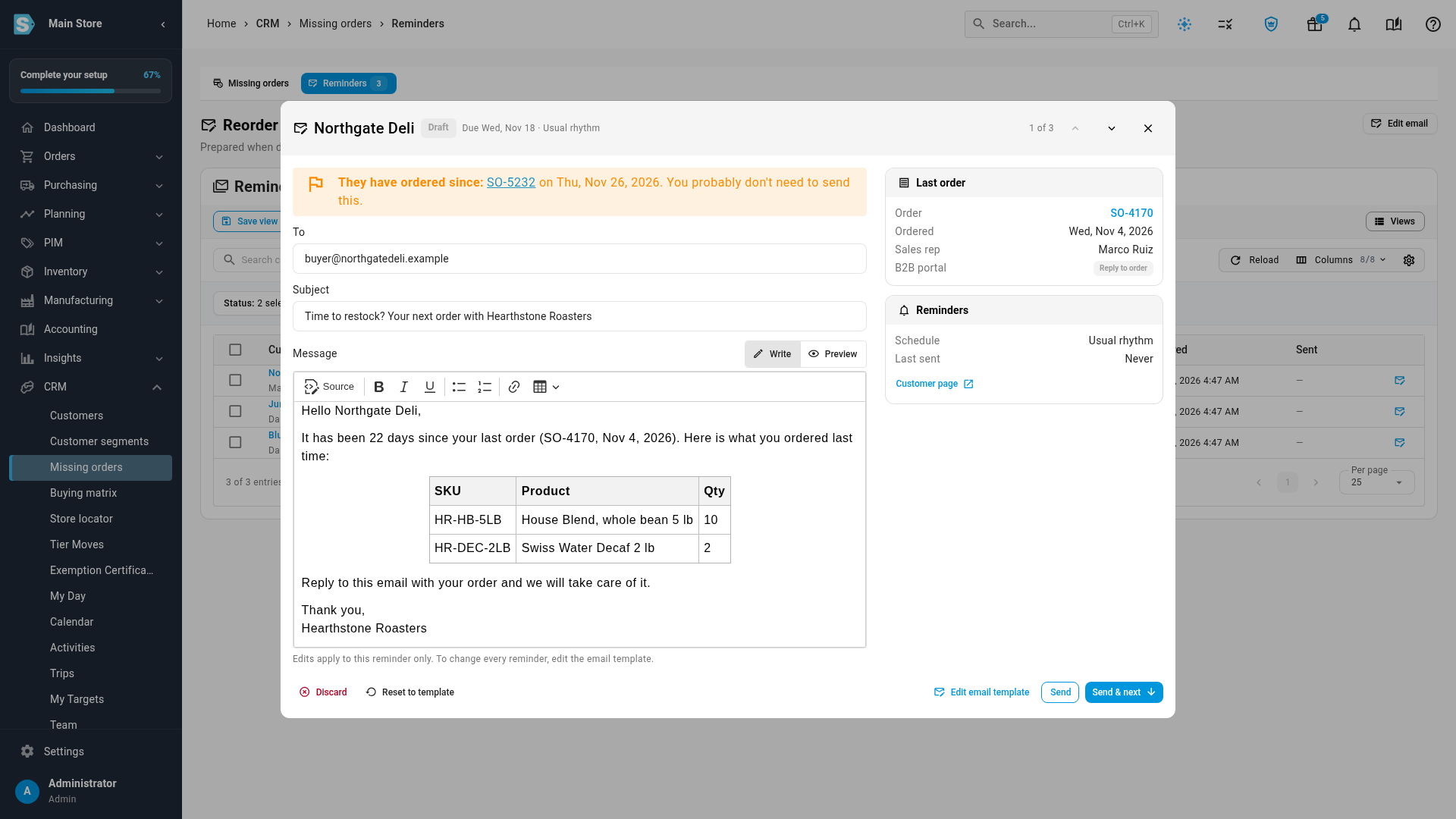
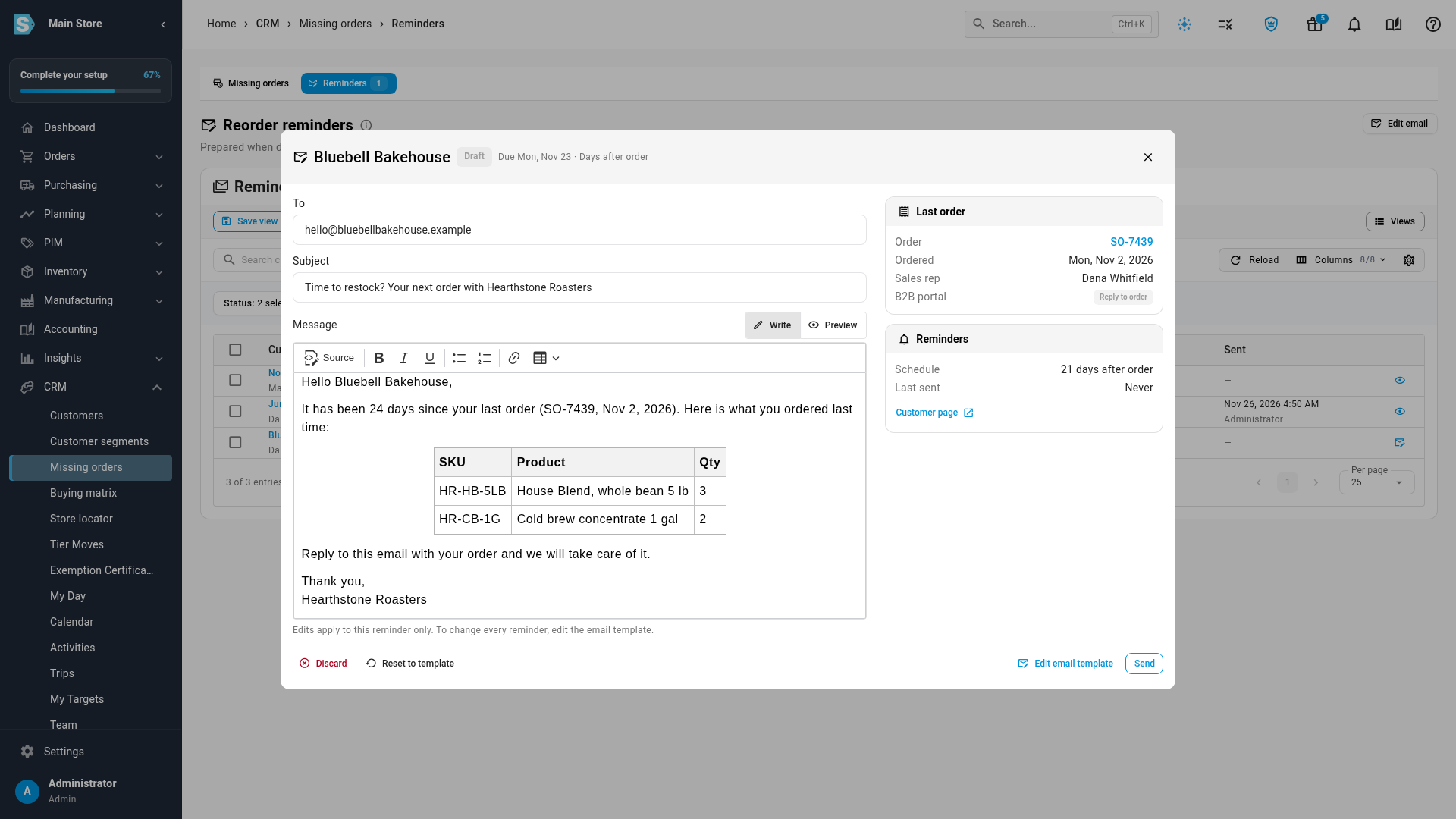
Click a reminder to open it. On the left is the email: who it goes To, the Subject and the Message. On the right are the customer's Last order, their Sales rep, whether the email has a portal Reorder link or asks them to reply, and when they were last sent a reminder.
-
Read the message. Click Preview to see it as the customer will. To change the wording for this customer only, edit the Subject or Message, then click Save (it appears once you change something). Reset to template rewrites it from the template and their latest order, and your edits are lost. To change the wording for every customer, edit the email template instead (see Change the email).
-
Click Send & next. The email goes out and the next draft opens, so you can work through the list without going back to it. Send sends this one and stays on it.
-
If the customer doesn't need a reminder, click Discard. Their next reminder is prepared on their next date.
If they ordered since the draft was prepared, the reminder says They have ordered since, with the order and its date. Usually you discard it. If you still want to send it, click Send and then Send anyway.
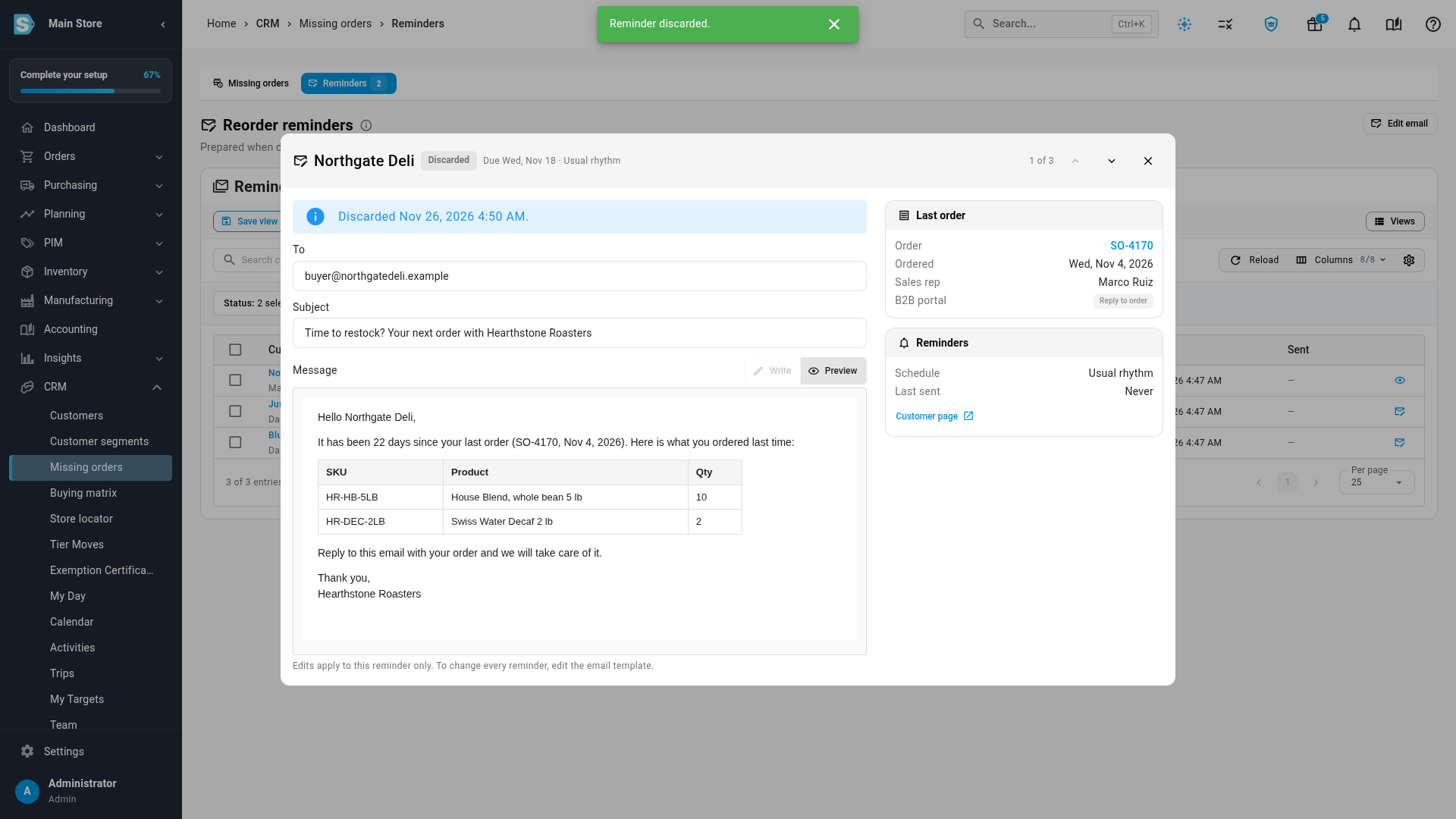
If a reminder can't be sent, Send is greyed out, and its tooltip says why. For example, the customer opted out of email, or the last reminder to that address bounced. For a bounced address, change Send to to an address that works.
Send or discard many at once
- On the Reminders tab, tick the reminders.
- Click Send or Discard above the list, and confirm.
Up to 10 reminders go out right away. A larger batch is sent in the background: follow its progress in the job tray at the top of the page. Reminders whose customer has ordered since they were prepared are skipped, not sent. Discarded reminders aren't sent, and those customers get their next reminder on their next date.
To see what has already gone out, tick Show sent and discarded. Every sent reminder is also on the customer's Activity tab, with who sent it and when.
What the customer gets
The email comes from your store. By default it says:
- the subject Time to restock? Your next order with your store name,
- what they ordered last time and when, with the products and quantities,
- a Reorder now button that opens that order in your portal. When they click Reorder there, the same items go into their cart, and they can change quantities before they check out.
If the customer has no active portal login, the email asks them to reply with their order instead of showing the button.
Change the email
The wording comes from the Reorder Reminder email template. To change it for every customer, go to Settings → Email Templates and open Reorder Reminder, or click Edit email template on any reminder. If you switch the template off, no reminders are sent.
Prepare or send reminders automatically
- Go to Settings → CRM.
- In the Reorder reminders card:
- Prepare reminder drafts is on by default. Switch it off to stop preparing drafts for everyone.
- Default lead time is how many days early the Their usual rhythm timing prepares a reminder. It's 2 days to start with.
- Send automatically is off by default. Switch it on only if you want due reminders to go out at the Send time without anyone reviewing them. Reminders that can't be sent, or whose customer has ordered since, are never sent automatically.
- Click Save.
Next steps
- Find customers who are late to reorder
- See a customer's activity and log a call
- Customize email templates
Video transcript
To remind wholesale customers to reorder, open Missing orders under CRM in the sidebar. The Reminder column shows when each of them gets a reminder. Tick the customers you want to remind, and then click Set reorder reminder in the bar above the list. Their usual rhythm sends a reminder a few days before each one is due to order again. When the timing looks right, click the Save button at the bottom. Nothing is sent now. SKU prepares each draft on its due date. To set one customer at a time, click their name to open them, and then go to their Overview. Scroll to the Reorder reminders card. It has the same choices as the bulk dialog. Below the timing, add another email address, or pick a pause date for quiet months. Every hour, SKU prepares a draft for each customer who is due. To review the drafts, go back to the Missing orders page in the sidebar. Then open the Reminders tab beside it, which lists every waiting draft by due date. Click the first draft to open the review window. This customer has ordered since the draft was prepared, so it says so at the top. You don't need to send this reminder. Click Discard to drop the draft. Use the arrow to go to the next draft. Their last order and sales rep are on the right. Click Preview to see the email as they will, with a Reorder now button for their portal. When it looks right, click Send and next. The email goes out, and the following draft opens. To email several at once, close the draft, and select the ones you want. Then click Send above the list, and confirm in the window that opens. A few go out right away. A large batch runs in the background, and the job tray shows its progress.