Find customers who are late to reorder
Missing orders lists the customers who have gone longer than usual without placing an order. SKU.io learns each customer's own rhythm from their order history, so a customer who orders every two weeks is flagged much sooner than one who orders every quarter. Work the list each week to catch a lost reorder before the customer drifts to a competitor.
Before you begin
- Missing orders is part of the CRM module, a paid add-on. If Missing orders isn't under CRM in the sidebar, ask SKU support to turn it on. See The CRM module.
- Your role needs the Customers View permission (
customers.index). The list only shows the customers you're allowed to see. - A customer needs orders on at least three different days in the order history window before they have a usual interval. Until then they never appear on the list.
How a customer becomes late
A customer's usual interval is the average number of days between their orders, over the last 24 months of orders (the same window as customer segments). Their status compares the days since their last order with that interval:
| Status | When | Example: usually every 20 days |
|---|---|---|
| On track | Less than one usual interval since the last order. | 0–19 days |
| Due | Past the usual interval, but not late yet. | 20–29 days |
| Late | 1.5 times the usual interval, or more. | 30–59 days |
| Very late | Twice that: 3 times the usual interval, or more. They've probably missed more than one order. | 60 days or more |
The 1.5 is the default tolerance. You can change it; see Flag customers sooner or later.
Steps
-
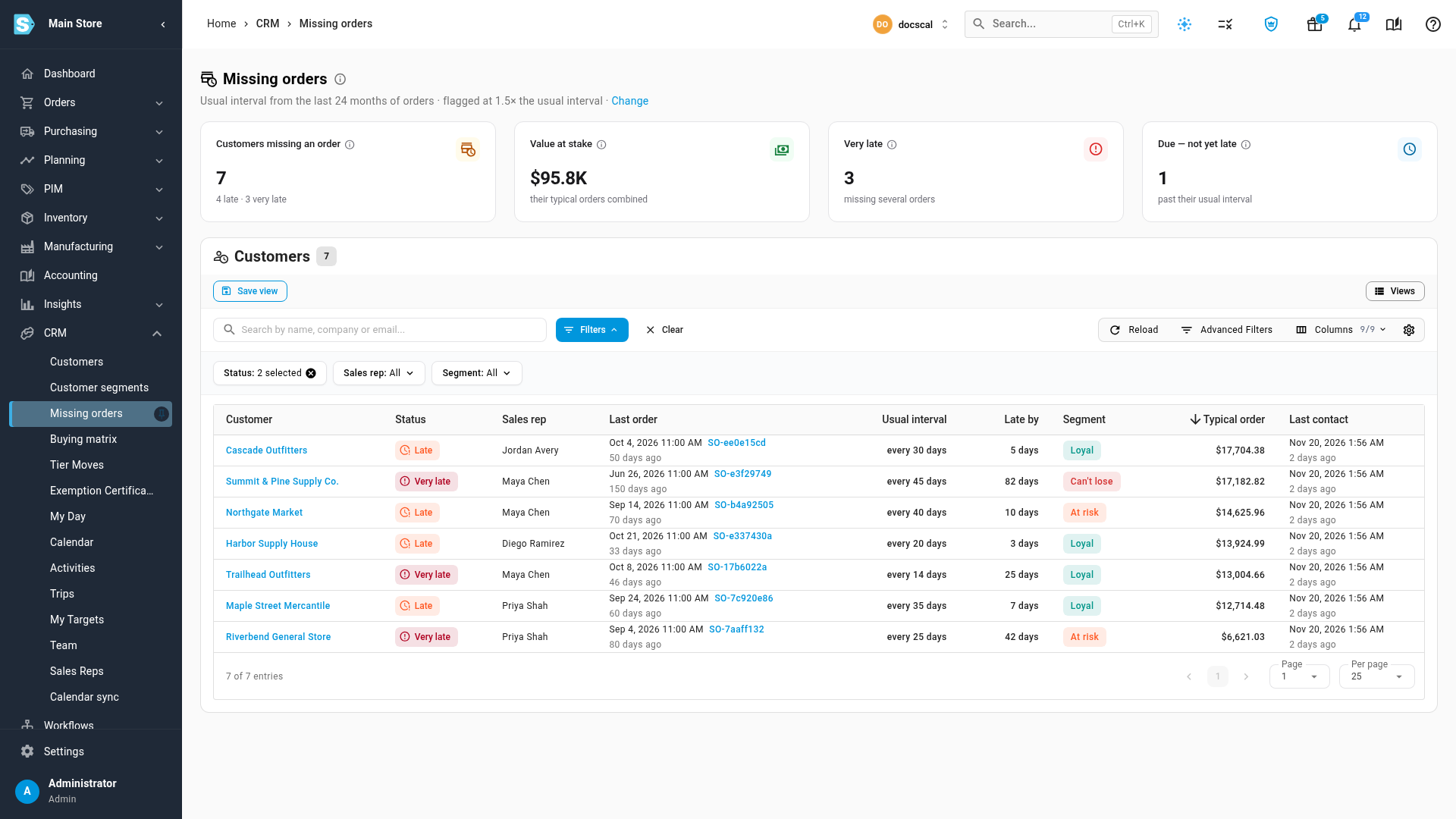
Go to CRM → Missing orders. The line under the title shows the rule in use, for example "flagged at 1.5× the usual interval". The cards at the top show:
- Customers missing an order: how many are Late or Very late.
- Value at stake: what one typical order from each of them adds up to.
- Very late: how many have probably missed several orders.
- Due — not yet late: how many are past their usual interval but not late yet.
-
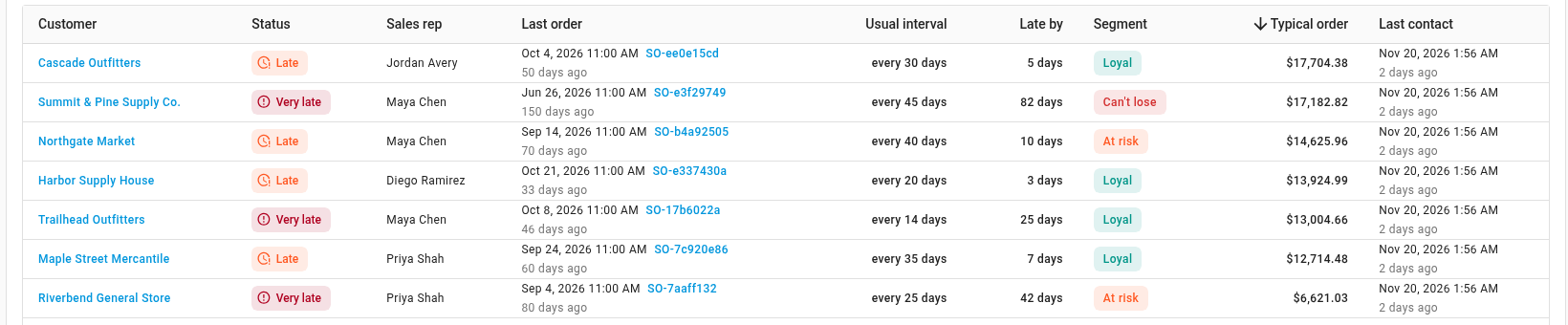
Read the list. By default it shows the Late and Very late customers, sorted so the biggest Typical order comes first. Each row also shows the customer's sales rep, last order, Usual interval and how many days they are Late by. In detail:
- Status: Late or Very late.
- Sales rep: the customer's default sales rep.
- Last order: the date of their last order, a link to it, and how many days ago it was.
- Usual interval: how often they usually order, for example "every 30 days".
- Late by: the days since they should have ordered.
- Segment: their customer segment.
- Typical order: what one of their orders is usually worth. The list is sorted by it, so the biggest are first.
- Last contact: the last visit, call or other activity logged for the customer.
-
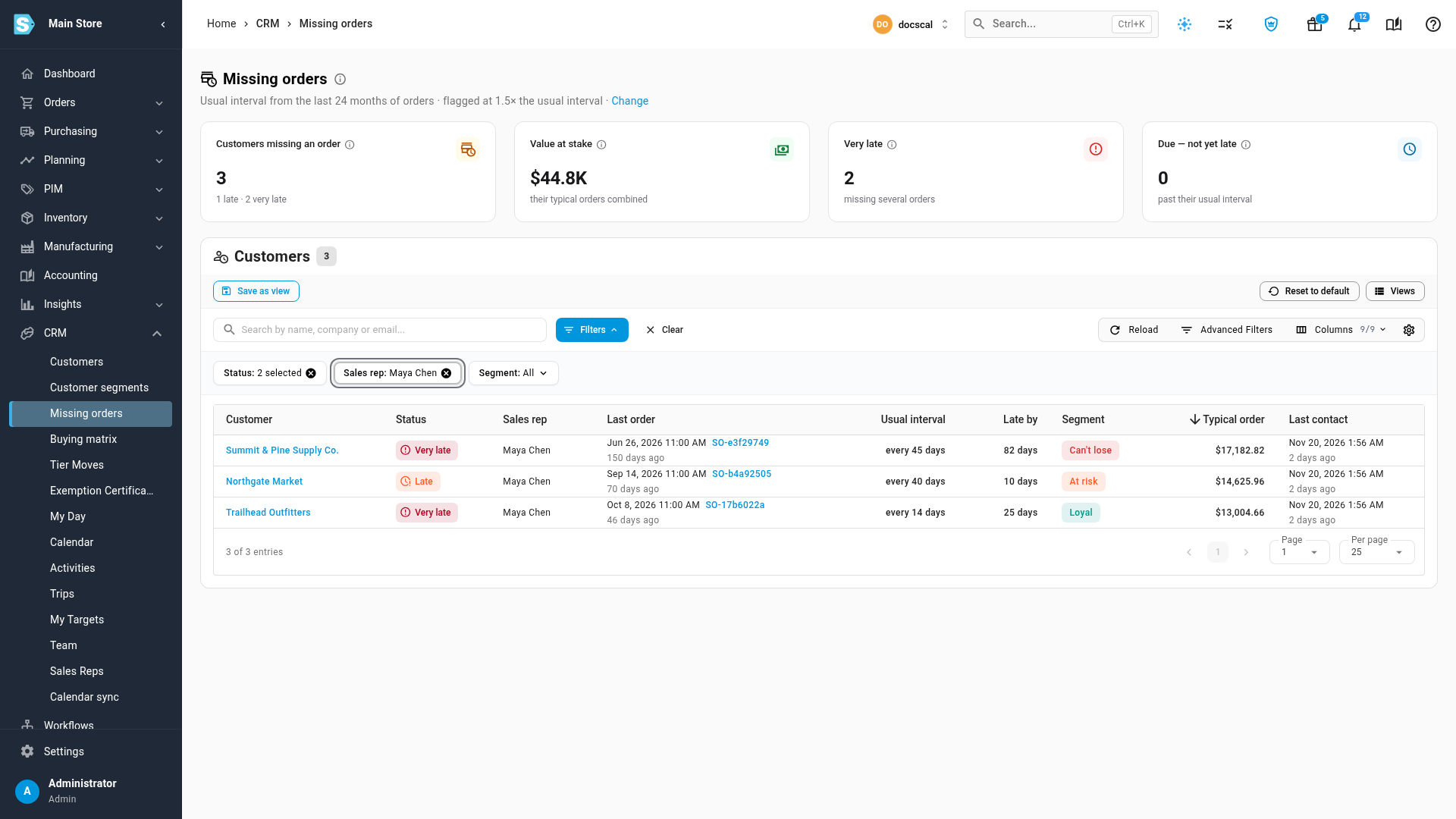
To see one rep's customers, click the Sales rep filter and pick the rep. Each rep can work their own list, and a sales manager can check each rep's in turn. The Segment filter narrows the list to one segment, such as Champions.
-
To include customers who are only Due, click the Status filter and tick Due as well.
-
Click a customer's name to open them, then log a call or plan a visit. On their Overview, the Relationship card shows the same status next to their segment, for example "Late · Last order 69 days ago · usually every 40 days".
Once the customer orders again, they drop off the list at the next recalculation. That runs every night; to run it now, click Recalculate on CRM → Customer segments.
Flag customers sooner or later
- Click Change in the line under the page title. The CRM settings open.
- Under Customer analytics, set Flag a customer as missing an order at, between 1 and 5 times their usual interval. A lower number flags customers sooner. Very late is always twice that number.
- Click Save. The list uses the new number straight away.

You can also reach this setting from Settings → CRM & Field Sales → CRM Activities.
Where else you see it
- The Missing orders dashboard widget shows the same count and value at stake on your dashboard.
- Customer segments and the Buying matrix show each customer's segment, and the Relationship card on a customer shows both their segment and their order status.
Next steps
- Find your best and slipping customers with customer segments
- See what each customer buys with the buying matrix
- See a customer's activity and log a call
- Plan your day with My Day
Video transcript
To find customers who are late to reorder, open CRM in the sidebar, and choose Missing orders. SKU works out each one's usual interval: the average number of days between their orders. The cards at the top count who is late, and what their orders are usually worth. Late means they've gone one and a half times their usual interval with no order at all. Very late means twice that, so they've probably missed more than one. Late by counts the days since they should have ordered. Typical order is what one of their orders is usually worth, so you can call the biggest first. Customers who are past their usual interval, but not late yet, are counted on the Due card. To see one rep's customers, open the Sales rep filter, and pick the rep. Each rep can work their own list, and managers can check each one in turn. To change when customers count as late, click Change. Under Customer analytics in the CRM settings, set how many times their usual interval can pass before they're late.