See a customer's activity and log a call
A customer's Activity tab is the whole relationship in one place: the last visit and what came of it, what's planned next, the open tasks, and a timeline of every visit, call, meeting, email, note and task, with the customer's orders and quotes in between. It's also the quickest place to log a call or a note while the customer is on the phone.
Before you begin
- Field CRM is a paid add-on. If CRM isn't under Contacts in the sidebar, ask your account manager to turn it on.
- Your role needs the CRM activities permission (
crm_activities.index).
Steps
-
Go to Contacts → Customers, search for the customer, and open it.
-
Under Relationship, choose Activity.
-
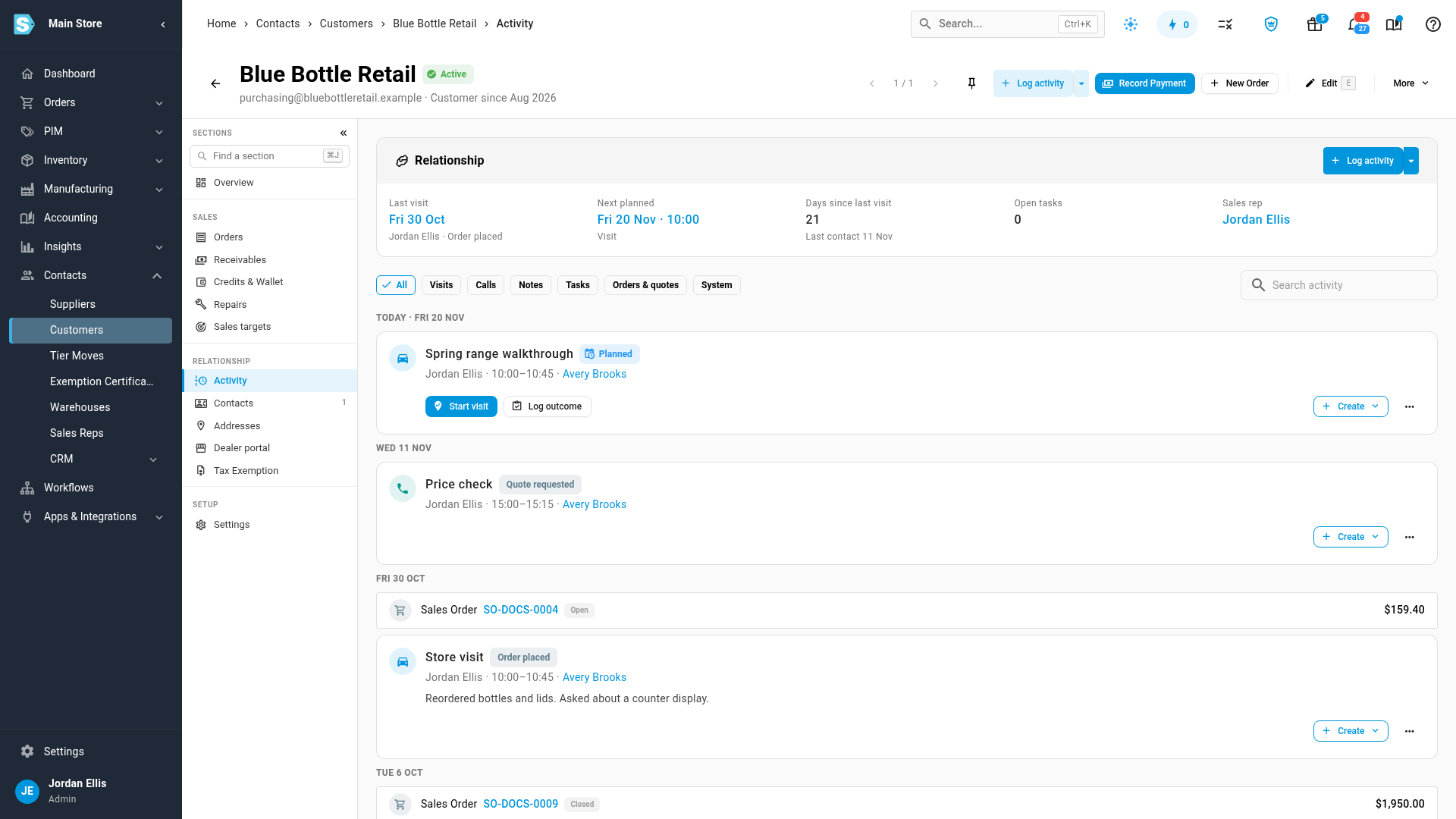
Read the Relationship card. It shows the Last visit and its outcome, Next planned, Days since last visit, Open tasks and the customer's Sales rep.
-
Read the timeline below it, newest first, grouped by day. Each card shows the type, subject, who did it and when, the contact, the outcome, notes, the next step, and any quote or order raised from it.
-
To narrow the timeline, click a filter: Visits, Calls, Notes, Tasks, Orders & quotes or System. Click All to see everything again, or type in Search activity.
-
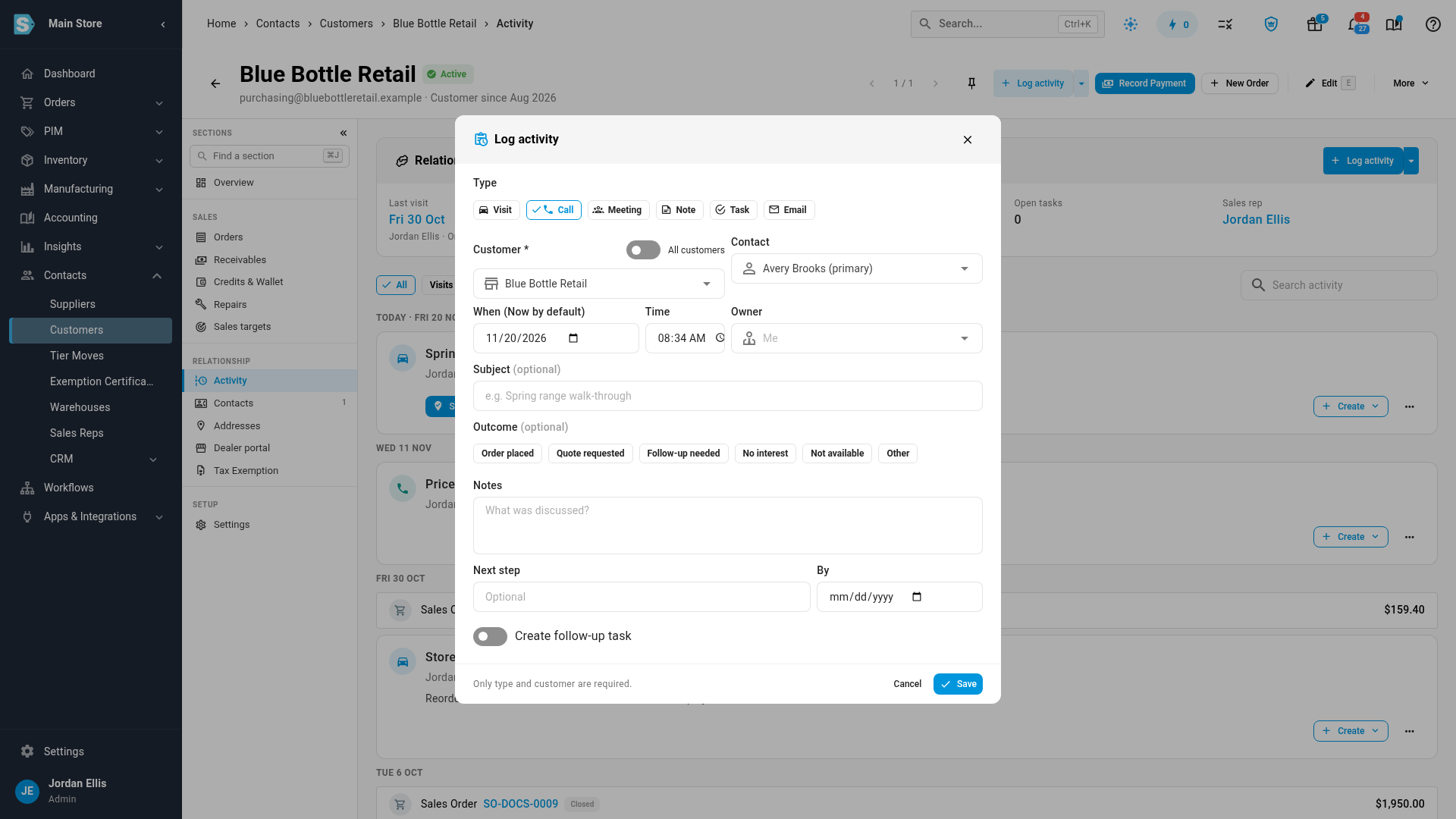
To log a call, open the Log activity menu (the arrow beside Log activity), and choose Call. Log activity opens with the customer and their primary contact filled in.
-
Optionally, add a Subject, choose an Outcome, and type Notes. Only the type and customer are required. When is now unless you change it.
-
To add a task for what happens next, enter a Next step and turn on Create follow-up task.
-
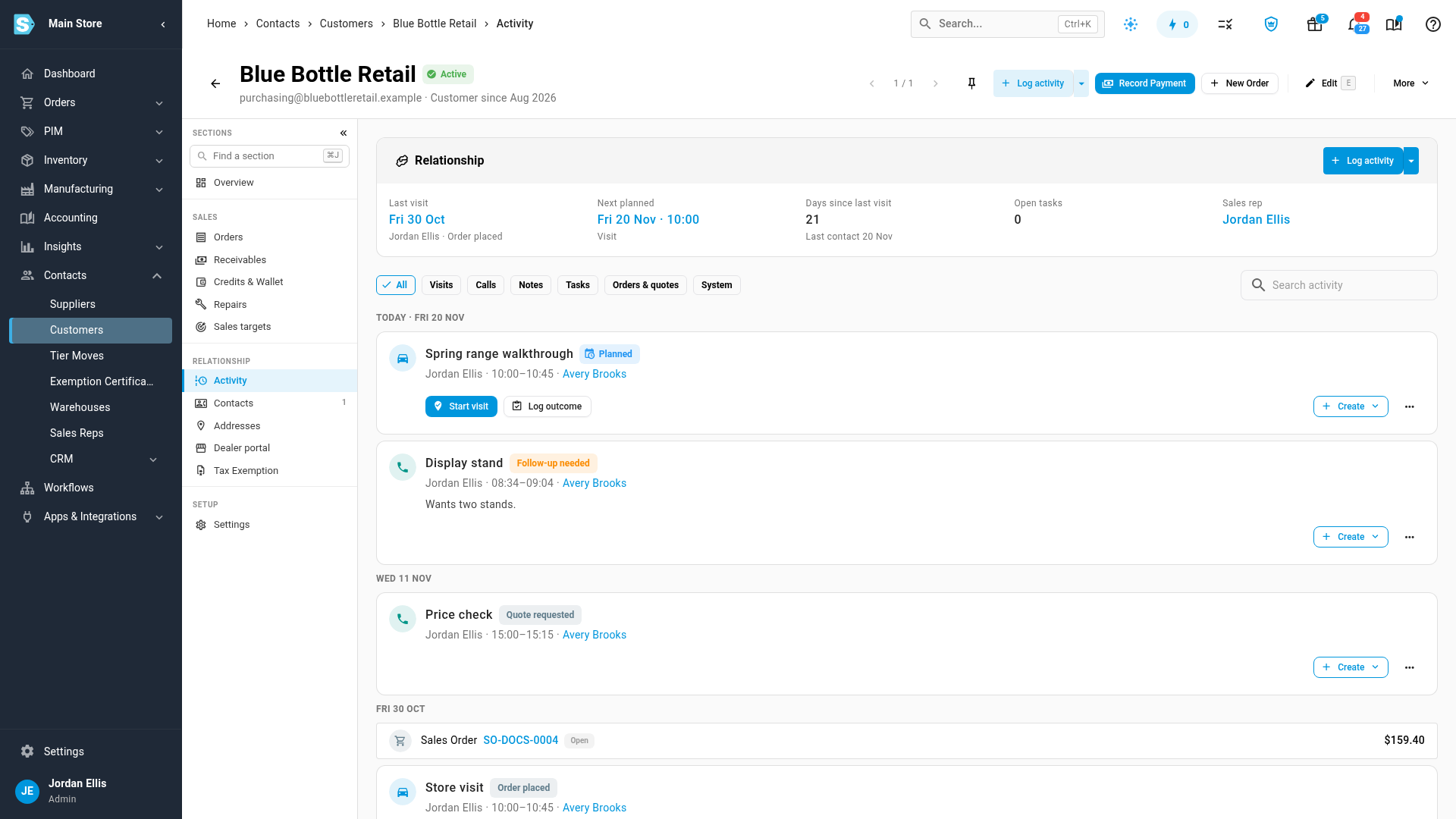
Click Save. The call appears under today's date in the timeline.
To log a different kind of activity, choose Visit, Meeting, Note, Task or Email in the same menu. If you set When in the future, the form becomes Plan activity, and the activity is saved as planned.
The Log activity button also sits on My Day, on Contacts → CRM → Activities, and in the customer's header. On Contacts → CRM → Activities you can see, filter and export every activity across all your customers.
Next steps
Video transcript
To see your history with a dealer, open Contacts in the sidebar, then Customers. Search for the dealer by name, and open their customer record from the list. Then choose the Activity tab in the record. The whole relationship with this dealer is on one page. The Relationship card shows the last visit, what's planned next, and the open tasks. Below it, every visit, call and note is listed, newest first. To narrow the list, click a filter, such as Orders and quotes. Click All to see every activity again. Now log a call from here. Click the arrow beside Log activity, and pick Call from the list. The form opens with the customer and their main contact already filled in. Add a subject, pick an outcome such as Follow-up needed, and type a short note. When you're done, click Save to log the call. The new call now shows under today, above all the older activity.