See what each customer buys with the buying matrix
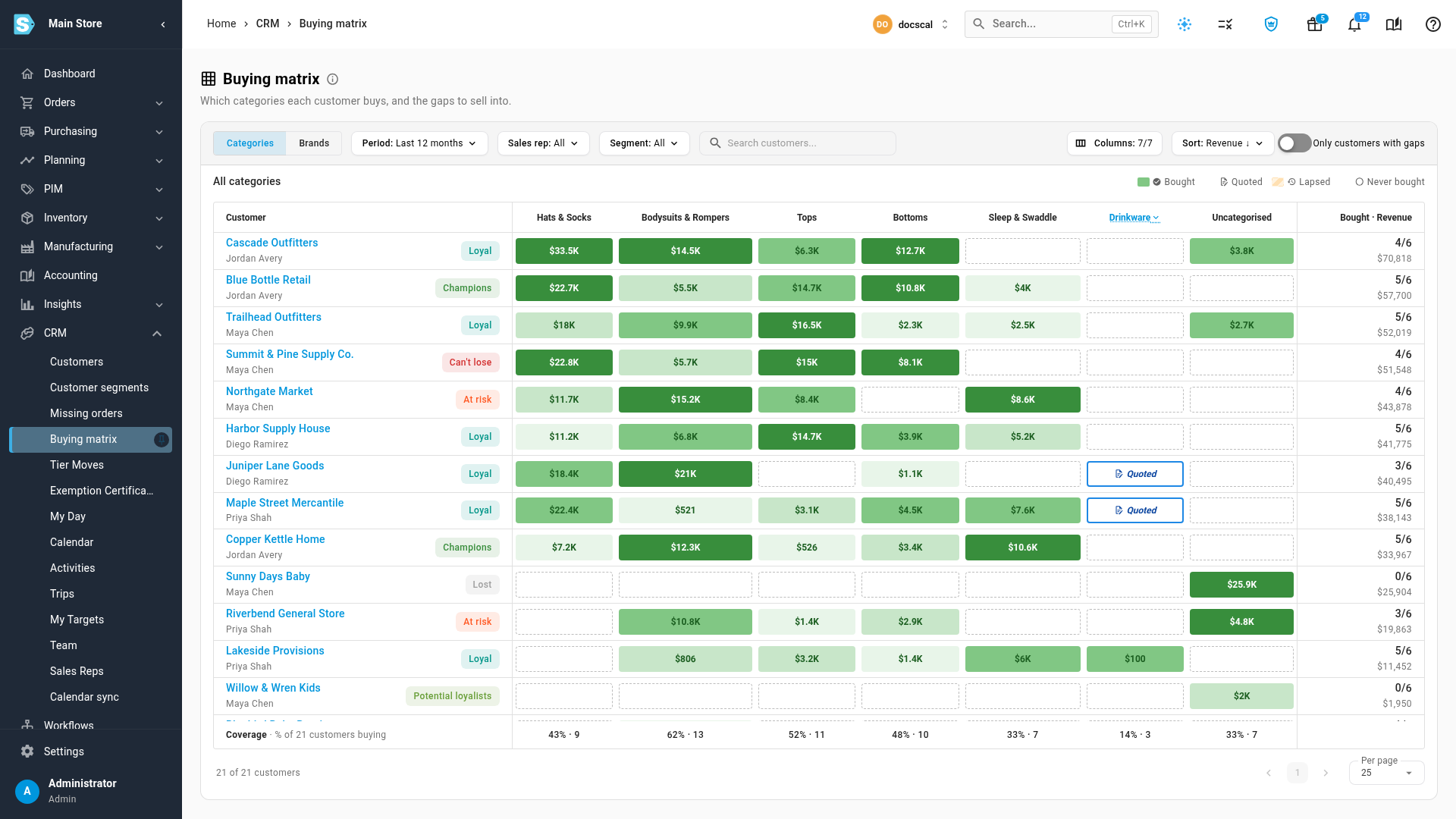
The Buying matrix lays your customers against your product categories, or your brands, in one grid. Each cell shows whether a customer buys from that category, was quoted for it, used to buy it, or has never bought it. The empty cells are the gaps: products you could be selling to customers who already buy from you. Sales reps use it to plan what to offer on the next visit or call.
Before you begin
- The buying matrix is part of the CRM module, a paid add-on. If Buying matrix isn't under CRM in the sidebar, ask SKU support to turn it on. See The CRM module.
- Your role needs the Customers View permission (
customers.index). The matrix only shows the customers you're allowed to see. - The columns are your product categories or brands, so file your products in categories and give them a brand first. Products without a category are counted in an Uncategorised column. See Manage categories.
What the cells mean
| Cell | Meaning |
|---|---|
| Bought (green, with the amount) | The customer bought from this category in the period. The darker the green, the more they spent, compared with the rest of the grid. |
| Quoted | You sent them a quote with products from this category in the period, but they haven't bought from it. Draft and revised quotes don't count. |
| Lapsed (striped) | They bought from this category before the period, but not during it. |
| Never bought (empty) | A gap: they've never bought from this category. |
When more than one applies, the cell shows the first in this order: Bought, Quoted, Lapsed, Never bought.
Steps
-
Go to CRM → Buying matrix. Each row is a customer who has ordered, with their sales rep and customer segment. Each column is a top-level product category. On the right, Bought · Revenue shows how many of the columns the customer bought from (not counting Uncategorised), and their revenue in the period.
-
Choose the Period: Last 3 months, Last 6 months, Last 12 months (the default), This year, Last year or Custom. A cell is Bought or Quoted only for orders and quotes inside the period.
-
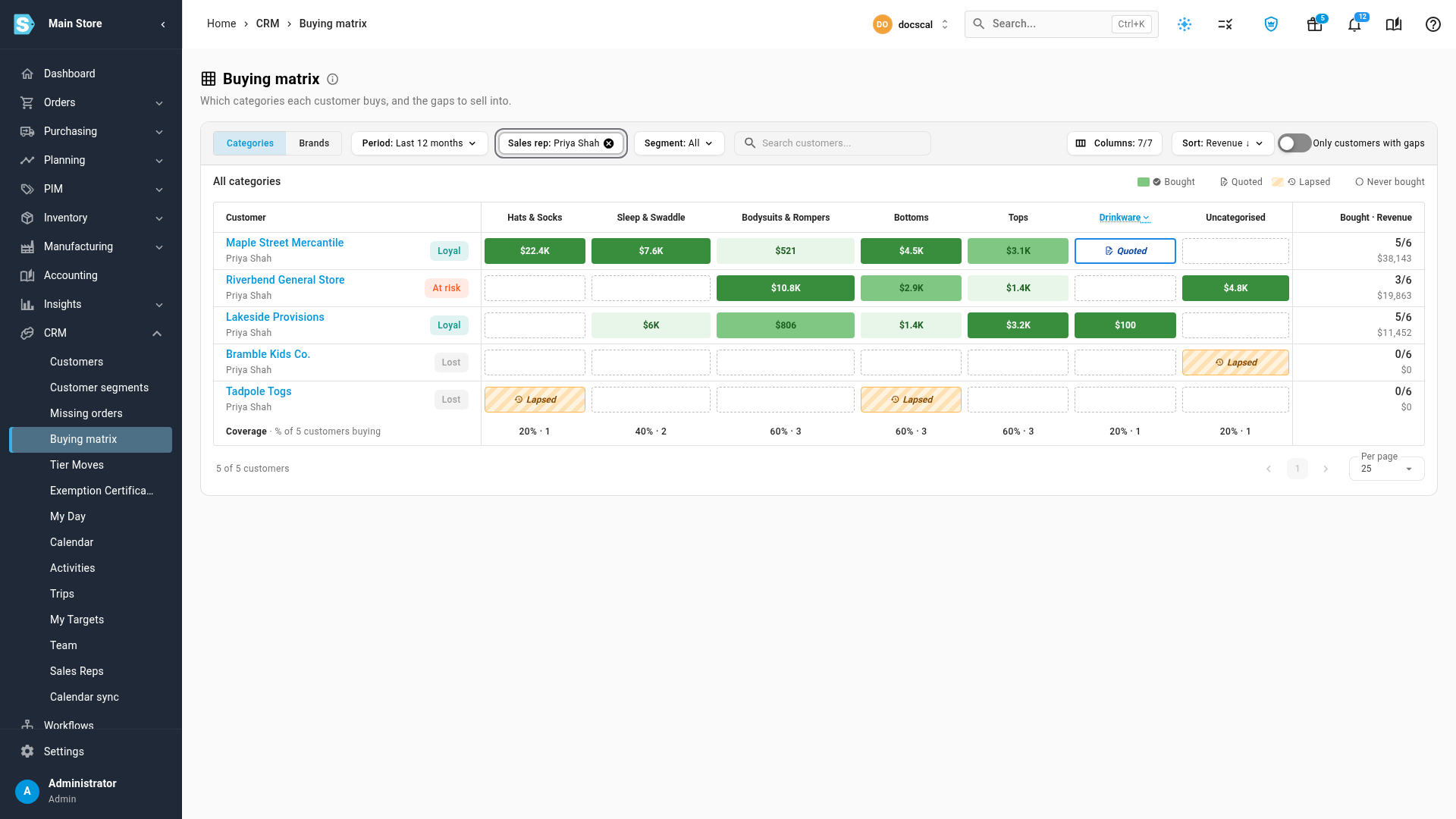
To see one rep's customers, click the Sales rep filter and pick the rep, or No rep for customers without one. The Coverage row at the bottom shows what share of these customers buy each column, and how many.
-
To see only the customers you can still sell more to, turn on Only customers with gaps. It hides customers who bought from every column in the period. You can also narrow the list with Segment (for example only At risk customers) or Search customers, and change the Sort to Revenue ↓, Name or Categories bought.
-
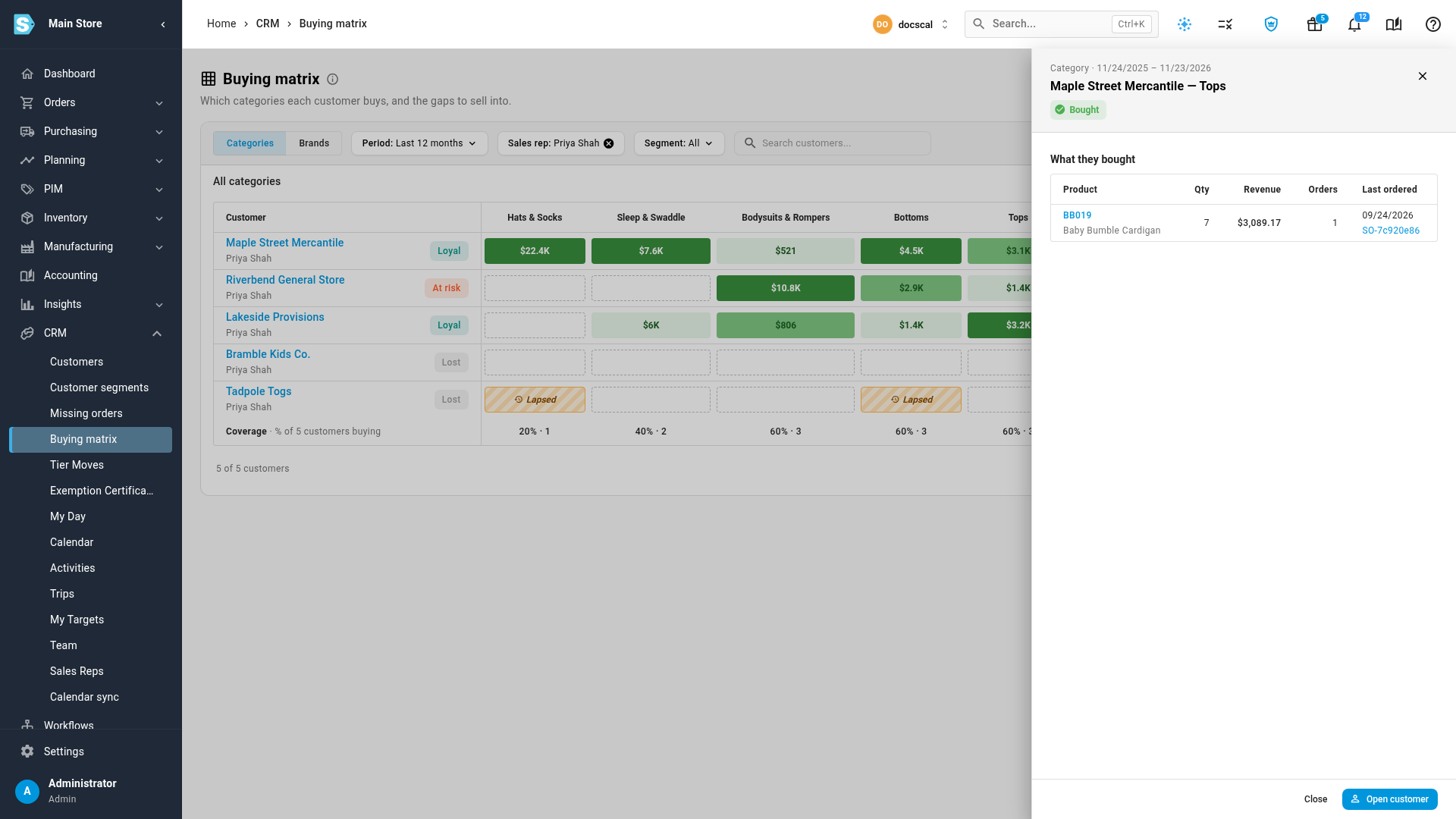
Click a cell to see what's behind it. A panel opens on the right:
- For a Bought cell, What they bought lists the products, quantity, revenue, number of orders, and the date and number of the last order.
- For a Quoted cell, Quotes in this period lists the quotes, with a link to each.
- For a Lapsed cell, it shows when they last bought from the category.
- For any cell that isn't Bought, What similar customers buy lists the products that other customers in the same segment bought from that category in the period, leaving out anything this customer already buys. Use it to choose what to offer.
Click Open customer to go to the customer, or Close to go back to the matrix.
-
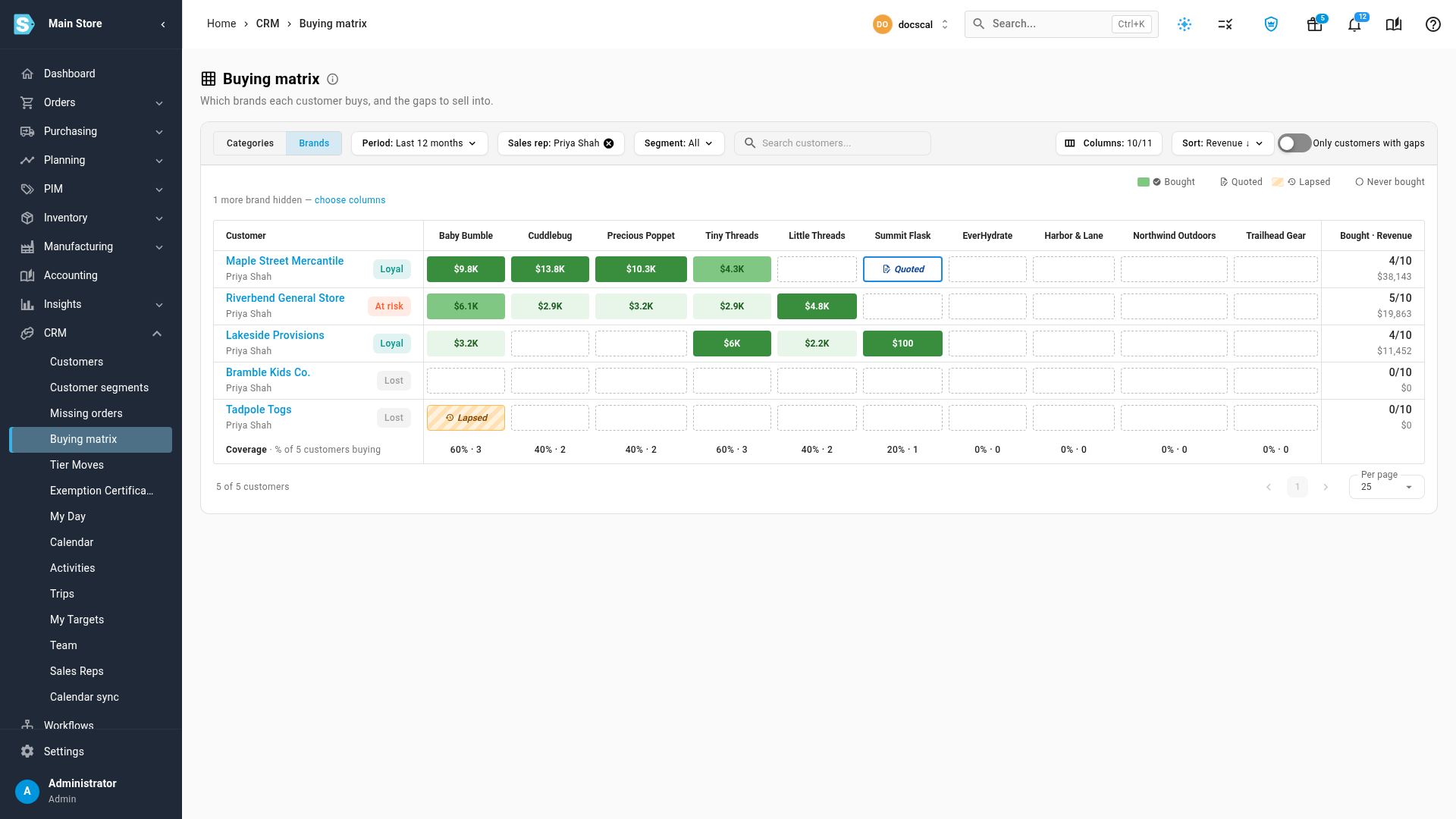
To see the matrix by brand instead, click Brands at the top left. Products without a brand are counted in a No brand column.
-
Columns with an arrow, such as Drinkware, have subcategories. Click the column name to show its subcategories as columns, and click All categories above the grid to go back. Use Columns to choose which columns to show.
On a customer's page
The customer's Overview has the same view for one customer: the Categories bought card groups the categories into Bought, Quoted, Lapsed and Never bought. Switch it to Brands, pick a period, and click any category to open the same panel. Open buying matrix takes you to the full grid.
Next steps
- Find your best and slipping customers with customer segments
- Find customers who are late to reorder
- Create and send a quote
Video transcript
To see which categories each customer buys, open CRM in the sidebar, and choose Buying matrix. Each row is a customer, and each column is one of your product categories. A green cell means they bought from that category in the period. The darker the green, the more they spent. To see one rep's customers, open the Sales rep filter, and pick the rep. The Coverage row at the bottom shows what share of these customers buy each category. Quoted means you sent them a quote for that category, but they haven't bought it yet. A cell marked Lapsed is a category they bought before this period, but not lately. An empty cell is a gap: a category they've never bought from. Click a cell to see what's behind it. For a gap, the panel lists the products that similar customers buy from that category, so you know what to offer. For a green cell, it lists what the customer bought, with their last order. To go to that customer, click Open customer. To see the matrix by brand instead, close the panel and click Brands.