Plan your day with My Day
My Day is a field rep's home screen. It shows where you're going next, everything planned for today, the tasks you owe, and the customers who are due for a visit. From it you plan new visits and open the rep Calendar to see your whole week.
Before you begin
- Field CRM is a paid add-on. If CRM isn't under Contacts in the sidebar, ask your account manager to turn it on.
- To see customers under Due for a visit, your user needs to be linked to a sales rep, and that rep set as the customers' default sales rep.
- Your role needs the CRM activities permission (
crm_activities.index).
Steps
-
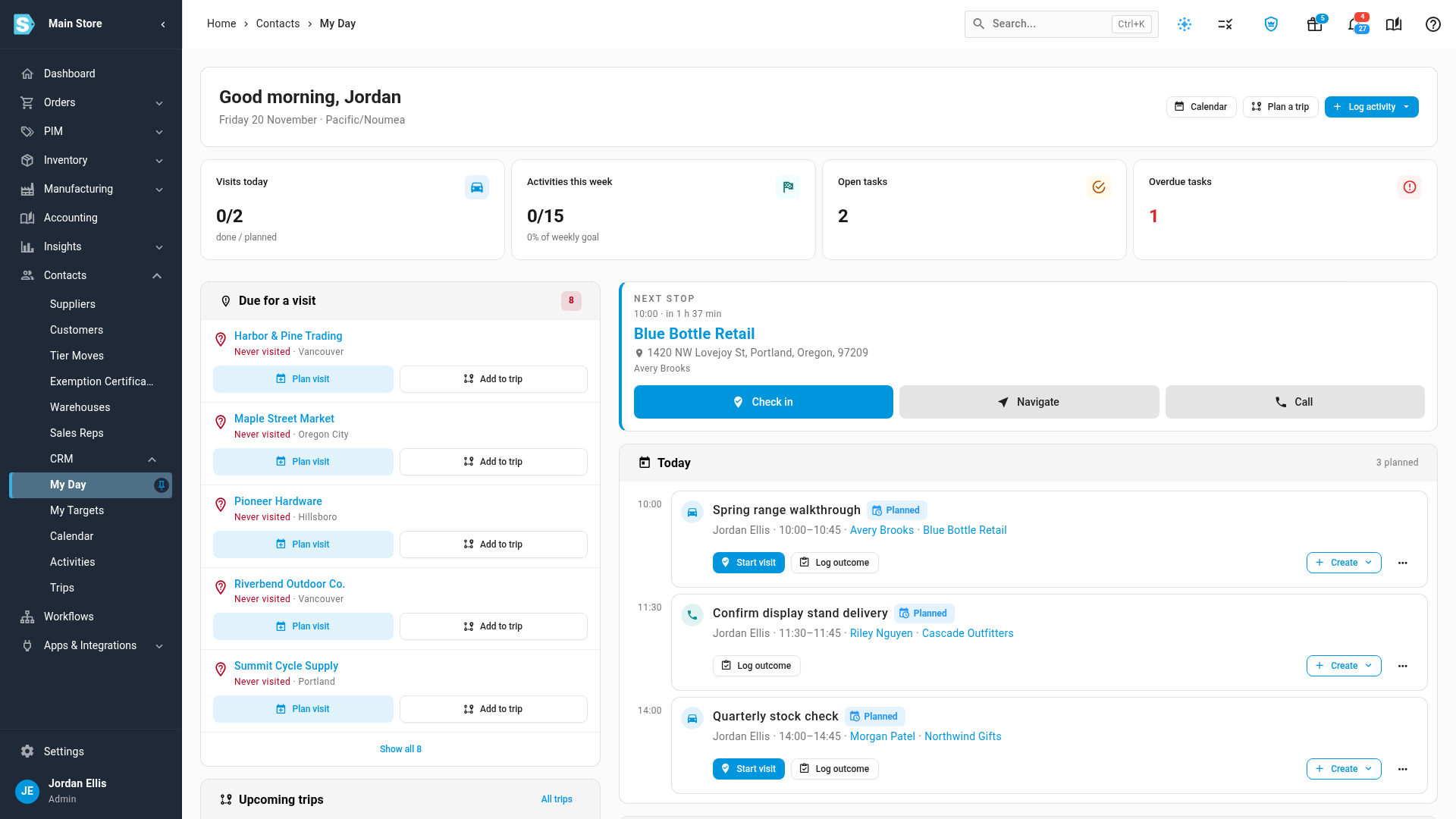
Go to Contacts → CRM → My Day. The tiles at the top count Visits today (done and planned), Activities this week against your weekly goal, Open tasks and Overdue tasks. If your manager has set you a target for this year, a strip above the tiles, for example Your 2026 target, shows your pace. See Track your own sales targets and pace.
-
Check Next stop. It shows your next planned visit, how long until it starts, the address and contact, with Check in, Navigate and Call buttons.
-
Read Today. It lists every planned visit, call and meeting in time order. Each one has Start visit or Log outcome, and a Create menu for quotes and orders.
-
Below the agenda, tick a task under Tasks due today or Overdue tasks when it's done.
-
To plan a new visit, find the customer under Due for a visit. It lists your customers who have never been visited first, then the longest since the last visit. Click Show all to see the full list.
-
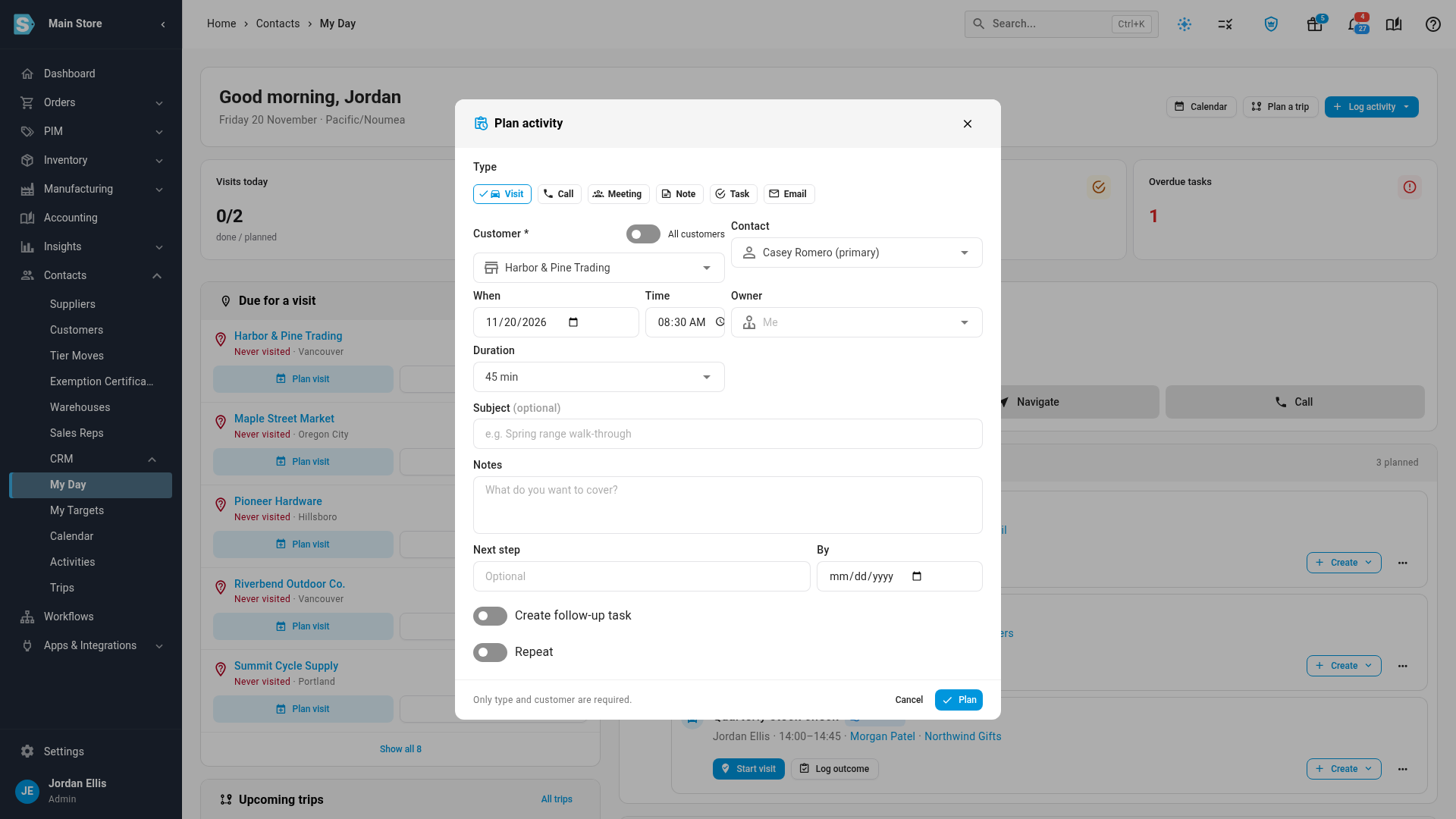
Click Plan visit on the customer. Plan activity opens with the customer filled in and a suggested free time.
-
Change When, Time or Duration if you need to, and add a Subject or notes.
-
Click Plan. The visit is added to your agenda and your calendar.
-
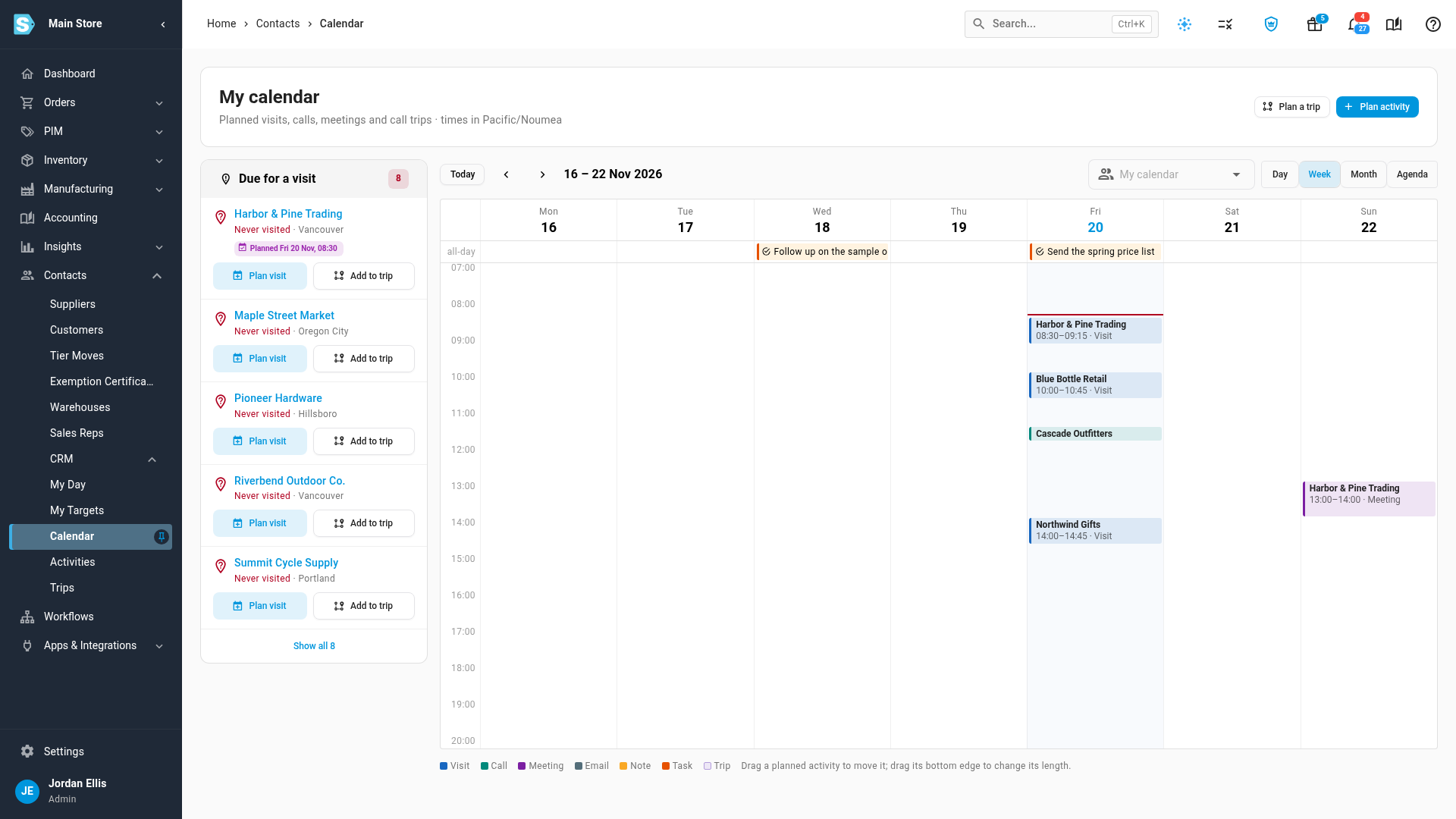
To see your week, click Calendar at the top of My Day, or go to Contacts → CRM → Calendar. Your visits, calls and meetings appear on their days, colored by type, and the tasks you owe sit in the all-day row.
-
Switch between Day, Week, Month and Agenda at the top right of the calendar.
Plan and move activities on the calendar
- To plan an activity at a time, click an empty slot on the Calendar. Plan activity opens with that day and time filled in. You can also click Plan activity at the top of the calendar.
- To move a planned activity, drag it to another time or day. To change its length, drag its bottom edge.
- To plan visits for several dealers in one run, click Plan a trip. See Plan a call trip.
For a dealer you visit regularly, turn on Repeat when you plan the visit, and choose how often and until when. SKU.io plans every visit in the series.
Next steps
Video transcript
Every rep starts the day on My Day. To open it, go to Contacts in the sidebar, then CRM, and choose My Day. The tiles count today's visits, this week's activities against your goal, and your tasks. Next stop shows your next visit, with Check in, Navigate and Call. Today lists every planned visit and call in time order. Tasks due today and overdue tasks sit below the agenda. Check the box beside one when it's done. Due for a visit lists your customers, never visited first, then the longest gap. Click Plan visit on a customer. The form suggests a free time this week. Change the time if you need to. Then click Plan, at the bottom of the form. The visit is now planned on your calendar. To see your week, choose Calendar, under CRM in the sidebar. Visits, calls and meetings appear on their days, colored by type. Click an empty slot to plan an activity, or drag a planned one to another time.