Connect your Google or Outlook calendar
Connect your own Google Calendar or Microsoft 365 / Outlook calendar to SKU.io, and the visits, calls and tasks you plan in Field CRM appear on your phone's calendar. Your other events come back as busy time, so nobody books a visit over your dentist appointment. Sync runs both ways: when you move or delete a visit in your calendar app, SKU.io updates it within seconds.
Before you begin
- Field CRM is a paid add-on. If Calendar sync isn't under CRM in the sidebar, ask your account manager to turn it on.
- Your role needs the CRM activities List permission (
crm_activities.index). - You need a Google account (Gmail or Google Workspace) or a Microsoft account (Microsoft 365 work or school, or a personal Outlook.com account).
- Each person connects their own calendar. Connecting yours never shows anyone else your event titles.
Steps
-
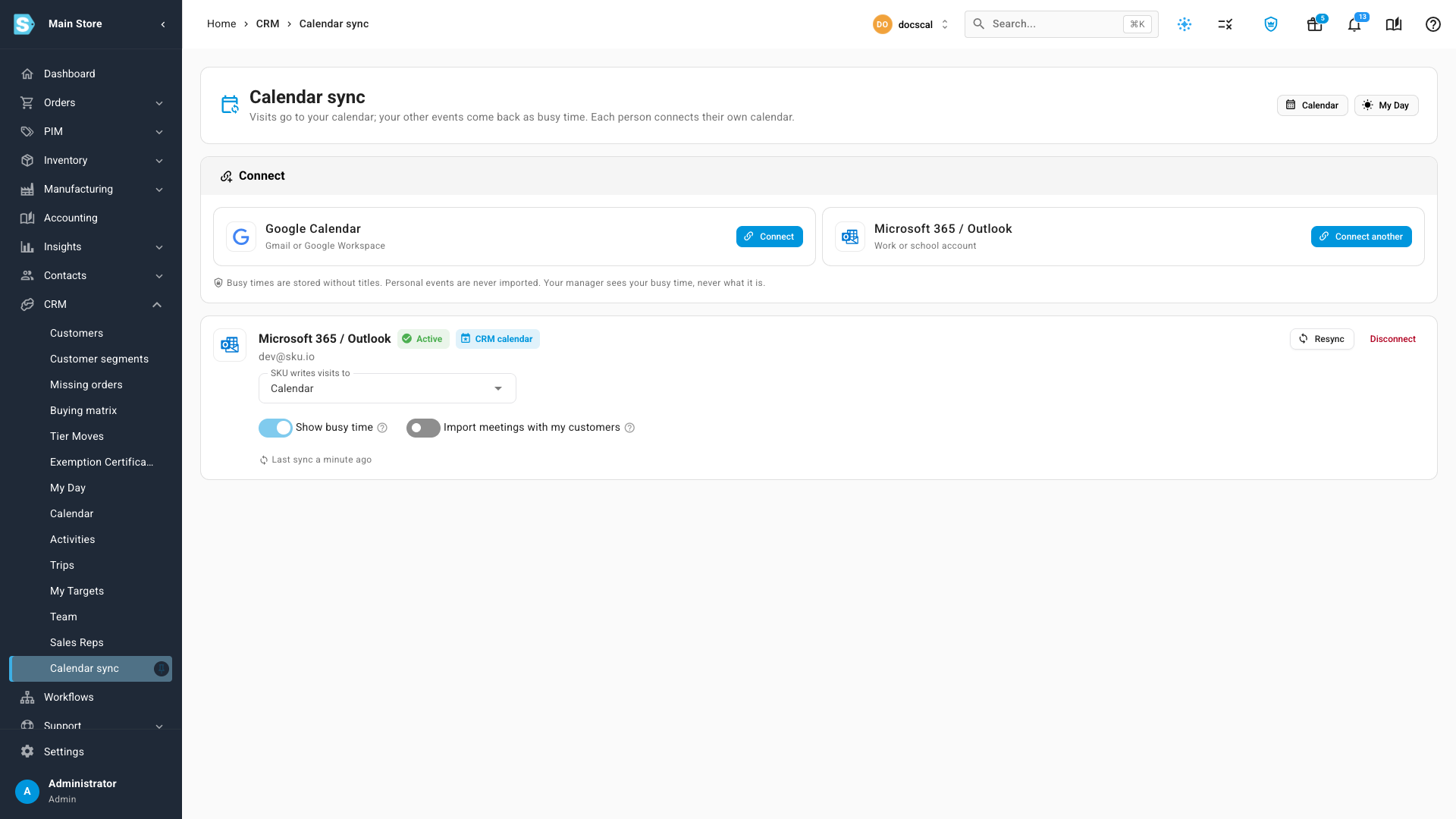
Go to CRM → Calendar sync.
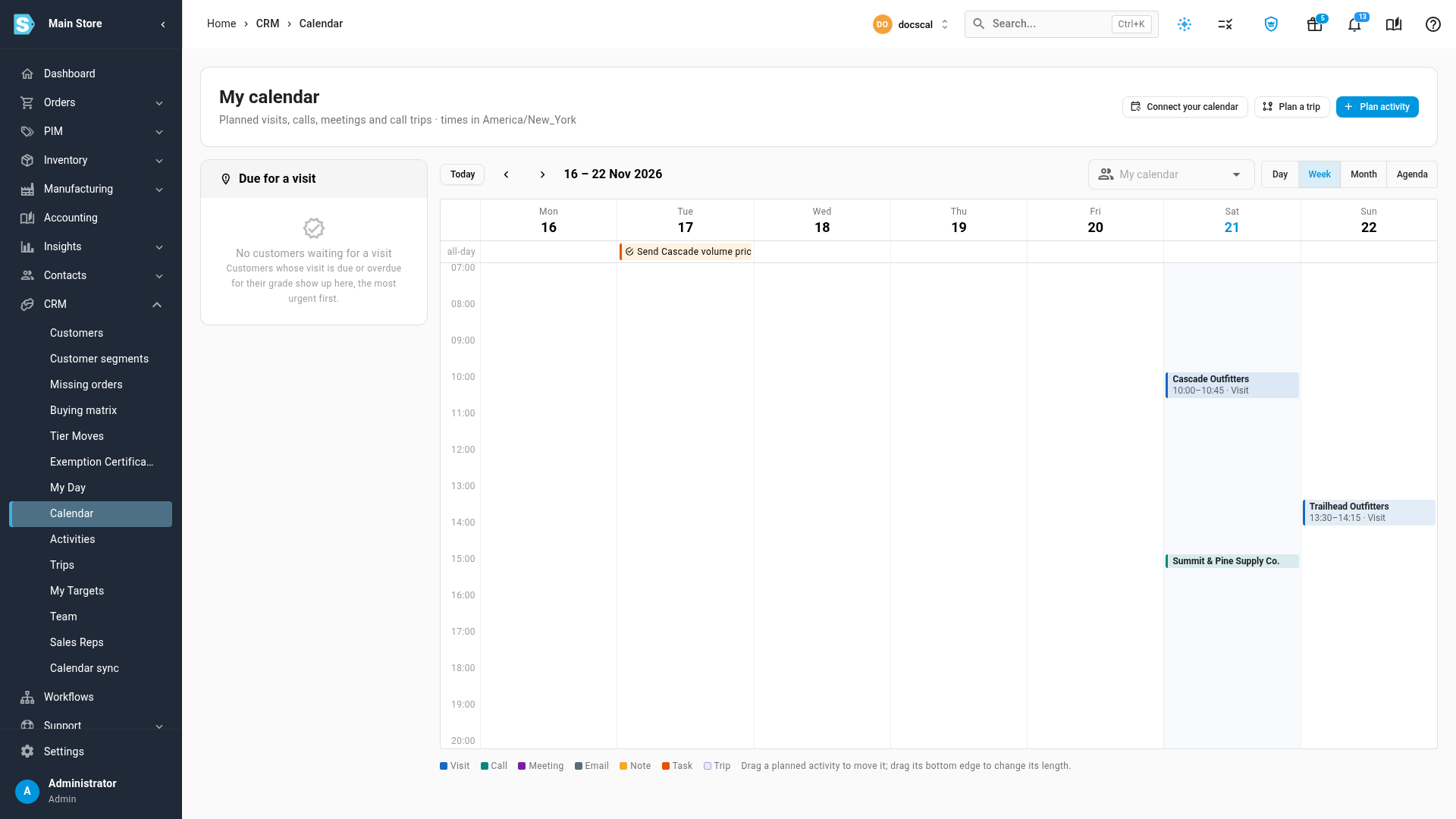
You can also start from CRM → Calendar: until you connect a calendar, it shows Connect your calendar at the top. Once you're connected, the same button reads Calendar sync.
-
On the card for your calendar, click Connect.
-
Sign in with that account, and allow access. SKU.io asks only for access to your calendars and your basic account details (your email address). You come back to Calendar sync, and a first sync starts in the job tray.
-
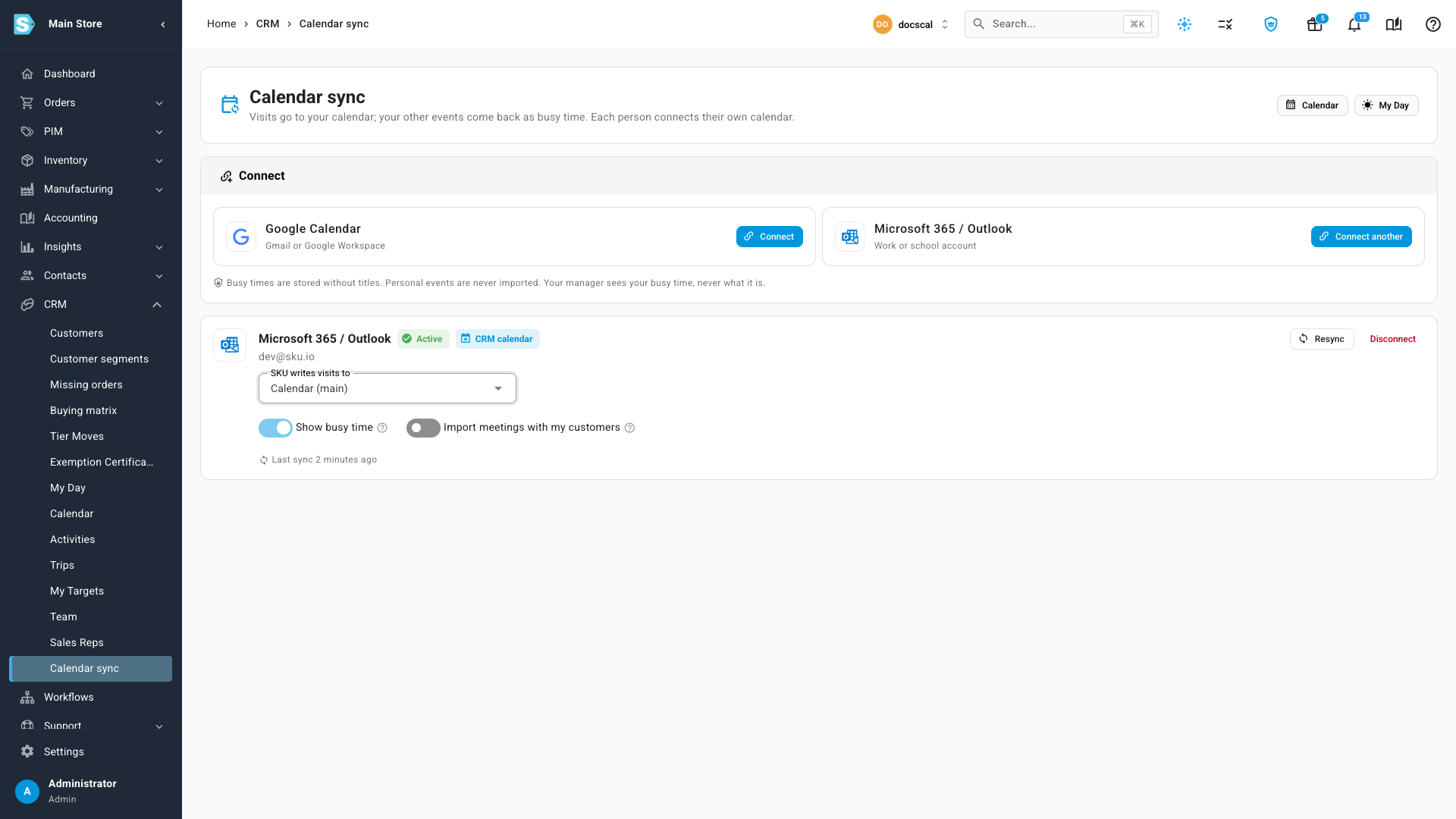
Under SKU writes visits to, choose the calendar your visits go to. Your main calendar is the default. To keep visits apart, choose Create a dedicated "SKU visits" calendar when it's offered: it gets its own colour on your phone, and you can hide it in one tap.
-
Leave Show busy time on to see your other events as busy time. SKU.io stores only their start and end times, never titles or attendees. Turning it off removes the stored busy time.
-
Optional: turn on Import meetings with my customers. When one of your customers' contacts is on an invite, the event becomes a Meeting on that customer's activity timeline. Personal events are never imported.
-
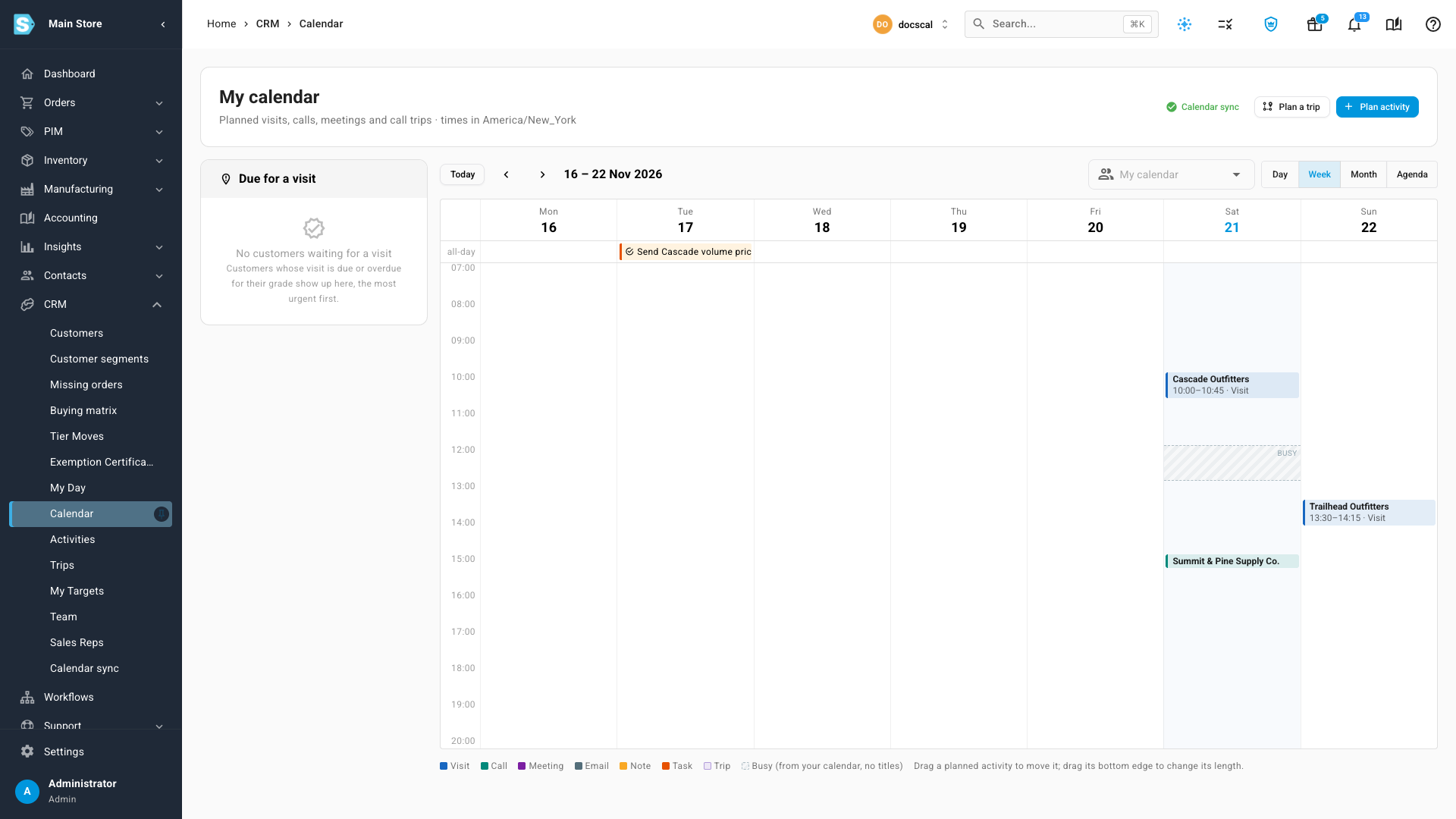
Go to CRM → Calendar to check the result. Your planned visits are on your phone's calendar, and your other events show here as grey Busy blocks without titles.
What syncs, and which way
| You do this | Where | What happens |
|---|---|---|
| Plan, move or edit a visit, call or task | SKU.io | The event is created or updated in your calendar within seconds. |
| Move a visit, or change its time | Your calendar app | SKU.io moves the visit to match. |
| Delete a visit's event | Your calendar app | SKU.io cancels the planned visit, with the reason Deleted in calendar. A visit you already completed stays completed. |
| Add any other event | Your calendar app | It shows as a grey Busy block in SKU.io, without its title. |
| Invite one of your customers' contacts | Your calendar app | With Import meetings with my customers on, it becomes a Meeting on that customer's timeline. |
Last sync on the card shows when SKU.io last heard from your calendar. Resync re-reads your busy time and meetings and re-sends your visits; its progress shows in the job tray.
When something goes wrong
- "Admin approval needed" after you sign in with Microsoft: your organisation requires an administrator to approve SKU.io Calendar before you can connect. Ask your Microsoft 365 admin to approve it, or connect a personal Microsoft account instead. Then click Try again.
- "Couldn't connect your calendar": the sign-in was cancelled or didn't finish. Click Try again.
- "needs reconnecting" on the card, or Reconnect calendar at the top of your CRM Calendar: your calendar stopped accepting SKU.io's sign-in, for example after a password change. Click Reconnect. Changes made in the meantime are waiting, and go out in order once you reconnect. Nothing is duplicated.
Disconnect your calendar
-
Click Calendar sync at the top of your CRM Calendar (or go to CRM → Calendar sync), and click Disconnect on the card.
-
Choose what happens to the visits SKU.io added to your calendar:
- Remove the SKU visits from my calendar deletes the visits and tasks SKU.io added. Your own events stay.
- Leave them keeps them as normal events, which stop updating.
-
Click Disconnect. Busy time from that calendar is removed from SKU.io either way, and your visits in SKU.io are kept.
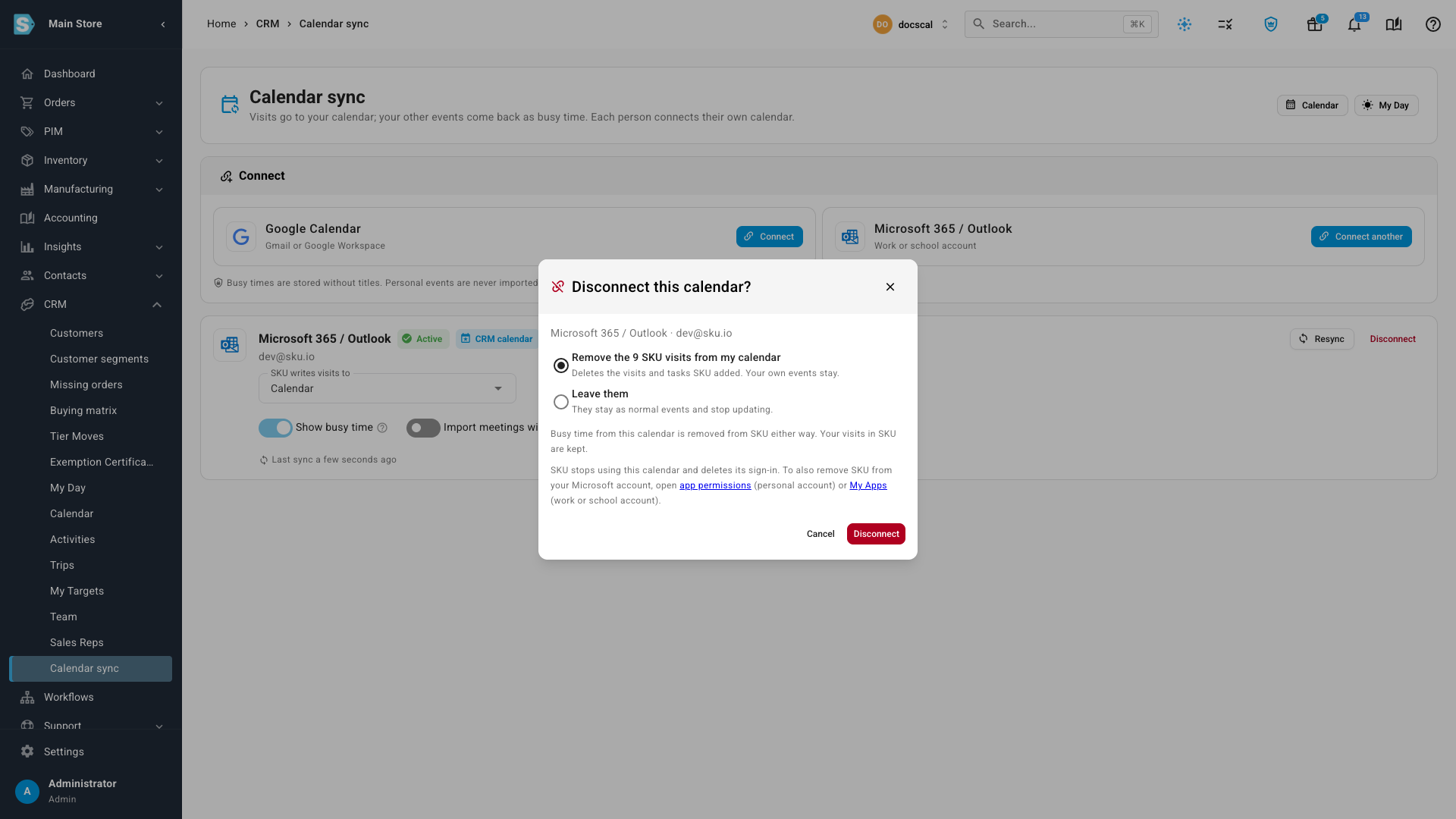
Disconnecting stops SKU.io using your calendar and deletes its sign-in. SKU.io still appears in your account's list of connected apps until you remove it there:
- Google: open Google Account permissions and remove SKU.io. This also ends SKU.io's other Google connections for that account, such as Google Sheets.
- Microsoft, personal account: open app permissions and remove SKU.io Calendar.
- Microsoft, work or school account: open My Apps and remove SKU.io Calendar.
Next steps
Video transcript
To get started, open CRM in the sidebar, and choose Calendar sync from the list. Each person on your team connects their own Google or Outlook account. Click Connect on the card for your provider. Then sign in, and allow access. SKU asks only for your calendars and basic profile details. Once you allow access, the connection appears here, and syncing starts. Next, open the list of calendars, and choose where your visits should land. You can also let SKU make a separate visits calendar, with its own colour. Show busy time brings your other events back as busy blocks, without their titles. Import meetings with my customers is optional, and starts switched off. Switched on, an invite with one of their contacts is logged on that customer's timeline. To see the result, choose Calendar under CRM in the sidebar. Your phone will now show these visits as well. Your other events show here as grey busy blocks, and their titles stay private. If you move or delete a visit in Google or Outlook, SKU updates it within seconds. One you remove there will be cancelled here, with the reason Deleted in calendar. To stop syncing, click Calendar sync, at the top right of the page. Then click the Disconnect button, at the bottom of the connected card. Choose whether to remove the visits SKU added, or keep them as normal events. Busy time is removed either way, and nothing is lost in SKU. The links below show where to remove SKU from your account as well.