Run your sales team from the Team view
The Team view is a sales manager's home in Field CRM. It sums up your reps' week against the activity goal, ranks them, shows every rep's calendar side by side, lists their latest activities so you can coach them, and counts which customers are overdue for a visit. You see the reps of the sales rep groups you manage.
Before you begin
- Field CRM is a paid add-on. If My Day isn't under CRM in the sidebar, ask your account manager to turn it on.
- Your role needs the CRM Activities View my team's activity permission (
crm_activities.view_team). Admins have it. A role with View everyone's activity (crm_activities.view_all) sees every rep instead of just their team. - You must be a manager of at least one sales rep group. See Make yourself a group's manager.
Steps
-
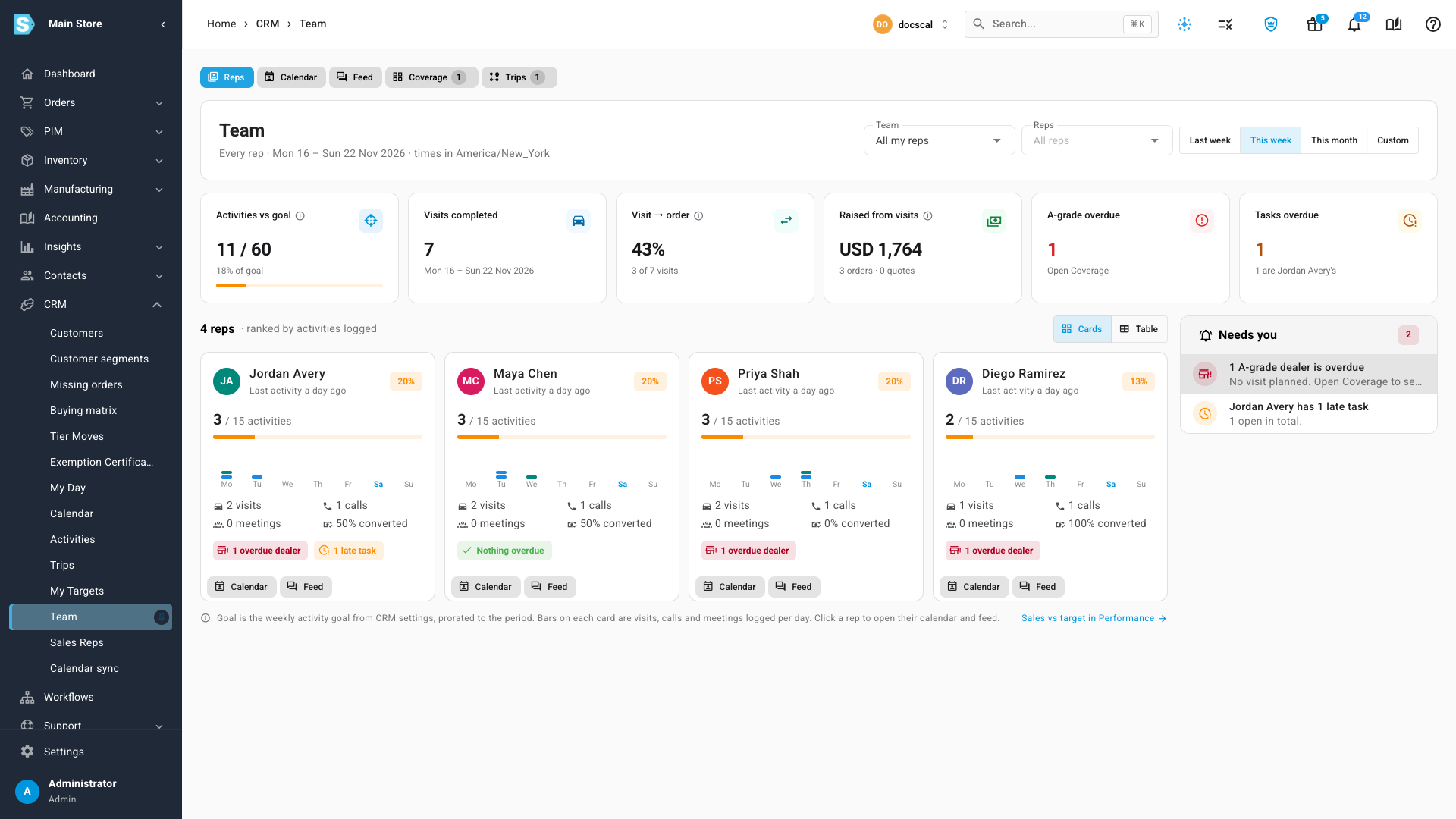
Go to CRM → Team. The cards at the top sum up the period: Activities vs goal, Visits completed, Visit → order (visits that led to an order), Raised from visits, A-grade overdue and Tasks overdue. Pick Last week, This week, This month or Custom to change the period, and use the group and rep filters to narrow it down.
-
On the Reps tab, each rep has a card with their activities against the goal, a bar for each day, their visits, calls and meetings, and how many visits turned into orders. Needs you lists what wants your attention, such as a rep's late tasks or a dealer overdue for a visit. Click Table for the same numbers in a denser table.
-
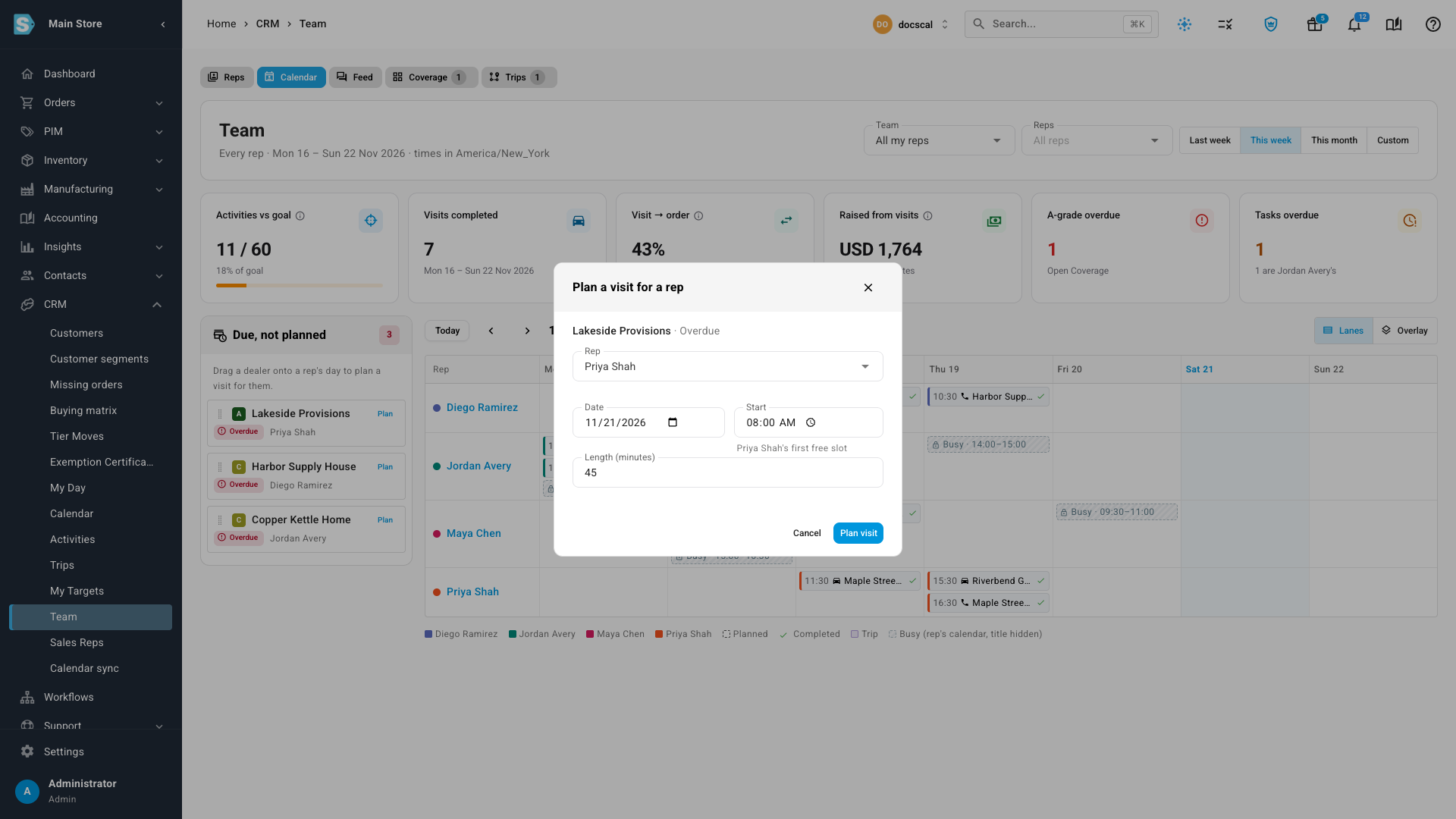
Click the Calendar tab to see every rep's week, one lane each. Click Overlay to put them on one calendar instead. Grey blocks are busy time from a rep's connected calendar, with the titles hidden.
-
To plan a visit for a rep, drag a dealer from Due, not planned onto the rep's day, or click Plan on the dealer. SKU.io suggests the rep's first free slot. Check the Date and Start, then click Plan visit. The visit appears on the rep's calendar.
-
Click the Feed tab to read your team's latest visits, calls, meetings, notes and tasks, with their outcomes and any order or quote raised from them. To coach a rep, click Comment under an activity, write a note, and click send. The rep sees your comment on that activity.
-
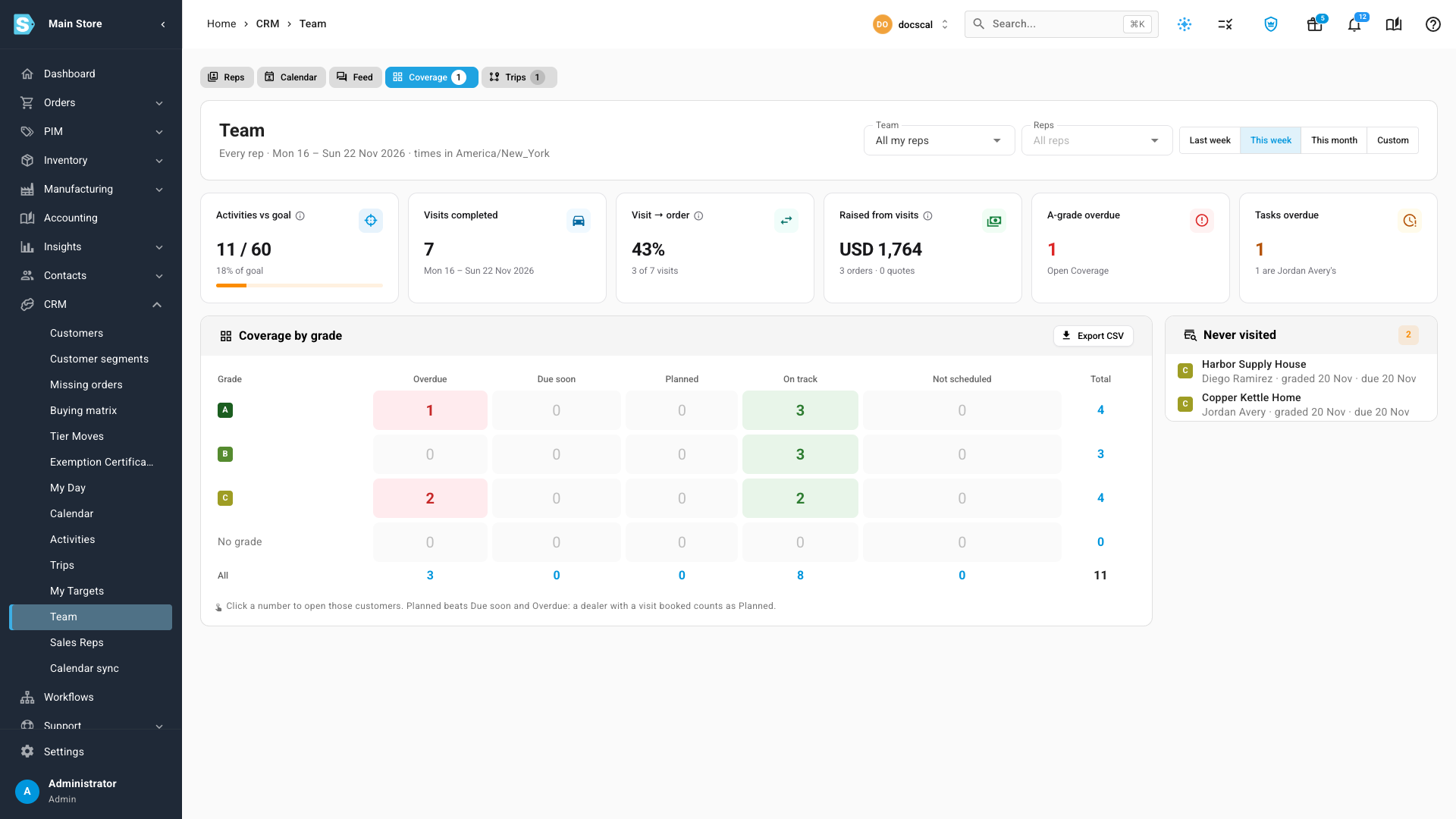
Click the Coverage tab to see your team's customers counted by grade and visit status: Overdue, Due soon, Planned, On track and Not scheduled. Click any number to open those customers in the customer list. Never visited lists the customers nobody has visited yet. Export CSV downloads the table.
-
Click the Trips tab to see your reps' call trips, and how many stops on each are done.
How coverage status works
Each customer's grade sets how often they should be visited, and the date of the last visit sets when the next one is due.
| Status | Means |
|---|---|
| Overdue | The next visit was due before today, and no visit is booked by then. |
| Due soon | The next visit is due within the next week. |
| Planned | A visit is booked on or before the due date. |
| On track | The next visit isn't due yet. |
| Not scheduled | The customer has no grade, or is set not to be scheduled for visits. |
Get a weekly summary by email
Every Monday at 07:00, SKU.io can email you last week's team activity against the goal, visits and visit-to-order conversion, the A-grade customers overdue for a visit, and the reps under their activity goal.
- Go to Settings → Alerts & Notifications → My Notifications.
- Find CRM: Weekly Team Digest, and turn on its email.
Make yourself a group's manager
The Team view shows the reps of the groups you manage.
- Go to CRM → Sales Reps, and click the Groups tab.
- Click Edit on the group.
- Under Managers, add yourself. When a group has more than one manager, choose the primary one.
- Click Update.
The Managers column on the Groups tab shows who manages each group.
Next steps
- Connect your Google or Outlook calendar
- Plan a call trip
- Set sales targets and track rep performance
- How Field CRM works
Video transcript
To see your team, open CRM in the sidebar, and choose Team from the list. The cards at the top sum up your reps' week against the activity goal. They also show visits that turned into orders, and the value raised from visits. Under Reps, each person has a card with their visits, calls and conversion. Needs you lists what wants your attention, such as late tasks and overdue dealers. For a denser view of the same numbers, click the Table button. Click the Calendar tab to see the whole team's week, with one lane for each rep. Grey blocks are busy time from a person's own calendar, with the titles hidden. Dealers who are due but not planned are listed on the left. Drag one onto a day, or click Plan to book the visit for that rep. SKU suggests the rep's first free slot, so check the date and time. Then click Plan visit, and it lands on that rep's calendar. The Feed tab lists your team's latest visits, calls and notes, with their outcomes. To coach someone, click Comment under an activity, and write a short note. The rep sees it right there. Coverage counts your team's dealers by grade and visit status. Click any number to open those customers. Never visited lists the dealers nobody has been to yet, and Export CSV downloads the table. Click the Trips tab to see each rep's call trips, and how many stops are done. There's one more setting worth turning on, under My Notifications. The CRM weekly team digest emails you a summary every Monday morning. It covers last week's activity against the goal, and the A-grade dealers overdue for a visit.