Plan a call trip
A call trip is a planned run of dealer visits over one or more days, such as two days covering one region. You pick the stops from the customers who are due for a visit, SKU.io works out a time for each stop, and Optimise order sorts each day into a nearest-next driving order. Every stop becomes a planned visit on the rep's calendar, and Open route in Google Maps hands each day's route to your phone.
Before you begin
- Field CRM is a paid add-on. If CRM isn't under Contacts in the sidebar, ask your account manager to turn it on.
- Your role needs the call trips permission (
crm_trips.index). Planning a trip for another rep needs the CRM activities assign permission (crm_activities.assign). - Optimise order needs the customers' addresses located on the map. SKU.io locates each customer's default shipping address for you. See When SKU.io can't locate an address.
Steps
-
Go to Contacts → CRM → My Day, and click Plan a trip. You can also click Plan a trip on Contacts → CRM → Trips.
-
Under Trip details, enter a Name for the trip.
-
Check the Rep. It's you by default.
-
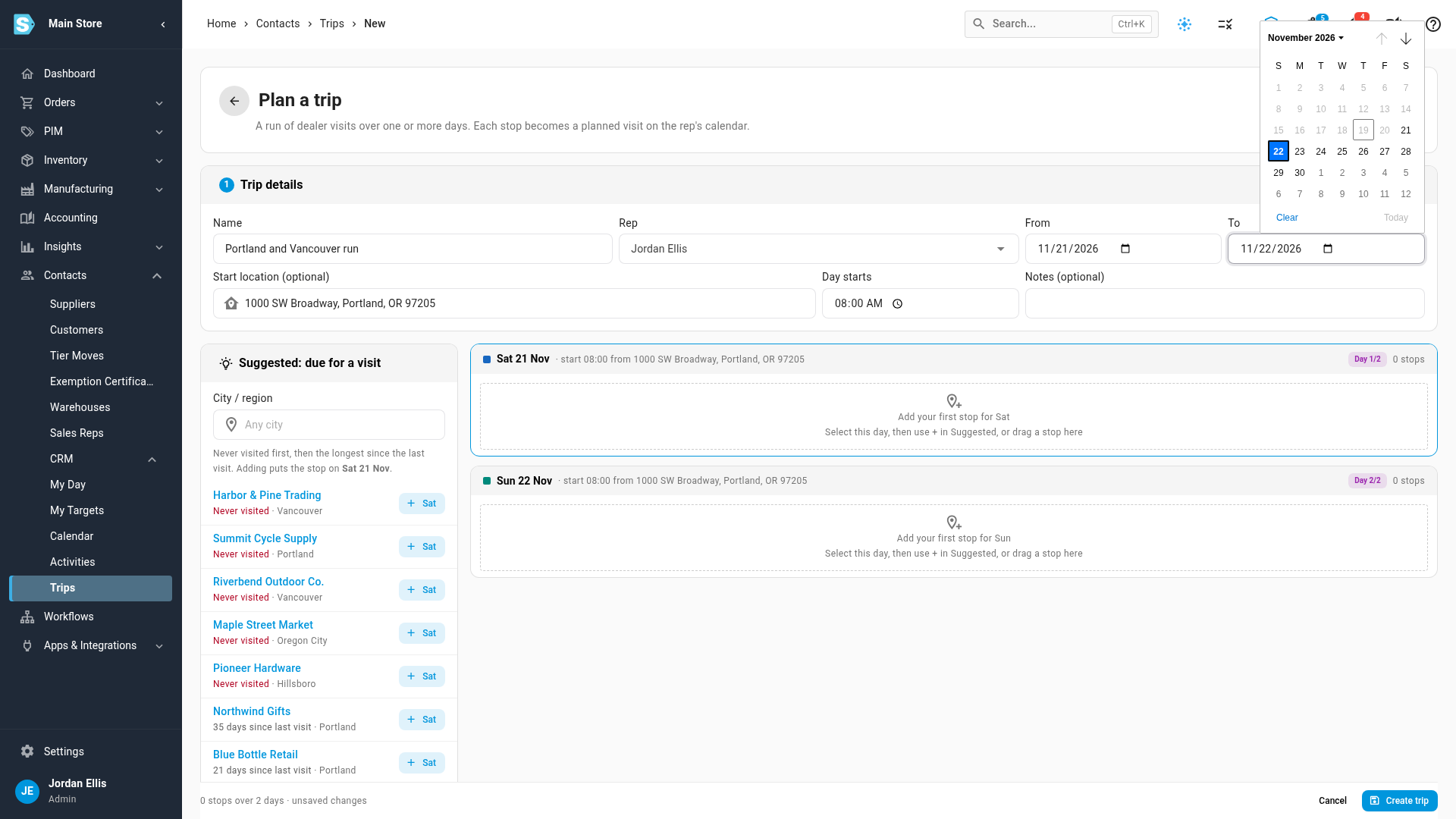
Set From and To. The trip starts tomorrow by default. Each day between them gets its own card.
-
Optionally, enter a Start location, such as your office, so each day's route starts there. Change Day starts if your first stop isn't at 08:00.
-
Under Suggested: due for a visit, click + on a customer to add them to the selected day. Customers who have never been visited come first. Type in City / region to narrow the list, or use Search all customers for anyone else.
Each stop gets a time, worked out from Day starts, a visit length (45 minutes by default) and the travel time before it (30 minutes by default). Change either number on the stop if you need to.
-
To add stops to another day, click that day's header, then click + on more customers. To move a stop, drag it by its handle to another day, or up and down within a day.
-
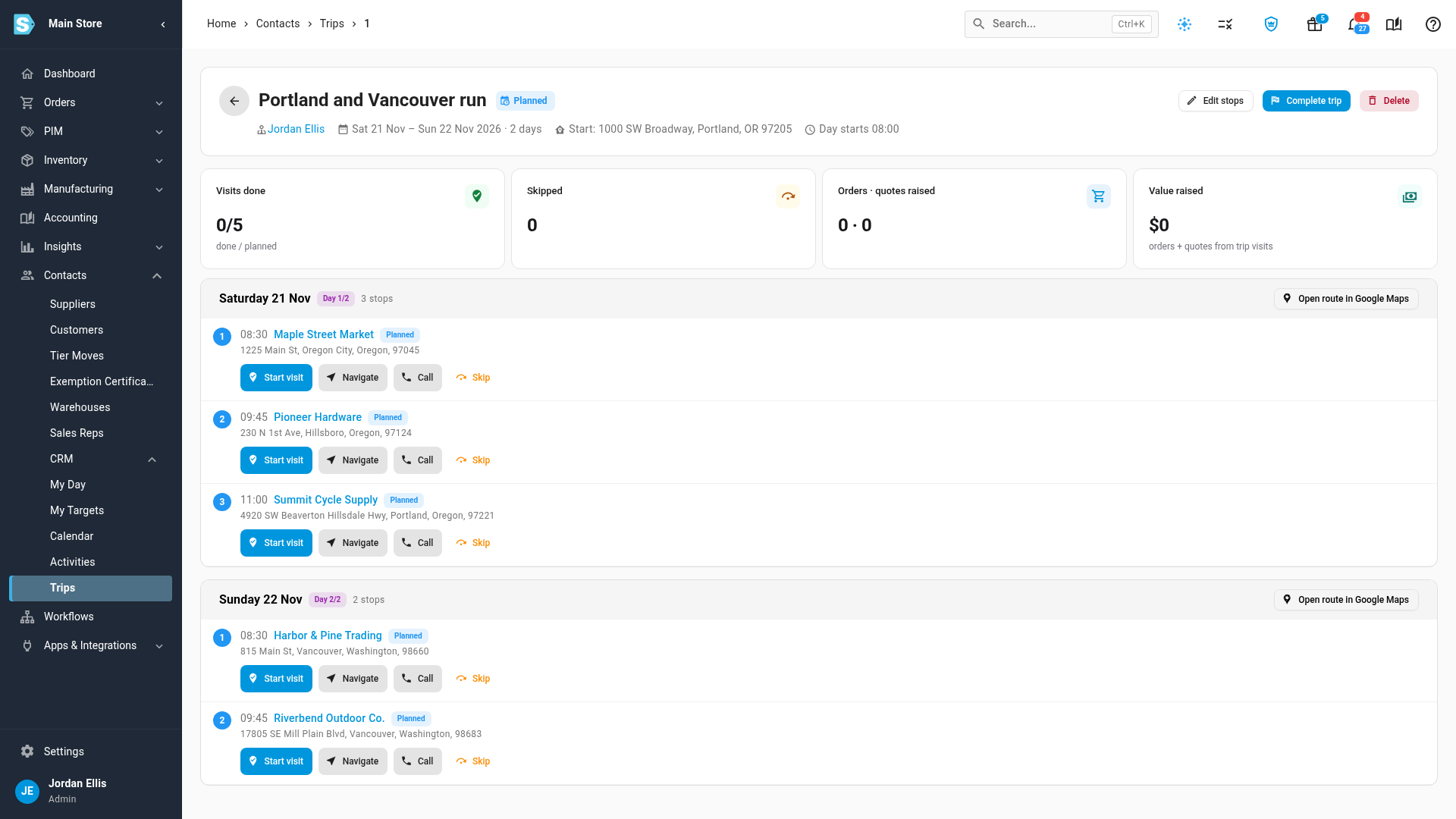
Click Create trip. The trip page lists each day's stops, and each stop is now a planned visit on the rep's calendar.
-
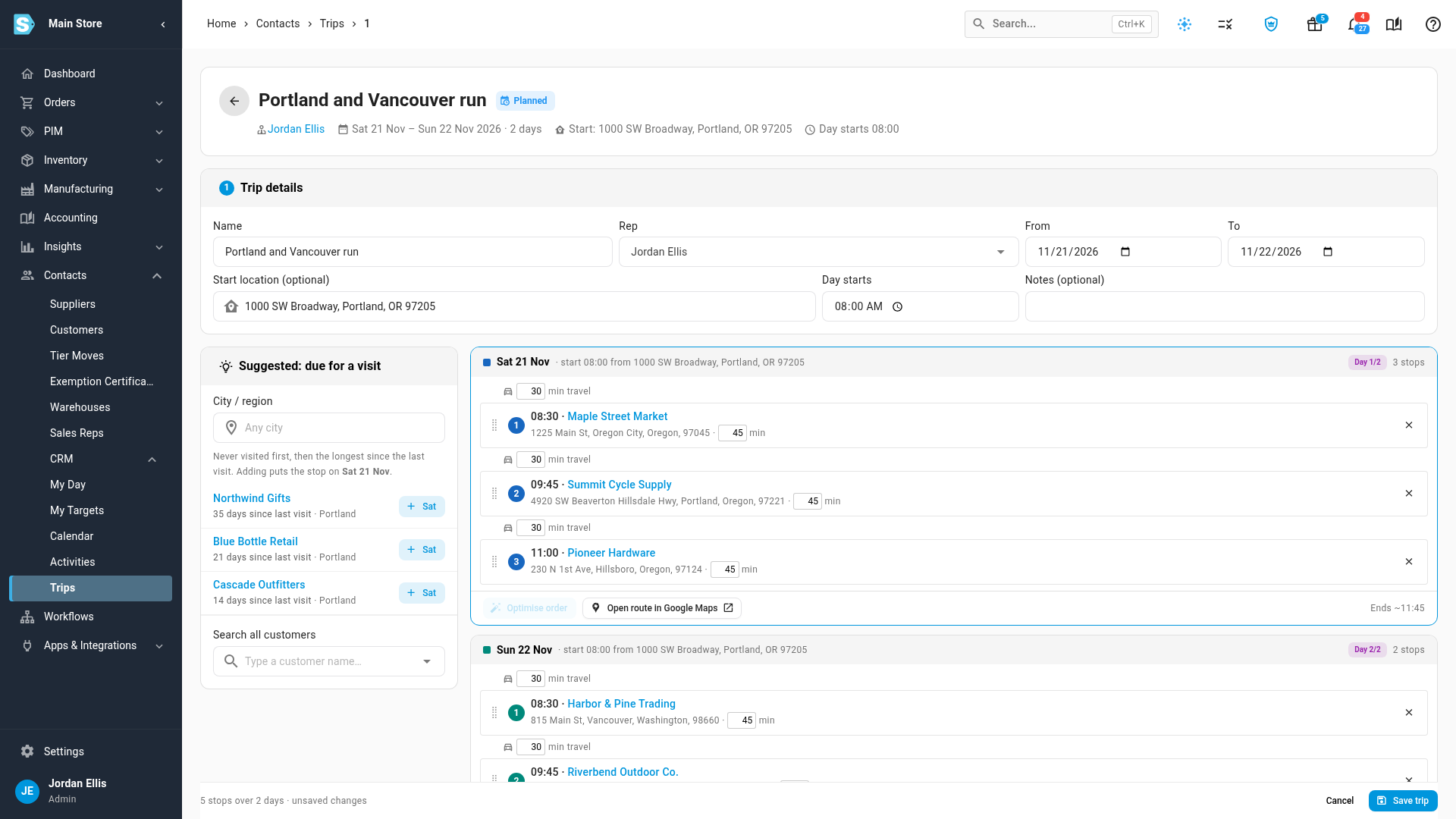
To put a day in driving order, click Edit stops, then Optimise order on that day. The day's first stop stays first, each next stop is the nearest one to the stop before it, and the times re-flow. Put the stop you want to start with first before you optimise.
-
Click Save trip to keep the new order.
-
On the road, click Open route in Google Maps on a day. It opens that day's stops, in order, from your start location.
From the trip page you also Start visit, Navigate, Call or Skip each stop. The tiles at the top count Visits done, Skipped, Orders · quotes raised and Value raised on the trip. Click Complete trip when the run is over.
Optimise order works on a saved trip. If you've just added or moved stops, click Save trip first. It's also greyed out when fewer than two of the day's stops have a located address.
When SKU.io can't locate an address
A stop whose address SKU.io couldn't find on the map shows Couldn't locate this address under the customer's name, and the trip planner warns how many stops are affected. While SKU.io is still looking an address up, the stop shows Locating address….
The stop stays on the trip, and Open route in Google Maps still routes to it by its address text. Optimise order leaves it out. To correct the address, click Fix address on the stop. The customer's Addresses opens in a new tab.
Next steps
Video transcript
To plan a call trip, open Contacts in the sidebar, then CRM, and choose My Day from the list. Then click the Plan a trip button, at the top right of the page. First, give the trip a name you'll recognize. The rep is you, and the trip starts tomorrow. Add a start location, such as your office, so routes begin there. Then push the To field out by one day, to plan a two-day run. Suggested, due for a visit, lists your customers, never visited first. Click the plus button on each customer you want to add to the selected day. Each stop then gets its own time, a visit length, and the travel time before it. To fill the next day, click the header of that day, and then add more stops from the suggestions on the left. You can also drag a stop to another day, or up and down within a day. When both days look right, click the Create trip button at the bottom. After a moment, the trip page opens, and lists the stops for each day. Each stop is now a planned visit on your calendar, ready to work. To sort a day into driving order, click Edit stops. Then click Optimise order on that day. Each stop is now followed by the nearest one, and the times re-flow. Click Save trip to keep the new order. Once the trip is saved, each day gets its own Open route in Google Maps button. It opens that day's stops, in order, from your start location.