Work a visit from My Day
A planned visit on My Day walks you through the stop in four steps: Arrive, On visit, Outcome and Create. You check in when you get there, take notes while you talk, and record how it went before you drive on, so the visit is logged before you reach the next dealer.
Before you begin
- Field CRM is a paid add-on. If CRM isn't under Contacts in the sidebar, ask your account manager to turn it on.
- You need a planned visit for today. Plan one from Due for a visit on My Day, from the Calendar, or as a stop on a call trip.
- Your role needs the CRM activities permission (
crm_activities.index).
Steps
-
Go to Contacts → CRM → My Day. Today lists your planned visits, calls and tasks in time order.
-
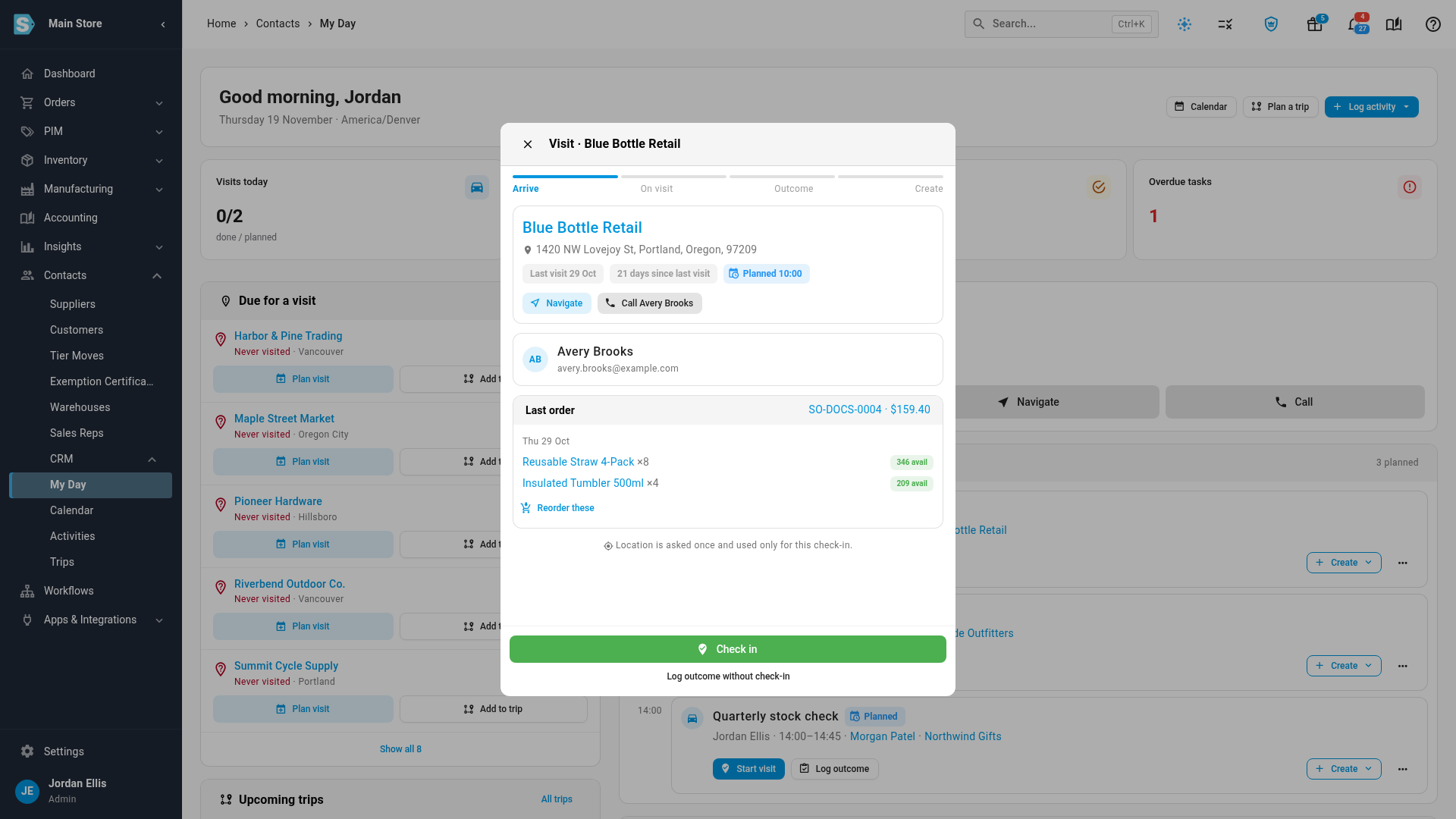
Click Start visit on the visit you're about to make. The visit opens on the Arrive step, with the address, Navigate and Call buttons, the contact, and the customer's Last order.
-
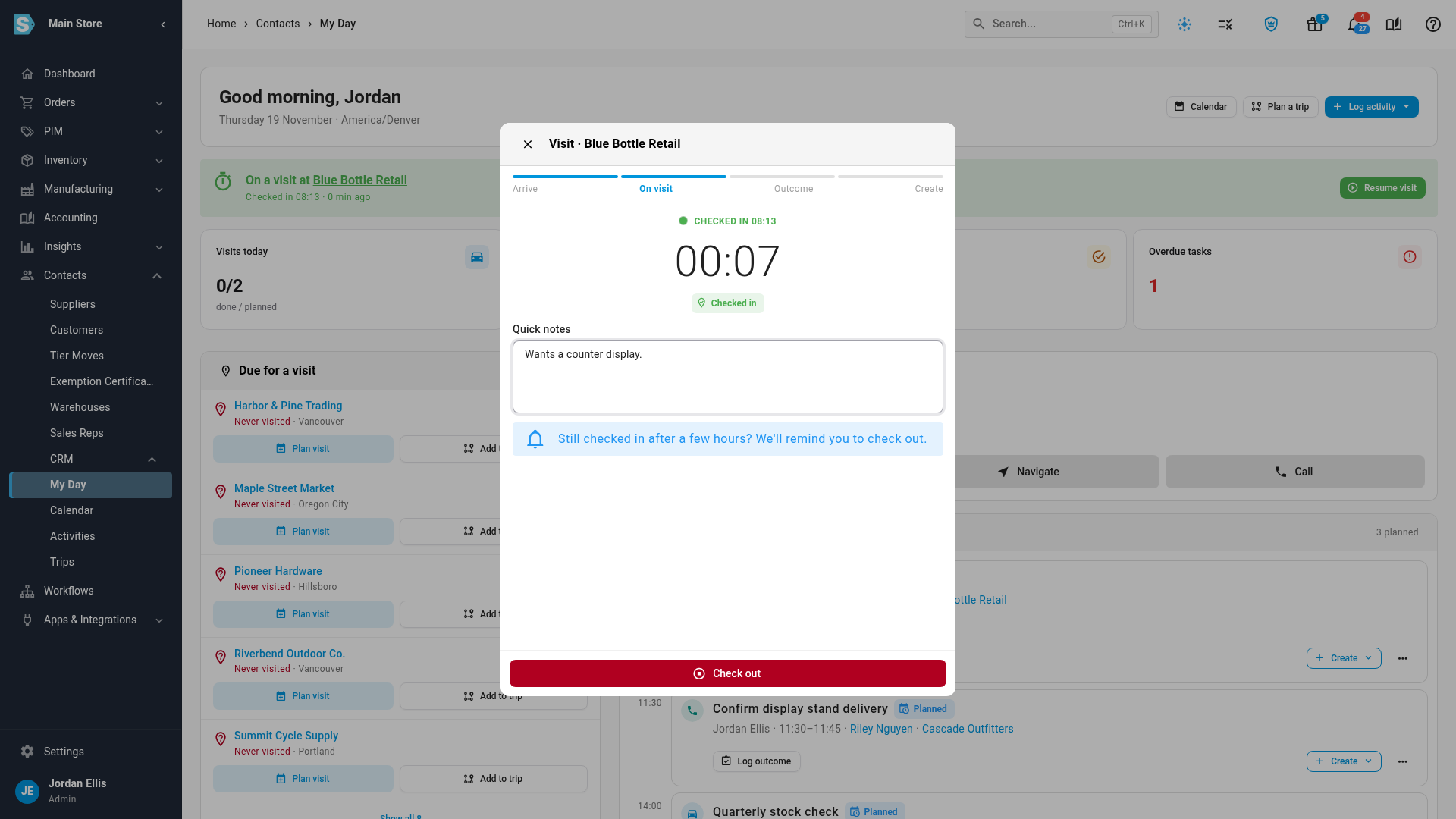
When you arrive, click Check in. The visit moves to On visit, and a timer runs while you're on site. If your browser shares your location, SKU.io also records how far you are from the dealer's address. Location is asked for once and used only for that check-in.
-
Type what the dealer tells you in Quick notes.
-
When you leave, click Check out. The Outcome step shows how long you were on site.
-
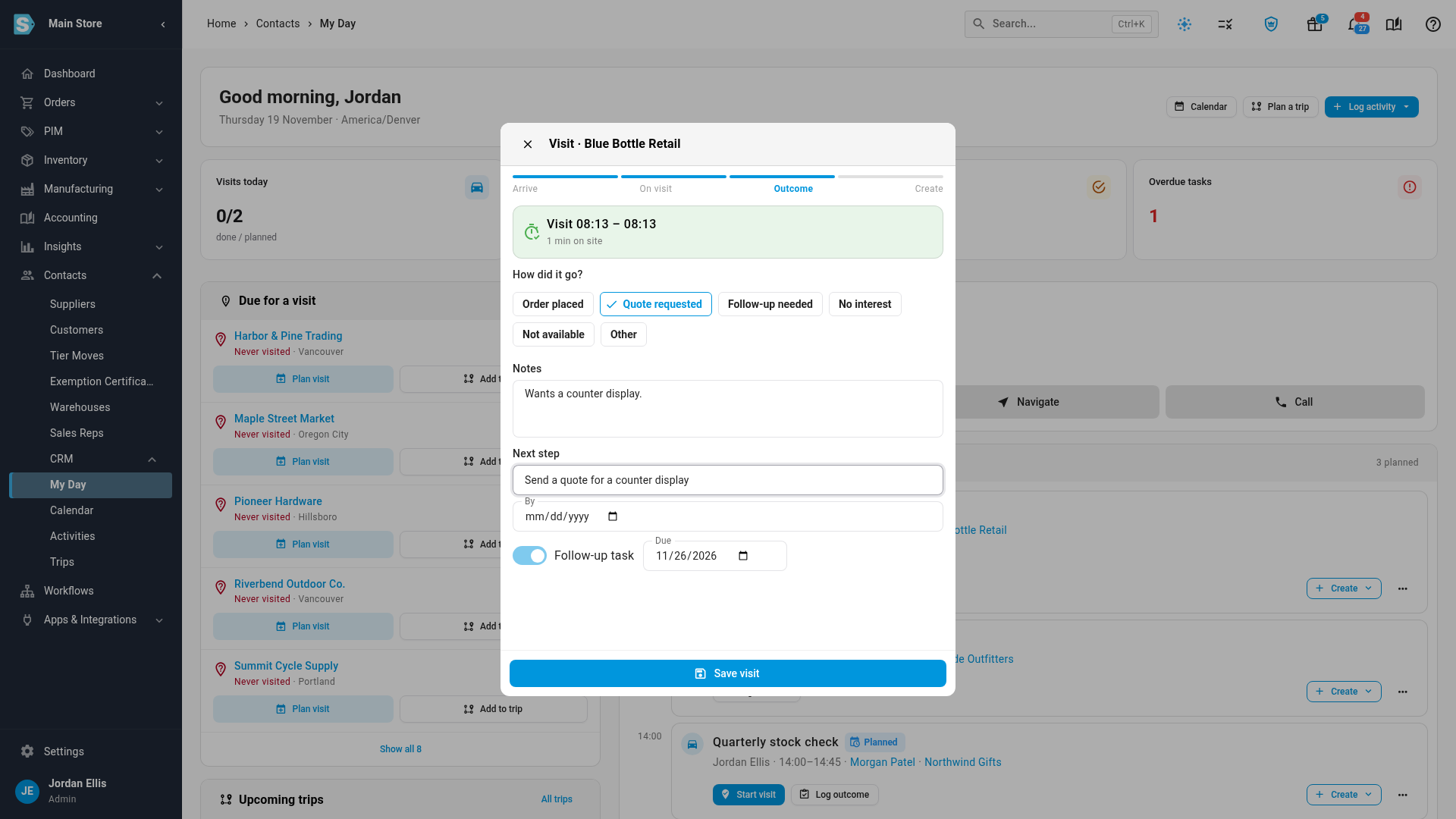
Under How did it go?, choose an outcome, such as Order placed or Quote requested. Your notes are carried into Notes.
-
Type a Next step, and optionally a By date.
-
Leave Follow-up task on to add the next step to your task list, and change its Due date if you need to. It's due in a week by default.
-
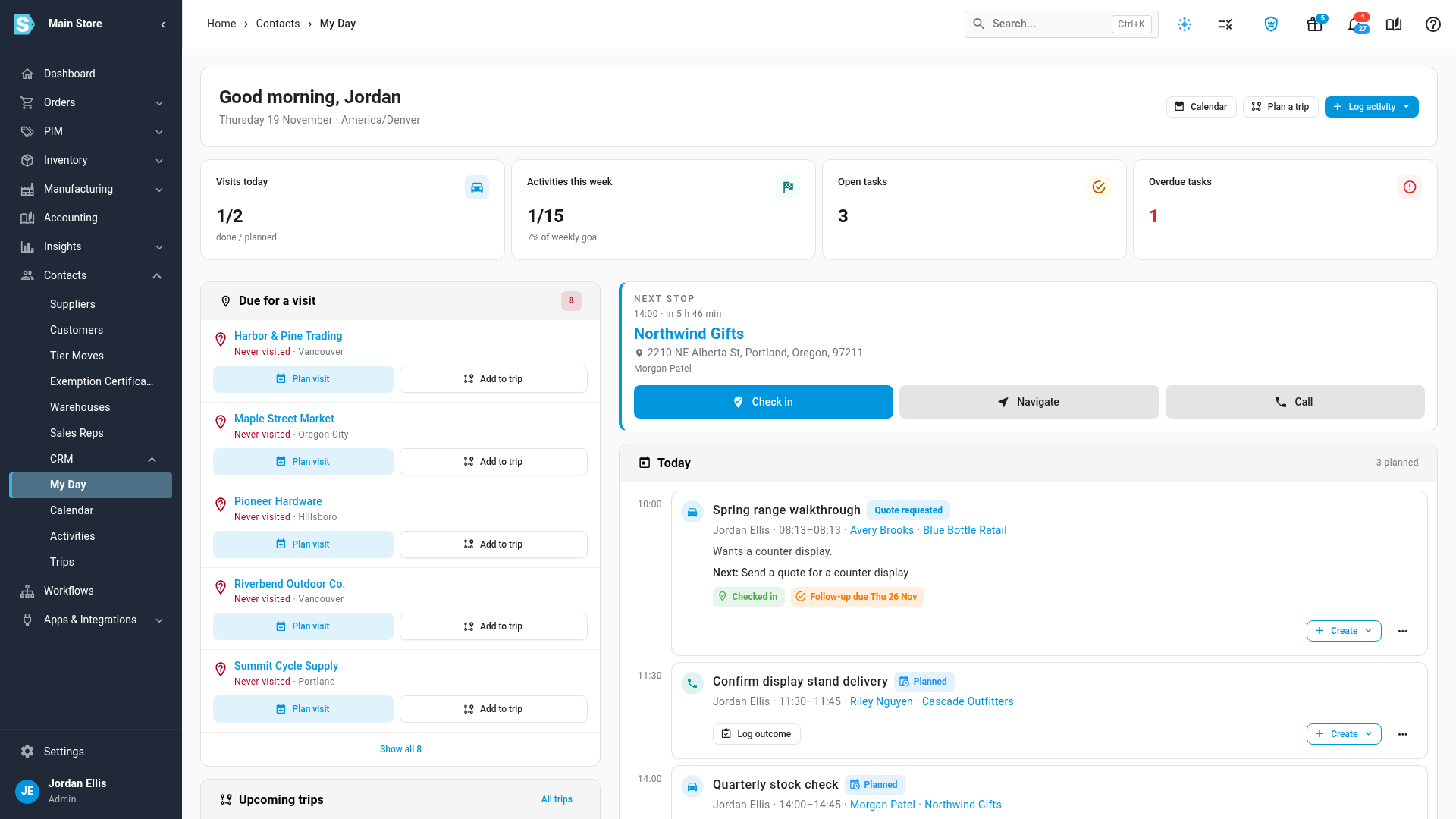
Click Save visit. The Create step confirms Visit saved, with the outcome and the follow-up task's due date.
-
To raise a quote or an order now, use Create from this visit. See Order from a visit. Otherwise, click Done.
The visit now shows its outcome on My Day and on the customer's Activity tab, and the follow-up task appears on its due date.
If you forgot to check in, click Log outcome on the visit instead of Start visit, or Log outcome without check-in on the Arrive step. You go straight to the outcome.
If you stay checked in for hours, SKU.io reminds you to check out. An administrator sets when, under Settings → CRM & Field Sales → CRM Activities.
Next steps
Video transcript
To work a visit, open Contacts in the sidebar, then CRM, and choose My Day. Today lists your planned stops, calls and tasks in time order. Click Start visit on the dealer you are about to see. It opens on the Arrive step. It shows the address, the contact, and the customer's last order. When you arrive at the dealer, click the Check in button. A timer starts, and runs for as long as you are on site. Type quick notes as the dealer talks, so nothing is forgotten later. When you are ready to leave, click the Check out button. Under How did it go, choose the outcome that fits. Then add a next step for what happens after this visit. Follow-up task is on, due in a week, so the next step lands on your task list. Then click Save visit to record everything. Everything is saved, with the outcome and the follow-up task. From here, Create from this visit starts a quote or an order. When you are finished, click the Done button.