Post supplier bills in their own currency
By default, SKU.io posts every supplier bill to Xero or QuickBooks in your own currency. A supplier who bills you in yuan or euros then shows a home-currency balance in your accounting system, and the exchange gain or loss on paying it is invisible. Turn on Send supplier bills in their own currency and a bill on a foreign-currency purchase order posts in the supplier's currency instead, at the rate for the bill's date. Your accounting system then holds what you really owe the supplier and books the realized exchange difference itself when you pay.
Before you begin
- You can edit accounting settings.
- Automatic accounting is on. See How automatic accounting works.
- An FX gain/loss account is mapped. Go to Accounting → Settings → Nominal Code Mappings and set FX Realized Gain/Loss. The difference between the rate goods were received at and the rate they were billed at is booked there.
- QuickBooks Online needs Multicurrency switched on in QuickBooks. Without it, bills keep posting in your own currency, with a note naming the supplier's amount and rate.
- Xero needs a plan that holds foreign-currency documents.
Where SKU.io tells you
You don't have to remember the setting exists. While it is off, SKU.io points it out wherever a foreign-currency bill is involved.
On the purchase order, invoice or bill
A purchase order from a supplier who bills you in another currency shows a banner under its header. So do its purchase invoices and any landed-cost bill in a foreign currency. The banner says how the document reaches your books:
| Banner | What it means |
|---|---|
| Bills on this order will post to your books in USD, converted from CNY… | The setting is off. Bills on this order post in your own currency, so no exchange gain or loss is booked when you pay. |
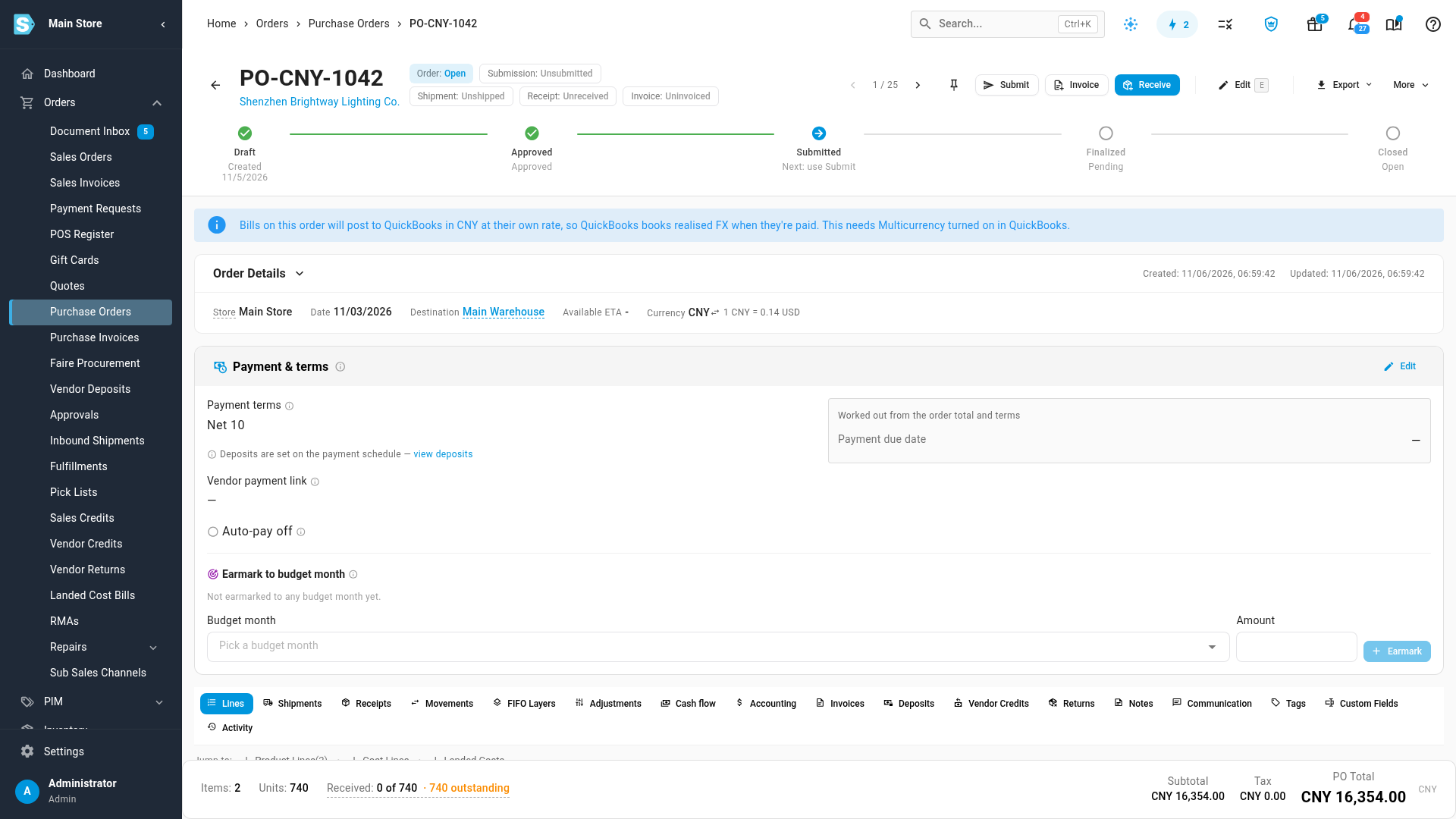
| Bills on this order will post to your books in CNY at their own rate… | The setting is on. Bills post in the supplier's currency. |
| …in USD because it was created before bills in their own currency applied to it | The setting is on, but this document is older than the switch. It stays in your own currency, so nothing already in your accounting system changes. |
When you're connected, the banner names Xero or QuickBooks instead of "your books".
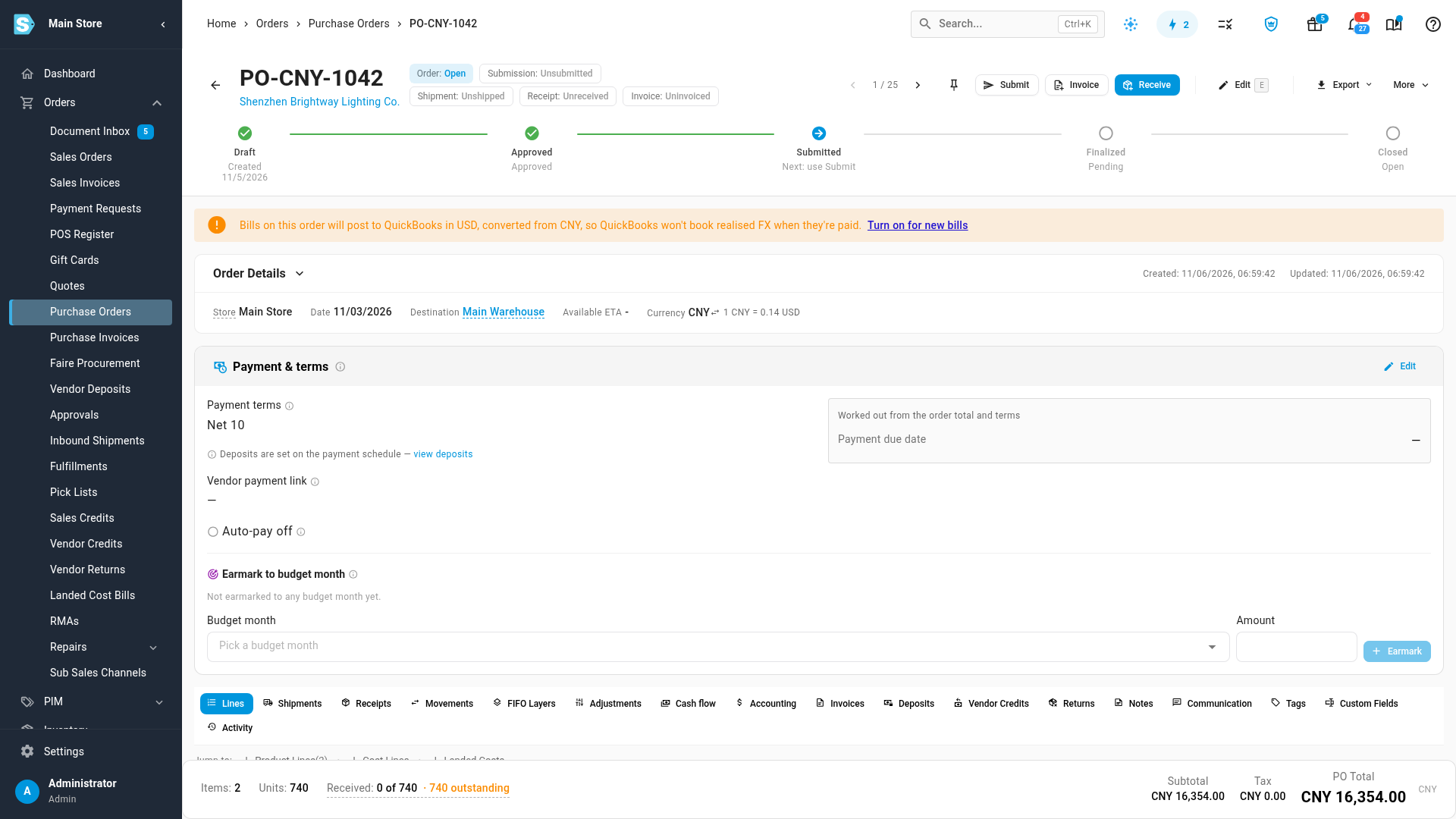
If you can edit accounting settings, the warning banner ends with Turn on for new bills. Click it to go straight to the switch. Other users see the banner without the link.
At month end
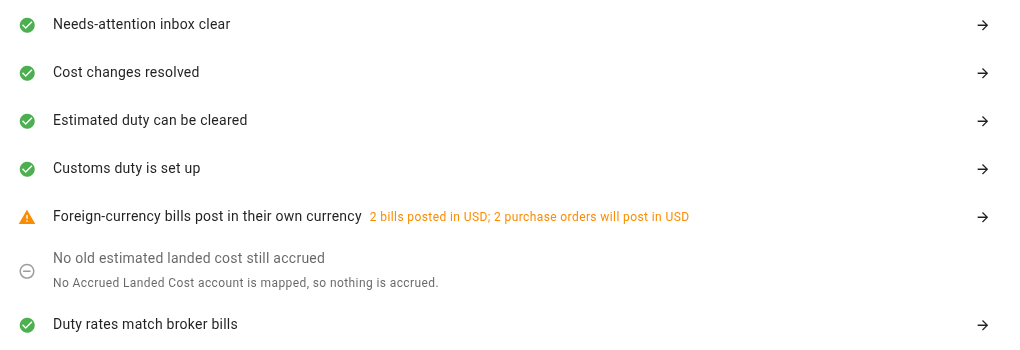
The month-end close checklist has a warning row, Foreign-currency bills post in their own currency. It fails for a month when bills in a foreign currency posted in your own currency that month, or foreign-currency purchase orders dated that month will post that way, for example 2 bills posted in USD; 1 purchase order will post in USD. It's a warning, so it doesn't stop you closing the month. Click the arrow at the end of the row to open the setting. The row passes once the setting is on.
Turn it on
-
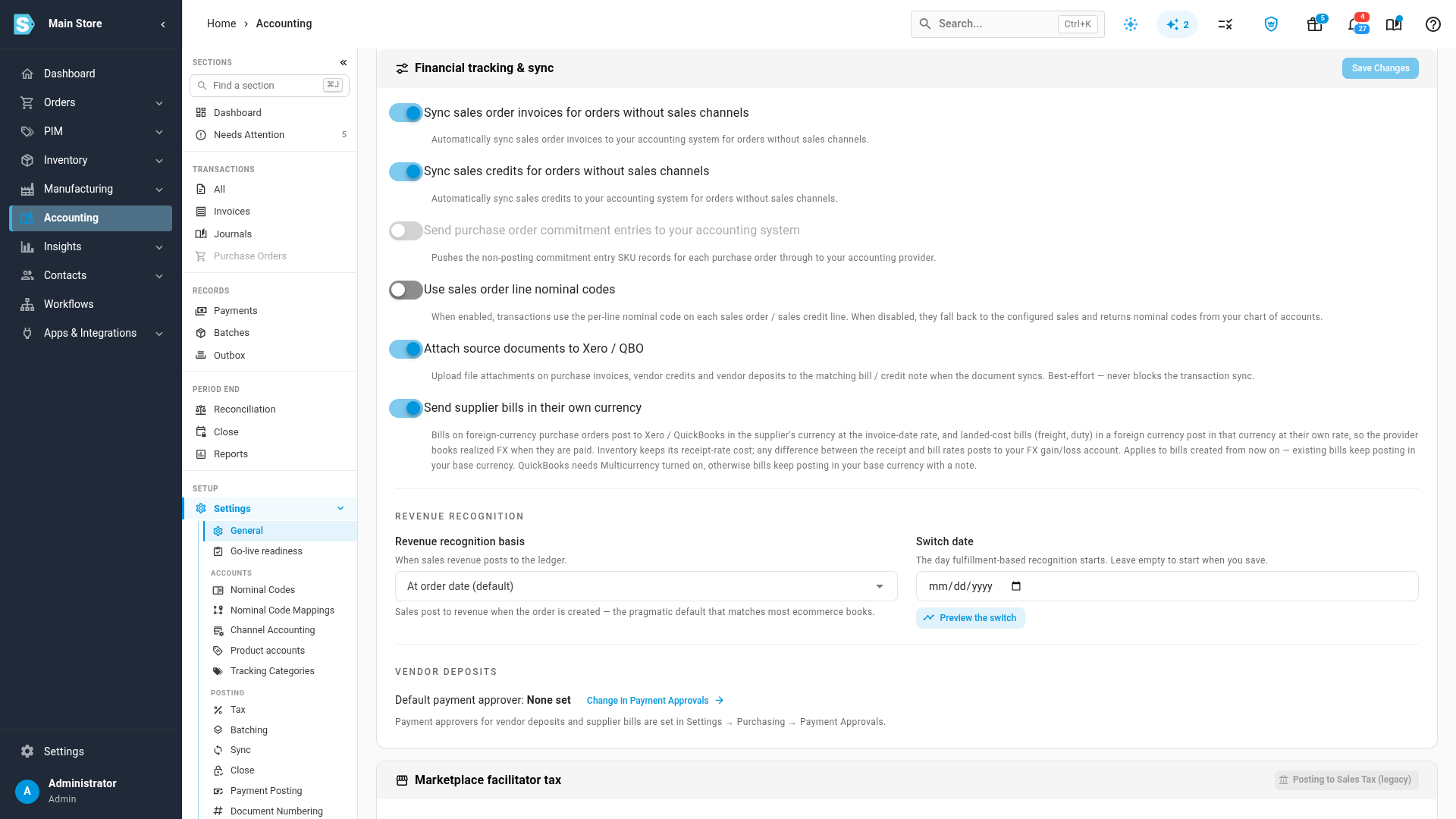
Go to Accounting → Settings → General, or click Turn on for new bills on a banner, or the arrow on the close checklist row. Both links open the page with the switch highlighted.
-
Under Sync behaviour, turn on Send supplier bills in their own currency.
-
Click Save Changes. If a requirement is missing, such as the FX gain/loss account, the save explains what to set up first.
Open the purchase order again: its banner now says bills post in the supplier's currency.
The switch applies to bills created from now on. Bills you already have keep posting in your own currency, so nothing already sent to your accounting system is restated. Turning it off later works the same way: bills created while it was on keep their currency.
New accounts that buy in a foreign currency
A brand-new SKU.io account that buys from a supplier in another currency has the setting turned on for it, once. That happens the first time all of these are true:
- the account has a foreign-currency supplier, purchase order, purchase invoice or landed-cost bill,
- automatic accounting is on, and
- an FX Realized Gain/Loss account is mapped.
It's checked when you save your nominal code mappings, turn on automatic accounting, create a purchase order or change its currency, or create a purchase invoice or landed-cost bill. The settings page then says Turned on automatically on date because you buy in a foreign currency, and the account's activity log records the change. If your accounting plan doesn't include multiple currencies, turn it off. SKU.io won't turn it back on.
Accounts that existed before this change are never switched on for you. Turn the setting on yourself when you're ready.
What changes on a bill
Open a bill on a foreign-currency purchase order. Under its details, Bill Rate (accounting) shows the rate the bill posts at. SKU.io reads it from the exchange rates for the bill's invoice date. To use your own rate, click Edit, type it, and save. To go back to the date's rate, clear the box.
Hover over the label to see the rate the goods were received at. Your inventory keeps that receipt rate as its cost. Only the accounting changes:
| What | Where it goes |
|---|---|
| The bill | Your accounting system, in the supplier's currency at the bill rate |
| The cost of the goods | Inventory, at the receipt rate, as before |
| Receipt rate versus bill rate | Your FX Realized Gain/Loss account, so the purchase clearing account still clears to zero |
| Paying the bill | Your accounting system books the realized gain or loss between the bill rate and the payment's rate |
Once payments are recorded, the bill also shows Realized FX on payments, as a gain or a loss.
A worked example
Your currency is US dollars. A purchase order for CNY 10,000 is received when 1 CNY = 0.1380 USD, so inventory is valued at $1,380.00. The supplier's bill arrives when the rate is 0.1400:
- The bill goes to your accounting system as CNY 10,000 at 0.1400, or $1,400.00.
- The $20.00 between the receipt and the bill is booked to FX Realized Gain/Loss as a loss.
- Inventory stays at $1,380.00.
Payments, deposits and credits
- Payments use the rate for the payment date. When you record a payment on one of these bills, its FX Rate is the rate for the Payment Date, not the bill's rate. Change the date and the rate follows.
- Vendor deposits and vendor credits created while the setting is on are sent in the supplier's currency too, so your accounting system can apply them to the bill. A deposit or credit from before you turned the setting on is still in your own currency. Your accounting system can't apply it to a bill in another currency, so apply it by hand there.
- Supplier payment runs record the payment-date rate their payments carry.
Your own rates on past dates
If you set a currency's rate by hand, SKU.io keeps each rate you type with the date it took effect, and a payment uses the rate that was in force on its date. Those rates are listed, read-only, on the History tab of Settings → General → Currencies. See Work in multiple currencies.
When your accounting system refuses a bill
If a bill can't be sent, the reason shows on the bill, on its accounting entry, and in the accounting inbox. The usual causes:
- The QuickBooks supplier is set up in another currency. QuickBooks can't change a supplier's currency once it has transactions, and SKU.io never creates suppliers in your QuickBooks. Create a supplier there named after the original with the currency in brackets, for example Shenzhen Parts (CNY), in that currency. On SKU.io's QuickBooks Vendors tab, click Refresh From QuickBooks, then retry. SKU.io uses that supplier for that currency from then on.
- Xero can't hold the document in that currency. Add the currency in Xero, or check that your Xero plan supports multiple currencies, then retry.
Month-end revaluation
SKU.io doesn't revalue open foreign-currency bills at month end. Xero's Currency Revaluation and QuickBooks' Home currency adjustment do it from the bills they already hold. So at a month end where your accounting system has revalued, its accounts payable balance differs from SKU.io's by the unrealized amount. That difference is expected.
Next steps
Video transcript
When a supplier bills you in another currency, you can see how those bills will reach your books. Go to Orders in the sidebar, then choose Purchase Orders from the menu. The list shows each purchase, with its supplier and its status. Open an order from a supplier who uses a foreign currency, by clicking its number. A banner sits under the order's header. It says the bills will post in US dollars, converted from yuan. So your accounting system won't record an exchange gain or loss on payment. At the end of the month, the close checklist flags the same problem. Its row, Foreign-currency bills post in their own currency, shows a warning. The count covers what already went out in US dollars, and the orders still to come. Click the arrow at the end of the row, and you land on the setting that clears the warning. The setting opens in Accounting, Settings, General, highlighted. Turn on the switch named Send supplier bills in their own currency. Then click Save Changes, at the top of the card. It applies to every bill you create from today. Everything you already have keeps posting in US dollars, so nothing in your books changes. Back on the purchase orders list, open the same one by clicking its number once more. Its banner now says bills will post in yuan, at their own rate. Your accounting system records the realized exchange difference when you pay.