Recognize revenue at fulfillment
By default SKU.io books a sale as revenue on the order date. That suits most online stores, where orders ship within a day or two. If you take pre-orders, sell on long lead times, or report under ASC 606, you may need revenue to wait for the shipment. With fulfillment-based recognition, revenue moves to Sales as each shipment goes out, in the same entry as its cost of goods sold. Until then it waits in a holding account.
You can preview the effect on your own recent orders before you switch, and pick the day the switch takes effect.
Before you begin
- Accounting entry generation must be on (Accounting → Settings → General).
- Map a Deferred Revenue account under Accounting → Settings → Nominal Code Mappings. It must be a liability account. The default chart includes 2400 Deferred Revenue.
- If any store accounts for its sales through payouts (Amazon, eBay, Shopify or Walmart), also map an Unsettled Channel Sales account on the same screen. It must be a current asset account. See Stores that pay you in batches.
- Pick a switch date. The change applies only to orders created on or after it, so the first day of a month keeps your books easy to read.
Switch to fulfillment-based recognition
-
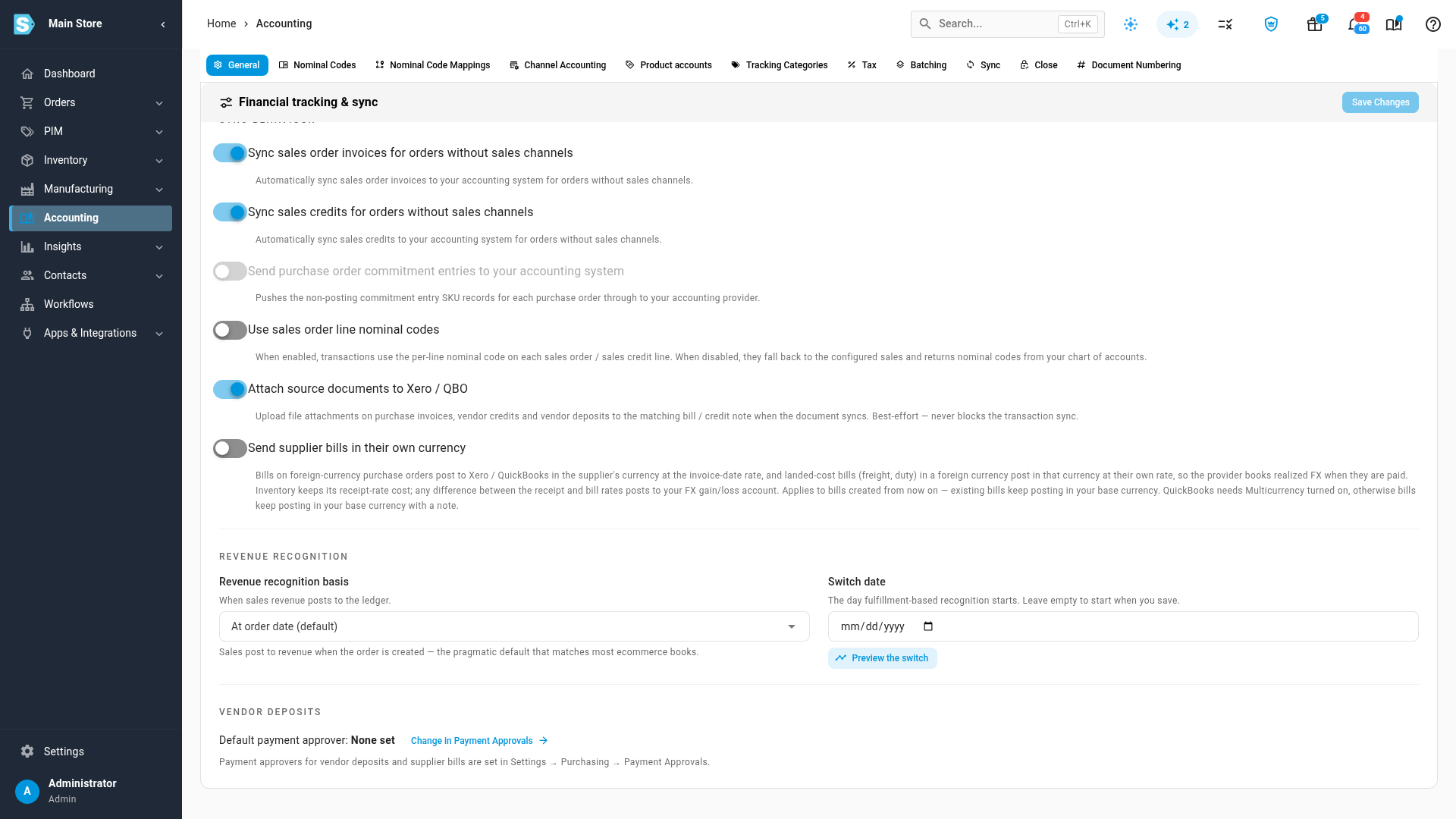
Go to Accounting → Settings → General and scroll to Revenue recognition.
-
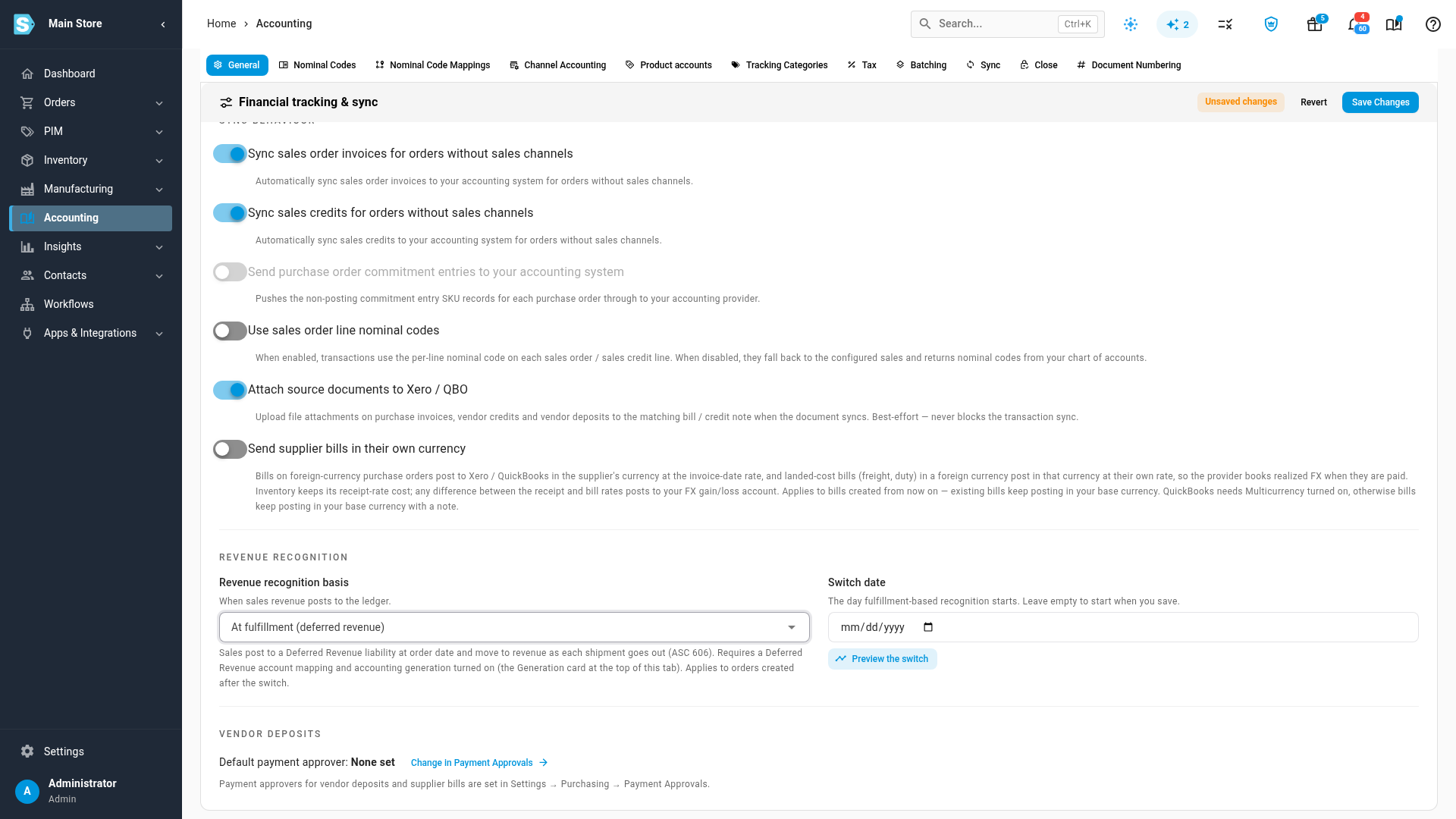
In Revenue recognition basis, choose At fulfillment (deferred revenue). The hint under the field explains what changes.
-
In Switch date, choose the day fulfillment-based recognition starts, such as the first day of next month. It starts at midnight in your account's time zone. Leave it empty to start as soon as you save.
-
Click Preview the switch and check the result. See Read the preview.
-
Click Save Changes.
-
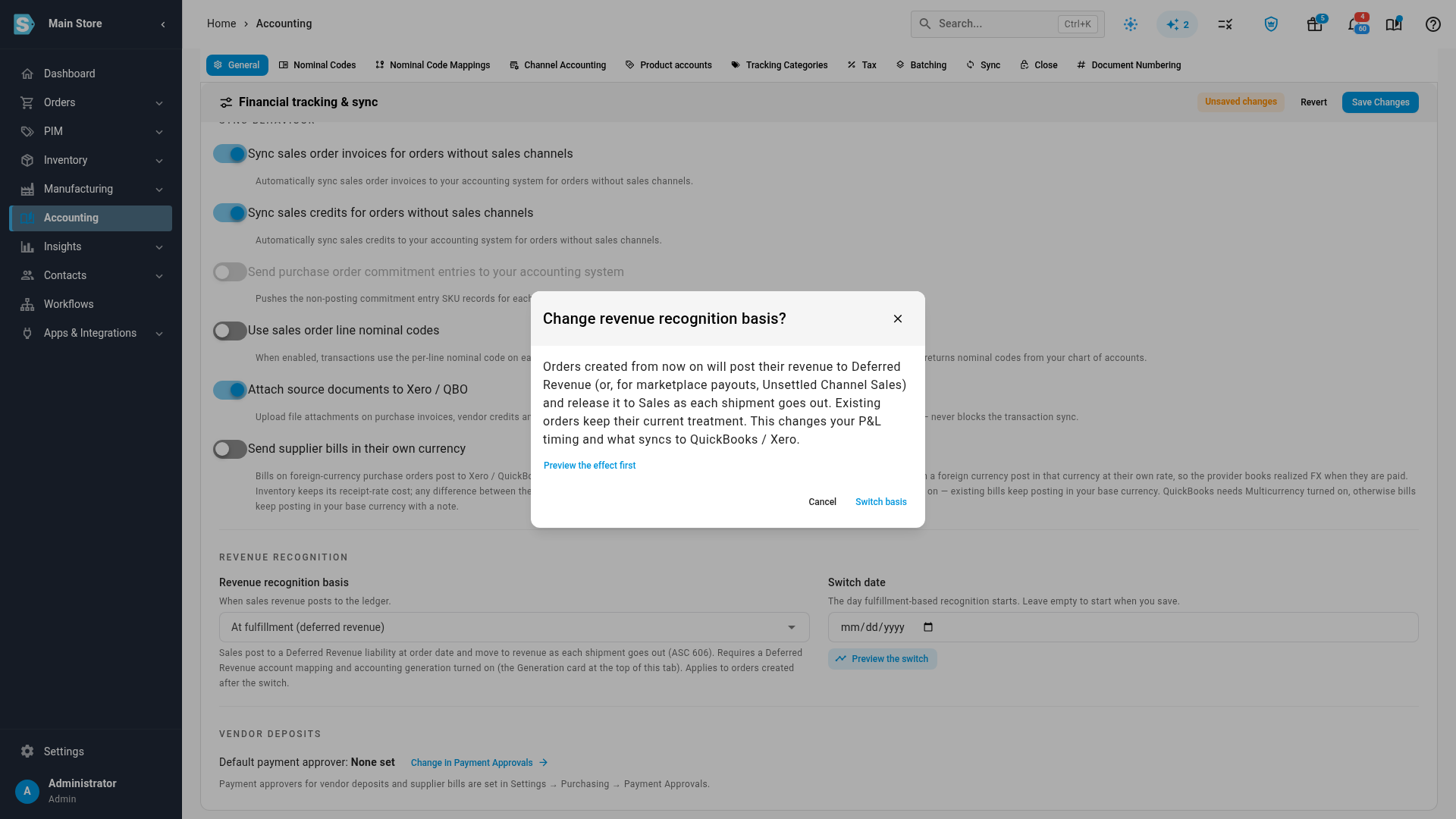
In Change revenue recognition basis?, read which orders the change applies to and click Switch basis.
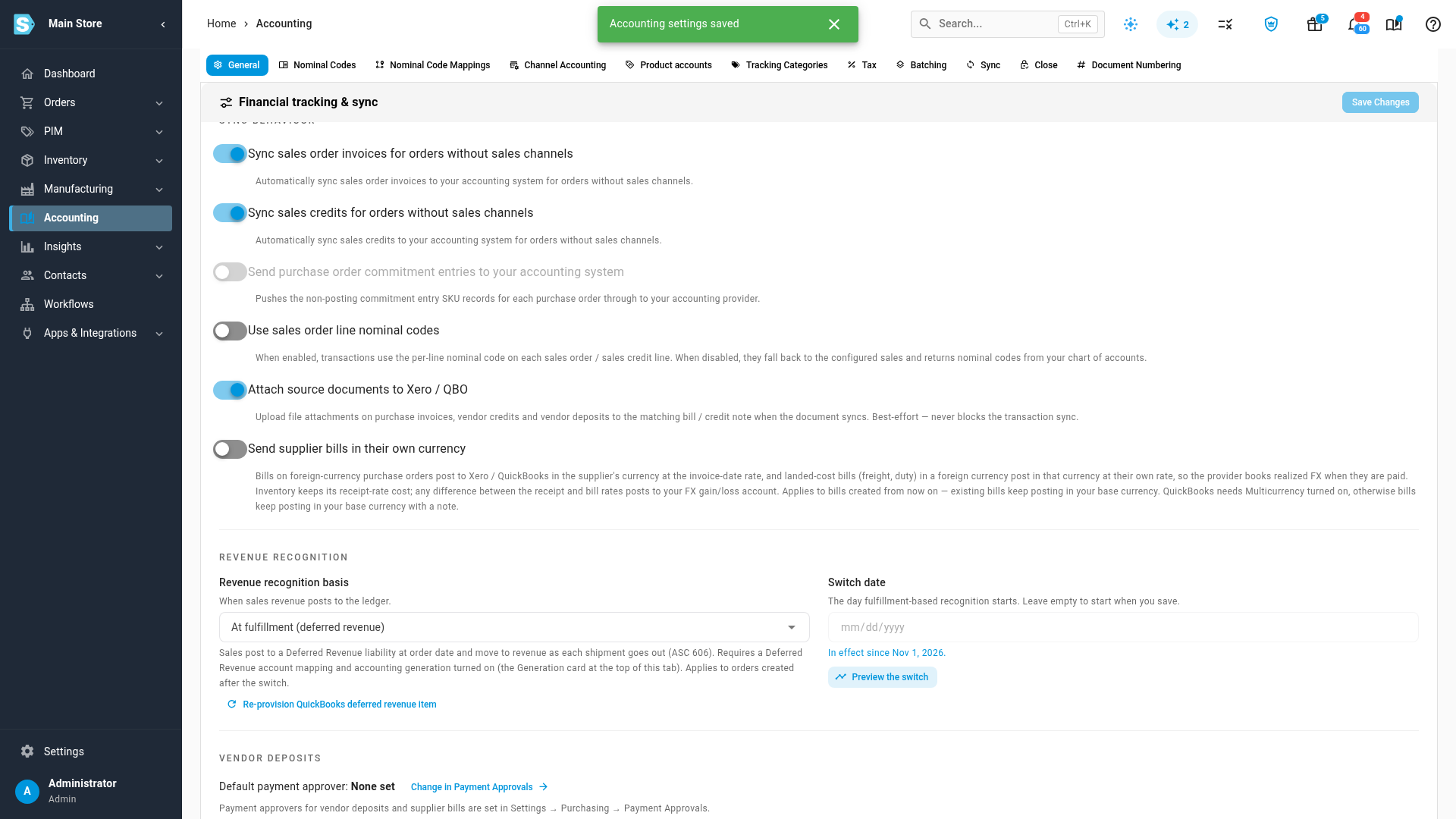
Until the switch date arrives, the card says Switches on that date, and you can move the date or clear it. Clearing it starts the switch when you save. Once the date has passed, the card says In effect since that date and the date can't be changed.
If SKU.io can't switch, it tells you why. The usual reasons are a missing Deferred Revenue or Unsettled Channel Sales mapping, a mapping of the wrong account type, a switch date in the past, or entry generation being off.
Read the preview
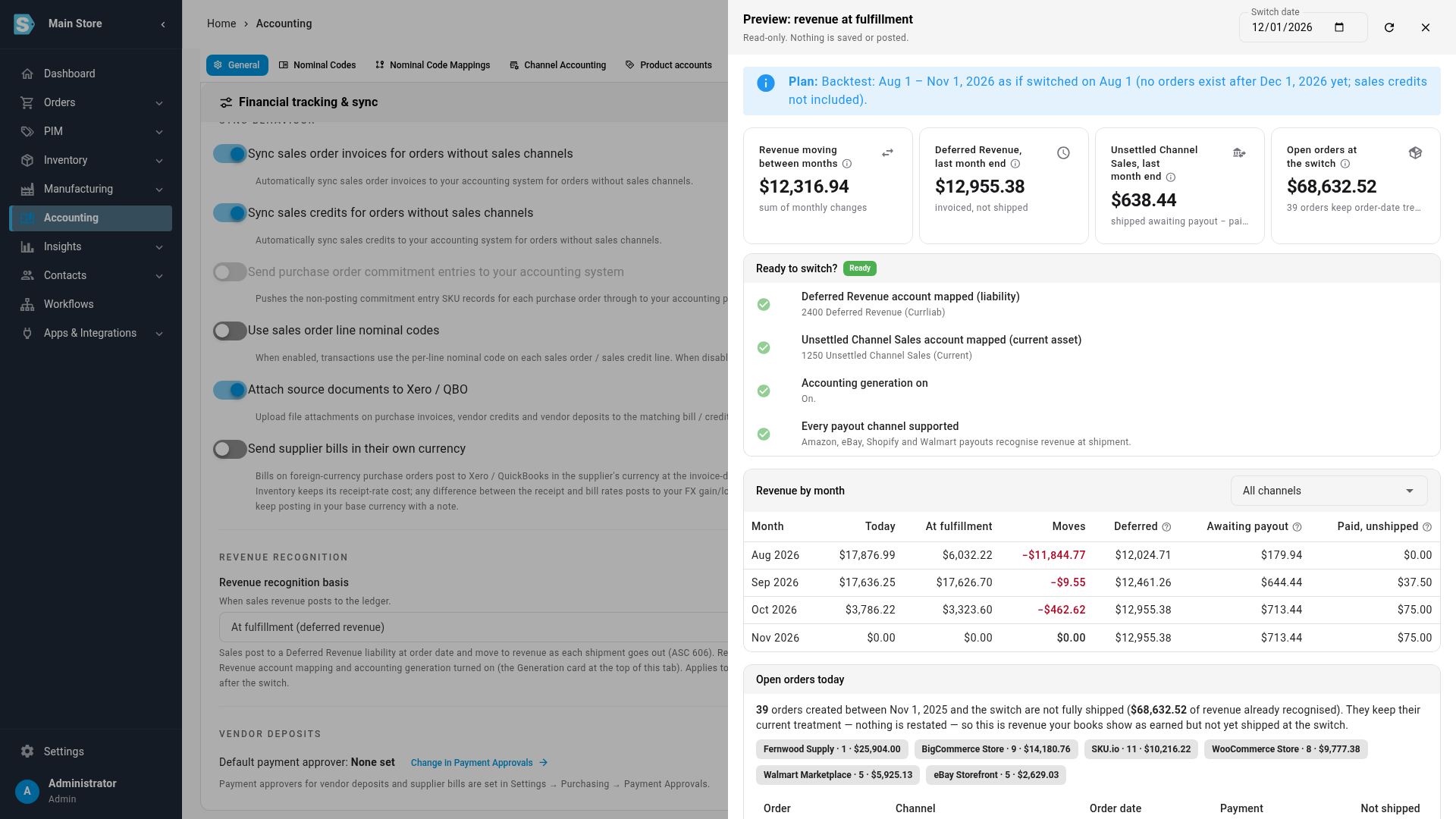
Preview the switch replays your recent orders under both treatments and shows the difference. It changes nothing, so you can open it as often as you like, before or after you switch. Change the date at the top of the panel to try another switch date.
-
Ready to switch? lists what must be set up first. Blocked means at least one item still needs your attention. Fix it and click Refresh.
-
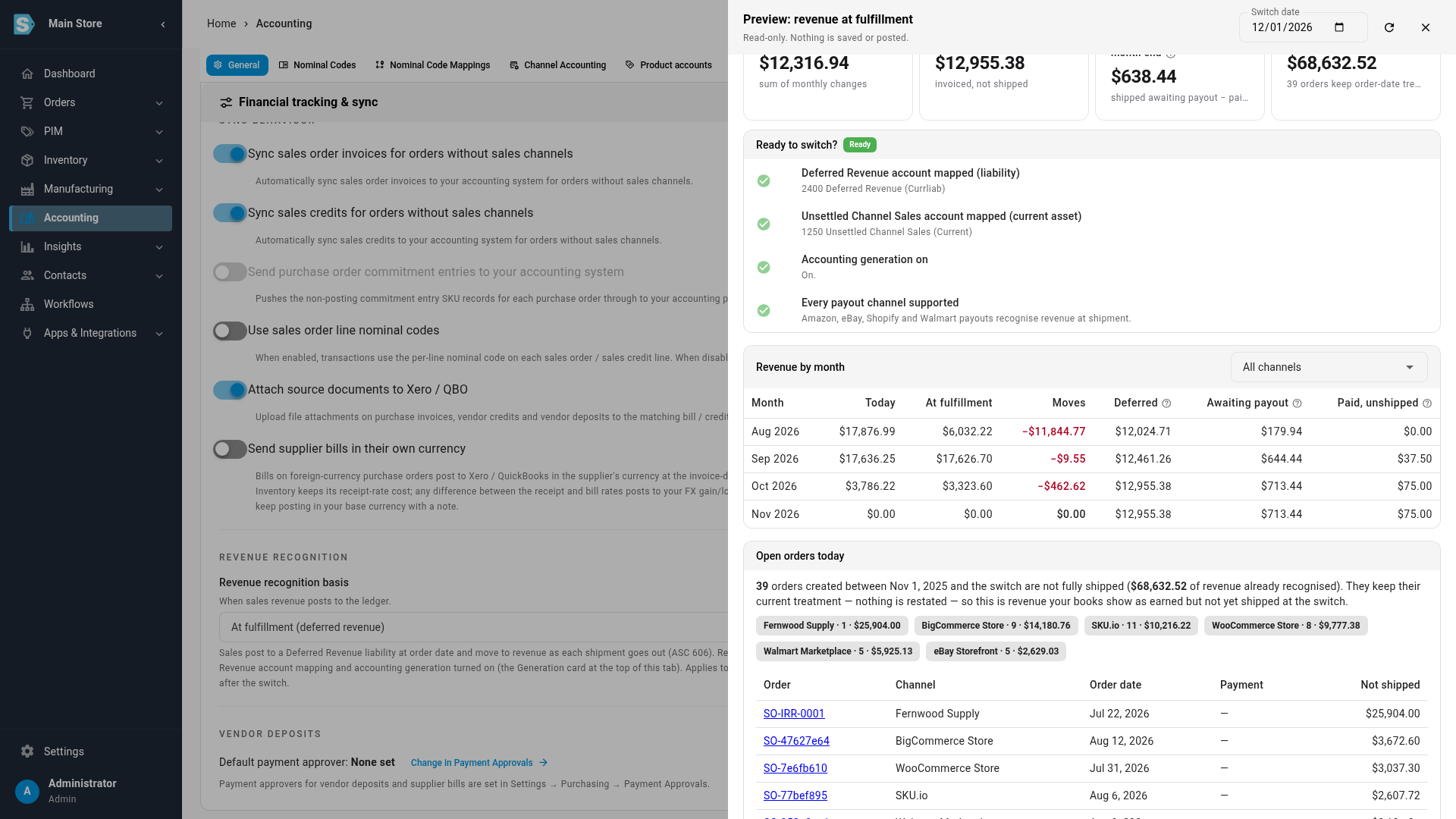
Revenue by month compares revenue as it posts today with revenue at fulfillment, month by month. Moves is the difference. Deferred is revenue still waiting for a shipment at the end of the month. Awaiting payout is shipped sales a marketplace hasn't paid out yet, and Paid, unshipped is the reverse. Use the store filter to look at one store.
-
Open orders lists orders already counted as revenue that haven't shipped. They keep their order-date treatment after the switch, so nothing is counted twice.
-
How each channel recognises revenue shows, for each store, whether its revenue moves through Deferred Revenue or through its payouts.
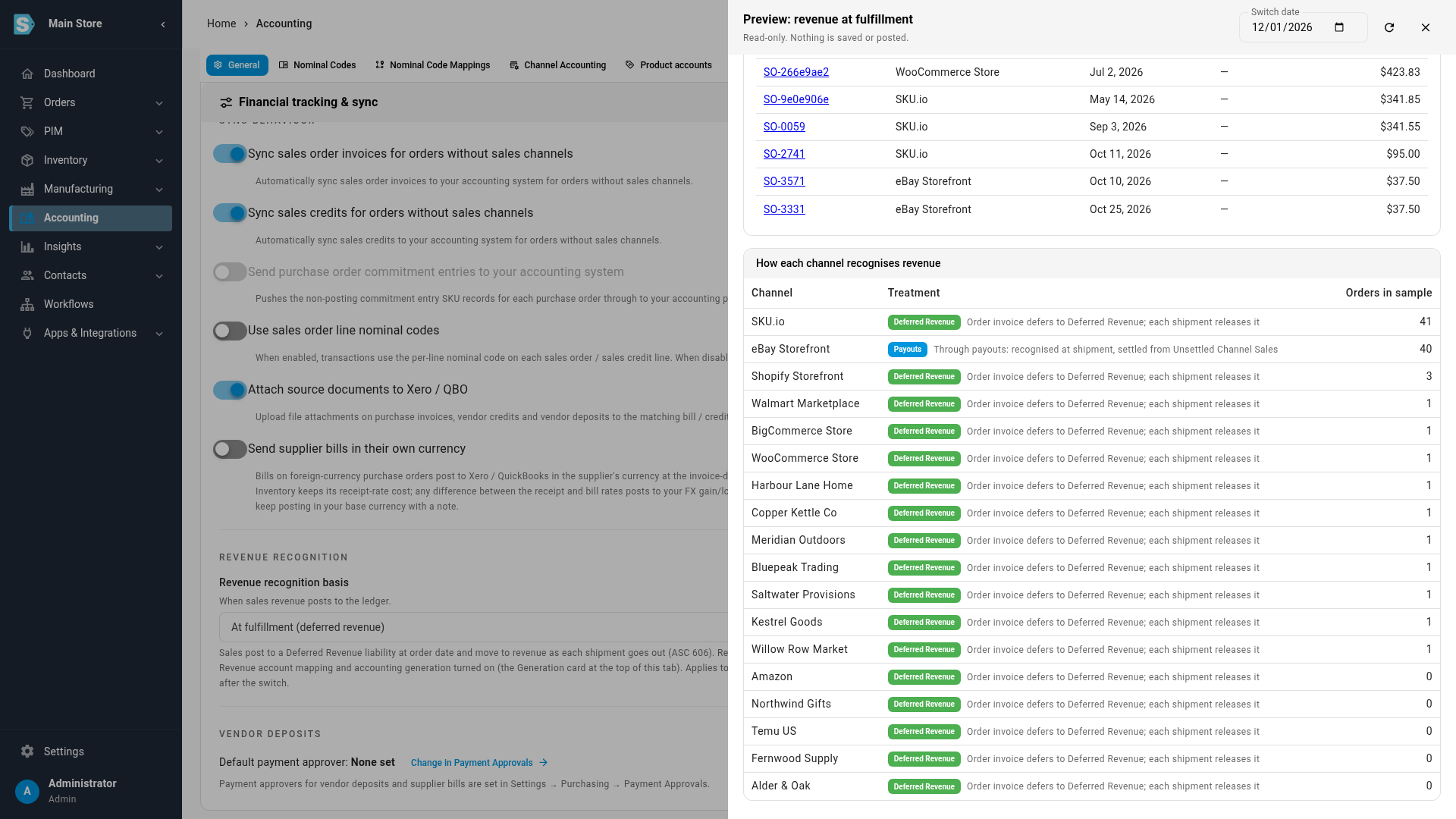
When the switch date is in the future, the preview tries it out on your last three full months and this month so far. When the date has passed, it uses the orders since the switch and also checks the result against your books under Does the ledger match?
What changes in your books
| Event | At order date (default) | At fulfillment |
|---|---|---|
| The order is invoiced | Credit Sales | Credit Deferred Revenue |
| Each shipment goes out | Debit Cost of Goods Sold, credit Inventory Control | The same, plus debit Deferred Revenue and credit Sales for that shipment's share |
- Orders created before the switch keep order-date recognition, even when they ship afterward. SKU.io decides per order, by the date it was created.
- Partial shipments release revenue in proportion, so an order shipped in two parts recognizes it in two parts.
- Deferred Revenue on your Balance Sheet shows sales you've invoiced but not yet shipped.
- In your accounting provider, invoices post to Deferred Revenue too. With QuickBooks Online, SKU.io sets up a SKU Deferred Revenue item for this when you switch. If that item is deleted in QuickBooks, click Re-provision QuickBooks deferred revenue item under the setting to recreate it.
After you've used fulfillment-based recognition, you can't change the Deferred Revenue mapping.
Stores that pay you in batches
Some stores account for their sales through payouts: Amazon, eBay, Shopify and Walmart, when their accounting is set to post per payout. Each payout still creates the same sales invoice and fees bill, which add up to the deposit in your bank. What changes is when the revenue counts:
| Event | What SKU.io posts |
|---|---|
| A shipment goes out | Debit Unsettled Channel Sales, credit Sales for that shipment |
| The payout arrives | The usual payout invoice and fees bill, plus a journal that moves the payout's revenue from Sales to Unsettled Channel Sales |
When an order ships before it's paid out, the two cancel out and the revenue lands on the shipment date. A debit balance on Unsettled Channel Sales means sales shipped and waiting for a payout. A credit balance means sales paid out and not yet shipped, such as pre-orders.
- Amazon FBA and Walmart Fulfillment Services ship for you, so SKU.io uses the date the marketplace reports for each payout line.
- Refunds before an order ships reduce what's waiting. Refunds after it ships post as they do today.
- Payout start date. A store whose payout accounting starts after your switch date follows its own start date.
Switch back to order-date recognition
- Fulfill, cancel or credit every order that still has deferred revenue open. SKU.io won't switch back while any remains.
- Set Revenue recognition basis to At order date (default) and click Save Changes.
Orders created after that post revenue at the order date again.
Next steps
- Chart of accounts reference: where Deferred Revenue and Unsettled Channel Sales sit.
- Read your financial statements: see deferred revenue on the Balance Sheet.
Video transcript
By default, a sale is booked as revenue on the day it's ordered. To wait for the shipment instead, open Accounting and click its Settings tab. Scroll down the General tab until you reach the Revenue recognition card. Click the Revenue recognition basis field, and choose At fulfillment, deferred revenue. Each sale then waits on your balance sheet until its shipment goes out. Use Switch date to start on a set day, such as the first of a month. Orders created before that day keep their current treatment. Leave it empty to start as soon as you save. Before you save, click Preview the switch. It works out what would change. Nothing is saved. Ready to switch lists anything you still need to set up first. Marketplaces like eBay and Amazon pay you in batches. Their sales need one more account, Unsettled Channel Sales. Map it in Nominal Code Mappings, next to Deferred Revenue. Revenue by month replays your recent orders both ways. Moves is the difference between the two. Deferred is what's still waiting for a shipment. Awaiting payout is shipped sales a marketplace hasn't paid yet. Open orders lists sales already counted but not yet shipped. They keep their order-date treatment after the switch. Below, each store shows how its revenue will be recognized. When the preview looks right, close it, and click Save Changes at the top of the card. The confirmation explains which orders it applies to, and what syncs to your accounting. Click Switch basis to finish. The card then shows the day the change takes effect.