Review connected apps
Connected Apps is your record of every third-party app you've personally authorized through OAuth — what it's allowed to do, when you approved it, and what it has actually been calling. It's the page to open when an integration starts behaving oddly, when you're auditing access, or when you want something gone.
This list is yours. It shows the apps you approved, not everyone's.
A sales channel, accounting or shipping connection — a Shopify store, a QuickBooks company — is also called a connected app, but it lives under Apps & Integrations and belongs to the whole company. See Manage a connected app for those. This page only covers OAuth grants on your own user account.
Before you begin
- Every user has this page — no special permission is needed to view or revoke your own grants.
- Apps get here by asking you, not by you adding them. To connect a new one, start from the app's side: find SKU.io in its list of available connections and authorize it there.
- Registering an application so it can ask is a separate, admin-only job — see Register an OAuth application.
- The screenshots come from a demonstration account with sample apps and activity.
See what's connected
Go to Settings → Developer → Connected Apps.
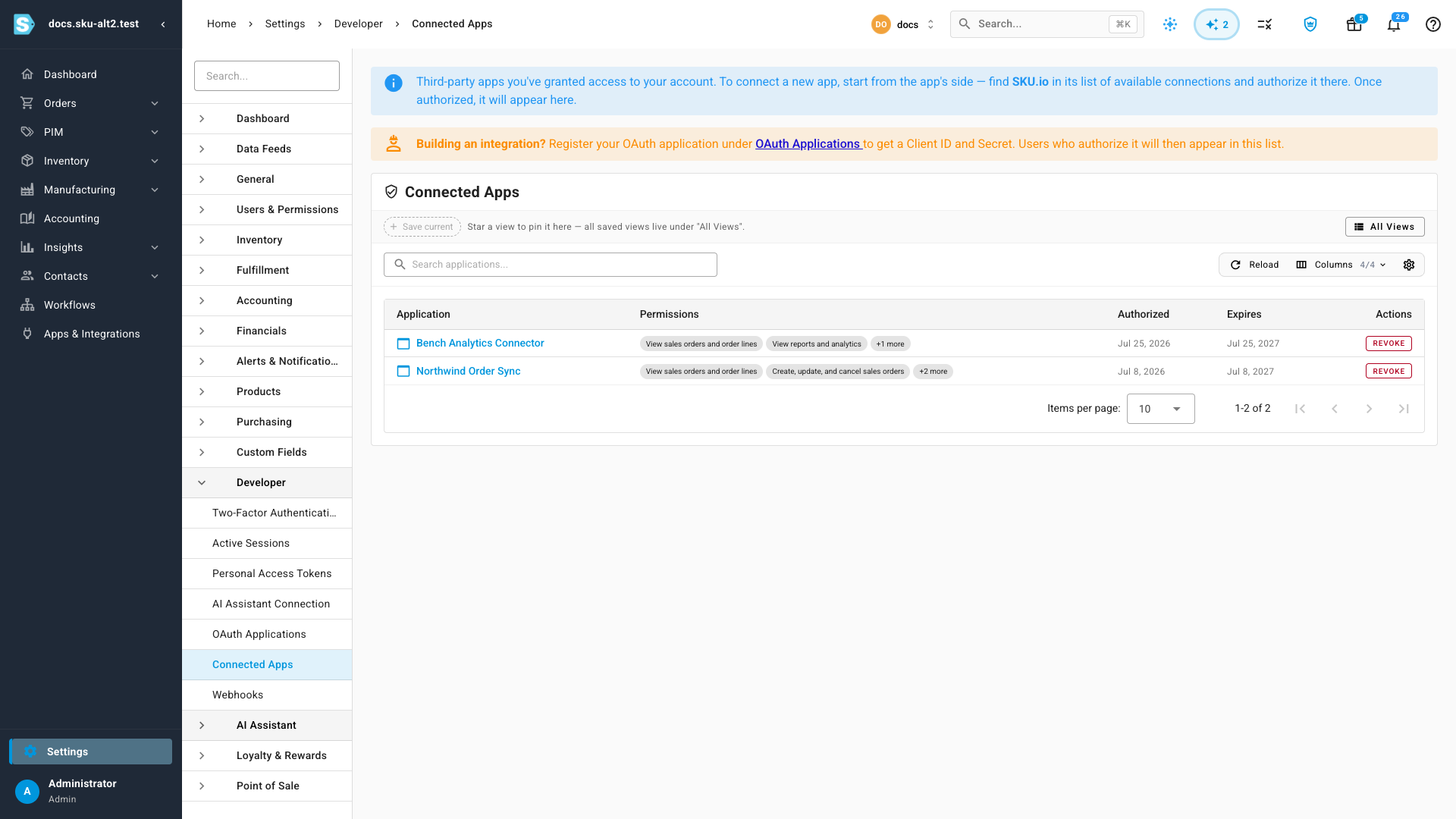
Each row shows:
| Column | What it tells you |
|---|---|
| Application | The app's name, as it appeared on the consent screen. Click it to open the detail page |
| Permissions | The scopes you approved, in plain language |
| Authorized | When you approved it |
| Expires | When the access token runs out, or Never |
Use Search applications to filter by name when the list is long.
Only apps with live access appear here. Revoking one removes it from this list.
See every permission
The Permissions column shows the first two, then a +N more chip. Click that chip to see the complete list.

This is the list to check when an app is doing more than you expected — or when you're deciding whether it should still have access. Each chip is one scope you granted; the app can't act outside them. See the API scopes reference for what each one covers.
Look at what an app has been doing
Click the application's name to open its detail page.
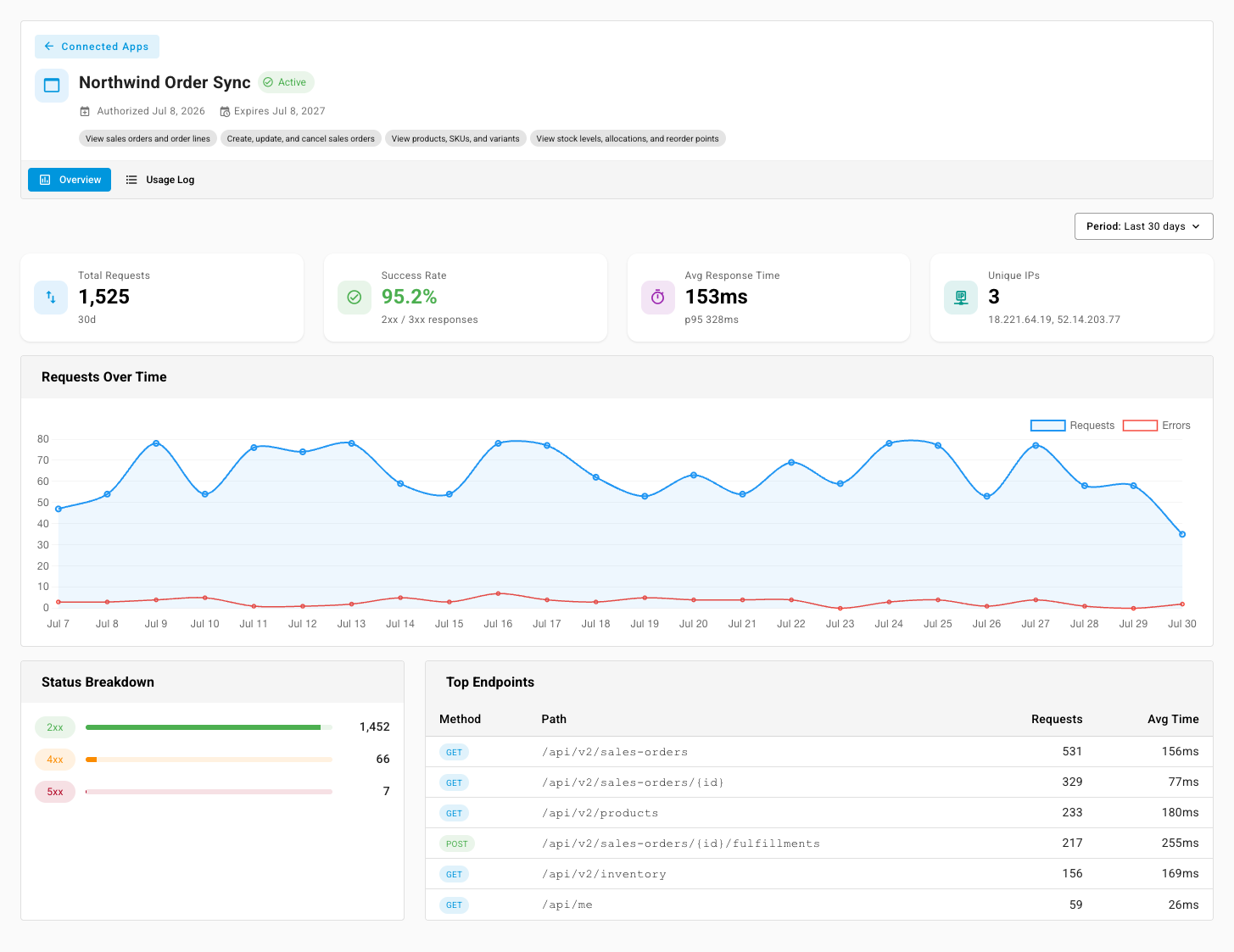
The header repeats the essentials — status, when you authorized it, when it expires, and every permission it holds — and two tabs sit below it.
Overview
Overview summarises the app's API activity over the period you choose (last 7, 14, or 30 days):
- Total Requests — how much it's calling.
- Success Rate — the share of 2xx / 3xx responses. A rate well below 100% is worth investigating.
- Avg Response Time — with the p95 underneath, so a slow tail shows up.
- Unique IPs — the addresses it called from. An unfamiliar address is a genuine signal.
Requests Over Time plots requests against errors, which makes a spike or an outage obvious at a glance. Status Breakdown splits responses into 2xx, 4xx, and 5xx — a wall of 4xx usually means the app is asking for something its scopes don't cover, while 5xx points at a problem on our side. Top Endpoints lists the paths it hits most, so you can see what it's really doing rather than what it said it would do.
Usage log
Usage Log is the request-by-request record behind those summaries.
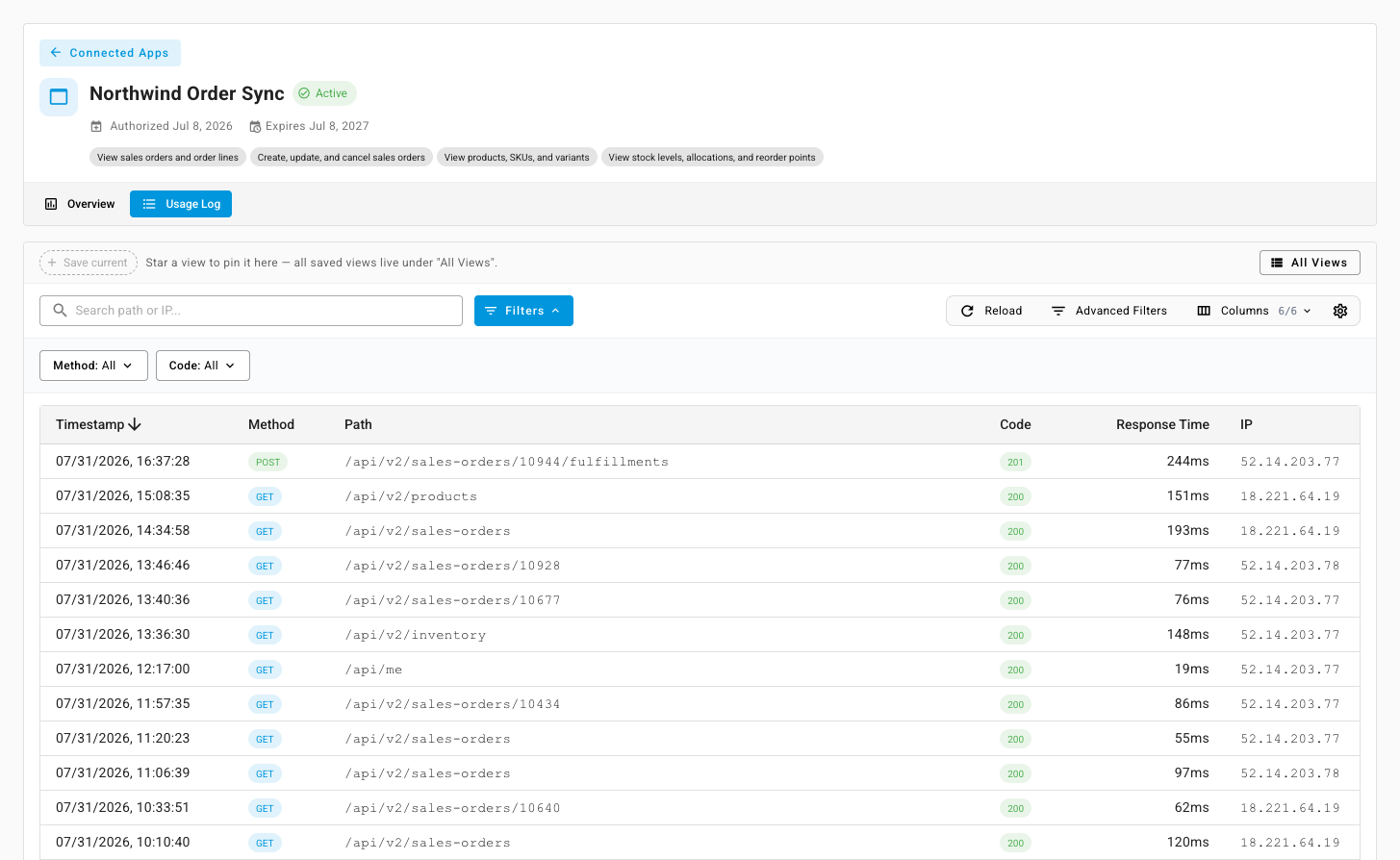
Every row is one API call: Timestamp, Method, Path, response Code, Response Time, and the calling IP. Search by path or IP, filter by method or status code, and save a view when you find a filter you'll want again.
Usage logs are kept for 30 days, which is why the period selector stops at 30. There's no export, so if you need a longer record, copy what matters off the screen before it ages out.
Revoke an app's access
Revoke when you no longer use the app, didn't expect what the usage log showed, or want to cut access off while you investigate.
-
Click Revoke on the app's row.
-
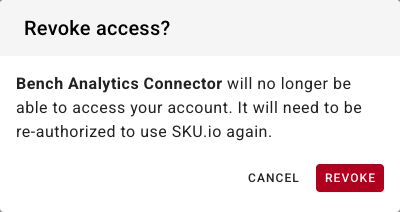
Confirm. The app will no longer be able to access your account and will need to be re-authorized to use SKU.io again.
-
If you have two-factor authentication turned on, enter a verification code when prompted — revoking is a protected action.
The app's token stops working immediately, and the row leaves your Connected Apps list. If the application was registered with a revocation webhook URL, its developer is notified so they can clean up on their side rather than discovering it through failing calls.
Revoking affects your grant only. Other users who authorized the same app keep their access until they revoke it themselves, or until an administrator revokes the whole application — see Manage OAuth applications.
To use the app again, start the authorization flow from the app's side and approve it fresh.
Troubleshooting
| What you see | What it means |
|---|---|
| An app you expected isn't listed | Either it was never authorized under this user, or its access was already revoked. Only live grants are listed |
| Expires shows a date that's passed | The token has run out. The app has to send you through authorization again to get a new one |
| Requests appear from an IP you don't recognise | The app may run in the cloud, so its addresses can change. If you can't account for it, revoke and ask the developer |
| The usage log is empty | The app hasn't called the API in the selected period, or the activity is older than the 30-day retention window |
| You revoked an app but its usage history still opens | Deliberate — revoked grants keep their request history so it stays auditable. It can't call the API any more |
Next steps
- API scopes reference — what each permission actually allows.
- Manage active sessions — the browser side of the same question.
- Manage OAuth applications — for administrators, revoking an application for everyone.