Manage OAuth applications
Once an application is registered, this page is where you keep it accurate — a new redirect URI when the developer moves environments, a fresh webhook signing secret when the old one leaks, and a revocation when the integration is retired.
Everything here affects software your users have already approved, so each action states its blast radius before you confirm it.
Before you begin
- You need to be a power user with permission to manage OAuth applications. Editing and rotating need update permission; revoking needs delete permission.
- Changes take effect immediately for every user who has approved the application. There is no per-user staging.
- The screenshots come from a demonstration account. Your applications, client IDs, and dates will differ.
Find an application
Go to Settings → Developer → OAuth Applications.

Each row shows the application's Name, its Client ID, the Redirect URIs it's allowed to return users to, its Status, and when it was Created.
- Search applications matches on name.
- The status filter narrows the list to Active or Revoked.
- The three icons at the end of each row are, in order, Edit, Rotate webhook signing secret, and Revoke application.

An icon that's greyed out will tell you why on hover — a revoked application can't be revoked twice, and an application with no revocation webhook URL has no signing secret to rotate.
Edit an application
Use Edit (the pencil) to change the name, add or remove redirect URIs, or set a revocation webhook URL.
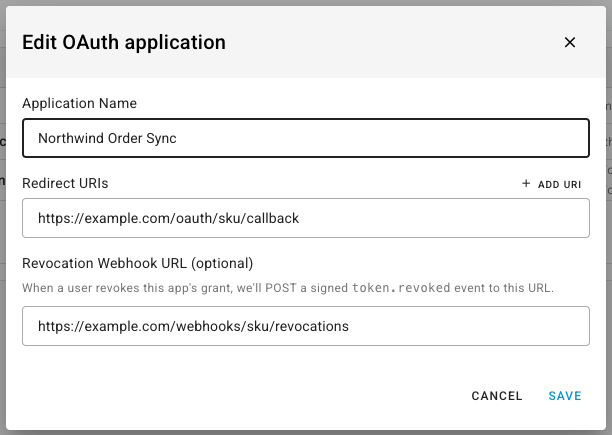
The same rules apply as when you registered it: the name is 3–100 characters, there must be at least one redirect URI, and every URI — redirect and webhook alike — must be a valid HTTPS URL.
The client type is not editable. Confidential and Public clients authenticate in fundamentally different ways, so switching an app between them means registering a new one.
Click Save when you're done.
A few things worth knowing before you change a live application:
| Change | Effect |
|---|---|
| Renaming it | The new name appears on the consent screen and in every user's Connected Apps list. Existing tokens keep working |
| Removing a redirect URI | Any authorization attempt using that URI starts failing immediately. Existing tokens keep working |
| Adding a redirect URI | Takes effect at once — useful when a developer adds a staging environment |
| Adding a revocation webhook URL | Future revocations are POSTed to it. To get the signing secret that verifies those deliveries, rotate it (below) |
Rotate the webhook signing secret
The key icon rotates the secret used to sign token.revoked webhooks sent to
this application's revocation webhook URL. It does not touch the Client
Secret.
Rotate it when the value has been exposed — a leaked log, a departing contractor, a shared inbox — or when you've just added a revocation webhook URL to an application that didn't have one and need to hand the developer a secret.
-
Click the key icon on the application's row.
-
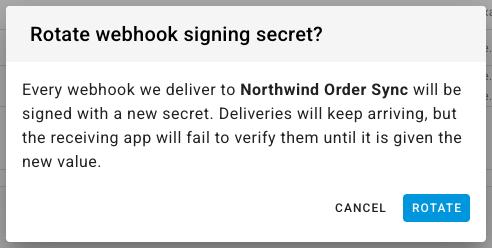
Read the confirmation. It's blunt about the consequence: every webhook will be signed with the new secret, deliveries keep arriving, but the receiving app will fail to verify them until it has the new value.
-
Click Rotate.
-
Copy the new secret from the New webhook signing secret dialog and send it to whoever maintains the application.
The previous secret stops working the moment the new one is issued, so there's no overlap window. Arrange the handover before you rotate, not after.
If the key icon is disabled, the application has no revocation webhook URL. Add one with Edit first — the API refuses the rotation otherwise, with Configure a revocation webhook URL before rotating its signing secret.
There's no way to reissue a Client Secret. It's shown once, at registration, and can't be recovered or rotated from this page. If it's lost or compromised, register a replacement application, move the integration onto the new credentials, and revoke the old one.
Revoke an application
Revoking kills the application's access for everyone at once. Use it when an integration is retired, a vendor relationship ends, or credentials are known to be compromised and you need access gone now.
-
Click the revoke icon on the application's row.
-
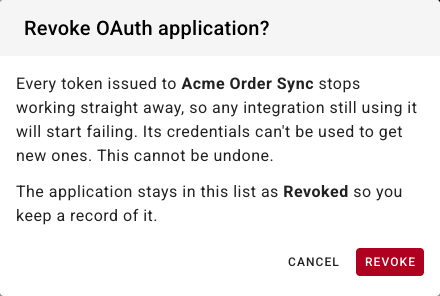
Read the confirmation. Every token issued to the application stops working straight away, so any integration still using it will start failing, and its credentials can't be used to get new ones. This cannot be undone.
-
Click Revoke.
The application stays in the list marked Revoked rather than disappearing, so you keep a record of what existed and when it was shut off. Its row is the first one in the screenshot at the top of this page.
If the application has a revocation webhook URL configured, expect the developer's endpoint to hear about affected grants — build in a heads-up before you pull the plug on something still in production.
To bring the integration back, register a new application and have users authorize it again. A revoked application can't be reactivated.
Troubleshooting
| What you see | Likely cause |
|---|---|
| The rotate icon is greyed out | The application has no revocation webhook URL. Add one with Edit |
| The revoke icon is greyed out | The application is already revoked |
| Each redirect URI must be a valid HTTPS URL. | A URI is malformed or uses http:// |
| A redirect URI cannot be blank — remove the empty row or fill it in. | An empty URI row was left in the form |
| The integration broke right after you saved | Check whether a redirect URI it relies on was removed, or a signing secret was rotated without the developer being given the new value |
| A user says the app still appears in their Connected Apps after revocation | Revoking stops the tokens working. Users can also remove the entry themselves — see Review connected apps |
Next steps
- Register an OAuth application — set up a replacement.
- Review connected apps — see which users approved what, and what it's been doing.
- Monitor webhook deliveries — how signed deliveries and signature verification work.