Save and pin table views
Every list in SKU.io carries a views bar above its filters. A view remembers how you left the table — the search and filters you applied, how it was sorted, and which columns were showing — so you can return to that arrangement in one click instead of rebuilding it.
Before you begin
- Views are saved per list. A view you save on Products appears on Products only, not on Sales Orders.
- Anyone can save a view. Sharing it with your team, and changing a view someone else shared, follow the rules described in Share a view with your team.
Save the current table as a view
-
Open a list and arrange the table the way you want it: search, apply filters, sort a column, and show or hide columns.
As soon as the table differs from the list's default, the button on the views bar changes to Save as view and a Reset button appears beside it.

-
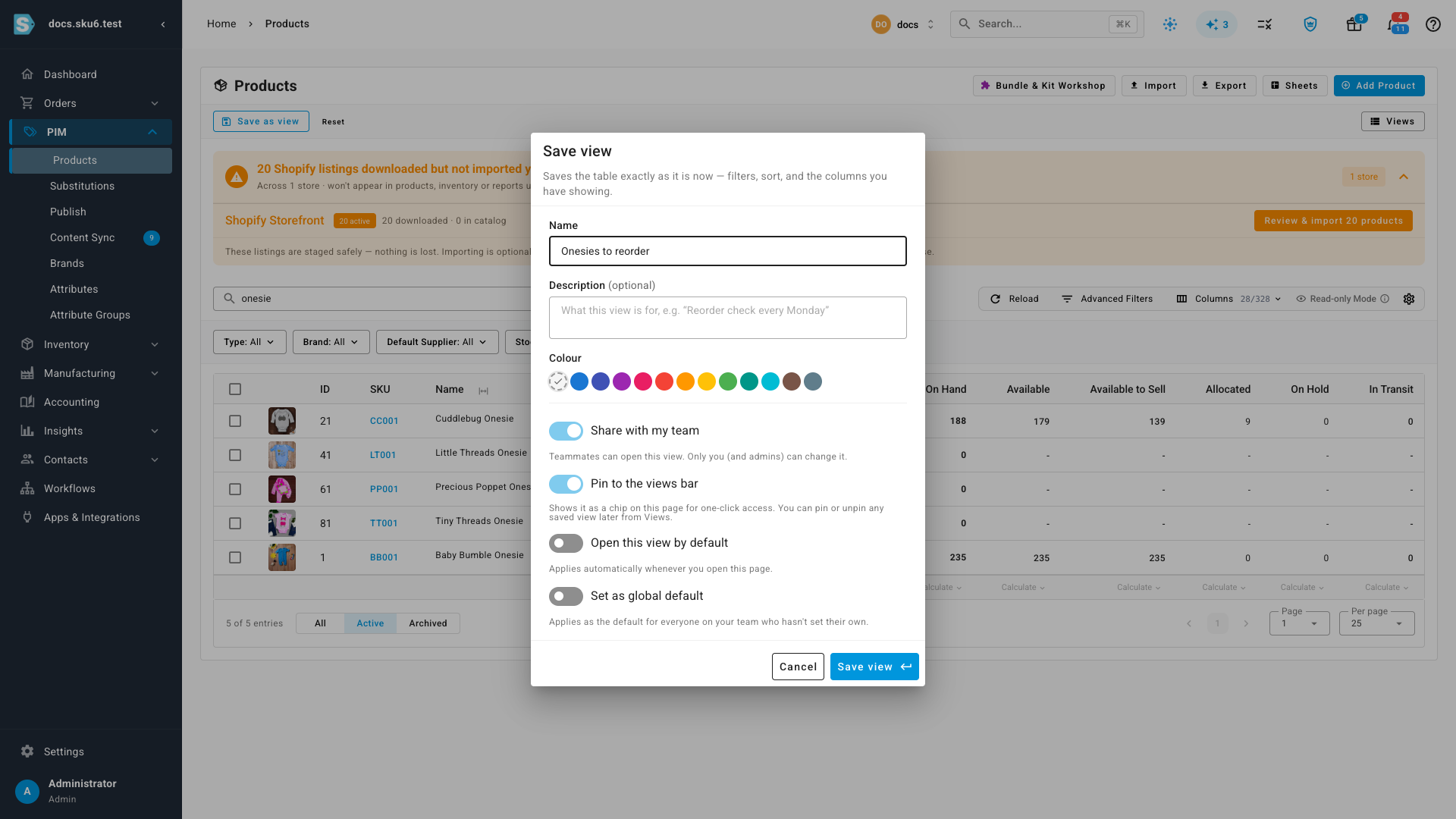
Click Save as view. The Save view dialog opens and captures the table exactly as it is now — filters, sort, and the columns you have showing.
-
Enter a Name. This is the label shown on the bar, so keep it short and specific — "Low stock · Harbor & Lane" reads better than "My view".
-
Add a Description if the name doesn't say enough on its own. It's optional.
-
Pick a Colour if you want this view's chip to stand out from the others.
-
Choose how the view behaves:
Option What it does Share with my team Teammates can open this view. Only you (and admins) can change it. On by default. Pin to the views bar Shows the view as a chip on this list for one-click access. On by default, and you can pin or unpin any view later. Open this view by default Applies this view automatically whenever you open the list. Set as global default Applies as the default for everyone on your team who hasn't set their own. Shown to administrators. -
Click Save view, or press Enter.
The view opens immediately: its name appears as a chip on the bar, and the page address updates, so you can bookmark the arrangement or send the link to a colleague.

If you reuse a name you already have on that list, the dialog keeps the form open and tells you under the Name field that a view of that name already exists. Change the name and save again — nothing is overwritten.
Reopen a saved view
- Click the view's chip on the bar.
- Or click Views and choose it from the list.
To close a view and return to the unfiltered list, click the ✕ on its chip.
Update a view after you change it
When you change the filters, sort, or columns while a view is open, the bar tells you: the button becomes Update view, and the message Unsaved changes to "<the view's name>" appears with a Revert link.

Your options:
- Update view stores the new arrangement on the view.
- Revert puts the table back to what was saved.
- The arrow beside Update view also offers Save as new view…, which leaves the original untouched and saves your changes as a separate view.
Until you choose one, your changes affect what you see and what you export, but they're not stored on the view.
Pin and unpin views
Pinning decides whether a view gets its own chip on the bar. It's separate from saving: an unpinned view is still saved, you reach it from Views instead of from a chip.
- Click Views.
- Click the star beside a view to pin or unpin it.
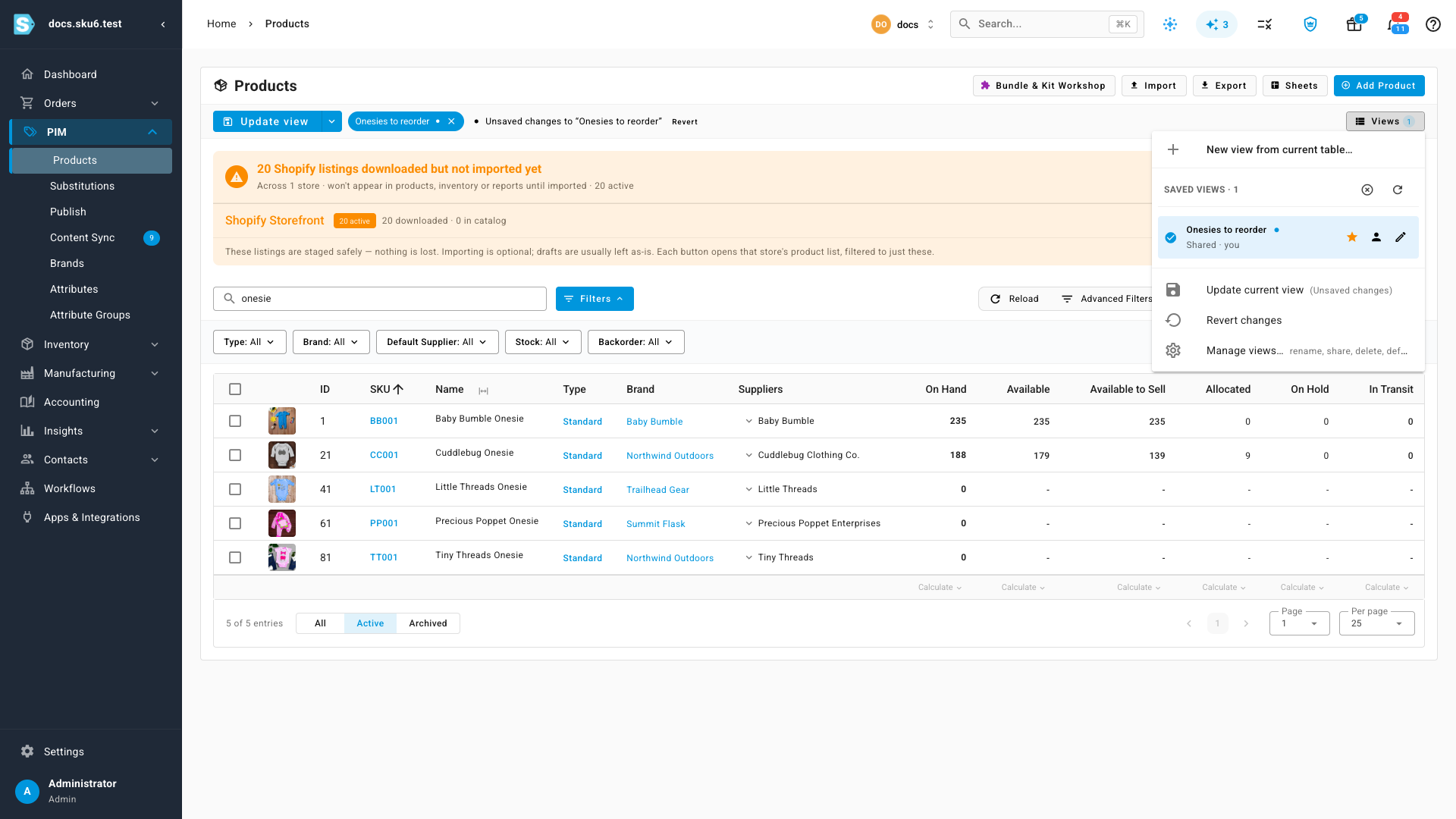
Pin the two or three views you use daily, and leave the rest in the list.
Open a view automatically
To land on a view every time you open the list, turn on Open this view by default — either in the Save view dialog when you create it, or later from Manage views. The list waits for your default to load, so you see your arrangement rather than an unfiltered flash.
If you're an administrator, you can also set a global default, which applies to everyone on the team who hasn't chosen their own.
Share a view with your team
Share with my team is on by default, so the views you save are visible to your colleagues. The dialog states the rule plainly: teammates can open a shared view, and only you — or an admin — can change it.
That's why a shared view someone else owns offers to save your changes as a new view of your own, rather than overwriting theirs.
Rename, re-share, or delete views
Click Views, then Manage views… to open Manage Saved Views. Sharing, defaults, and visibility changes here apply immediately.
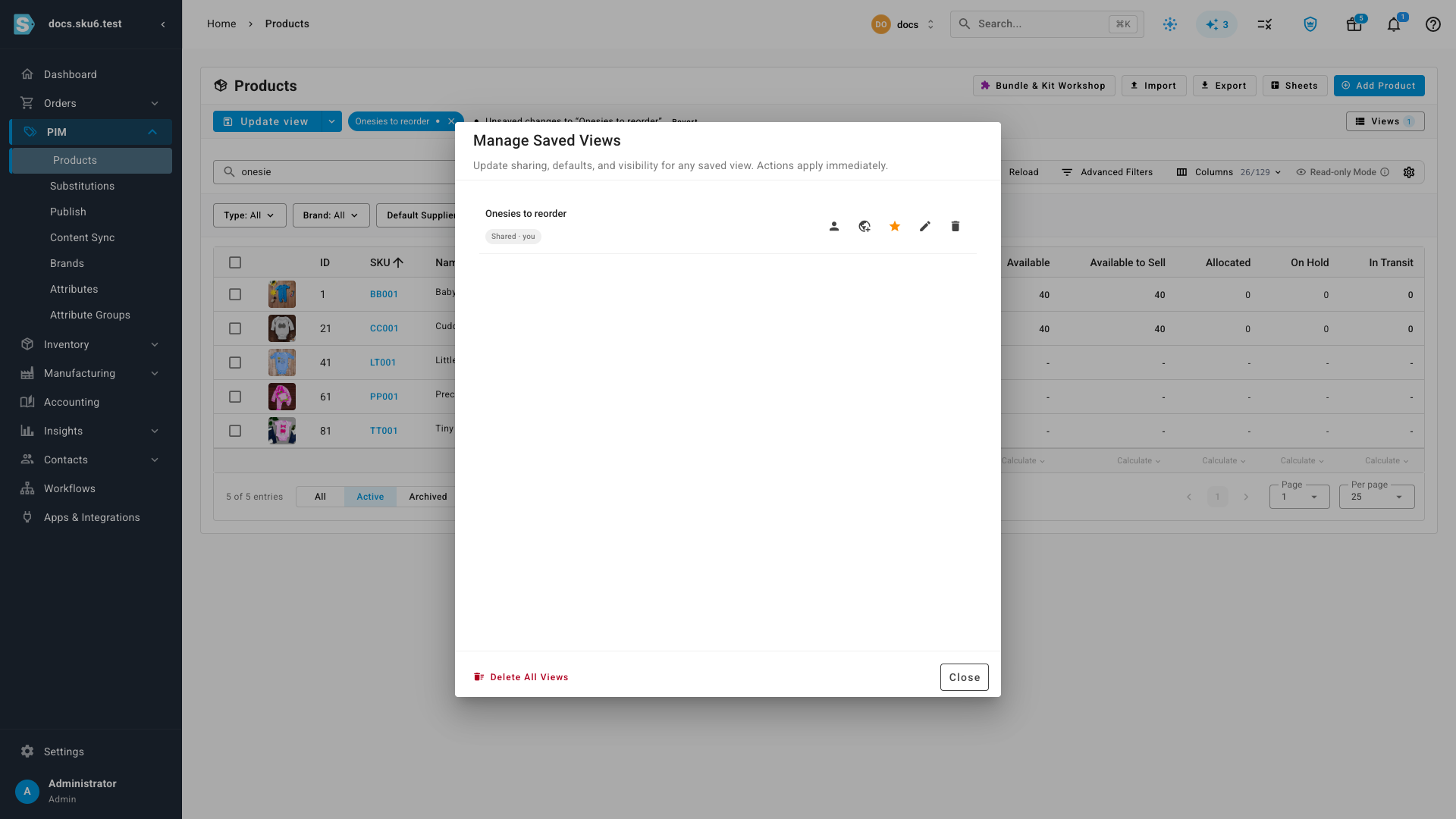
Each row shows whether the view is shared and who owns it, and gives you actions to set it as your default, pin it, edit its details, or delete it. You can delete only the views you are allowed to change, so a colleague's shared view is safe from you — and yours from them.
Next steps
- Browse, search & filter the products list — the filters and columns a view captures
- Products list columns, search & filters reference — every column and filter you can save into a view
Video transcript
Above every list in the app sits a views bar. A view remembers how you left the table — the filters, the sort, and the columns. Start by arranging the table: search, filter, sort, choose columns. The moment the table differs from the default, the button becomes Save as view, and a Reset button appears. Click Save as view, then give the view a short, specific name. The switches underneath decide who can open it, whether it gets a chip on the bar, and whether it opens by default. Saving opens the view and pins its chip to the bar. The page address updates too, so you can bookmark the arrangement or send a colleague the link. Change the sort, and the bar says so. Update view stores the new arrangement, Revert puts it back, and the arrow can save your changes as a separate view instead. Everything else lives under the Views button, at the right-hand end of the bar. Saving is the first item, the star controls the chip, and Manage views covers renaming, sharing, and deletion.