Get help and track your support tickets
When something in SKU.io doesn't look right, you can raise a ticket from the page you're looking at — the details our team needs are gathered for you. Every ticket your company raises lives under Support, so anyone on your team can follow it through to a fix.
Before you begin
- You can raise a ticket from any page, and you'll find every ticket under Support in the left-hand menu.
- Tickets are visible to everyone at your company by default. You can mark a single ticket Only me while you raise it.
- Use the email address you sign in with. Replies come back to that address, and you can answer them without opening SKU.io.
Steps
Raise the ticket
-
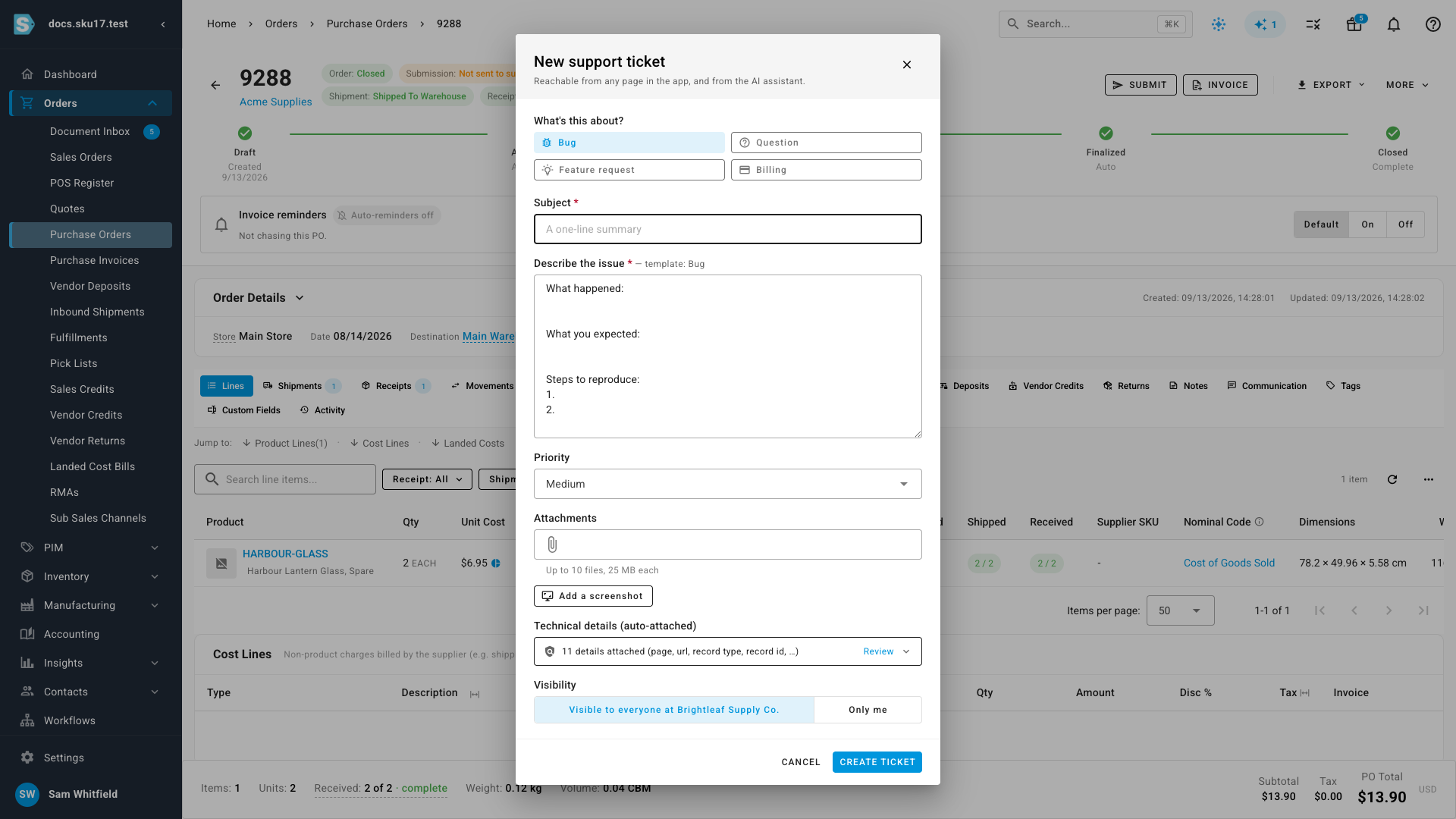
Go to the page where you noticed the problem, then click the help icon in the top right — or press N anywhere in the app.
-
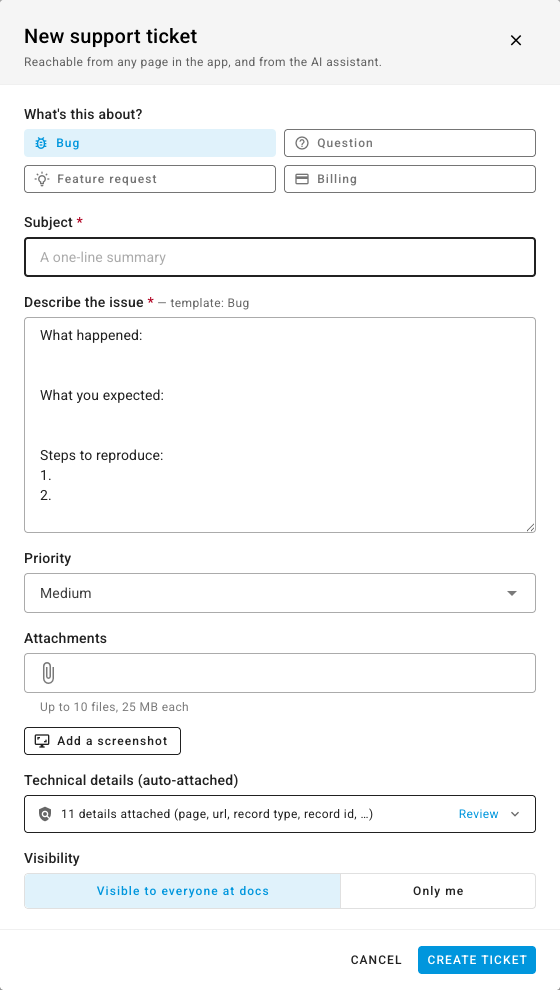
Choose what it's about: Bug, Question, Feature request, or Billing. The description box fills with a short template for that choice, so you know what to cover.
-
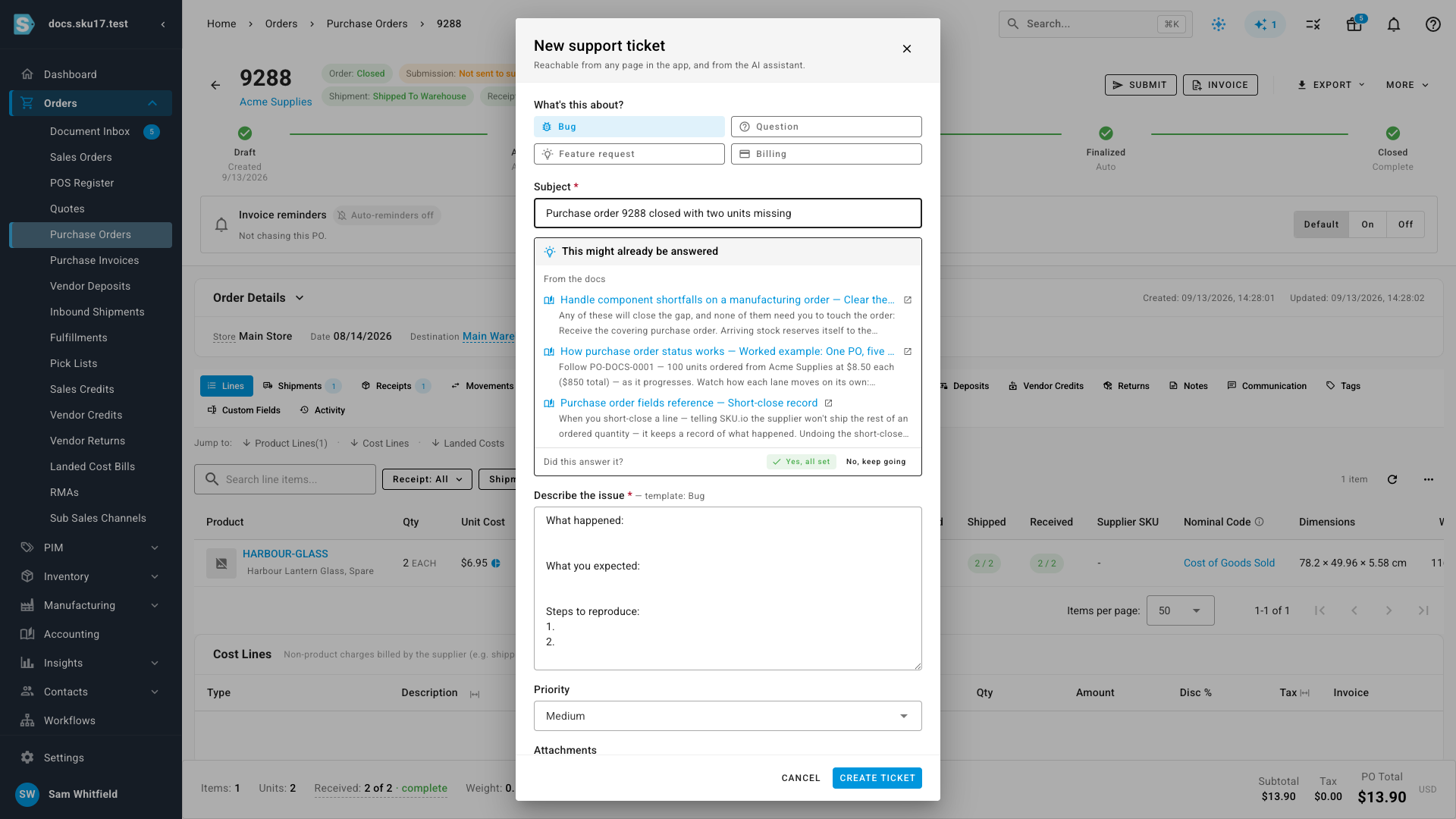
Write a Subject — one line describing what's wrong. As you type, SKU.io looks for answers you can use straight away: matching help articles, and tickets your company has already raised. If one of them solves it, click Yes, all set and you're done.
-
Fill in the description. Say what happened, what you expected, and the steps that led there — the template prompts for each. Set a Priority, and attach files or click Add a screenshot if a picture explains it faster.
-
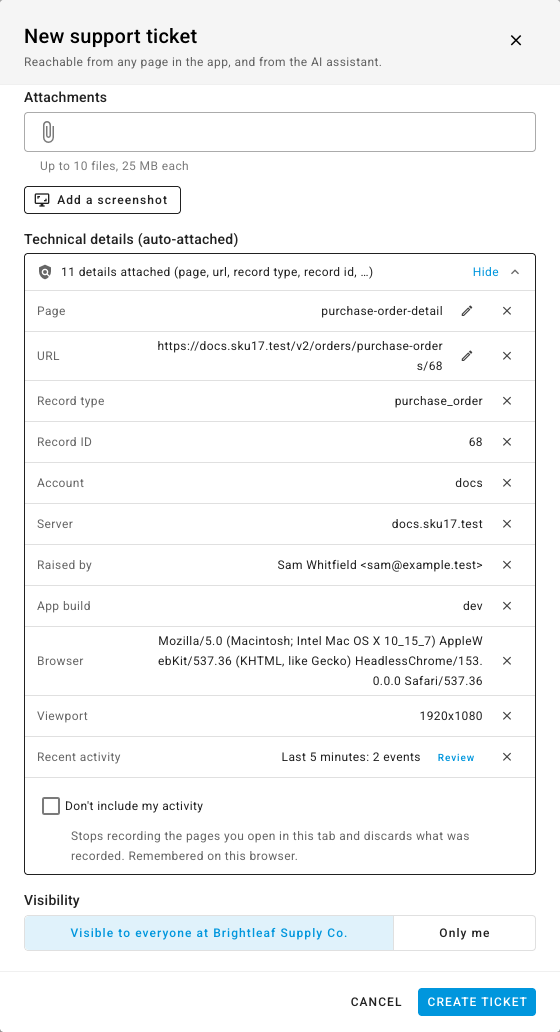
Check Technical details (auto-attached). SKU.io collects the page you were on, the record you were looking at, your browser, and the last few minutes of pages you opened, so you don't have to describe any of it. Click Review to see every item, use the pencil to change one, or the × to leave it out. Tick Don't include my activity to stop the page-by-page recording entirely.
-
Choose who can see it. Visible to everyone at your company lets your colleagues follow and reply; Only me keeps it between you and our support team.
-
Click Create ticket. The ticket opens with its number, and our team is notified straight away.
Follow it and reply
-
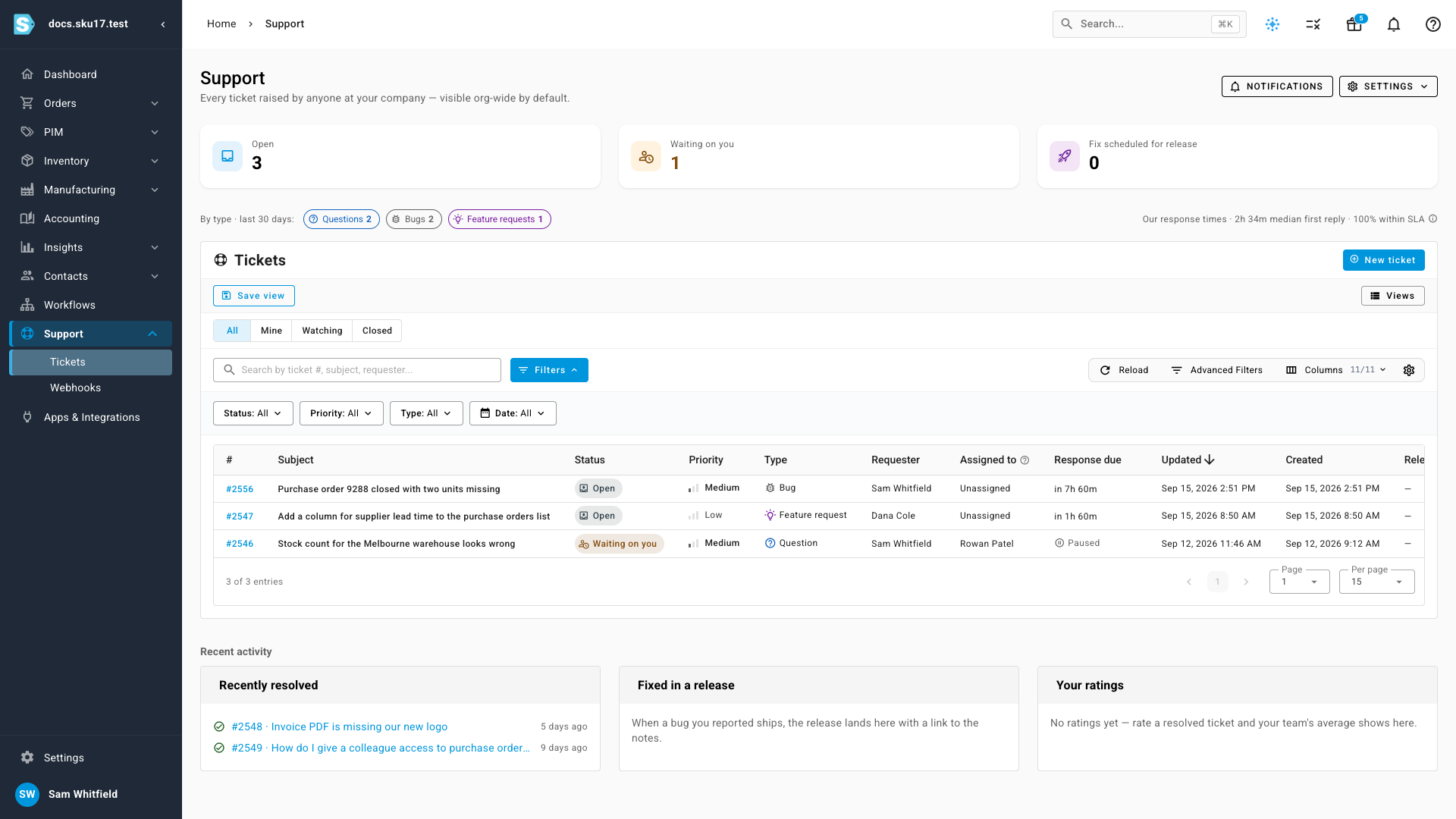
Go to Support → Tickets to see every ticket your company has raised. The cards along the top count what's Open, what's Waiting on you, and what's fixed and scheduled for release.
-
Narrow the list with Open, Needs reply, Watching, or Closed, or search by ticket number, subject, or requester. Needs reply lists the tickets where we've asked a question and are waiting on your answer.
-
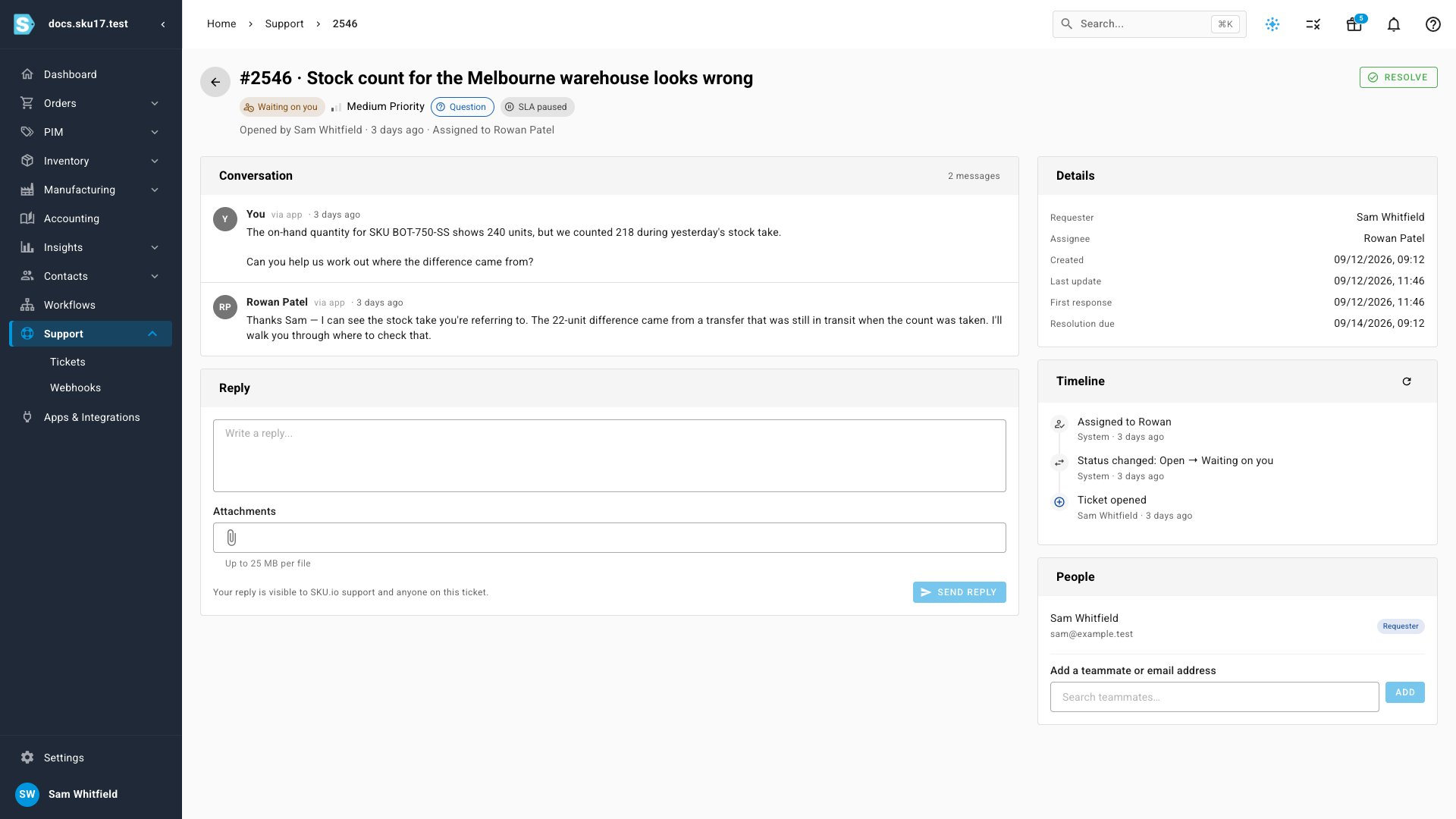
Click a ticket to open it. The conversation runs down the middle, and the panel on the right shows who's on it, when we're due to respond, and everything that has happened so far.
-
Type in Write a reply and click Send reply to add to the thread. Your reply goes to our support team and to anyone else on the ticket. To bring a colleague in, add them under People — they'll get the updates too.
-
When you're happy it's sorted, click Resolve. If the same problem comes back, reply on the ticket and it reopens.
What happens after you raise a ticket
Who picks it up
Every ticket goes to the SKU.io Support team. A few kinds go straight to a specialist group instead:
- Tickets that mention payments, invoices, billing, charges, refunds, or your subscription go to the Billing team.
- Urgent tickets go to the Escalations team.
- A ticket that misses its response target is moved to the Escalations team as well.
The first person on our team to reply becomes the ticket's owner, and you can see who that is in the panel on the right of the ticket.
How fast we respond
The Priority you choose (Medium unless you change it) sets our targets. The clock runs around the clock, weekends included:
| Priority | First reply within | Resolved within |
|---|---|---|
| Urgent | 1 hour | 4 hours |
| High | 4 hours | 12 hours |
| Medium | 8 hours | 24 hours |
| Low | 24 hours | 3 days |
The panel on the right of an open ticket shows First response due until we reply, and Resolution due until the ticket is resolved. While a ticket is waiting on your answer, the clock is paused. On the Support page, Our response times shows how quickly we actually replied to your company's tickets recently; point at the info icon beside it for the median time to resolve and how many first replies landed inside our targets.
What each status means
| Status | What it means |
|---|---|
| Open | We've got it, and someone will look at it shortly. |
| Being worked on | Someone on our team is working on it. |
| Waiting on you | We need an answer from you to carry on. The response clock is paused until you reply. |
| Fix scheduled for release | The fix is written and goes out with the next release. |
| Resolved | We think it's done. Reply if it isn't. |
| Closed | Finished and archived. |
When a ticket closes
- A Resolved ticket closes on its own after 48 hours.
- A ticket that has been Waiting on you for 72 hours since our last reply closes, and we email you to say so.
- Replying to any ticket, even a closed one, reopens it and lets its owner know.
After a ticket is resolved you can rate how we did. Your company's average rating shows under Your ratings on the Support page.
Raise a ticket by email
Email support@sku.io from the address you sign in with and it becomes a ticket the same way — you'll get a confirmation with its number. Reply to any of our emails to add to the ticket; no need to open SKU.io at all.
Choose how you hear about replies
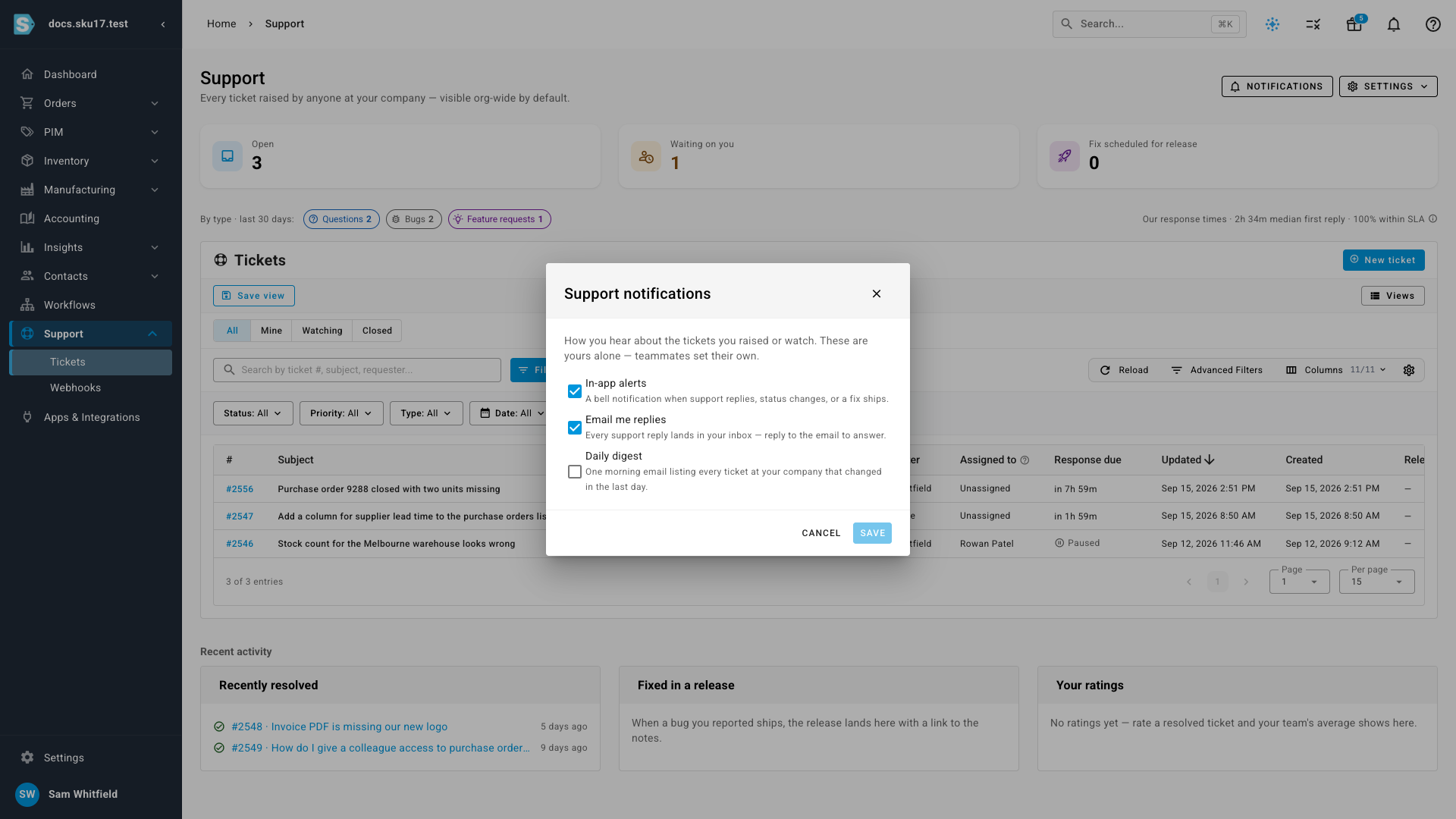
On the Support page, click Notifications to set how updates reach you. Each person sets their own:
- In-app alerts — a bell notification when support replies, the status changes, or a fix ships.
- Email me replies — every reply lands in your inbox, and you can answer by replying.
- Daily digest — one morning email listing every ticket at your company that changed.
Next steps
- Settings — manage who at your company can sign in and what they can see.
Video transcript
When something does not look right, you do not have to leave the page.
The help icon sits in the top right of every screen, on every page.
Pressing N opens the same panel.
Start from the page where you noticed the problem, and its details travel with the ticket.
Start by choosing what the ticket is about.
A bug, a question, a feature request, or billing.
The description box fills with a short template for whichever you pick.
Then write a subject: one line, in your own words, describing what went wrong.
As you type, we look for an answer you can use right away.
Help articles that match what you are describing appear first.
Under them sit tickets your company has already raised.
If one of them solves the problem, say so and you are done.
Say what happened, what you expected, and the steps that led to it.
Underneath, the technical details are gathered already.
The page you were on, the record you were looking at, your browser, and the last few minutes of pages you opened.
Click Review to read every item.
The pencil edits one, and the cross leaves it out.
Last, choose who can see the ticket.
Visible to everyone at your company lets colleagues follow it and reply.
Only me keeps it between you and the people answering it.
Then create the ticket, and our support team is notified straight away.
It opens on its own page, under the number you can refer to later.
Everything you wrote and attached travels with it.
Every ticket anyone at your company raises lives under Support.
The cards along the top count what is open, and what is waiting on your answer.
A third counts the fixes already scheduled for release.
Filter the list with All, Mine, Watching or Closed, or search by ticket number.
Open any ticket from the list to read its conversation from the beginning.
The panel on the right shows who is on it, and when we are due to respond.
Your answer goes in the reply box, and Send reply adds it to the thread.
To bring a colleague in, add them under People.
When it is sorted, resolve it — and a later reply reopens the ticket.
You can raise a ticket by email too, from the address you sign in with every day.
Reply to any of our emails and it lands on the ticket.
Notifications is where you choose how updates reach your inbox.
An alert in the app, every reply by email, or one daily digest.