Update your payment method
Your SKU.io subscription is billed through a secure billing portal. Use it to update the credit card on file, download past invoices and receipts, and change your billing email or address.
Before you begin
- You need to be an Admin — the Account & Billing settings area is only visible to admins.
- Know your billing email: the address your SKU.io invoices are sent to. The portal emails its sign-in link there, not to your regular SKU.io login email (unless they're the same address).
Steps
-
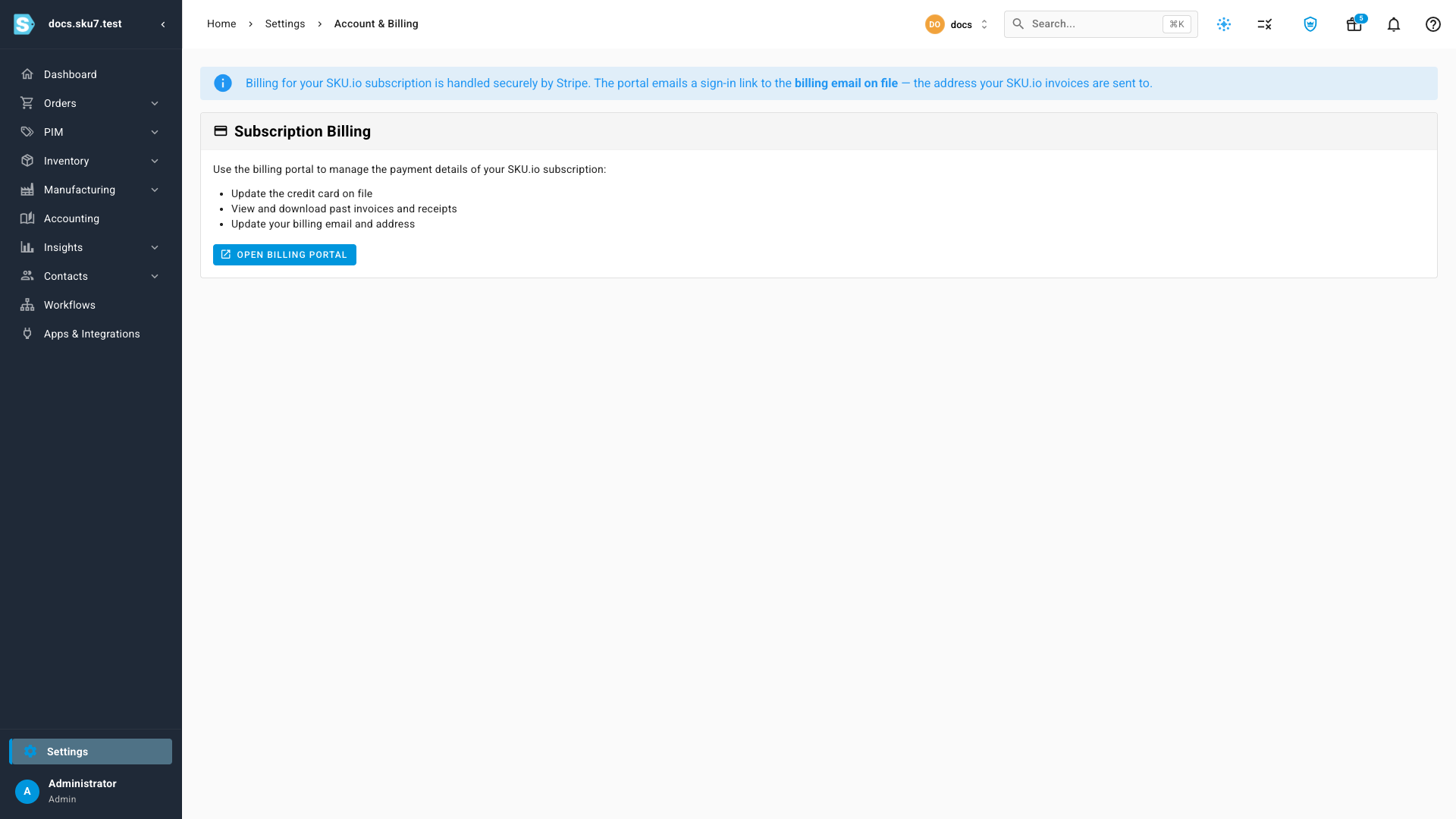
Go to Settings (at the bottom of the left navigation).
-
Select Account & Billing.

-
Click Open Billing Portal. The billing portal opens in a new browser tab.
-
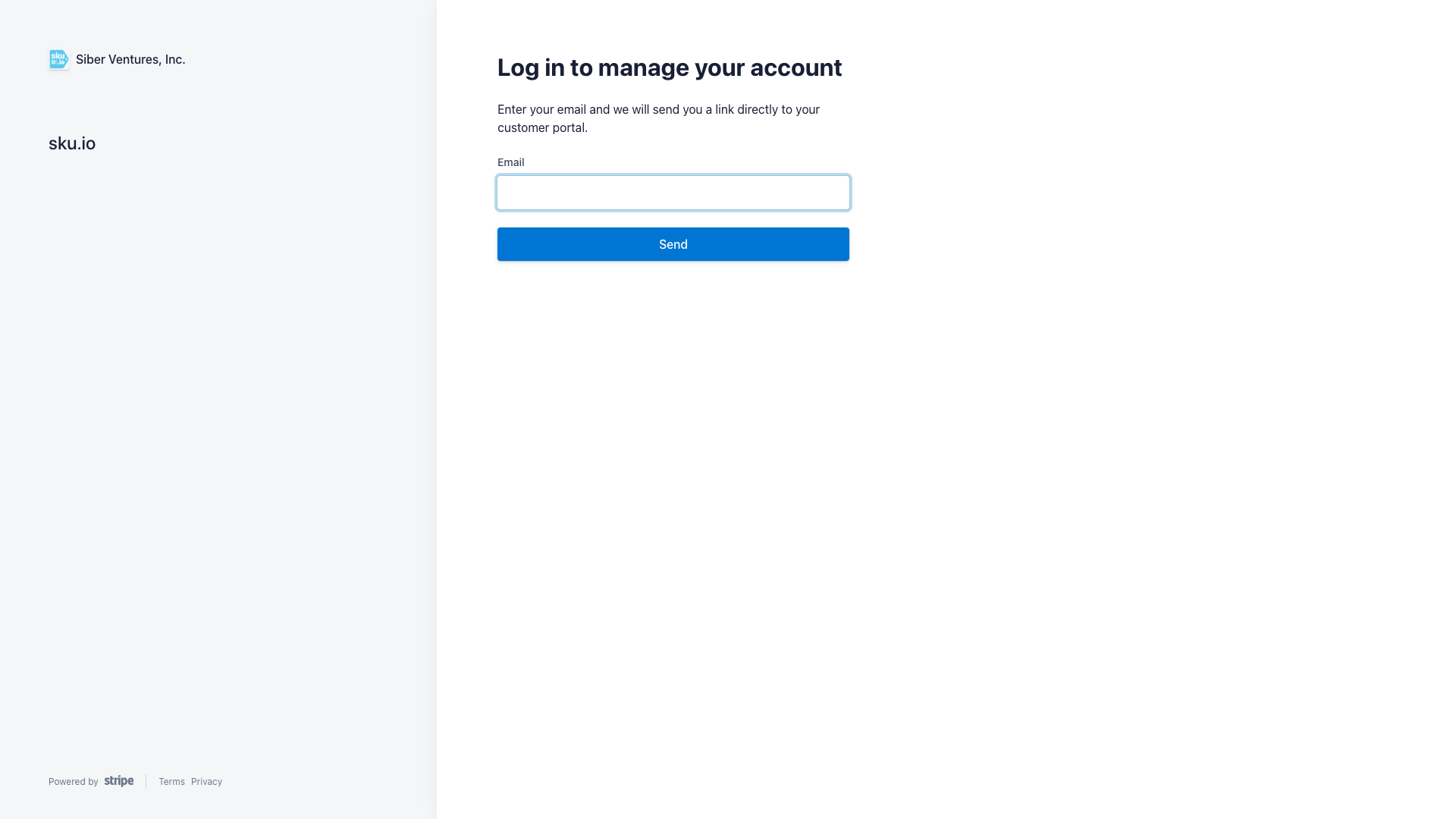
Enter your billing email and click Send. A secure sign-in link is emailed to that address.
-
Open the link from your email. You're signed in to the billing portal, where you can:
- update the payment method on file,
- view and download invoices and receipts,
- change your billing email and address.
Changes take effect immediately — your next invoice is charged to the new card.
You can also go straight to billing.sku.io — it opens the same sign-in page.
If the portal says it can't find your account
The sign-in page only recognizes the billing email on file. If you enter a different address, no email arrives. Ask the teammate who set up your subscription which address the invoices go to, or contact support and we'll update the billing email for you.
Next steps
- Create and manage users — see who on your team is an Admin.
Video transcript
To update the card on file for your subscription, open Settings, and select Account and Billing. Here you can update your card, download past invoices, and change your payment details. Click Open Billing Portal, and a secure sign-in page opens in a new tab. Enter the email your invoices are sent to, and a secure sign-in link lands in your inbox. Open it, and you can change your payment method any time.