Review and apply channel content changes
When someone edits a product directly on a sales channel — a new title in Seller Central, a corrected weight, a fresh image set — that edit used to live only on the channel, drifting silently away from your catalog. Content Sync turns those edits into reviewable changes: SKU.io detects the difference, shows you the catalog value and the channel value side by side, and lets you apply the change to your catalog with one click — or dismiss it. Nothing touches your catalog without your say-so (unless you explicitly turn on auto-apply).
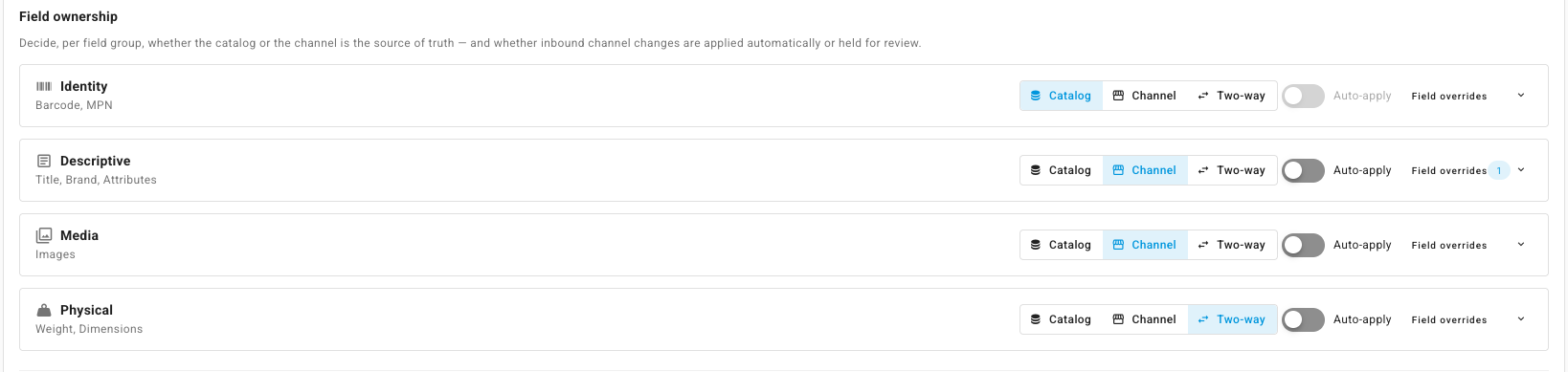
Content Sync governs eight content fields, grouped so you can set ownership once per group:
| Field group | Fields |
|---|---|
| Identity | Barcode, MPN |
| Descriptive | Title, Brand, Attributes |
| Media | Images |
| Physical | Weight, Dimensions |
Title is flagged risky — it rewrites customer-facing copy, so it is deliberately held out of every one-click bulk action.
Before you begin
| Requirement | Why it's needed |
|---|---|
| A connected sales channel with mapped listings | Changes are detected per listing, by comparing the channel's product content against the mapped catalog product. |
| Content sync enabled on the channel | It's off by default for every channel. You turn it on per integration instance — see the first section below. |
| Products permission | The drift inbox and its actions live under the products scope. |
Turning content sync on baselines every mapped listing's channel content as it is right now. Pre-existing differences are not flagged retroactively — only edits made after enabling are detected as drift. When you do want those pre-existing differences surfaced, run a full comparison on demand.
Turn on content sync for a channel
- Go to Apps & Integrations, open the channel (for example Amazon), and open its Settings.
- Open the Content Sync tab.
- Turn on Keep catalog content in sync with this channel.
- Pick a Reconcile frequency — Every 6 hours, Daily, or Weekly. This is the scheduled re-check that catches channels without update webhooks and any missed webhook; channels that push webhooks are also detected in near-real-time.
- Decide who owns each field group under Field ownership:
- Catalog — your catalog is the source of truth. Channel edits to this group are recorded for visibility but never suggested for import.
- Channel — the channel is the source of truth for content. Channel edits become pending changes you can apply.
- Two-way — both sides may edit. If only the channel changed, you get a normal pending change; if both sides changed since the last sync, you get a conflict.
- Optionally turn on auto-apply for a group so its changes are applied without review (they're still recorded in the history as auto-applied).
- Expand a group to set a per-field override when one field needs different treatment than its group.
- Click Save.
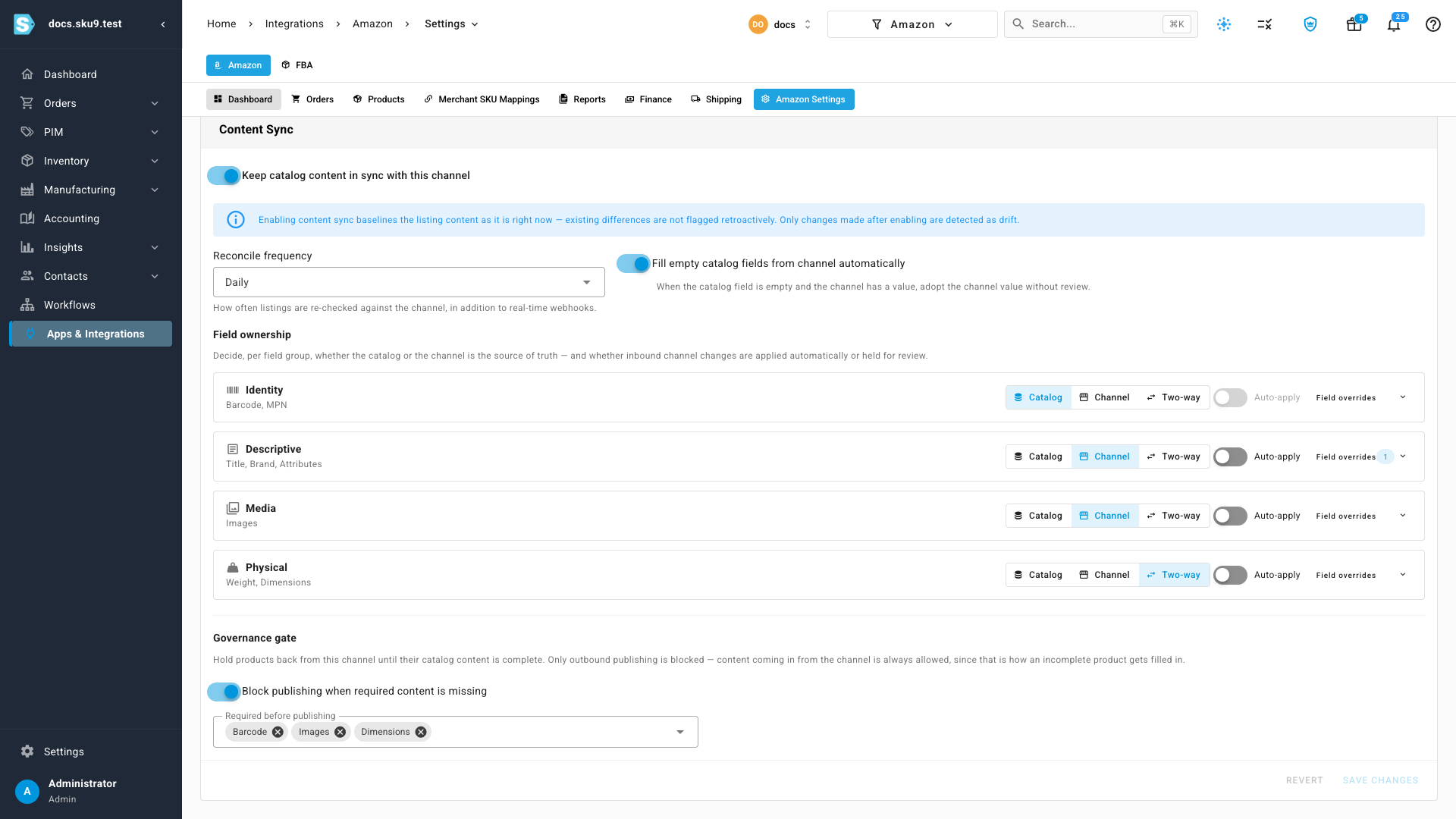
Fill empty catalog fields from channel automatically (on by default) covers the completeness case: when your catalog field is empty and the channel has a value, the channel value is suggested even for catalog-owned fields — a gap-fill, never an overwrite.
Map the channel's own attributes
The eight governed fields are the ones every channel has. Most channels also carry a second vocabulary that only exists on that channel — Shopify metafields, Magento custom product attributes, a marketplace's own spec fields. Channel Attributes, at the bottom of the same Content Sync settings tab, is where you decide which of those the channel is allowed to write into your catalog, and which are watched for drift.
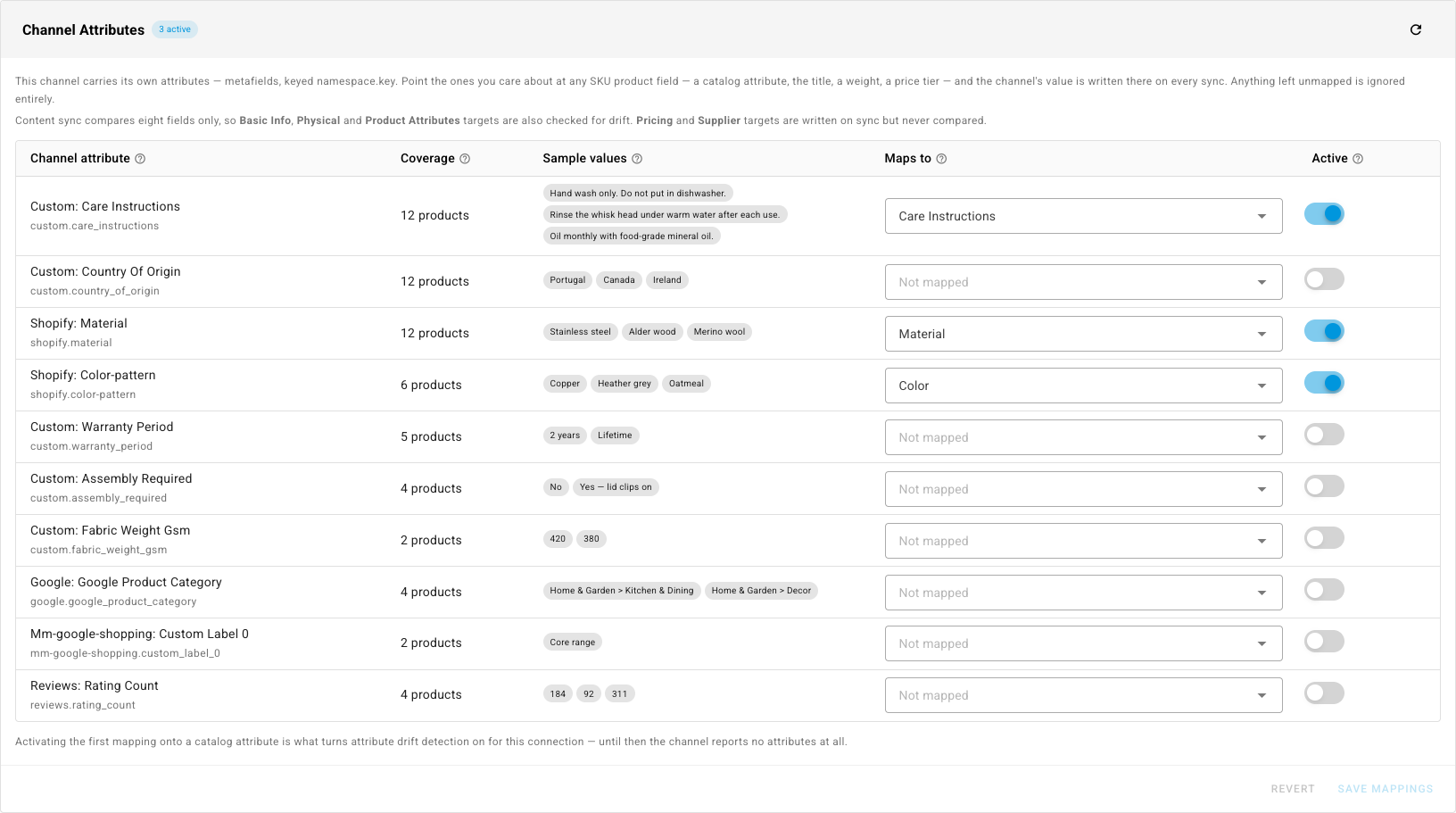
Each row is one attribute the channel actually sends:
| Column | What it tells you |
|---|---|
| Channel attribute | The display name, with the channel's raw code beneath it. |
| Coverage | How many of your synced products carry this attribute — the quickest way to tell a real attribute from a one-off. |
| Sample values | Up to three real values pulled from your own listings, so you can see what you'd be importing before you map it. |
| Maps to | The SKU product field the channel's value is written into — a catalog attribute, a first-class field like Title or Weight, or a price tier. Not mapped means the attribute is ignored entirely. You can also type a new name and press Enter to have a catalog attribute created for you. |
| Active | Whether this mapping is live. It stays locked until you pick a target — "Pick a SKU field first" — and once mapped you can switch it off again to pause the mapping without losing it. |
Each column header carries a ? you can hover for the same explanation in place.
- Find the attribute you want in the list. Use Coverage to prioritize — an attribute on 12 of 12 products is worth mapping; one on 2 is usually noise.
- Choose a SKU product field in Maps to. A catalog attribute is the usual target, but you can also point one at the title, a weight, or a price tier. If the catalog attribute doesn't exist yet, type the name you want and press Enter — the row notes "Will be created as a new attribute." and SKU.io creates it when you save.
- Turn on Active for that row. The switch only unlocks once a target is chosen.
- Select Save Mappings. Revert discards your edits.
The n active chip beside the panel title counts the mappings that are both targeted and switched on, so you can confirm at a glance that a row you just filled in is actually going to run.
Content sync still compares eight fields only. So an attribute mapped to a Basic Info, Physical, or Product Attributes target is written on sync and checked for drift — it shows up in the inbox like any other change. An attribute mapped to a Pricing or Supplier target is written on sync but never compared, so it will never raise a pending change. You don't have to memorize which is which: those groups are labelled written, not compared in the picker, and the row itself says "Written on sync, never compared." once you choose one.
Activating the first mapping onto a catalog attribute is what switches attribute drift detection on for that connection. Until then the channel reports no attributes at all, and the Attributes field in the Descriptive group has nothing to compare.
Where the list comes from
SKU.io builds this list from the products it has already synced — it does not ask the channel for a schema. That has three practical consequences:
- Sync first, map second. A freshly connected channel shows "No attributes discovered on this connection yet" until products have come in.
- Only recently seen attributes appear. Discovery scans your most recent listings, so an attribute that exists on a handful of very old products may not be listed.
- Empty values don't count. An attribute present but blank on every product is not offered, and it doesn't inflate the coverage count.
Use the refresh control at the top right of the panel after a fresh sync to rebuild the list.
Channel-specific examples
Shopify — metafields. Shopify metafields are keyed namespace.key and shown as
Namespace: Key, so custom.care_instructions reads as Custom: Care Instructions
and shopify.material as Shopify: Material. A typical setup maps
Shopify: Material → a Material catalog attribute and Custom: Care Instructions
→ a Care Instructions catalog attribute, and leaves app-generated namespaces —
reviews.rating_count, google.google_product_category, mm-google-shopping.* — on
Not mapped. Because those two land on Product Attributes targets, a merchandiser
editing the material in Shopify raises a pending attribute change in the inbox.
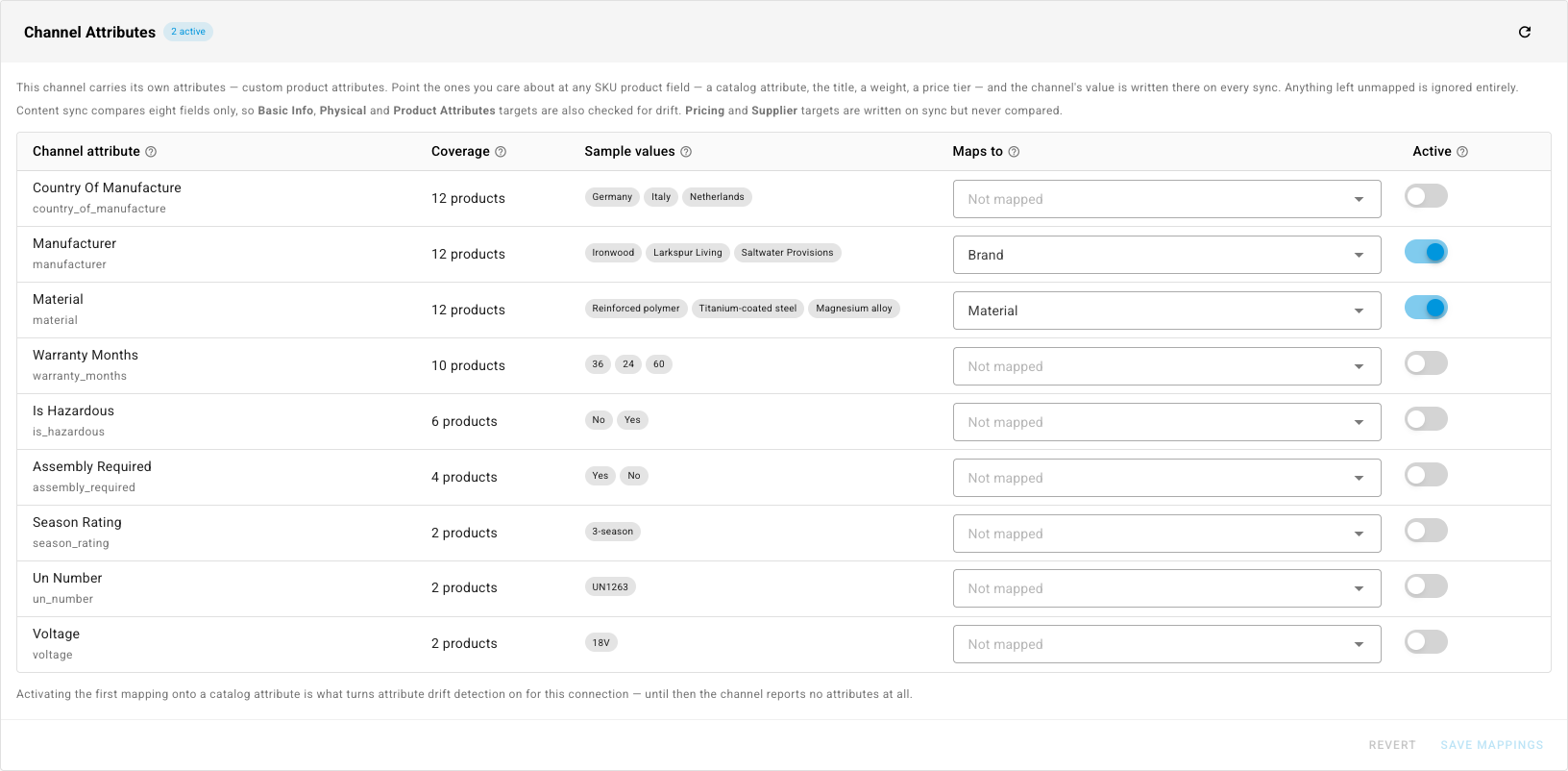
Magento 1 — custom product attributes. Magento 1 attributes are listed by their
attribute code, title-cased: country_of_manufacture as Country Of Manufacture,
warranty_months as Warranty Months, manufacturer as Manufacturer. Manufacturer
is commonly pointed at Brand (a Descriptive field, so it's compared) and material
at a Material catalog attribute; shipping-compliance codes like un_number and
is_hazardous are usually left unmapped unless you genuinely maintain them in SKU.io.
Magento 2 exposes its custom attributes to the field-mapping editor used at product creation, but not to Channel Attributes — the panel doesn't appear at all on a Magento 2 connection's Content Sync tab. A Magento 2 custom attribute can therefore fill a SKU field when the product is first created, but it cannot be watched for drift afterwards. The eight governed fields still sync normally for Magento 2 — this limitation applies only to its custom attributes. See Map channel fields to SKU products.
Review detected changes
- Go to PIM → Content Sync. The badge on the menu entry is the number of changes waiting for you.
- The Drift tab lists every open change: the product, the listing, the channel, the field, and a before → after preview. Summary cards at the top count Pending, Conflicts, Errors, and Listings affected.
- Narrow the feed with the filter row — Status, Field group, Field, Channel, Risky, Source — or search by listing SKU, title, product, or the change ID itself.
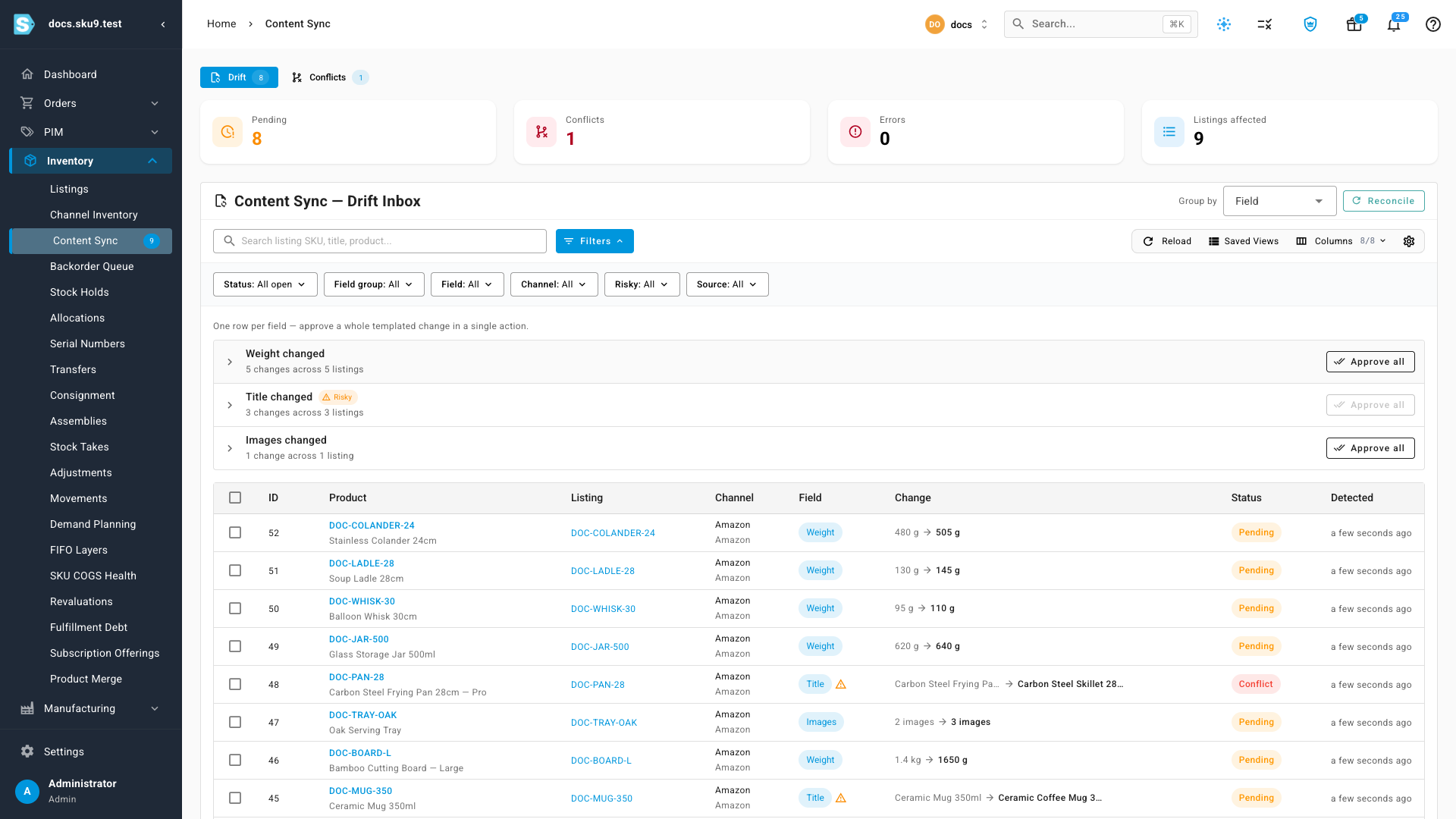
A ⚠️ marker on the Field chip means the field is risky — high-impact content like the product title. Risky changes are excluded from bulk apply unless you explicitly include them, so a renamed listing can't slip through a blanket approval.
Approve a whole templated change at once
A channel-side bulk edit usually hits the same field on dozens of listings at the same time. Rather than opening each one, roll them up:
- Use the Group by selector at the top right of the inbox — Field (the default), Field group, or None.
- Each bucket is one row: "Weight changed", the count — "5 changes across 5 listings" — and a Risky chip when the bucket contains fields that need a human.
- Click Approve all on a bucket to apply every open change in it as a background job. Watch it in the job tray.
- Click the bucket row itself to focus it — the feed below filters down to just those changes. Show all groups clears the focus.
When you group by Field, the Approve all button on a risky bucket is disabled — "Risky fields have to be reviewed listing by listing — open a row to apply them." When you group by Field group, Approve all silently skips the risky fields inside the group and applies the rest.
Apply or ignore a change
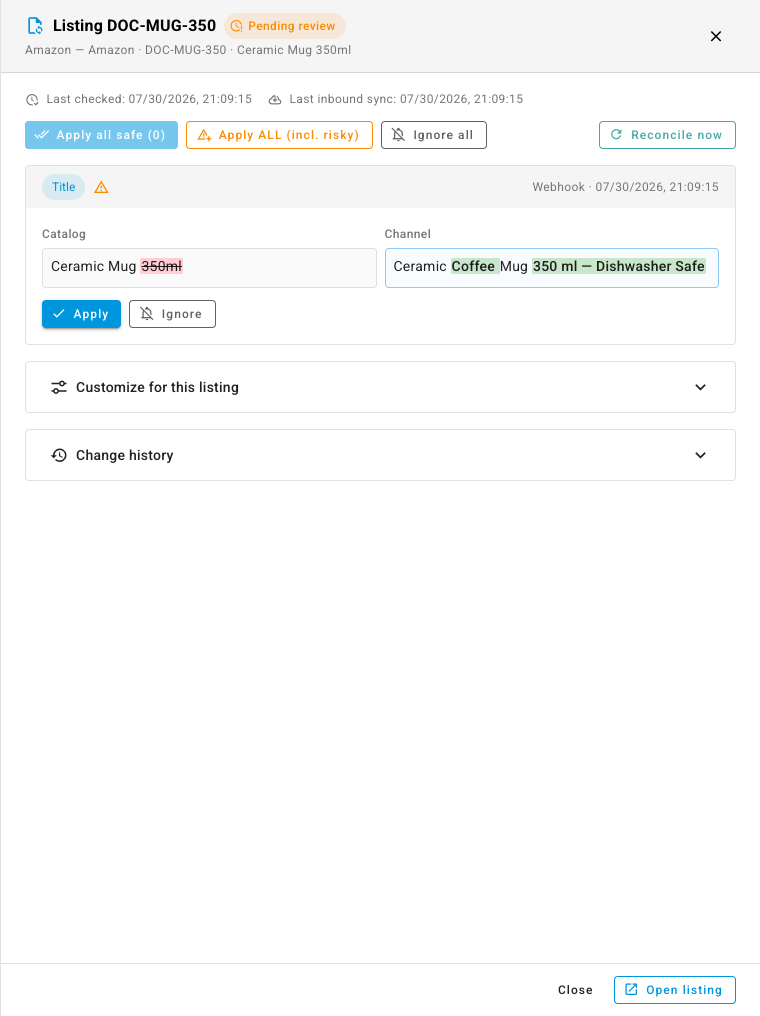
- Click a row to open the review drawer. Each change shows the Catalog value and the Channel value side by side, rendered for the kind of field it is:
- Prose (title, brand) — side-by-side panels with the individual added and removed words highlighted, so a one-word retitle doesn't read as a whole-field rewrite. When only whitespace or markup differs, it says so: "Same words — only spacing or markup differs."
- Images — thumbnail strips with the removed and added images called out ("2 removed", "1 added").
- Attributes — a key/value table listing only the keys that actually changed (or "No attribute differences").
- Weight and dimensions — formatted with their units, e.g. 12 × 8 × 4 in.
- Click Apply on a change to write the channel's value into your catalog product. The listing flips to In sync once nothing is left open.
- Click Ignore to dismiss the suggestion and keep your catalog as-is. An ignored change stays dismissed until the channel value actually changes again — the same edit won't re-appear on every re-check.
- Use the header actions to work faster: Apply all safe applies everything except risky fields, Apply ALL (incl. risky) includes them, Ignore all dismisses everything open, and Reconcile now re-checks this listing against the channel immediately. Open the arrow beside Reconcile now for Full comparison, which diffs every governed field even if the channel hasn't touched it — see below.
- The meta row shows Last checked and Last inbound sync, so you can tell a quiet listing from a stale one.
Weights and dimensions are compared and applied unit-aware. If the channel says 1650 g and your catalog tracks kg, applying writes 1.65 kg — the catalog keeps its unit.
Customize the rules for one listing
Channel settings are the default for every listing on that channel. When a single listing needs different treatment — one SKU whose title you never want touched, say — override it in place instead of changing the channel.
- In the review drawer, expand Customize for this listing.
- The chip at the top tells you where the listing stands: "Inherited from <channel> defaults", or "3 customizations on this listing".
- Set ownership and auto-apply for any group or field. "This listing follows its channel's content rules. Change anything here to override them for this listing only — everything you leave alone keeps tracking the channel."
- Click Save rules. To hand the listing back to its channel, click Reset to channel defaults.
Only what you explicitly change is stored as an override. Anything you leave alone keeps tracking the channel — so later changes to the channel's defaults still flow through to this listing.
Resolve a conflict
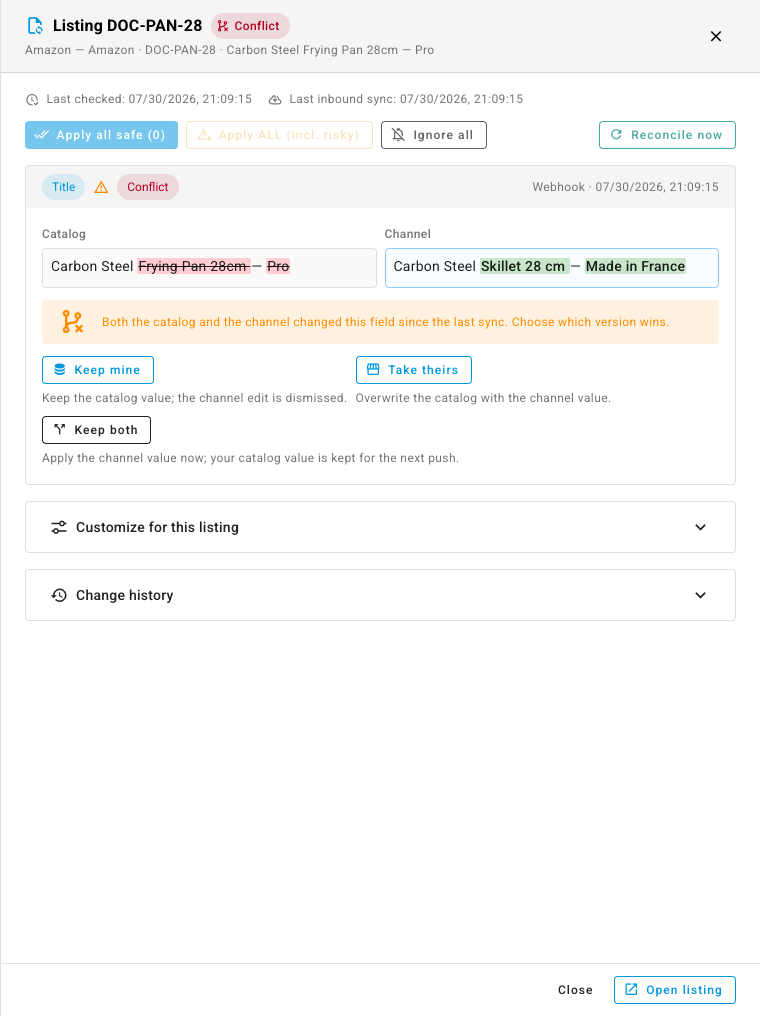
A conflict means a two-way field changed on both sides since the last sync — for example, your team renamed the product in SKU.io while someone also renamed it on the channel. Conflicts never auto-resolve.
- Open the Conflicts tab (or click a row with the red Conflict status).
- The drawer shows both values. Pick a side:
- Keep mine — your catalog value stands; the channel's edit is dismissed (and recorded).
- Take theirs — the channel's value is applied to your catalog.
- Keep both — the channel's value is applied and your catalog value is preserved on the record, so the next outbound push can re-assert it to the channel.
Work in bulk
- Select rows in the drift inbox and click Apply selected to apply pending changes across many listings as a background job — watch it in the job tray. Risky fields stay out unless you tick Include risky fields in the confirmation.
- Ignore selected dismisses across the selection instantly.
- Reconcile (top right) re-checks listings against their channels on demand — the whole tenant, or scoped to the channels you've filtered to.
Compare everything, not just what changed
A normal reconcile answers "has the channel moved since we last looked?" — it compares the channel's content against the snapshot taken at the last sync. That's the right question almost all the time, and it's what keeps the inbox quiet. But it means a difference that was already there when content sync was first enabled never surfaces, because the channel never moved.
Full comparison asks the other question: "does the channel differ from my catalog right now?" It ignores the baseline entirely and diffs every governed field, whether or not the channel content has changed since the last check.
Reach for it when:
- You just enabled content sync on a channel and want to see the differences that already existed, instead of waiting for someone to edit a listing.
- You imported products from a channel and only later started governing a field — attributes, dimensions, MPN — that was never compared at import time.
- You turned on a field group (or flipped a group from Catalog to Channel) and want the existing gaps surfaced now.
Two places to run it:
- One listing — in the review drawer, open the arrow beside Reconcile now and choose Full comparison.
- In bulk — in the drift inbox, open the arrow beside Reconcile and choose Full comparison. Scope it first with the channel filter, then confirm.
Because it reports every difference rather than only new ones, a full comparison across every channel can surface a large batch of changes in one pass. Filter to a single channel first when you're backfilling — the confirmation tells you what you're about to compare.
Everything downstream behaves normally: the changes it raises are ordinary pending changes you apply, ignore, or bulk-approve, risky fields are still held back, and ownership rules still decide what's even suggested.
Trace and undo: the change history
Change history at the bottom of the review drawer is the full audit trail for one listing's content — applied, auto-applied, ignored, superseded, conflicted, errored, and rolled-back entries, each with who resolved it and when.
- Filter it by Field, Status, Detected by, Resolved by, and a From / To date range. Clear filters resets them.
- Read the outcome, not just the attempt. A change that never wrote to the catalog (ignored, superseded) shows its before → after preview struck through, so an ignored suggestion can't be mistaken for an applied one.
- Compare two versions. Tick two entries on the same field and click Compare versions — the dialog shows the value the field held after each of the two entries. It is read-only: "Nothing here changes the catalog."
- Roll back. Any entry that wrote to the catalog gets a Roll back button, which restores the value that change replaced. Rolling back is itself recorded as an entry — and that entry's button reads Undo rollback, so you can walk it back the other way.
- Export. Download the filtered history as a CSV for an audit or a supplier conversation.
Block publishing until content is complete
The governance gate stops half-finished products from reaching a channel in the first place. It lives at the bottom of the channel's Content Sync settings tab.
- Turn on Block publishing when required content is missing.
- Under Required before publishing, pick the fields this channel insists on — for example Barcode, Images, and Dimensions.
- Click Save.
From then on, publishing a listing to that channel checks the catalog product first. If anything required is empty, the publish job fails with the specific gap named — "Blocked by the content governance gate — this product is missing Barcode, Images. Fill it in on the product, then publish again."
Inbound content is never blocked — that's how an incomplete product gets filled in. The gate only stops SKU.io from pushing a record out to the channel.
If the gate is on but no fields are selected, nothing is enforced. The settings tab warns you: "Nothing is required yet, so the gate lets every product through. Pick at least one field."
Next steps
- Browse your product listings — the listing detail page shows each listing's content-sync status chip.
- Map channel fields to SKU products — decide what fills each SKU field the first time a product is created from a channel.
Video transcript
When product content is edited on a sales channel, the change lands here, in the Content Sync inbox. Every edit shows what changed, on which listing, and whether it is waiting for review.
A channel-side bulk edit hits many listings at once, so group the inbox by field. One row, one count, and approve all clears the whole batch. Risky fields, like the title, are held back for a human.
Click a row to review. The catalog value sits beside the channel's edit, with the changed words, images, and attributes called out. Apply writes the channel's value into your catalog.
Need an exception? Customize for this listing overrides the channel's rules for that one listing, and everything you leave alone keeps tracking the channel.
If both sides changed the same field, it becomes a conflict. Keep your value, take the channel's, or keep both. Taking theirs writes the channel's title into your catalog and clears the conflict.
Change history is the full audit trail. Filter it, compare two versions of a field, export it, and roll back anything that wrote to your catalog.
Ownership lives in the channel's settings. Each field group is catalog owned, channel owned, or two-way, with auto apply when you want changes flowing in without review.
And the governance gate holds incomplete products back from the channel until the content is there. Your catalog stays the source of truth, on your terms.