Fix a 403 from your API token
Video transcript
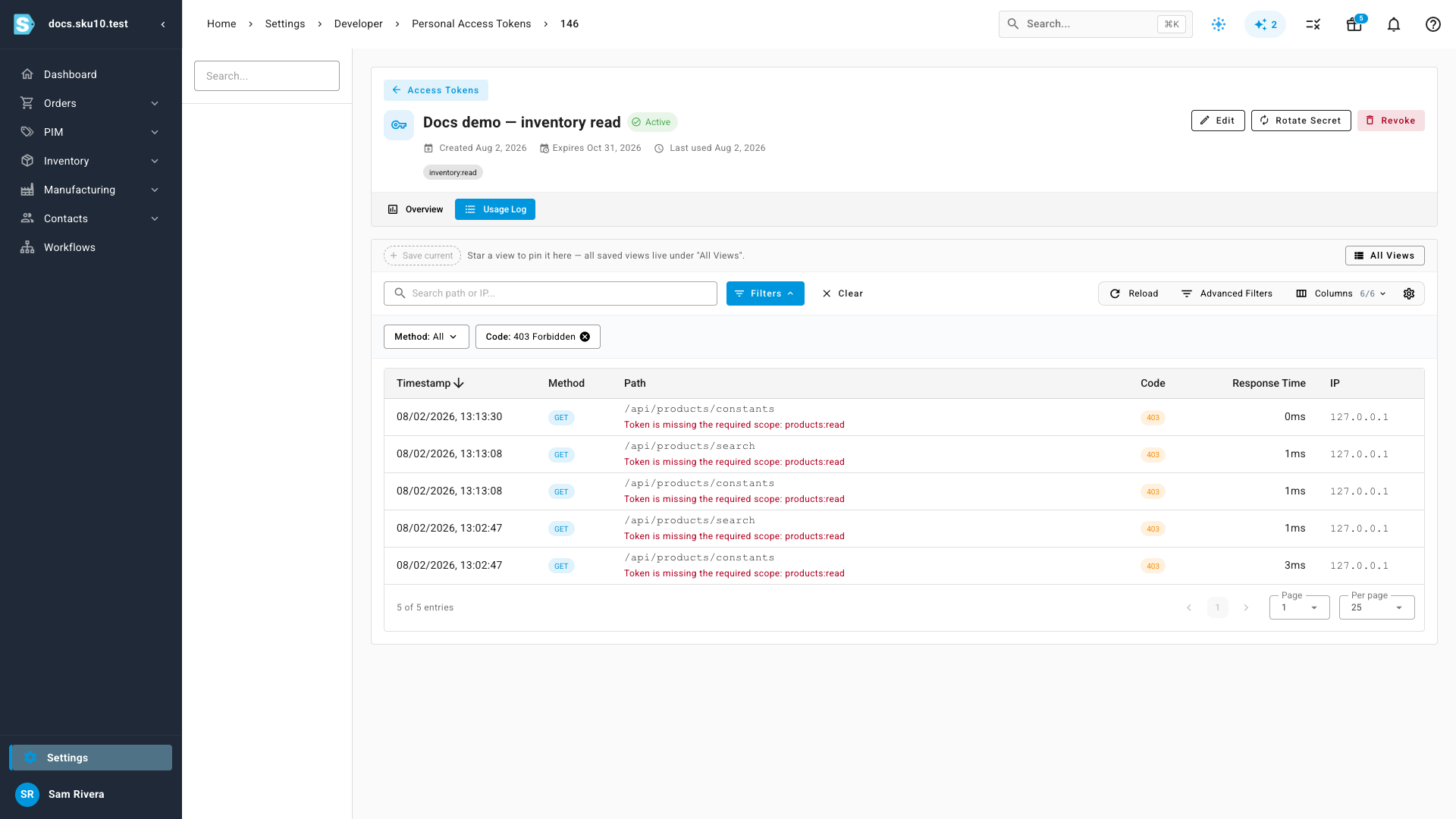
A four-oh-three means your token worked and the request was still refused. That is not a broken token. Start by opening the token itself, under Settings, Developer, Personal Access Tokens. Every call this token makes is recorded, refusals included. Open the Usage Log tab. Each row shows the status code, the endpoint, and the message the caller got back. Filter the code column down to four-oh-three and only the refusals remain. Every one of these says the token is missing the scope products read. In the response body, the error field names the reason in one word: insufficient scope. That one you fix on the token. So add it. Select Edit, find the Products group, and choose Read. Then save. Adding a read scope does not ask for your password, and the secret never changes, so your integration keeps working. Now the other kind. This token carries every scope it needs and still gets a four-oh-three. The error reads insufficient permission, and the message spells it out: the token is valid, but the person who owns it cannot archive products. Scopes narrow what you can do. They never widen it. Fix that one on the owner's role. You can catch that mismatch before you ever make a call. When you pick scopes, the picker checks each one against your own role. A banner appears, and affected scopes are flagged. Hover a flag and it names the exact permissions your role is missing. Groups with no flag are fully covered.
A 403 from the SKU.io API means your credential worked and the request was
still refused. That's good news — you don't have a broken token. But there are
three different reasons SKU.io refuses a request, and only one of them is fixed
by editing the token. Change the wrong thing and the call keeps failing.
This guide shows you how to read which of the three you hit, and what to do about each.
The screenshots below come from a demonstration account seeded with sample tokens and sample API traffic.
Before you begin
- You need the token that got the 403, or access to the account that owns it.
- You need to be able to see the response body, not only the status code.
Most HTTP clients hide it by default — in
curl, add-ito print the headers and body together. - Read API scopes reference first if you're not sure what a scope is.
Read the error field
Every 403 from the API carries an error field. It's the whole diagnosis in
one word — read it before you change anything.
error | What went wrong | What fixes it |
|---|---|---|
insufficient_scope | The token doesn't carry a scope this endpoint needs | Add the scope to the token |
insufficient_permission | The token is fine; the person who owns it lacks a role permission | Change the owner's role, or use a token owned by someone who has the permission |
| (absent) | The endpoint is closed to API tokens entirely | Nothing on the token — use a signed-in session |
There's a second signal that separates the first two, and you can spot it
without parsing the body. A scope refusal is an authentication challenge, so it
comes with a WWW-Authenticate header:
www-authenticate: Bearer error="insufficient_scope", scope="products:read"
A permission refusal carries no such header. The credential itself was never in question, so there's nothing to re-authenticate.
Fix a missing scope
This is the common one, and it's the one you fix on the token.
The body names the exact scope in a machine-readable field, so you never have to guess from the prose:
{
  "message": "Token is missing the required scope: products:read",
  "error": "insufficient_scope",
  "required_scope": "products:read"
}
To fix it:
- Go to Settings → Developer → Personal Access Tokens.
- Open the token that made the call, and select Edit.
- In Scopes, set the group named in
required_scopeto Read or Read & Write —products:readlives under Products. - Select Save Changes.
Adding a write or manage scope asks for your password first, and for your
two-factor code if you have two-factor switched on. Adding a read scope asks
for neither.
The token keeps its secret through the edit, so whatever is calling the API carries on working — retry the request and it goes through.
Fix a missing permission
If error is insufficient_permission, editing the token won't help. Add
every scope in the catalog and you get exactly the same 403.
{
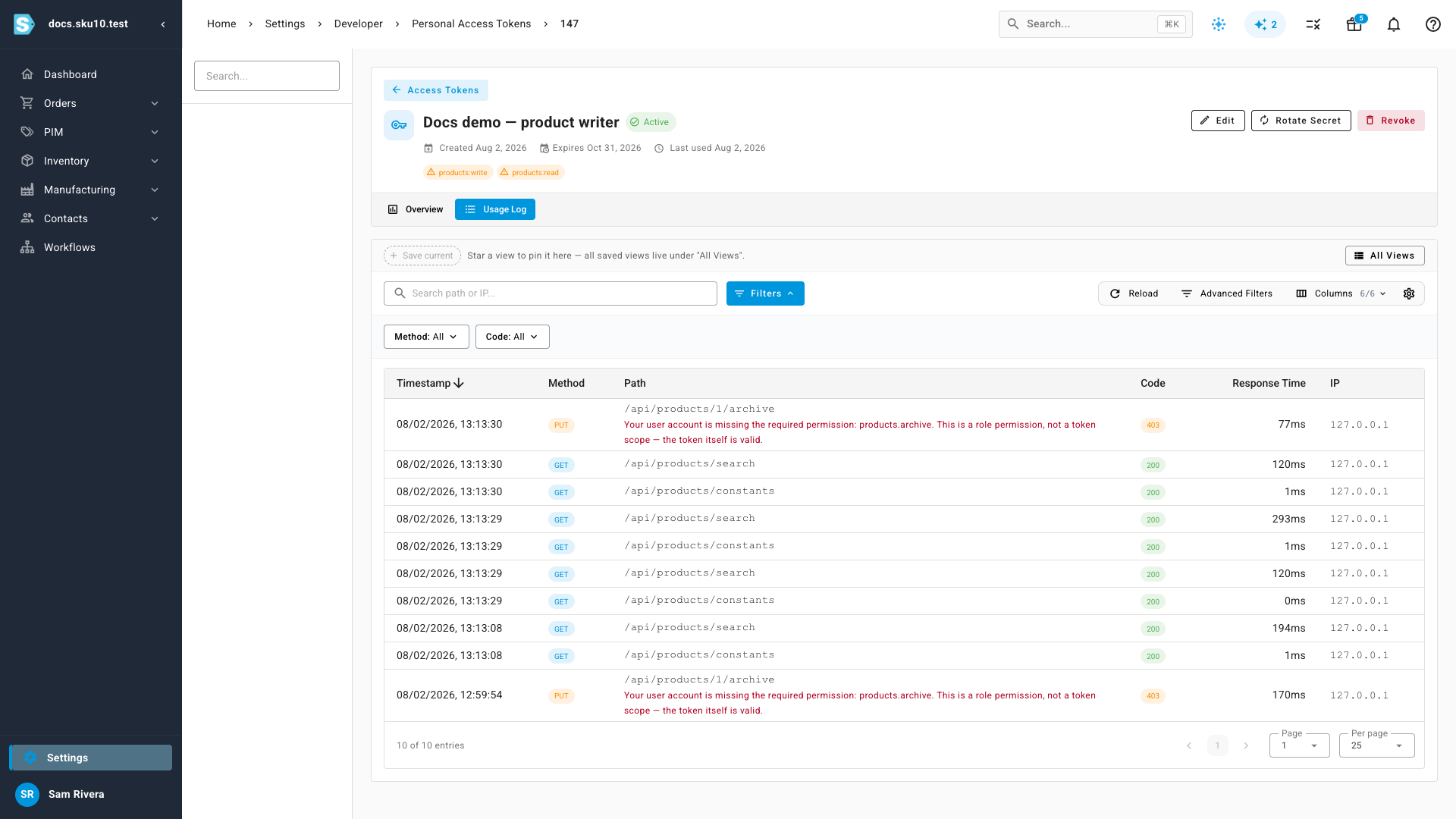
  "message": "Your user account is missing the required permission: products.archive. This is a role permission, not a token scope — the token itself is valid.",
  "error": "insufficient_permission",
  "required_permissions": ["products.archive"]
}
A token acts as the person who created it. Scopes narrow what that person can do through the API; they never widen it. So that request was refused because the token's owner can't archive products in the SKU.io interface either — the token inherited that limit.
required_permissions lists the permission names your role is missing. To fix
it, pick one:
- Have an administrator add those permissions to the token owner's role, then retry. Nothing about the token changes.
- Re-issue the token from an account that already holds the permissions, and point your integration at the new secret.
Deciding between them is a policy call, not a technical one: the first widens what that person can do everywhere in SKU.io, not only through the API.
When the endpoint is closed to tokens
The third shape has no error field, because there's nothing to diagnose:
{
  "message": "This endpoint is not available to API tokens."
}
Some endpoints are closed to API credentials on purpose — creating tokens, listing sessions, revoking connected apps, connecting an AI assistant. A token can never mint or manage another credential. These actions need a signed-in session, so do them in the browser.
Nothing you add to the token changes this answer.
Confirm it in the usage log
You don't need to reproduce the failure to read it. Every API call a token makes is recorded, refusals included.
- Go to Settings → Developer → Personal Access Tokens and open the token.
- Select the Usage Log tab.
Each refused row shows the status, the endpoint, and the error message the caller received — so you can diagnose a 403 someone else's script hit, hours after it happened.
A permission refusal looks different in the same list, and the message says so in words:
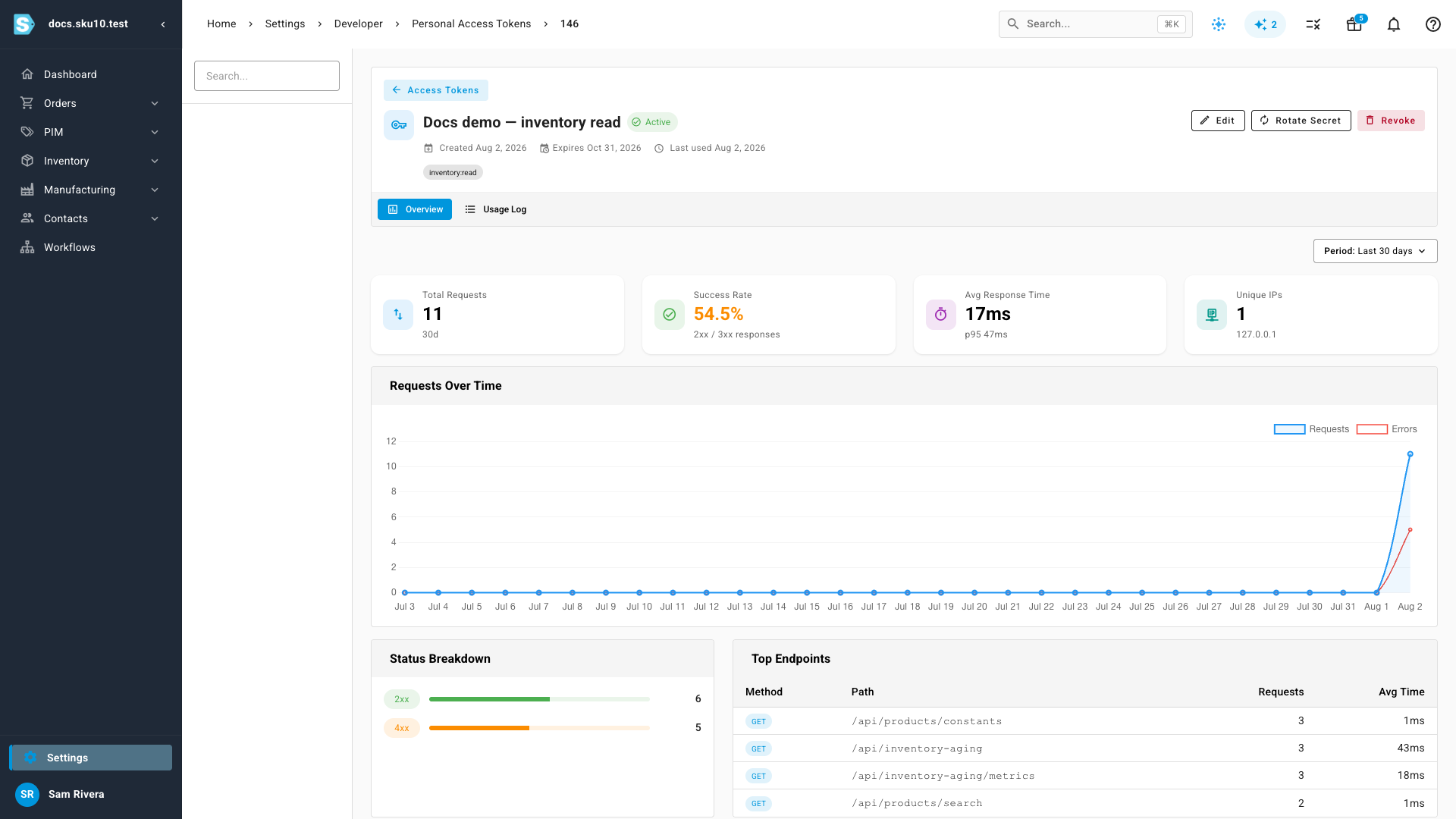
The Overview tab is the faster read when you don't yet know whether something is failing. Success Rate and the Status Breakdown show the 4xx share at a glance, and the chart plots errors against total requests day by day.
Avoid the permission 403 up front
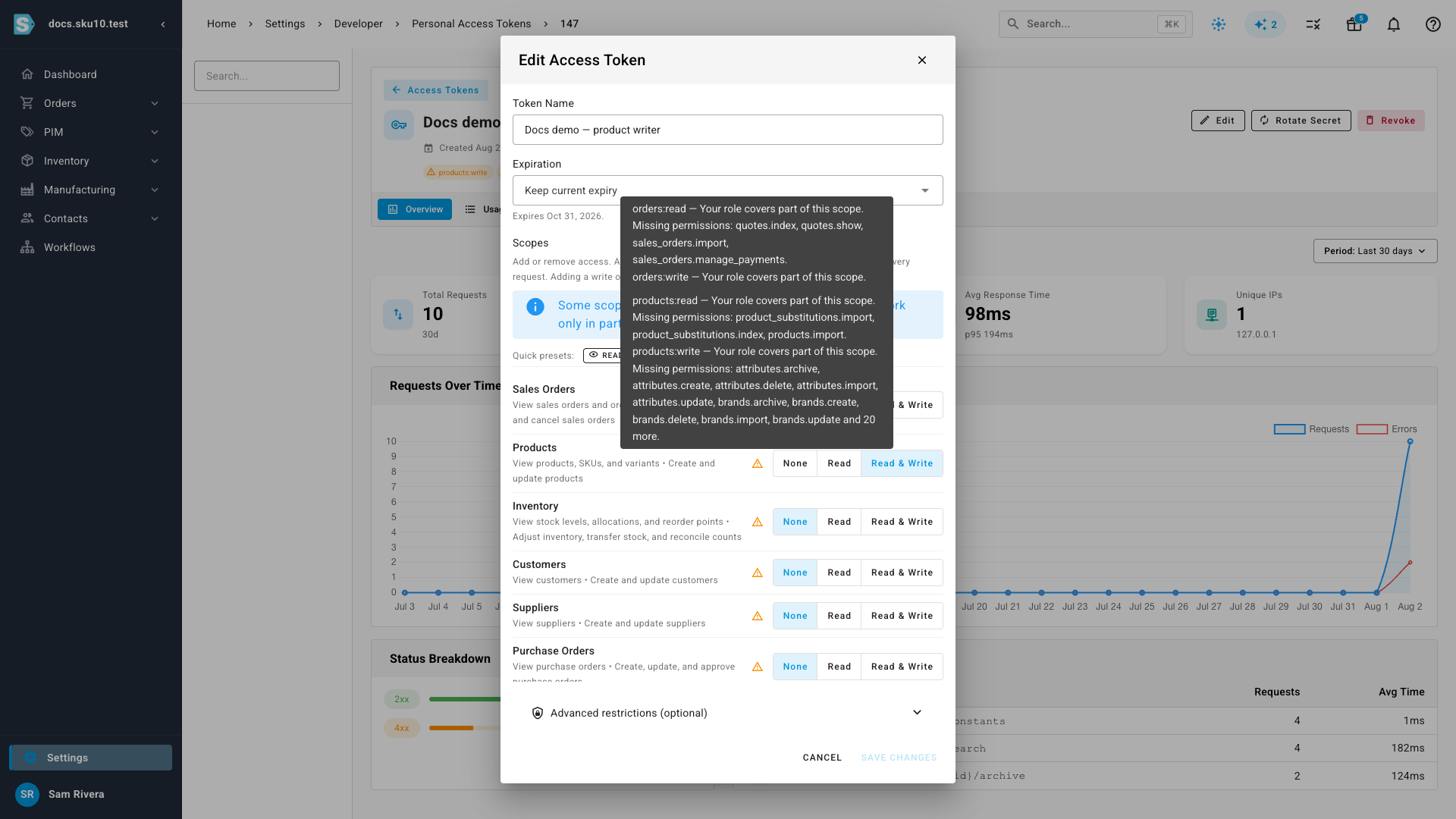
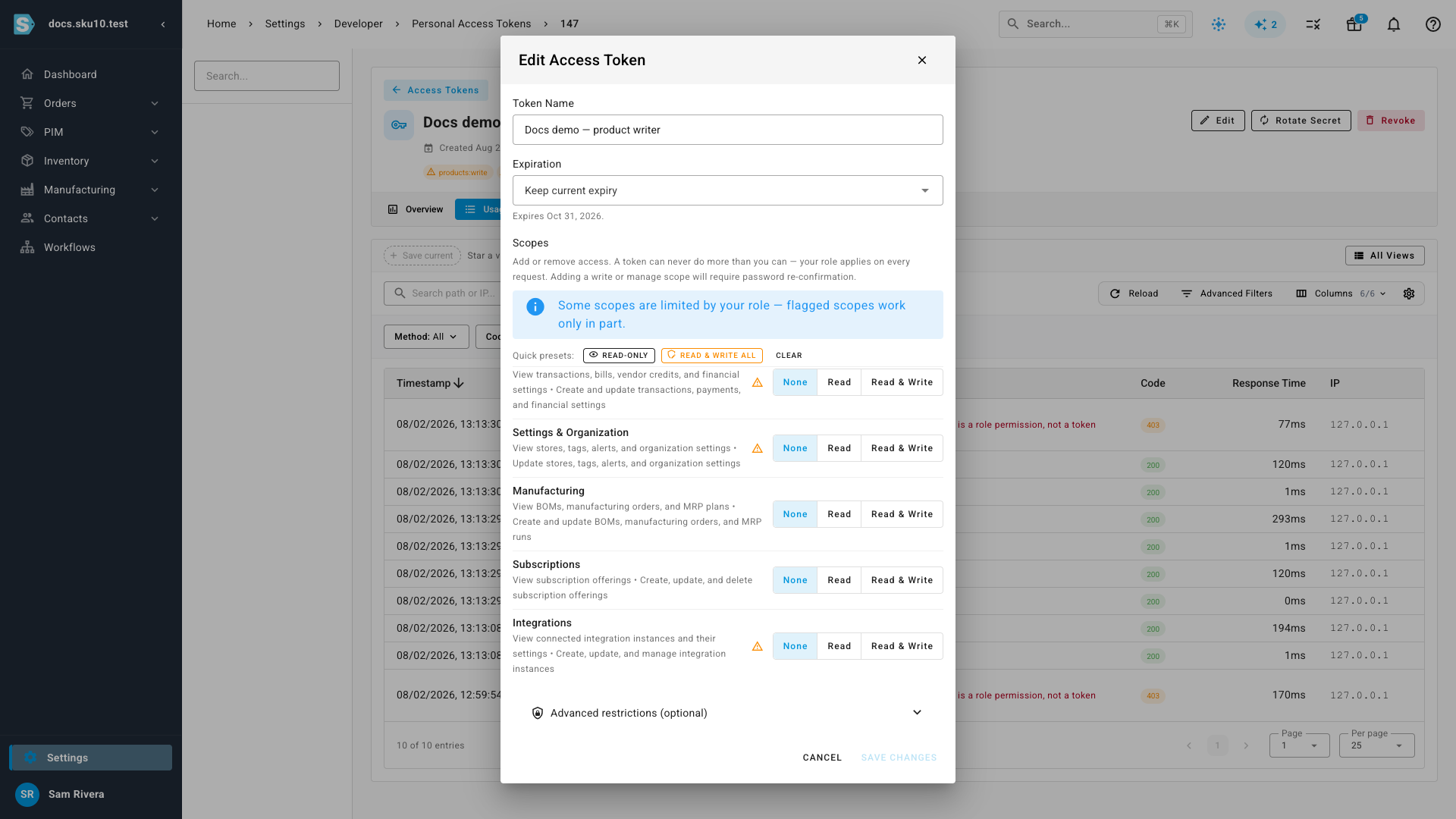
You can see the mismatch before you ever make a call. When you create or edit a token, the scope picker checks each scope against your own role and flags the ones your role can't fully deliver.
A banner appears above the list whenever any scope is affected:
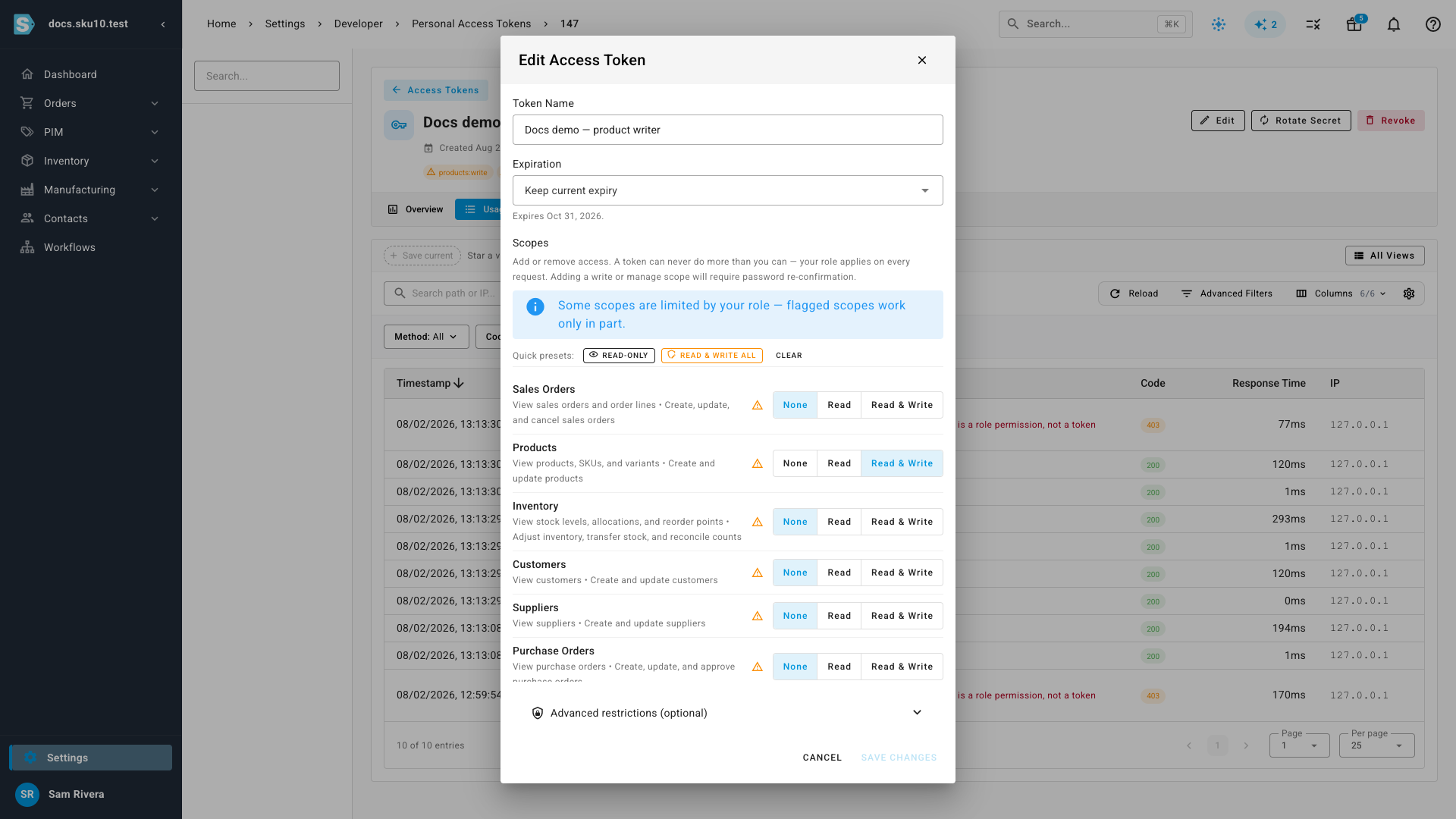
Hover a warning icon and it names the exact permissions your role is missing —
the same names that would come back in required_permissions:
Two things worth knowing about the flags:
- Only affected scopes are flagged. A group with no icon is one your role covers completely — granting it gives the token the full scope.
- A flag is not a blocker. A partly covered scope still works for everything your role does cover. It only refuses the specific actions behind the missing permissions.
Next steps
- API scopes reference — the full scope catalog and the other error codes.
- Manage your personal access tokens — edit scopes, read usage, and revoke.
- Create a personal access token — pick scopes when issuing a new token.