Set up lot and expiration tracking
Food, supplements, cosmetics, chemicals, and anything with a "best by" date need more than a total on-hand number — you need to know which units you hold, when each batch expires, and what's about to go bad. Lot tracking gives every receipt its own batch number, manufacture date, and expiry date, keeps those dates attached to the FIFO layer that carries the stock and its cost, and then consumes the soonest-expiring lot first.
The point of doing this isn't the batch number itself — it's the question a recall asks. Which customers got the bad batch, and which supplier sold us the ingredient? SKU.io can only answer that if the lot survives every hop: receipt → build → shipment. So this guide runs the whole chain end to end.
It turns lot tracking on for a raw material, captures two lots on a purchase-order receipt, and reads them back on the product. Then it tracks the other component and the finished good, builds all three into a manufacturing order, and shows the finished batch inheriting its expiry date from its shortest-lived component. It ships that batch to three customers, traces it backward to the suppliers and forward to those customers, and runs a recall the other way — from a list of sales orders back to the lots behind them. It finishes on the Inventory Expiry & Shelf-Life report, the catalog-wide view of what's expiring and what it's worth.
Before you begin
- You need inventory read-write access, and product edit permission (
products.update) to change a product's tracking settings. - Lot tracking is set per product. Unlike serial tracking, there is no tenant-wide switch to enable first.
- Have an open purchase order for the product you are about to track, so you can capture lots on its receipt. This guide uses PO-DOCS-0004 from Acme Supplies for DOC-COFFEE-1KG — Single-Origin Coffee Beans 1kg.
- Turning tracking on does not retroactively date the stock you already hold. Existing units stay un-lotted and appear under No expiry until you backfill them.
- The manufacturing half of this guide (steps 4–11) needs the Manufacturing module and a bill of materials. If you don't build anything, stop after step 3 and skip to Watch what's expiring — everything in between is about carrying a lot through a build.
Three products and one recipe: DOC-COFFEE-1KG (beans, FEFO, 365-day shelf life), DOC-BOTTLE-1L (glass, tracked but with no shelf life), and DOC-COLDBREW-1L (the finished good, FEFO). The BOM Cold Brew Concentrate — 1L batch turns 0.25 bags of beans and 1 bottle into 1 litre of concentrate.
Steps
1. Turn on lot tracking for the product
-
Open the product, then click the Serial & Lot Tracking tab.
-
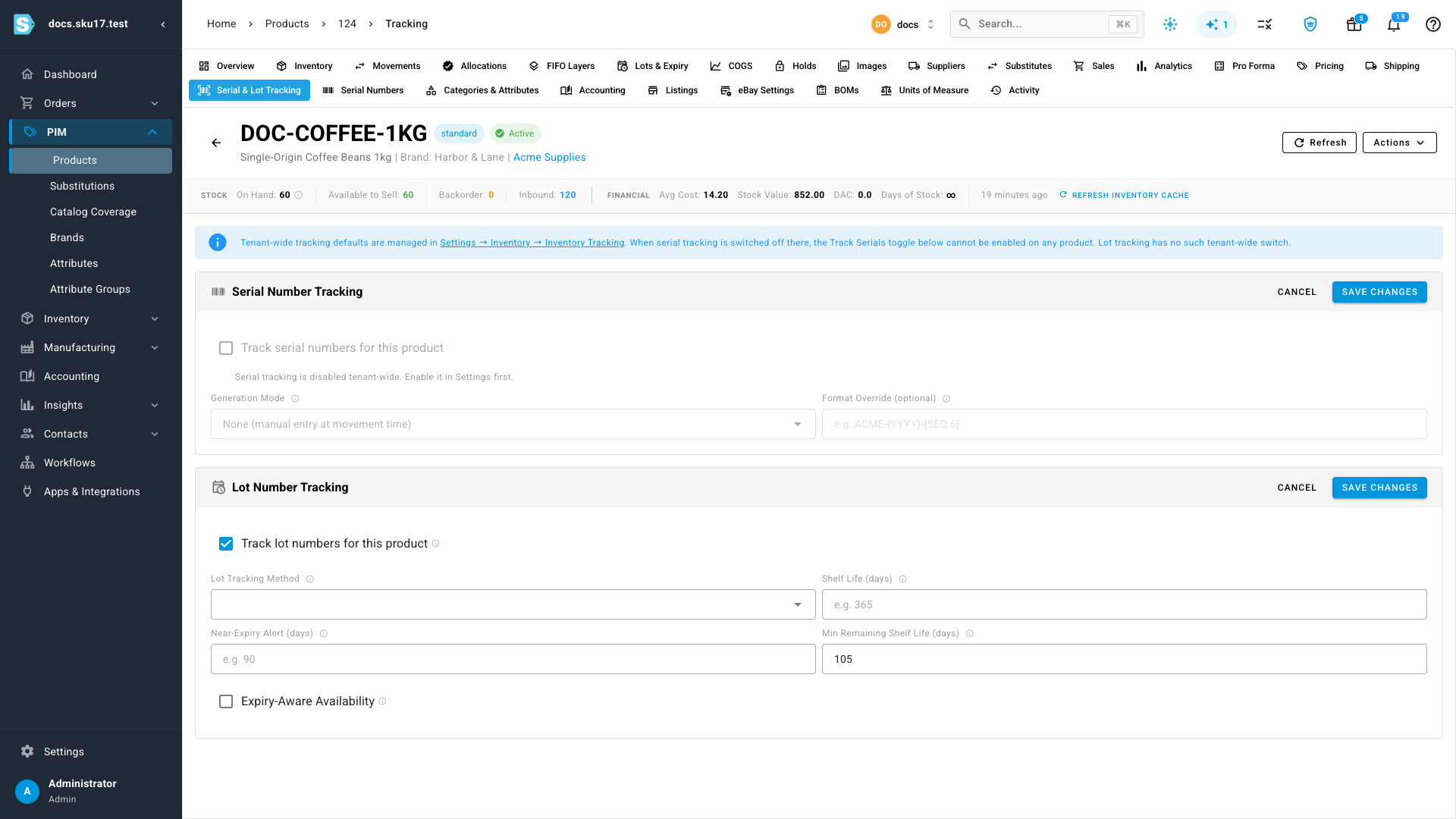
In the Lot Number Tracking card, click Edit. The page enters edit mode, so both the Serial and Lot cards become editable and share one Save Changes.
-
Select Track lot numbers for this product. Five settings appear.
-
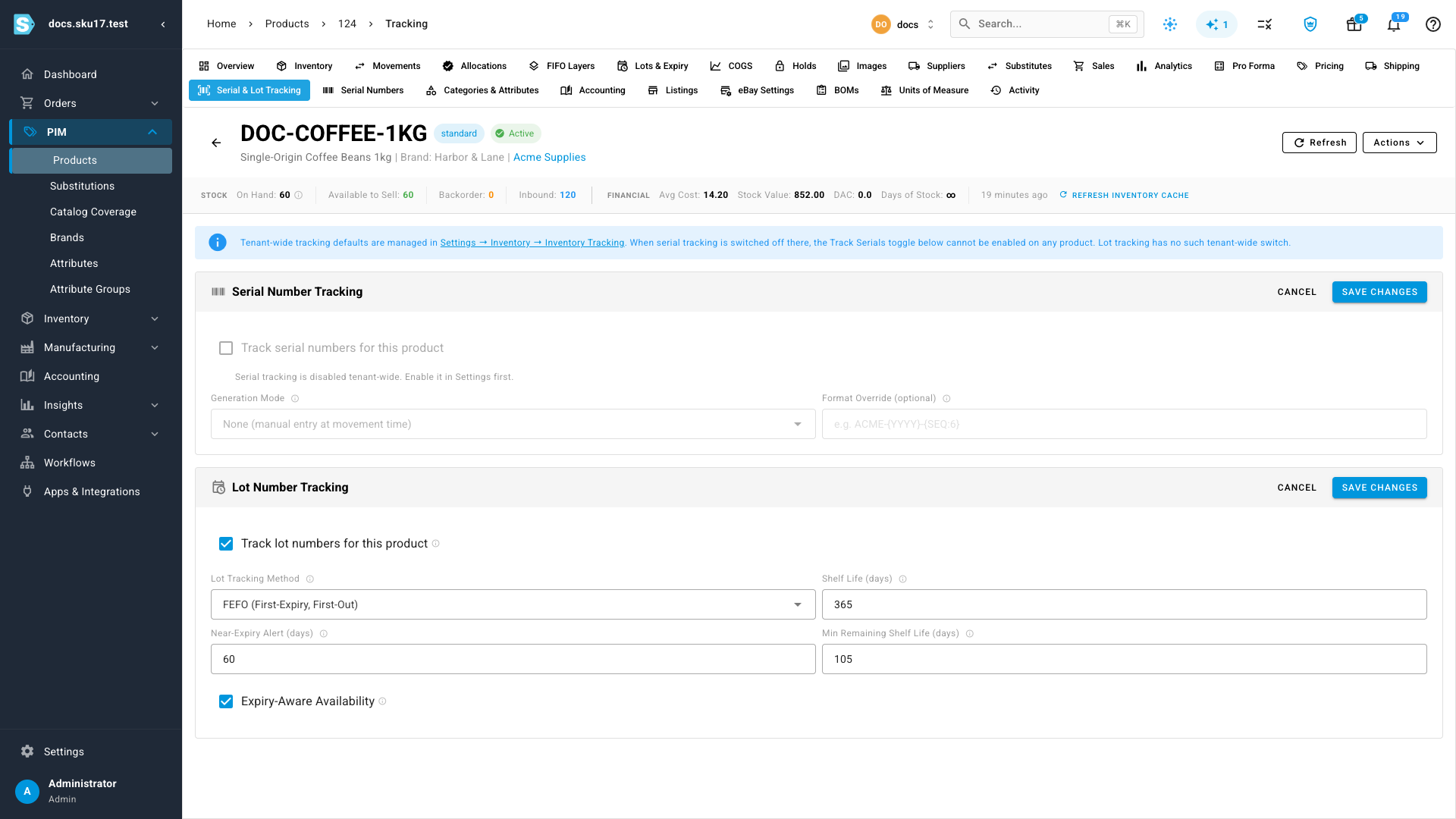
Fill in the settings:
Setting What it does Lot Tracking Method The order stock is consumed in. FIFO (First-In, First-Out) consumes the oldest layer first. FEFO (First-Expiry, First-Out) consumes the lot expiring soonest first, and needs expiry dates. Choose FEFO for anything perishable. Shelf Life (days) Default shelf life used to auto-calculate a lot's expiry date from its manufacture date when no expiry is entered at receipt. Near-Expiry Alert (days) Lots are flagged as near-expiry this many days before their expiry date, so you can sell them through or disposition them in time. Min Remaining Shelf Life (days) The minimum shelf life a lot must retain to be accepted by sales channels — Amazon's rule is 105 days. Lots below this are flagged as non-compliant. Expiry-Aware Availability Excludes stock that expires before it can be replenished (today + lead time) from demand-planning availability. For the coffee, set FEFO, a 365 day shelf life, a 60 day near-expiry alert, 105 days minimum remaining shelf life, and turn on Expiry-Aware Availability.
-
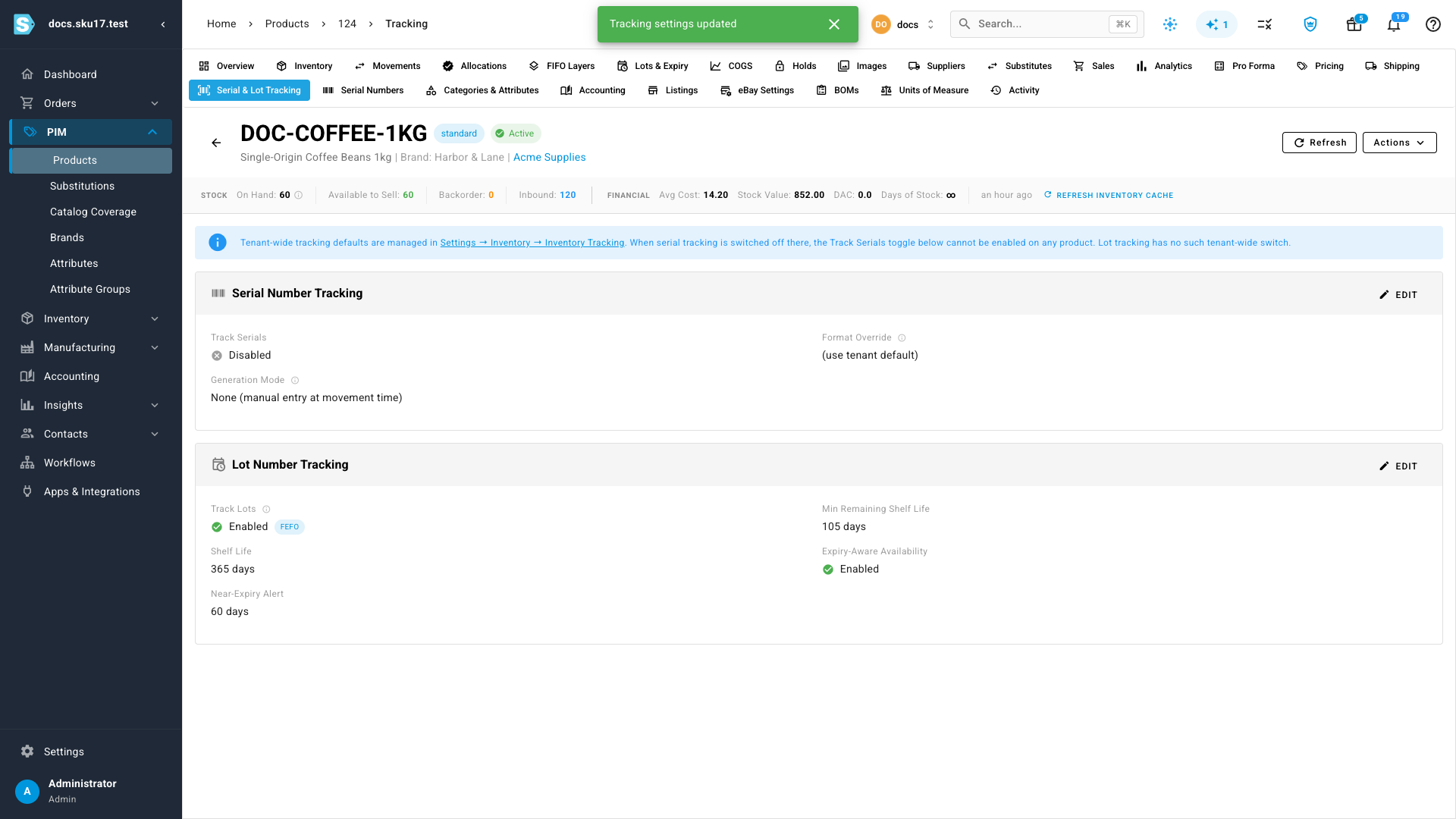
Click Save Changes. The card returns to its read-only view and shows Track Lots: Enabled.
2. Capture lots when the stock arrives
-
Open the purchase order and click Receive.
-
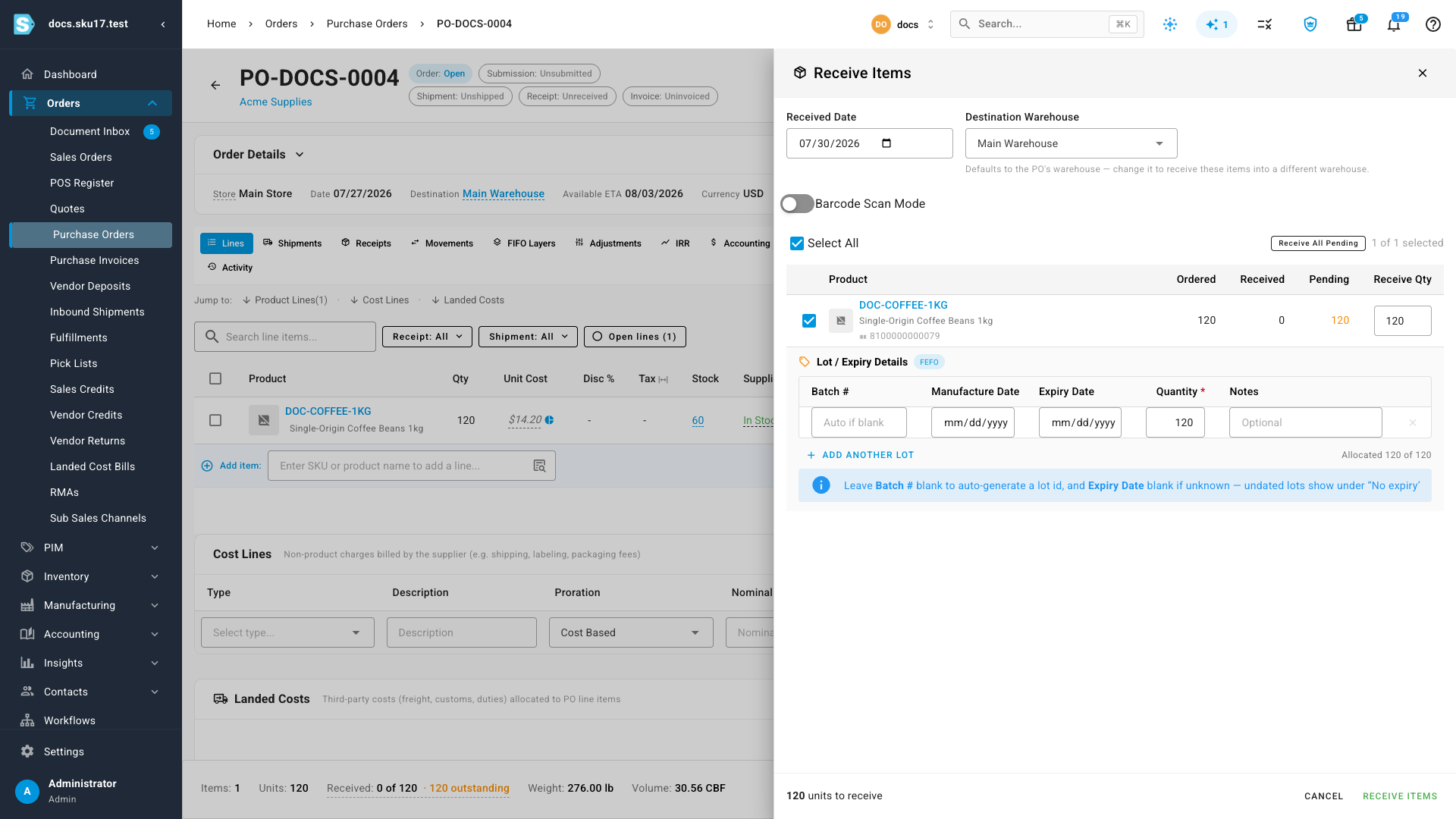
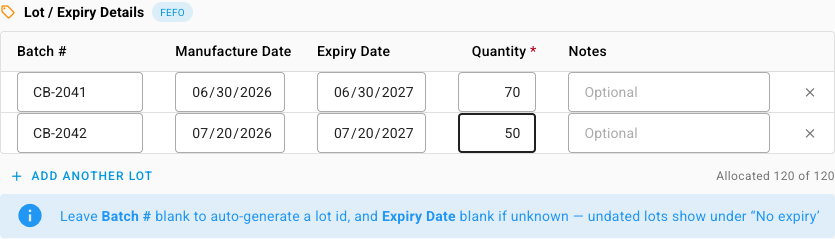
In the Receive Items drawer, a Lot / Expiry Details panel now sits under the line, tagged with the product's tracking method — FEFO here. It's there because the product is lot-tracked; un-tracked products receive exactly as before.
-
Enter the first lot: Batch #
CB-2041, Manufacture Date06/30/2026, Quantity70.The Expiry Date fills in on its own —
06/30/2027, the manufacture date plus the 365-day shelf life you set in step 1. Type over it if the supplier's certificate says something different. -
Click Add another lot and enter the second:
CB-2042, manufacture date07/20/2026, quantity50. -
Check the counter under the table. It reads Allocated 120 of 120 — your lot quantities must add up to the quantity you are receiving.
-
Click Receive Items, then Confirm on the Confirm Receipt dialog.
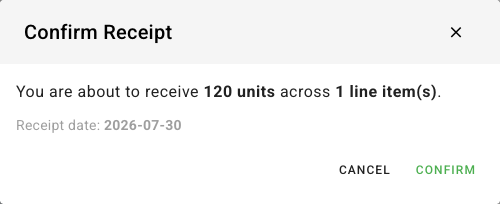
The purchase order flips to Receipt: Received, and SKU.io opens one FIFO layer per lot, each carrying its own batch, dates, quantity, and cost.
Leave Batch # blank and SKU.io generates a lot id for you. Leave Expiry Date blank when it's genuinely unknown — undated lots show under No expiry and are consumed last under FEFO. Quantity is the only required column.
3. Read the product's lots
Open the product's Lots & Expiry tab. Every lot you hold is listed with its Expiry Bucket, Days to Expiry, Mfg Date, remaining Shelf Life as a percentage, Warehouse, Source, quantity, and value.
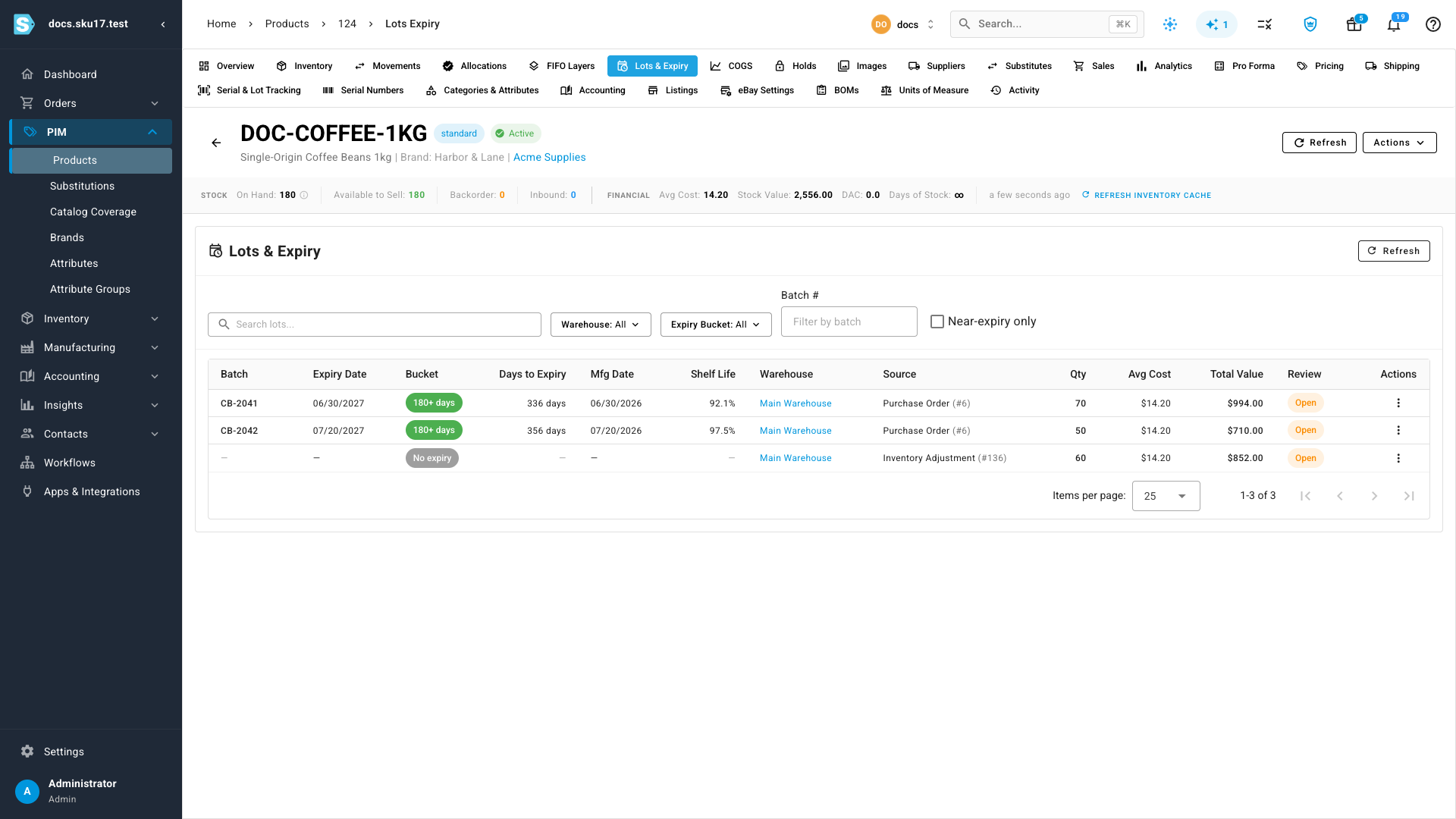
Two things to notice:
- The Source column names what created each lot — Purchase Order (#6) for the two batches you captured, Inventory Adjustment (#136) for stock that arrived another way.
- The 60 units received before tracking was switched on sit under No expiry, with an em dash in every lot column — batch, expiry, days remaining, manufacture date, shelf life. FEFO consumes those last, behind every dated lot. To give them their real dates, backfill them.
Narrow the list with the Search lots… box, the Warehouse and Expiry Bucket filters, Filter by batch, and the Near-expiry only toggle.
Carry lots through manufacturing
Everything so far tracks one product in isolation. Genealogy is what makes tracking worth the effort, and genealogy only sees what you track — an un-tracked component is a hole in the trace that no report can fill in later. So before building anything, turn tracking on for every input and for the finished good.
4. Track the rest of the recipe
- Open the second component — DOC-BOTTLE-1L, the glass bottle — and repeat step 1: Serial & Lot Tracking → Edit → Track lot numbers for this product.
- Leave Shelf Life empty. Glass doesn't go off, so its lots carry a batch number and no expiry date, and the default FIFO method is the right one — there is no expiry to order by.
- Save Changes.
- Do the same for the finished good, DOC-COLDBREW-1L, and set its method to FEFO so the oldest brew ships first.
Tracking is not retroactive. A component received before you switched it on produces un-lotted stock, and a build that consumes that stock records a parent with no batch behind it. Turn tracking on for every input before the first manufacturing order, or the first traces you run will have gaps in them.
5. Receive the second component
The bottles arrive on their own purchase order — PO-DOCS-0005, 500 units from Acme Supplies — and receive exactly like the beans, through the same drawer and the same Lot / Expiry Details panel. One batch this time: GB-7781, no manufacture date, no expiry.
Click Receive Items, then Confirm. A toast reads Receipt started — track progress in the job tray: receipts are queued, so the purchase order header keeps saying Receipt: Unreceived for a few seconds after you confirm. Wait for the job to finish before you build against the stock.
6. Check the bill of materials
Go to Manufacturing → Recipes / BOMs and open Cold Brew Concentrate — 1L batch.
Click the Components tab. The Details tab shows the recipe's identity — version, default flag, status — but none of its contents; the component lines live on Components.
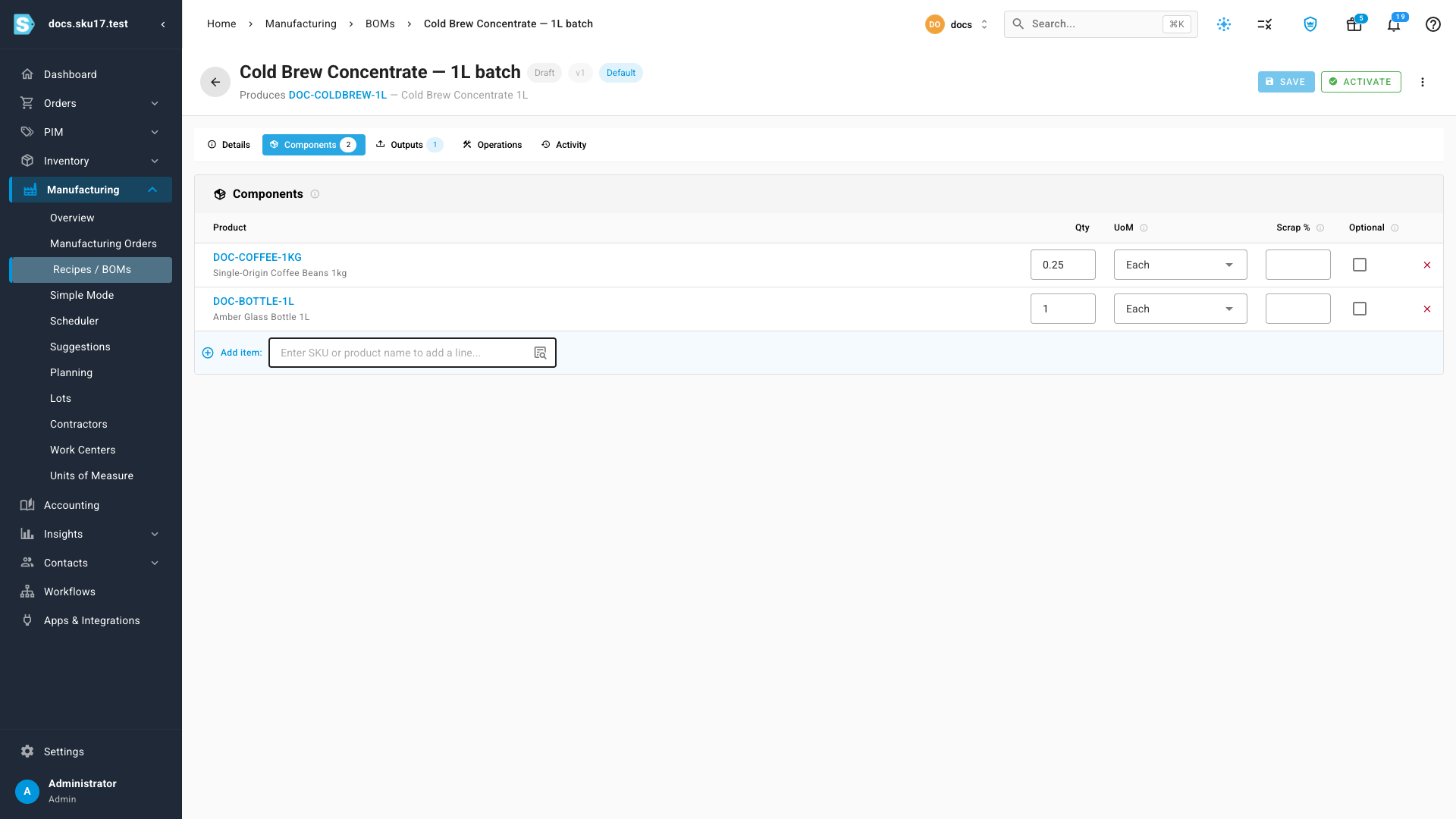
| Component | Qty | UoM |
|---|---|---|
| DOC-COFFEE-1KG — Single-Origin Coffee Beans 1kg | 0.25 | Each |
| DOC-BOTTLE-1L — Amber Glass Bottle 1L | 1 | Each |
Those quantities make one litre of concentrate — a quarter bag of beans and one bottle. The manufacturing order is what scales them: a 120-unit order consumes 30 bags and 120 bottles. Read "1L batch" in the name as the unit of output, not as the size of a production run.
The BOM is in Draft. Click Activate in the header, then Activate again on the Activate BOM? confirmation. A draft BOM never appears in the manufacturing-order product picker, which is the usual reason a product looks like it has no recipe.
7. Create and start the manufacturing order
-
Go to Manufacturing → Manufacturing Orders and click New Manufacturing Order.
-
In Product, search
DOC-COLDBREWand pick DOC-COLDBREW-1L. BOM / Recipe fills itself in with Cold Brew Concentrate — 1L batch (v1) — Default. -
Set Planned Quantity to
120. -
Leave Production Method on In-House — your team makes it, and components are consumed from your own warehouse. Outsourced is for a contract manufacturer: you send them a purchase order for the finished good, and components are consumed when you receive it back.
-
Set Source Warehouse and Destination Warehouse to Main Warehouse.
Both warehouses default to the wrong oneThe dialog pre-fills both selects with your first warehouse, not the one holding the stock. Point them at the warehouse the component lots were actually received into — otherwise Confirm opens Confirm — Component Shortage showing 0 available for every line, even though the stock exists.
-
Click Create Draft. The order is created as MO-000001.
-
Click Confirm, then confirm the dialog. This reserves the component lots against the order.
-
Click Start Production. There is no second prompt once every component is allocated — the confirmation only appears on a shortage.
8. Record production — expiry inherits from the components
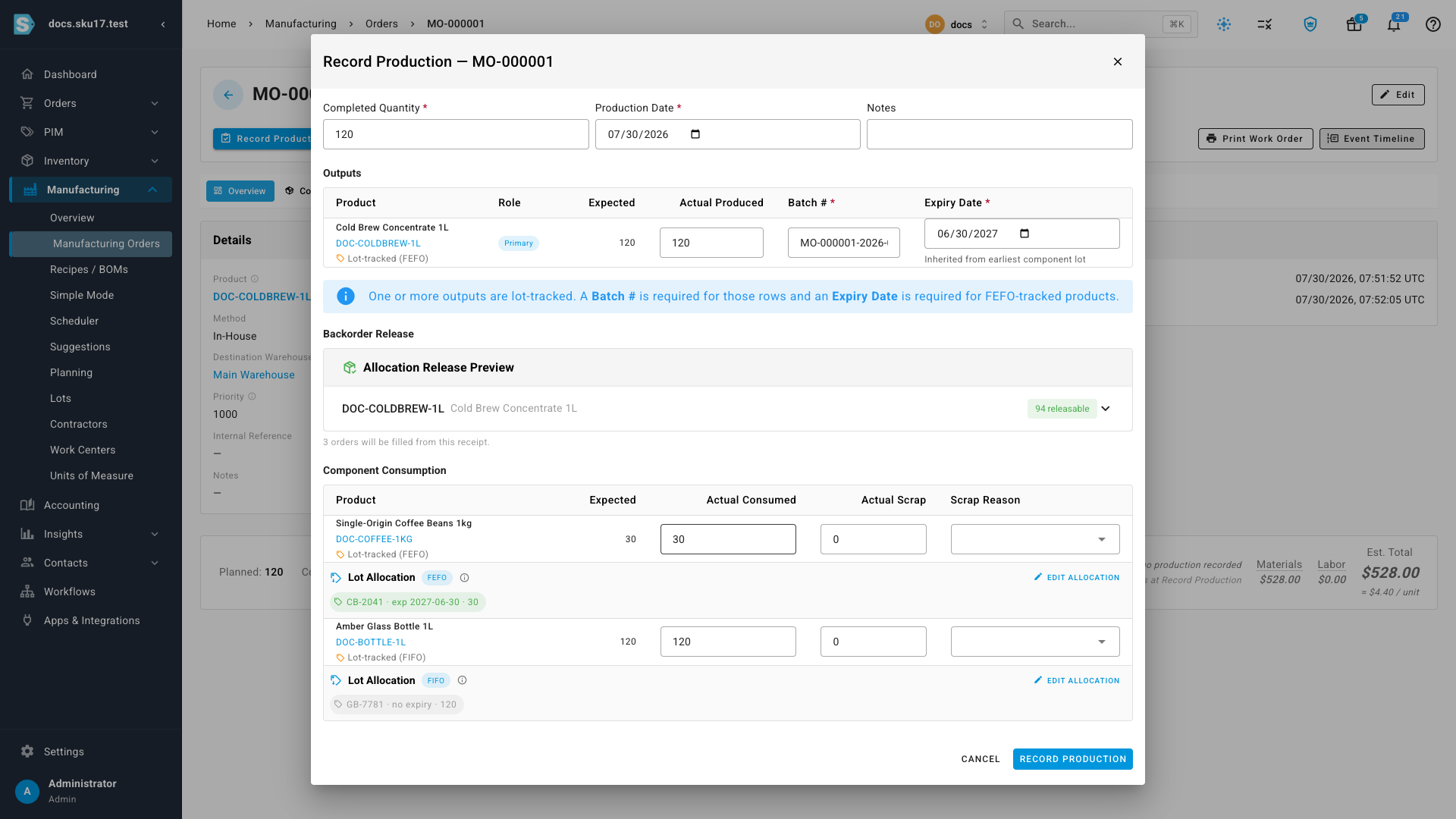
Click Record Production on the started order. This dialog is where the genealogy link is actually written.
-
Completed Quantity is
120. Set the Production Date, and add Notes if you want them on the record. -
A blue banner explains what's required: one or more outputs are lot-tracked, so a Batch # is required for those rows and an Expiry Date is required for FEFO-tracked products.
-
In Outputs, Batch # pre-fills with an auto-generated id (
MO-000001-2026-…). Type over it to give the finished batch a number your team will recognise —CB-BREW-01. Expiry Date is already filled in at06/30/2027, captioned Inherited from earliest component lot.Earliest, not latestThe inherited date comes from the shortest-lived lot going in, not the longest. A batch is only as good as the fastest-expiring thing inside it, so a finished good can never outlive its own ingredients. Type over the date if a lab result says otherwise.
-
Component Consumption shows what's being taken and, under each line, the lot it's coming from — picked automatically by each component's own tracking method:
Component Allocation Lot DOC-COFFEE-1KG FEFO CB-2041· exp 2027-06-30 · 30DOC-BOTTLE-1L FIFO GB-7781· no expiry · 120The beans come from the soonest-expiring bean lot because the beans are FEFO; the bottles come from the oldest bottle layer because glass has no expiry to sort by. Edit Allocation on either line overrides the pick — useful when a physical pick didn't match the system's choice.
-
If backorders are waiting on this product, Backorder Release previews what the finished stock will free up — here, 94 releasable, 3 orders will be filled from this receipt.
-
Click Record Production. The finished lot now exists with its parent lots already on file.
9. Ship the finished lot
Fulfil a sales order for the finished good and the lot follows the stock out the door.
On SO-DOCS-0011, click Fulfill. In Fulfill Items from Main Warehouse, the line for DOC-COLDBREW-1L carries a Lot Allocation row underneath it:
Lot Allocation
FEFO— CB-BREW-01 · exp 2027-06-30 · 40 Edit Allocation
FEFO already chose the batch, so the person packing the box never has to decide which one to pull. Edit Allocation is there for the case where they pulled something else. Click Fulfill; the order closes at 40 of 40 units shipped, and the shipment carries the batch number.
The other two orders — SO-DOCS-0012 (30 units) and SO-DOCS-0013 (24) — ship exactly the same way.
Trace and recall
10. Trace a lot backward and forward
Go to Manufacturing → Lots → Genealogy. Leave Trace by on Batch Number and pick CB-BREW-01.
The two directions answer the two questions a recall asks.
Backward — what went into it. Every component lot consumed by the build, with its supplier, its batch number, the purchase order it arrived on, and the quantity consumed:
| Batch / Lot | Product | Supplier | Source | Qty |
|---|---|---|---|---|
CB-2041 | DOC-COFFEE-1KG | Acme Supplies | PO-DOCS-0004 | 30 |
GB-7781 | DOC-BOTTLE-1L | Acme Supplies | PO-DOCS-0005 | 120 |
That is the "which supplier sold us the bad ingredient" answer, and it is the reason step 4 insisted on tracking every component.
Forward — where it went. Switch Direction to Forward and the same batch runs the other way, into the three sales orders it shipped on. The Affected Customers card is the recall list:
These customers received units of batch CB-BREW-01 — 3 customers, 3 orders, 94 total units shipped
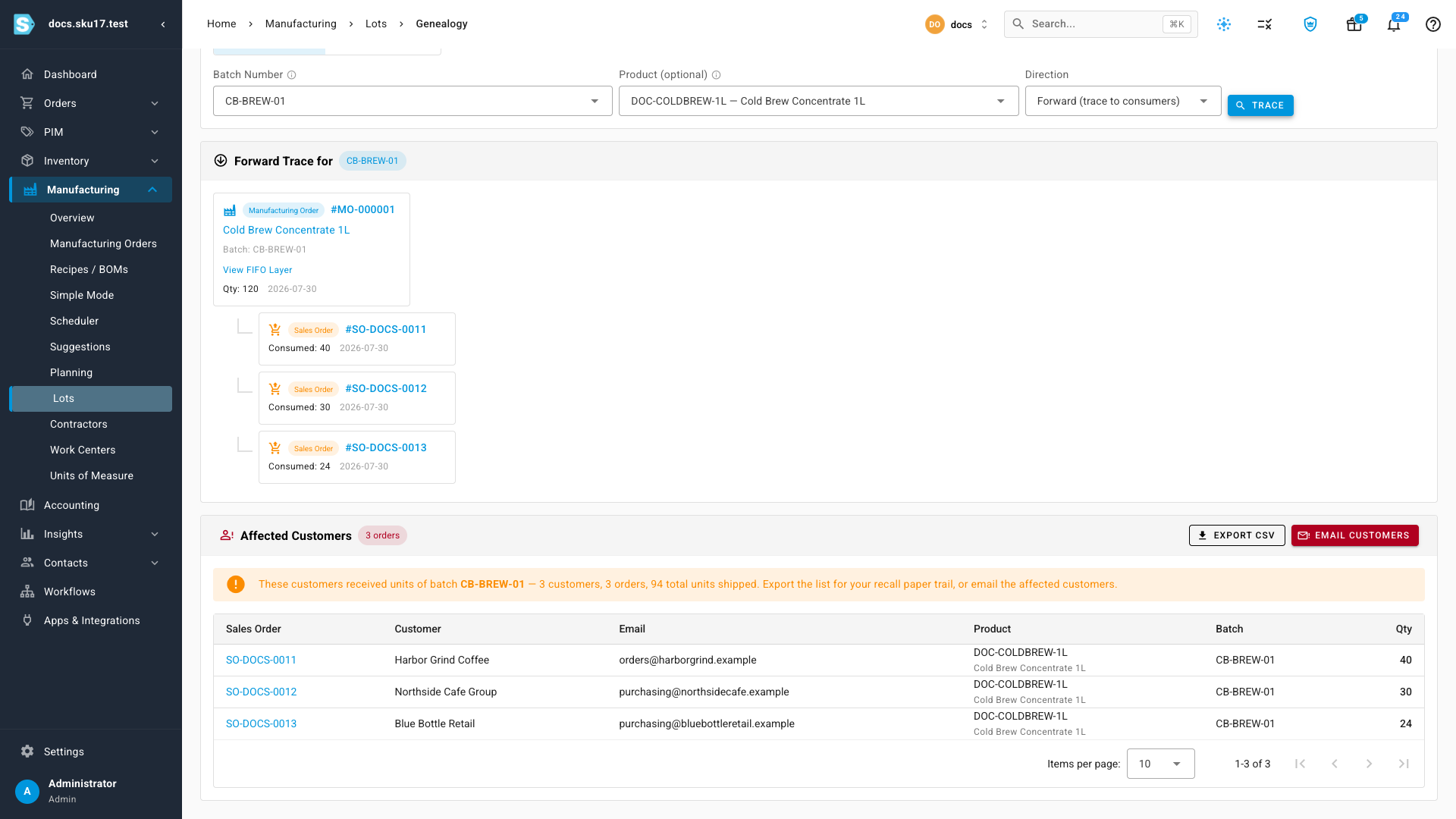
Export CSV takes the list out for your recall paper trail. Email Customers opens a bulk send to everyone on it — check the list before you use it.
11. Recall by sales order
The trace also runs from the other end, which is the direction a real complaint arrives from: a customer calls, you know the order number, you do not yet know which lot is at fault.
- Switch Trace by to Sales Order(s).
- Click Bulk Add / Import and paste the order numbers, one per line —
SO-DOCS-0011,SO-DOCS-0012,SO-DOCS-0013. The autocomplete doesn't refocus between picks, so bulk add is the fast path for more than one. - Click Trace.
SKU.io runs a backward trace on every order and merges the answers.
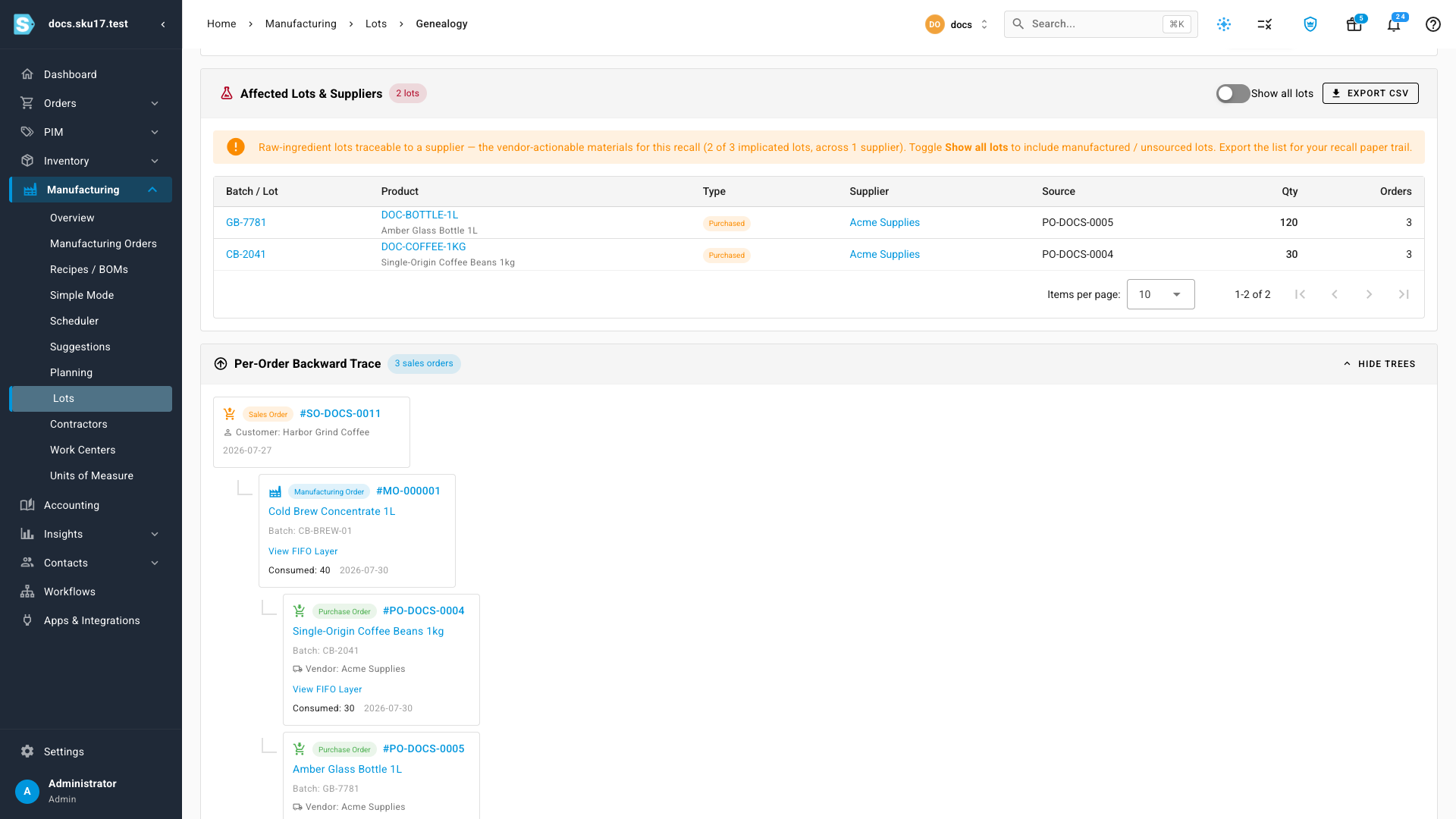
Affected Lots & Suppliers lists the raw-ingredient lots behind that batch of shipments — the vendor-actionable ones. Here both lots trace back to the same vendor:
| Batch / Lot | Product | Type | Supplier | Source | Qty | Orders |
|---|---|---|---|---|---|---|
GB-7781 | DOC-BOTTLE-1L | Purchased | Acme Supplies | PO-DOCS-0005 | 120 | 3 |
CB-2041 | DOC-COFFEE-1KG | Purchased | Acme Supplies | PO-DOCS-0004 | 30 | 3 |
The card counts what it filtered — 2 of 3 implicated lots, across 1 supplier. The third is the manufactured lot CB-BREW-01, which has no supplier to call; toggle Show all lots to include manufactured and unsourced lots in the table.
Below it, Per-Order Backward Trace draws one tree per order: sales order → manufacturing order → the component lots and their purchase orders, with the quantity consumed at each hop.
You don't have to come to this page first. Filter the Sales Orders list down to the orders you care about, select them, and choose Trace Genealogy (Backward) from the bulk-actions menu — it lands here with the orders already loaded.
Watch what's expiring across the catalog
Go to Insights → Inventory Expiry & Shelf-Life for every lot-tracked product at once.
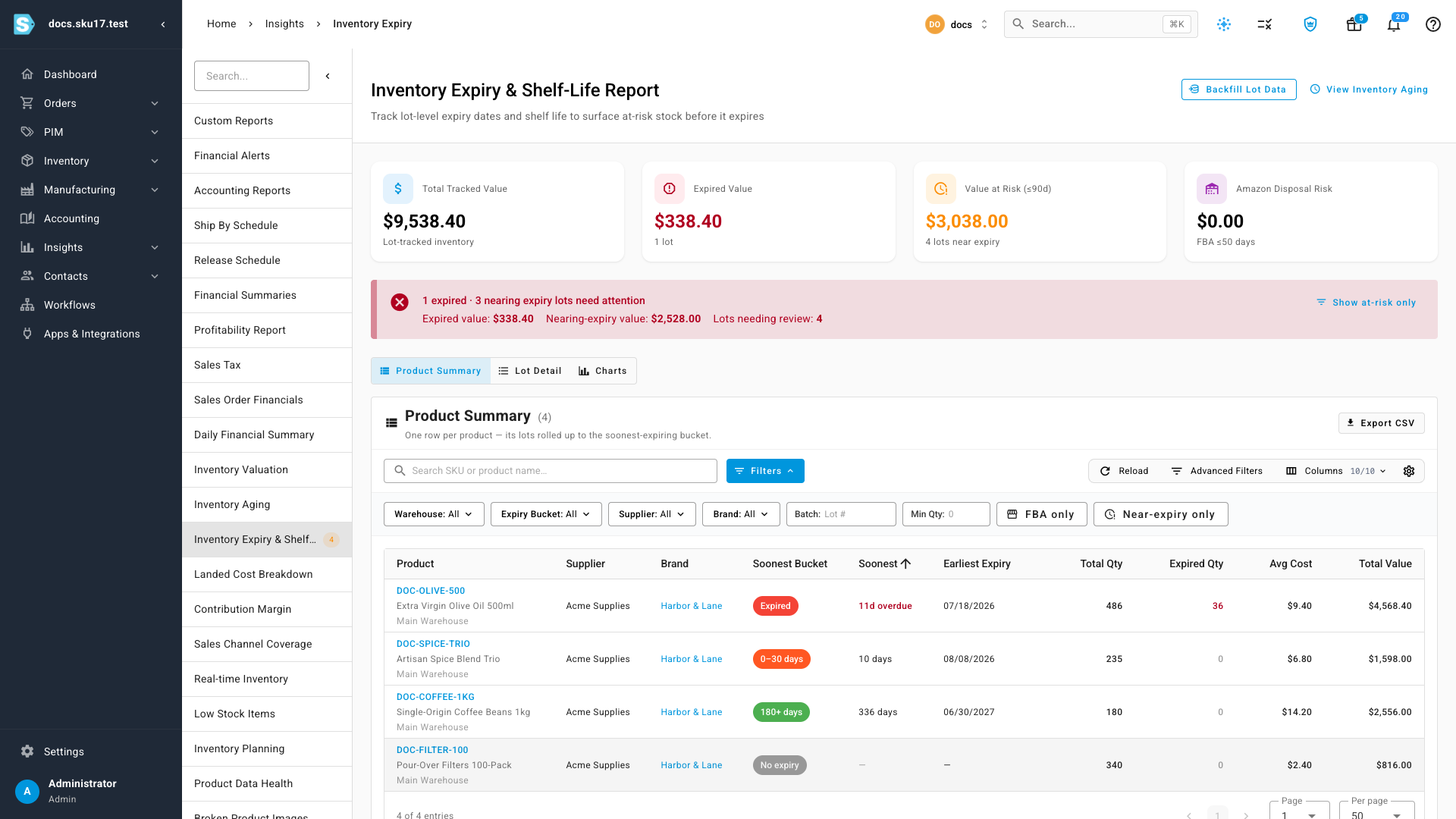
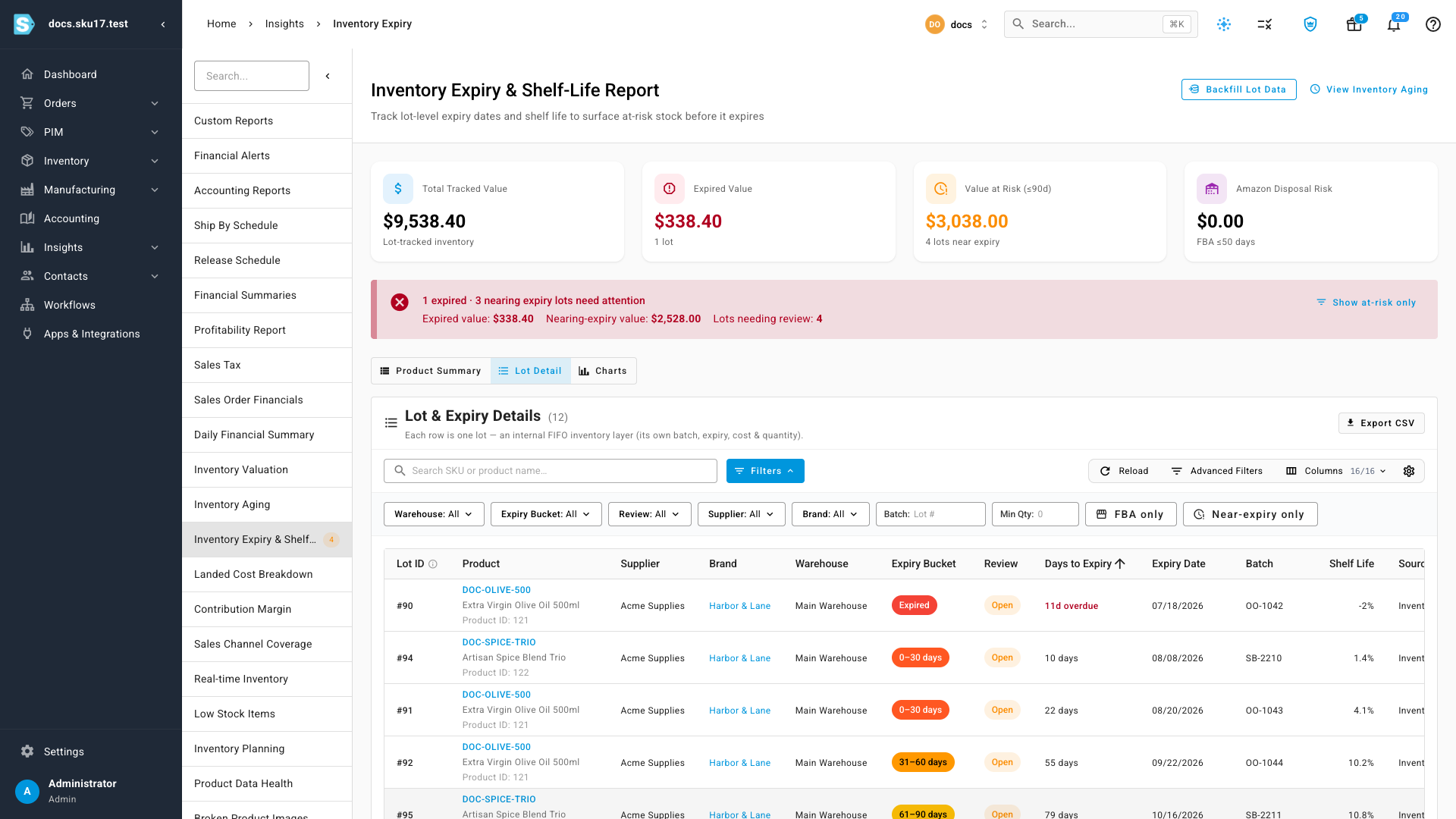
Four cards run across the top:
| Card | Shows |
|---|---|
| Total Tracked Value | Cost value of all lot-tracked inventory. |
| Expired Value | Value already past its expiry date, and the lot count. |
| Value at Risk (≤90d) | Value in lots expiring within 90 days. |
| Amazon Disposal Risk | Value in FBA lots expiring within 50 days — Amazon's auto-disposal window. |
Below them, a red banner counts what needs attention (1 expired · 3 nearing expiry lots need attention) and Show at-risk only filters the tables to exactly those lots.
Three views sit under the banner:
-
Product Summary — one row per product, its lots rolled up to the soonest-expiring bucket, with Earliest Expiry, Total Qty, and Expired Qty.
-
Lot Detail — one row per lot, with its Review state, days to expiry, batch, source, and value.
-
Charts — Inventory Distribution by Expiry (quantity per bucket) and Value by Expiry Bucket.
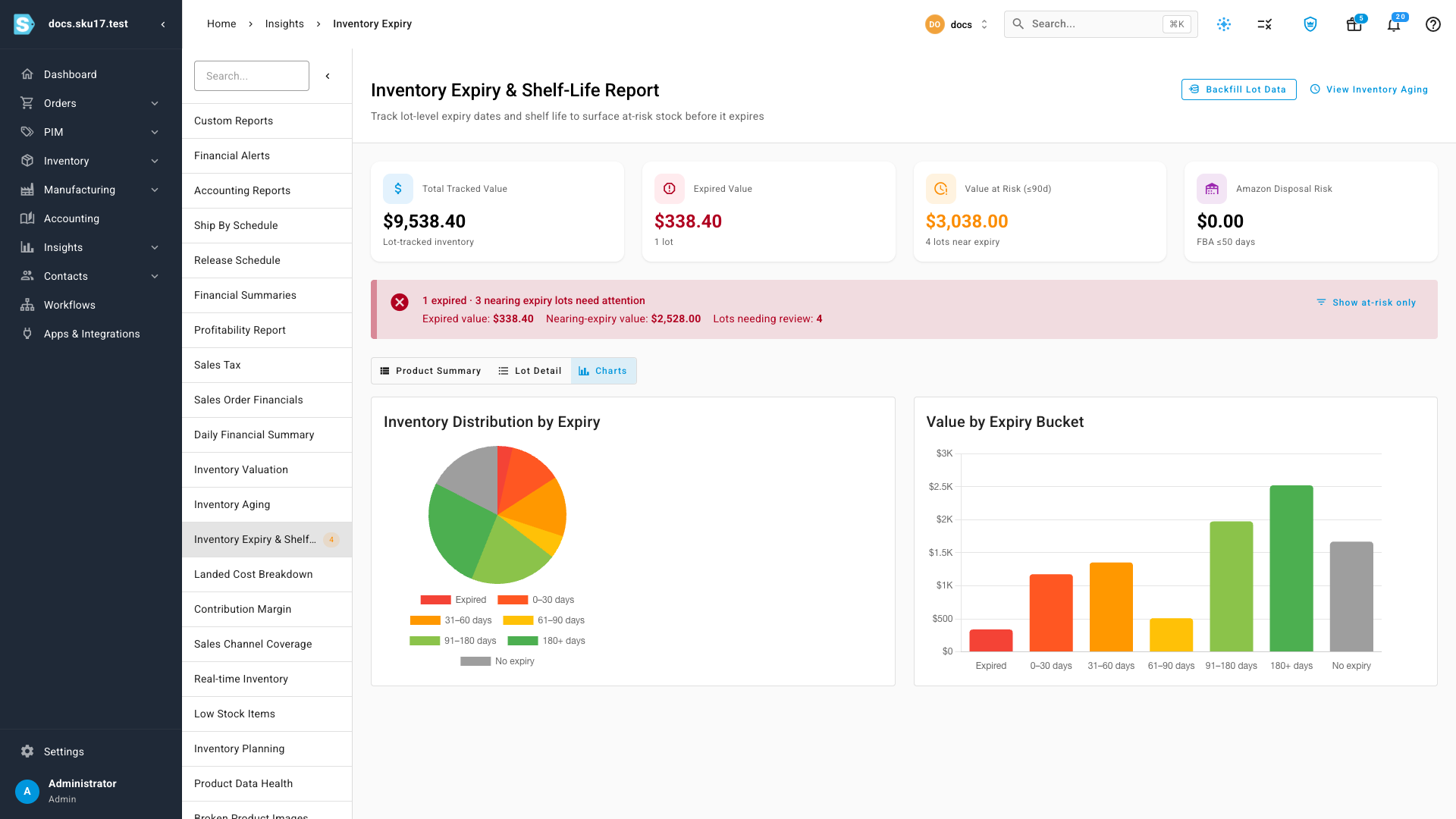
Both tables share the same filters — Warehouse, Expiry Bucket, Supplier, Brand, Batch, Min Qty, FBA only, Near-expiry only — plus Export CSV and a column picker. Lots fall into seven buckets: Expired, 0–30 days, 31–60 days, 61–90 days, 91–180 days, 180+ days, and No expiry.
Every lot carries a Review state, starting at Open. The row's action menu moves it on:
| Action | Result |
|---|---|
| Acknowledge | You have reviewed the lot and accepted it. No stock movement; the lot stays sellable. |
| Quarantine | Moves the lot to a non-sellable condition — out of available-to-promise, with no stock movement. Reversible. |
| Write Off | Writes the remaining quantity off with a decrease adjustment, reason expired. |
Backfill lots on stock you already have
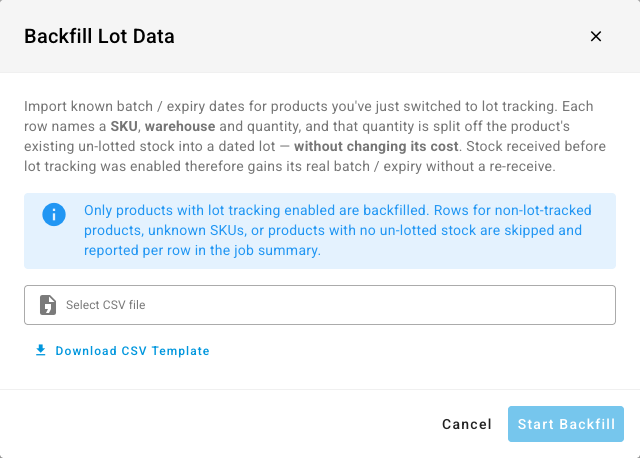
Switching tracking on doesn't date the units already sitting in your warehouse. If you know their real batches and expiry dates, the Backfill Lot Data import splits that quantity off the existing un-lotted stock into dated lots — without changing its cost, and without re-receiving anything.
-
On the Inventory Expiry & Shelf-Life report, click Backfill Lot Data.
-
Click Download CSV Template to start from the exact header layout (
lot-data-backfill-template.csv). -
Fill in one row per lot:
Column Required Format Notes skuYes Text Must match an existing product's SKU exactly. Rows with an unknown SKU are skipped. warehouseYes Text or number Warehouse name or numeric id. Supplier warehouses are never matched — they hold no FIFO stock. batchOne of batch/expiry_dateText The lot id to stamp on. Blank is allowed if you supply an expiry date. manufacture_dateNo Any parseable date, normalized to YYYY-MM-DDAlso accepted as manufactureormfg. A date SKU.io can't read becomes empty rather than failing the row.expiry_dateOne of batch/expiry_dateAny parseable date, normalized to YYYY-MM-DDAlso accepted as expiry.quantityYes Number, greater than 0 Also accepted as qty. Commas are stripped, so1,200works.Headers are matched case-insensitively and extra whitespace is trimmed. Dates are date-only values in your app timezone — no conversion is applied.
-
Select the CSV. The dialog previews the first rows and the total row count. The file must be a
.csvno larger than 10 MB. -
Click Start Backfill. The import runs in the background and reports into the job tray.
How rows are matched. For each row, SKU.io walks that product's un-lotted available FIFO layers in that warehouse, oldest first, and carves the requested quantity into a new dated lot at the layer's own cost. Nothing is created from nothing — the quantity has to already exist as undated stock.
Per-row outcomes, reported in the job summary:
| Status | Means |
|---|---|
| Assigned | The full requested quantity was stamped onto the lot. |
| Partial | Only part of it was — less un-lotted stock was available than you asked for. |
| Skipped | The row couldn't be applied: missing SKU, unknown SKU, product not lot-tracked, no matching stock warehouse, neither a batch nor an expiry date, quantity of zero or less, or no un-lotted stock left at that warehouse. |
| Failed | An unexpected error hit while writing the lot. |
One bad row never aborts the import — every row is judged on its own and reported by line number, so you can fix and re-upload the rows that didn't land.
Next steps
- FIFO layers & how COGS is realized — what a lot actually is underneath, and how its cost flows to COGS.
- Browse & manage FIFO layers — inspect, filter, and maintain the layers your lots live on.
- Create a recipe (BOM) — the components, outputs, scrap and operations behind step 6.
- Build with a manufacturing order — the full order lifecycle that steps 7 and 8 walk the lot-tracking slice of.
- Manufacture with a contract manufacturer — the same lots followed out to a co-packer's site and back, with genealogy across the transfer.
- Adjust stock — the other way lot-tracked stock enters, when it doesn't arrive on a purchase order.
- Forecast and replenish stock — where Expiry-Aware Availability changes what counts as available.
Video transcript
Where lot tracking lives — Lot and expiration tracking starts on the product. Open the product and click Serial and Lot Tracking. Tracking is set per product. There is no tenant-wide switch to flip first. This coffee is not tracked yet, so every unit on hand is just a number with no batch behind it.
Turn on lot tracking — Click Edit, then tick Track lot numbers for this product. Five settings appear. Lot Tracking Method sets the order stock is consumed in. With FEFO, first expired first out, the lot expiring soonest always goes first. Shelf Life in days calculates an expiry date for you from the manufacture date. Near-Expiry Alert flags a lot this many days before it expires. Min Remaining Shelf Life is your channel compliance floor. Expiry-Aware Availability hides stock too old to sell. Save the changes.
Capture lots at receipt — Now capture lots when the stock arrives. Open the purchase order and click Receive. Because the product is tracked, a Lot & Expiry Details panel appears. Enter the batch number and the manufacture date. The expiry date fills in automatically from the shelf life you set. One shipment can carry more than one batch. Click Add another lot and enter the second one. The allocated total has to match the quantity you are receiving. Then click Receive Items and confirm.
Read the product's lots — Back on the product, the Lots & Expiry tab lists every lot you hold. Each row carries its batch, its expiry date, a color-coded bucket, the days remaining, and the percent of shelf life left. The third row is stock received before tracking was on. It has no batch and no date, so those cells stay blank. Undated lots are consumed last under FEFO.
Track the rest of the recipe — Genealogy only sees what you track, so turn it on for the rest of the recipe. The bottle gets lot tracking with no shelf life. Glass does not expire, so its lots carry a batch number and no date. The finished good needs a lot of its own as well. Same tab, same checkbox, and FEFO again so the oldest brew ships first.
Receive the second component — The bottles arrive on their own purchase order. Same drawer, same panel, one batch this time. Receive it. The receipt runs in the background, and every bottle ends up under a named batch that genealogy can trace back to the supplier.
Build with tracked components — Tracked components flow into what you build. Open Components. The recipe is written per unit: one litre of cold brew takes a quarter bag of beans and one bottle. A manufacturing order multiplies that up. Activate it, and confirm. Now create a manufacturing order. Pick the product, and the recipe fills itself in. Set the quantity to 120. Point both warehouses at Main Warehouse, where the components are stocked. Create the draft, then confirm it, which reserves the component lots. Start it, and the order is on the floor.
Inherit expiry from components — Record Production is where inheritance happens. The component lots are picked for you, in the order your tracking method dictates, so the beans expiring soonest go first. Give the finished batch its own number. Its expiry date is inherited from the earliest component lot, not the latest. A batch is only as good as the shortest-lived thing inside it. Record it, and the finished lot exists with its parents already on file.
Ship the finished lot — Three wholesale orders are waiting on this batch. Fulfill the first one. The dialog already knows which lot is shipping. FEFO picked the batch you just made, and Edit Allocation is there if you ever want to override it. The person packing the box never has to decide. The other two orders ship exactly the same way.
Trace a lot backward and forward — Genealogy answers the two questions a recall asks. Open Manufacturing, Lots, Genealogy, and pick the batch. Backward tells you what went into it: every component lot, its supplier, its batch number, and how much was consumed. Switch to Forward and it runs the other way. This batch became these three sales orders. The Affected Customers card is your recall list: three customers, three orders, ninety-four units shipped. Export it to CSV, or mail every affected customer straight from here.
Recall by sales order — You can also start from the orders. Switch the mode to Sales Orders, bulk-add the order numbers, and trace. This runs a backward trace on every order at once and merges the answers. Here are the raw-ingredient lots behind that batch of shipments. Two lots, and both trace back to the same vendor. That is the view you want when a customer complains and you do not yet know which lot is at fault.
Watch what's expiring — Finally, the fleet-wide view. Inventory Expiry & Shelf-Life covers every tracked product. The cards total the value you are tracking, the value already expired, and the value at risk in the next ninety days. The red banner counts the lots that need a decision. Product Summary rolls each product up to its soonest bucket. Lot Detail lists every individual lot. Every lot carries actions: acknowledge it, quarantine part of it, or write it off. Catch the stock while you can still sell it.