Manage personal access tokens
Once a token is live, everything you need to look after it sits on one page: what it can do, where it's being used from, when it stops working, and how to replace its secret without standing up a second token. This guide walks the whole lifecycle — edit, rotate, watch, revoke.
Before you begin
- You manage only your own tokens. Nothing in SKU.io lists another user's tokens — there is no administrator view of them.
- Rotate is the answer to most token problems. It issues a new secret while keeping the token's id, name, scopes, restrictions, and usage history, so you never have to re-point an integration at a different token.
- Some actions ask for a second factor or your password again. Have your authenticator or password to hand.
- The screenshots below come from a demonstration account seeded with sample tokens and sample API traffic. Your own numbers, endpoints, and IPs will differ.
Steps
1. Read the tokens list
Go to Settings → Developer → Personal Access Tokens.
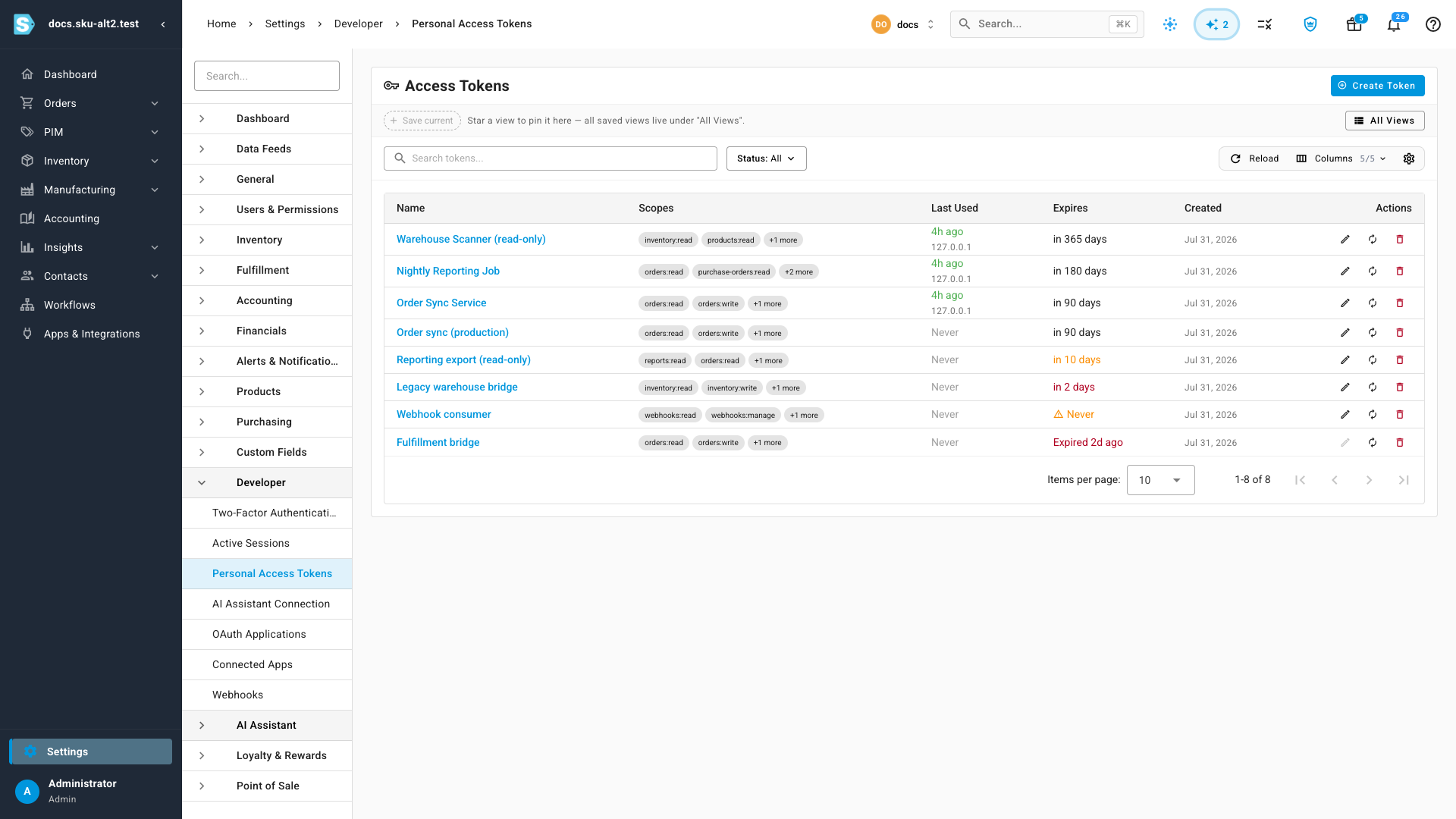
Each row carries five columns:
| Column | What to look for |
|---|---|
| Name | What you called it at creation. Rename it any time. |
| Scopes | The first two permissions, then +N more. Open the token to see them all. |
| Last Used | A relative time plus the IP the last request came from, or Never if nothing has authenticated with it yet. |
| Expires | A countdown (in 90 days), Never, or Expired 2d ago once it lapses. |
| Created | When you minted it. |
Last Used is recorded at most once a minute per token, so a burst of traffic moves it once rather than on every request. A token that was used seconds ago can still read as a minute behind.
A token with Never in the Expires column carries a warning tooltip: a credential with no end date stays valid forever if it leaks. Give it an expiry or rotate it on a schedule.
Use Status to narrow the list to what you're actually looking for.

2. Pick an action from the row
Every row carries three actions on the right.

| Icon | Action | Use it when |
|---|---|---|
| Pencil | Edit token | The name, expiry, permissions, or restrictions need to change. |
| Circular arrow | Rotate secret | The secret leaked, or you rotate on a schedule, or the token has lapsed. |
| Red bin | Revoke token | The integration is gone and the credential should stop working. |
The pencil is disabled on an expired token — there is nothing useful to edit until it has a working secret again. Rotate it first.
Clicking the name opens the token's own page instead, which is where the usage history lives. That's step 6.
3. Edit a token
Click the pencil. The Edit Access Token dialog opens with the token's current settings loaded.
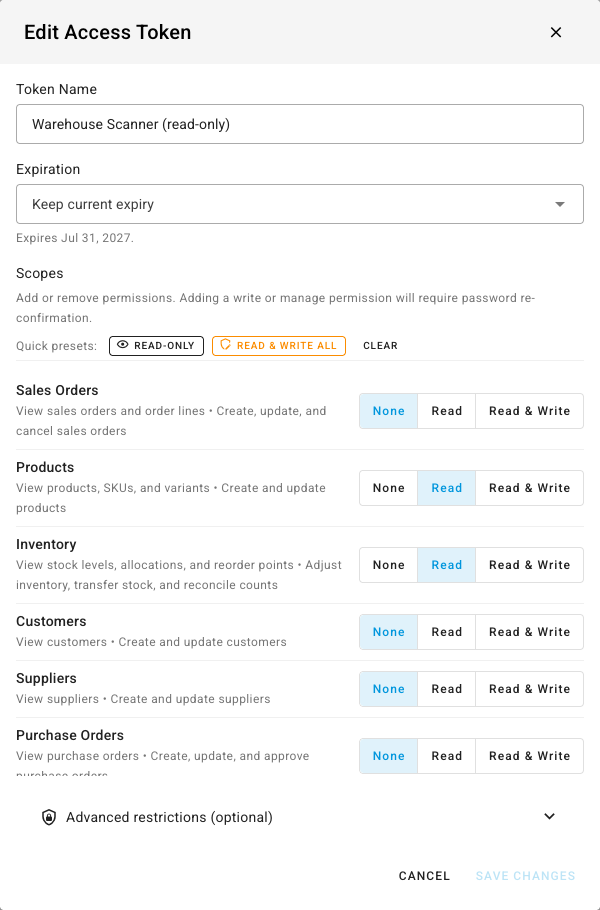
You can change four things:
- Token Name — free text, at least 3 characters.
- Expiration — leave it on Keep current expiry, or pick a renewal. A renewal is counted from today, not added to the date already on the token, so Renew for 90 days always means "90 days from now". Remove expiry (not recommended) makes it permanent.
- Scopes — tick and untick permissions. Quick presets set the whole checklist at once: Read-only, Read & write all, or Clear. Each group is a three-way choice — None, Read, Read & Write — and the running total under the list reads This token will have N permissions.
- Advanced restrictions — see step 4.
Your selection replaces the token's scopes; it isn't merged with them. Untick a permission and it's gone the moment you save.
Adding a write or manage permission is an escalation, and SKU.io says so before you commit to it.
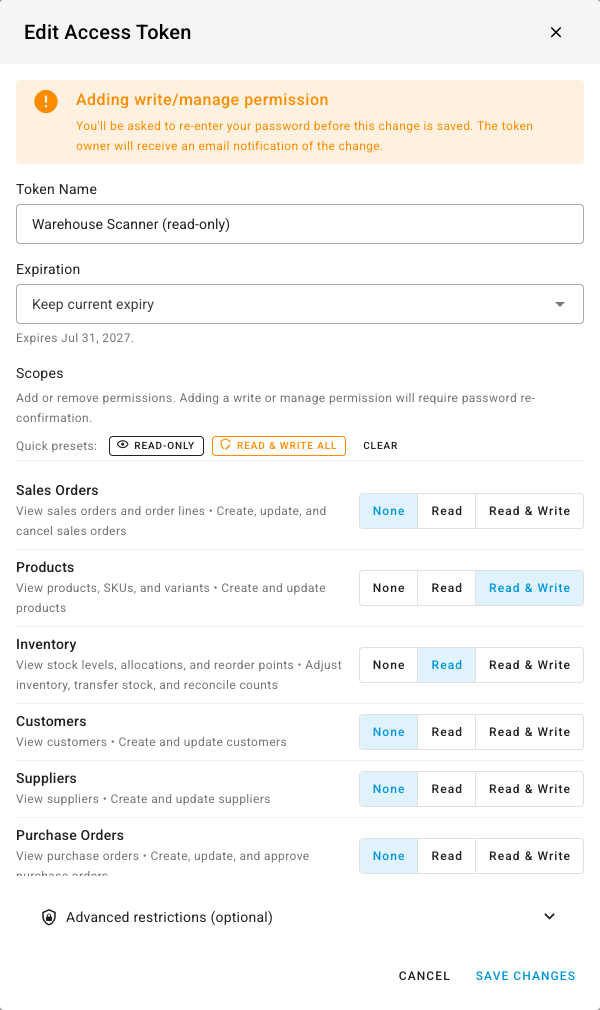
You'll re-enter your password when you save, and the token's owner gets an email recording the change. Save Changes stays disabled until you've actually changed something, so an accidental open-and-close costs nothing.
Editing never issues a new secret. Whatever is using the token keeps working with the value it already has.
4. Tighten the restrictions
Expand Advanced restrictions (optional) inside the Edit dialog.
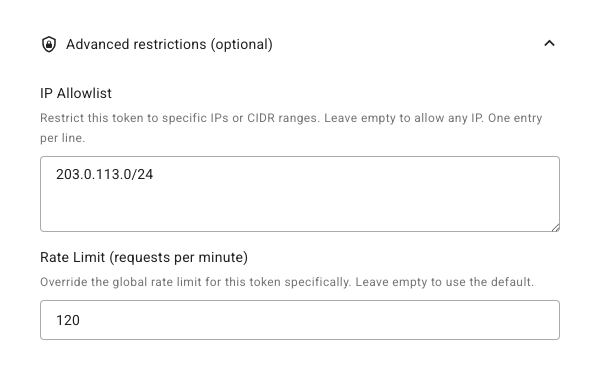
IP Allowlist takes one address or CIDR range per line. With anything listed, a request from an address outside the list is refused before it reaches your data:
403 This token is not permitted from 198.51.100.7.
Rate Limit (requests per minute) caps this token specifically, overriding your account's global limit. The window slides over the previous 60 seconds, so there's no burst allowance at the top of each minute. Over the cap:
429  {
  "message": "Token rate limit exceeded.",
  "retry_after_seconds": 37
}
The response also carries a standard Retry-After header, so a well-behaved
HTTP client can back off without parsing the body.
Both restrictions show as chips on the token's own page, so you can see at a glance which tokens are locked down.
A per-token cap only ever tightens things — the account-wide limits still apply underneath it, and are documented in Rate limits on developer.sku.io.
5. Rotate the secret
Click the circular arrow. Rotation is how you replace a credential — after a leak, on a schedule, or to bring an expired token back.
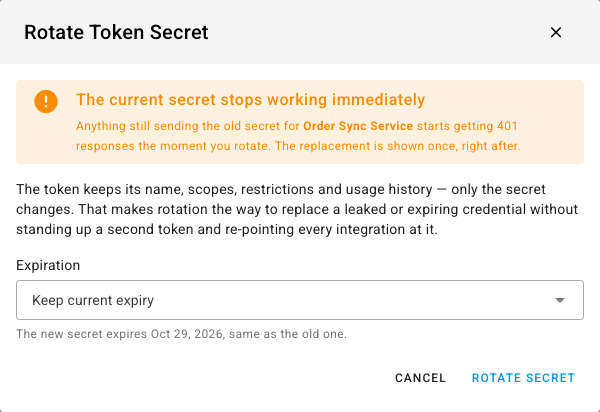
Read the warning before you continue: the current secret stops working immediately. Anything still sending the old value starts getting 401s the moment you rotate, so line up the deploy that swaps the secret first.
What survives rotation: the token's id, name, scopes, restrictions, and its whole usage history. Only the secret changes. That's the difference between rotating and creating a replacement token — you don't have to find and re-point every integration.
Choose an Expiration. Keep current expiry leaves the end date alone and the hint tells you what that date is. On an expired token there's nothing to keep, so the dialog defaults to a fresh 90 days.
Click Rotate Secret. If the token carries write or manage permissions, confirm your password first.
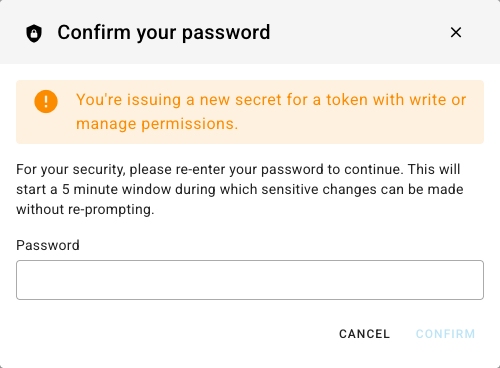
If two-factor authentication is switched on for your account, you'll also be asked for a code.
The new secret then appears — once.
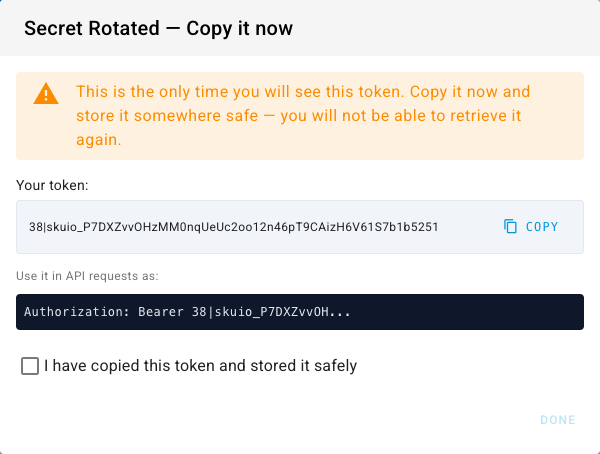
Copy it, tick I have copied this token and stored it safely, and click Done. As with creation, SKU.io keeps only a hash — if you close this dialog without copying the value, your only recourse is to rotate again.
6. Watch what a token is doing
Click a token's name to open its page.
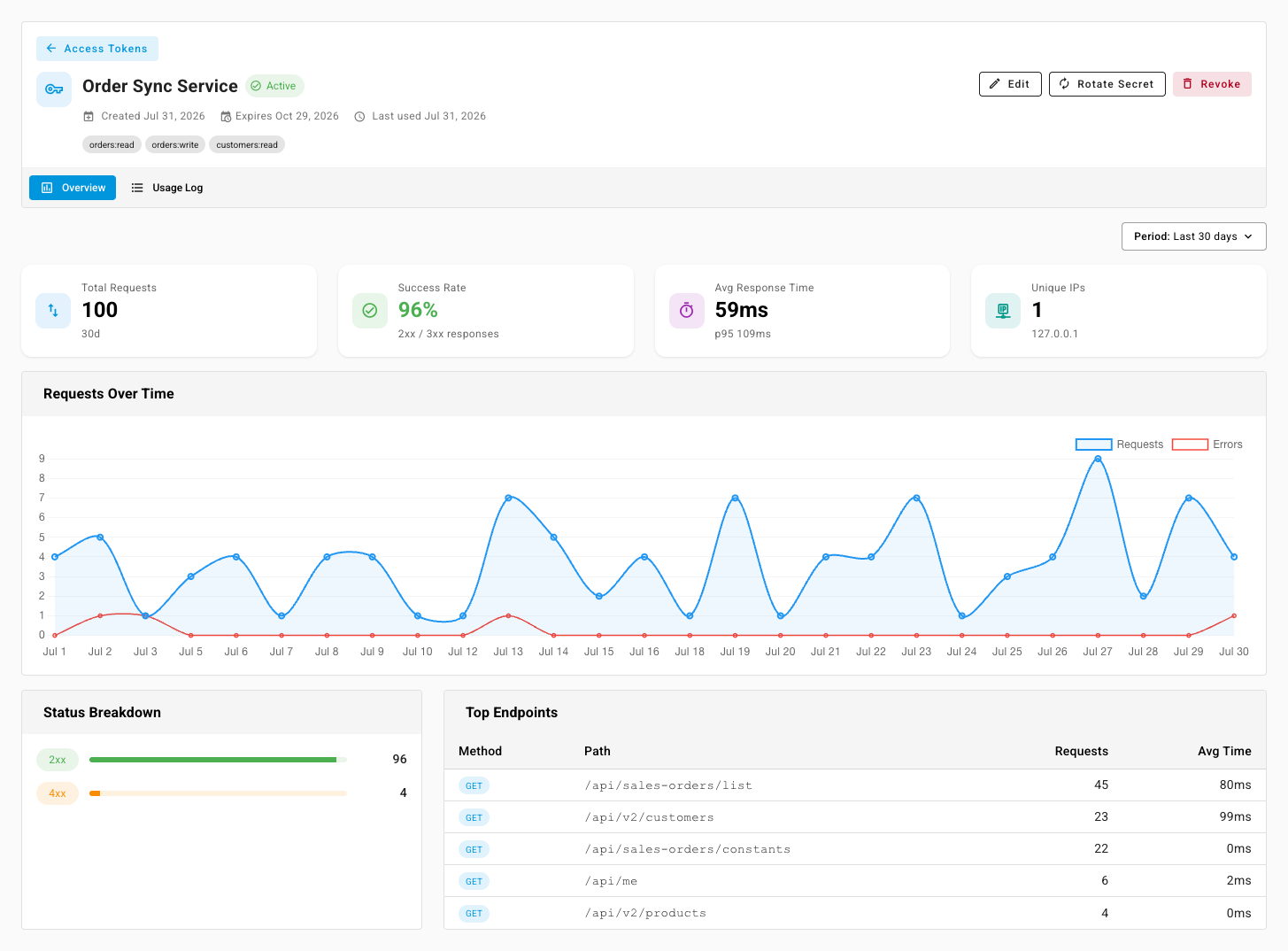
The header carries the token's status chip, its created / expires / last-used dates, its scopes, and any restriction chips, plus Edit, Rotate Secret, and Revoke.
The Overview tab answers "is this thing healthy?":
- Total Requests over the chosen period.
- Success Rate — 2xx and 3xx responses as a share of all requests. It turns amber below 90%.
- Avg Response Time, with the 95th percentile underneath. A p95 far above the average means a slow tail worth looking at.
- Unique IPs — with the first couple listed. More than you expect here is the signal that a secret has spread.
- Requests Over Time plots requests against errors, so a spike of failures is obvious even when volume looks normal.
- Status Breakdown and Top Endpoints show what the token actually calls and how those calls land.
Period offers Last 7 days, Last 14 days, and Last 30 days. There is no longer window because usage rows are kept for 30 days and then deleted — a 90-day option would silently repeat the same month.
7. Read the individual requests
Switch to the Usage Log tab for the request-by-request record.
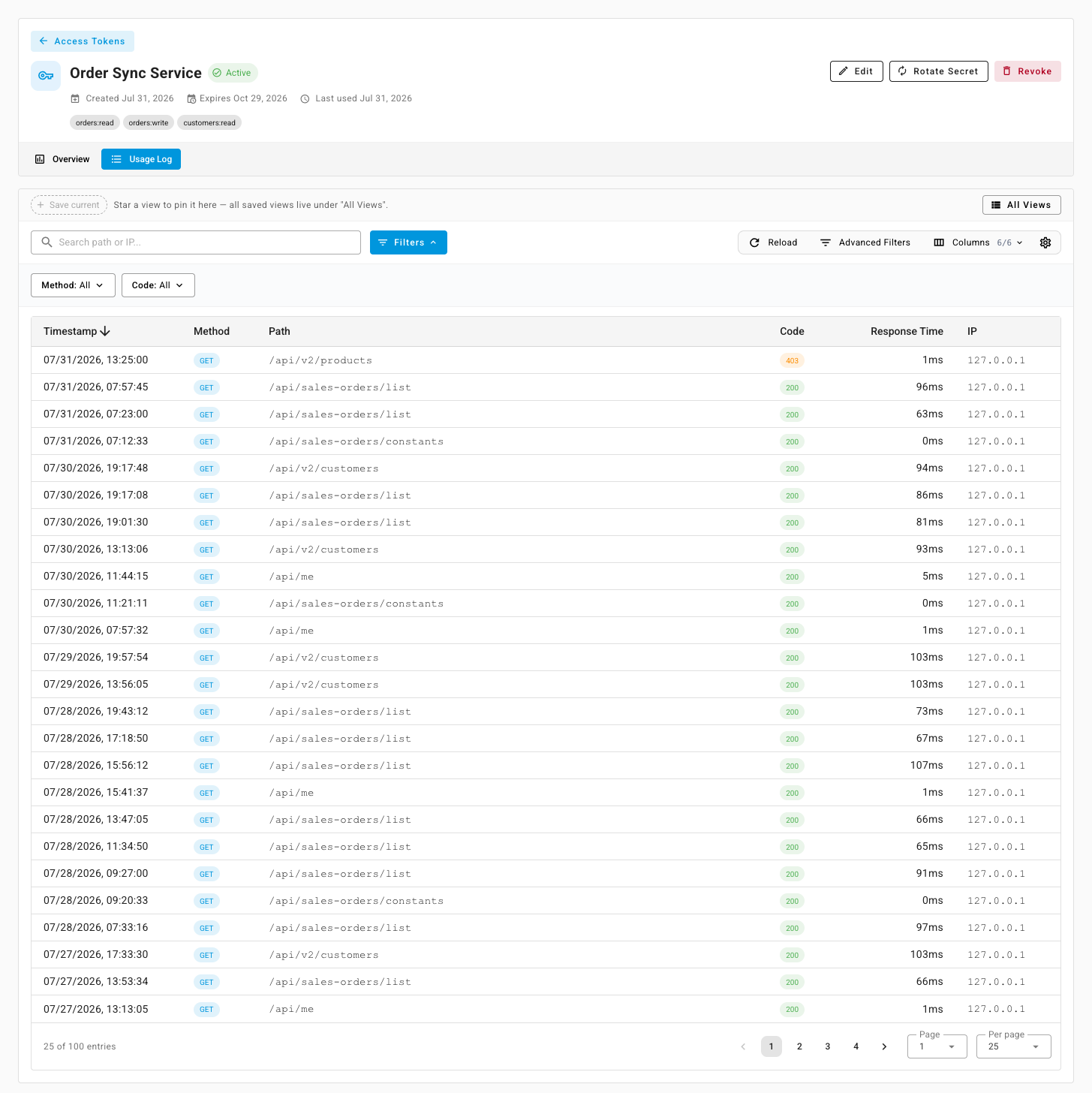
Newest first, with Timestamp, Method, Path, Code, Response Time, and IP. Open Filters to search by path or IP, or to filter by Method and Code — Code accepts a whole class (2xx, 3xx, 4xx, 5xx) or an exact status. Advanced Filters builds conditions across those columns, Columns hides what you don't need, and a view you'll want again can be saved to the bar at the top.
This is the fastest way to answer "why is this integration failing?" — filter to 4xx, and the paths and codes usually say it outright.
Two answers you'll find here more than once:
- 403 — This endpoint is not available to API tokens. The
/api/developer/*endpoints that manage tokens, webhooks, and OAuth applications are deliberately closed to tokens. A credential can never mint or widen another credential; those actions need a signed-in session. - 403 — This token is not permitted from … — the IP allowlist from step 4.
Requests are recorded in batches rather than one at a time, so a call you made seconds ago can take up to a minute to appear. Reload rather than assuming it wasn't logged.
Usage rows are kept for 30 days and then deleted, and there's no export, so pull anything you need for an audit while it's still there.
8. Handle an expiring or expired token
Two weeks out, the token's page starts telling you what's coming, and gets more insistent at three days and on the day itself.
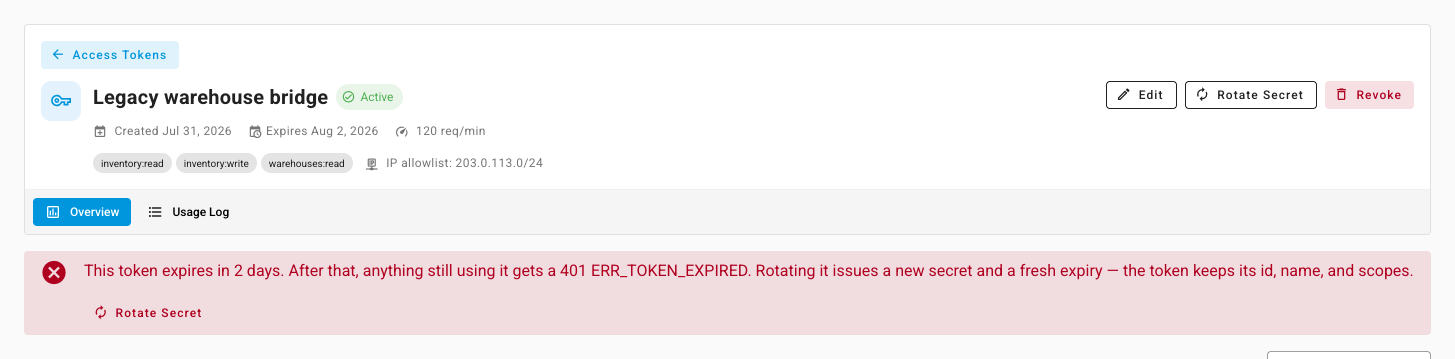
The banner carries a Rotate Secret button, because rotating is the fix: it issues a new secret and a fresh expiry in one step.
SKU.io emails you on the same schedule — once at 14 days out, once at 3 days out, and once on the day it expires — so an unattended job doesn't fail silently. Each warning is sent at most once, and renewing or rotating the token re-arms all three.
After the date passes, the token stops authenticating.
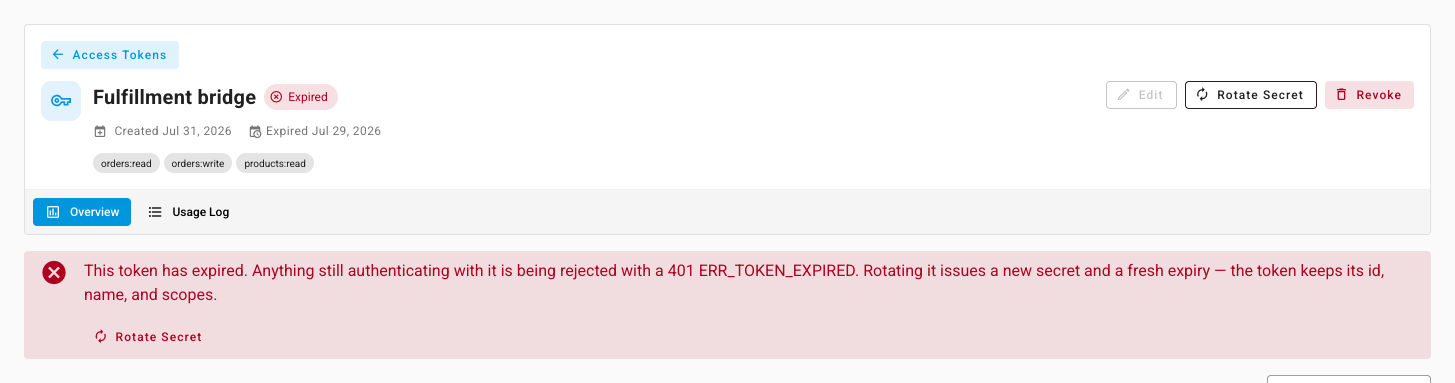
In the list it reads Expired, and the edit pencil goes flat.

An expired token isn't lost. Rotate it and it comes back with the same id, name, and scopes — so whatever recorded its id keeps lining up.
9. Revoke a token you're done with
Click the red bin, on the row or on the token's page.
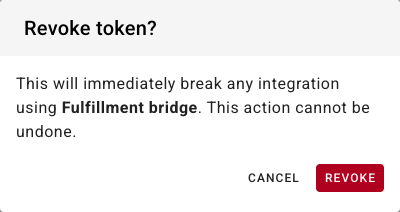
Revoking is immediate and permanent — the row disappears and the secret can't be brought back. If the credential might still be in use somewhere, rotate it instead and watch the Usage Log for a few days: traffic that keeps arriving tells you something you'd forgotten is still pointed at it.
You'll be asked for a second factor if two-factor authentication is on. Revoking from the token's own page returns you to the list.
Revoke anything you're not using. You can hold 50 tokens at once and expired ones still count, so the cap is real.
What SKU.io tells you without being asked
You get an email when a token is created, when its permissions change, when it's given a new secret, and when it expires or is about to. The messages go to the token's owner, which is what makes a change nobody intended visible.
There's one more. If a token is used from five or more distinct IP addresses within an hour, SKU.io emails you a security alert and writes it to the audit log. Repeat alerts for the same token are held back for 30 minutes so a genuinely distributed job doesn't flood your inbox.
The alert never revokes anything. Only you can do that — a shared credential behind a load balancer looks exactly like a leaked one from the outside, and SKU.io won't guess which yours is. When one arrives, open the token's Usage Log, look at the IP column, and decide: rotate if you don't recognise them, add an IP allowlist if you do.
Next steps
- Create a personal access token — mint a new one.
- API scopes reference — what each permission grants.
- Set up two-factor authentication — the second factor these actions ask for.