Connect ShipBob
Connect ShipBob with a token, then map three things: which SKU.io warehouse each fulfillment center is, which ShipBob service each shipping method is, and which SKU.io product each ShipBob item is. Orders can't route to ShipBob until a fulfillment center is mapped.
Before you begin
- You need permission to connect integrations.
- In ShipBob, go to Integrations → API Tokens, click Generate New Token, and copy your Personal Access Token.
- You can connect one ShipBob account.
Create the connection
-
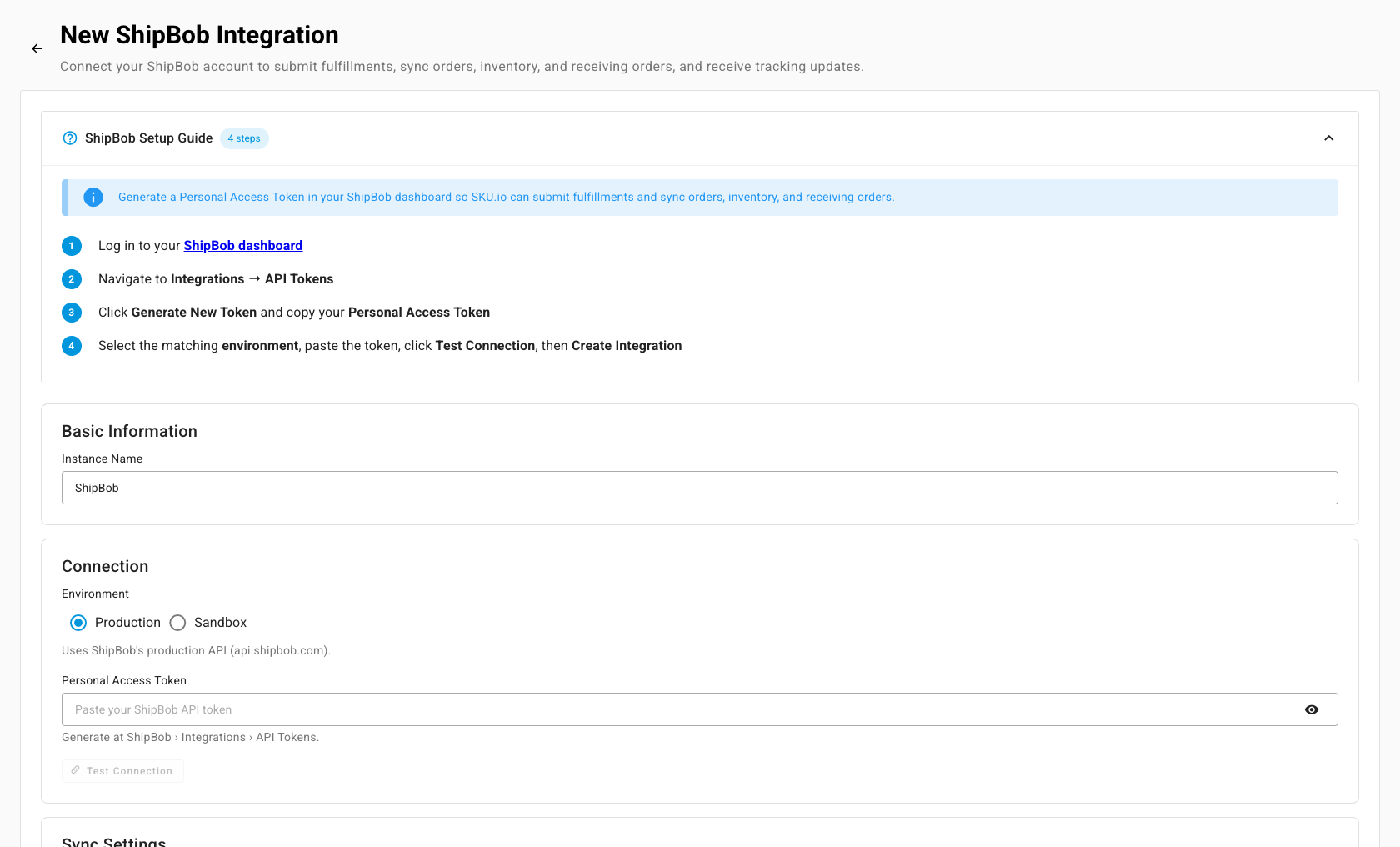
Go to Apps & Integrations, open Shipping & Fulfillment, and choose ShipBob. The New ShipBob Integration page opens.
-
Enter an Instance Name. It defaults to ShipBob.
-
Paste the Personal Access Token.
-
Click Test Connection. It's optional, but it confirms the token works and lists the ShipBob channels the token can write to.
-
If more than one channel appears, pick the Write Channel. Orders SKU.io creates in ShipBob belong to this channel.
-
Check the Sync Start Date. SKU.io only pulls ShipBob orders created on or after this date. It defaults to 30 days ago.
-
Leave Record shipping costs on to post each shipment's ShipBob invoice amount onto the fulfillment as a shipping cost.
-
Click Create Integration.
What you'll see: the Dashboard opens. In the background SKU.io subscribes to every ShipBob notification and pulls your fulfillment centers, shipping methods, products, inventory, orders, returns, and receiving orders.
Map fulfillment centers to warehouses
- Open the Warehouses tab.
- For each ShipBob fulfillment center you use, pick a SKU.io warehouse.
- Click Save Mappings.
What you'll see: the warehouse becomes a ShipBob 3PL warehouse, so its fulfillment orders go to ShipBob. You can only pick a direct warehouse that ships manually, or one already linked to this connection. SKU.io refuses a warehouse that another 3PL or shipping provider already ships. Disconnecting ShipBob later turns mapped warehouses back into direct, manual warehouses.
Map shipping methods
- Open the Shipping Methods tab.
- Click Auto-match to pair ShipBob services with SKU.io shipping methods by name, then fix any it missed. You can select several rows and use Apply to selected.
- Open Settings → General and pick a Default Shipping Method. SKU.io uses it when an order's shipping method has no ShipBob mapping.
The setting's hint says that leaving it blank lets ShipBob choose, but it doesn't. With no mapping, no name match, and no default, SKU.io refuses the order and asks you to map its shipping method or set a default on the ShipBob connection.
Mapping changes apply to new fulfillments only.
Map products
- Open the Products tab.
- Click Auto-Match to pair ShipBob items with SKU.io products by SKU, barcode, UPC, or GTIN.
- Filter to Needs Review and Unmapped, open each row, choose the SKU.io product, and click Save Mapping.
A product's ShipBob stock only counts toward the Inventory comparison once it's mapped. On orders, SKU.io sends each line as its mapped ShipBob item. ShipBob creates an item it doesn't have yet from the line's SKU.
Choose what syncs
Open Settings → Sync. Enable automatic syncing runs the schedule, and Entities to Sync turns each pull on or off: Orders, Shipments, Inventory, Products, Returns, and Receiving. All are on by default. Sending orders to ShipBob has no separate switch: it follows your warehouse mapping.
Next steps
- Reconcile ShipBob inventory — compare ShipBob's stock with yours.
- Dispatch to a fulfillment provider — submit a fulfillment order.
- ShipBob overview