Request a repair from the Customer Portal
This page is for your wholesale customers' buyers, signed in to their own account on the Customer Portal. If you're setting the portal up or want to see it from your side, start with How the Customer Portal works.
Your wholesale customers can ask you to repair, replate, or replace a piece without emailing or calling — from the same Returns screen they already use to send things back.
Before you begin
- Any signed-in buyer on the account can request a repair.
- Know roughly which order the piece came on, or have its SKU or a short description ready if it isn't on an order on file.
Open the repair request form
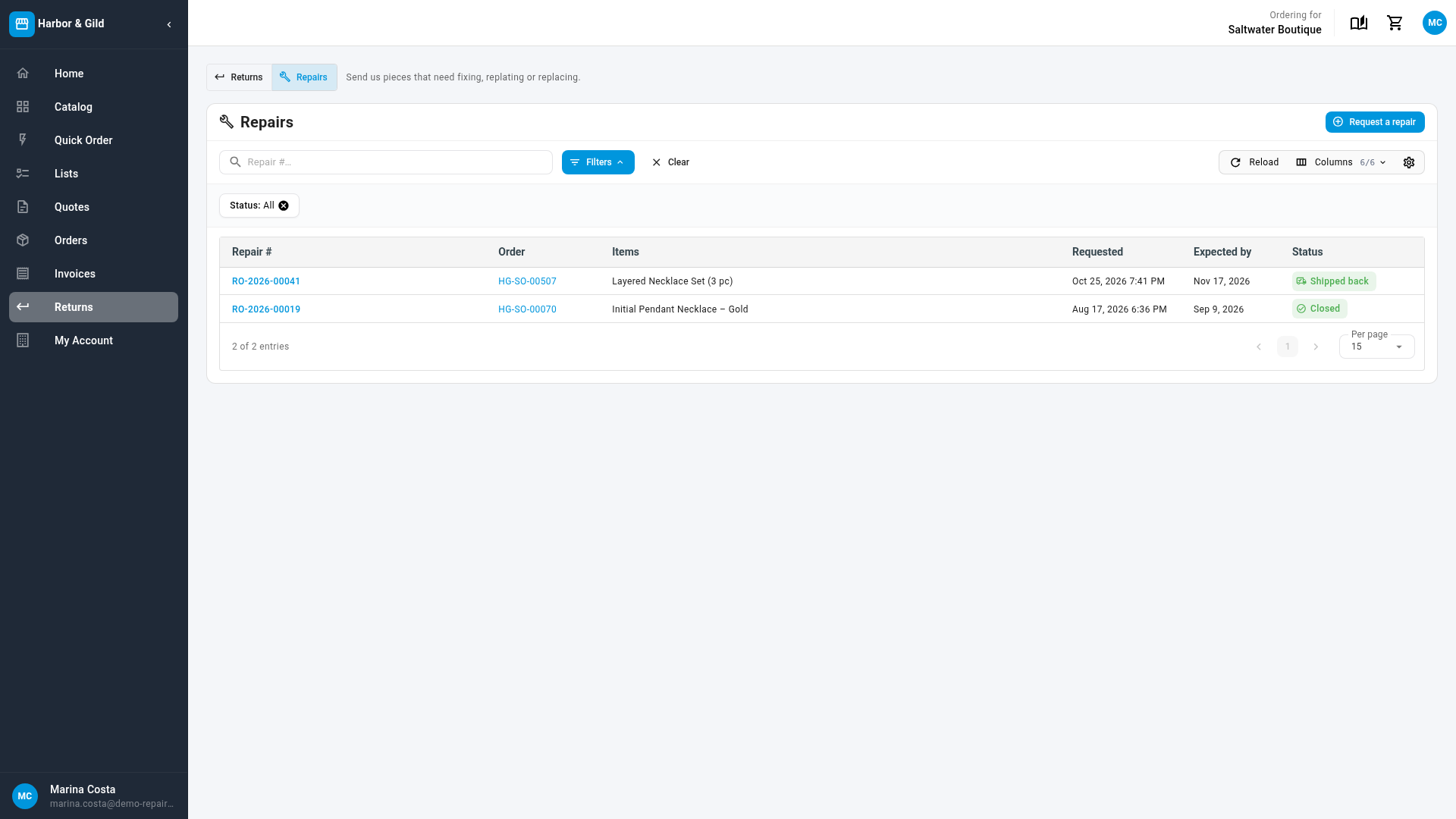
- Sign in to the Customer Portal and click Returns in the menu. The Returns list has the same simple layout as the Repairs list: quick Status and date filters, without an advanced filter builder.
- Click the Repairs toggle next to Returns, at the top of the page. The list now shows every repair raised for your account instead of returns, with the columns Repair #, Order, Items, Requested, Expected by, and Status.
- Click Request a repair.
Add the pieces
- To pick pieces from an order, click Order (optional) and type its number, then pick it from the list. Its items load as a checklist — a line whose items haven't shipped yet is disabled and marked Not shipped yet. Tick each piece that needs care.
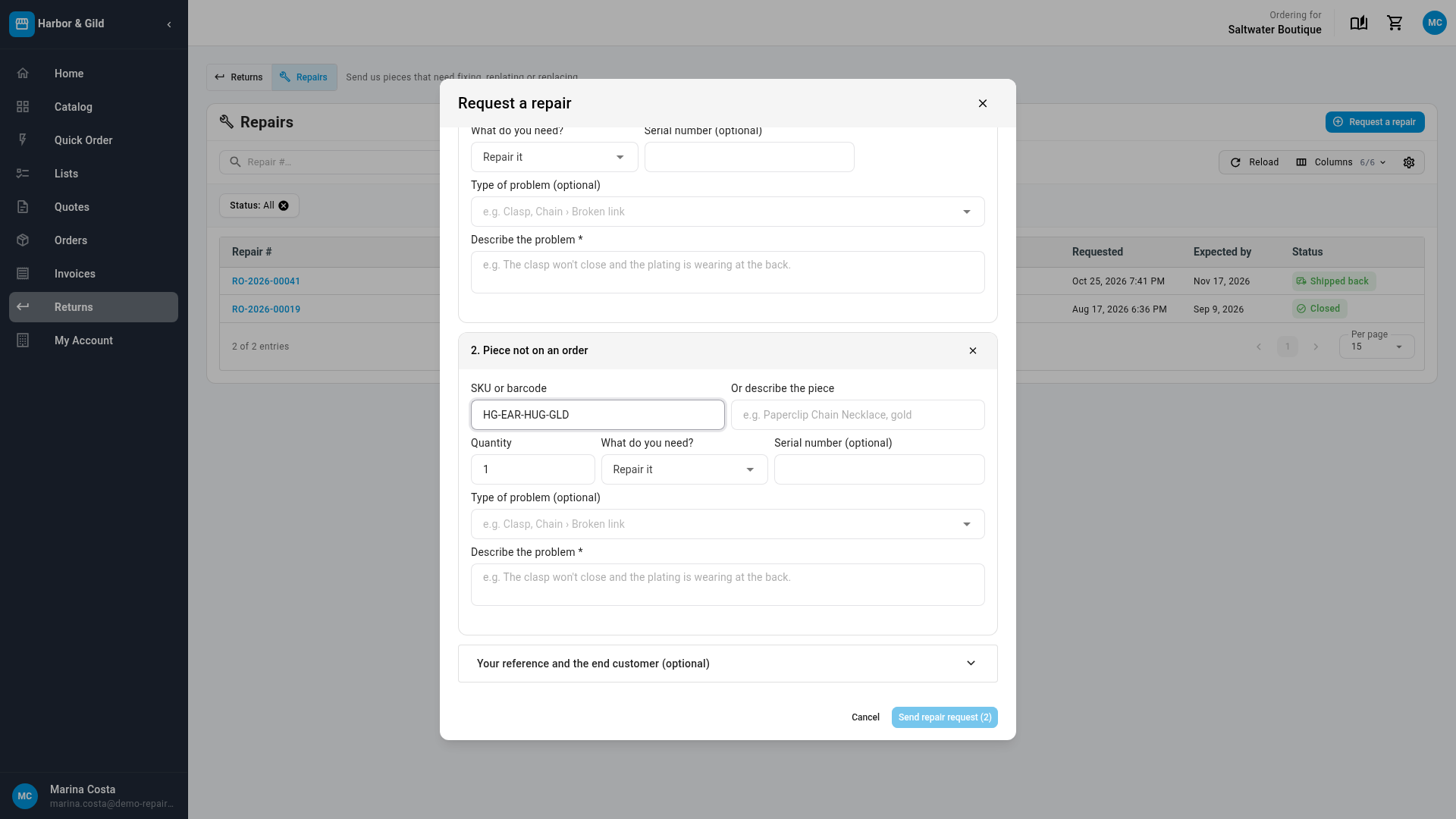
- For anything not on an order, click Add a piece not on an order and enter its SKU or barcode, or describe it under Or describe the piece.
- If a piece is a set, a Which piece of the set? field appears under it. Choose the piece that needs care, or leave it as The whole set.
- Set the Quantity — hidden once you've chosen one specific piece of a set.
Describe each piece
For every piece you've added:
- Choose What do you need? — Repair it, Replate it, or Replace it.
- Enter a Serial number, if you have one.
- Optionally pick one or more Type of problem entries — search by its full path, for example "Clasp, Chain › Broken link".
- Write Describe the problem — required for every piece.
Add your own reference (optional)
Open Your reference and the end customer:
- Your claim / reference # — your own tracking number for this request.
- End customer name, email, and phone — when the piece belongs to one of your own customers rather than your business.
- Notes for our team.
Send the request
Click Send repair request (N). It stays disabled until every piece either came from an order or has a SKU or description, and every piece has a description — the button's tooltip names exactly which item and field still needs attention, for example "Item 2: tell us what's wrong."
On success, you're told the new repair's number and the dialog closes; the repair appears at the top of the list.
Track it
Filter the list by Status: Requested, Waiting for the item, In repair, Needs your answer, Ready to ship back, Shipped back, Closed, Not accepted, or Canceled. Click the repair number to open its public status page in a new tab, or the linked order number to see the order it came from.
Next steps
- Find and manage repairs — where this claim shows up for your team, recorded as coming from the Customer Portal.
- Keep the customer in the loop — what the buyer sees as the repair moves along.
- Repair, unit, quote, registration & SLA status reference — what each status actually means.
- How the Customer Portal works — accounts, roles, and everything else about the portal.
Video transcript
Once signed in, click Returns in the menu along the left side of the screen. At the top of the page, click the Repairs toggle. This list tracks each request from your account, with its expected date. To ask for a repair, click Request a repair. A form opens for the pieces you want fixed. Click the Order field to start a search. Type a number, and matches appear in a list. Pick the order from the list, and its items load as a checklist. Select each one that needs care to add it to the request. A set asks one more question, shown under the heading Which piece of the set. Open that field, and choose the one item from the set that needs the repair. Some pieces may be missing from that checklist. For those, click Add a piece not on an order to start a new entry. Scroll down the form until its new section comes into view. Click the SKU or barcode field, and type the item's code. Without one, type a short description of the piece in the neighboring box. Under What do you need, choose a repair, a replating, or a replacement. Then, under Describe the problem, type a short note on what went wrong with the piece. Each item needs its own description. Once all are described, click Send repair request to notify the team.