Approve the AI send plan
Review AI plan turns the working plan into one page you can approve: how many units go to each network, what they're worth, how much they weigh, the main reason for each send and anything to check before shipping. When you approve, SKU.io allocates the stock and creates every network draft and supplier purchase order for you. It's the quickest way to act on a plan you trust. To approve one network at a time, with a second person reviewing, use a send run instead.
Every quantity comes from the Send Planner. The AI only words the summary at the top, using the plan's own numbers, and it never decides how much to send.
Before you begin
- You need the Send Planner → Draft permission. Without it, Review AI plan says "You need the Send Planner draft permission".
- Drafts for Amazon FBA and AWD, Walmart WFS and TikTok FBT also need Integrations → Edit. Drafts to your own warehouses and 3PLs need Warehouse Transfers → Create.
- Allocating the source stock needs Warehouse Transfers → Create. Without it, the approval creates the drafts but doesn't allocate the stock.
- Supplier orders need Purchase Orders → Create. Without it, the supplier rows start unticked and can't be ticked.
- The working plan must be Ready, with no unsaved tuning. See Read the send plan.
- For the AI-worded summary, an AI provider must be set up under Settings → AI Assistant. Without one, you see a plain summary built from the same numbers. See AI & Automation.
For the full list, see Send Planner permissions.
Open the approval
- Go to Inventory → Send Planner. The Plan tab opens with the working plan.
- Click Review AI plan, the purple button next to Draft shipments. On a phone, open the actions menu and click Review AI plan, "Approve the whole plan in one click".
The AI send plan — ready for your approval window opens with "Preparing the summary from this plan…", then the summary. Under the heading, a line names the plan number and when its stock and sales were read, for example "Plan #35 · stock and sales as of Oct 15, 3:38 PM". If the summary can't be loaded, click Try again.
Review AI plan is turned off, and its tooltip says why, when:
| The tooltip says | What to do |
|---|---|
| Calculate a plan first | Calculate the working plan. See Set up the Send Planner. |
| Scenarios are what-ifs: approve the working plan | You're viewing a scenario. Switch the view picker back to Working plan, or promote the scenario first. |
| Send runs are approved per network in Send runs | Approve the run's networks on the Send runs tab. |
| Wait for the plan to finish calculating | Follow the calculation in the job tray. |
| Apply & recalculate or Discard the tuning preview first: the approval covers the saved plan, not the preview | You're previewing tuning. Apply it or discard it. See Tune the plan. |
| You need the Send Planner draft permission | Ask an admin for Send Planner → Draft. |
Read the summary
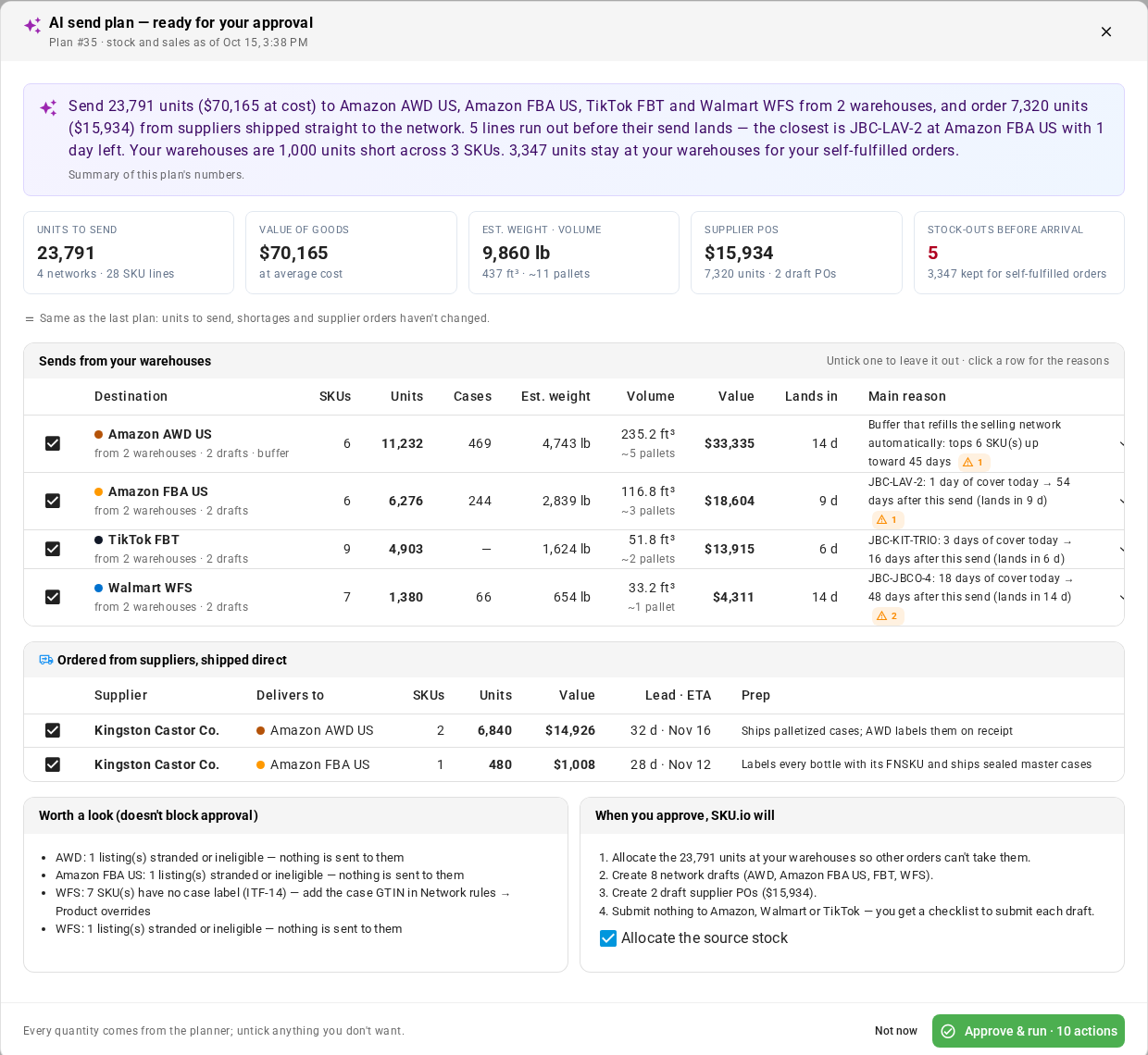
The recommendation
The box at the top says, in two to four sentences, what the plan sends and where, what it's worth, what runs out soonest, how much is short and how much stays for your self-fulfilled orders. The line under it says where the words came from:
- The AI is wording this… while the AI writes it.
- Worded by AI from this plan's numbers — the planner calculated every quantity. The AI's words are shown only when they match the numbers on screen.
- Summary of this plan's numbers. The plain summary, used when no AI provider is set up or the AI doesn't answer.
Headline numbers
The five numbers count only what's ticked, and they change as you untick rows.
| Number | What it shows |
|---|---|
| Units to send | Units going to the ticked networks, with the number of networks and SKU lines. |
| Value of goods | Their value at average cost. |
| Est. weight · volume | Estimated weight in pounds, volume in cubic feet, and roughly how many pallets, or parcel-sized for a small send. |
| Supplier POs | Value, units and number of draft supplier POs that are ticked. |
| Stock-outs before arrival | Lines that run out before their send lands, red when above 0, with the units kept for self-fulfilled orders. |
When some lines have no weight, dimensions or average cost, a note under the numbers says so, for example "Estimates leave out what isn't known: 3 lines have no weight or dimensions." Add the missing product fields to make the estimates complete.
What changed since the last plan
This card compares the plan with the previous full working plan: Units to send, SKUs that can't reach target, Lines that run out before the send lands and Supplier units waiting for a PO. Each row shows before and after, with the change as a percentage, or new when it was 0 before. If the previous plan already put units into drafts, a note says so, because that stock is no longer free to send. When nothing moved, one line says "Same as the last plan: units to send, shortages and supplier orders haven't changed."
Sends from your warehouses
One row for each network or warehouse the plan sends to. Untick a row to leave it out of this approval.
| Column | What it shows |
|---|---|
| Destination | The network or warehouse, how many of your warehouses it ships from, and how many drafts it makes. buffer marks a network such as AWD that refills a selling network. |
| SKUs, Units, Cases | What the destination gets. |
| Est. weight, Volume | Estimated weight, and volume with pallets or parcel-sized. |
| Value | Value at average cost. |
| Lands in | Days until the send arrives. |
| Main reason | The main reason for the send, for example "JBC-LAV-2: 1 day of cover today → 41 days after this send (lands in 9 d)". A warning chip counts the checks for that destination. |
Click a row to see:
- Why this much: every reason, one line per SKU that drives the send.
- Check before shipping: anything to fix first, such as stranded or ineligible listings, or Nothing flagged.
- From: each of your warehouses and the units it ships.
Ordered from suppliers, shipped direct
When the plan suggests orders from suppliers who ship straight to a network, each order has a row: Supplier, Delivers to, SKUs, Units, Value, Lead · ETA and Prep notes. Untick an order to leave it out. Without the Purchase Orders → Create permission, the card says "Needs the "Purchase Orders → Create" permission" and the orders stay unticked. See Order from suppliers that ship straight to a network.
Worth a look, and what approving does
Worth a look (doesn't block approval) lists things to know that don't stop the approval, for example "WFS: 7 SKU(s) have no case label (ITF-14) — add the case GTIN in Network rules → Product overrides". If some of the plan is already in drafts, it says so, for example "120 units on 3 lines are already in drafts — not repeated." Those units are part of the plan's total but aren't drafted again, so the approval's Units to send can be lower than the plan's. The plain summary at the top says the same: how many more units are already in network drafts, and that the plan's total includes them.
When you approve, SKU.io will lists exactly what happens for what's ticked:
- Allocate the units at your warehouses so other orders can't take them. If you untick Allocate the source stock, it reads "Not allocate the stock (you switched it off)." Without Warehouse Transfers → Create, the box is turned off, it reads "Not allocate the stock (allocating needs the "Warehouse Transfers → Create" permission).", and the stock isn't allocated.
- Create the network drafts, with how many and for which networks.
- Create the draft supplier POs, with how many and their value.
- Submit nothing to Amazon, Walmart or TikTok — you get a checklist to submit each draft.
Approve the plan
- Untick any destination or supplier order you don't want.
- Leave Allocate the source stock ticked, unless you'll allocate later.
- Click Approve & run. The button counts the drafts and POs it will create, for example Approve & run · 10 actions for 8 network drafts and 2 supplier POs.
To close without approving, click Not now.
The window changes to Running your approved plan with Creating the drafts… and a Progress table, and the work shows in the job tray. You can close the window; the drafts carry on being created. Network drafts are created first. Then the supplier POs are created as drafts, which you send from Purchase Orders. See Approve and submit a PO.
Approve & run is turned off, with the reason in its tooltip, while the summary is loading, if it couldn't load, if you're missing a permission a ticked row needs, or when everything is unticked: "Everything is switched off — tick at least one destination or supplier order".
If the plan changed while you were reading
If the plan's numbers changed after you opened the summary, for example because someone edited a quantity or a recalculation finished, nothing is approved. A banner says "The plan changed since you reviewed it. Review the new numbers and approve again." Click Show the new numbers, check them, and approve again.
Finish what the approval created
When the drafts are done, the window is titled Approved send plan and the Submit checklist lists every draft and PO:
| Column | What it shows |
|---|---|
| Network / supplier | Where the draft goes, or the supplier for a PO. |
| Draft | The warehouse it ships from, or the PO number and where it delivers. Under a draft that failed, the error says why when it can, and what to do next, for example "Could not create the warehouse transfer draft. Retry, or create it on the Warehouse Transfers page." |
| Units | Units on the draft or PO. |
| Status | Creating…, Draft created, Failed, Short at source, Enter manually, Deleted in network, or Created for a PO. |
| Open opens the draft in its network or the PO. Finish in Shipments shows for a draft that failed or must be entered by hand. |
The banner at the top sums it up:
| Banner | Meaning |
|---|---|
| Done | Every draft and PO was created, and the stock was allocated if you left that on. Submit each draft in its network. |
| Done — N need you | The rest was created, but some drafts failed or must be entered by hand, or the POs couldn't be created. Allocated stock stays allocated until its allocation expires. |
When a supplier order can't be created, the message names it and says why, for example "1 order not created: Kingston Castor Co. no longer supplies JBC-JBCO-4. Add the product to the supplier (or choose another supplier), recalculate the plan, then order again."
- For each draft, click Open and finish it in the network: choose placement, carrier and boxes, then submit it there. Nothing was submitted to Amazon, Walmart or TikTok.
- For a draft marked Failed, Short at source or Enter manually, click Finish in Shipments. The window closes and the plan's Shipments list opens, where you can retry it or hand it over manually. See Follow up on shipment drafts.
- Click Back to planner when you're done.
The note under the checklist says who approved and when. Every approval is recorded with what was approved.
Come back to an approval
If you open Review AI plan while an approval is still running, or within 10 minutes of one, the window opens on its progress or checklist. Click Review the plan again to see what's left to send.
Later, a banner at the top of the summary says who approved the plan and when, and either "done", "still running" or how many items still need you. What's below it is only what's left to send. Click Show results to open that approval's checklist.
When there's nothing to approve
If nothing is left to send and no supplier order is waiting, the window says Nothing needs sending, with the reason:
| Reason | What to do |
|---|---|
| What this plan sends is already in drafts, and no supplier order is waiting. | Click Show the last approval's results to finish those drafts, or see Follow up on shipment drafts. |
| Capacity limits leave no room at the networks this month. | Check the limits. See Set network capacity limits. |
| SKUs are short and your warehouses have no stock to share for them. | See Cover a shortfall. |
| Every network has at least its target cover through the next send. | Nothing to do this time. |
Ask an AI assistant about a plan
You can also ask about send plans in chat:
- The in-app AI assistant can summarise the working plan and explain one SKU's quantity at one network. It can also prepare a change to one line's quantity, with a reason (promotion, listing issue, cash, expedite or other), or prepare drafts from the plan. Nothing changes until you confirm on the card it shows, and drafts are never submitted to a marketplace. It needs the Send Planner view permission to read, and the same permissions as the screen to change anything. See Ask the AI Assistant.
- An AI assistant you connect to SKU.io, such as Claude or ChatGPT, can read a plan's totals per network and its top 25 exceptions, explain one SKU, and compare up to four plans side by side. It can't change a plan. Its access is the connection's scopes combined with your Send Planner view permission. A token that lists Send Planner scopes must include
send-plans:read. See Connect an AI assistant.