Schedule weekly send runs
Most teams send stock to their fulfillment networks on the same day each week. Instead of starting the send run by hand, you can have it start by itself on that day, and have the people who own the send told when it needs a decision. You can also have the run draft every SKU with no exceptions straight away, so only the exceptions wait for you.
Before you begin
- You need the Send Planner → Edit permission to change the schedule. Without it, every control on Run this without me is turned off, and Save says "You need the Send Planner edit permission".
- Turning on Auto-create drafts for SKUs with no exceptions also needs the Send Planner → Draft permission. Without it, the switch says "Turning on automatic drafting needs the Send Planner draft permission".
- A working plan should already calculate cleanly, because each run uses the working plan's rules. See Set up the Send Planner.
Steps
- Go to Inventory → Send Planner and click the Send runs tab.
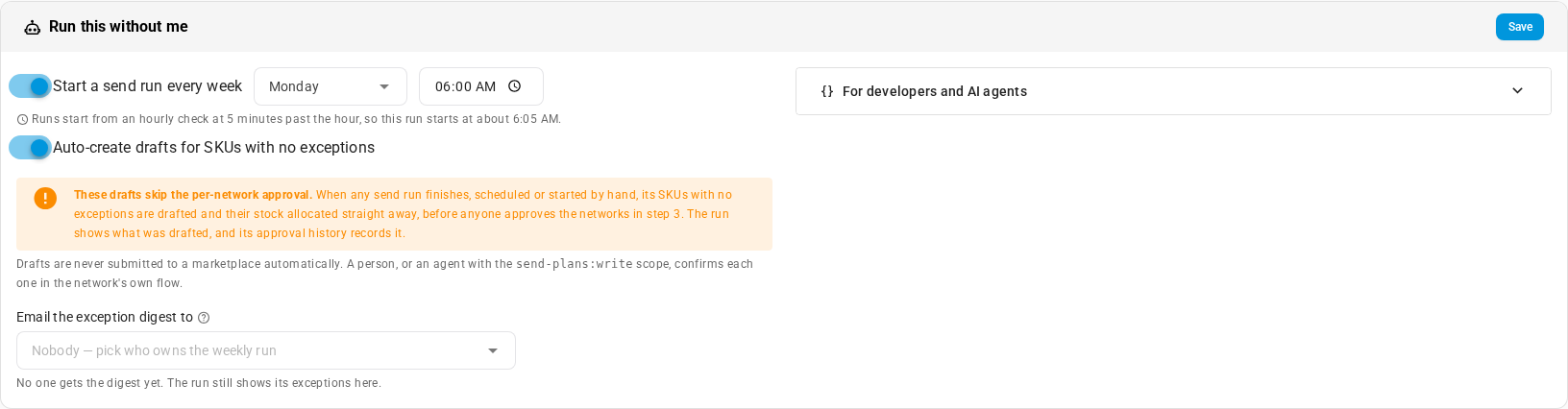
- Scroll to the Run this without me card at the bottom. When there's no active run, you can click Schedule weekly instead: it turns the schedule on and scrolls to the card, but nothing is saved until you click Save.
- Turn on Start a send run every week.
- Pick the day of the week. It starts as Monday.
- Set the time. It starts at 6:00 AM, in your account's timezone. The note under it says when the run starts. For example, "Runs start from an hourly check at 5 minutes past the hour, so this run starts at about 6:05 AM."
- Optional: turn on Auto-create drafts for SKUs with no exceptions. Read the warning that appears before you save. See Drafting SKUs with no exceptions.
- In Email the exception digest to, pick the people who own the weekly send.
- Click Save. It's turned off until you change something.
"Automation saved" confirms it, and Next run: under the switches shows the day, date and time the next run starts. The same time shows on the empty Send runs tab, as "The next scheduled run starts …", and on the Plan tab when it has nothing to send.
To stop the schedule, turn off Start a send run every week and click Save.
When the scheduled run starts
An hourly check starts the run at 5 minutes past the hour, on the first check at or after the time you picked:
| You pick | The run starts at about |
|---|---|
| 6:00 AM | 6:05 AM |
| 6:05 AM | 6:05 AM |
| 6:30 AM | 7:05 AM, in the next hour. The note suggests a time on the hour to start sooner. |
A scheduled run is named "Week N send run", after the week of the year, and it's calculated with the working plan's rules, like a run you start by hand. Once it's calculated, it replaces the previous week's run. If anyone started a send run in the 6 days before the scheduled time, that run counts as this week's, and the scheduled run is skipped until the next week. Next run: already takes this into account.
If the scheduled run can't be calculated, for example because a network's stock is out of date, it shows as failed on the Send runs tab, where you can recalculate it or plan anyway. See Work through a send run.
Drafting SKUs with no exceptions
With Auto-create drafts for SKUs with no exceptions on, every send run drafts its clean lines as soon as it finishes. That's any run, scheduled or started by hand. A line is clean when it sends units, has no flag, its product isn't short, and it hasn't been drafted already. Its source stock is allocated straight away, the same as when you create drafts yourself.
Automatic drafts are created before anyone approves the networks in step 3 of the run. The card warns about this while the switch is on, and you can see afterward what was drafted without approval in two places:
- A banner at the top of the run says how many SKU lines were drafted automatically, when, and the units per network, for example "Amazon FBA US 1,200 units".
- Approval history in step 3 records an Auto-created drafts entry for each network, with its units and SKU lines "without approval".
If you need a second person to approve every send, leave this switch off.
Drafts are never submitted to a marketplace automatically. A person, or an agent with the send-plans:write scope, confirms each one in the network's own flow. See Follow up on shipment drafts.
If automatic drafting fails, the run still finishes. The banner turns red, says Automatic drafting failed with the reason, and that nothing was drafted automatically. Create the drafts yourself in step 4 of the run.
Once the switch is saved on, starting or recalculating any send run needs the Send Planner → Draft permission, because the run drafts as it finishes. For someone without it, Start a send run, Recalculate run, Plan anyway, Recalculate and Recalculate run with these rules are greyed out, with the tooltip "Send runs auto-create drafts on this account ("Auto-create drafts for SKUs with no exceptions"), so starting one needs the Send Planner draft permission". Turning the switch on without saving doesn't change these buttons.
When a new run replaces an earlier one, lines the earlier run already drafted aren't drafted again. The banner then adds how many clean SKU lines were left out because the run it replaced already drafted them, or says Nothing was drafted automatically when the earlier run had drafted them all. See When a run is replaced.
Who gets the exception digest
When a send run finishes with products that need a decision, the people in Email the exception digest to each get one in-app alert, Send Run Needs Review, and an email titled "Send run #N needs review". A product needs a decision when it's short, when a line stocks out before the send arrives, or when it has an exception to review. The digest goes out for every send run, scheduled or started by hand.
The message gives:
- The units the run plans to send.
- What needs a decision: how many products can't reach their target, how many lines run out before the send arrives, and how many products have an exception to review.
- How many clean lines were drafted automatically, if any.
- The biggest shortfalls, up to five SKUs with the units each is short.
The alert and the email link to the Send runs tab. The email goes out straight away, or in your daily alert digest if your alert settings send this alert as a digest. See Set your own alert notifications.
Only the people you pick get it. Nobody else is notified, and a run with nothing to decide sends nothing. While the field is empty, it reads "Nobody — pick who owns the weekly run", with the note "No one gets the digest yet. The run still shows its exceptions here." You can pick up to 50 users of your account. To stop someone's emails, remove them from the field and click Save.
For developers and AI agents
The For developers and AI agents panel on the card shows the same send run through the API, for a personal access token with the send-plans scopes. See API scopes reference.