Cover a shortfall
A SKU is short when your warehouses don't have enough to bring every network to its target, even after the planner shares the stock by priority. The planner sends what it can and tells you how many units are missing. From the SKU's Why these numbers drawer, you can order the missing units, plan production for them, assemble kits from components, or fix a listing that stops a network from taking stock at all.
Before you begin
- Work on the working plan. In a scenario, these buttons say, for example, "Scenarios are what-ifs: plan production from the working plan".
- Create PO needs the Purchase Orders → Create permission. Without it, the button isn't shown.
- Plan production needs the Send Planner → Edit permission and the MRP Planning → Run permission. Without them, the button is greyed out and names what's missing, for example 'Adding demand to the production schedule needs the "MRP Planning → Run" permission'.
Find the short SKUs
- Go to Inventory → Send Planner.
- In the summary, click N SKUs can't reach target. The grid shows only the short SKUs. Short SKUs carry the Short flag.
- Click the arrow at the end of a SKU's row to open Why these numbers.
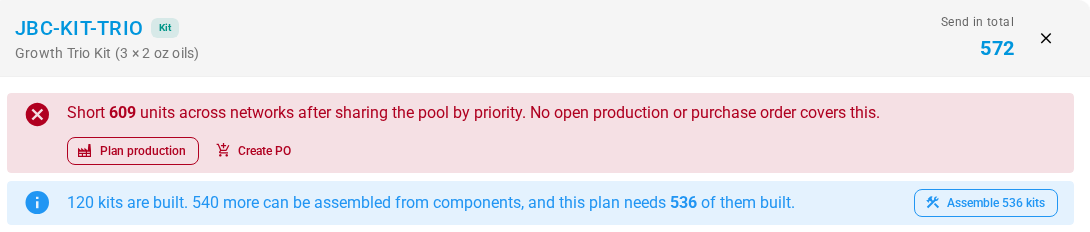
The alert at the top of the drawer says how short the SKU is: "Short 609 units across networks after sharing the pool by priority." The rest of the alert says whether anything already on its way would help:
- When a production or purchase order due within 14 days would cover it but the plan doesn't count it, the alert names that order with a link, for example "Manufacturing Order MO-1043 brings 6,000 in 9 days — count it to plan it now." To plan with it, see Count incoming supply.
- When nothing would, it says "No open production or purchase order covers this."
If a supplier can deliver the missing units straight to the network, the drawer also shows a supplier alert with Create draft PO…. See Order from suppliers that ship straight to a network.
Create a purchase order for the shortfall
- In the shortfall alert, click Create PO. The New Purchase Order form opens with the product and the shortfall quantity filled in.
- Choose the Supplier.
- Check the Order Date, the warehouse the order delivers to, and the Currency.
- Click Create Draft.
The purchase order is a draft. Review and send it to the supplier from the purchase order; see Create a purchase order and Approve and submit a PO. Once it has an expected date, the next plan can count it as incoming supply.
Plan production for the shortfall
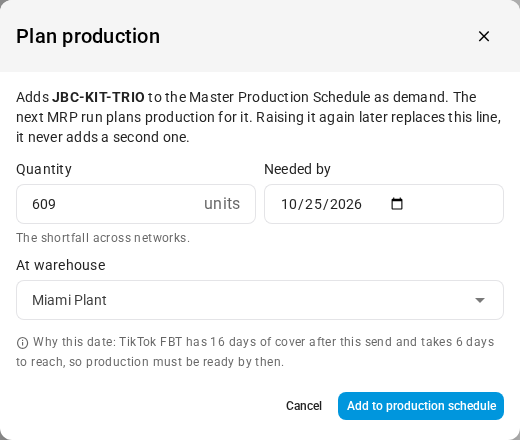
For a product you manufacture, or a kit, you can add the shortfall to the Master Production Schedule as demand. The next MRP run then plans production for it.
- In the shortfall alert, click Plan production. The Plan production dialog opens.
- Check Quantity. It starts at the shortfall across networks.
- Check Needed by. Under the fields, Why this date: explains it, for example "TikTok FBT has 16 days of cover after this send and takes 6 days to reach, so production must be ready by then."
- In At warehouse, choose the warehouse production must reach. You can pick only warehouses this plan sends from.
- Click Add to production schedule.
The message "Added to the Master Production Schedule. The next MRP run plans production for it." confirms it. The drawer then shows "On the production schedule: N needed at warehouse by date (from send plan #N). The next MRP run plans production for it." with Open MPS and MRP workbench links.
How the date is worked out: the planner takes the earliest day a short network runs out after this send, minus its shipping time from the warehouse that sends the most to the short networks. If no short network sells yet, it plans production two weeks out.
Each product and warehouse gets one Send Planner line on the schedule. Raising it again later replaces that line, it never adds a second one.
| Message | What to do |
|---|---|
| Enter a whole number of units, at least 1. | Fix Quantity. |
| Pick the warehouse production must reach. | Choose At warehouse. |
| Pick one of the warehouses this plan sends from. | The warehouse no longer ships for this plan. Choose another. |
| The need-by date can not be in the past. | Choose today or later. |
| Only manufactured products and kits are planned in MRP. Create a purchase order instead. | Use Create PO. Plan production shows only for products you make and kits. |
| Nothing is short for this product | The button is greyed out because the SKU isn't short. |
To run the plan and act on it, see Build a master production schedule and Run a planning cycle.
Assemble kits from components
For a kit, the planner counts kits you could build from component stock as stock it can send. The drawer says how many are built, how many more can be assembled, and how many this plan needs built, for example "120 kits are built. 540 more can be assembled from components, and this plan needs 536 of them built."
- In the kit alert, click Assemble N kits. If the plan doesn't need any built yet, the button reads Create assembly order.
- The assembly page opens with the kit, the quantity and the warehouse that has the components filled in.
- Check the details and create the assembly. See Assemble a kit.
Build the kits before the send leaves. The network's draft records whether it ships built kits or kits made from components, and the grid flags SKUs that still need building with Needs kit build.
Fix a stranded or ineligible listing
When a listing can't sell at a network, the planner sends it nothing, whatever the stock. The drawer shows one alert per network, for example:
- "Amazon FBA US: 312 units stranded at FBA: JBC-PEP-4 is suppressed or inactive on Amazon. Fix the listing before sending more. Nothing is sent there until the listing is active again."
- "Walmart WFS: Walmart listing is unpublished. Nothing is sent there until the listing is eligible."
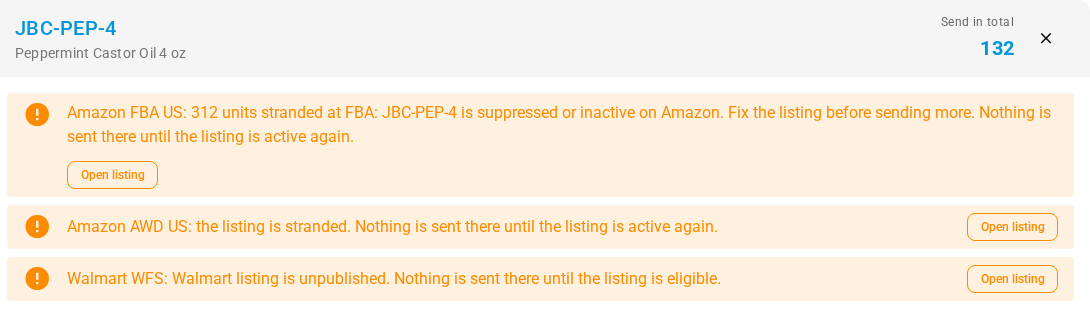
- Click Open listing in the alert. The network's listing page opens, filtered to the SKU.
- Fix the listing in the network.
- Back on the Plan tab, click Recalculate once the network shows the listing as active or eligible.
For a listing that isn't mapped to the right product, see Map FNSKUs to products.
Send less, or send anyway
If you can't cover the shortfall in time:
- Change which network gets the stock first: a network's Priority under Network rules (saved), or Priority when short in Tune plan (a preview until you apply it). See How stock is shared between networks.
- Let one network take the stock kept for forecast self-fulfilled demand: Favor network on its card, or the When stock is short toggle on the grid. They overlap; see Favoring a network for which one wins.
- Send more than there is to share by using stock kept for your self-fulfilled orders. See Change a send quantity.