Try a what-if with a scenario
A scenario shows what the Send Planner would send if something changed: Prime Big Deal Days doubling Amazon demand, a longer Q4 target, Amazon cutting this month's capacity, or counting production that lands next week. It starts from the working plan's rules, applies your changes, and calculates in the background. It never allocates stock or creates drafts, so you can try as many as you like. When one looks right, promote it to make it the working plan.
Before you begin
- You need the Send Planner → Edit permission. Without it, New scenario and Save as scenario are turned off and say "You need the Send Planner edit permission".
- A working plan must exist, because a scenario starts from its rules. Until one is calculated, New scenario says "Calculate a working plan first; scenarios start from its rules". See Set up the Send Planner.
- To limit a scenario to some products, first save a view of the Plan grid with the filters or search that pick them. See Save and pin table views.
Create a scenario
- Go to Inventory → Send Planner and click the Scenarios tab.
- Click New scenario. The New scenario dialog opens. On a phone, the reason the button is turned off, if any, shows under it.
- Optional: click a chip under Start from a template to fill in a common what-if. Picking one clears the form, fills Name with the template's title and sets its fields, which you can still change. Hover a chip to see what it does.
- Enter a Name, for example "Prime Big Deal Days". It can be up to 120 characters.
- Set the changes you want to try. Leave a field empty to keep the working plan's value, which shows as grey placeholder text. The fields are described in the table below.
- Click Create and calculate. It stays turned off until Name has text.
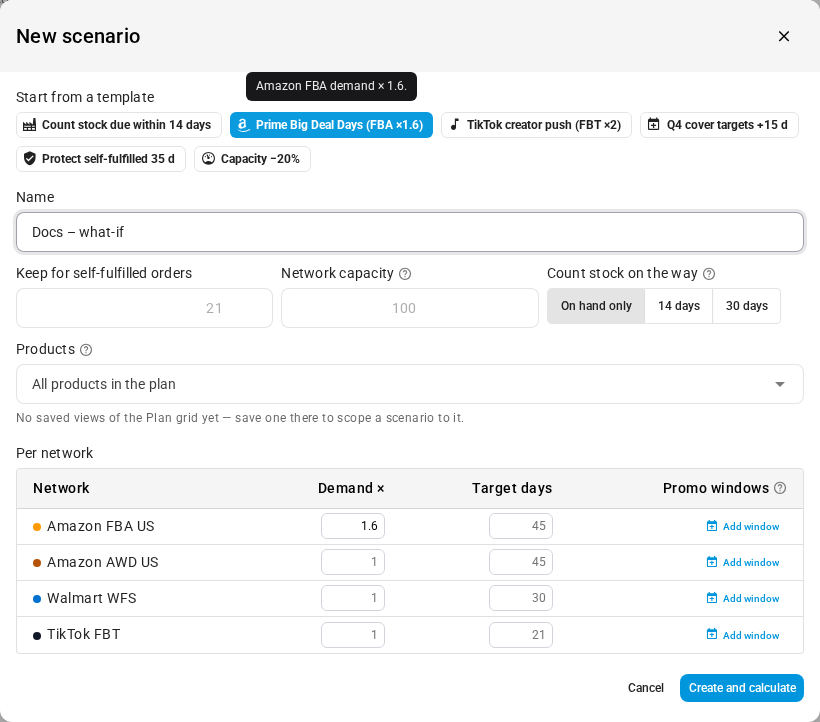
The dialog closes with "Scenario created — it is calculating in the background". The calculation shows in the job tray, and the Scenarios list refreshes when it finishes. The new scenario appears with status Ready and, under its name, a one-line summary of what it changes, such as "Amazon FBA US demand ×1.6 · capacity 80% · keep 35 days for self-fulfilled orders · count stock arriving ≤ 14 days · only "Top sellers"". See Follow background jobs.
Templates
| Template | What it fills in |
|---|---|
| Count stock due within 14 days | Count stock on the way = 14 days: production and purchase orders arriving at your warehouses within 14 days are planned as if already there. |
| Prime Big Deal Days (FBA ×1.6) | Demand × 1.6 on every Amazon FBA network, and no other network. |
| TikTok creator push (FBT ×2) | Demand × 2 on every TikTok FBT network, and no other network. |
| Q4 cover targets +15 d | Each network's Target days = its current target plus 15, up to 365. |
| Protect self-fulfilled 35 d | Keep for self-fulfilled orders = 35 days. |
| Capacity −20% | Network capacity = 80% of each limit. |
Scenario fields
| Field | What it changes | Allowed values |
|---|---|---|
| Keep for self-fulfilled orders | Days of self-fulfilled demand kept at your warehouses before anything is offered to the networks. | A whole number from 0 to 365. Empty keeps the working plan's value. |
| Network capacity (% of each limit) | Scales every network's capacity limit for this scenario, for example 80% when Amazon cuts this month's limit. Networks with no limit aren't affected. | 10 to 500. Empty means 100%. Typing 100 replaces any capacity change the working plan already has. |
| Count stock on the way | How many days ahead production and purchase orders due at your warehouses count as if already there. On hand only counts none. | On hand only, 14 days or 30 days. If the working plan uses another number of days from Network rules, such as 7, that value is offered too. The scenario saves this only when it differs from the working plan. |
| Products | All products in the plan, or Saved view: and a saved view of the Plan grid. The view's filters and search are applied to the working plan when you create the scenario, and that list of products is then fixed: editing the view later doesn't change the scenario. | If you have no saved views of the grid yet, the field says "No saved views of the Plan grid yet — save one there to scope a scenario to it." |
| Per network: Demand × | Multiplies that network's demand. | 0 to 20. Empty leaves it unchanged. Typing 1 replaces any multiplier the working plan already has. |
| Per network: Target days | That network's target days of cover. | A whole number from 1 to 365. Empty keeps the network's target, shown as the placeholder. |
| Per network: Promo windows | Raises demand only between two dates. See the next section. | Up to 6 per network. |
The Per network table lists only the networks turned on in Network rules. If none are, it says "No networks — connect one first."
Add a promo window
Use a promo window when extra demand lasts only a few days, such as a two-day sale, instead of raising a network's demand for the whole send.
- In the Per network table, click Add window on the network's row. A row opens under it, set to today through two days from today.
- To reuse a promotion you already saved in Demand Planning, pick it from Saved promo window…. Its dates and name fill in. The picker shows only when saved promo windows exist.
- Otherwise, set the start date and the end date, after to.
- Enter the multiplier after demand ×, for example 1.6. It's required.
- Optional: enter a Label (optional) so you recognize the window later.
To remove a window, click the × at the end of its row.
The planner averages a window over the planning horizon, from today to the day the send arrives plus the network's target. So a 2-day ×1.6 window inside a 54-day horizon adds only about 2% to the network's need, and a window entirely outside the horizon changes nothing. To record promotions and measure their real lift, see Plan for promotions with promo windows.
Save your tuning as a scenario
If you're already trying changes on the working plan, you can keep them as a scenario instead of applying them.
- On the Plan tab, click Tune plan and make your changes, or pick one of the Quick what-ifs templates there. Picking a template shows "Previewing "…". Save it as a scenario or recalculate to apply." See Tune the plan.
- In the purple bar that reads You're previewing changes that aren't saved, click Save as scenario.
- Enter a Name. If you picked a template, its title is already filled in.
- Click Save and calculate.
The message "Scenario saved — it is calculating in the background" confirms it. Saving discards the preview, so the working plan is back to its saved numbers. Capacity −20% has no preview on the grid; it's applied when the scenario calculates.
Open a scenario on the Plan tab
- On the Plan tab, click the view picker, the button with the eye icon next to Tune plan. It shows once a plan exists. On a phone, it's the full-width button above the actions.
- Under Scenarios (read-only), click the scenario.

The grid and summary show the scenario's numbers, with a purple Scenario: chip next to the page title. To go back, pick Working plan. You can also open a scenario by clicking its name on the Scenarios tab; only Ready scenarios have a link.
The picker lists the 50 newest ready scenarios. If you pick another scenario while one is still loading, the last one you picked is the one that opens. A link to a scenario opens it straight away. If the scenario can't be loaded, for example because the link names a plan that no longer exists, an error shows and the page returns to the working plan.
While you view a scenario, nothing on the page can change stock or the plan. See What you can't do in a scenario.
Fix "Could not create the scenario"
If the scenario can't be created, a red banner in the dialog says why, and the dialog stays open with your changes so you can correct them.
| Message | What to do |
|---|---|
| Give the scenario a name. | Enter a Name. |
| Keep for self-fulfilled orders must be a whole number of days from 0 to 365. | Enter a whole number in range, or clear the field. |
| Network capacity must be between 10% and 500% of each limit. / Capacity can be cut to no less than 10%. | Enter a percentage from 10 to 500. |
| Demand multipliers must be between 0 and 20. | Fix the network's Demand ×. |
| Target days must be a whole number from 1 to 365. | Fix the network's Target days. |
| Network: every promo window needs a start and an end date. | Fill in both dates on that network's window. |
| Network: a promo window must end on or after its start. | Move the end date on or after the start date. |
| Network: a promo window's demand multiplier must be between 0 and 20. | Enter a multiplier after demand ×. |
| That saved view no longer exists. | The view was deleted after you picked it. Pick another view, or choose All products in the plan. |
| Pick a saved view of the Send Planner grid. | The view belongs to another table. Pick a view of the Plan grid. |
| Calculate a working plan first; the saved view is applied to its rows. | Calculate the working plan, then create the scenario. |
| The saved view "name" shows no products in the working plan. | Loosen the view's filters on the Plan grid, pick another view, or choose All products in the plan. |