Archive plans and review history
Every time the Send Planner calculates, it keeps the result. The History tab lists all of them, so you can see what a past plan said, why one failed, or what last week's send run sent. Archive the plans and scenarios you've finished with to keep the lists short. Archiving releases any stock the plan still has allocated, and you can unarchive a plan later.
Before you begin
- Anyone who can see the Send Planner can read History and open past plans.
- Archiving and unarchiving need the Send Planner → Edit permission. Without it, the buttons are turned off and say "You need the Send Planner edit permission".
Find a plan in History
- Go to Inventory → Send Planner and click the History tab.
- Narrow the Plans list with any of these:
- Type a plan number or name in Search by ID or name....
- Click Filters, then pick a Status (Ready, Calculating, Failed or Superseded) or a Type (Working plan, Scenario or Send run).
- Click Advanced Filters to filter by ID, Name, Created or Updated.
- At the bottom of the list, click Active, Archived or All. The list opens on Active.
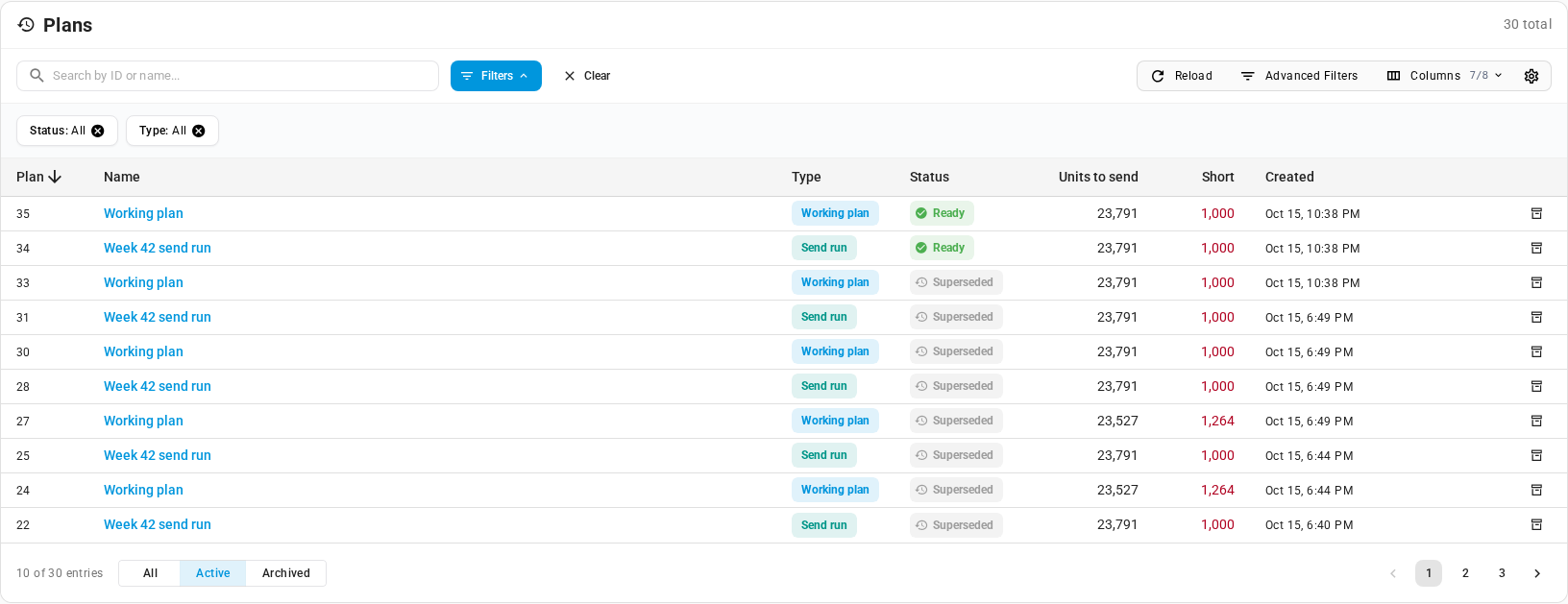
The list shows the newest plan first. Click Plan, Name, Status, Created or Updated to sort by that column, and pick 10, 25 or 50 rows per page. The list refreshes by itself when a plan finishes calculating; click Reload to refresh it yourself.
| Column | What it shows |
|---|---|
| Plan | The plan's number. |
| Name | The plan's name: Working plan, Send run (or "Week N send run" for a scheduled run), or a scenario's name. Under a scenario's name, a one-line summary of what it changes, such as "Amazon FBA US demand ×1.6 · Capacity 80%". The name is a link when the plan can be opened. |
| Type | Working plan, Scenario or Send run. Only in History. |
| Status | Ready, Calculating, Failed, Superseded, or Archived. Hover a Failed status to see why it failed, for example out-of-date network stock. On a phone, the reason shows under the plan. |
| Units to send | The plan's total send, or — before it has totals. |
| Short | Units the networks need that your warehouses can't cover, red when above 0. |
| Created | When the plan was started. |
| Updated | When it last changed. Hidden until you turn it on in Columns. |
When nothing matches, the list says what's filtering it, for example "No active plans match "week" + status Ready.", with a Clear filters button. The Scenarios tab uses the same list for scenarios only, without the Type column and filter.
Open a past plan
Click the plan's name. Where it opens depends on the plan:
| Plan | Opens |
|---|---|
| The current working plan | The Plan tab. |
| A ready scenario that isn't archived | The Plan tab, read-only, with the Scenario: chip. See Try a what-if with a scenario. |
| Any other calculated plan: a superseded or archived working plan, a send run, an archived scenario | A read-only window showing the plan as it was calculated. |
| A plan that's still calculating, or that failed | Nothing to open; the name isn't a link. |
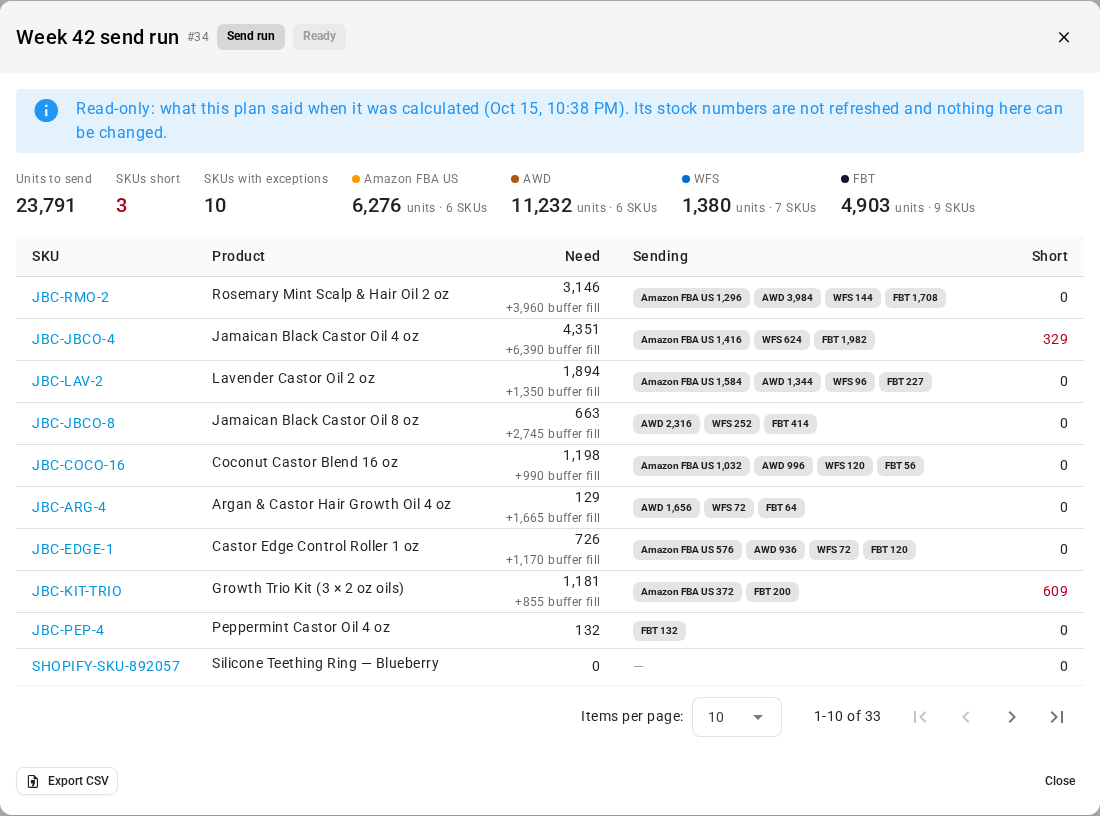
The read-only window shows:
- A note that it's what the plan said when it was calculated, with that time, and that its stock numbers aren't refreshed and nothing in it can be changed. An archived plan also says when it was archived.
- Units to send, SKUs short, SKUs with exceptions, and each network's units and SKUs.
- A table of every SKU in the plan, 10 at a time: SKU (linked to the product), Product, Need, Sending (a chip for each network with its units) and Short. Need is what the selling networks need; when a buffer such as AWD still needs filling, a +N buffer fill caption under it shows that part separately.
Click Export CSV to download the whole plan as it was calculated. A large plan is built in the background, and you download it from the job tray. See Export a send plan.
To work in a past send run again, open it from the picker on the Send runs tab instead. See Work through a send run.
Archive a plan or scenario
- Find the plan on the History tab, or a scenario on the Scenarios tab.
- Click the archive icon at the end of its row. On a phone, click Archive on its card.
- Read the confirmation, then confirm.
The archive icon is turned off with "Wait for the calculation to finish" while a plan is calculating. Archived confirms it, and the plan moves to Archived at the bottom of the list.
Archiving releases every allocation the plan still has, so that stock is free for other orders again. That includes stock allocated for AWD or manual sends that haven't shipped. Drafts already created in the networks aren't touched. Discarding a send run on the Send runs tab does the same. See Allocate stock for a send.
The confirmation depends on the plan:
| Plan | Confirmation | Button |
|---|---|---|
| A send run | Archive this send run?: it moves to Archived and every allocation it still has is released, including allocations kept for AWD and manual sends that haven't shipped. Drafts already created in the networks aren't touched, and unarchiving doesn't place the allocations again. | Archive and release allocations |
| An older working plan | Archive this plan?: it moves to Archived and any stock it still has allocated is released. You can still open it from History and unarchive it, but the allocations aren't placed again. | Archive |
| A scenario | Archive this plan?: it moves to Archived, and you can still open it from History (read-only) and unarchive it. Scenarios never allocate stock. | Archive |
| The current working plan | See Archive the current working plan. | Archive and release allocations |
Archive the current working plan
The working plan on the Plan tab gets a stronger warning, because archiving it empties the Plan tab.
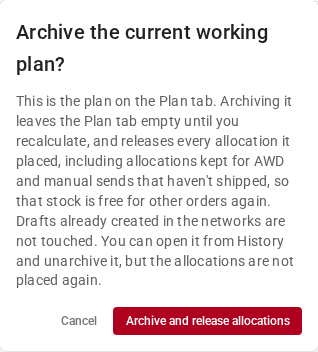
Archive the current working plan? says that the Plan tab stays empty until you recalculate, and that every allocation the plan placed is released. That includes allocations kept for AWD and manual sends that haven't shipped. Drafts already created in the networks aren't touched. You can open the plan from History and unarchive it later, but its allocations aren't placed again. To go ahead, click Archive and release allocations.
If you only want fresh numbers, recalculate instead: the new working plan replaces the current one and keeps your edits. Recalculating still releases the allocations of lines you haven't drafted yet; see What a recalculation releases. See Recalculate the plan and fix calculation problems.
Scenarios are archived for you
A scenario that hasn't been updated for 30 days is archived automatically. You can open it and unarchive it the same way. See Plans, scenarios and send runs.
Unarchive a plan
- Click Archived at the bottom of the History or Scenarios list.
- Click the unarchive icon at the end of the plan's row. On a phone, click Unarchive on its card. You can also click Unarchive in the plan's read-only window.
The plan goes back to the active list, with a status worked out from what it holds:
| Plan | Comes back as |
|---|---|
| A working plan, when no working plan was calculated after it | Ready, and it's the working plan on the Plan tab again. The message says "Unarchived. It is the working plan again; its allocations were not placed again." |
| A working plan, when a newer one exists | Superseded, so it never replaces a newer plan. |
| A scenario or send run that was calculated | Ready. A scenario can be opened, compared and promoted again. A send run is back in the picker on the Send runs tab. |
| A plan that never finished calculating | Failed. |
Hover the unarchive icon to see what it brings back. Unarchiving never places the allocations again. If a working plan you brought back still needs stock set aside, allocate it again on the Plan tab. See Allocate stock for a send.