Follow up on shipment drafts
After you create shipment drafts, most drafts are ready in their network within a minute. Some need you: a source warehouse had less stock than the plan assumed, a network refused the draft, or Amazon AWD couldn't take it and you have to enter it in Seller Central. The Shipments list on the plan shows every draft with its status and the action that fixes it.
Before you begin
- You need the Send Planner → Draft permission to retry a draft. Retrying FBA, AWD, WFS or FBT drafts also needs Integrations → Edit, and retrying warehouse transfer drafts needs Warehouse Transfers → Create. See Send Planner permissions.
- The plan must have drafts. The Shipments button appears only once it does.
Open the Shipments list
-
Go to Inventory → Send Planner. The Plan tab opens on the working plan.
-
Click Shipments at the top right, next to Draft shipments. On a phone, tap ⋯ and then Shipments.
The badge on the button counts the drafts. It's red when any draft needs attention, blue while drafts are being created, and green when every draft is done. Hover over the button for a summary, such as "4 created · 2 manual · 2 need attention".
-
Read the counts at the top of Shipments from this plan: N created, N to create in Seller Central, N need attention and N creating.
-
Work down the list. Drafts that need attention come first, then the newest.
-
Click Refresh to reload the list. While any draft is still being created, the list refreshes itself every few seconds.
-
Click Done to close the list.
Each row shows the network, the kind of draft and the warehouse it ships from, for example FBA draft inbound plan from Miami Plant. Below that are the number of SKUs and units, · stock allocated when the draft has allocated stock, · added to an existing plan when it went onto an FBA draft plan you picked, and how long ago it changed.
If the plan has no drafts yet, the list says "No shipments from this plan yet. Use Draft shipments to hand it to each network."
Draft statuses
The status chip on the right of each row uses the same words here, in the Draft shipments to the networks dialog and in Review AI plan.
| Status | What it means | What to do |
|---|---|---|
| Creating… | The draft is being created in the background. | Wait. You can close the list; the work carries on. |
| Draft created | The draft exists in the network. | Click its link to open it and finish it there. |
| Short at source | The source warehouse has less stock now than the plan assumed, so the draft's stock couldn't be allocated. Nothing was drafted. | See When a source is short. |
| Failed | The network or SKU.io couldn't create the draft. The reason is under the row, with what to do next. | Fix the cause, then click Retry. See Retry a failed draft. |
| Enter manually | Amazon AWD couldn't take the draft through its API. | See Finish a send you enter in Seller Central. |
| Deleted in network | The draft was deleted, discarded or cancelled in the network's own screens. Its units are back in the plan and can be drafted again. | Draft the units again if you still want to send them. |
For every status in the Send Planner, see Send Planner statuses.
Open a draft in its network
Click the link on the right of a Draft created row. The link shows the draft's name when it has one, such as Send Plan #24 · Miami Plant for an FBA draft plan. Otherwise it shows the draft's number, for example FBA draft plan #12, WFS draft #4, FBT plan #9, or the transfer's number for a warehouse transfer. It opens the draft in SKU.io, where you finish and submit it:
An AWD draft order exists only in Seller Central until you confirm it, so its link opens Seller Central. Hover over the link: once Amazon creates the shipment, it shows under Amazon → AWD → Shipments.
Retry a failed draft
A draft fails on its own: the other drafts from the same plan are created as normal.
- Open Shipments.
- Read the reason under the Failed row.
- Fix the cause. Why a draft fails says how.
- Click Retry on the row.
The message "Retrying the draft" confirms it, and the row goes back to Creating…. The retry builds the draft again from the lines' current quantities and ship-from warehouses, so edits you made since the failure count. It keeps the choices you made the first time, such as the FBA plan name, and allocates the stock again if the first attempt did.
To retry every failed draft at once, click Retry all failed in the Draft shipments to the networks dialog, straight after creating the drafts.
You can retry only while the plan can still be drafted: it must be the working plan and less than 3 days old. If someone already retried the draft, you see "That draft group is not failed any more."
Finish a send you enter in Seller Central
Amazon AWD drafts go through Amazon's API. When a draft can't, SKU.io hands it to you and the row shows Enter manually with "Enter this send in Seller Central from the SKU list", followed by the reason. That happens when a product has no Amazon listing for AWD, a product is missing its case pack, case dimensions or case weight, the source warehouse has no complete address, or Amazon rejects the draft ("Amazon AWD rejected the draft:" and Amazon's reason). If the stock was allocated, the row adds "The stock stays allocated for you until then."
-
On the Enter manually row, click SKU list (CSV). The file downloads straight away.
-
In Seller Central, create the AWD inbound and type in each row of the file.
-
To keep your stock records in step with the units leaving your warehouse, click Transfer draft….
-
Under Draft a warehouse transfer for this send, check the units and the warehouse they ship from, then pick a warehouse under Ship to. The network's warehouse is listed first, marked · the network's warehouse, and already picked. You can pick one of your own warehouses (· your warehouse) or 3PLs (· 3PL) instead. The warehouse the send ships from, supplier warehouses, archived warehouses and warehouses excluded from planning aren't offered. When there are more than 8 warehouses, type in Search warehouses to narrow the list.
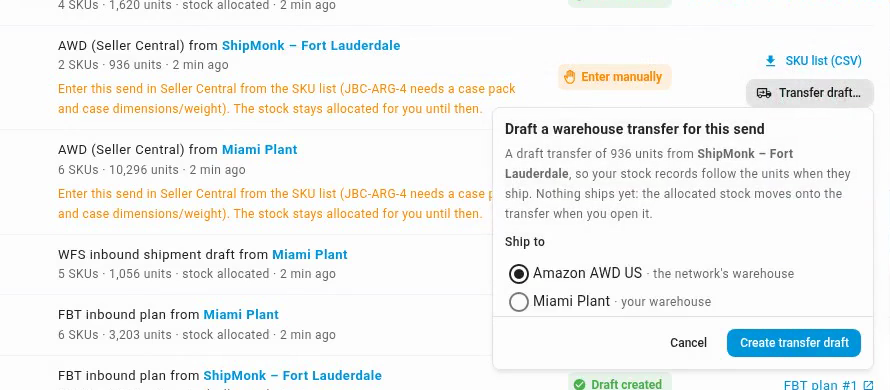
-
Click Create transfer draft. Cancel and Create transfer draft stay in view while you scroll a long list. If no warehouse is picked, Create transfer draft is greyed out with "Choose the warehouse the transfer ships to".
The message "Transfer draft created. Open it to ship when the send leaves." confirms it, and the row then links to the transfer. Nothing ships yet. If the stock for this send was allocated, the allocation moves onto the transfer and the transfer allocates the stock when you open it. If it wasn't, nothing is allocated until you open the transfer. See Ship a transfer.
The SKU list has one row per SKU:
| Column | What it holds |
|---|---|
| SKU | Your SKU. |
| Merchant SKU (MSKU) | The Amazon merchant SKU to enter. Left out when SKU.io can't look up the listing. |
| Product | The product name. |
| Units | Units to send. |
| Units per case | The case pack. |
| Cases | Units divided by units per case, rounded up. Blank when the product has no case pack. |
| Case dimensions | Length × width × height with the unit, when all three are set. |
| Case weight | The case weight with its unit. |
Each send gets one transfer draft. A second try says "A transfer draft was already created for this send." Transfer draft… needs the Warehouse Transfers → Create permission; without it, the button is greyed out and says so.
The allocation for a send you enter manually stays on the plan and is released after the time set in Release unused allocations after (hours), unless a transfer draft takes it over first. See Allocate stock for a send.
Discard a draft you won't send
If you decide not to send a draft, throw it away in the network's own screen. Its allocation is released, and its row in Shipments changes to Deleted in network the next time the list loads. The units go back into the plan, so you can draft them again.
- Walmart WFS: open the draft from its link. On the Create WFS Inbound Shipment page, the Planned by Send Planner banner has Discard draft. Click it, then confirm Discard this WFS draft? No inbound is created. A WFS draft that nobody touches is discarded for you once the planner's allocation time runs out. Discarding needs the Send Planner → Draft permission.
- Amazon FBA and TikTok FBT: delete the draft inbound plan in the network's inbound screens.
- Warehouse transfers: delete the draft transfer under Inventory → Transfers.
- Amazon AWD: the draft order lives in Seller Central; cancel it there. Release the planner's allocation with Release allocations on the Plan tab.
Drafts from earlier plans
Recalculating replaces the plan, but drafts made from the old plan are still open in each network. Shipments lists them under From earlier plans, with the plan they came from, for drafts from the last 14 days. Their units count as in open drafts at the network, so the new plan doesn't suggest them again.
You can't retry or change these drafts here; their actions say "Open the plan it came from to change it". Open each draft from its link to finish it.
If something goes wrong
The sections below cover the less common cases: why a draft fails, a source that no longer has the stock, and SKUs a network leaves out.
Why a draft fails
| Reason under the row | What to do |
|---|---|
| The plan was archived or replaced before this draft was created. | The plan was recalculated or archived while the drafts were waiting. Draft again from the new plan. |
| The FBA destination or the source warehouse no longer exists. / The AWD destination or the source warehouse no longer exists. / The TikTok FBT destination warehouse no longer exists. | A warehouse was deleted. Recalculate the plan and draft again. |
| The FBA draft plan to add to no longer exists. Pick another plan or create a new one. | The FBA draft plan you chose under Add to existing plan was deleted. Draft the SKUs again and pick another plan, or a new one. |
| MSKU … is already on "…" for another product. | The merchant SKU you picked is already on that FBA draft plan for a different product. Draft again with a new plan, or another listing. |
| Warehouse is not linked to an Amazon integration. | The Amazon FBA or AWD warehouse isn't tied to an Amazon connection in SKU.io. Link the warehouse to its Amazon integration, then retry. See How warehouse types work. |
| The destination is not a Walmart WFS warehouse linked to a Walmart integration. | Link the WFS warehouse to its Walmart integration, then retry. |
| Fulfillment by TikTok is switched off for this TikTok Shop connection. / This FBT warehouse is not linked to a TikTok Shop connection. | Turn on FBT, or link the warehouse, then retry. See Send stock to FBT. |
| That warehouse cannot be an FBT inbound source — SKU.io does not hold its stock ledger. | Choose another ship-from warehouse for FBT under Network rules, recalculate, and draft again. See Choose where sends ship from. |
| This warehouse is no longer set up to be stocked by transfer (Network rules → Stock your own warehouses). | The destination warehouse was turned off as a transfer destination. Turn it back on, or draft again from a new plan. See Stock your own warehouses and 3PLs by transfer. |
| A warehouse can't send to itself. | The source and destination are the same warehouse. Change the ship-from warehouse for that destination under Network rules, then recalculate. |
| Not enough stock at the source for the transfer: … | The source has less stock than the transfer needs. Lower the quantity, or recalculate, then retry. |
| Could not create the WFS draft. Retry, or create it on Walmart → WFS → Inbound shipments. / Could not create the FBT draft. Retry, or create it on TikTok Shop → FBT → Inbound plans. / Could not create the warehouse transfer draft. Retry, or create it on the Warehouse Transfers page. | Something went wrong in the network's flow. When SKU.io knows why, the reason follows the first sentence, such as "Could not create the warehouse transfer draft: …". Fix it if it names something, then click Retry. If it fails again, create the inbound on the screen the message names. |
| Could not create the draft. Retry, or create it on network. | An unexpected error stopped the draft. Click Retry, or create the inbound in the network's own screen. |
| Listing sells packs of N but is mapped to the single-unit product. … | Map the listing to an N-pack bundle product, recalculate, then draft it. The planner plans the listing in single units, so drafting it as is would send the wrong number of packs. |
| The network left every line out of the draft. | Read the network's own reason for each SKU, which follows on the row. Fix the products it names, then retry. |
| Network did not accept the draft and gave no reason. Retry, or create it in network. | The network refused the draft without saying why. Click Retry, or create the inbound in the network's own screens. |
| Nothing left to draft: these lines were already handed to the network. | These SKUs are already in another draft. Nothing to do. |
| The draft job stopped before this group was drafted. Retry to create it. | Drafting stopped part-way, for example during a restart. Drafts created before it stopped are kept. Click Retry. |
| Cancelled before this group was drafted. Retry to create it. | Someone cancelled the Send Plan Drafts job in the job tray. Click Retry. |
When a source is short
Each draft allocates its stock as a group, all or nothing. If its source warehouse now has fewer units than the plan assumed, for example because sales orders took some after the plan was calculated, the draft isn't created and its row shows Short at source with "Not drafted: N SKUs have less stock at the source than the plan assumed, so its stock could not be allocated." Below that, each short SKU reads, for example, "JBC-JBCO-4: 1,156 available now · plan assumed 1,416 (short 260)". Up to five SKUs are listed, then "and N more".
You have two ways forward:
- Draft available quantity lowers each short SKU to what the source has now, in whole cases, and drafts the group with its stock allocated. A SKU that would fall below the network's minimum per line drops to 0. The change is recorded as an edit with the reason Stock moved since the plan, so you see it on the grid and in the SKU's edit history. The message lists what changed, for example "Drafting what is available now (JBC-JBCO-4 1,416 → 1,152)". If the source has nothing left, you see "Nothing is available at that source now, so nothing was drafted".
- Draft without allocating drafts the planned quantities without allocating any stock. Nothing is set aside until the network's own flow allocates it, so the network may find less stock than the draft asks for.
To send the full quantity instead, recalculate the plan to pick up the current stock and cover the shortfall.
When SKUs are left out of a draft
A network can leave single SKUs out of a draft and still create the rest. TikTok FBT, for example, leaves out any SKU with fewer than 10 units. The row then says "N SKUs were left out of this draft and stay in the plan", with each SKU's reason. Those SKUs stay on the plan as planned lines. Raise their quantity and draft them again, or leave them for the next send.
If the network leaves out every SKU, the whole draft fails with "The network left every line out of the draft."