Ask the AI Assistant
The AI Assistant answers questions in plain English from any screen. Ask it how to do something and it searches the SKU.io documentation and links you to the guide it used. Ask it about your business, such as stock on hand or an order's status, and it reads your live data instead of guessing.
Before you begin
- Someone on your account must set up an AI provider first, under Settings → AI Assistant. Until a key is saved, the assistant stays off. See How AI is set up.
- The assistant acts as you. It only sees the records your own permissions let you see.
Open the assistant
-
Click the AI Assistant icon at the top of any screen.
The assistant opens beside your work, with quick actions such as Check Inventory and Look up an Order, and topic chips to focus the conversation.
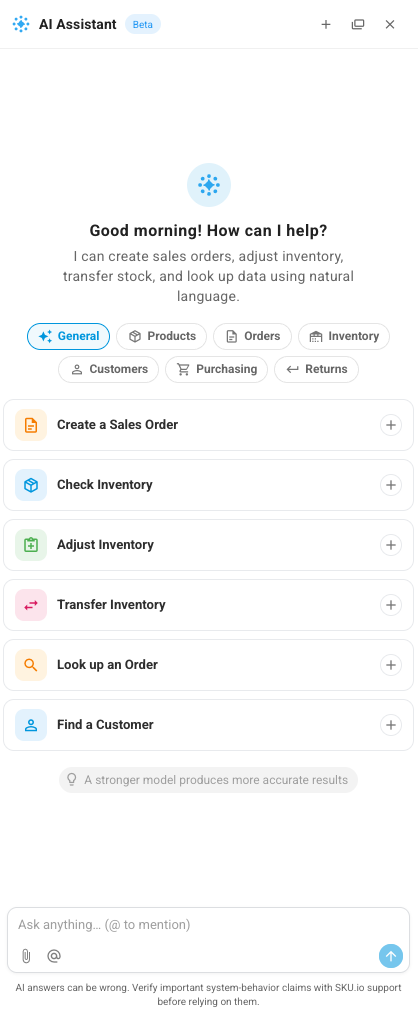
-
To give it the whole screen, click the expand icon in the panel's header. The full page lists your earlier chats on the left, and Side by side lets you run two conversations at once.
Ask how something works
- Type your question in the box at the bottom, for example How do I receive a purchase order that arrived in two shipments?
- Press Enter.
The assistant searches the SKU.io documentation, answers in steps, and ends with a link to the guide it drew on, so you can read the full page.
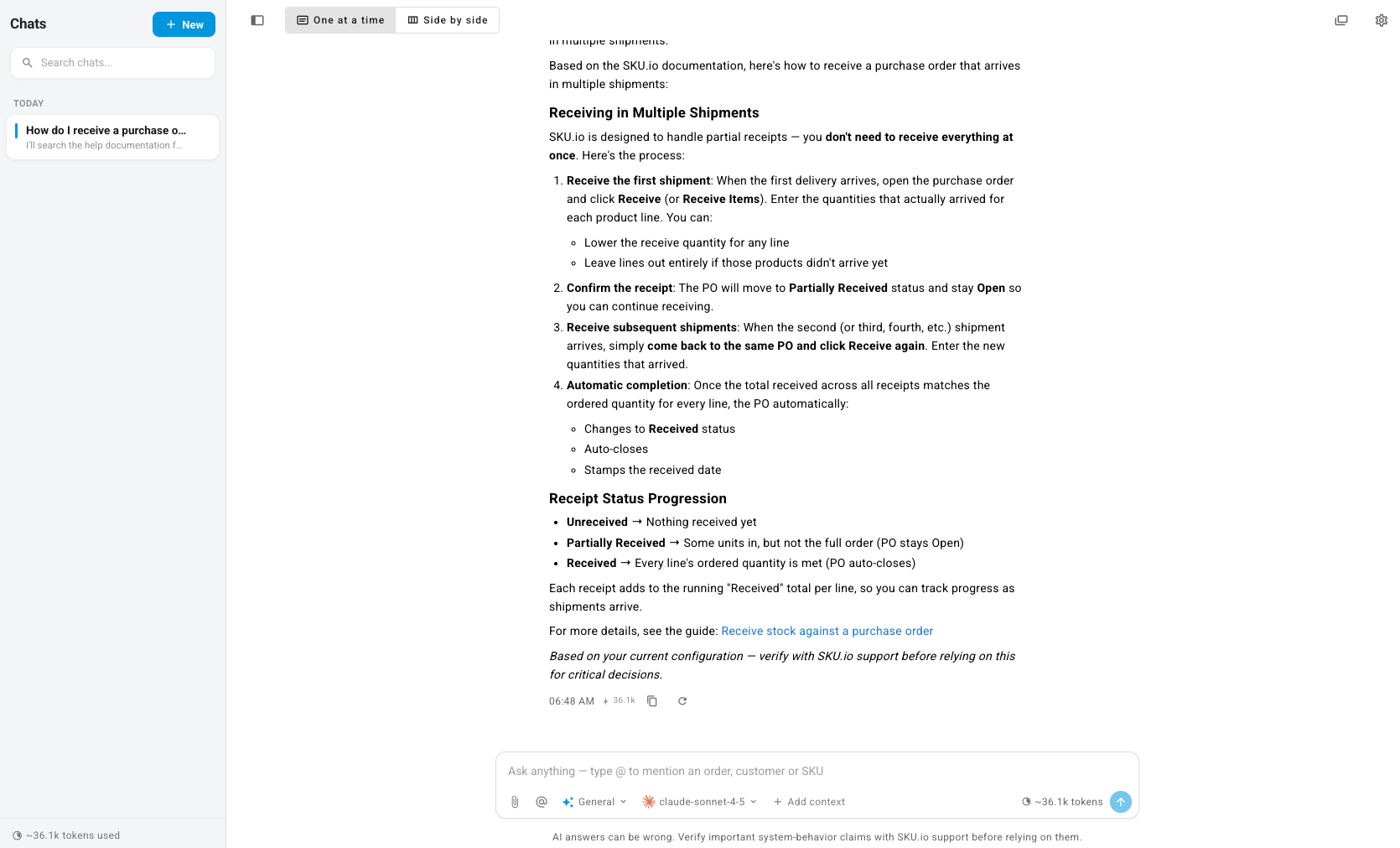
Phrase the question the way you'd ask a colleague. Naming the feature, such as "purchase order", "bundle", or "allocation", gives it the best match.
Ask about your own data
- Start a new chat with New, or keep going in the same one.
- Ask about your records, for example How many Summit Flask Insulated Bottle 32 oz in Glacier do we have available, and in which warehouses?
- Press Enter.
The answer comes from your live data, and records it mentions are links you can click to open.
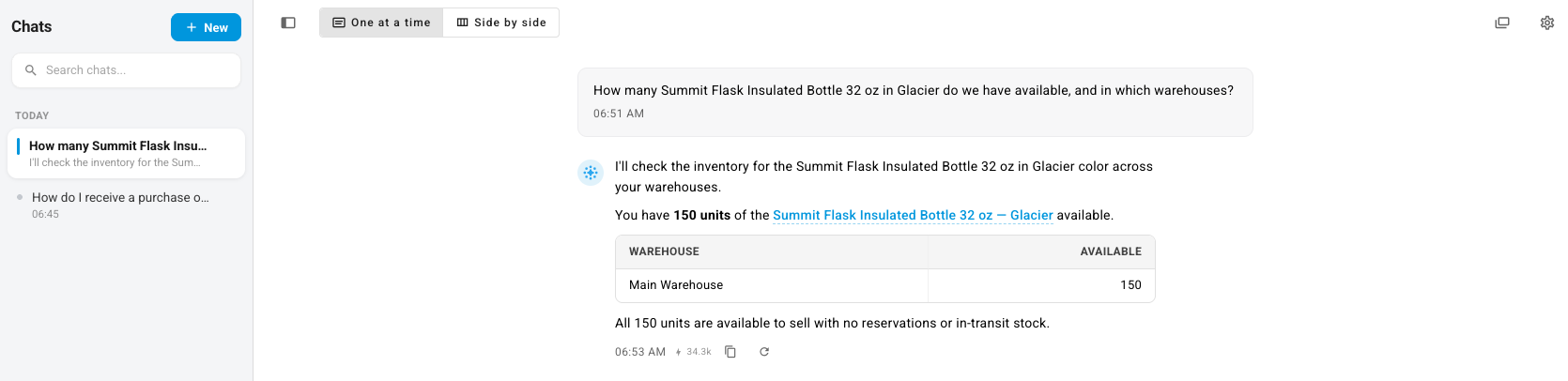
To point the assistant at a specific record, type @ and pick the order,
customer, or SKU you mean.

The controls under the message box let you:
- Attach a file, such as a spreadsheet you want it to read.
- Mention a record with
@. - Change the topic (General, Products, Orders, Inventory, Customers, Purchasing, or Returns) to keep the conversation focused.
- Pick a different model for this conversation. A stronger model gives more accurate answers.
Check before you act
AI answers can be wrong. Treat an answer the way you'd treat a colleague's spreadsheet: check the number on its own screen before you act on it. When the assistant offers to create or change a record, it shows you a Confirm card first and changes nothing until you click Confirm. It can't delete records, and it can't change users, permissions, settings, or integration credentials.
Next steps
- AI & Automation — every AI feature in SKU.io, and what the assistant is allowed to do.
- Connect an AI assistant — ask the same questions from Claude, Cursor, or another assistant you already use.
- Keyboard shortcuts and the command palette — jump straight to a screen instead.