Order from suppliers that ship straight to a network
When your warehouses can't cover what a fulfillment network needs, the Send Planner can suggest ordering the rest from a supplier that delivers straight to that network. You tell it which suppliers can do that, it suggests how much to order, and you draft the purchase orders from the plan after checking the quantities and cost. Nothing is sent to the supplier until you send each purchase order yourself.
Before you begin
- The supplier must already supply the product: the product has to be on the supplier's product list.
- To change a supplier, you need the Suppliers → Edit permission.
- To draft the purchase orders, you need the Send Planner → Draft permission and Purchase Orders → Create. See Send Planner permissions.
- Draft purchase orders from the working plan. Scenarios are what-ifs, so their buttons say "Scenarios are what-ifs: create POs from the working plan".
Let a supplier ship straight to a network
- Go to Contacts → Suppliers and open the supplier.
- Click the Settings tab.
- Click Edit at the top right.
- Click Fulfillment Networks in the list on the left, or scroll to Ships to Fulfillment Networks.
- Click Add network.
- In Network warehouse, choose the network the supplier delivers to, such as Amazon FBA US.
- In Lead time (days), enter the days from ordering to the stock being available at the network. Leave it empty to use the supplier's own lead time, shown in grey.
- In Prep notes, describe the prep the supplier does for this network, for example "applies FNSKU labels; no ITF-14 case labels". The planner shows these notes next to its suggestion.
- Repeat from step 5 for each network the supplier is set up for.
- Click Save at the top right. Save stays greyed out until you change something, and Cancel leaves edit mode straight away when you haven't changed anything.
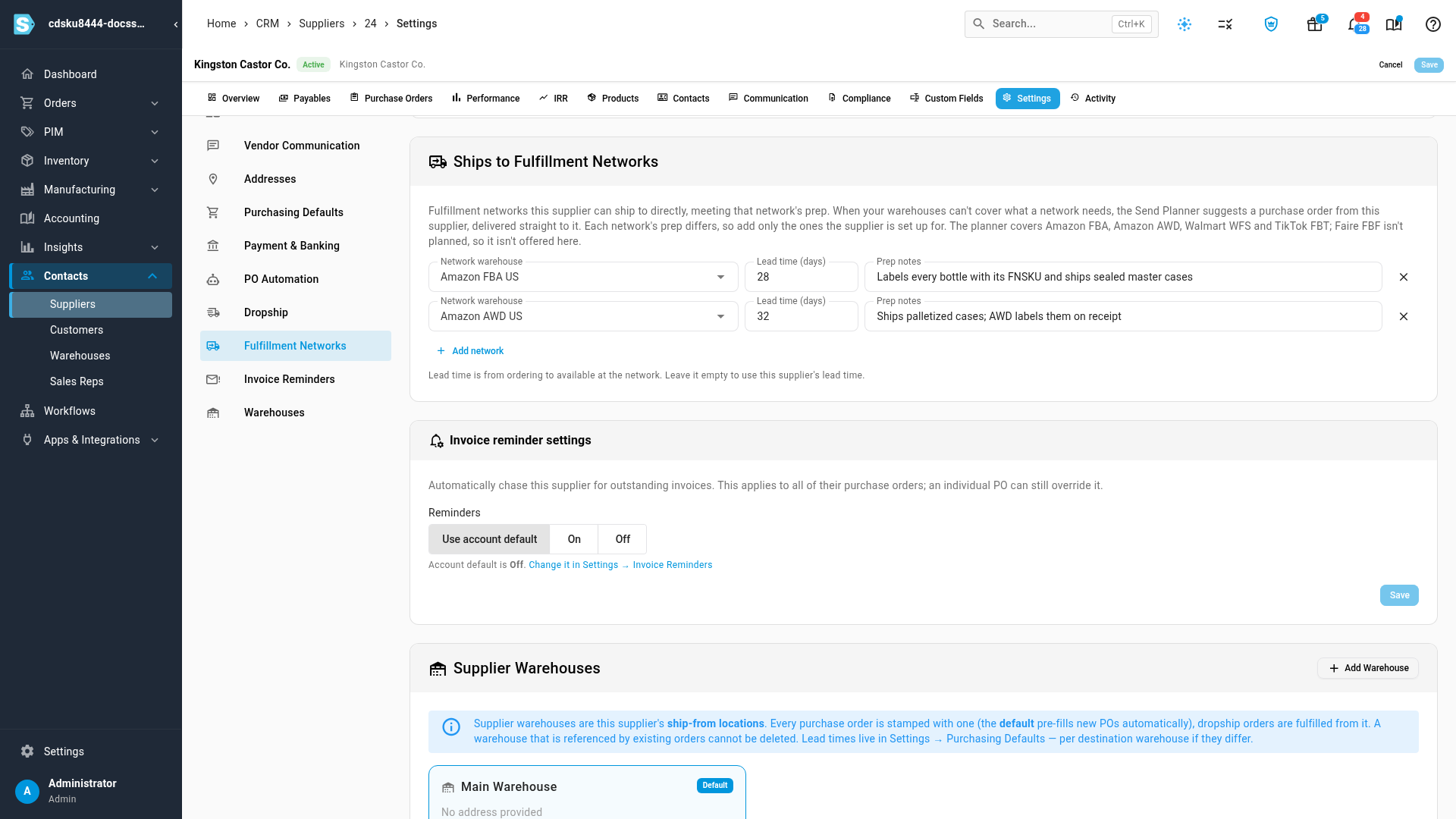
| Field | What it does |
|---|---|
| Network warehouse | A fulfillment network the planner plans for: Amazon FBA, Amazon AWD, Walmart WFS or TikTok FBT. Each network can be listed once. When every network is listed, Add network is greyed out with "Every fulfillment network warehouse is already listed". |
| Lead time (days) | From ordering to available at the network. Empty uses the supplier's lead time for that product, or else the supplier's own lead time. |
| Prep notes | Free text shown in the planner's suggestion and on the purchase order preview. |
Faire FBF isn't offered: the Send Planner doesn't plan sends to it. A supplier saved earlier with an FBF row shows Not planned next to it; remove that row. If no network is connected yet, the section says to connect Amazon FBA / AWD, Walmart WFS or TikTok FBT first. When the supplier ships to no network, the section reads "Doesn't ship to any fulfillment network directly."
The setting applies from the next calculation. Recalculate the plan to see suggestions straight away.
How the planner suggests an order
Your own stock always goes first, because you've already paid for it. Only what your warehouses still can't cover after sharing goes to a supplier:
- Only real shortages. The planner suggests an order only when a network is short by at least one case. Less than that is rounding to whole cases, not a shortage.
- Only networks that can sell it. The network's listing must be live or new. Stranded, ineligible and unlisted products get no suggestion.
- Which supplier. The product's default supplier, if it ships to that network. Otherwise, the supplier with the shortest lead time.
- How much. The shortfall rounded up to whole cases, and at least the supplier's minimum order quantity, also rounded up to whole cases. So the order can be bigger than the shortfall; the planner says why.
- When it arrives. The network's lead time on the supplier, or else the supplier's lead time. The planner also says how many days later that is than a send from your own warehouse.
Supplier-direct units aren't in the send numbers on the grid, which ship from your warehouses. They go on separate draft purchase orders.
Read the suggestions
The planner shows supplier-direct suggestions in four places.
The summary. When a plan has suggestions waiting, the summary above the grid shows To order from suppliers, shipped direct with the units, the estimated cost and the suppliers, for example "7,320 units (7,081 needed, rounded up to whole cases and the supplier's minimum) · ~$15,934 from Kingston Castor Co.". When every order goes to one network, the row also names it. Each network under Where it goes also says "+ N units to order from supplier, shipped direct · N d". Hover over the question mark for what the row means.
The grid. Click Show SKUs in that row to show only the SKUs with a suggestion; the row says "The grid below shows only these SKUs." The banner above the grid says your warehouses can't cover these networks, with Show all SKUs and Draft all supplier POs…. Under each send box, +N supplier marks the extra units. Hover over it to see how short your warehouses are, which supplier ships how much and how fast, and why the order is bigger than the shortfall.
The SKU's details. Open a SKU's Why these numbers drawer. Each short network has an alert such as "Amazon FBA US: your warehouses are 262 short. Kingston Castor Co. ships direct — order 480 (20 cases of 24, supplier minimum 480), there in 28 days, 19 later than a send from your warehouse." The Prep: line shows the supplier's prep notes. If no lead time is set, it says "lead time not set." Click the supplier's name to open its Ships to Fulfillment Networks settings.
The selection bar. ⋯ (More actions) → Draft supplier POs says how many of the selected lines your warehouses can't cover. With All matching N, it says how many lines in the matching SKUs are delivered straight to the network. It's greyed out when nothing in scope is waiting for a PO.
Draft the purchase orders
You can draft them from any of these:
| From | Click | Orders |
|---|---|---|
| The summary | Draft POs… | Every suggestion in the plan |
| The grid banner | Draft all supplier POs… | Every suggestion in the plan |
| A SKU's drawer | Create draft PO… | That network's suggestion for that SKU |
| The selection bar | ⋯ → Draft supplier POs | The selected SKUs, or the whole plan with All N |
- Click one of the buttons above. The Draft supplier purchase orders dialog opens with a preview. Nothing is created yet.
- Check the totals: Draft POs (one per supplier and network), Units to order with the number of SKUs, and Estimated cost (the supplier price, else the average cost).
- Check each row: Supplier, Delivers to, SKUs, Units, Est. cost, Lead · ETA and Prep. A long prep note wraps onto up to three lines; hover over it to read the whole note.
- If a row's Est. cost has a warning icon, hover over it. SKUs with no supplier price or average cost are counted at $0, so the estimate is too low. Set the price on the purchase order before you send it.
- Read When you create them.
- Click Create N draft POs · $N.
The dialog changes to Draft purchase orders created with "N draft purchase orders created. Nothing was sent to the suppliers — review each one and send it from the purchase order." It lists each Purchase order with a link, the supplier, where it delivers, its SKUs and units. Click Done to close.
Each purchase order is a draft whose destination is the network's warehouse, with the estimated delivery date set from the lead time. The next plan counts those units as on their way to the network, so they aren't suggested again. To review and send a purchase order, see Approve and submit a PO. Purchase orders that deliver to Amazon behave like other Amazon purchase orders; see Dropship and Amazon POs.
If the plan is recalculated while the dialog is open, the preview reloads with the new plan's numbers.
Waiting and ordered
Once a suggestion has a purchase order, the planner shows the order instead of the suggestion:
- The summary row changes to Ordered from suppliers, shipped direct. With one purchase order, it names it, for example "480 units on PO-1048 (draft) · Kingston Castor Co. → Amazon FBA US · Nov 12". With several, it says "N units on N draft POs · nothing left to order"; click View POs to list them and Hide POs to close the list. "Drafts aren't sent to suppliers: open a PO to review and send it."
- When some suggestions are ordered and others still wait, the row stays To order from suppliers, shipped direct and adds "N more already ordered".
- Under Where it goes, each network's line changes to "N units on order from supplier, shipped direct".
- Under the send box, +N supplier becomes the purchase order number and units, for example PO-1048 · 480.
- In the SKU's drawer, Create draft PO… becomes a button with the purchase order number, which opens it.
- The grid banner names the purchase orders: "Open a SKU to see its PO."
A suggestion is never ordered twice. If you draft again, the dialog says "N suggestions already have a PO and are skipped." When every suggestion in scope already has one, it says "Nothing to order: no supplier-direct suggestion in this plan is waiting for a PO." and offers only Close.
When Draft POs is greyed out
Hover over the button to see why:
| Message | What to do |
|---|---|
| Scenarios are what-ifs: create POs from the working plan | Switch to the working plan. |
| Apply & recalculate or Discard the tuning preview first: POs use the saved plan, not the preview | Apply or discard your Tune plan changes. |
| You need the Send Planner draft permission | Ask an admin for Send Planner → Draft. |
| Creating purchase orders also needs the "Purchase Orders → Create" permission | Ask an admin for Purchase Orders → Create. |
| None of these SKUs has a supplier that ships direct to a short network | The selected SKUs have no suggestion. Select others, or switch the selection bar to All N. |
| No supplier-direct suggestion in this plan is waiting for a PO | Nothing is left to order: every suggestion already has a PO, or the plan has none. |
| None of the matching SKUs has a supplier-direct suggestion waiting for a PO | With All matching N, none of the matching SKUs has an order waiting. Change the filters, or clear them. |
If a purchase order is deleted or cancelled
A suggestion counts as ordered only while its draft purchase order still stands. If you delete or archive the purchase order, or it's voided or cancelled, the suggestion is waiting again on the same plan: the summary, the grid and the Draft supplier purchase orders dialog show it as not ordered, and you can draft a new purchase order for it. You don't need to recalculate.
If an order can't be created
The dialog creates only what the supplier can still supply. If the supplier no longer carries a product, for example because it was removed from the supplier's product list after the plan was calculated, that order isn't created and a warning names it, for example "1 order not created: Kingston Castor Co. no longer supplies JBC-JBCO-4. Add the product to the supplier (or choose another supplier), recalculate the plan, then order again." The other purchase orders are created as normal, and the suggestions that weren't ordered stay waiting.
Next steps
- Cover a shortfall, for shortages no supplier can deliver straight to the network
- Set supplier lead times
- Supplier detail page reference
- How a PO becomes inventory