Read the send plan
The Plan tab answers one question: how much should you send from your warehouses to each fulfillment network right now, and what should you keep for the orders you ship yourself? It reads top to bottom: how fresh the plan is, a summary of the whole plan, notes worth knowing, and then one row per SKU with a column for each network. This page walks through it in the order you'd read it.
Before you begin
- You need the Send Planner → View permission to open the page. Changing anything on it needs Send Planner → Edit.
- The planner needs a calculated plan. If the page says Calculate your first plan or Connect a fulfillment network, see Set up the Send Planner.
Read the plan
- Go to Inventory → Send Planner. The Plan tab opens, showing the working plan.
- Check the chip next to the Send Planner title to see how fresh the plan is. Hover over it to see exactly when it was calculated.
- Read the headline under This plan: the total units to send, and how many networks, warehouses and SKUs that covers.
- Check the signals under the headline. Click one to show only those SKUs in the grid.
- Read Where it goes for each network's share. Click a network to show only the SKUs it gets. To show every SKU again, close the Sends to chip above the grid.
- Read the Notes line. It names anything marked to check. Click Show all to open every note, and Hide to close them.
- Scroll to SKUs in this plan and work through the grid. Use the quick filters or Most urgent first to decide what to look at first.
- To see why a SKU gets its numbers, click the arrow at the end of its row.
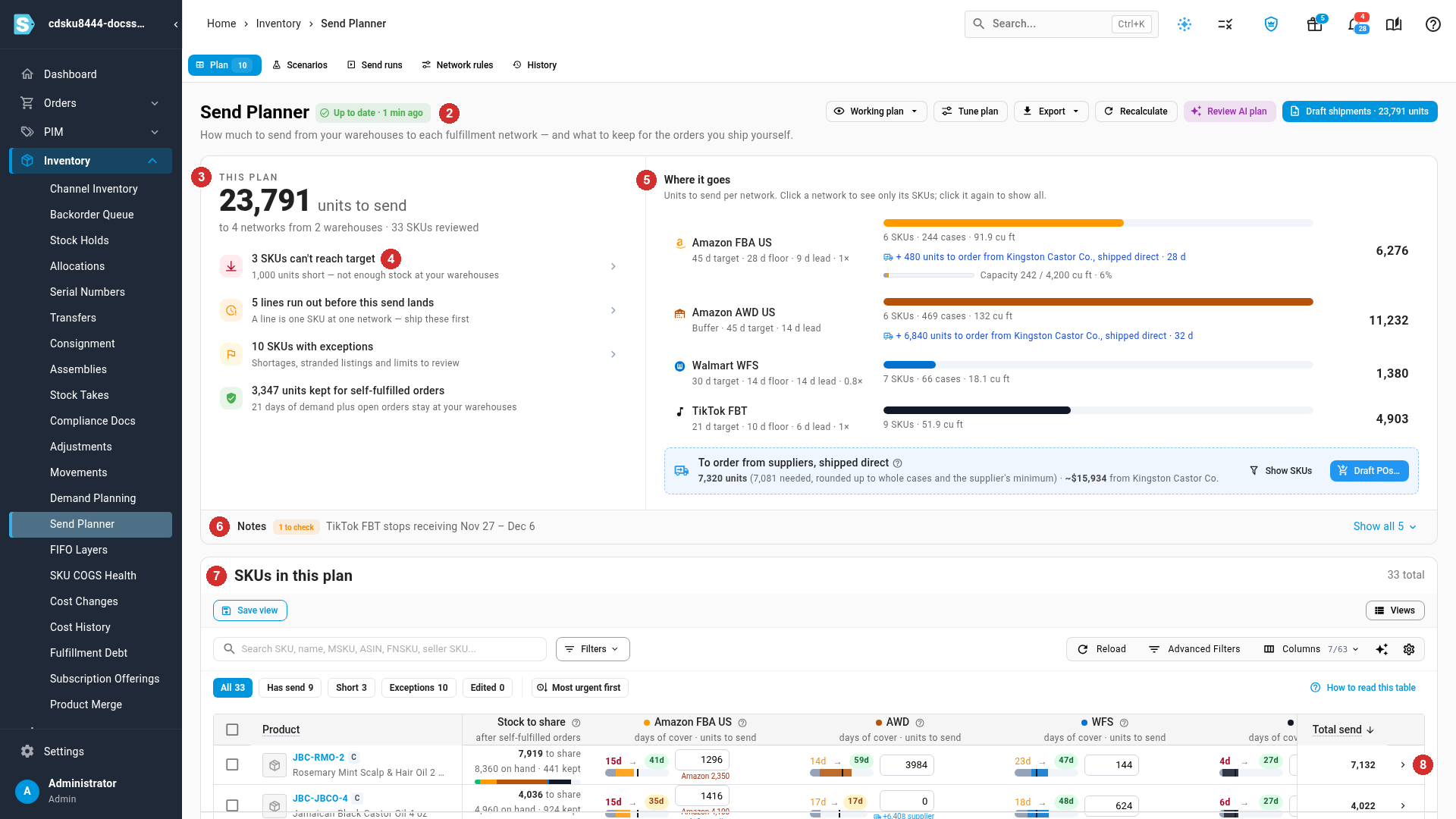
The rest of this page explains what each part shows.
How fresh the plan is
A plan is calculated from the stock and sales at one moment. Stock moves, so an old plan is a stale plan. The chip next to the title tells you which you're looking at:
| Chip | Meaning |
|---|---|
| Up to date · 4 min ago (green) | Calculated less than 24 hours ago. |
| Calculated 30 h ago (amber) | Between 24 and 72 hours old. Consider recalculating. |
| Out of date · 4 d ago (red) | More than 72 hours old. Recalculate before creating drafts. |
| Old network stock · … (amber) | Calculated recently, but planned anyway with a network's stock out of date. Its numbers may be too high. |
| Last good plan · … (amber) | A newer calculation failed. You're seeing the last plan that worked; the failure is explained below the header. |
| Not calculated | No plan yet. |
These are the same age thresholds as Amazon's FBA replenishment screen. When the working plan carries tuning you applied, or the settings of a promoted scenario, a purple Tuned chip sits beside the freshness chip; click it to see the changes and Reset to Network rules. See Reset to Network rules. When you view a scenario instead of the working plan, the chip is replaced by a purple Scenario: name chip. To recalculate, or to deal with Last good plan and Old network stock, see Recalculate the plan and fix calculation problems.
The summary
This plan
The large number is the units to send from your warehouses across every network. Below it, for example: to 4 networks from 2 warehouses · 33 SKUs reviewed. Units that suppliers ship straight to a network aren't in this number; they have their own row under Where it goes. While you preview changes in Tune plan, a purple preview +N chip shows how the total would change.
Signals
The signals point at what needs your attention. The ones with an arrow filter the grid when you click them, and scroll down to it once the matching SKUs have loaded. Clicking one also clears any SKUs you'd selected, so you don't draft something the grid no longer shows. While a signal is filtering, it shows Filtered · show all; click it again to show every SKU.
| Signal | What it means | Click it to… |
|---|---|---|
| N SKUs can't reach target, with N units short — not enough stock at your warehouses | Your warehouses don't hold enough to bring every network to its target. | Show the Short SKUs. |
| Every network reaches its target | There's enough stock for all of them. | (Not clickable.) |
| N lines run out before this send lands, with A line is one SKU at one network — ship these first | These networks will run out before a send could arrive. | Show those lines' SKUs. |
| N SKUs with exceptions, with Shortages, stranded listings and limits to review | SKUs with at least one flag to review. | Show the Exceptions SKUs. |
| N units kept for self-fulfilled orders, with 21 days of demand plus open orders stay at your warehouses | What's kept back for the orders you ship yourself. | (Not clickable.) |
How the shortfall and the kept stock are worked out is in How stock is shared between networks.
Where it goes
Where it goes lists each network with its units to send. Each row shows:
- The network name, and its rules on one line, such as
45 d target · 28 d floor · 9 d lead · 1×. A buffer such as Amazon AWD readsBuffer · 45 d target · 14 d lead. Hover over the line for what each part means; see How a network's send is calculated. - A bar sized to the network's share, with the SKUs, cases and volume underneath, such as 5 SKUs · 200 cases · 69.5 cu ft.
- A capacity meter, when the network has a capacity limit for this month, such as Capacity 219 / 4,200 cu ft · 5%. Hover over it to see what's already at the network or on the way, what this send adds, and the limit. When the send was trimmed to fit, it also says N units were cut to fit. Over the limit, the meter turns red and says — over the limit. Limits can be in units or cubic feet. See Set network capacity limits.
- The total units to send to that network, with a purple ±N while you preview tuning.
Click a network to show only the SKUs the plan sends there. This sets the grid's Sends to filter and clears your selection. Click it again, click Show all networks, or close the Sends to chip above the grid to see every SKU.
When suppliers can ship part of a shortfall straight to a network, a row below the networks says To order from suppliers, shipped direct. See Order from suppliers that ship straight to a network.
Notes
Notes collects what changes how you read the numbers. It stays on one line until you open it, and anything that needs a look is named on that line with a N to check count. Click Show all N to open it and Hide to close it. This browser remembers whether you left it open.
You may see these notes:
| Note | What it tells you |
|---|---|
| TikTok FBT stops receiving Nov 27 – Dec 6. | A network has a receiving blackout coming up, from Network rules. It adds how long sends take to arrive, for example Sends arrive about 6 days after they ship, so you can ship in time. Only blackouts that haven't ended are shown. |
| … stock is out of date. … Its numbers may be too high. | The plan was calculated anyway with a network's old stock. See Recalculate the plan and fix calculation problems. |
| A capacity warning, with Enter this month's limit under Network rules → Capacity limits, then recalculate. | A network has capacity limits for other months but none for this one, so this month isn't capped. |
| N … listings hold N units but aren't mapped to a SKU.io product. | Stock at a network the planner can't count or send to. See Recalculate the plan and fix calculation problems. |
| N seller-fulfilled Walmart listings sell well enough to convert to WFS. | See Listings worth moving to WFS below. |
| How much each network gets | How far ahead each network is filled: its target plus the days a send takes to arrive, such as 54 days = 45 target + 9 to arrive. Click Change in Network rules to change it. |
| Amazon's Restock report is what the plan compares with. (or Walmart's restock recommendations are what the plan compares with.) Before the first copy arrives: No Amazon Restock report yet. or No Walmart restock recommendations yet. | The marketplace's own suggestion shows under each send quantity. A chip shows how old it is, such as Amazon data: under 1 h old or No Amazon data yet. Use Refresh to get a fresh copy; see Recalculate the plan and fix calculation problems. |
| Amazon AWD US buffer: N more units would fill it. | Expected: AWD gets only what's left after the selling networks. See Amazon AWD is a buffer. |
Listings worth moving to WFS
When you sell on Walmart, the planner may note that N seller-fulfilled Walmart listings sell well enough to convert to WFS. These are listings you ship yourself today that pass the rule on Walmart's WFS candidates screen. Click Show top N to see the top 10, with each SKU's Sold seller-fulfilled and a suggested First WFS send, or click WFS candidates to open the full list.
Until you convert a listing, it shows as not listed in the WFS column. Once converted, the planner seeds its first send; see New listings: the first send. You can close the note. It stays closed for that set of listings, and comes back when a different set qualifies. The rule is set in Walmart's WFS settings; see Set up Walmart Fulfillment Services.
When there's nothing to send
If the plan sends 0 units, a card says why, and what to do:
| Card | Why | What to do |
|---|---|---|
| Nothing can be sent right now | Capacity limits leave no room at the networks this month, so every send was cut to zero. | Check the limits under Network rules → Capacity limits. |
| Nothing can be sent right now | Some SKUs are below target, but your warehouses have no stock left after what's kept for self-fulfilled orders. | Order more, or lower the days under Tune plan → Keep for self-fulfilled orders. |
| Nothing needs sending right now | Every network is at or above its target days of cover. | Good news. Lower a target in Network rules, or run a scenario to see what a sales spike would need. |
The card also shows when the next scheduled send run is due, or says No weekly send run is scheduled. Set one up in Send runs so this is checked for you. It links to Send runs, Run a scenario and Network rules. See Schedule weekly send runs.
The SKU grid
SKUs in this plan has one row per SKU and one column per network, with the count of SKUs beside the title (33 total, or N matching when a filter is on). It's sorted by Total send, highest first, 25 rows a page.
Each row shows:
- Product: the SKU and name, with its ABC class.
- Stock to share: what's left after self-fulfilled orders, such as 4,036 to share over 4,960 on hand · 924 kept.
- One column per network: days of cover today and after the send lands (such as 15d → 35d), a bar against the network's floor and target, and the send quantity in a box you can type in. The marketplace's own suggestion, such as Amazon 4,100, sits under the box.
- Flags: anything to review, such as Short or FBT Stocks out first.
- Total send, and an arrow that opens the SKU's Why these numbers drawer.
Click How to read this table for the legend. Every column, cell state and filter is listed in Send plan grid columns and filters, and every flag in Send Planner flags.
Quick filters
The chips above the grid, All, Has send, Short, Exceptions and Edited, each show one slice with its count. You can use one at a time. Click the active chip again to show every SKU. Each one is described in Quick filters.
Clicking a summary signal sets the same filter and adds a Show: chip above the grid, such as Show: Short or Show: Stocks out first. To clear it, close the chip or click Filtered · show all on the signal. While a filter is on, Save view becomes Save as view, with a Reset link beside it.
Most urgent first
Click Most urgent first to put the SKU closest to running out at any selling network at the top, by fewest days of cover today. Amazon AWD and other buffers don't count, because they don't sell. While it's on, the chip turns red. Click it again to sort by units to send again. On a phone or tablet, the same choice is in the grid's menu. It always reads Most urgent first; while it's on, it has a check mark and the subtitle On · tap again to sort by units to send.
Search, filters and saved views
Search by SKU, name, MSKU, ASIN, FNSKU or seller SKU, and open Filters for network, brand, supplier and more; every field is in Search and Filters panel. Watch one pair: Network shows SKUs listed at a network even if nothing is sent there, while Sends to shows only SKUs the plan sends to; see Network compared with Sends to.
Save a combination of filters, sort and columns with Save view, and reopen it from Views. See Save and pin table views.
Open the planner from a network's screen
Amazon's FBA replenishment screen, Walmart's WFS replenishment and new inbound shipment screens, and TikTok's new FBT inbound plan screen each link here with Open Send Planner. The planner opens filtered to that network, for example to FBA US for one Amazon account, and the filter shows in the grid's Network filter so you can clear it.
Next steps
Video transcript
To see how much to send to each fulfillment network, open Inventory, then Send Planner. The Plan tab opens on the working plan. Next to the title, a chip shows the plan's freshness. Hover over Up to date to see the exact time. That label means the plan is less than a day old. Under This plan, read the total units to send. The line below says how many networks, warehouses and SKUs that covers. Signals point at what needs your attention. Click one, like can't reach target. The grid below now shows only the matching SKUs. To clear the filter, click the same signal again. Where it goes lists each network's share, with its rules and units to send. Click one to see only what it gets. To show everything again, close the Sends to chip. The notes line names anything marked to check, like this receiving blackout. Show all opens every note. Each one explains something that changes how you read the numbers. When you're done, Hide closes the notes again. Below the summary, each row of the grid is one product. Each network has its own column. Each cell shows days of cover today, then after delivery. The box holds the send quantity, above the marketplace's own suggestion. Use the quick filters to decide what to look at first. Exceptions shows SKUs with a flag to review. To show every product, click the chip again. Most urgent first puts the SKU closest to running out on top. To sort by units to send, click it again. To see why a SKU gets its numbers, click the arrow at the end of its row. A drawer shows where its stock goes, network by network.