Plan buys with open-to-buy on Buyer home
The Buying & open-to-buy tab on Buyer home shows how much you can still spend this month and over the next year, what your purchase orders already commit, when they arrive, and what to reorder next. Everything is in cost dollars, what you pay the vendor, so it matches your purchase orders.
Before you begin
- You can open reports. Admins and anyone who can view all reports can, or give a role Buyer Home under Report Access.
- To set budgets, your role needs the permission to edit merchandise plans (
merchandise_planning.update). Budgets are kept with your merchandise plan; to build a plan, see Build an open-to-buy plan. - Your open purchase orders have an ETA (the Available date). An order with no ETA can't be placed on the calendar.
Steps
- Go to Insights → Reports, choose Buyer Home, and click the Buying & open-to-buy tab.
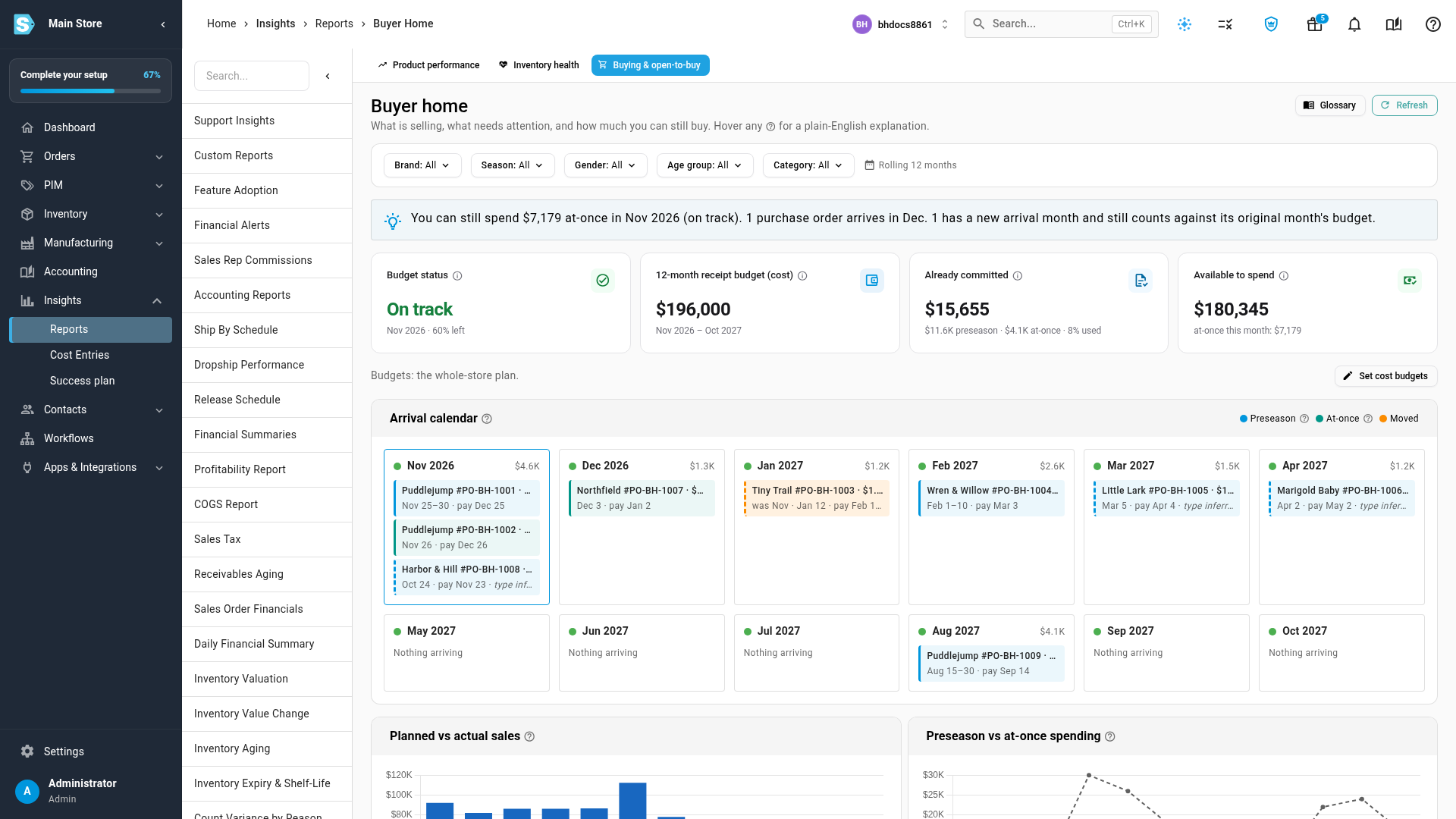
- Read the tiles: Budget status, 12-month receipt budget (cost), Already committed and Available to spend.
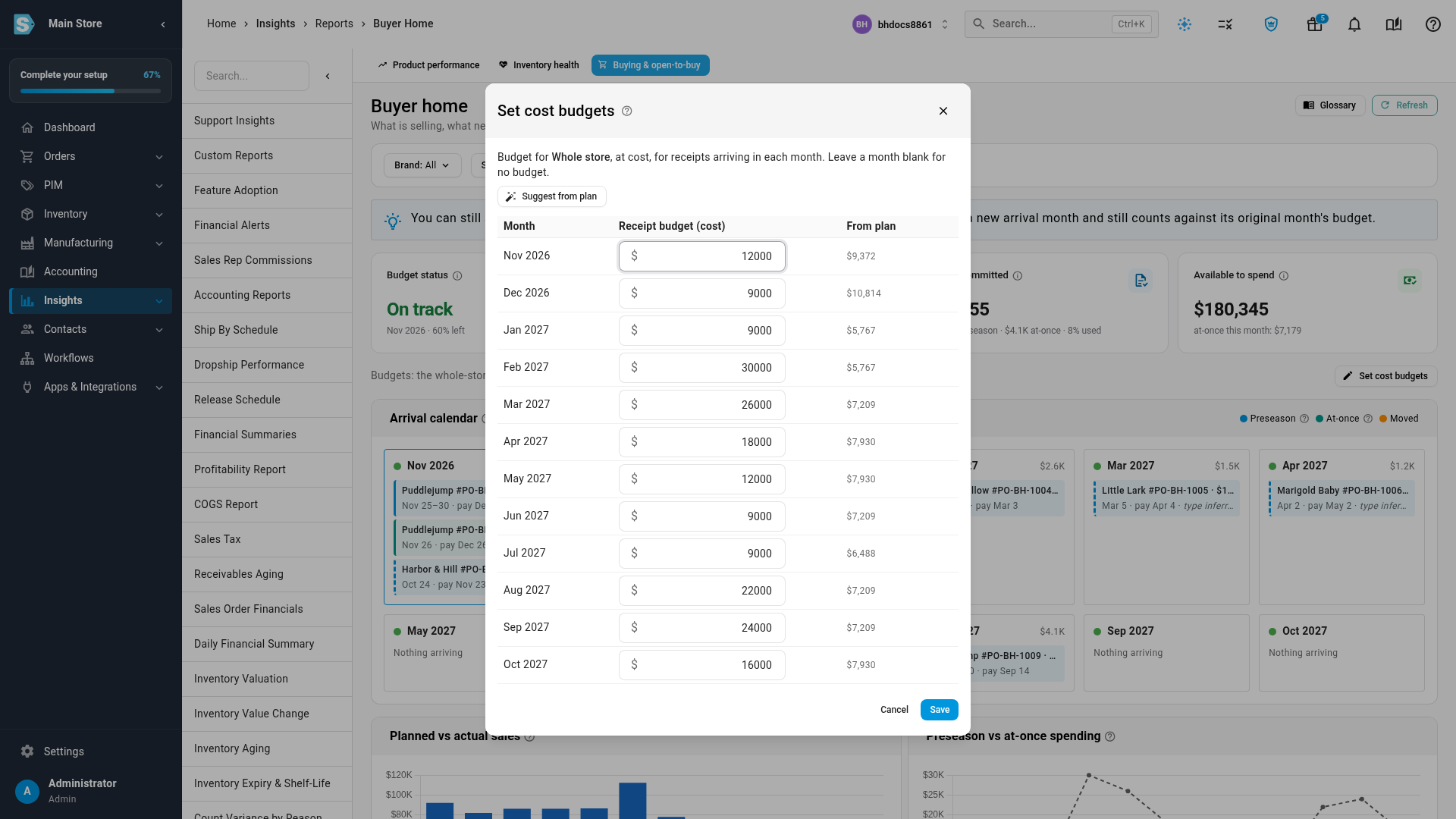
- To set the budget, click Set cost budgets, enter the amount you plan to receive in each month at cost, and click Save.
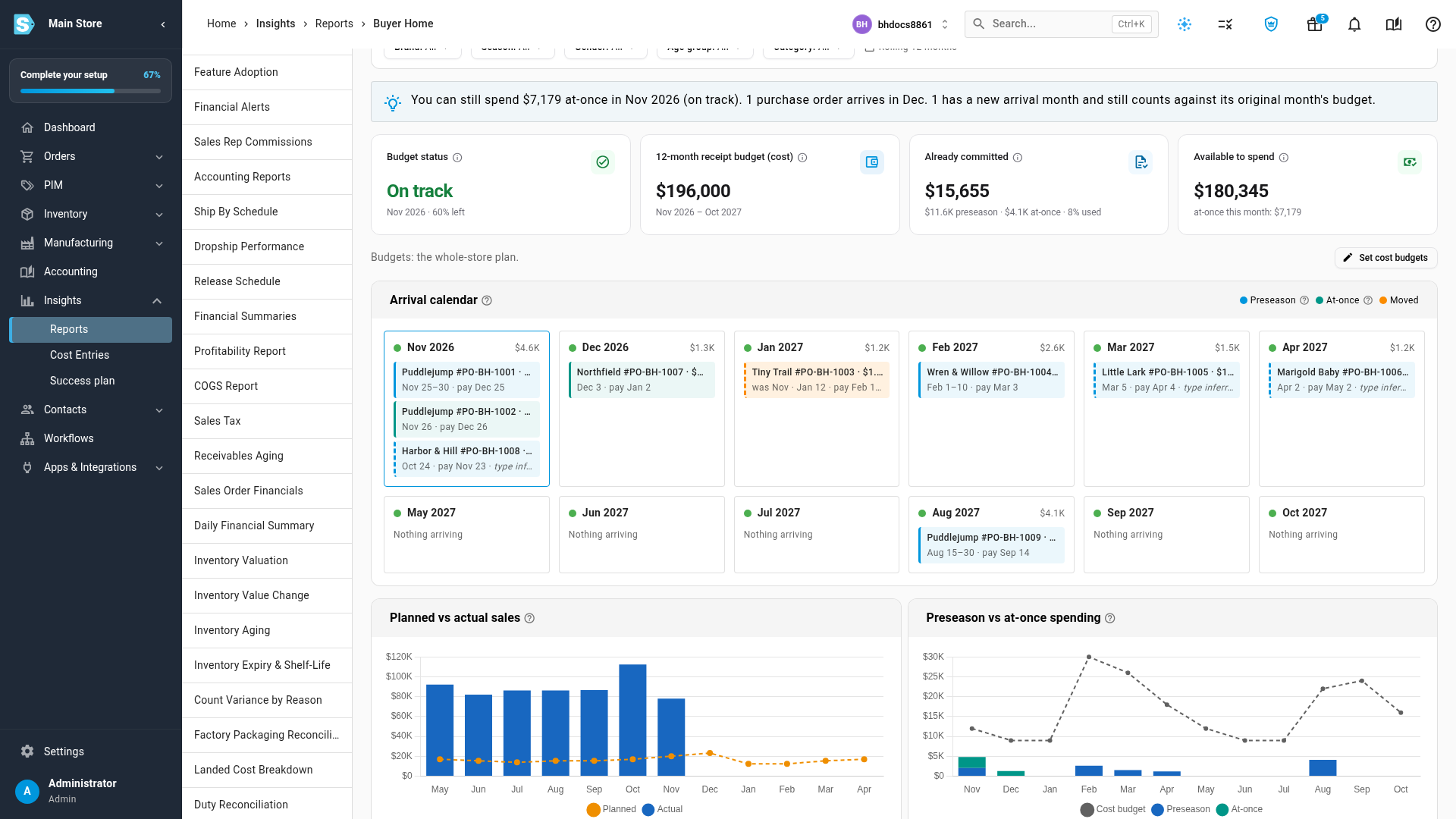
- In the Arrival calendar, check which purchase orders arrive in each month and when each one is due to be paid.
- Compare Planned vs actual sales and Preseason vs at-once spending to see whether you are buying ahead of or behind your plan.
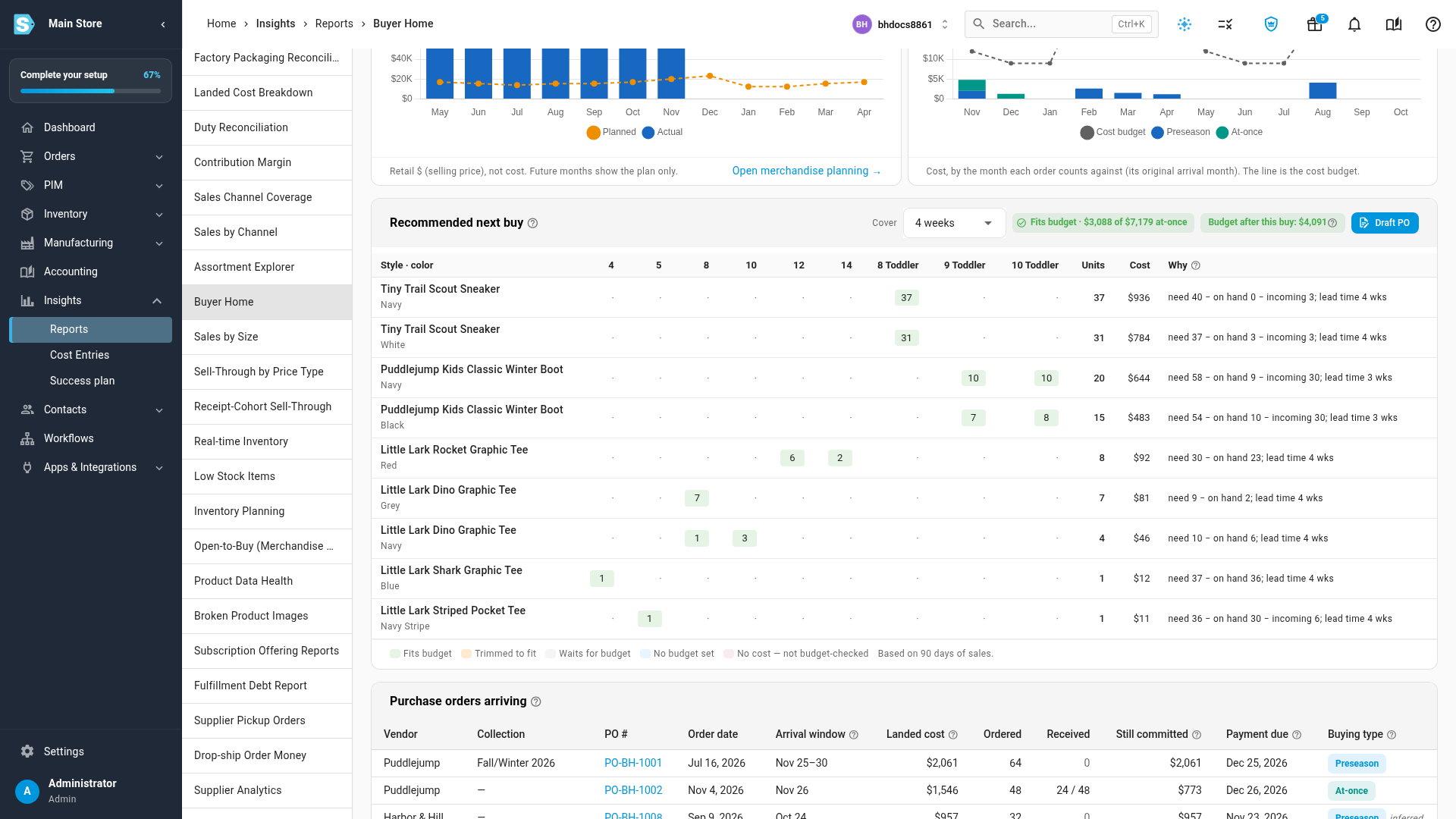
- In Recommended next buy, pick how many weeks of stock to cover in Cover, and hover a quantity to see why it was suggested.
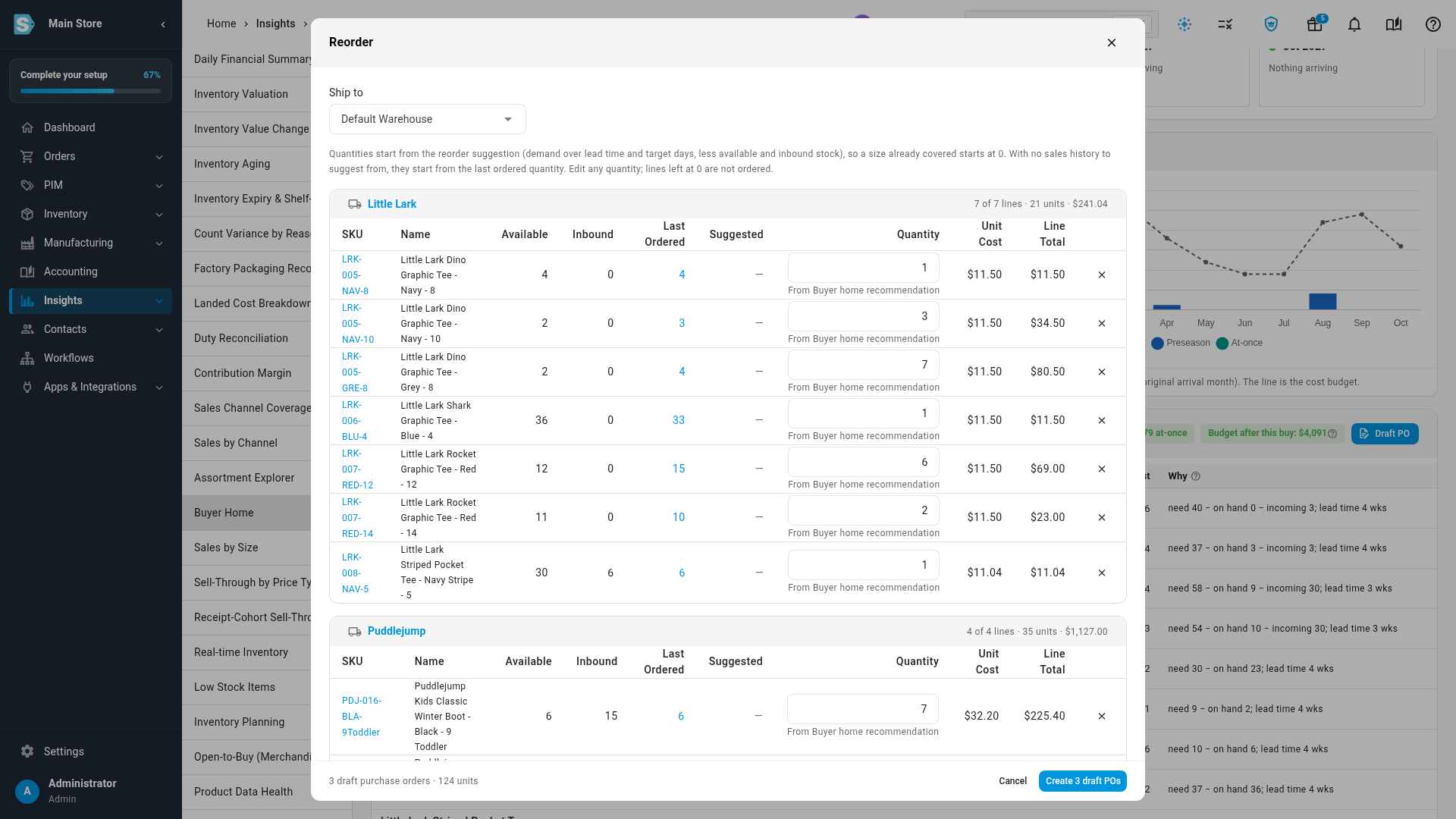
- Click Draft PO, check the quantities, and click the Create button, such as Create 3 draft POs.
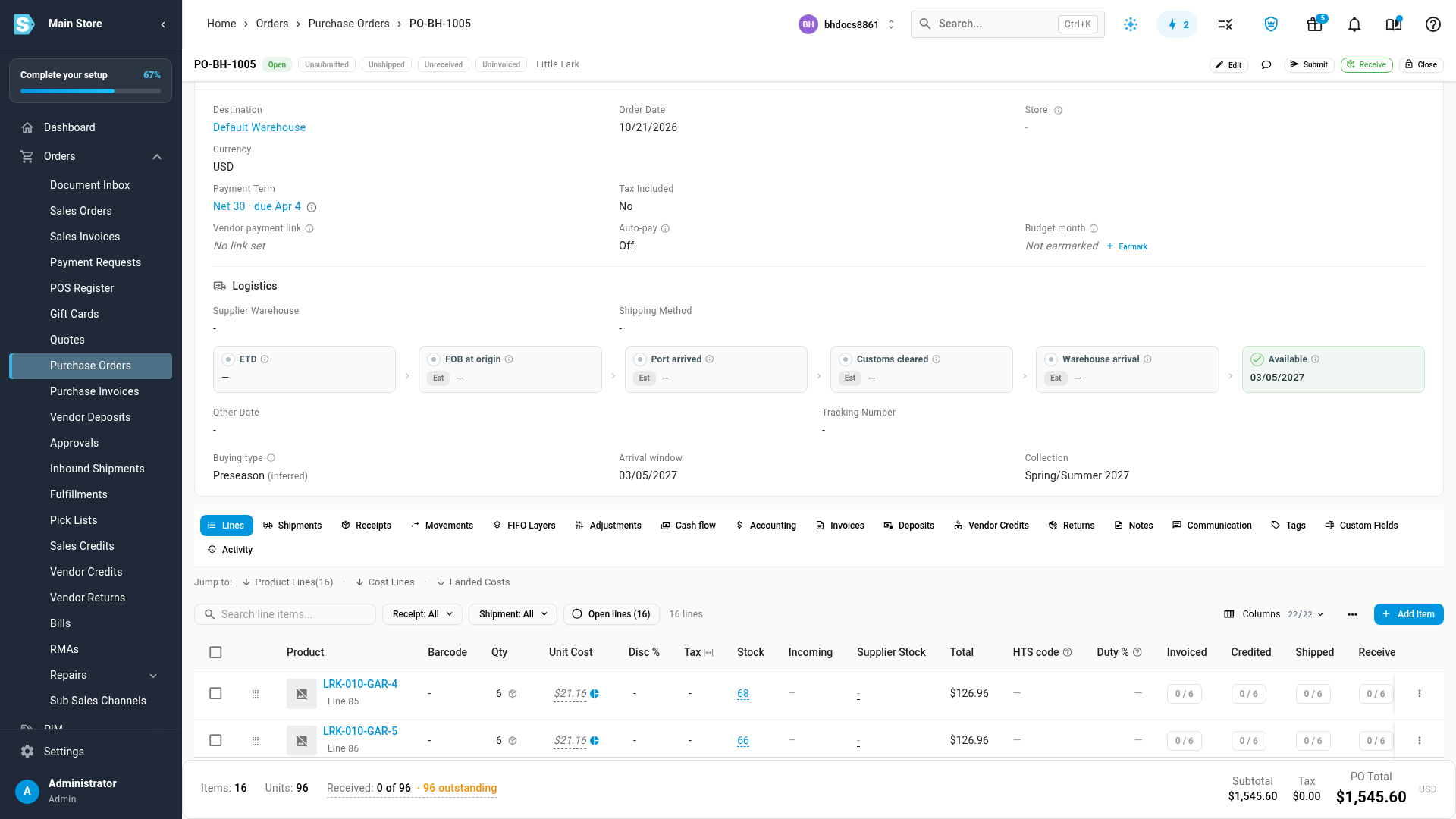
- In Purchase orders arriving, click a PO number to open it, then expand Order Details to see or change its Buying type, Arrival window and Collection.
How the budget is counted
- Committed is money already promised to vendors. A purchase order counts in full (what is received and what is still open, including its landed costs) from the day you place it, in the month it is first due to arrive.
- If an order arrives late, the calendar moves it to its new month and marks it was Nov (or whichever month it was first due). Its cost still counts against that first month, so a late delivery never frees up budget you have already spent.
- Available to spend is the month's budget minus what is committed. The one-line answer at the top tells you how much you can still spend at-once this month.
- Budget status colours each month: On track (green) when more than 10% of the budget is left, Nearly spent (yellow) when 10% or less is left, and Over budget (red) when orders cost more than the budget. A month with no budget shows No budget set.
- The budget follows your filters. With a Brand filter, it uses that brand's budget; with a Category filter, that category's; otherwise the whole-store budget. The line under the tiles says which one is used. Season, Gender and Age group narrow the purchase orders but not the budget, and a note says so.
| Tile | What it shows |
|---|---|
| Budget status | This month's colour and the share of its budget that is left |
| 12-month receipt budget (cost) | The budget for this month and the next 11, added up |
| Already committed | The cost of purchase orders due over those 12 months, split into preseason and at-once, and the share of the budget used |
| Available to spend | The 12-month budget minus what is committed, and what is left at-once this month |
Set cost budgets
Click Set cost budgets to open one row per month. Enter the Receipt budget (cost): the cost of goods you plan to receive that month. Leave a month blank for no budget. The amount must be zero or more.
The From plan column shows what your merchandise plan suggests for each month. Click Suggest from plan to copy those amounts into the rows; nothing is saved until you click Save.
If no month has a budget yet, the tab says No cost budget yet with a Set cost budgets button. The calendar, the commitments and the recommendations still show; only the budget status and the money left need a budget.
Arrival calendar and charts
The Arrival calendar shows this month and the next 11. Each purchase order sits in the month it is due, with its vendor, number, cost, arrival window and payment due date. Orders are coloured Preseason, At-once or Moved. Click an order to open it.
- Planned vs actual sales compares your merchandise plan's sales with what you sold, at selling price. Future months show the plan only. Open merchandise planning takes you to the plan.
- Preseason vs at-once spending shows each month's committed cost, split into preseason and at-once orders, against the cost budget line.
Recommended next buy
The card suggests what to reorder now, one row per style and colour, with sizes as columns in size order. For each size:
- It works out how fast the size sells while in stock, so days it was sold out don't make it look slow. The line under the table says how many days of sales it uses.
- It covers the vendor's lead time plus the weeks you pick in Cover (2, 4, 6, 8 or 12 weeks), minus what is on hand and already on order. Quantities are rounded up to the vendor's minimum order.
- The lead time comes from the product's actual lead time with that vendor, then the lead time set on the vendor product, then the vendor's, and 14 days if none is set.
Sizes are ranked by expected margin per dollar and filled against the money left to spend at-once this month. Each quantity is shaded:
| Shading | Meaning |
|---|---|
| Fits budget | The whole quantity fits the money left |
| Trimmed to fit | Part of the quantity fits; it shows as fitting/suggested, such as 8/68 |
| Waits for budget | Nothing is left this month for this size |
| No budget set | The month has no budget, so nothing is checked |
| No cost — not budget-checked | The product has no cost, so it isn't counted against the budget |
The chips above the table show how much of the money left the buy uses and the Budget after this buy. Hover a quantity to see the SKU, its selling rate, in-stock days, lead time and confidence.
Draft the purchase orders
Click Draft PO to open Reorder with the lines that fit already filled in, grouped by vendor and marked From Buyer home recommendation. Choose where to ship them in Ship to, change any quantity (a line left at 0 isn't ordered), and click the Create button. Each vendor gets one draft purchase order. Nothing is ordered until you submit it.
Buying fields on a purchase order
Purchase orders arriving lists every open purchase order due in the next 12 months, with its vendor, collection, order date, arrival window, landed cost, units ordered and received, what is still committed, payment due date and buying type.
Open a purchase order and expand Order Details to see its buying fields. To change them, click Edit.
| Field | What it means |
|---|---|
| Buying type | Preseason (ordered months ahead for a season) or At-once (stock the vendor ships right away). Leave it Not set and SKU.io works it out: preseason when the order is due 45 or more days after the order date, otherwise at-once. A worked-out type shows (inferred) |
| Arrival window | The order's ETA and, if the vendor gives a range, the last day it can arrive (Arrival by). If the ETA moves after the order is placed, the order shows as moved |
| Collection | The season or line the order belongs to, such as Spring/Summer 2027 |
Next steps
Video transcript
To plan your next buy, open Insights in the sidebar, and then choose Reports. They are all on the left; scroll down, click Buyer Home, and the page opens. Then click the Buying and open-to-buy tab. It always covers this month and the next eleven. The tiles show this month's budget status, the receipt budget for the year ahead, what is already committed, and what is still available to spend. All of it is at cost, what you pay the vendor. Green means more than ten percent of the month's budget is left, yellow means ten percent or less, and red means you are over budget. To set the budget, click Set cost budgets. Enter what you plan to receive in each month, at cost. Suggest from plan fills the months from your merchandise plan, and nothing is saved until you click Save. The arrival calendar shows each purchase order in the month it is due, with its payment date. Preseason, at-once, and moved orders each have their own colour. A late order moves to its new month, but its cost still counts against the month it was first due. Planned versus actual sales compares your plan with what really sold, at selling price. Preseason versus at-once spending shows each month's orders against the cost budget line. Recommended next buy suggests what to reorder, by style, colour, and size. It uses how fast each size sells while in stock, its lead time, and the weeks of cover you pick. Green quantities fit the money left this month; trimmed and waiting lines are marked. Hover any quantity to see why it was suggested. Click Draft PO to open a reorder with the fitting lines already filled in, grouped by vendor. Check the quantities, then create the draft purchase orders. Below, Purchase orders arriving lists every open order, with its buying type and payment date. Click a number to open that purchase order, and its page loads. Expand Order Details, near the top of the page. The buying fields sit at the bottom of that panel. Buying type is preseason or at-once; if it is blank, it is worked out from the dates. Edit the purchase order to set its arrival window and collection.