Run month-end operations reports
At month-end you usually want the same five numbers: what sold, where it went, what's in each warehouse, what moved between warehouses, and what came in or was adjusted. This page gives the exact report and settings for each, all set to last month, and how to export it.
| Month-end report | Where to get it | What to set |
|---|---|---|
| Number of each SKU sold | Insights → Reports → COGS Report | Last Month, group by SKU, read Qty Sold |
| Number of each SKU sold per country | Insights → Reports → Custom Reports | Sales Order Lines, with Shipping Country, SKU and Units Sold, filtered to last month's Order Date |
| Inventory in each warehouse | Insights → Reports → Inventory Valuation | End of Day = the last day of the month, group by Warehouse and SKU |
| Inventory transfers | Inventory → Transfers | Date = Last Month, export Transfers with Line Items |
| Incoming inventory and adjustments | Inventory → Movements and Inventory → Adjustments | Type = Inbound Receipt, Date = Last Month |
Before you begin
- You need access to the reports you run, under Report Access in your role.
- Exporting the transfers, movements and adjustments lists needs export permission for each list.
Units shipped or units ordered
SKU.io can count a sale in two ways, and for a given month the two usually differ.
- Units shipped count a unit when it leaves your warehouse, or Amazon's, on the day it ships. Orders that haven't shipped yet don't count, and nor do cancelled ones. The COGS Report counts this way, in its Qty Sold column.
- Units ordered count every unit on an order placed in the month, on the order date, whether it has shipped or not. Custom Reports count this way, in the Units Sold measure.
For a month-end stock count or for your books, use units shipped. They match the stock that left your shelves and the cost of goods sold. Use units ordered to see demand, such as what customers bought in a promotion month, even when some of it ships in the next month.
Number of each SKU sold
- Go to Insights → Reports and open COGS Report.
- Under Date Range, choose Last Month.
- Under Group By, tick SKU and untick Sales Channel. Keep Sales Channel ticked if you want each SKU split by channel too.
- Click Generate Report.
- Read Qty Sold for each SKU. That's the units shipped last month. Qty Returned is what came back, and Grand Total sums every SKU.
- Click Export to download the table as a CSV file.
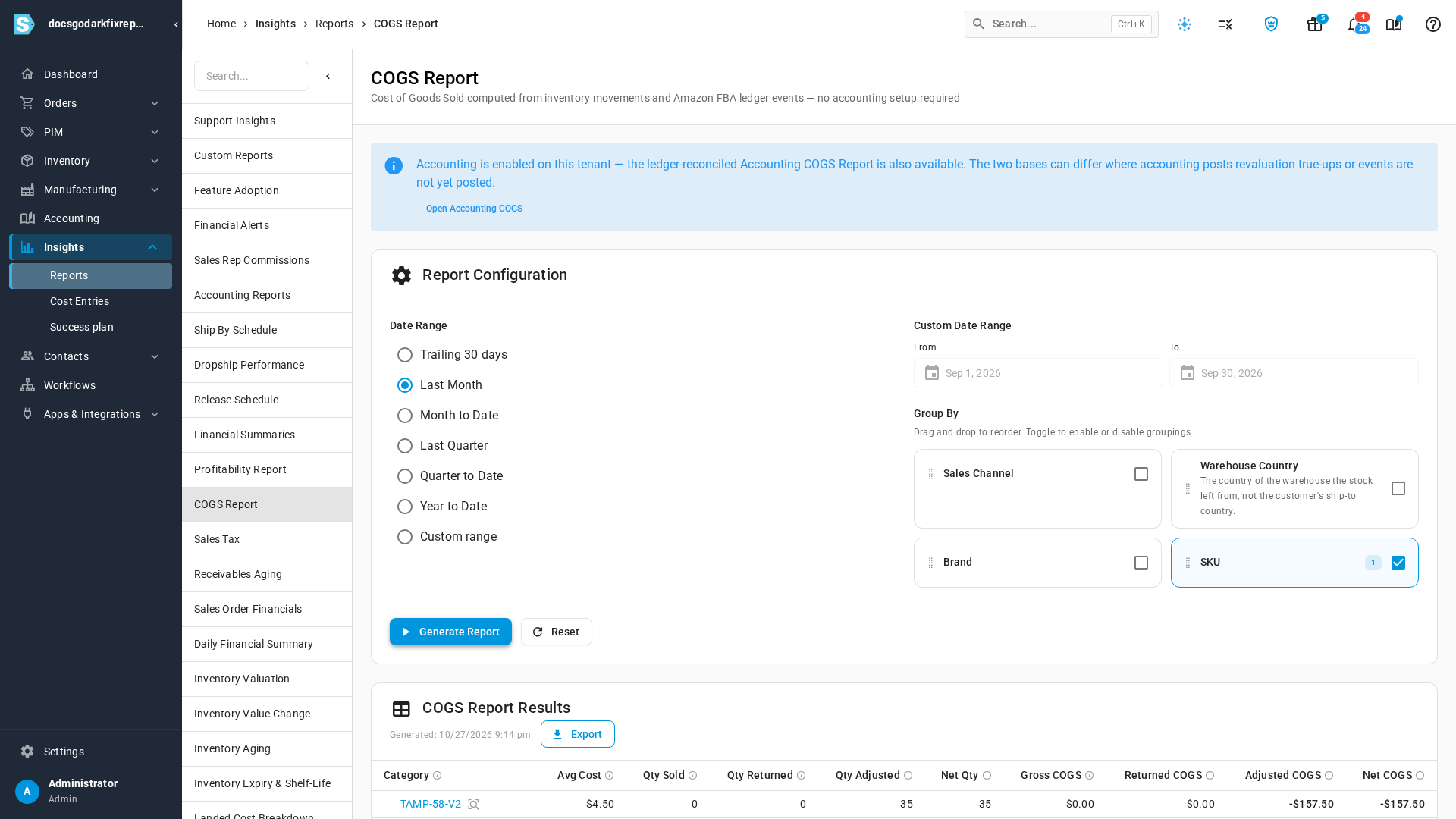
The Net Qty column adds returns and adjustments and subtracts sales, so it's negative in a normal month. Read Qty Sold for units sold. The columns are explained in Read the COGS report.
The COGS Report's Warehouse Country grouping is the country of the warehouse the stock left from. For the country you shipped to, use the per-country report below.
Units ordered per SKU instead
- Go to Insights → Reports and open Custom Reports.
- Click New Report. If the guided tour starts, click Skip.
- Leave Domain on Sales, and set Base Entity to Sales Order Lines.
- In Fields, search for SKU and click it, then search for Units Sold and click it.
- Under Filters, click Add, choose Sales Orders · Order Date, then between.
Type the first and last day of last month in From and To, for example
2026-09-01and2026-09-30. - Click Run Report.
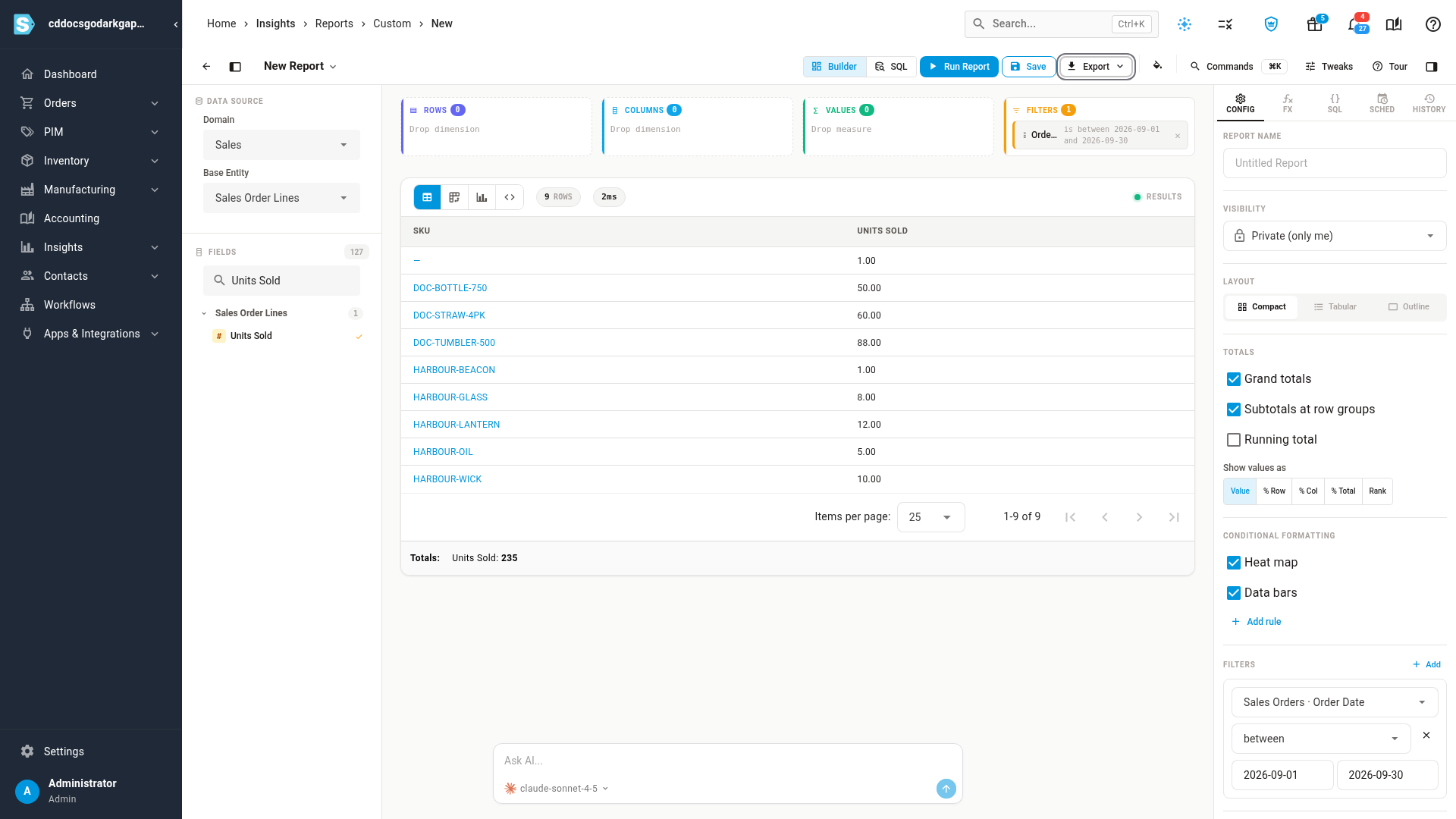
Number of each SKU sold per country
Build this once as a custom report, then save it and rerun it each month.
- Go to Insights → Reports and open Custom Reports.
- Click New Report, and set Base Entity to Sales Order Lines.
- In Fields, click Shipping Country, under Sales Orders. It's the country of each order's ship-to address. An order that has only a country code shows the code instead.
- Click SKU, then Units Sold.
- Under Filters, click Add, choose Sales Orders · Order Date, then between, and enter the first and last day of last month.
- To leave out cancelled orders, add a second filter: Sales Orders · Order Status, is
not,
cancelled. - Click Run Report. Each row is one country and SKU, with the units ordered.
- Enter a Report Name and click Save, so next month you only change the dates.
- To download it, click Export, then Export CSV or Export XLSX.
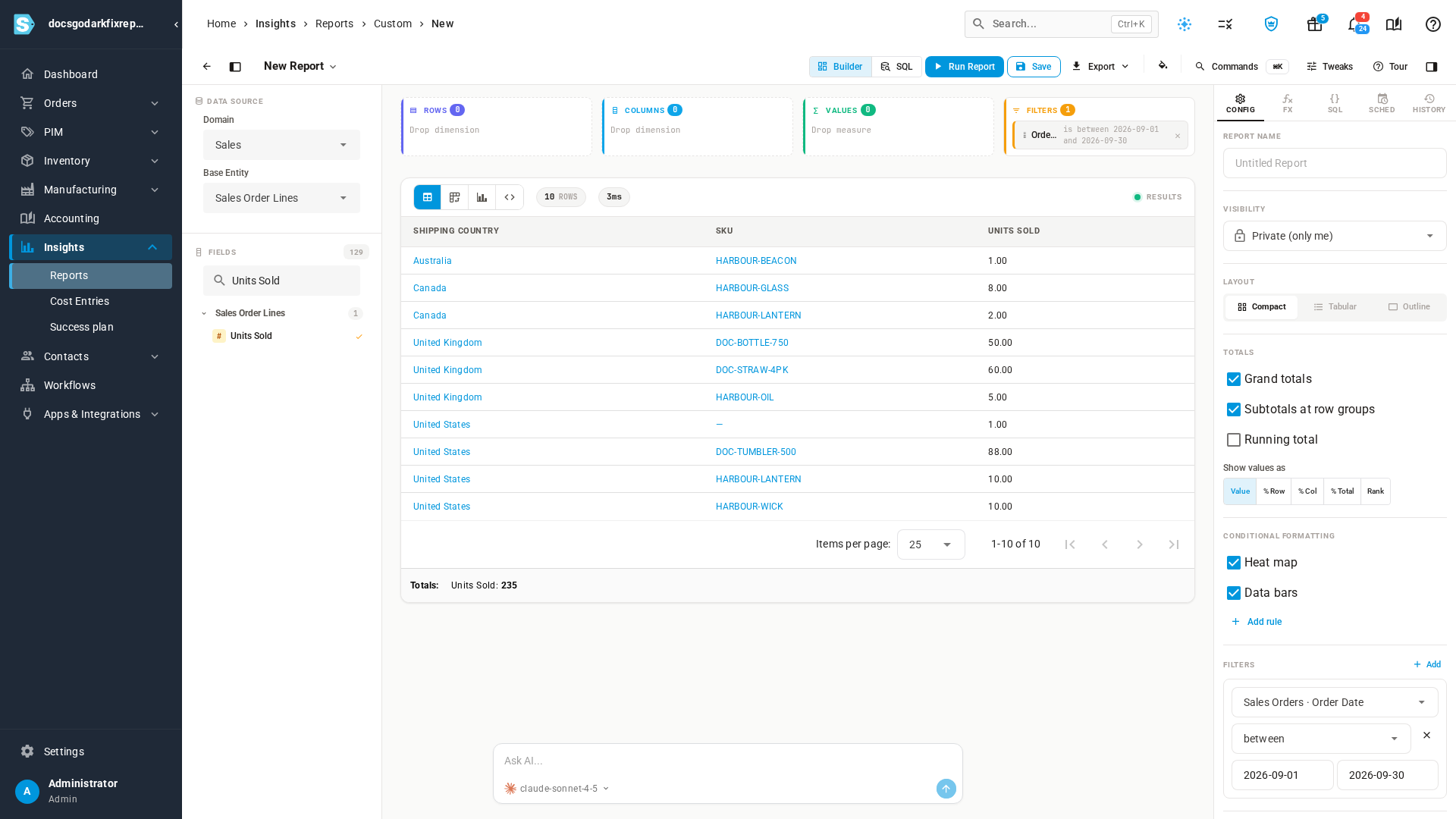
These are units ordered. To have the report emailed to you each month, see Share and schedule a custom report.
Inventory in each warehouse
- Go to Insights → Reports and open Inventory Valuation.
- Set End of Day to the last day of last month. The report shows stock as it stood at the close of that day.
- Under Group By, keep Warehouse and SKU ticked. They're on by default.
- Click Generate Report, then Export.
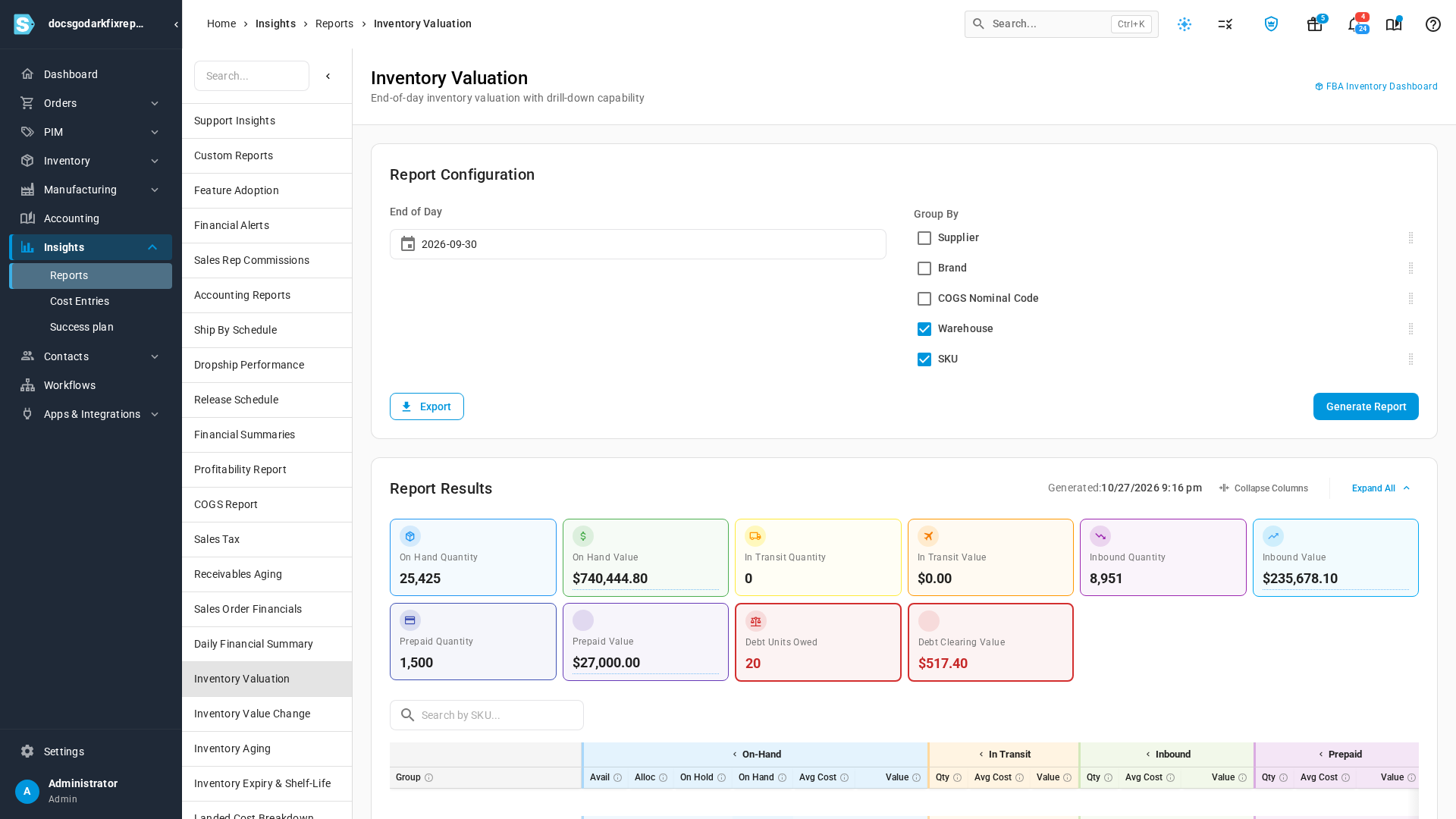
Each warehouse lists its SKUs with on-hand units and value. What each column means is in Value your inventory. For stock right now rather than at month-end, open Real-time Inventory under Insights → Reports.
Inventory transfers
- Go to Inventory → Transfers.
- Click Date: All and choose Last Month under Quick presets. The filter uses Transfer Date by default, and the preset applies straight away.
- Click Export.
- Under Records to export, choose Filtered results.
- Under Content, choose Transfers with Line Items for one row per SKU moved, or Transfers for one row per transfer.
- Pick XLSX (Excel) or CSV, and click Export.
The export options are covered in the Transfer reference.
Incoming inventory and adjustments
Stock received from suppliers:
- Go to Inventory → Movements.
- Click Type: All and choose Inbound Receipt.
- Click Date: All and choose Last Month under Quick presets. The filter uses Movement Date by default.
- Click Export, choose Filtered results, then a format, and click Export.
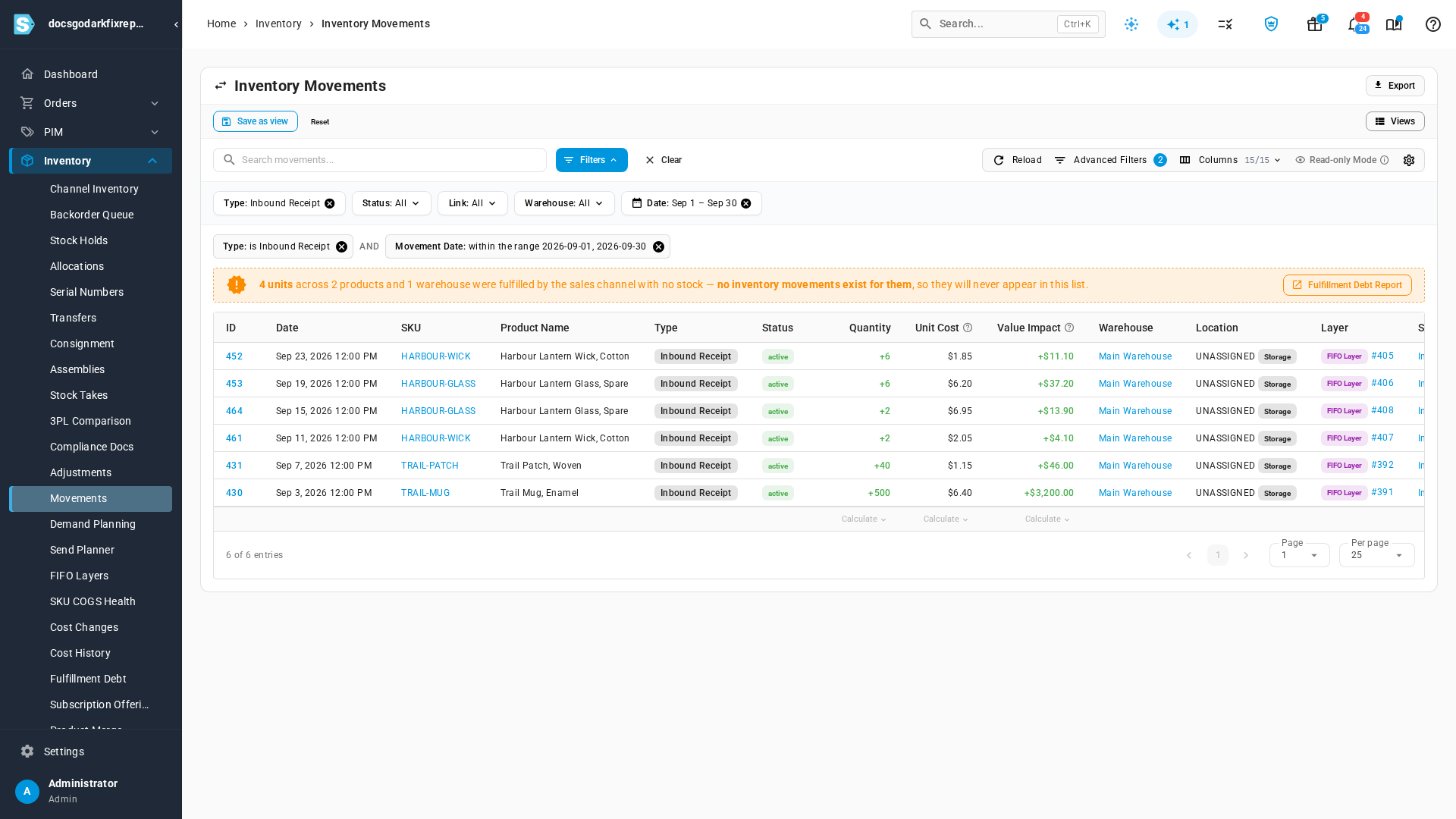
Each row is one receipt of one SKU into one warehouse, showing its quantity, cost, and value. More on this list in View and filter the inventory movement ledger.
Adjustments:
- Go to Inventory → Adjustments.
- Click Date: All and choose Last Month under Quick presets.
- Click Export. The CSV holds each adjustment's SKU, warehouse, quantity and unit cost.
See Manage adjustments for the columns. For one view of how receipts, sales, adjustments, and transfers changed your stock value over the month, run Inventory Value Change, described in Explain a change in inventory value.
Next steps
- Reconcile inventory value month over month — tie last month's closing value to this month's.
- Build a custom report — more on fields, filters and layouts.
- Reports catalog — every report and the question it answers.
Video transcript
Five reports give you the numbers you need at the close of each month. In the sidebar on the left, open Insights, then Reports, to see the full list of reports. Scroll down, and open the COGS Report, which counts the units sold for each SKU. First, under Date Range, choose Last Month. Under Group By, tick the box for SKU. Then untick Sales Channel, so each SKU gets a single row. Then click Generate Report, and the results appear below. Qty Sold is the number of units shipped last month, counted on the day they shipped. Your stock count and your books both use this number. The Export button downloads the table as a spreadsheet. For units sold per country, build a custom report once, and reuse it every month. Go back to Insights, then Reports, and open Custom Reports, near the top of the list of reports. Click New Report to open the report builder. Skip the guided tour if one appears. Then open the Base Entity list, and set it to Sales Order Lines, one row per order line. Now pick the fields for the report. Type Shipping Country in the field search, and click it in the list. That's the country on each order's shipping address. Next, search for SKU, and click the SKU field. Last, search for Units Sold, and click the Units Sold measure. Next, limit the report to last month. In the Filters section on the right, click the Add button. In the new filter, choose Order Date from the Sales Orders fields. Change the condition from is to between, near the bottom of the list, so you can enter a date range. Then type the first and the last day of last month in the two boxes. Click Run Report to see the units for each country and SKU. These are units ordered, counted on the order date. For the stock held in each warehouse, go back to Insights, then Reports, scroll down the list, and open Inventory Valuation. Set End of Day to the last day of last month, so you see stock as it stood at the close. Under Group By, Warehouse and SKU are already ticked. Click Generate Report to build it, and the Export button then downloads the result. For transfers between warehouses, open Inventory in the sidebar, and choose Transfers from the menu. Click the Date filter, at the right end of the filter row. Pick Last Month from the quick presets, and the list updates. Click Export, and choose Transfers with Line Items, for one row per product moved. Pick a file format, and the second Export button downloads the file. Next come the receipts from your suppliers. In the sidebar, open Inventory, then Movements, the full record of stock moving in and out. Click the Type filter, which is the first one in the filter row. Choose Inbound Receipt, so the list now shows only the stock you received. Then click the Date filter, at the right end of the same filter row. Pick Last Month from the quick presets, the same as before. Export works the same way as for transfers. The last list is your stock adjustments. In the sidebar on the left, open Inventory again, then choose Adjustments from the menu. Click the Date filter, which sits at the right end of the filter row above the table. Pick Last Month from the quick presets, and the list narrows to last month's adjustments. The Export button downloads them, ready for your month-end file.