Check which channels list each product
The Sales Channel Coverage report lines up your products against your sales channels, so you can see at a glance where each product is listed and where it's missing. Use it to find good stock that isn't on a channel yet, or to check a new channel's catalog against your others.
Before you begin
- You have at least one connected sales channel with listings. See Browse your channel listings.
Run the report
-
Go to Insights → Reports and choose Sales Channel Coverage.
-
Under Report Configuration, choose what to compare:
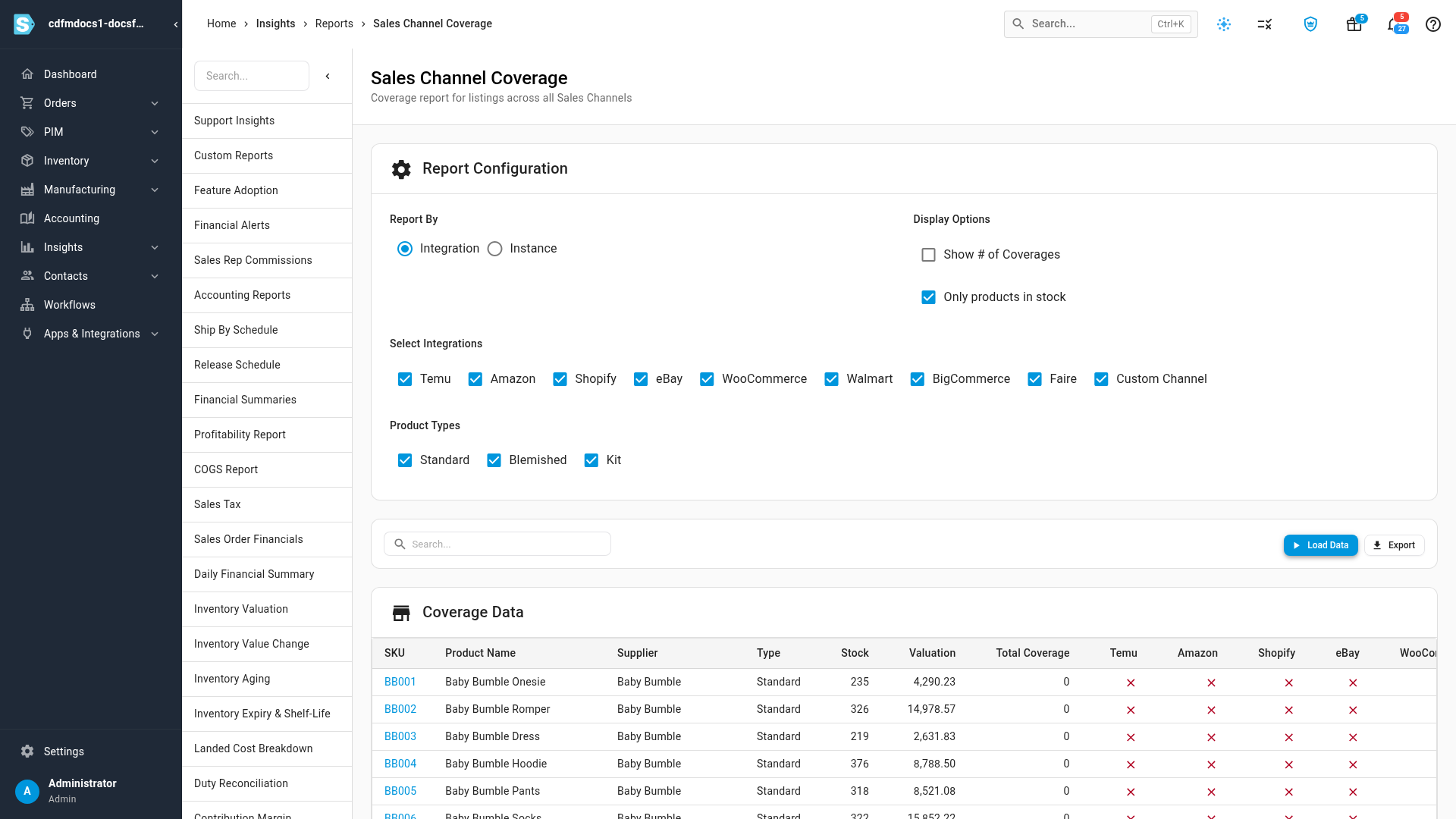
Setting What it does Report By Integration gives one column per channel, such as all your Amazon accounts together. Instance gives one column per connected store or account. Select Integrations / Select Instances The channels or stores to include as columns. Product Types Include Standard, Blemished and Kit products. Show # of Coverages Show how many listings each product has on a channel, instead of a ✓ or ✗. Only products in stock Leave out products with no stock. On by default. -
Click Load Data. After the first load, the table refreshes by itself whenever you change a setting.
Read the table
| Column | What it shows |
|---|---|
| SKU | The product. Click it to open the product. |
| Product Name, Supplier, Type | The product's name, supplier, and whether it's a standard, blemished or kit product |
| Stock | Units in stock |
| Valuation | The value of that stock |
| Total Coverage | How many of the selected channels list the product |
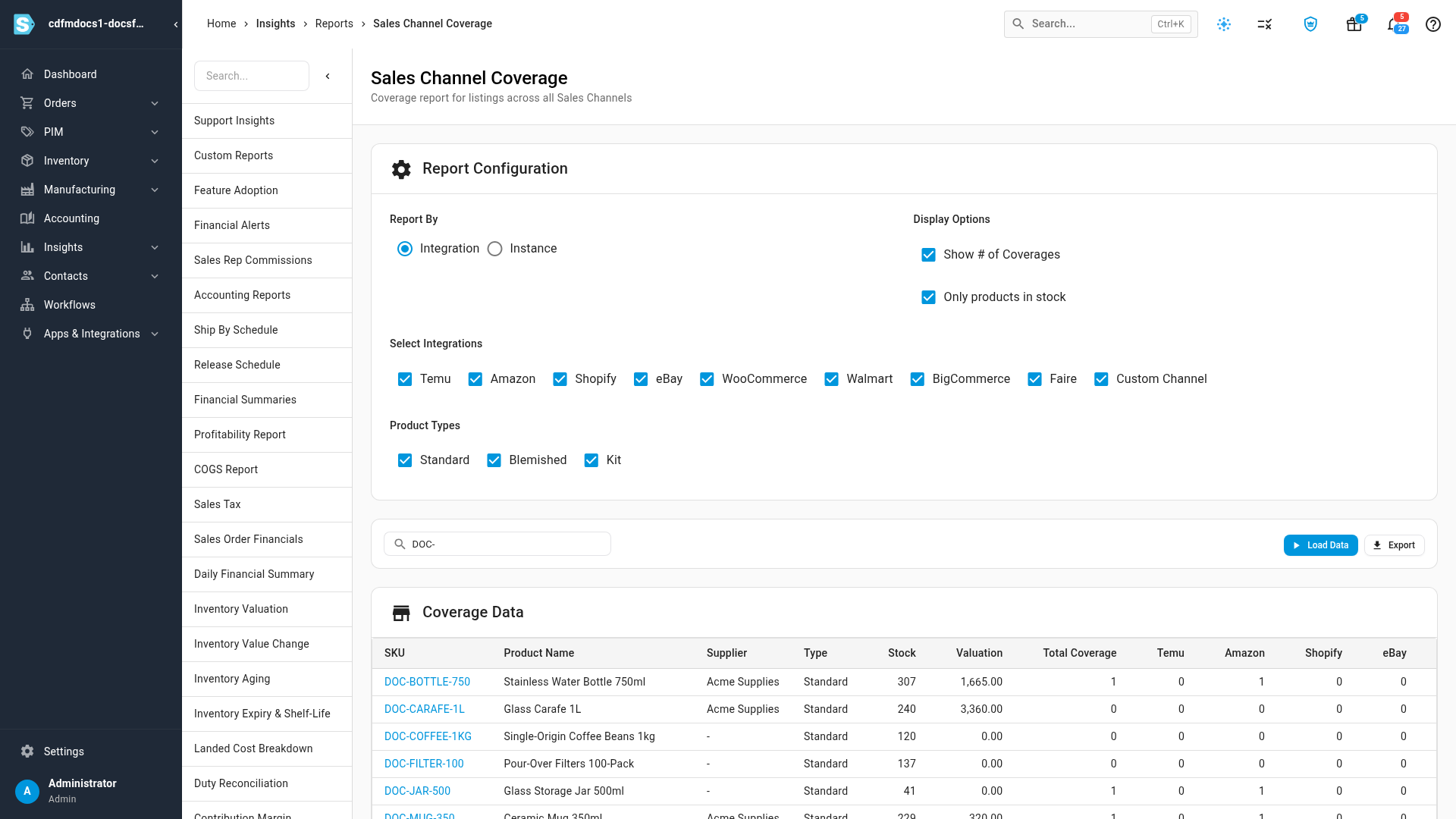
| One column per channel or store | ✓ when the product is listed there, ✗ when it isn't. With Show # of Coverages on, the number of listings. |
A product with Total Coverage of 0 isn't listed on any of the channels you selected.
To find particular products, type a SKU or name into Search... above the table.
Export the report
Click Export to download the report as a spreadsheet, with the settings you've chosen. The export runs in the background. Follow it in the job tray, and the file downloads when it's ready.
Next steps
- Work with listing drafts: list a product on a channel where it's missing.
- Keep a product off some or all channels: keep a product off channels it doesn't belong on.
- Reports catalog: every report in one place.
Video transcript
Sales Channel Coverage lives in Insights, under Reports. It shows, product by product, which of your sales channels list it. Under Report Configuration, choose the channels to compare, and which product types to include. Only products in stock leaves out anything you can't sell right now. When you're ready, click Load Data, on the right above the table. Each row is a product, with a column for every channel. A tick means the product is listed there, and Total Coverage counts the channels. To find particular products, type part of a product name into the search box. The table updates as you type. Turn on Show number of Coverages to see how many listings each product has on a channel, instead of a tick. To compare individual stores instead of whole channels, set Report By to Instance. Each connected store then gets its own column. To work with the results in a spreadsheet, click Export. The file builds in the background, and downloads when it's ready.