Set monthly purchasing targets
Purchasing Targets is a 12-month buying budget per supplier. You set how much you plan to buy from each supplier every month. SKU.io then compares the purchase orders you actually place against that plan, so you can see who you're over-buying from, who you're behind on, and how the year is pacing overall.
Actuals count placed purchase orders only. Draft purchase orders don't count until you place them.
Before you begin
- You need access to the Purchasing Targets report.
- Your suppliers should already exist. Targets are set per supplier.
Open Purchasing Targets
- Go to Insights → Reports.
- Click Supplier Analytics, then open Purchasing Targets. You can also open Purchasing Targets straight from the reports list.
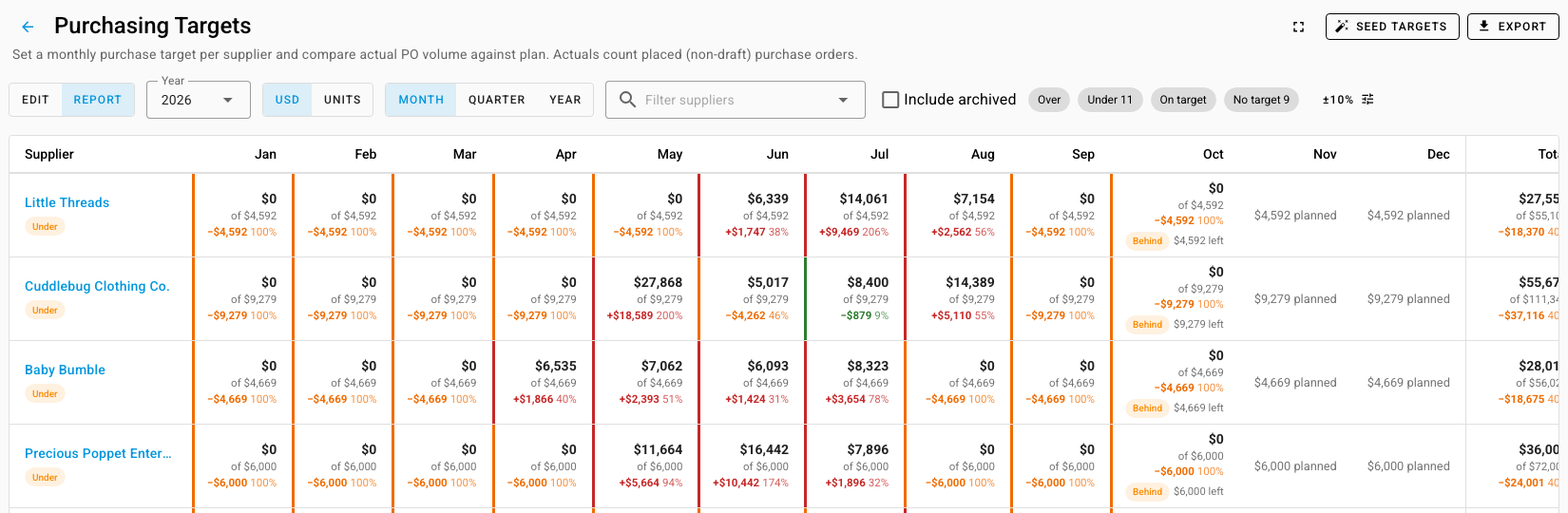
The page opens in Report view: one row per supplier, one column per month, and a Total column for the year.
Fill in targets quickly with Seed targets
Typing 12 months for every supplier takes a while, so start by seeding them.
- Click Seed targets.
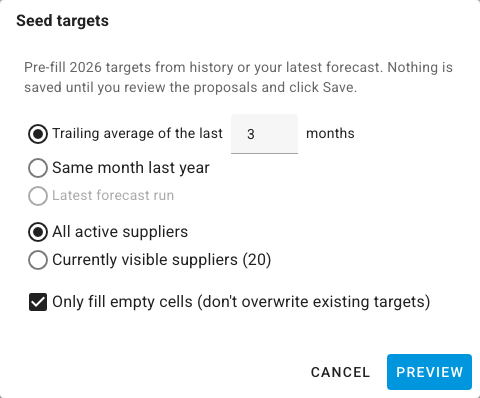
- Choose where the proposals come from:
- Trailing average of the last few months (3 by default), to plan at your recent buying pace.
- Same month last year, to keep last year's seasonality.
- Latest forecast run, to plan from your most recent demand forecast.
- Choose All active suppliers or Currently visible suppliers (the ones your supplier filter shows).
- Leave Only fill empty cells (don't overwrite existing targets) selected to keep targets you've already set.
- Click Preview. The proposed targets fill the grid in edit mode. Nothing is saved yet.
- Review the numbers, adjust any you like, and click Save.
Set or change targets by hand
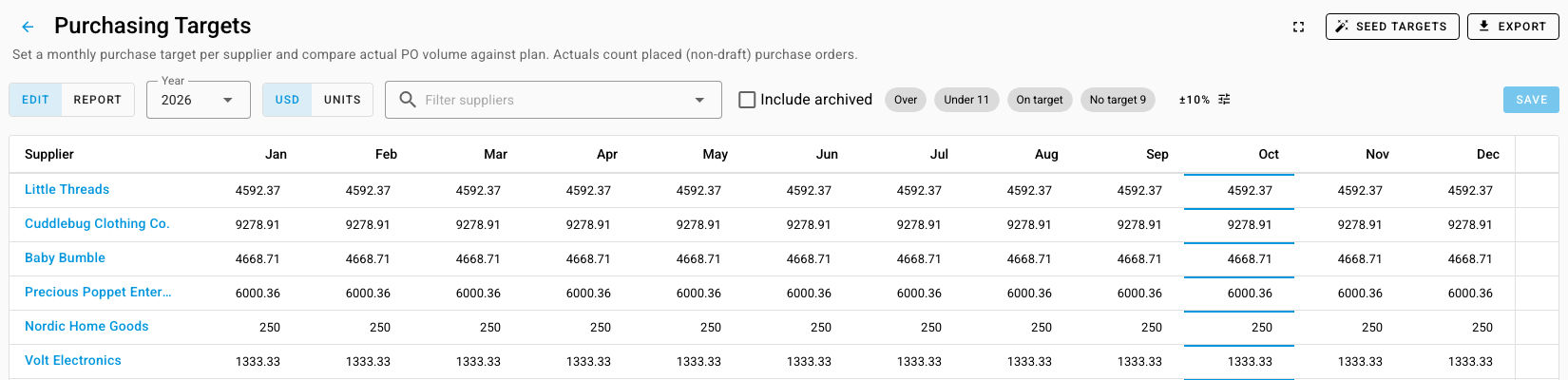
- Click Edit. Each month becomes an editable cell.
- Choose USD to plan in money, or Units to plan in units.
- Type the target for each supplier and month.
- Click Save.
Track spend against the plan
- Click Report.
- Read each cell: the actual amount on top, the target under it, and the difference in money and percent. Months still to come show the amount planned. The current month also shows whether you're On pace, Ahead, or Behind, and how much is left to buy.
- Each supplier's row is marked Over, Under, On target, or No target for the year so far. The year's variance counts only the months that have passed.
- Click a status chip above the grid, such as Under, to show only the suppliers with that status.
- Switch between Month, Quarter, and Year to roll the columns up.
- Click a month that has purchase orders to list them, then open any order from the list.
Below the grid, Target vs actual by month charts the plan against what you placed across all suppliers.

Choose what counts as on target
An actual close to its target counts as On target. By default, close means within 10 percent either way.
- Click the tolerance button (±10%) above the grid.
- Enter a new Tolerance percentage.
- Click Apply.
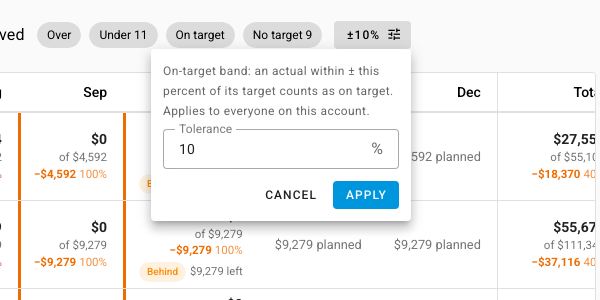
The tolerance applies to everyone on your account, not only to you.
Other options
- Pick a Year to plan or review another year.
- Select Include archived to show archived suppliers that still have targets or purchase orders.
- Click Export to download the grid.
- Click the full-screen icon to give the 12-month grid the whole window. Press Esc to leave full screen.
Next steps
- Use the Inventory Planning report to see which products need ordering from each supplier.
- Forecast demand and replenish stock to build the forecast that Seed targets can plan from.