Model a product's profit with Pro Forma
Product Pro Forma answers "if I sell this at this price on this channel, what do I keep?". It takes a selling price and your costs, adds each channel's fees, and shows the profit per unit, the margin, and the price you need to break even. Use it before you buy a new product, before you list an existing one on another channel, or before you change a price.
Pro Forma is a model. Nothing you type in it changes your products, listings, or prices unless you choose Save assumptions.
Before you begin
- You need access to the Product Pro Forma report.
- Your sales channels should be connected, so their fees can be estimated.
Open Pro Forma
Go to Insights → Reports and click Product Pro Forma. To model a catalog product, you can also open the product and choose its Pro Forma tab.
Pick a product to model
Do one of the following:
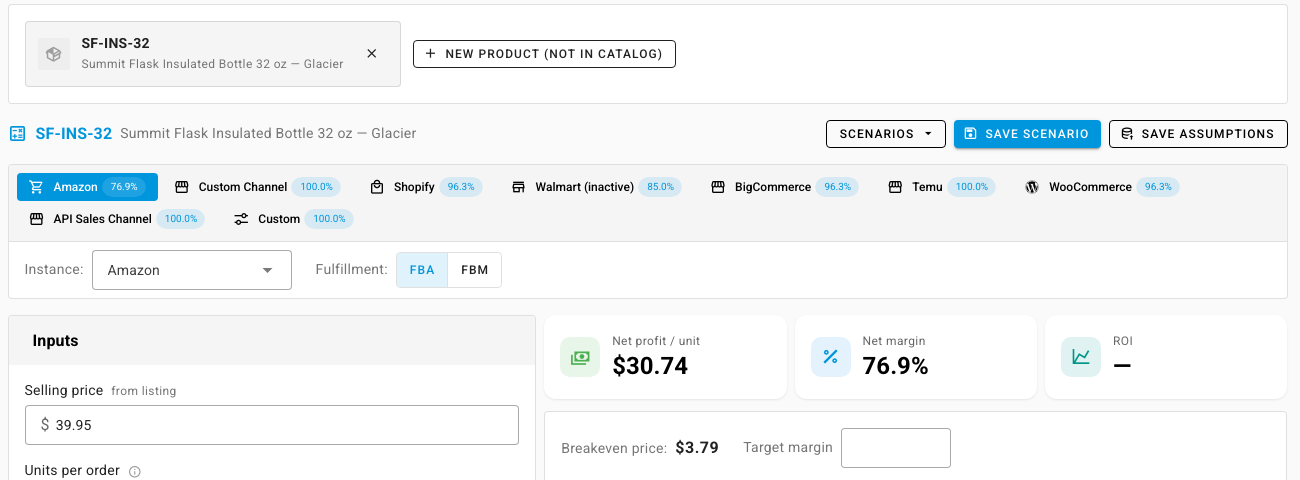
- For a product in your catalog: type its SKU or name in the search box and select it. The selling price and costs fill in from the product and its listings.
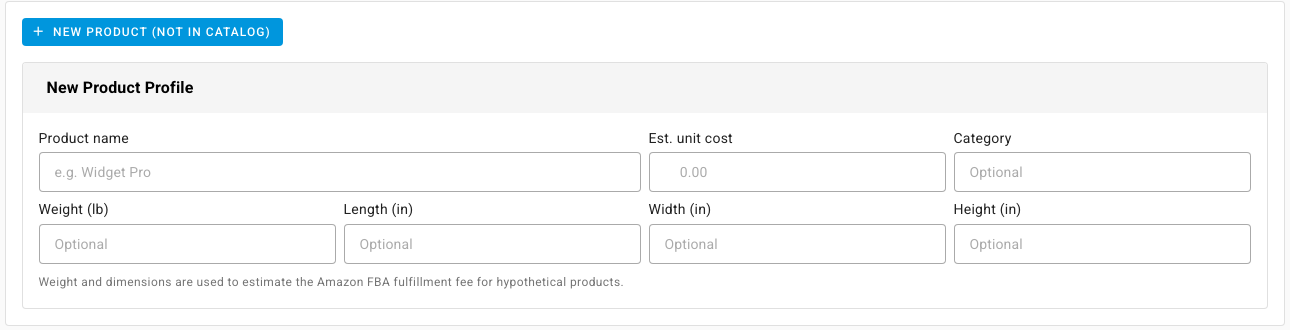
- For a product you haven't bought yet: click New product (not in catalog), then fill in the New Product Profile: Product name, Est. unit cost, and an optional Category. For Amazon FBA, also enter the Weight (lb) and the Length (in), Width (in), and Height (in), which are used to estimate the fulfillment fee.
Choose a channel
- Click a channel tab. Each tab shows the net margin the product would make on that channel, so you can compare channels at a glance.
- If you have several stores on the channel, pick the Instance.
- For Amazon, choose the Fulfillment method: FBA or FBM.
Adjust the inputs
In Inputs, change anything you want to test:
- Selling price. "from listing" means it came from the product's current listing on this channel.
- Units per order, for products usually bought several at a time.
- Shipping cost (outbound), what you pay to ship an order.
- COGS, the product's unit cost. Click the list icon next to it to break the cost down into parts.
- The channel's fees, such as Referral fee and FBA fulfillment. Type over a fee to override its estimate, or click Add fee to add your own, such as a rep commission.
- Advanced (returns, ads): Return rate %, Refund % of price, Recovery rate %, Cost per return, and Ad spend % of revenue. Returns are combined into a returns allowance line.
The results update as you type. Net profit / unit, Net margin, and ROI sit at the top, with the Breakeven price under them. Enter a Target margin to see the price you'd need to charge for it. The Profit Waterfall shows how the price turns into profit, fee by fee.
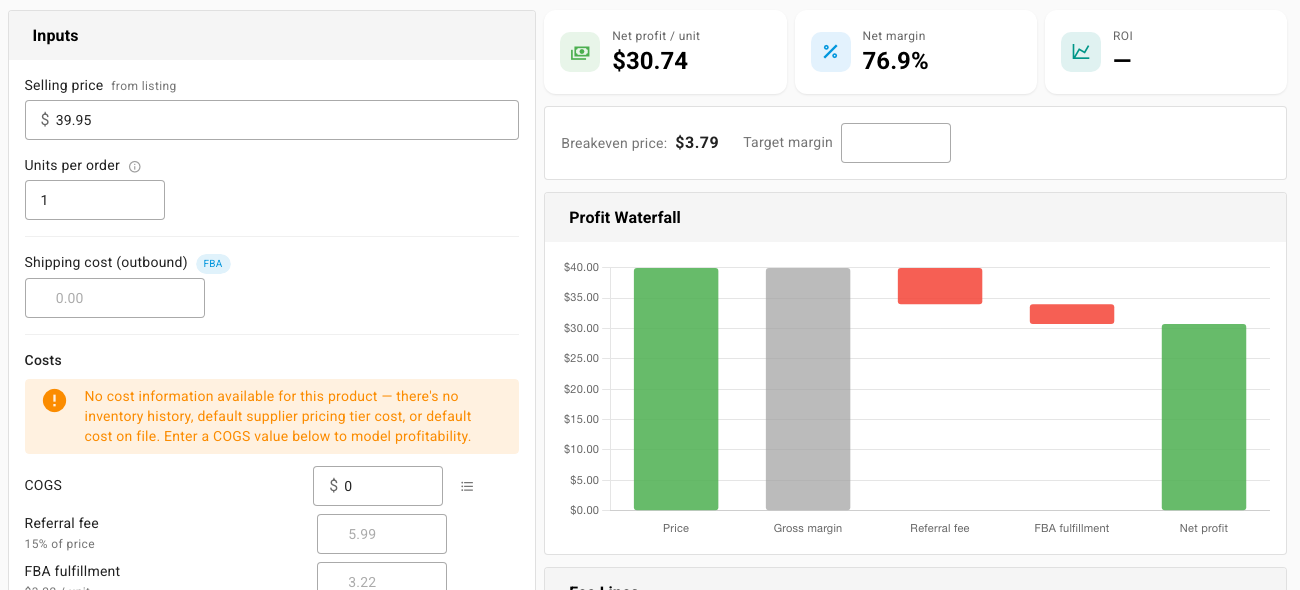
If SKU.io has no cost for a product, Pro Forma tells you so above COGS. Enter the cost yourself, because a zero cost makes every margin look far better than it is.
Check where each fee comes from
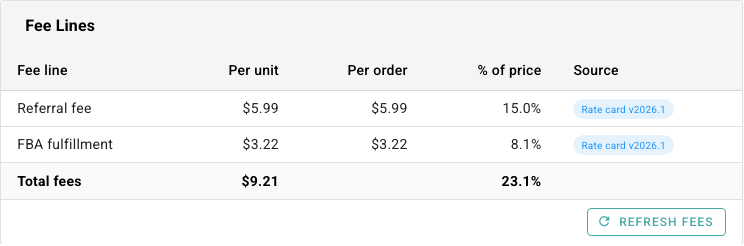
Fee Lines lists every fee per unit, per order, and as a percentage of the price, with its Source:
| Source | Meaning |
|---|---|
| Rate card | The channel's published fee schedule, with its version. |
| API | A live estimate from the channel. |
| Channel setting | A fee you set on the channel's integration settings. |
| Listing | The marketplace cost percentage saved on the product or listing. |
| Historical avg | What the fee has averaged on your real orders. |
| Override | A value you typed over the estimate. Use the reset icon in Inputs to restore it. |
| Custom | A fee you added. |
| Calculated | Worked out from the advanced return and ad settings. |
Click Refresh fees to fetch the estimates again, for example after changing the price.
Compare the model with real sales
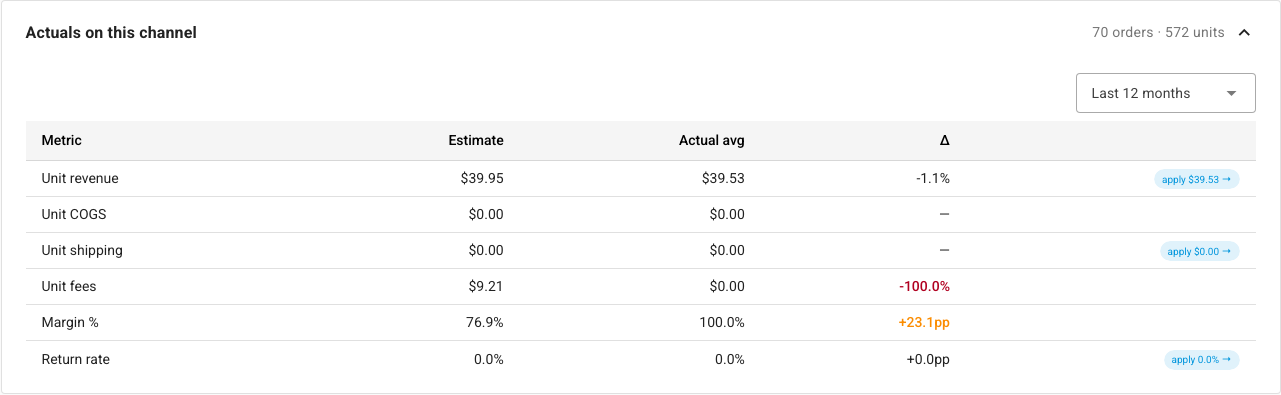
For a catalog product that already sells on the channel, expand Actuals on this channel. It compares your estimate with what the product actually averaged over the period you choose, such as Last 12 months: unit revenue, unit cost, shipping, fees, margin, and return rate. Click apply on a row to use the actual figure in the model.
Save your work
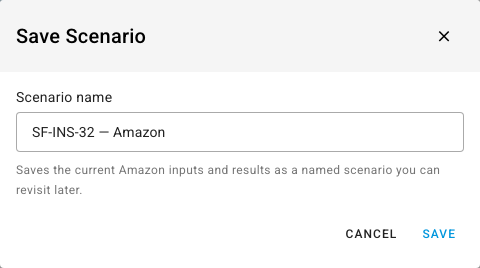
- Save scenario keeps the current channel's inputs and results under a name, for example "SF-INS-32 — Amazon". Open Scenarios to reload, rename, or delete a saved scenario. If a fee schedule has changed since you saved a scenario, Pro Forma warns you when you load it.
- Save assumptions writes the shipping cost and marketplace cost percentage back to the catalog product. Forecasting and profitability reports then use them as the product's defaults. The dialog shows exactly what it will save before you confirm. It isn't available for a product that isn't in your catalog.
Next steps
- Set a product price once you've settled on a price.
- Reports catalog to find the Profitability report, which shows what products really earned.