Work the Lifecycle workspace
PIM → Lifecycle is where you follow products that are leaving your range. The Overview tab tells you what needs you this week. The Sell-through tab lists every phasing-out and discontinued product with how fast it's selling, so you can mark it down, offer it as closeout, change its state or archive it.
Before you begin
- Products show up here once they're Phasing out, Discontinued or in a state you created. See Discontinue a product.
- To use Change lifecycle, Create Shopify redirect now and Retry sell-out action, your role needs permission to manage product lifecycle. To add products to a clearance plan, it needs permission to manage pricing, and to archive, permission to archive products. Without the permission, the button is greyed out and its tooltip says which one is missing, such as "You don't have permission to change lifecycle".
Steps
-
Go to PIM → Lifecycle.
The workspace opens on the Overview tab.
-
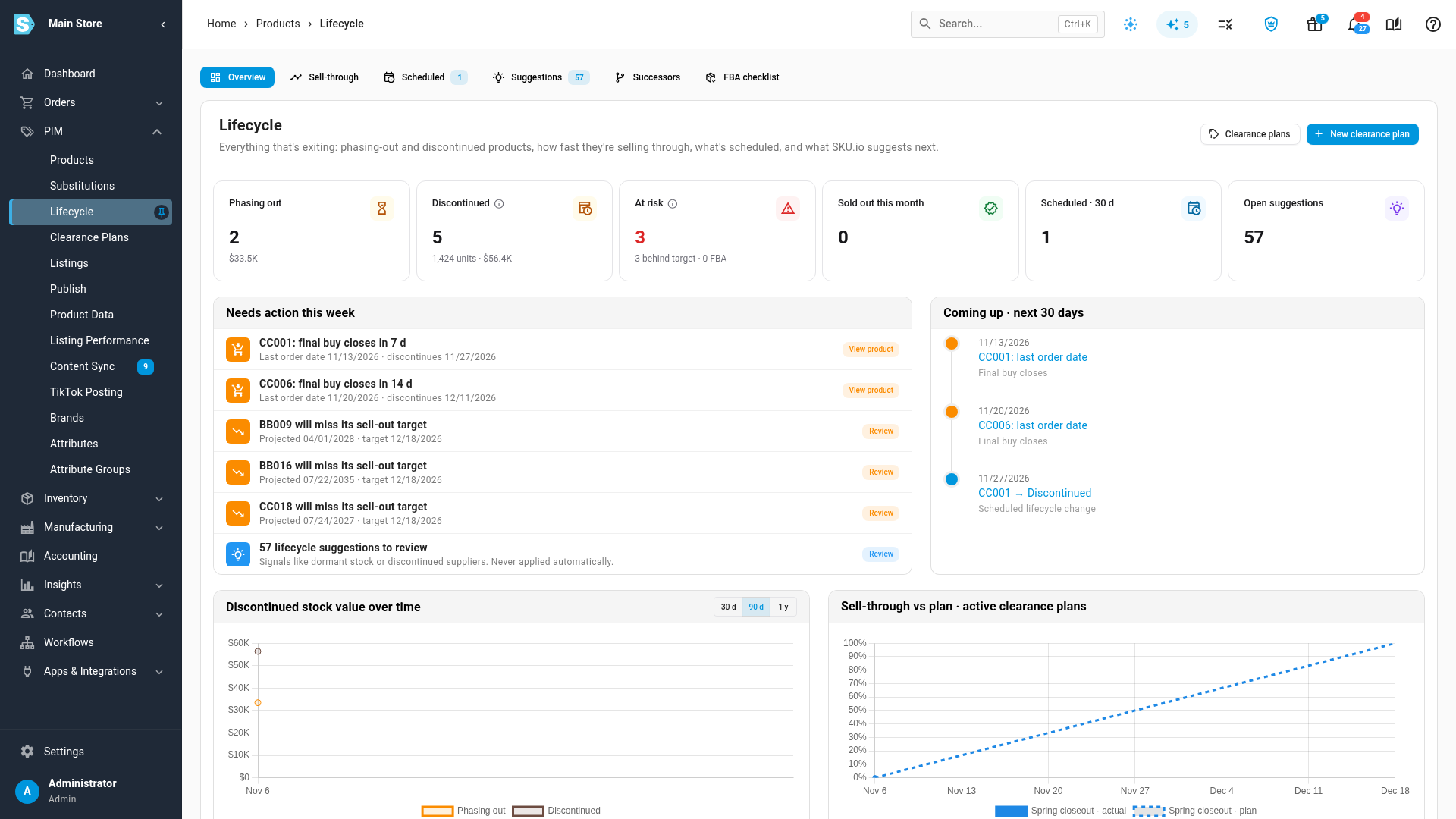
Read the stat cards at the top, and click one to see its products.
For example, click At risk to open the Sell-through tab filtered to at-risk products.
-
Work down Needs action this week, and click the button on each item.
-
Click the Sell-through tab to see every exiting product.
-
Narrow the list with the quick filters, such as State or Status.
-
Tick the products you want to act on.
-
Click an action in the bulk actions bar, such as Add to clearance plan or Archive.
The tabs
The tab bar sits above the page title. Scheduled, Suggestions and FBA checklist show a count when something is waiting.
| Tab | What it's for |
|---|---|
| Overview | What's exiting, what needs you this week, and what's coming up. |
| Sell-through | Every phasing-out and discontinued product, with sales, stock and status. |
| Scheduled | Lifecycle changes set for a later date. See Schedule lifecycle changes. |
| Suggestions | Products that look ready for a different state. See Review lifecycle suggestions. |
| Successors | Old products and the products that replace them. See Link a successor product. |
| FBA checklist | Discontinued stock at Amazon FBA. See Work the FBA checklist. |
Clearance plans in the page header opens the list of clearance plans, and New clearance plan starts one. See Create a clearance plan.
The Overview tab
Stat cards
Each card links to the products behind it.
| Card | What it counts |
|---|---|
| Phasing out | Phasing-out products, with their stock value. |
| Discontinued | Discontinued products, with units left and their value at cost. |
| At risk | Products projected to sell out after their clearance target, plus products whose Amazon FBA stock reaches an aged-inventory surcharge band within 30 days. |
| Sold out this month | Products that sold out this month. |
| Scheduled · 30 d | Lifecycle changes scheduled in the next 30 days. |
| Open suggestions | Lifecycle suggestions waiting for you. |
The Sell-through tab shows the same cards, without the links.
Needs action this week
Up to eight items, most urgent first. Each has a button that takes you to the fix.
| Item | Button | Where it takes you |
|---|---|---|
| A product's FBA stock reaches a surcharge band soon | FBA checklist | The FBA checklist tab |
| A phasing-out product's final buy closes soon | View product | The product's page |
| A product will miss its sell-out target | Review | Sell-through, filtered to At risk |
| Sold-out products are waiting to be archived | Review | Sell-through, filtered to Sold out |
| Lifecycle suggestions are waiting | Review | The Suggestions tab |
When there's nothing to do, the card says Nothing needs action this week.
Coming up · next 30 days
A timeline of what's due in the next 30 days: scheduled lifecycle changes, last order dates, clearance plan target dates and FBA removal cut-offs. Click a product to open it.
Charts
- Discontinued stock value over time shows the value of stock in each exiting state. Switch between 30 d, 90 d and 1 y. SKU.io records the figures once a day, so a new account shows No lifecycle snapshots yet. They're recorded daily. until the first one is taken.
- Sell-through vs plan · active clearance plans compares each active clearance plan's actual sell-through with its planned pace.
The Sell-through tab
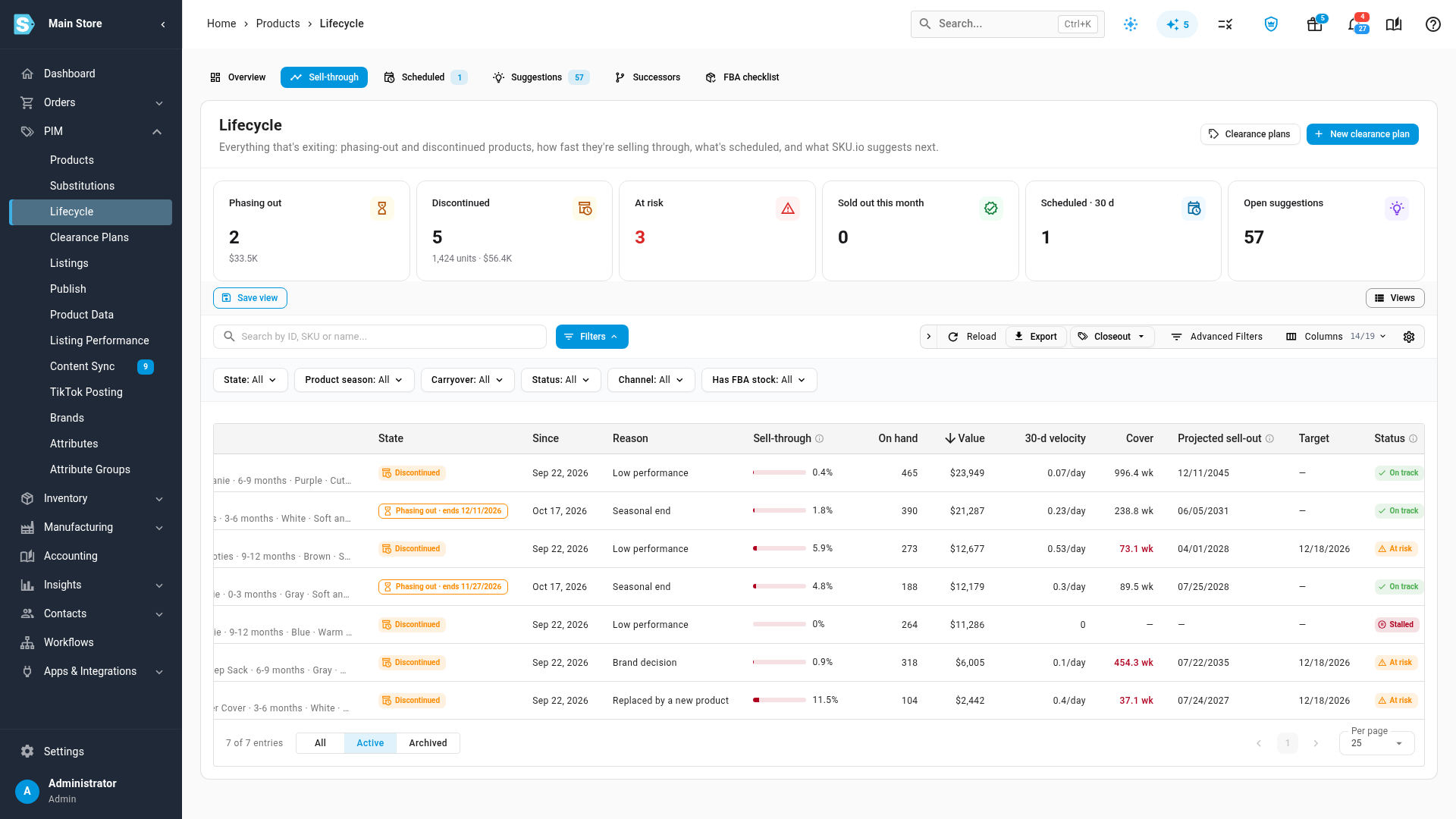
The table lists every product that's phasing out, discontinued or in a state you created. Products that are Active aren't listed. Hover the ⓘ beside a column header for how it's worked out.
| Column | What it shows |
|---|---|
| ID, Product | The product, with links to its page. |
| State, Since, Reason | Its lifecycle state, when it entered it, and why. |
| Units at discontinue, Sold since | Stock when it was discontinued, and units sold since. Hidden by default. |
| Sell-through | Units sold since it was discontinued ÷ (units on hand at discontinue + units received since). |
| On hand, Value | Units left and their value at cost. Hover On hand to see how much is at Amazon FBA. |
| 30-d velocity, Cover | Average units sold per day over the last 30 days, and how many weeks the stock lasts at that rate. Cover is red when the stock outlasts the clearance target. |
| Projected sell-out, Target | Today + units on hand ÷ 30-day velocity, and the target date of the product's clearance plan. |
| Status | Where the product stands. See the next table. |
| Markdown step, Successor, Runway | The product's clearance plan step, its successor, and a bar from today to the projected sell-out with the target marked. Hidden by default. |
| FBA clock | When the oldest FBA units cross Amazon's next aged-inventory surcharge band, and the estimated monthly cost. |
Use Columns to show or hide columns.
Statuses
| Status | Meaning |
|---|---|
| On track | Selling, and not projected to miss a clearance target. |
| At risk | Projected to sell out after its clearance plan's target date. A product that isn't in a clearance plan has no target, so it's never At risk. |
| Stalled | Nothing sold in the last 30 days. |
| Out of stock | Nothing on hand, but still in transit, inbound, allocated or on order, or its state has no sell-out action. No sell-out action runs yet. Hover the status to see what it's waiting on. |
| Sold out | Nothing left anywhere. The sell-out action runs after the grace period. See What happens when a discontinued product sells out. |
Find products
- Search by ID, SKU or name.
- Use the quick filters: State, Product season, Carryover, Status, Channel and Has FBA stock.
- Click Advanced Filters for more, such as Reason, Clearance plan, Brand, Supplier, Warehouse or Sell-through %.
- Save a filter set as a view, and open saved views from All Views.
- Use the toggle at the bottom of the list to show Active products (the default), Archived products or All.
If nothing is phasing out or discontinued, the table says Nothing is phasing out or discontinued.
Act on several products
Tick rows, then use the bulk actions bar. To act on every row that matches your filters, click All Filtered in the bar. A bulk action covers up to 5,000 products.
| Action | What it does |
|---|---|
| Add to clearance plan | Adds the products to an existing plan or starts a new one. See Create a clearance plan. |
| Export closeout | Exports the products as a closeout CSV or PDF linesheet. See Sell off closeout stock. |
| Email offer | Emails a closeout offer to wholesale customers. |
| Create Shopify redirect now | Redirects the Shopify pages of archived or sold-out products, up to 200 at a time. Ticked rows only. Shown only when you have a Shopify store connected and at least one ticked row is archived or sold out. |
| Change lifecycle | Changes the state of every product you ticked. See Change lifecycle for many products or variants. |
| Archive | Archives the products. Ticked rows only, and only rows with zero stock: otherwise the button is greyed out with Only rows with zero stock can be archived. |
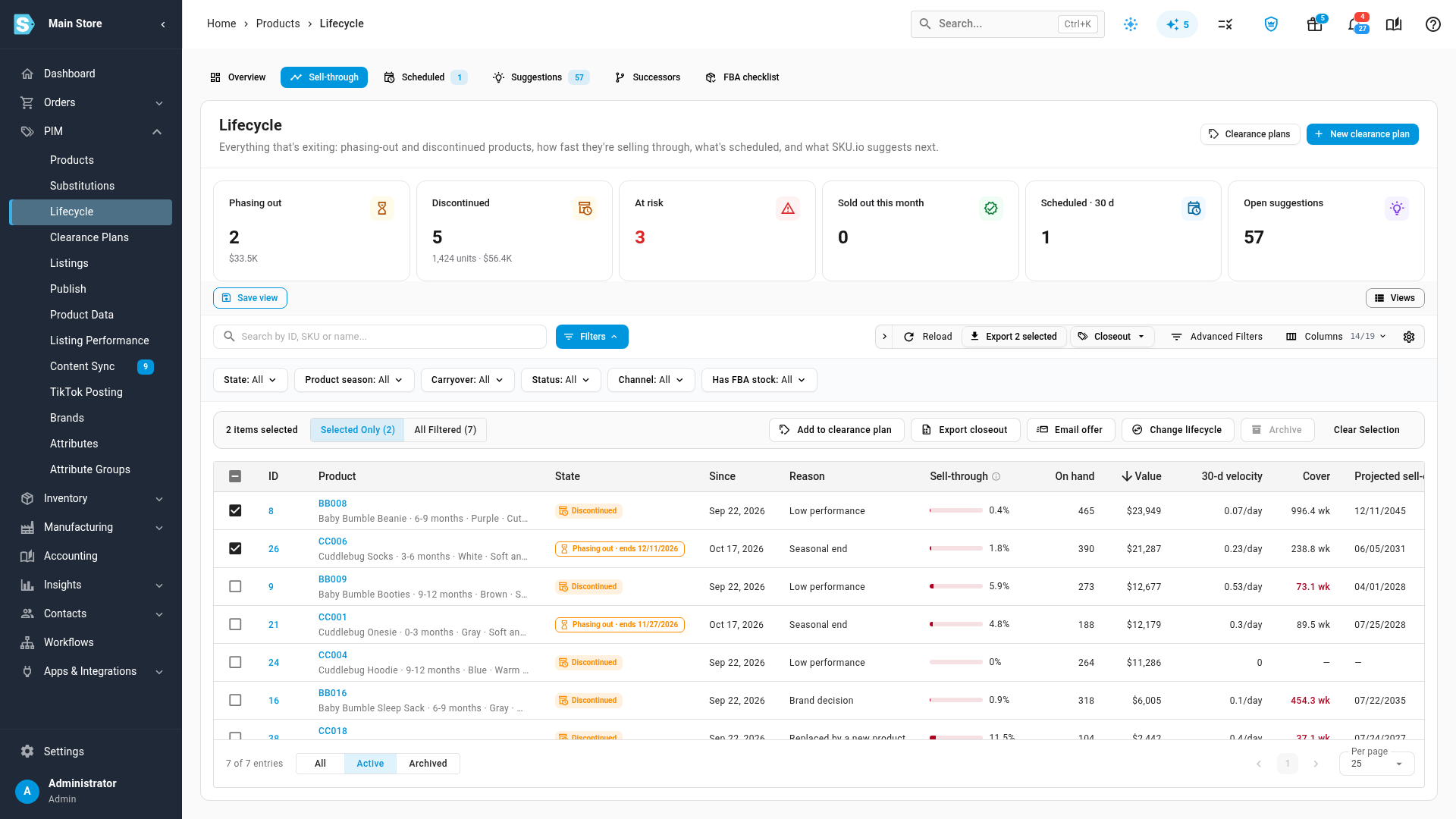
You can also export closeout stock or email an offer for every row that matches your filters, without ticking anything: click Closeout above the table.
Act on one product
Click ⋮ at the end of a row, or right-click the row.
| Action | What it does |
|---|---|
| View product | Opens the product's page. |
| View listings | Opens the product's channel listings. |
| View in aging report | Opens the inventory aging report, searched to this product. |
| Change lifecycle | Changes this product's state. |
| Retry sell-out action | Runs the sell-out action again after you fixed a channel problem. Available only when the product's last sell-out run failed or was stopped. Otherwise it's greyed out, and hovering it says there's nothing to retry. |
Export the list
Click Export above the table to download the rows that match your filters, with the columns shown in the table. With rows ticked, the button reads Export N selected and exports only those. A large export runs in the background, and the download appears in the job tray.
Add lifecycle widgets to your dashboard
Three widgets in the Products & Catalog group of the dashboard bring this workspace to your home page:
- Discontinued stock value: stock value and units left on discontinued products, with the change against 30 days ago. Only people who can see financial figures see it.
- Sell-through at risk: products projected to miss their clearance target, or with no sales in 30 days.
- Phasing out this month: phasing-out products that become discontinued this month.