Change lifecycle for many products or variants
When a whole range is ending, you don't have to open each product. From the products list you can change the lifecycle of every product you tick, or of every product your filters match, in one background job. For a matrix product, you choose whether the change applies to all its variants, only the ones still in the product's state, or the ones you pick, such as one color.
Before you begin
- Your role needs permission to manage product lifecycle. Without it, Change lifecycle… is greyed out and says "You don't have permission to change lifecycle".
- The dialog works the same way as for one product. Read Discontinue a product for the fields, the Impact column and the follow-ups, and Phase out with a final buy for the dates.
Find products by lifecycle state
The products list has a Lifecycle column with each product's state chip. You can sort by it. A matrix product whose variants are in different states shows a chip such as Partly discontinued · 2 of 5.
To narrow the list:
- In the filter panel, open Lifecycle and tick one or more states. Partly discontinued finds matrix products whose variants are in mixed states.
- Under Advanced Filters, the Lifecycle group has Lifecycle state, Lifecycle reason, Discontinue on, Lifecycle changed at, Has successor, Has lifecycle suggestion and Discontinued by a supplier.
The same filters are in the filter sheet on a phone. Discontinued by a supplier is also a column you can show from the column selector. It's sourcing information from your suppliers, not the product's own state. See How product lifecycle works.
Change many products
-
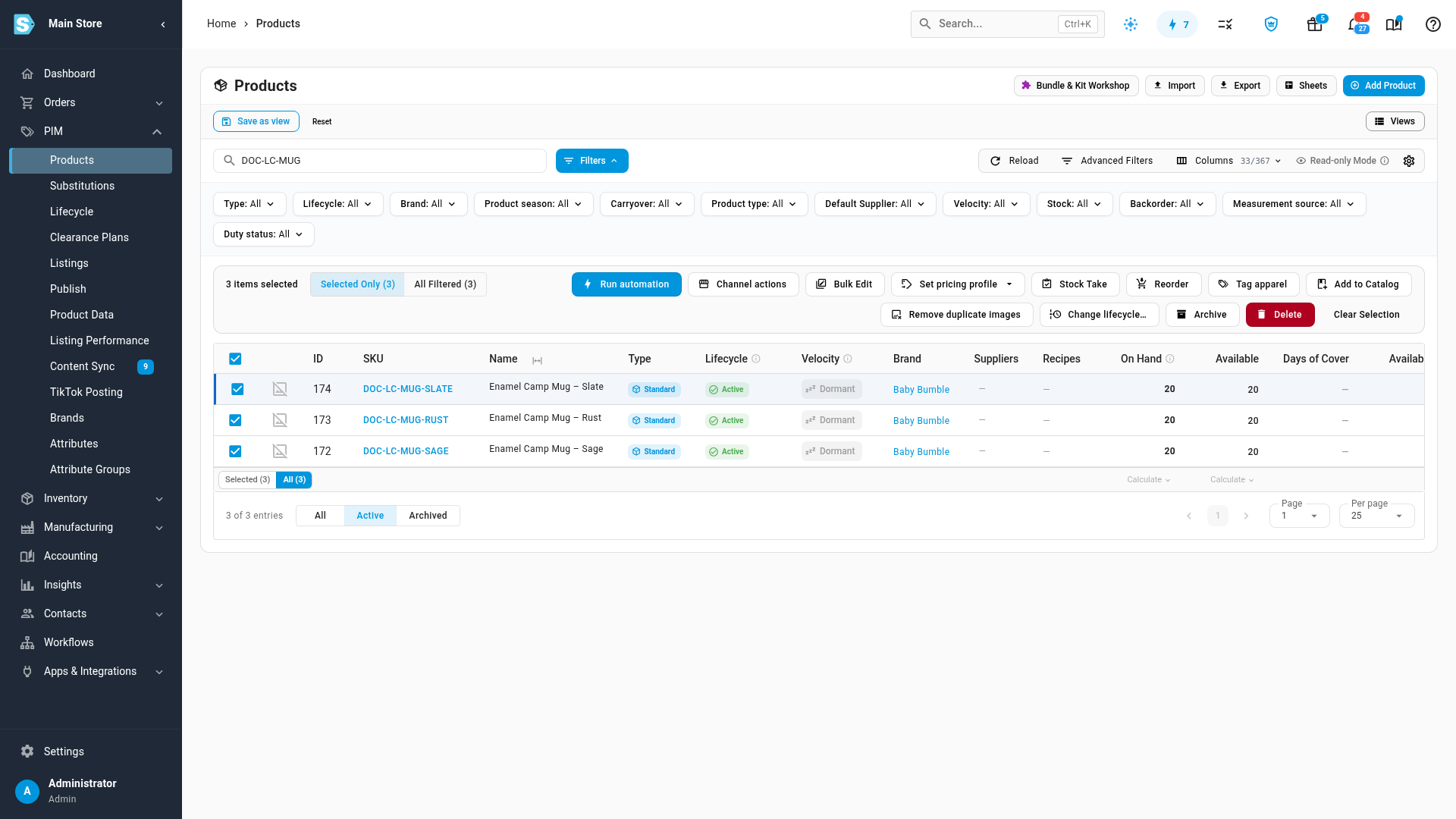
Go to PIM → Products and filter the list down to the products you want to change.
-
Tick each product, or tick the header box to select the page.
-
In the bulk toolbar, choose the scope. Selected Only changes the rows you ticked. All Filtered changes every product your filters match, on every page.
-
Click Change lifecycle…. The Change lifecycle — selected products dialog opens, with the number of products next to the title.
-
Choose the State, When, Reason and any dates, as you would for one product. To name a product that replaces them all, open Successor: every selected product is linked to that one product. See Link a successor product.
-
Under Variants, choose how matrix products in the selection are changed:
- All variants changes every variant of each matrix product.
- Only variants in the style's state skips variants you've already moved to another state.
-
Check the Impact column, which totals the whole selection, and tick the follow-ups you want.
-
Click the confirm button, such as Discontinue 3 products.
The message "Changing lifecycle for 3 products — track progress in the job tray" appears, and the job Changing lifecycle for 3 products joins the Background Jobs tray. Each product is changed on its own, so one failure doesn't stop the rest. When the job finishes, its summary says what happened, such as "Lifecycle change complete: 2 changed, 1 failed", and lists each failed product with the reason. Changes dated in the future are counted as scheduled. See Follow background jobs.
Each product's change can be undone for 24 hours from its own lifecycle panel. See Reactivate a product or undo a change.
Good to know
- Customer emails are combined. If you tick Notify N wholesale customers who bought this, each customer gets one email for the whole job, listing all of their products in it. For a change dated in the future, the email goes out when the change applies.
- A product that's selling out can fail. If SKU.io is ending a product's listings because it just sold out, that product fails with "The sell-out action is running for product #… right now, so its lifecycle cannot change yet. Try again in a few minutes." Run the change again for it later.
- An empty selection is refused. If your filters match nothing by the time you confirm, the dialog says "No products match this selection."
Change some variants of a matrix product
Use this to drop one color or a few sizes of a style while the rest keep selling.
-
Open the matrix product, click Actions, then Change lifecycle….
-
Choose the State, Reason and any dates.
-
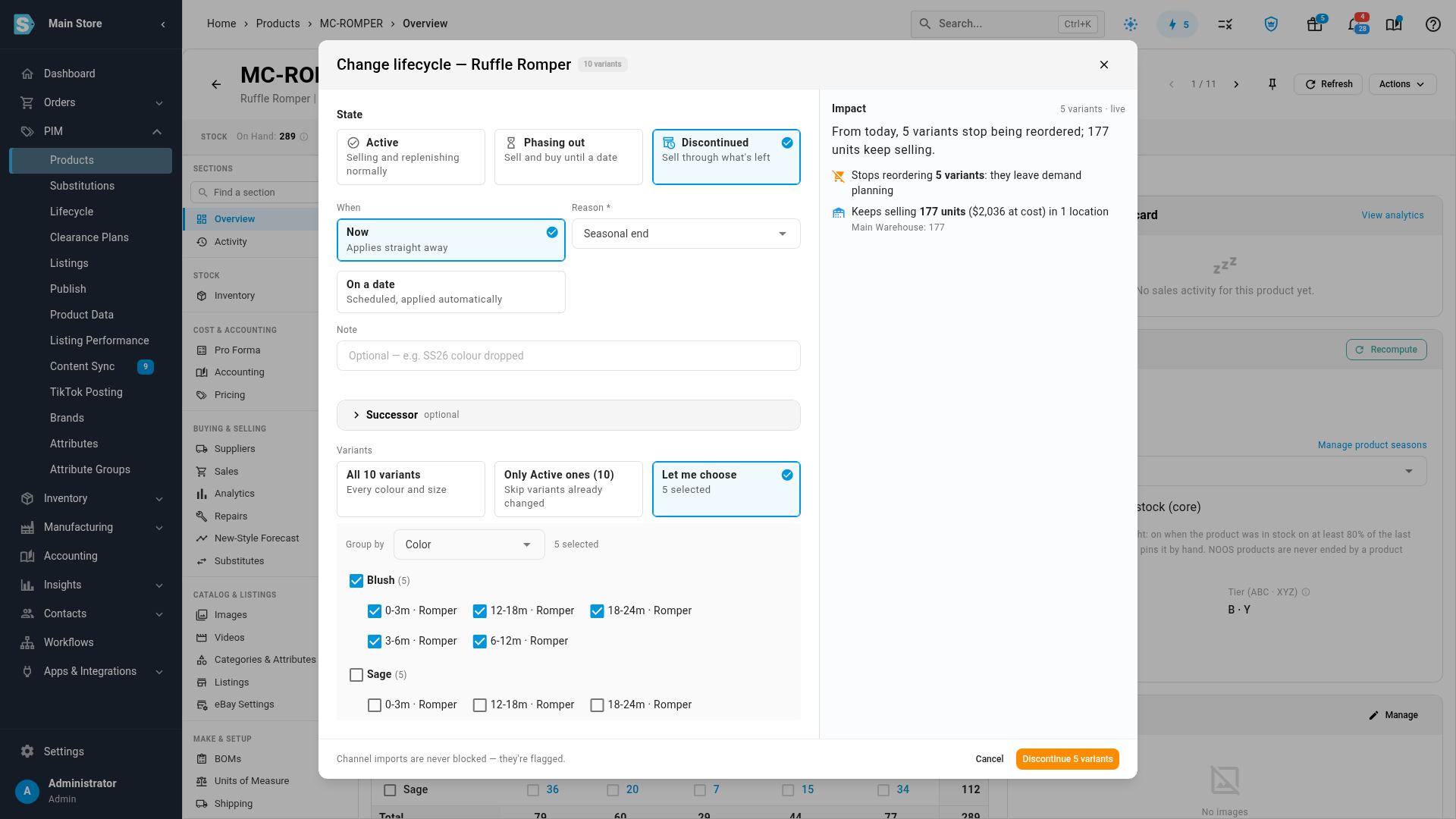
Under Variants, choose one of:
- All N variants, every color and size;
- Only Active ones (N), which skips variants already in another state. The label names the product's current state;
- Let me choose, to pick variants yourself.
-
If you chose Let me choose, pick an attribute in Group by, such as Color. Tick a group to select all its variants, or tick single variants. The count shows how many you've selected. Variants that aren't Active show their state chip.
-
Check the Impact column, which counts variants, and click the confirm button, such as Discontinue 5 variants.
The variants you picked change state. The style itself takes their state only when every variant agrees. Otherwise it stays Active and shows a Partly chip, such as Partly discontinued · 5 of 10. Click the chip to see each color's states in a table.
You can also start from the Variations card on the product's overview: tick the variants, then click Change lifecycle (N). The dialog opens with Let me choose and your variants already selected.
Undoing a variant change undoes it for every variant it changed, not just one.
If you pick Let me choose and tick nothing, the dialog says "Choose at least one variant."
Next steps
- Link a successor product for products being replaced.
- Schedule lifecycle changes to change a range on a set date.
- Import and export lifecycle data to change states from a spreadsheet.
- Browse, search and filter the products list.