Work the FBA checklist
Discontinued stock that sits at Amazon FBA keeps getting older, and Amazon adds a monthly surcharge once units pass an age band. The FBA checklist tab lists every exiting product that still holds FBA stock, counts down to its next surcharge band, and walks you through the three things to do in Seller Central so Amazon stops restocking it and the stock leaves in time.
Before you begin
- You need an Amazon connection that tracks FBA inventory. See Turn on FBA inventory tracking.
- A product appears on the checklist when it's in an exiting state and still has units in an Amazon FBA warehouse. A state is exiting when its Demand planning & reorder suggestions setting is Capped or Excluded: Phasing out and Discontinued by default, plus any custom state you set that way. The info box at the top of the tab names the exiting states in your account. Archived products aren't listed. See Discontinue a product.
- To tick steps or change a product's category exemption, your role needs permission to manage product lifecycle. Without it, the checkboxes and menu items are greyed out with "You don't have permission to change lifecycle".
- You do the three steps in Seller Central yourself. Ticking a step only records your progress in SKU.io, and nothing is sent to Amazon.
Steps
Open the checklist
-
Go to PIM → Lifecycle.
-
Click the FBA checklist tab.
The tab shows a count when products are waiting. You can also get here from Needs action this week on the Overview tab: an item such as "…: FBA surcharge band in 5 d" has an FBA checklist button.
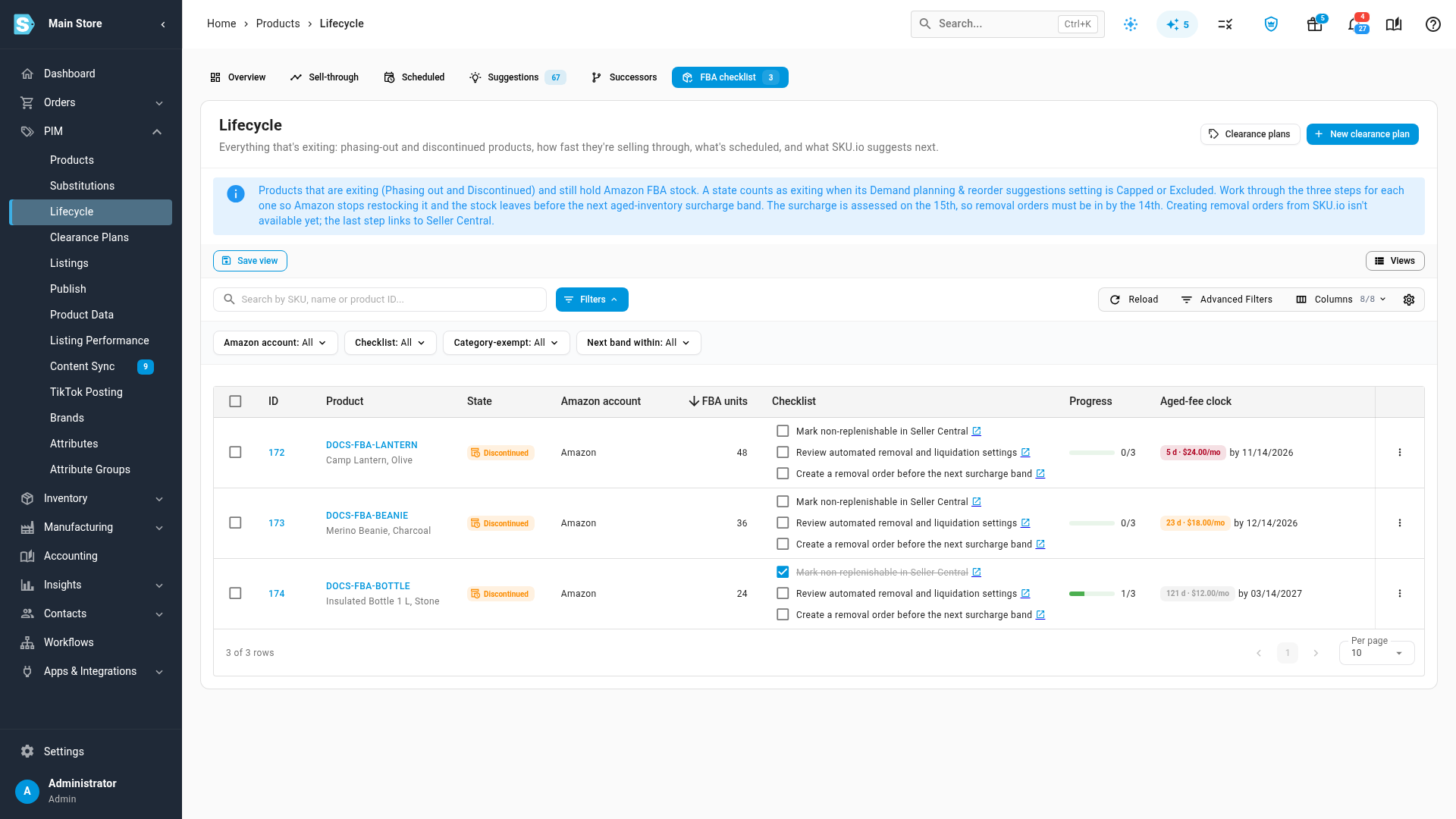
There's one row for each product and Amazon account:
| Column | What it shows |
|---|---|
| ID and Product | The product, linked to its page. |
| State | Its lifecycle state. |
| Amazon account | The Amazon connection holding the stock. |
| FBA units | Units in that account's FBA warehouses. |
| Checklist | The three steps, each with a checkbox and a link to Seller Central. |
| Progress | How many of the three steps are done, such as 1/3. |
| Aged-fee clock | Time left before the oldest units reach the next surcharge band, and the date to file a removal order by. |
Read the aged-fee clock
The Aged-fee clock chip shows the days until the product's oldest FBA units cross Amazon's next aged-inventory surcharge band, and the estimated monthly surcharge once they do, such as 5 d · $24.00/mo. Next to it, by and a date gives the last day to create a removal order.
- Red: the next band starts within 7 days.
- Orange: within 30 days.
- Grey: further away. Green with Exempt means the product skips the 181–270-day bands and nothing is due within 30 days.
- Top band · $…/mo: the units are already in the highest band.
- No band ahead: there's no surcharge band left to reach.
- No aged FBA layers on record: SKU.io has no age history for this stock yet, so there's no clock.
Amazon assesses the surcharge on the 15th of each month, so a removal order must be in by the 14th. Hover the chip for the full detail. Apparel, shoes, bags, jewelry and watches skip Amazon's 181–270-day bands. See Check the FBA aged inventory surcharge.
Work through the three steps
Each row lists the same three steps. The link icon next to a step opens the matching Seller Central page for that Amazon account's marketplace, searched to the product's seller SKU where one is known.
-
Click the link icon next to Mark non-replenishable in Seller Central.
Restock Inventory opens in Seller Central. Mark the SKU as non-replenishable there, so Amazon stops recommending restocks. SKU.io can't set this for you.
-
Tick Mark non-replenishable in Seller Central in SKU.io.
Progress moves to 1/3.
-
Click the link icon next to Review automated removal and liquidation settings.
Your FBA settings open in Seller Central. In the US and Canada, Amazon has automatically enrolled unsold FBA stock in Liquidations since 30 Sep 2025, so check what happens to stock you leave there.
-
Tick Review automated removal and liquidation settings.
-
Click the link icon next to Create a removal order before the next surcharge band.
Manage FBA Inventory opens for this SKU. Choose Create removal order there, and file it before the date on the aged-fee clock.
-
Tick Create a removal order before the next surcharge band.
Progress reads 3/3.
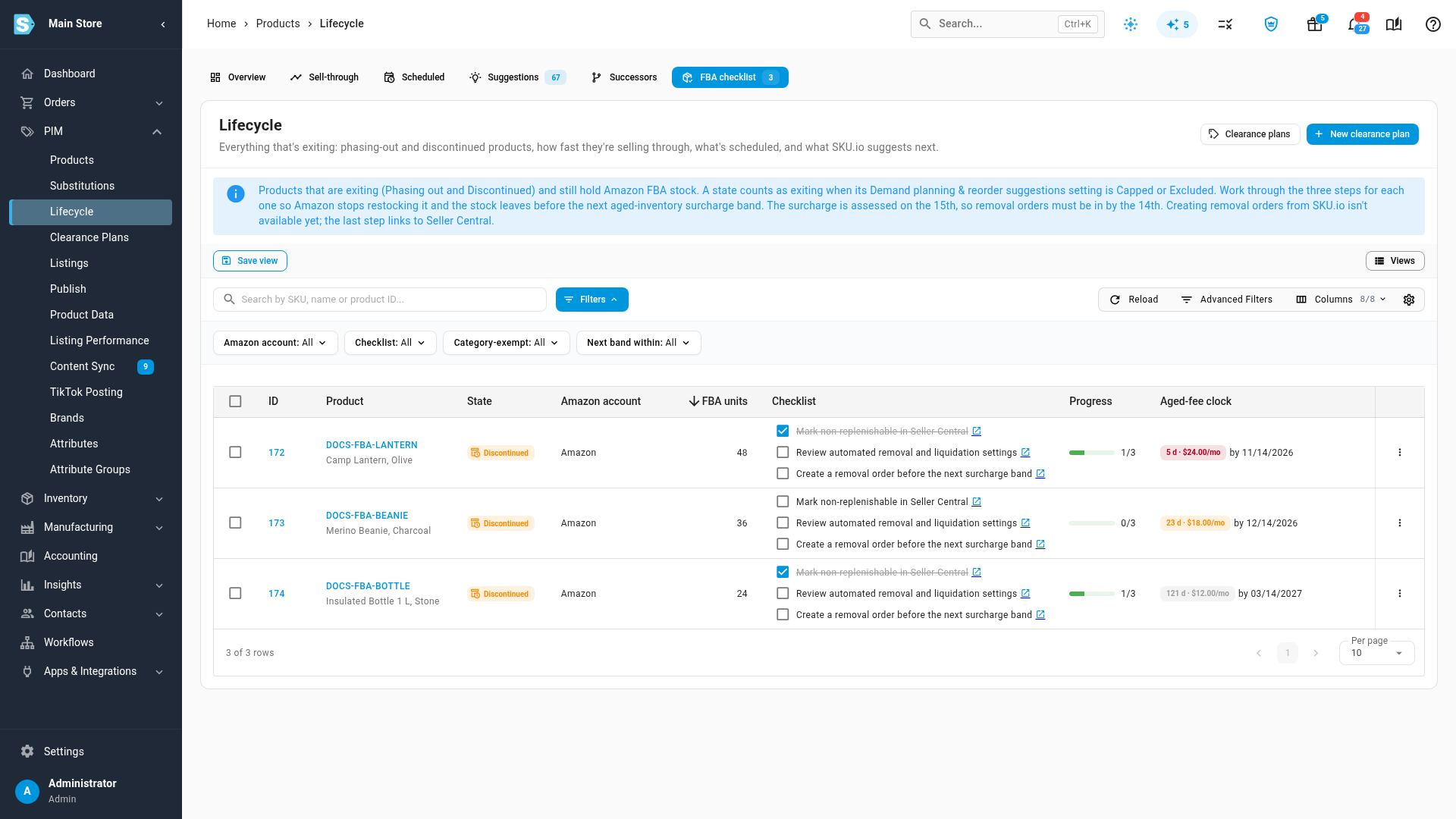
Once Amazon creates the removal order, SKU.io imports it with your other Amazon removal orders. See Receive FBA removal orders. The row leaves the checklist when no FBA units are left.
Mark a step for many products
-
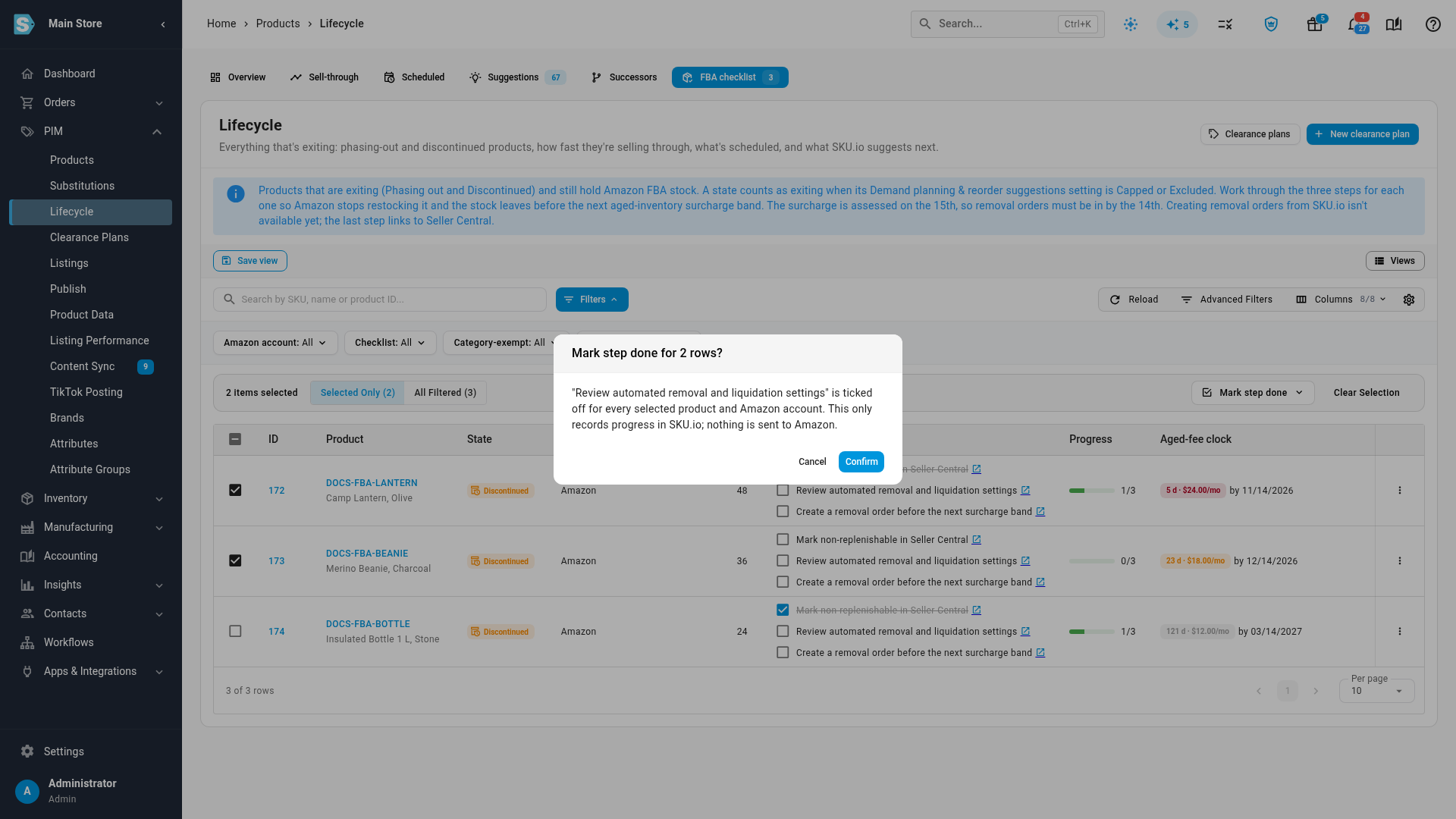
Tick the rows you've finished a step for.
-
In the bulk actions bar, click Mark step done.
-
Choose the step, or choose Clear every step to untick all three.
-
Check the confirmation, such as "Mark step done for 2 rows?", and click Confirm.
SKU.io shows "Updated 2 rows".
Set a product's category exemption
SKU.io decides whether a product is exempt from the 181–270-day bands from its Amazon product type. If that's wrong, set it by hand.
-
Click the Row actions menu (⋮) at the right end of the product's row. You can also right-click the row.
-
Choose one:
- Exempt from 181–270-day bands — the clock skips those bands for this product.
- Not category-exempt — the clock counts every band.
- Use the Amazon product type — go back to the automatic setting.
SKU.io shows FBA category exemption updated, and the clock is recalculated. The chip's tooltip says (set by hand) for a manual choice.
The exemption belongs to the product, so it applies to every Amazon account row for that product, and to the FBA clock column on the Sell-through tab. The same menu has View product and View in aging report.
Find the rows you need
Use the quick filters above the table:
| Filter | Shows |
|---|---|
| Amazon account | Rows for one Amazon connection. |
| Checklist | Not started, In progress or Complete rows. |
| Category-exempt | Products that skip, or don't skip, the 181–270-day bands. |
| Next band within | Rows whose next surcharge band starts within 7, 14, 30, 60 or 90 days. |
Search by SKU, name or product ID. Save a filter combination with Save view, and reopen it from Views. The list starts with the most FBA units first.
Variations and edge cases
The same product at more than one Amazon account
Each Amazon account gets its own row and its own three ticks, because each one is a separate Seller Central account. The links open the marketplace of that account, such as amazon.co.uk or amazon.de.
Removal orders can't be created from SKU.io
Creating a removal order charges per-unit fees and ships your stock, so SKU.io leaves it to Seller Central. The third step's link takes you to the page where you create it.
Nothing on the checklist
When no exiting product holds FBA stock, the tab names your exiting states, for example "No Phasing out or Discontinued products hold FBA stock". With filters on, it says "No products match these filters" and offers Clear filters.
The checklist doesn't load
If the list fails to load, the tab shows "Couldn't load the FBA checklist." with a Retry button.
Next steps
- Work the Lifecycle workspace: see FBA stock alongside each product's sell-through, with the Has FBA stock filter.
- Sell off closeout stock: offer what's left in your own warehouses to wholesale buyers.
- Lifecycle alerts, automations and permissions: get an alert before FBA stock reaches a surcharge band.