Review lifecycle suggestions
Every night, SKU.io looks for Active products that seem to be at the end of their life: no supplier left, nothing selling, a season that ended. It lists them on the Suggestions tab of PIM → Lifecycle. A suggestion never changes a product by itself. You accept it, which opens the Change lifecycle dialog for you to confirm, or you snooze or dismiss it.
Before you begin
- Your role needs permission to manage product lifecycle to accept, snooze or dismiss suggestions. Without it, those actions are greyed out and say "You don't have permission to change lifecycle". See Product permissions reference.
- To change which signals raise suggestions, you also need access to Settings.
What raises a suggestion
The nightly check looks only at Active products that aren't archived. Products that are already phasing out, discontinued or in a state you created are never suggested. A matrix product isn't suggested as a whole, but its variants can be. Each product gets at most one open suggestion per signal.
There are six signals. Each one suggests a state and a reason, which the Change lifecycle dialog fills in when you accept.
| Signal | Raised when | Suggests |
|---|---|---|
| Every supplier source is discontinued | Every supplier you buy the product from has marked it discontinued. Products with no supplier sources are left alone. | Discontinued, reason Supplier discontinued it |
| Dormant with stock on hand | Nothing has sold for at least 60 days, but you still hold stock. Products younger than that window are skipped. | Discontinued, reason Low performance |
| Low value, erratic demand (CZ) | The nightly ABC-XYZ classification put the product in C (low revenue) and Z (unpredictable demand) at least twice in a row. | Phasing out, reason Low performance |
| All channel listings inactive | Every listing on every sales channel was ended or removed at least 30 days ago, and nothing has sold since. | Discontinued, reason Low performance |
| Its season has ended | The product's latest season is over, and it isn't in a current or upcoming season. Products marked never out of stock are never suggested. | Phasing out, reason Seasonal end |
| Its successor is selling | The product named as this one's replacement is Active and has sold at least 10 units since you linked it. | Discontinued, reason Replaced by a new product |
You can turn each signal off, or change its number of days, classifications or units. See Choose which signals raise suggestions. For seasons, see Set up seasons and carryover. For successors, see Link a successor product.
Open the Suggestions tab
-
Go to PIM → Lifecycle.
-
Click the Suggestions tab. Its badge counts the open suggestions.
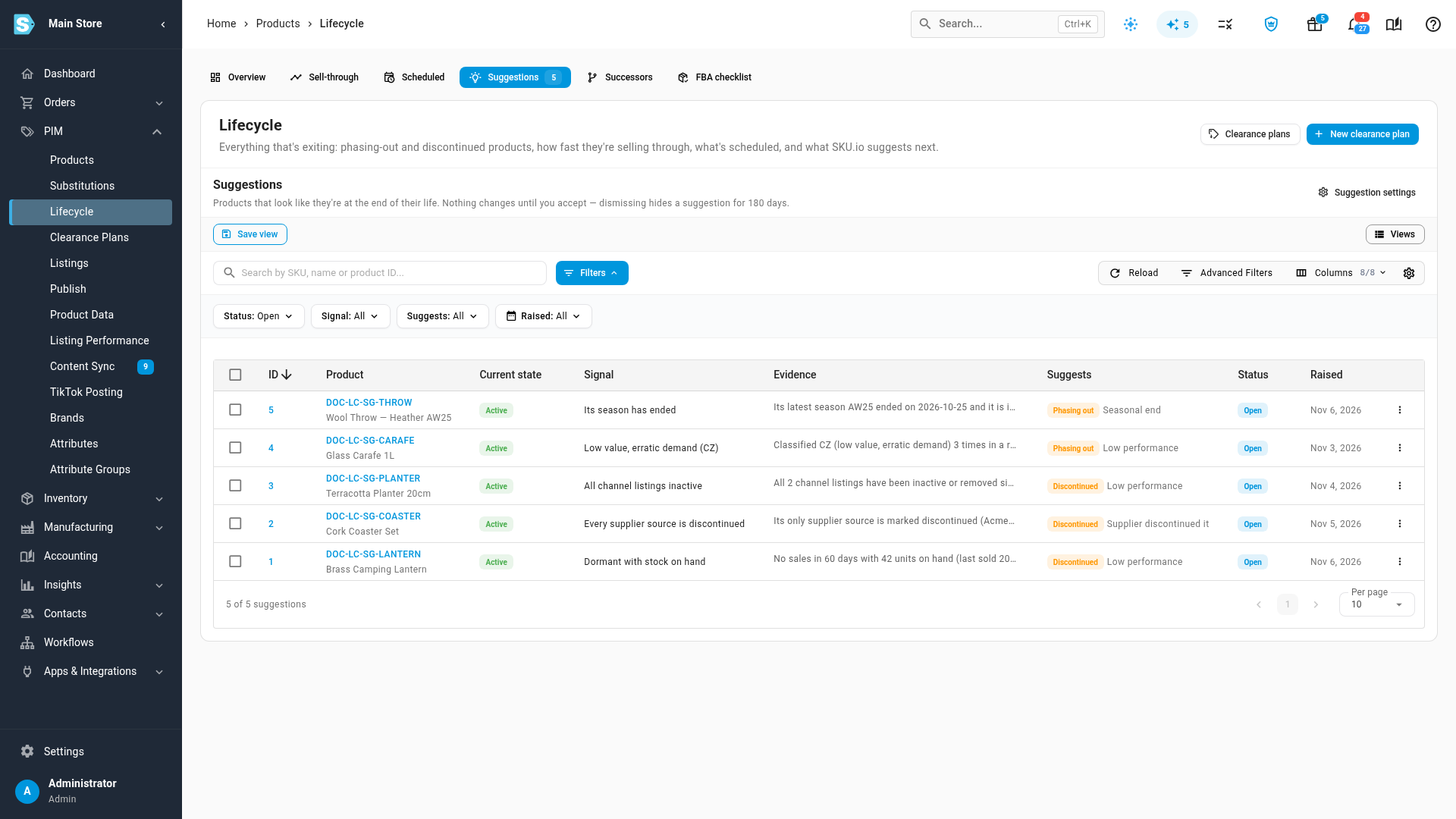
The tab opens on the open suggestions. It has these columns:
| Column | What it shows |
|---|---|
| ID | The suggestion's number. Click it to open the product. |
| Product | The product's SKU and name. Click the SKU to open the product. |
| Current state | The product's state now. |
| Signal | Which signal raised it. |
| Evidence | Why, for example "No sales in 60 days with 42 units on hand". Point to it to read all of it. |
| Suggests | The state it suggests, and the reason. |
| Status | Open, Snoozed with the date it comes back, Dismissed or Accepted. Point to a dismissed suggestion's status to read why it was dismissed. |
| Raised | The date the check raised it. |
To see the others, change the Status filter to Snoozed, Dismissed, Accepted or All. You can also search by SKU, name or product ID, and filter by Signal, Suggests and Raised.
When there's nothing to review, the tab shows "No open suggestions right now".
Banners you might see
- "Generating suggestions… Suggestions appear here in a few minutes." The first time anyone opens PIM → Lifecycle, SKU.io runs the check straight away instead of waiting for the night. If that first run doesn't finish, it starts again when someone opens the workspace 30 minutes later.
- "3 products have no active supplier source." This counts open Every supplier source is discontinued suggestions. Click Review to go to the Suggestions tab.
Once a week, people who can change lifecycle, and administrators, get a Lifecycle: New Lifecycle Suggestions alert that sums up the new suggestions. See Lifecycle alerts, automations and permissions.
Accept a suggestion
-
On the Suggestions tab, open the row's menu (⋮) and choose Accept….
The Change lifecycle dialog opens with the suggested state and reason chosen, and a note that starts "Suggested:" followed by the signal and its evidence, such as "Suggested: Dormant with stock on hand — No sales in 180 days with 42 units on hand (never sold)". When you accept several suggestions at once, the note names only the signals, because their evidence differs from product to product.
-
Check the impact panel, and fill in anything the state still needs. For Phasing out, that's the Discontinue on date.
-
Change anything you want. You can, for example, schedule the change for a date or pick another state.
-
Click the button at the bottom of the dialog, for example Discontinue 1 product.
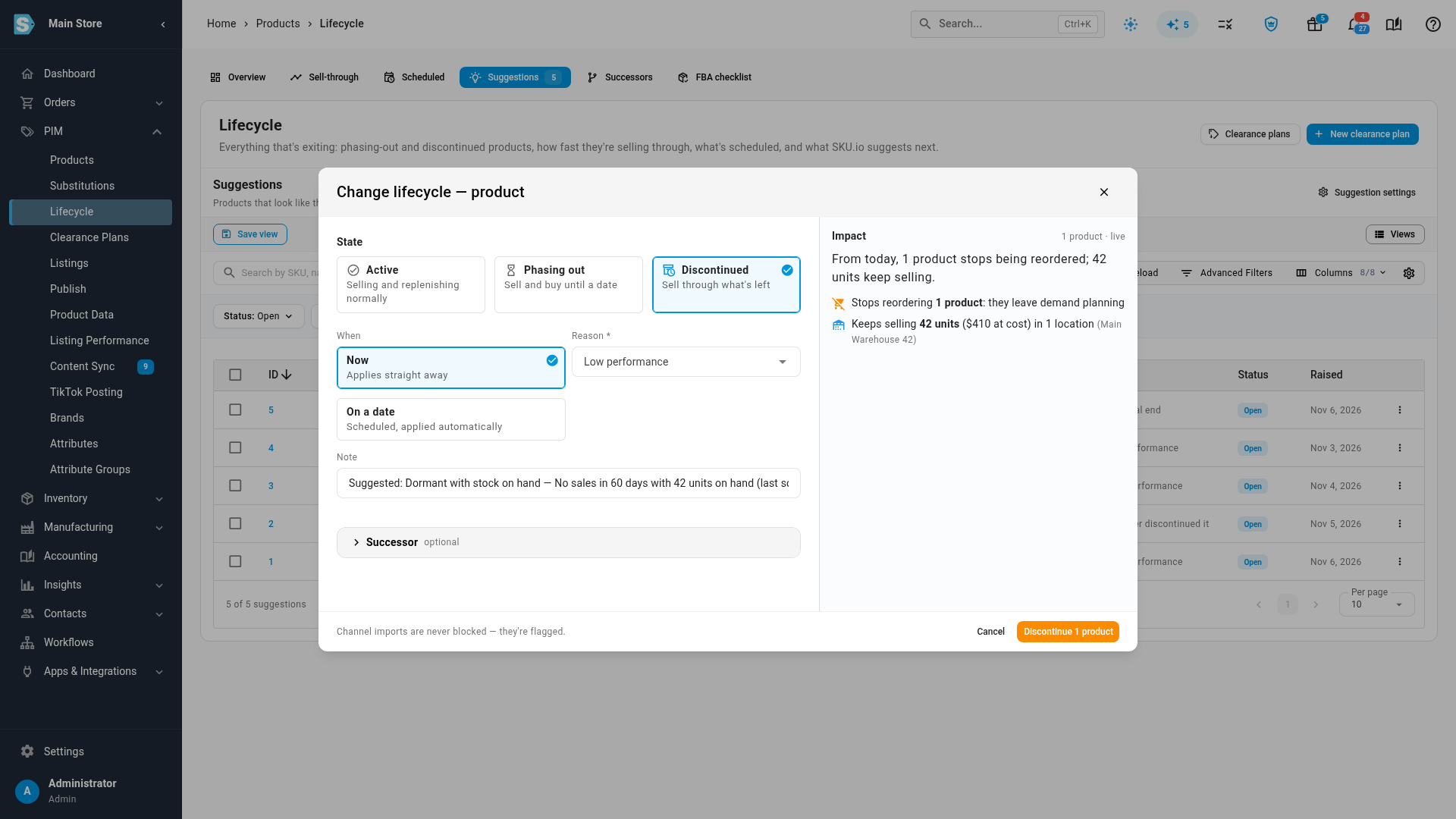
The product changes state, its lifecycle history shows Accepted suggestion as the source, and the suggestion moves to Accepted. For everything the dialog does, see Discontinue a product.
To accept several suggestions at once, select their rows and click Accept in the bar above the table. They must all suggest the same state. Otherwise Accept is greyed out and says "The selected suggestions suggest different states. Select ones that suggest the same state." The dialog changes all their products in one go, as a background job you can follow in the job tray, and its note names every signal.
A suggestion also closes when its product leaves Active some other way, for example by hand, in bulk, by import or from a schedule:
- If the product moves to Phasing out or Discontinued, its open and snoozed suggestions become Accepted.
- If it moves to a state you created, they become Dismissed with the reason "Product moved to" and the state's name. They aren't held back, so they can come back if the product returns to Active and the signal still holds.
- If you accept a suggestion but schedule the change for a later date, the suggestion closes straight away.
Snooze a suggestion
Snooze a suggestion when it might be right, but not yet.
- Open the row's menu (⋮) and choose Snooze 30 days, Snooze 60 days or Snooze 90 days. For several rows, select them and use Snooze in the bar above the table.
- Click Snooze in the dialog.
SKU.io shows, for example, "Snoozed 1 suggestion for 30 days". The suggestion leaves the open list and shows as Snoozed with its date. On that date, it comes back as Open only if the signal still holds.
Dismiss a suggestion
Dismiss a suggestion when it doesn't apply to this product.
-
Open the row's menu (⋮) and choose Dismiss…. For several rows, select them and click Dismiss in the bar above the table.
-
Under Why doesn't it apply?, enter a reason, for example "Seasonal bestseller". You can use up to 255 characters.
-
Click Dismiss.
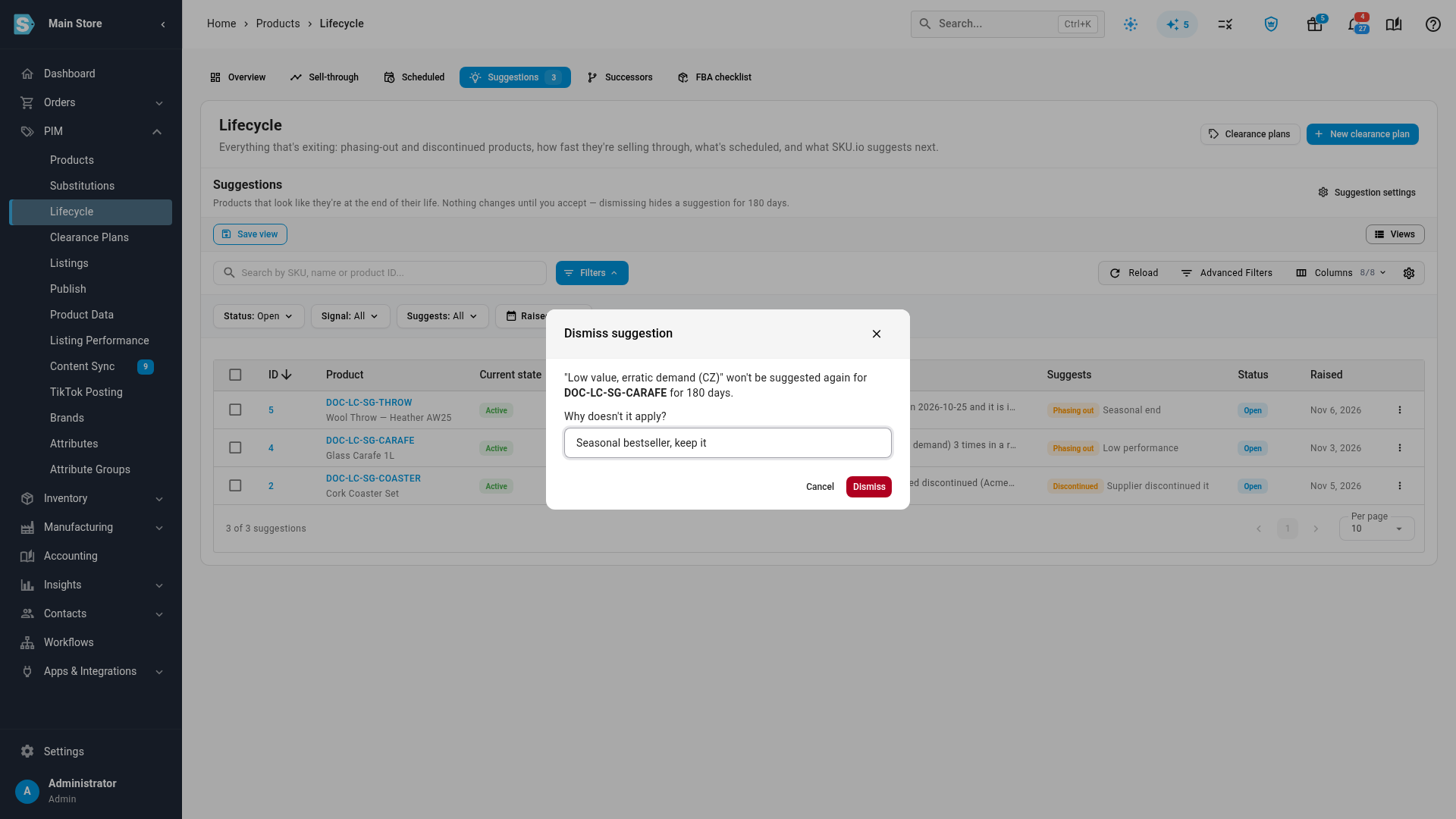
SKU.io shows, for example, "Dismissed 1 suggestion for 180 days". The same signal won't suggest that product again for 180 days. Other signals still can. To read the reason later, set the Status filter to Dismissed and point to the status.
The bar's actions work only on open and snoozed suggestions. With only accepted or dismissed rows selected, they're greyed out and say "Select open or snoozed suggestions".
Choose which signals raise suggestions
-
On the Suggestions tab, click Suggestion settings. You can also go to Settings → Products → Product Lifecycle and click the Suggestions tab.
-
In the Signals card, turn each signal on or off with its switch. Every signal is on until you turn it off.
-
Change the numbers for the signals that have one:
Signal Field Default Allowed Dormant with stock on hand No sales for at least 60 days 7 to 730 days Low value, erratic demand (CZ) CZ classifications in a row 2 times 1 to 12 times All channel listings inactive Inactive for at least 30 days 7 to 365 days Its successor is selling Successor has sold at least 10 units 1 to 100,000 units -
Click Save Changes. To throw away your edits, click Discard.
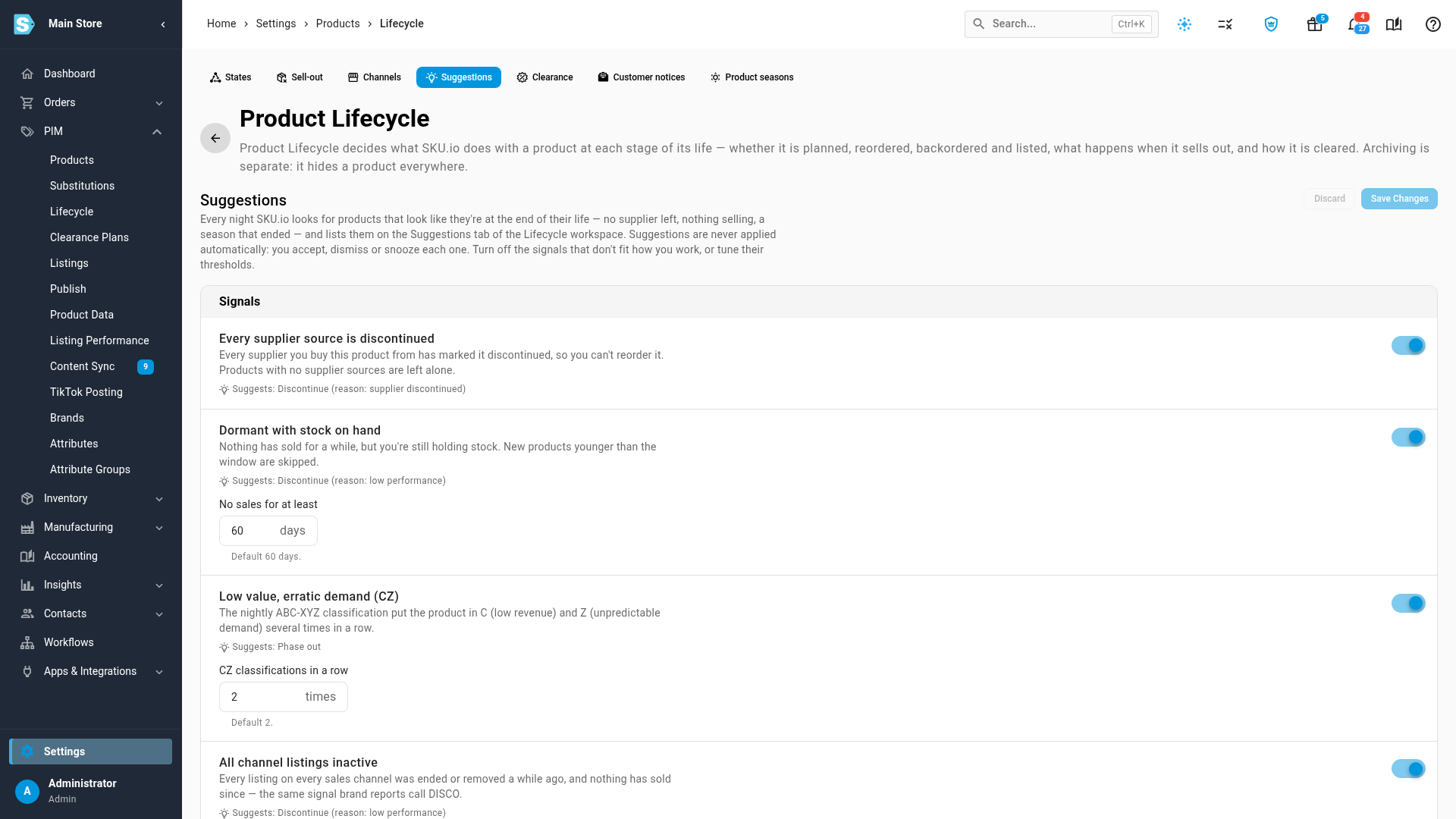
A number outside the allowed range shows, for example, "Enter a whole number from 7 to 730." and Save Changes stays greyed out until you fix it.
Your changes apply from the next nightly check. Turning a signal off stops new suggestions from it. Suggestions it already raised stay on the Suggestions tab until you accept, snooze or dismiss them.