Schedule lifecycle changes
You don't have to change a product's lifecycle state on the day you decide. Schedule the change for a date, and SKU.io applies it for you within the hour on that date. Until then, every pending change waits on the Scheduled tab of PIM → Lifecycle, where you can move it to another date or cancel it.
Before you begin
- Your role needs permission to manage product lifecycle. Without it, the buttons on this page are greyed out and say "You don't have permission to change lifecycle". See Product permissions reference.
- To change state today instead, see Discontinue a product or Phase out with a final buy.
Schedule a change
-
Go to PIM → Products and open the product.
-
Click Actions, then Change lifecycle…. You can also use Phase out… or Discontinue… from the same menu, or select several products on the list and use Change lifecycle… there. See Change lifecycle for many products or variants.
-
Under State, choose the state the product moves to.
-
Under When, choose On a date.
-
Enter the date in the date box, or click the calendar icon to pick it. The date must be today or later.
-
Choose a Reason, and fill in anything else the state needs, such as the Discontinue on date for Phasing out.
-
Check the impact panel on the right. Its summary starts with the date, for example "From 03/01/2027".
-
Click Schedule for followed by the date, for example Schedule for 03/01/2027.
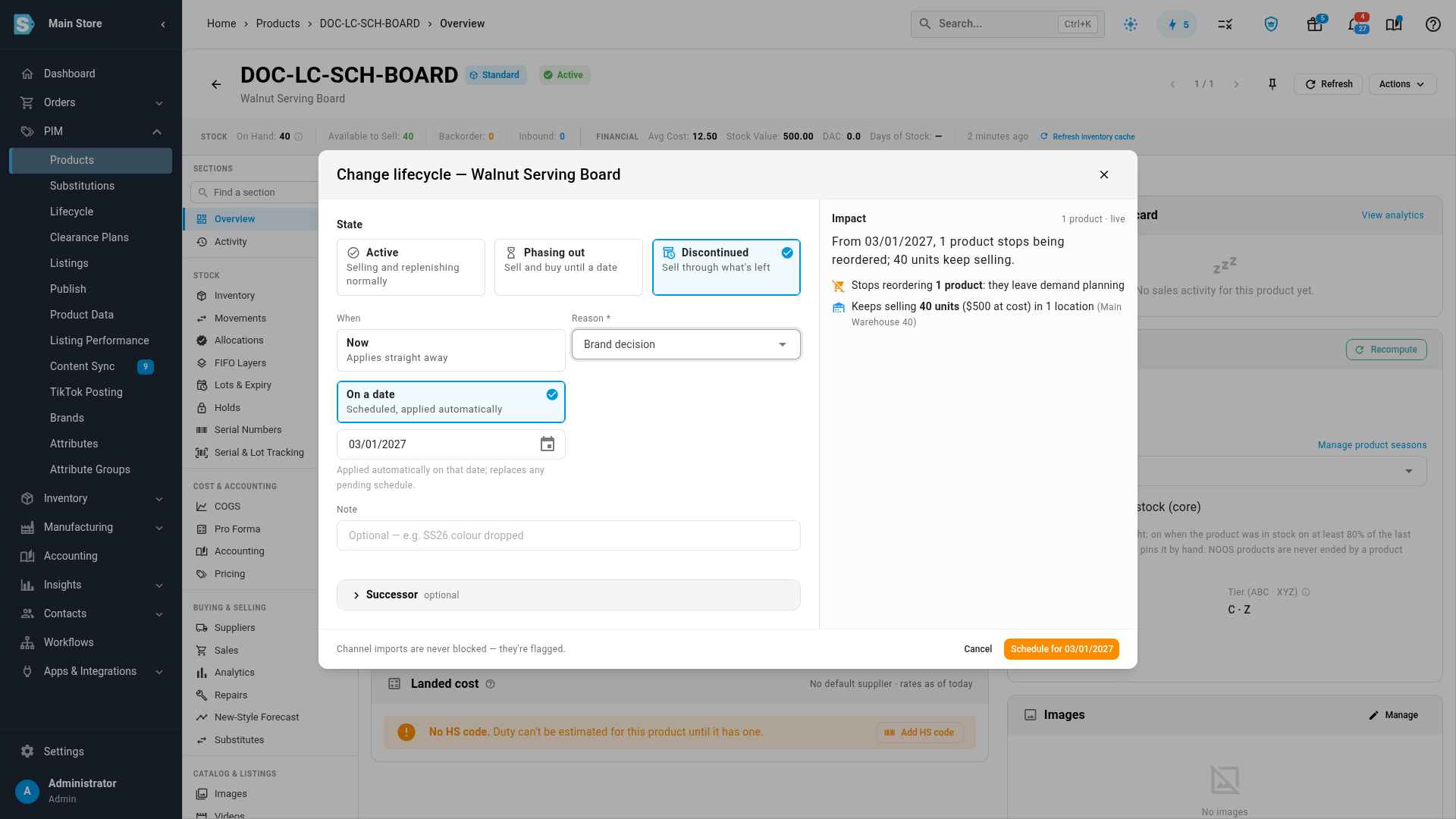
SKU.io shows "Scheduled for" and the date. The product keeps its current state until then, and the change appears on the Scheduled tab.
Keep these rules in mind:
- Today applies at once. If you pick today's date, the change applies straight away instead of waiting.
- One pending change per product. A new schedule replaces any change already waiting for that product. The hint under the date says so: "Applied automatically on that date; replaces any pending schedule."
- A scheduled phase-out must start before it ends. The Discontinue on date has to be after the date the phase-out starts. Otherwise you see "The discontinue date must be after the date the phase-out starts."
- Follow-ups wait too. If you ticked follow-ups in the impact panel, such as Cancel unreceived PO lines, Cancel open backorders or Notify wholesale customers, they run when the change applies, not when you schedule it, as long as you still hold their permissions then.
- Changing the state now cancels the schedule. Any change you apply to the product before the date cancels its pending scheduled change. If you then undo that change, the schedule comes back. See Reactivate a product or undo a change.
Some changes are scheduled for you. When you phase a product out, its Discontinue on date becomes a scheduled move to Discontinued. A state you create can return products to another state after a set number of days, which also shows up as a scheduled change. See Customize lifecycle states.
See what's scheduled
-
Go to PIM → Lifecycle.
-
Click the Scheduled tab. Its badge counts the changes due in the next 30 days.
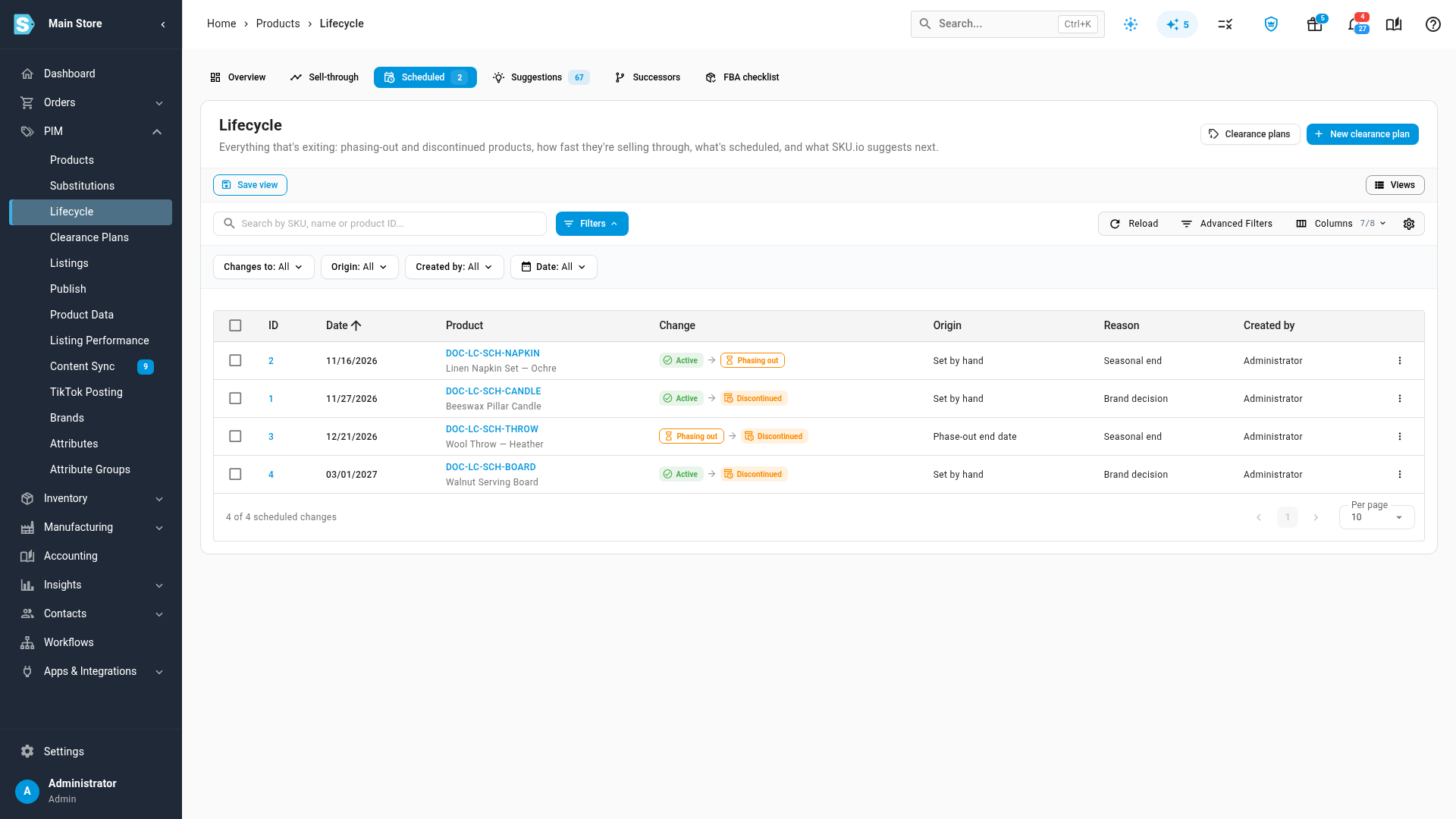
The tab lists every pending change, soonest first. It has these columns:
| Column | What it shows |
|---|---|
| ID | The number of the scheduled change. Click it to open the product. |
| Date | The day the change applies. |
| Product | The product's SKU and name. Click the SKU to open the product. |
| Change | The product's current state, an arrow, and the state it moves to. |
| Origin | How the change was scheduled: Set by hand, Phase-out end date or Automatic return. |
| Reason | The reason chosen for the change. |
| Created by | Who scheduled it. |
| Created | When it was scheduled. This column is hidden until you turn it on with the column selector. |
To narrow the list, search by SKU, name or product ID, or use the Changes to, Origin, Created by and Date filters. When nothing is scheduled, the tab shows "No upcoming lifecycle changes".
A product that's Phasing out also shows its next scheduled change on its own page. Click the state chip next to the SKU, and the panel lists it under Scheduled, for example "Discontinued on" and the date.
Move a scheduled change to another date
-
On the Scheduled tab, open the row's menu (⋮) and choose Change date.
-
In the Change date dialog, set Effective on to the new date.
-
Click Save.
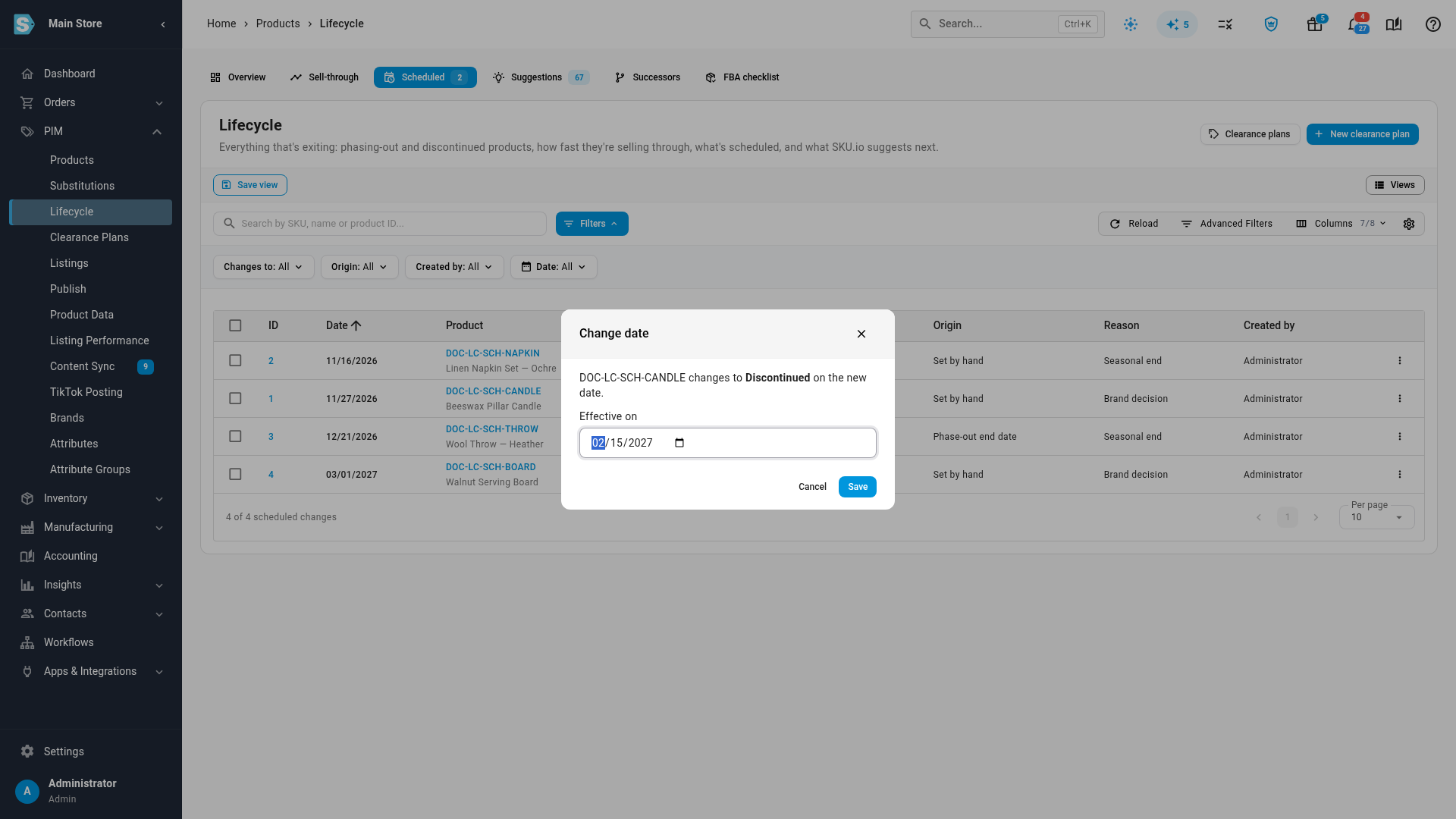
SKU.io shows, for example, "Moved 1 scheduled change". To move several at once, select their rows and click Change date in the bar above the table. Each change keeps its own target state. To move every change that matches your filters, switch the bar's scope from the selected rows to all matching rows first.
- Moving a change to today applies it right away.
- Moving a Phase-out end date change also moves the product's Discontinue on date. The new date can't be before the product's Last order date. If it is, you see "The discontinue date can't be before the product's last order date", and you need to pick a later date or change the last order date first.
- A scheduled move to Phasing out must still start before its discontinue date. If the new date is too late, cancel the change and phase the product out again with a new Discontinue on date.
- Only pending changes can move. If the change applied or was cancelled while you were looking, you see "Only pending schedules can be changed."
Cancel a scheduled change
-
On the Scheduled tab, open the row's menu (⋮) and choose Cancel this change. To cancel several, select their rows and click Cancel changes in the bar above the table.
-
Check the dialog. For one change it names the product, the state it keeps and the date it would have changed.
-
Click Cancel change (or Cancel 3 changes when you picked three). To leave them as they are, click Keep it (Keep them for several).
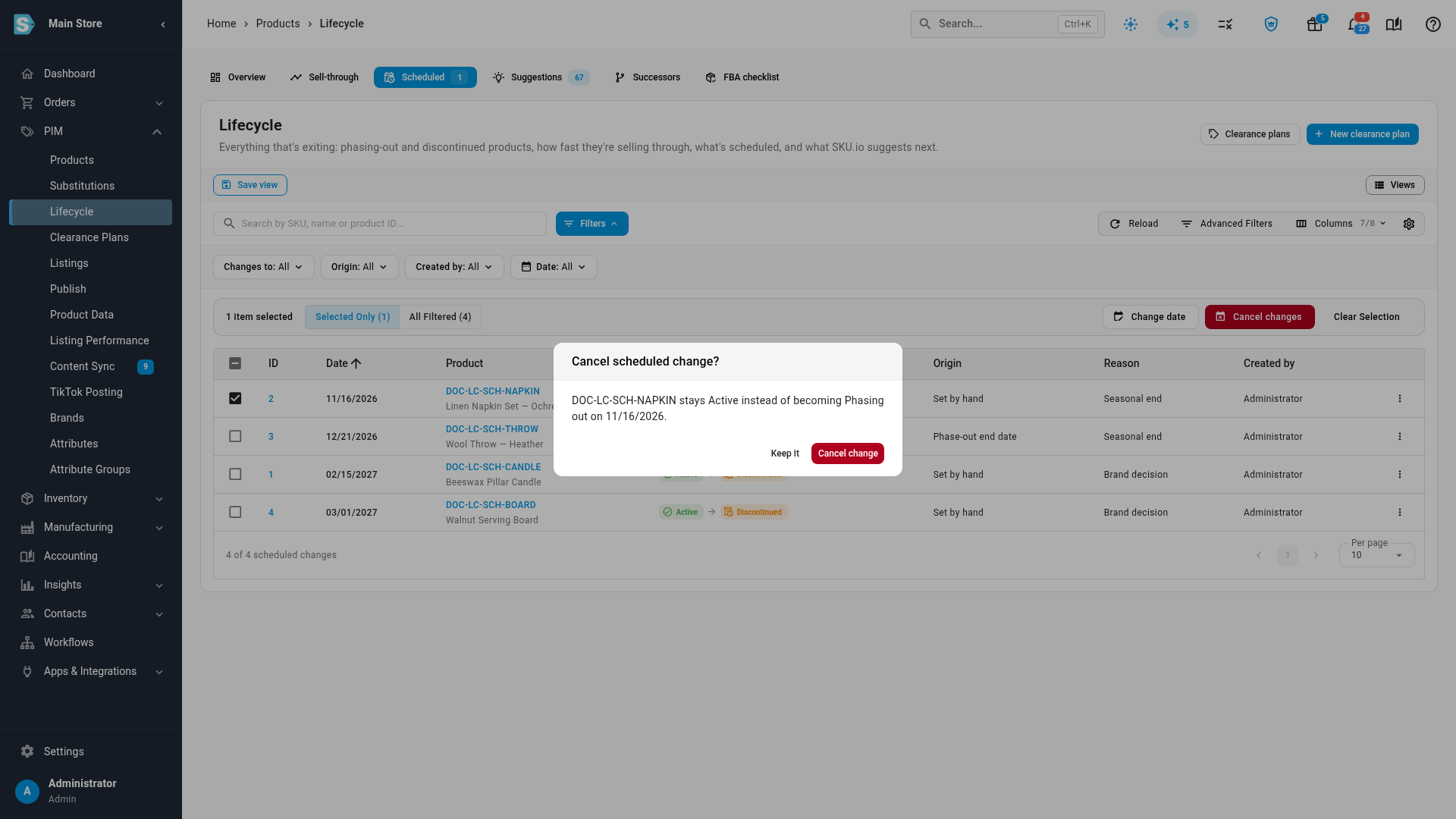
Cancelling stops the change and nothing else: the product stays in its current state. Cancelling a Phase-out end date change also removes the product's Discontinue on date, and the dialog says so. The product stays Phasing out and no longer becomes Discontinued on its own, so change it yourself when you're ready.
You can also cancel from the product page. Click the state chip next to the SKU, click Cancel next to the change under Scheduled, and then click Cancel change in the Cancel scheduled change? dialog. Click Keep it to back out. An Active product has no state chip, so a pending change shows as a Scheduled: chip next to the SKU instead, for example Scheduled: Discontinued on 12/31/2026. Click it to open the same panel.
If the change already applied or was cancelled elsewhere, you see "This schedule is no longer pending."
When a scheduled change is due
Scheduled changes apply within the hour on their date, in your account's time zone. Each one is applied as if you'd made it then. It sets the same reason and successor, runs the follow-ups you ticked, and shows Scheduled as its source in the product's lifecycle history.
A change that can no longer apply is cancelled instead, and the product keeps its state:
| What happened | What you see |
|---|---|
| The product was archived before the date | The change is cancelled as soon as you archive the product, with the note "Not applied: the product was archived on" and the date. |
| The product was deleted | The change is cancelled with the note "Not applied: the product no longer exists." |
| A phase-out's discontinue date passed before the phase-out could start | The change is cancelled with a note that the discontinue date passed. Phase the product out again with a new date, or discontinue it. |
| The change is no longer valid for another reason | The change is cancelled with "Not applied:" followed by the reason. |
A scheduled change is also cancelled when something replaces it before its date: you change the product's lifecycle yourself (for example, you discontinue a Phasing out product early), you schedule a different change for it, you cancel the schedule, or you undo the change that scheduled it.
You can read these on the product's Activity tab, under Cancelled scheduled changes in the Lifecycle card. That section lists each cancelled change with when it was cancelled, the change it would have made (from which state to which), the date it was due, why it was cancelled and who scheduled it. A note written when the change was scheduled is shown under the reason.
If the sell-out check is working on the product at the moment the change is due, the change waits and applies on a later run, usually within the next hour. For what the sell-out check does, see What happens when a discontinued product sells out.